Free โ€ข No signup Change Outfit ยท Free

Change Outfit in Photo

Transform any outfit into something completely different in seconds.
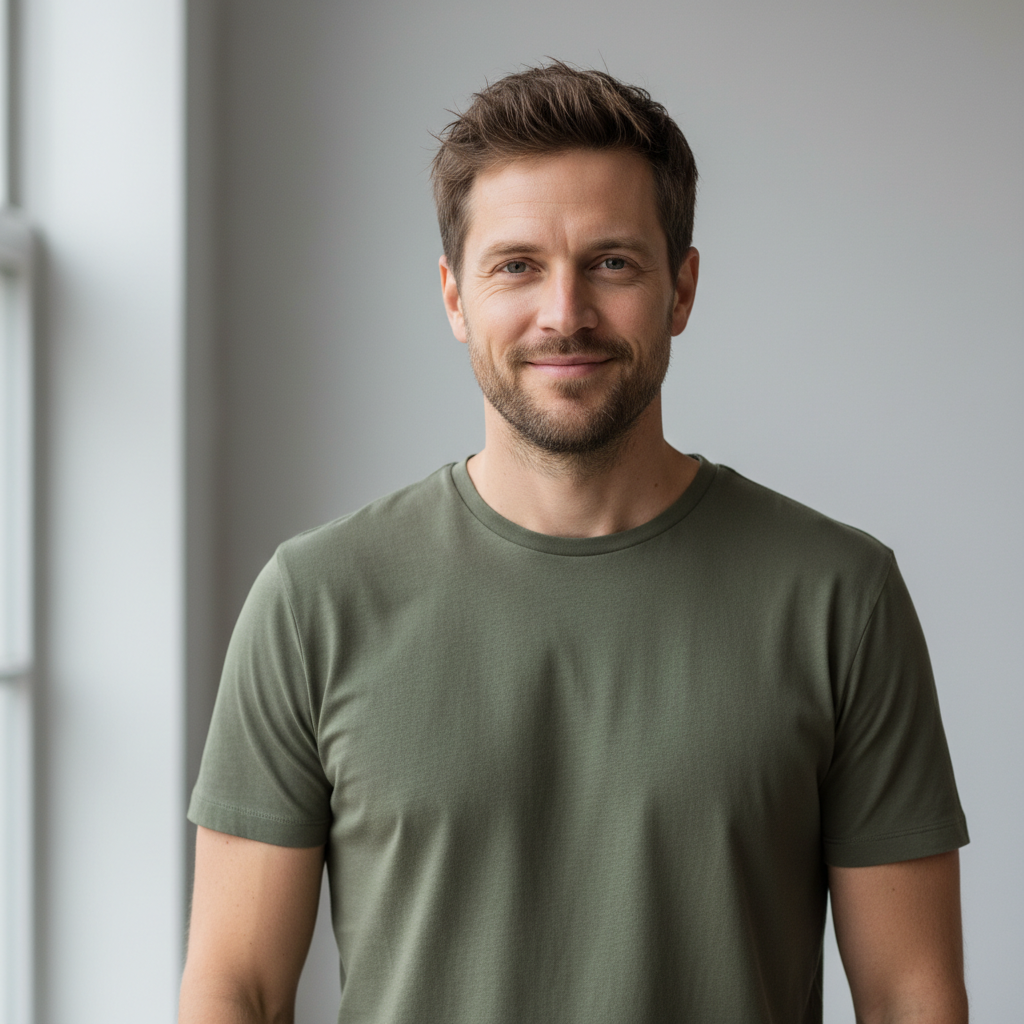
Man wearing plain olive green t-shirt in casual portrait
Before
โ†’
Same man now wearing charcoal gray blazer and white dress shirt
After

Change Outfit in Photo Free

Drop your photo here

or click to browse

Release to upload

Free โ€ข No signup

Advertisement
Popular use cases:
  • virtual try-on
  • outfit visualization
  • professional headshots
  • LinkedIn photos
  • fashion preview
  • wardrobe planning
  • what to wear
  • style transformation

Cost
Free No signup required
Time
Instant results in 15-30 seconds
Works on
Any device - browser, phone, tablet, desktop
Powered by
AI-powered photo editing
Scenario Prompt Time
Color change only change the outfit color from [old] to [new], keep same style 20s
Style transformation change the outfit to [new style], fitted and natural 35s
Complete makeover transform casual clothes into [formal description] 45s

How it works

  1. Upload your photo

    Drop your image into EditThisPic. JPG, PNG, WebP up to 7MB. Works best with clear, well-lit photos where the current outfit is visible. Half-body and full-body shots both work well.

    Expect: Simple color changes: 20-30 seconds. Complete outfit transformations: 35-50 seconds and may need refinement.
  2. Describe the new outfit

    Type your instruction: 'change the outfit to a professional navy blazer over a crisp white shirt' or 'transform the casual wear into an elegant black cocktail dress.' Be specific about style, color, and material. No marking needed - the AI understands what 'outfit' and 'clothing' mean.

    Tip: Include details like 'fitted', 'relaxed', 'formal', or 'casual' to guide the style. Mention fabric types for realistic textures.

    Copy one of these to get started:

    Casual to professional transformation change the outfit to a professional navy blue blazer over a crisp white button-up shirt, fitted and business appropriate
    Change outfit color only change the color of the outfit from black to burgundy, keep the same style and fit
    Casual summer to winter warmth change the summer outfit to a cozy winter look with a cable-knit sweater and wool coat
    Formal evening wear transform the casual clothes into an elegant floor-length black evening gown with subtle shimmer
    4 more prompts
    Athletic to smart casual change the gym clothes to smart casual - dark jeans and a light blue oxford shirt, untucked
    Add a jacket or layer add a tan leather jacket over the current outfit, unzipped and casual
    Wedding guest attire change the outfit to a sophisticated slate gray suit with a pale pink tie, wedding guest appropriate
    Pattern change change the plain shirt to a blue and white striped oxford shirt, same collar style
  3. Review the transformation

    Check that the new outfit follows the body naturally. Verify that folds, shadows, and fit look realistic. Look at collar, sleeves, and hem for natural edges that match the original lighting.

  4. Refine specific areas if needed

    If necklines, sleeves, or transitions look off, tap markers on those specific areas and regenerate. This is optional - most outfit changes work well on the first try, but complex styles may need edge refinement.

    Tip: Markers are most helpful for layered outfits or when the AI changed something you wanted to keep.
Try it free โ†“

Change Outfit in Photo Free

Drop your photo here

or click to browse

Release to upload

Free โ€ข No signup

"Had to update my LinkedIn photo but only had casual pics. Changed my hoodie to a blazer in one prompt. Looked completely natural." @JobHunter_Rachel

See it in action

Man wearing plain olive green t-shirt in casual portrait
Before
->
Same man now wearing charcoal gray blazer and white dress shirt
After

T-shirt transformed to business blazer

A casual selfie transformed into a professional headshot by changing a basic tee to business attire.

Prompt: change the outfit to a professional charcoal gray blazer over a white dress shirt, business formal
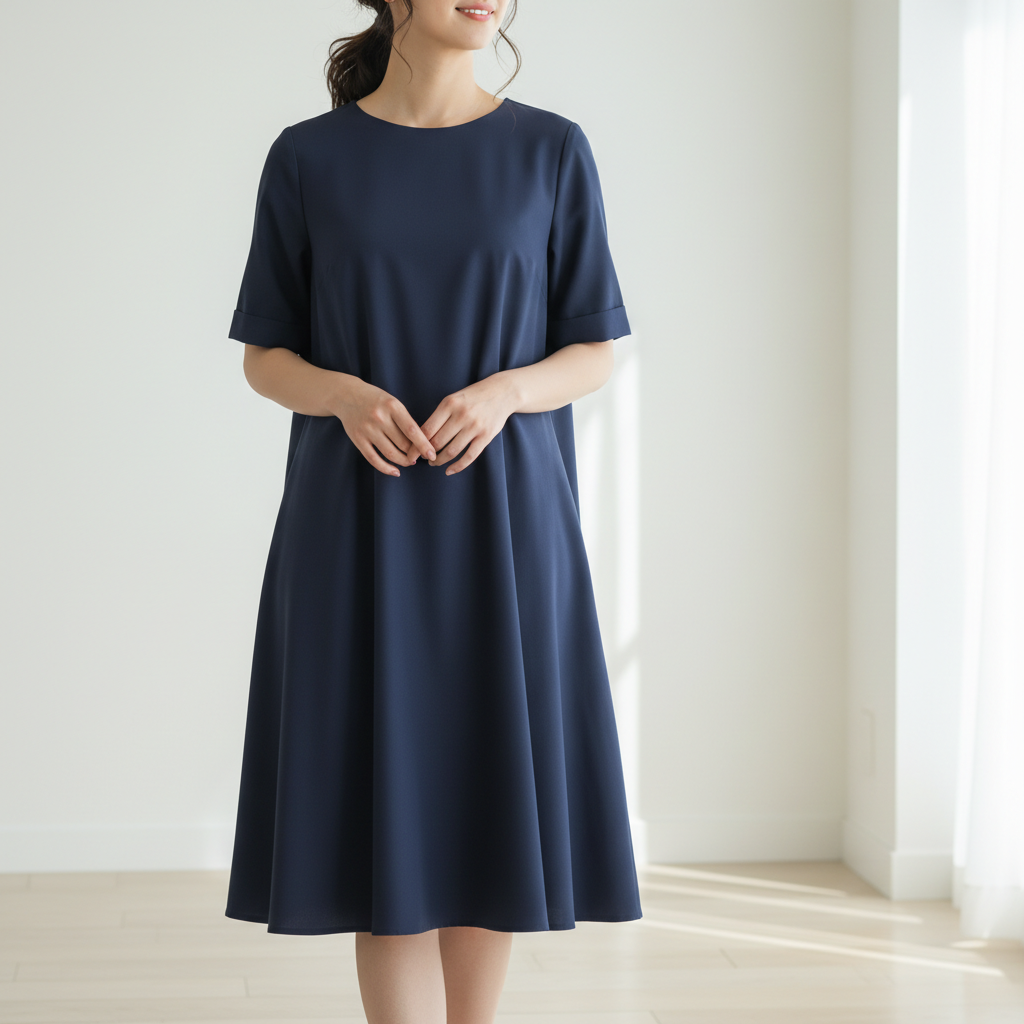
Woman wearing simple navy blue a-line dress
Before
->
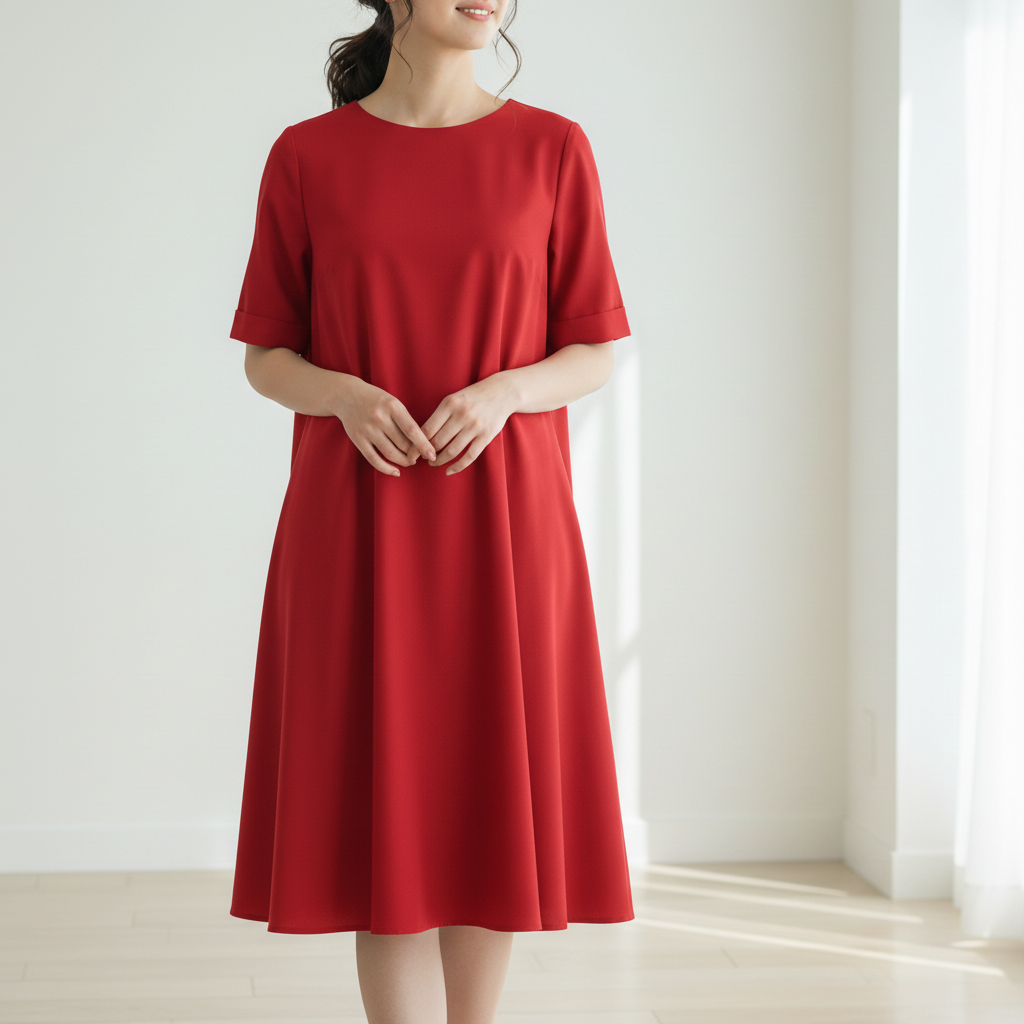
Same woman wearing identical dress now in vibrant cherry red
After

Casual dress color changed to bold red

A simple navy dress transformed to vibrant red to see how the color would look before buying.

Prompt: change the dress color from navy to vibrant cherry red, keep the same style and fit
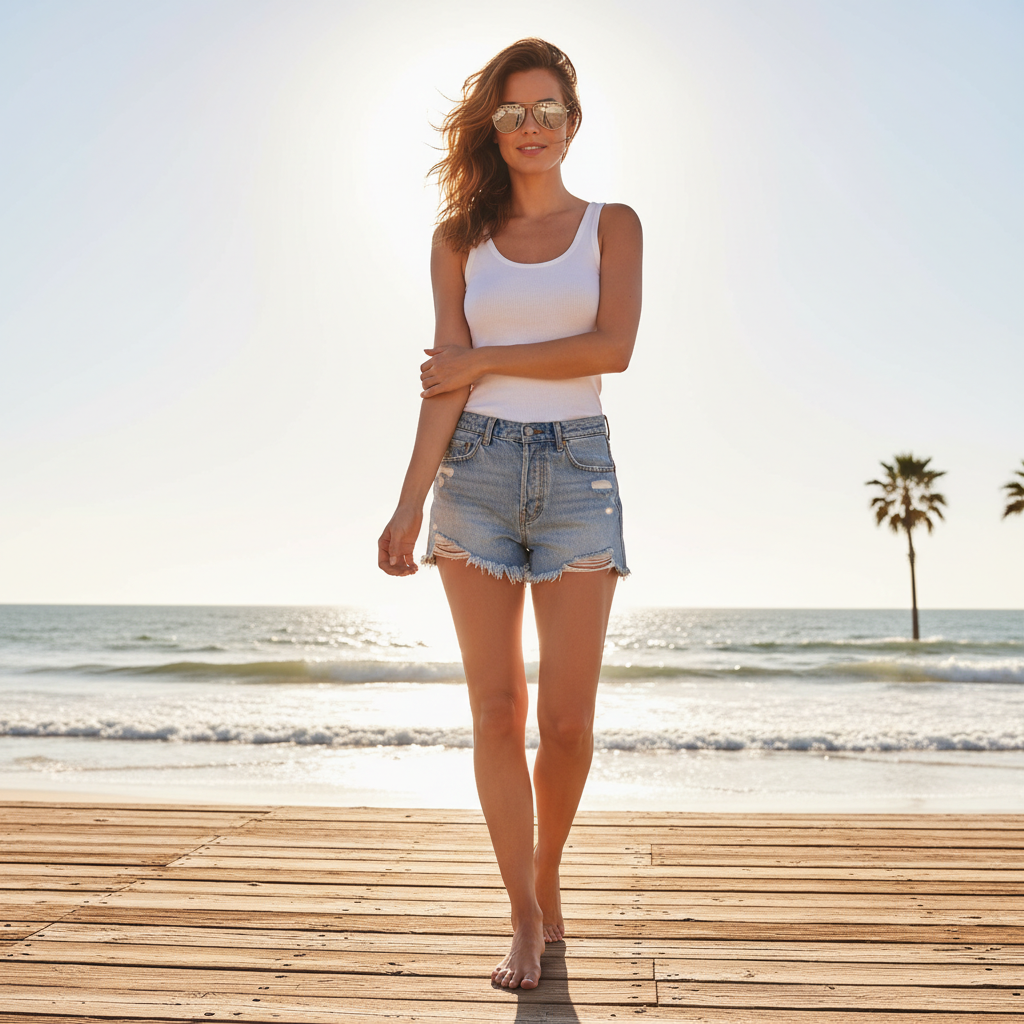
Woman in white tank top and denim shorts, summer casual
Before
->
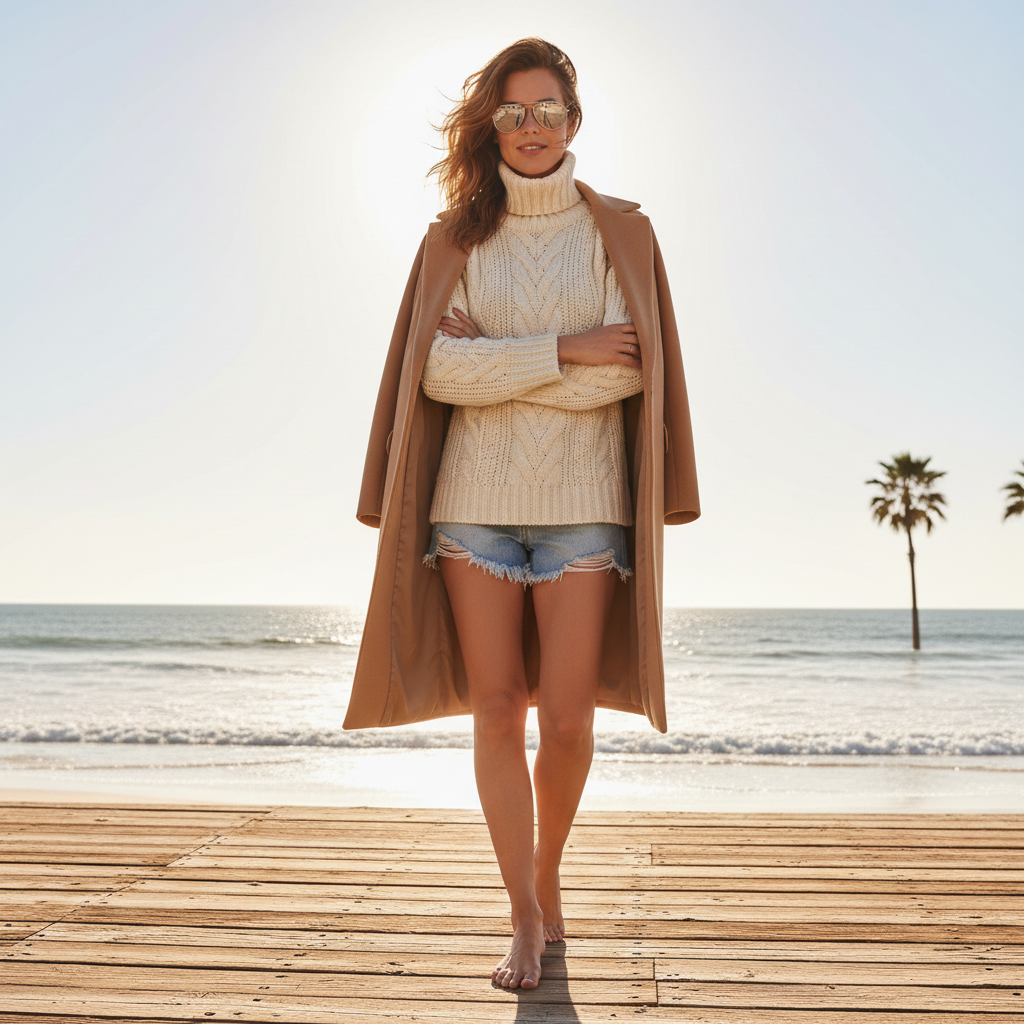
Same woman now wearing cream turtleneck sweater and camel wool coat
After

Summer outfit to cozy winter layers

A summer tank top and shorts transformed into warm winter wear for a seasonal photo.

Prompt: change the summer outfit to a cream cable-knit turtleneck sweater with a camel wool coat, cozy winter style
Advertisement

If something looks off

New outfit doesn't match the body pose naturally

Why: Complex poses or unusual angles make it harder for the AI to generate clothing that follows the body correctly.

Try: change the outfit to [your outfit], ensure the clothing follows the natural body shape and pose

Tip: Adding 'follows the body naturally' explicitly tells the AI to prioritize realistic fit.

Edges where clothing meets skin look unnatural

Why: Necklines, sleeve ends, and hemlines require precise edge work where fabric transitions to skin.

Try: Tap markers on the neckline/sleeve areas and regenerate: refine these edges where the clothing meets skin

Tip: Edge refinement is the most common adjustment needed - markers make it quick to fix.

AI changed the wrong area or something I didn't want changed

Why: The AI couldn't determine exactly which clothing you meant from description alone. This happens with layered outfits.

Try: Tap a marker on the specific clothing item you want to change, then regenerate with the same prompt

Tip: Markers tell the AI 'I mean THIS garment specifically.' Essential for layered looks.

Colors or materials look unrealistic

Why: The AI generated clothing with lighting that doesn't match the original photo's light source.

Try: change the outfit to [your outfit], match the lighting and shadows from the original photo

Tip: Mentioning lighting helps the AI create clothes that look like they belong in the scene.

The outfit style is too generic

Why: Vague descriptions lead to generic interpretations. The AI needs specific style guidance.

Try: Be more specific: 'slim-fit charcoal wool blazer with notch lapels' instead of just 'blazer'

Tip: Fashion details like 'slim-fit', 'oversized', 'cropped', or 'high-waisted' dramatically improve results.

Part of the original outfit is still visible

Why: The AI only partially replaced the clothing, leaving remnants of the original visible.

Try: Tap markers on the remaining visible original clothing and regenerate: fully replace all visible clothing with [new outfit]

Tip: For complete transformations, explicitly state 'replace all visible clothing' in your prompt.

Quick answers

Do I need to mark the clothing before describing the change?

No! For most outfit changes, just describe what you want: 'change the outfit to a blue suit' or 'transform the dress to something more formal.' The AI identifies clothing automatically. Use markers only when you're wearing layers and want to change just one piece - like changing only the shirt under an open jacket.

Will the new outfit fit my body shape naturally?

Yes! The AI analyzes your pose and body shape, then generates clothing that fits naturally. Folds, draping, and shadows are created to match your specific silhouette. For best results, use photos where your current clothing shows your body shape clearly.

How do I change just the color without changing the style?

Add 'keep the same style and fit' to your prompt. For example: 'change the outfit color from black to burgundy, keep the same style and fit.' This tells the AI to only modify the color while preserving the garment design, cut, and material appearance.

Can I try multiple outfit options on the same photo?

Yes! Edit the same photo multiple times with different outfit descriptions. This is perfect for visualizing options - try formal, casual, and dressy versions of yourself to see what looks best. Each edit uses one credit.

Does my face and background stay the same?

Yes! Only the clothing changes. Your face, hair, pose, body, and background remain exactly the same. The AI specifically targets just the outfit, making it perfect for seeing yourself in different clothes without affecting anything else in the photo.

Is there a free AI tool to change outfits in photos without signup?

Yes - EditThisPic lets you change outfits in photos completely free with no account required. Upload your photo, describe the new outfit, and download the result. No watermarks, no signup walls, no credit card needed for your first edit.

Ready to change outfits in your photos?

Free to try. No signup required.

Try it free โ†’