Amazon Infographic Image Editor for A+ Content
Last updated
Turn product photos into high-converting Amazon infographic images with feature callouts, benefit icons, and comparison visuals.
Drop your photo here
"add clean thin callout lines pointing from product features to text labels on the right side, white background, professional infographic style, highlight 4 key features"
Release to upload
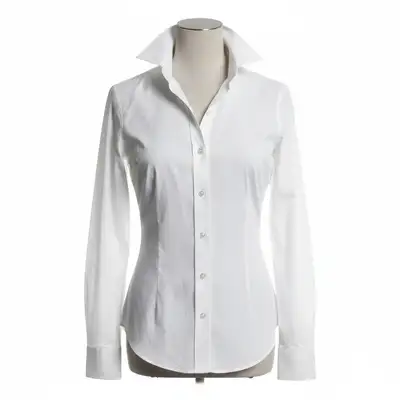
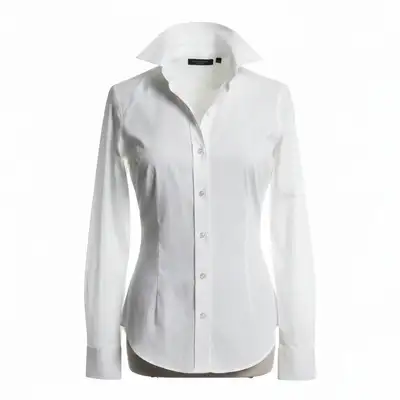
Why Infographic Images Win on Amazon
Amazon gives you 7 image slots, but most sellers waste slots 2-7 with plain product photos from different angles. Top sellers use these slots for infographic images that communicate features, benefits, and value instantly. EditThisPic helps you enhance product photos with visual annotations, clean backgrounds, and professional styling that turns browsers into buyers.
Tools for Amazon Infographic Images
Remove Background
Isolate your product on clean white before adding infographic elements
Enhance Photo
Sharpen product details so feature callouts are clear and professional
Enhance Colors
Make product colors vibrant and accurate for infographic presentation
Enhance Lighting
Fix lighting to make product features clearly visible in callout areas
Create Amazon Infographic Images
-
Start with a clean product photo
Upload your product photo to EditThisPic. For infographic images, start with a white or clean background. If your photo has a busy background, use 'remove background' first to isolate the product.
Background removal takes 15-20 seconds. Use high-resolution photos so features are clearly visible. -
Enhance product details
Before adding infographic elements, enhance your product photo for maximum clarity. Type 'enhance product details, sharpen edges, make features clearly visible' to ensure every feature you plan to highlight looks crisp.
Zoom into the areas you plan to highlight. If any details are blurry, enhance first, then add callouts. -
Add infographic elements
Describe the infographic style you want: 'add clean feature callout lines pointing to the lid, handle, and base with labels highlighting key features on a white background.' Be specific about which features to highlight and where.
Focus on 3-5 key features per image. Too many callouts overwhelm shoppers. Use separate images for different feature groups. -
Review and download
Check that callout lines are clean, text is readable, and the overall layout looks professional. Download as high-quality PNG. Upload to Amazon image slots 2-7.
View your infographic at the size Amazon displays it in search results. If text is too small to read at that size, simplify.
Amazon Infographic Image Prompts
add clean thin callout lines pointing from product features to text labels on the right side, white background, professional infographic style, highlight 4 key features
Feature callouts are the most common and effective infographic type. Keep labels short (2-4 words each).
add dimension lines showing product height width and depth measurements in inches, clean engineering-style callouts on white background, professional product spec image
Dimension infographics reduce returns by setting accurate size expectations.
enhance product to show material quality and texture details, add subtle zoom-in callout circles highlighting material quality, premium product photography style
Zoom-in circles help shoppers see material quality they can't touch online.
place product on clean gradient background transitioning from light gray to white, professional product showcase style, soft shadow underneath for depth
Gradient backgrounds work great for secondary images where pure white isn't required.
Show 4 more prompts
create a side-by-side before and after style comparison showing the product benefit, clean layout with dividing line, professional infographic look
Before/after images are powerful for cleaning products, beauty items, and home improvement tools.
arrange all included items neatly on white background in a flat-lay style showing complete package contents, add subtle labels for each item
What's-in-the-box infographics set expectations and add perceived value.
enhance product colors to be vibrant and accurate, professional product photography showing color detail and finish quality, premium look
For products with multiple color options, show each variant clearly.
enhance product with better lighting and colors, add slight environmental context while keeping product as clear hero, professional lifestyle product photography
Combines lifestyle context with product focus - great for image slots 3-5.
| Edit Type | Prompt | Time | |
|---|---|---|---|
| Feature callouts | add feature callout lines highlighting key product features |
25s | Try This → |
| Size/dimensions | add dimension lines showing height width depth measurements |
25s | Try This → |
| Material quality | enhance to show material texture and quality details |
20s | Try This → |
| Product showcase | place on gradient background with professional styling |
20s | Try This → |
Amazon Infographic Image Examples


Kitchen product feature callouts
Stainless steel kitchen timer enhanced with clean feature callout lines highlighting the digital display, magnetic back, and timer dial.
add clean feature callout lines pointing to key product features, professional infographic style on white background
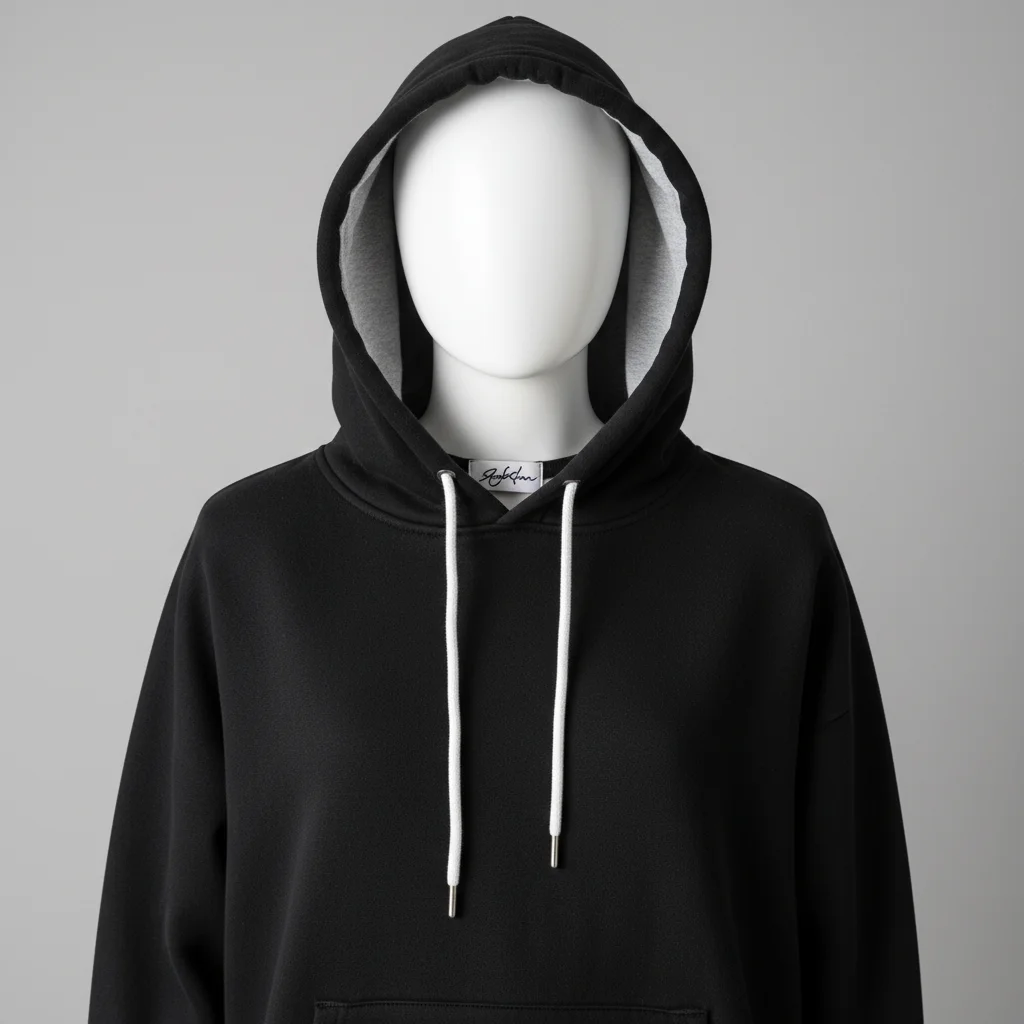
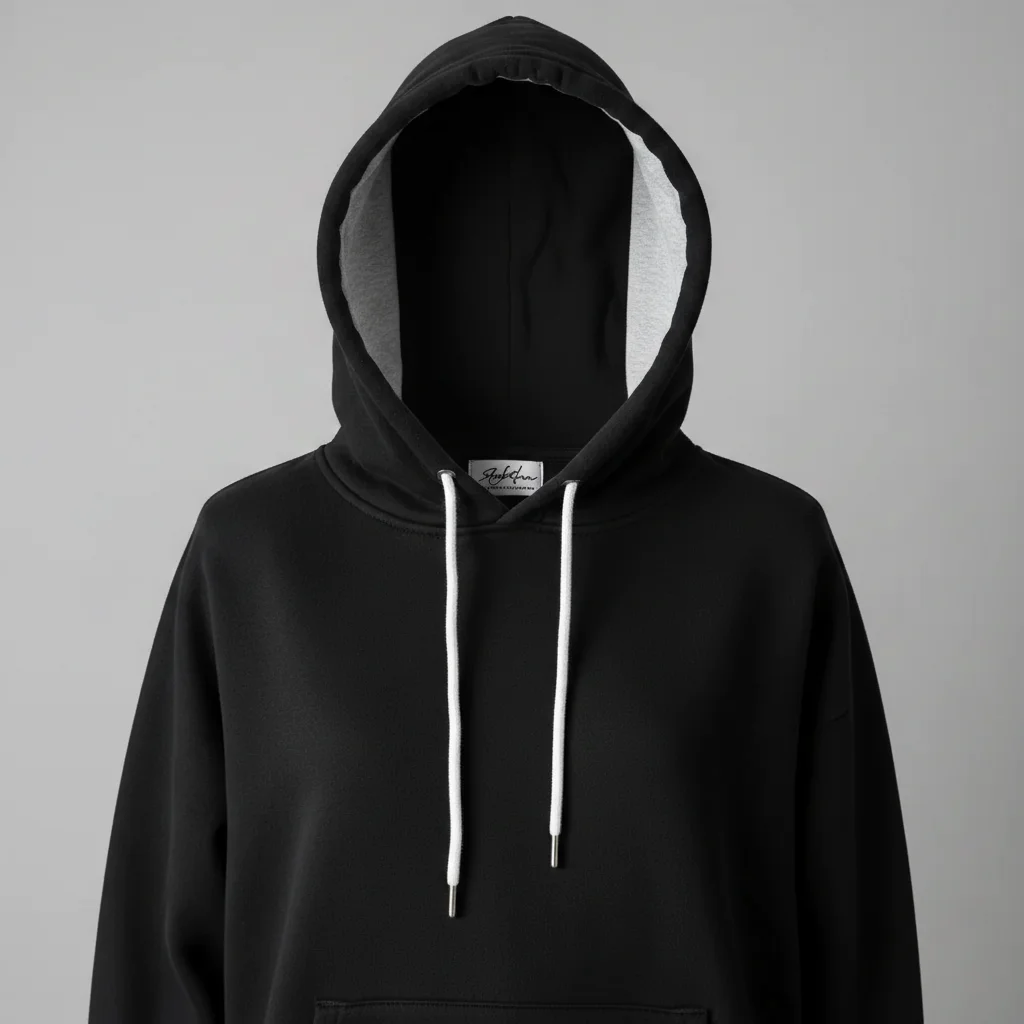
Supplement bottle with benefit callouts
Supplement bottle enhanced with clean icons and labels showing key benefits: organic, non-GMO, gluten-free, 60 servings.
enhance product photo with benefit icons and clean text labels highlighting key product benefits, professional A+ content style
Blanket material quality showcase
Cotton throw blanket enhanced to show fabric texture and quality details with professional styling.
enhance product to show fabric texture and material quality, professional close-up product photography highlighting premium materials
Common Infographic Image Issues
Callout text is too small to read in Amazon search results
Why: Amazon displays thumbnails at around 160x160px in search. Text that looks fine at full size becomes illegible at thumbnail size.
add larger, bolder feature callout labels that are readable at small sizes, use fewer callouts with bigger text
Limit to 3-4 callouts per image with large, bold text. Preview at small sizes before uploading.
Infographic looks cluttered or unprofessional
Why: Too many elements competing for attention. Professional infographics use white space strategically.
simplify layout with more white space between elements, clean minimalist infographic style with only the most important features highlighted
Less is more. Split features across multiple images rather than cramming everything into one.
AI added text that doesn't match my product features
Why: The AI generated generic feature labels. Be specific about what each callout should say.
Name exact features: 'callout pointing to the handle saying BPA-Free Grip, callout pointing to lid saying Leak-Proof Seal.'
Product looks low quality in the infographic
Why: The original photo wasn't high enough quality, and adding infographic elements made it more noticeable.
Always enhance the product photo first, then add infographic elements. Two-step process gives better results.
Colors look different from my actual product
Why: Image enhancement can shift colors. Product color accuracy is essential for Amazon to avoid returns.
enhance infographic style while maintaining exact product colors, do not alter product color accuracy
Compare the enhanced image to your physical product. Color accuracy prevents returns and negative reviews.
Amazon Infographic Image Questions
Which Amazon image slots should I use for infographic images?
Slot 1 must be your pure white background main image. Slots 2-7 are where infographic images shine. A common winning layout: Slot 2 - feature callouts, Slot 3 - size/dimensions, Slot 4 - lifestyle/in-use, Slot 5 - material/quality close-up, Slot 6 - package contents, Slot 7 - comparison or social proof.
Does Amazon allow text on product images?
Amazon prohibits text on the main image (Slot 1). However, secondary images (Slots 2-7) can include text, callouts, graphics, and infographic elements. This is where infographic images are designed to go. Many top-selling listings use text-heavy infographics in these slots.
How many features should I highlight per infographic?
3-5 features per image is the sweet spot. More than 5 creates visual clutter and makes text too small. If you have 10+ features to highlight, split them across 2-3 infographic images in different listing slots.
Can EditThisPic add icons and graphics to my product photos?
EditThisPic excels at enhancing product photos with professional styling, clean backgrounds, and visual improvements. For adding specific icons, text overlays, or complex graphic elements, you may want to combine EditThisPic's photo enhancement with a tool like Canva for the graphic overlay layer.
What image dimensions should infographic images be?
Amazon recommends 2000x2000 pixels for optimal zoom functionality. Minimum is 1000x1000 pixels. Keep a 1:1 aspect ratio for consistent display. Start with the highest resolution source image you have.
Do infographic images actually improve sales?
Yes. Multiple seller studies show infographic images in secondary slots improve conversion rates by 25-40%. Most shoppers browse images before reading text. Infographics communicate value faster than bullet points, reducing time-to-purchase and increasing add-to-cart rates.
Is EditThisPic's AI amazon infographic image editor for a+ content really free?
Yes — you get 1 free edit per week, no account needed. Plans start at $4.99/month for 15 edits.
Can I amazon infographic on my phone?
Yes. EditThisPic works in any mobile browser — iPhone, Android, tablet. No app download needed.
Popular use cases
Create infographic images that convert browsers to buyers
Free to try. No signup. Make your listing stand out.
Start EditingTrusted by 15,000+ users