Fix Amazon Photo Rejected for White Background
Last updated
Amazon rejected your photo for background issues? Fix it in 15 seconds. Pure RGB 255,255,255 white that passes every automated check.
Drop your photo here
"make background pure RGB 255,255,255 white, completely flat and uniform, remove all subtle gray or cream variations, no gradients"
Release to upload
Why Amazon Rejects White Background Photos
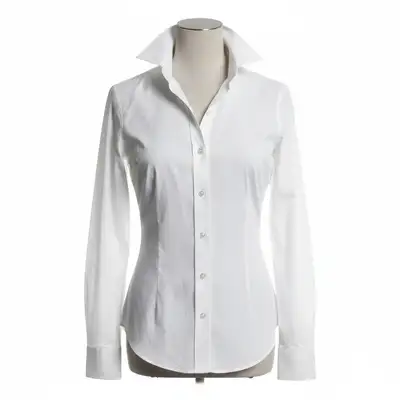
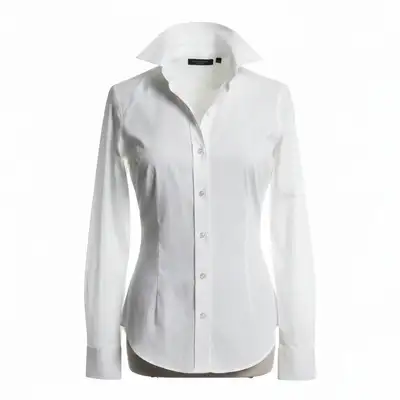
The human eye cannot distinguish between RGB 250 and RGB 255 white, but Amazon's automated system can. This is why your photos look white but keep getting rejected. EditThisPic forces every background pixel to exactly RGB 255,255,255 -- the only value Amazon accepts.
Tools for White Background Compliance
Whiten Background
Convert near-white to pure RGB 255 white
Remove Background
Replace any colored background with pure white
Remove Shadow
Remove shadows that create gray zones on white backgrounds
Enhance Photo
Improve overall quality while fixing the background
Fix Your Rejected White Background
-
Upload your rejected photo
Drop the exact photo Amazon rejected into EditThisPic. The AI will analyze the current background and convert it to pure white.
Near-white backgrounds: 10-15 seconds. Colored or patterned backgrounds: 15-25 seconds. -
Apply pure white background
Type 'make background pure white RGB 255,255,255, completely flat and uniform, no gradients or shadows.' The AI targets every non-product pixel and forces it to exact 255,255,255 white.
If your background is already close to white, the 'whiten background' tool is fastest. If the background has color or pattern, use 'remove background' instead. -
Verify pixel-perfect white
Zoom to the corners and edges. The most common failure points are: corners with subtle gray, edges where product shadow creates gradient, and thin gaps in the product where background shows through.
Use any color picker tool on your downloaded image to verify corners read RGB 255,255,255. This is exactly what Amazon's automated system checks. -
Re-upload to Amazon
Download and upload to Amazon. Your image should now pass the automated white background check on the first attempt.
Upload as JPEG quality 95+ or PNG. Lower JPEG quality can introduce compression artifacts that shift white pixels slightly off 255.
White Background Fix Prompts
make background pure RGB 255,255,255 white, completely flat and uniform, remove all subtle gray or cream variations, no gradients
This is the most common fix. Your background looks white but has subtle off-white tones that fail automated checks.
make entire background pure white RGB 255,255,255, especially corners and edges, remove all vignetting and shadow falloff
Gray corners are caused by vignetting from your camera lens or uneven lighting. This fixes both.
remove all shadows from background, make every non-product pixel pure white RGB 255,255,255, clean flat white everywhere
Shadows create gray gradient zones that fail the white check. Remove them completely for the main image.
replace background with pure white RGB 255,255,255, remove all color and pattern, clean product edges, no shadows or gradients
For non-white backgrounds, a full replacement is needed rather than whitening.
Show 4 more prompts
make background completely uniform pure white, remove all paper texture, wrinkles, and lighting variations, flat RGB 255,255,255
Paper backdrops often have subtle texture and lighting unevenness. This flattens everything to pure white.
make background pure white RGB 255,255,255, remove all lightbox gray tones and seam lines, uniform white everywhere
Lightboxes produce very good but not perfect white. This last-mile fix is quick and reliable.
make background pure white, preserve white product with subtle edge definition so product remains visible against white
White products on white backgrounds need slight edge definition to remain visible.
make background pure white, preserve any glass or transparent product elements, clean white behind transparent areas
Transparent products need their see-through quality maintained even on white backgrounds.
| Edit Type | Prompt | Time | |
|---|---|---|---|
| Near-white to pure white | make background pure RGB 255,255,255, no gradients |
10s | Try This → |
| Gray corners fix | uniform pure white in all corners and edges |
10s | Try This → |
| Shadow removal for white | remove shadows, make background flat white |
15s | Try This → |
| Full background replacement | replace background with pure white RGB 255,255,255 |
20s | Try This → |
White Background Fix Examples


Near-white to pure white
Product on off-white background (RGB 248,248,246). Looks white to the eye but failed Amazon. One prompt fixed it to exact 255,255,255.
Gray corners eliminated
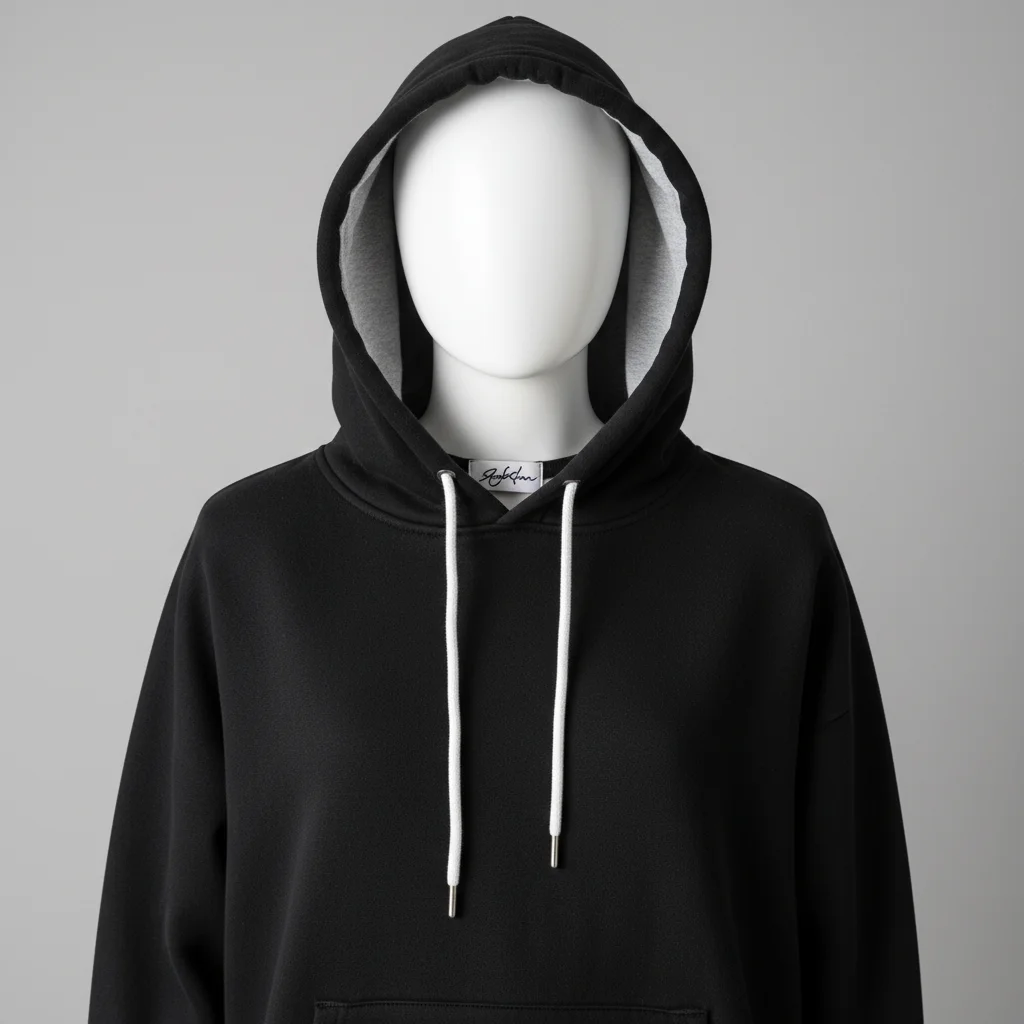
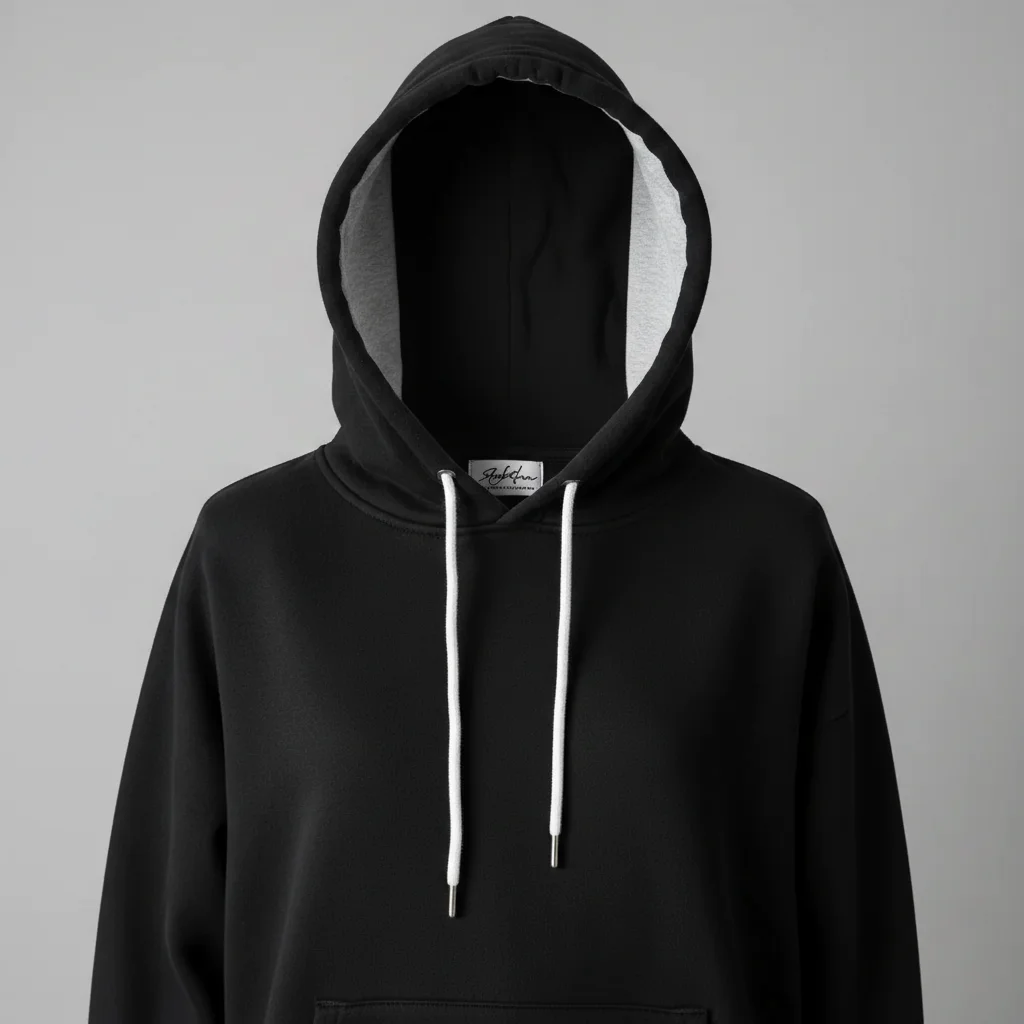
Good product shot but camera vignetting created gray corners. Fixed to uniform white across the entire frame.
make entire background pure white, remove vignetting and gray corners, uniform 255,255,255
Shadow removal for pure white
Product on white paper but casting shadows. Shadows removed and entire background made pure white.
remove all shadows, make background pure white RGB 255,255,255 everywhere, flat uniform white
White Background Troubleshooting
Background is still not passing after whitening
Why: There may be tiny areas (1-2 pixel strips) at the very edges that retained off-white values.
make absolutely every pixel of background pure white RGB 255,255,255, including the very edges and corners of the image
Crop your image slightly (remove 2-3 pixels from each edge) after whitening. Edge pixels are most likely to retain off-white values.
JPEG compression shifted white pixels after download
Why: JPEG compression at low quality can shift pixel values by 1-3 points, turning 255 into 252-254.
Download as PNG (lossless) or JPEG at quality 95+. Never use quality below 90 for Amazon images.
White Background FAQ
What exact white does Amazon require?
Amazon requires RGB 255,255,255 for main product image backgrounds. This is the purest white possible in digital images. Any value below 255 on any channel (red, green, or blue) is technically not pure white and can trigger rejection by their automated system.
Why does my white backdrop photo still fail?
Physical white backdrops (paper, fabric, lightbox) never produce perfect digital white. Camera sensors, lighting variations, and lens effects all introduce subtle gray or warm tones. You always need digital correction as a final step. EditThisPic handles this correction in seconds.
Does Amazon check every pixel of the background?
Amazon's automated system samples pixels from multiple areas, especially corners and edges. A few off-white pixels may pass, but consistent off-white areas will trigger rejection. It is safest to ensure every background pixel is exactly 255,255,255.
Can I use a light gray or cream background instead?
No, not for the main product image. Amazon strictly requires pure white (RGB 255,255,255). Secondary images can use any background. If you prefer a different background aesthetic, use it for slots 2-7 and keep slot 1 pure white.
Should I save as PNG or JPEG for Amazon?
Both work. JPEG is smaller and faster to upload, but use quality 95+ to prevent compression from shifting white pixels. PNG is lossless (preserves exact pixel values) but larger files. If your white keeps failing as JPEG, try PNG.
How do I check if my background is really pure white?
Open the image in any image editor with a color picker (even Preview on Mac or Paint on Windows). Click on the background in multiple spots, especially corners. The RGB values should read exactly 255, 255, 255. Any other value means it is not pure white.
Is EditThisPic's AI fix amazon photo rejected for white background really free?
Yes — you get 1 free edit per week, no account needed. Plans start at $4.99/month for 15 edits.
Can I amazon photos on my phone?
Yes. EditThisPic works in any mobile browser — iPhone, Android, tablet. No app download needed.
You might also like
Popular use cases
Fix your rejected white background now.
Free to try. No signup. Pure RGB 255,255,255 in 15 seconds.
Fix My BackgroundTrusted by 15,000+ users