Blur Background from Photo
Type what you want. 'Blur the background' usually just works on the first try.
Type 'blur the background to create soft bokeh effect' and EditThisPic's AI handles the rest in 15-30 seconds. No selection tools, no edge tracing required. The AI understands depth and applies natural-looking blur while keeping your subject sharp. Free to try, no account needed.
How it works
Upload your photo
Drop your image into EditThisPic. JPG, PNG, and WebP up to 7MB work best. Photos with clear separation between subject and background give the best bokeh results.
Describe the blur you want
Type your instruction: 'blur the background to create soft bokeh effect' or 'add depth blur to background, keep subject sharp.' That's it. The AI understands depth and applies realistic blur without you needing to select or trace anything.
Copy one of these to get started:
blur the background to create soft creamy bokeh effect, keep subject perfectly sharp
blur the background with gentle depth of field effect, keep product in sharp focus
blur the background heavily to isolate the main subject, strong bokeh effect
blur the background to create professional pet portrait look, soft warm bokeh behind the animal
3 more prompts
blur the background with shallow depth of field, keep only the front dish in focus, creamy out-of-focus areas
blur the background subtly to add depth while keeping environmental context visible, gentle gaussian blur
blur the background crowd and lights into colorful bokeh circles, keep performer sharp
Generate and review
Tap generate and examine the result. Check the transition zone between sharp subject and blurred background. Look for any areas where the AI may have blurred part of your subject or left background elements sharp.
Refine with markers if needed
If the AI blurred part of your subject or left distracting elements sharp, tap markers on those specific areas and regenerate. This precision step is optional—most blur effects work without markers.
"I spent ages trying to fake depth of field in Lightroom. Now I just type 'blur the background' and get that professional portrait look instantly." @PortraitProMike
See it in action
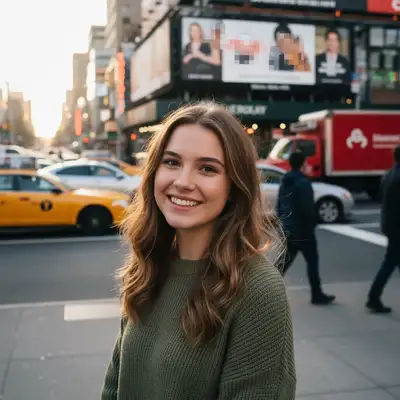
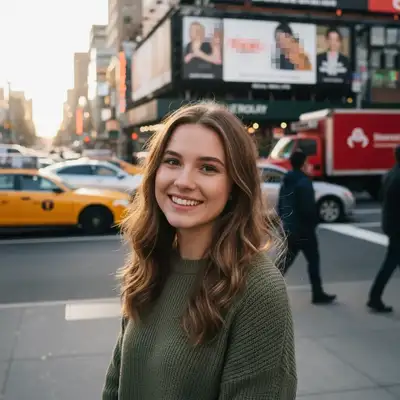
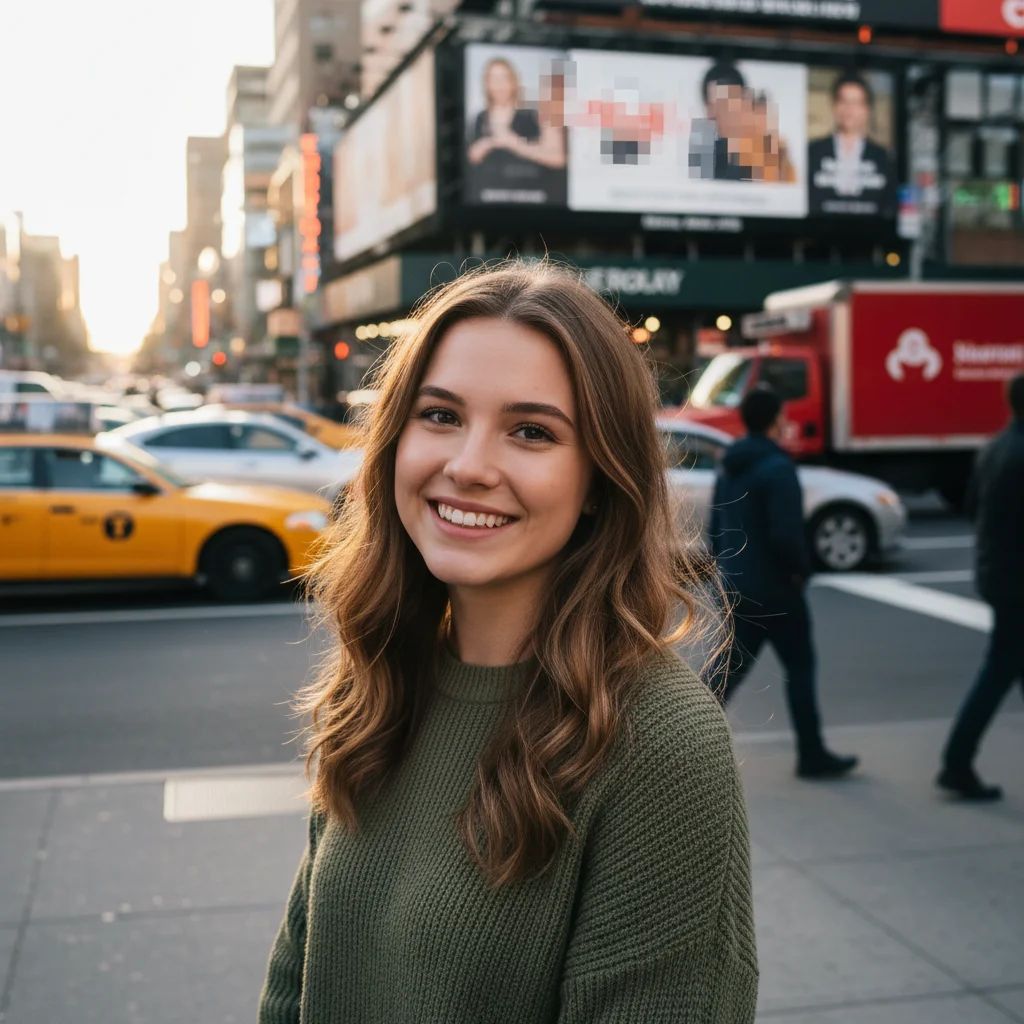
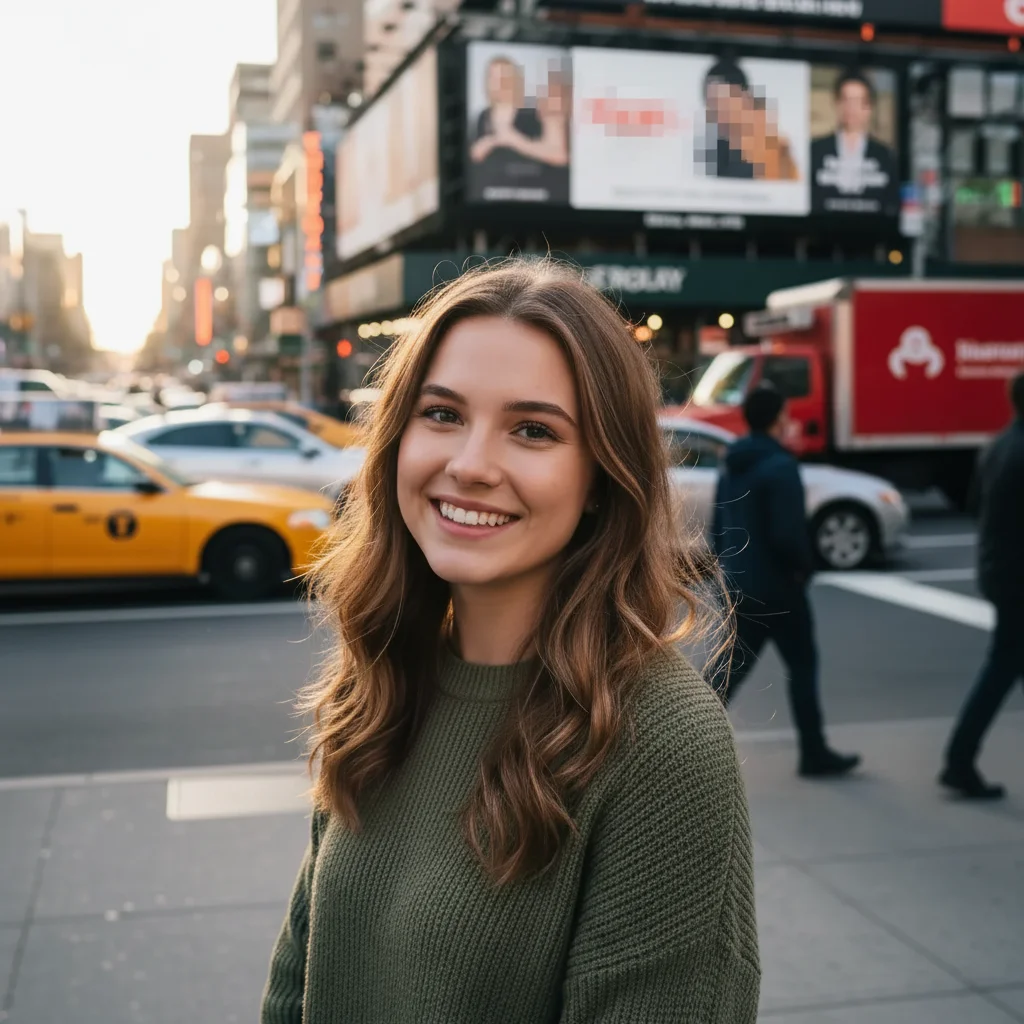
Portrait with busy street background
Outdoor portrait with distracting cars and signage behind. One prompt transformed it into professional headshot quality.
blur the background to create soft creamy bokeh effect, keep subject perfectly sharp
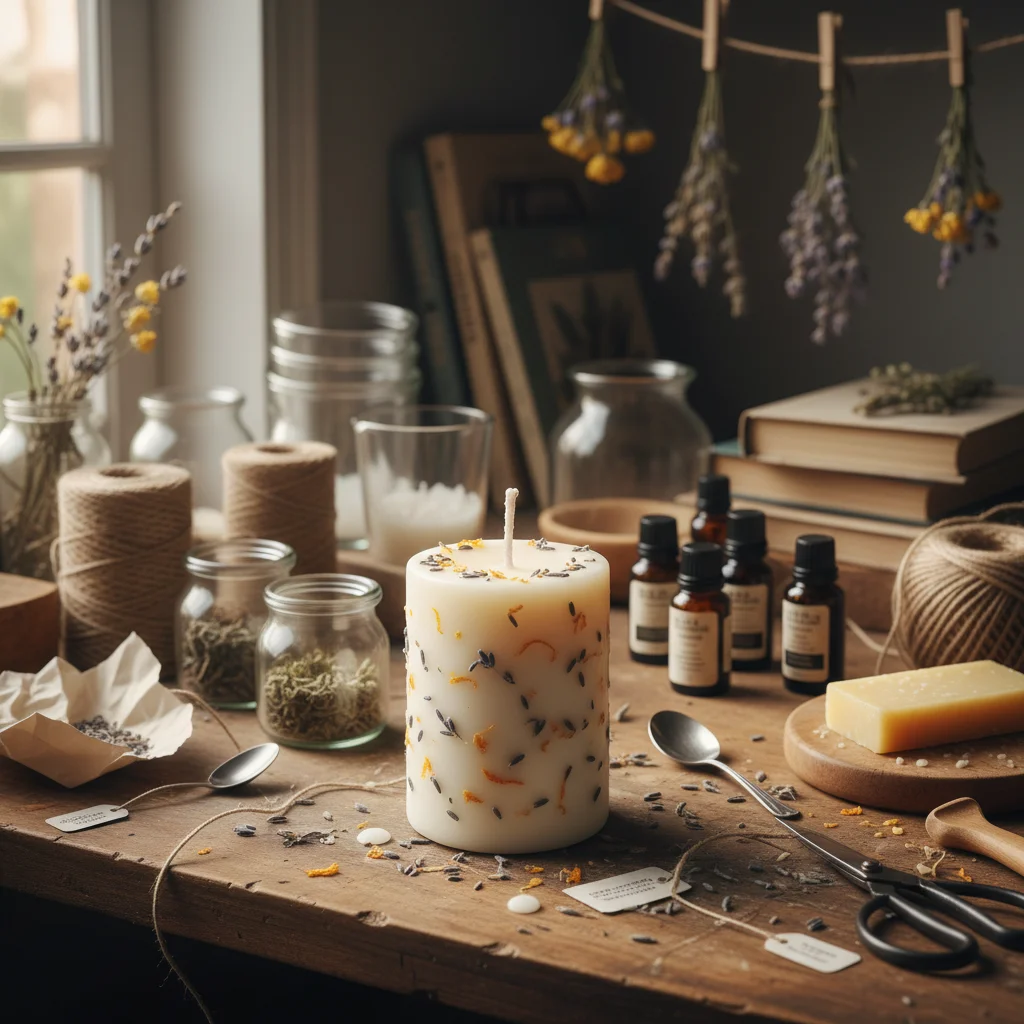
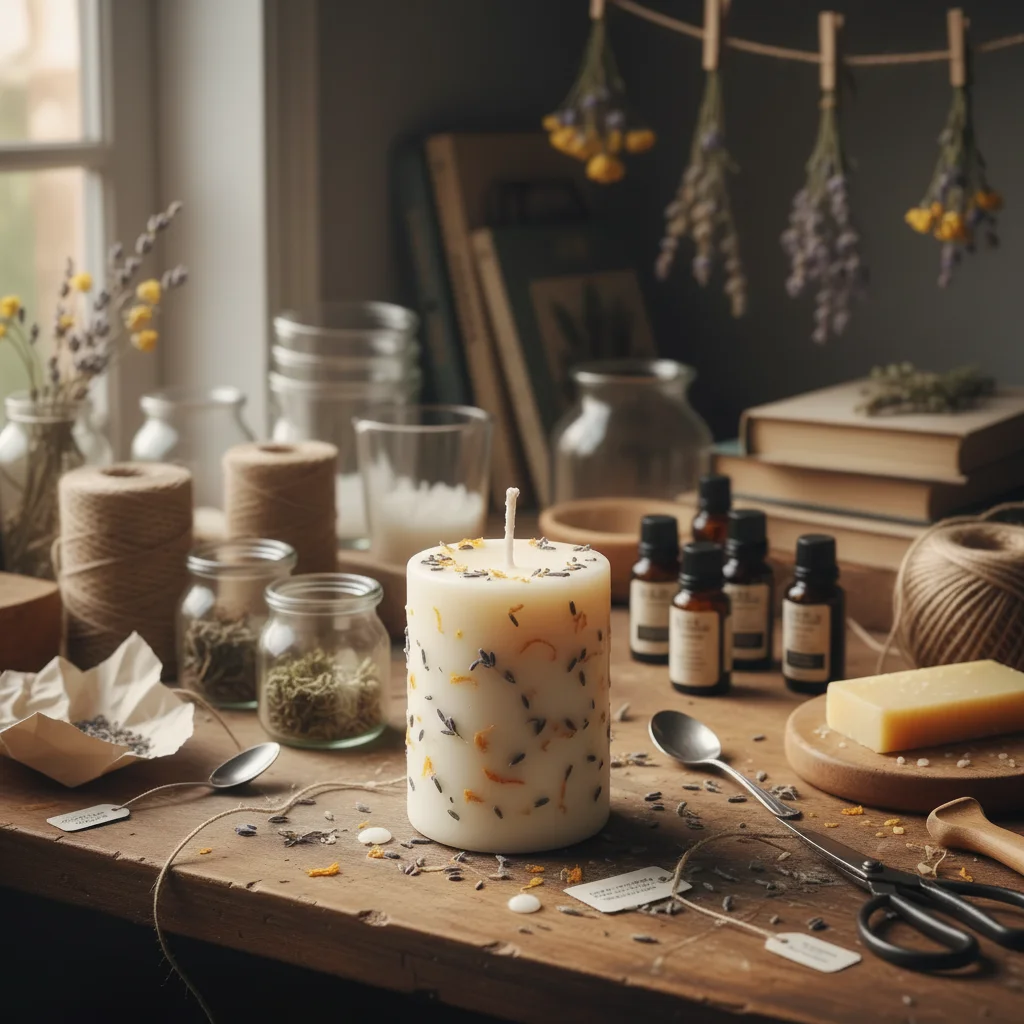
Product on cluttered desk
Handmade candle photographed on messy workspace. Blur isolated the product while maintaining context.
blur the background with gentle depth of field effect, keep the candle product in sharp focus
Pet portrait in living room
Dog photographed in living room with furniture visible. Blur created that professional pet portrait studio feel.
blur the background heavily to create professional pet portrait look, strong soft bokeh behind the dog
If something looks off
AI changed the wrong area or something I didn't want changed
Why: The AI couldn't determine the exact boundary between subject and background. This happens with complex edges or when subjects blend with surroundings.
Tap a marker on the area that should stay sharp (or should be blurred), then regenerate with the same prompt
💡 Markers tell the AI 'I mean THIS area specifically.' Use them when the subject-background boundary is unclear.
Part of the subject got blurred (hair, arms, accessories)
Why: The AI interpreted that part as background, often because it's separated from the main body or similar in color to the background.
blur the background only, keep all of the person/subject completely sharp including hair and accessories
💡 If it persists, tap markers on the blurred body parts to tell the AI 'this is part of the subject.'
Background elements stayed sharp when they should be blurred
Why: Those elements may be at a similar depth as your subject, or the AI considered them part of the foreground.
blur everything except the main subject in foreground, include all background elements in the blur
💡 Tap markers on stubborn sharp background elements and regenerate.
Blur looks unnatural or too uniform
Why: Real camera bokeh varies with distance—closer background is less blurry than far background. Uniform blur looks artificial.
blur the background with natural depth of field falloff, gradual blur increasing with distance from subject
💡 Adding 'gradual' or 'natural falloff' creates more realistic depth blur that mimics expensive lenses.
Edge between subject and blur looks harsh or cut-out
Why: The transition zone needs to be softer. A hard edge makes it obvious the blur was added artificially.
blur the background with soft gradual transition at subject edges, no harsh cutout appearance
💡 Real bokeh has gradual edge falloff. Specify 'soft transition' to avoid that Photoshop-mask look.
Bokeh circles look wrong or distorted
Why: Real bokeh circles are affected by lens characteristics. The AI may have created unrealistic shapes or sizes.
blur the background with natural round bokeh circles from light sources, realistic lens blur appearance
💡 If you want specific bokeh style, mention it: 'smooth circular bokeh' or 'soft creamy blur without defined circles.'
Quick answers
Do I need to mark the background before describing?
No! Just describe what you want: 'blur the background to create bokeh effect.' The AI understands what 'background' means and where your subject is. Only use markers if you need precision—like when the AI blurred part of your subject or left something sharp that should be blurred.
How do I control how much blur is applied?
Use intensity words in your description. 'Subtle blur' keeps background recognizable. 'Heavy bokeh' or 'strong blur' creates that dreamy, creamy background. 'Extreme blur' makes background almost completely abstract. The AI interprets these naturally without needing specific pixel values.
Will this work on photos where the subject is far from the background?
Yes, and those actually work best. Real bokeh is strongest when there's distance between subject and background. If your subject is close to a wall, the blur effect will be subtle and realistic. The AI mimics how actual camera depth of field behaves.
Can I blur the background but keep specific objects sharp?
Yes. Be specific in your prompt: 'blur the background but keep both people sharp' or 'blur background, keep the car and person in focus.' If the AI misses something, tap a marker on it and regenerate. Markers tell the AI 'this specific thing should stay sharp.'
What's the difference between blur and bokeh?
Bokeh specifically refers to the aesthetic quality of out-of-focus areas, especially how light sources become soft circles or shapes. Regular blur just makes things less sharp. Ask for 'bokeh' when you want that creamy, pleasing background with soft light orbs. Ask for 'blur' when you just want less distraction without the artistic effect.
Ready to blur your background?
Free to try. No signup required.