Free • No signup Open Editor

Change Background from Photo

Describe any background you want. Beach, office, gradient—just type it.

Type 'change the background to a sunny beach scene' and EditThisPic transforms your photo in 15-30 seconds. No selection tools, no masking. Just describe the new background you want—a coffee shop, mountain vista, or abstract gradient. The AI handles subject detection and scene matching automatically. Free, no signup.

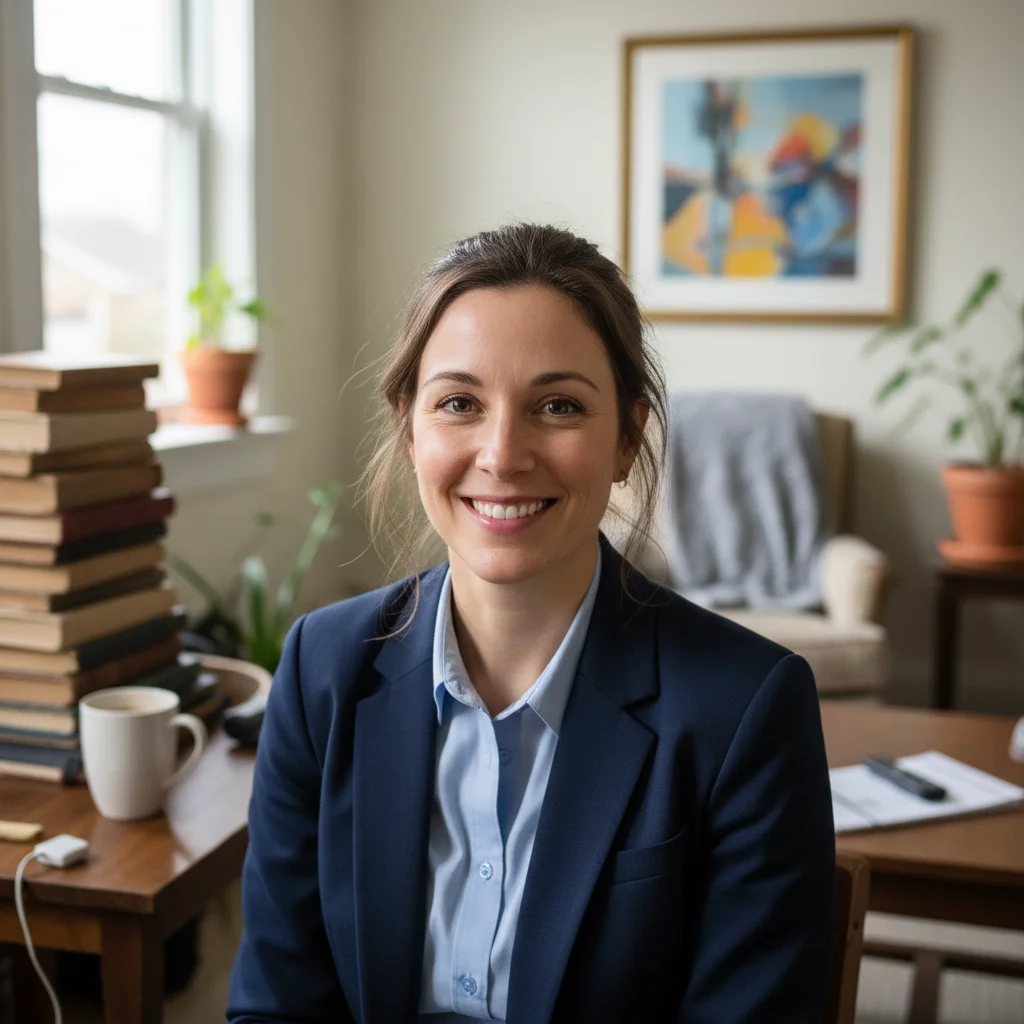
Professional portrait with living room couch visible behind
Before
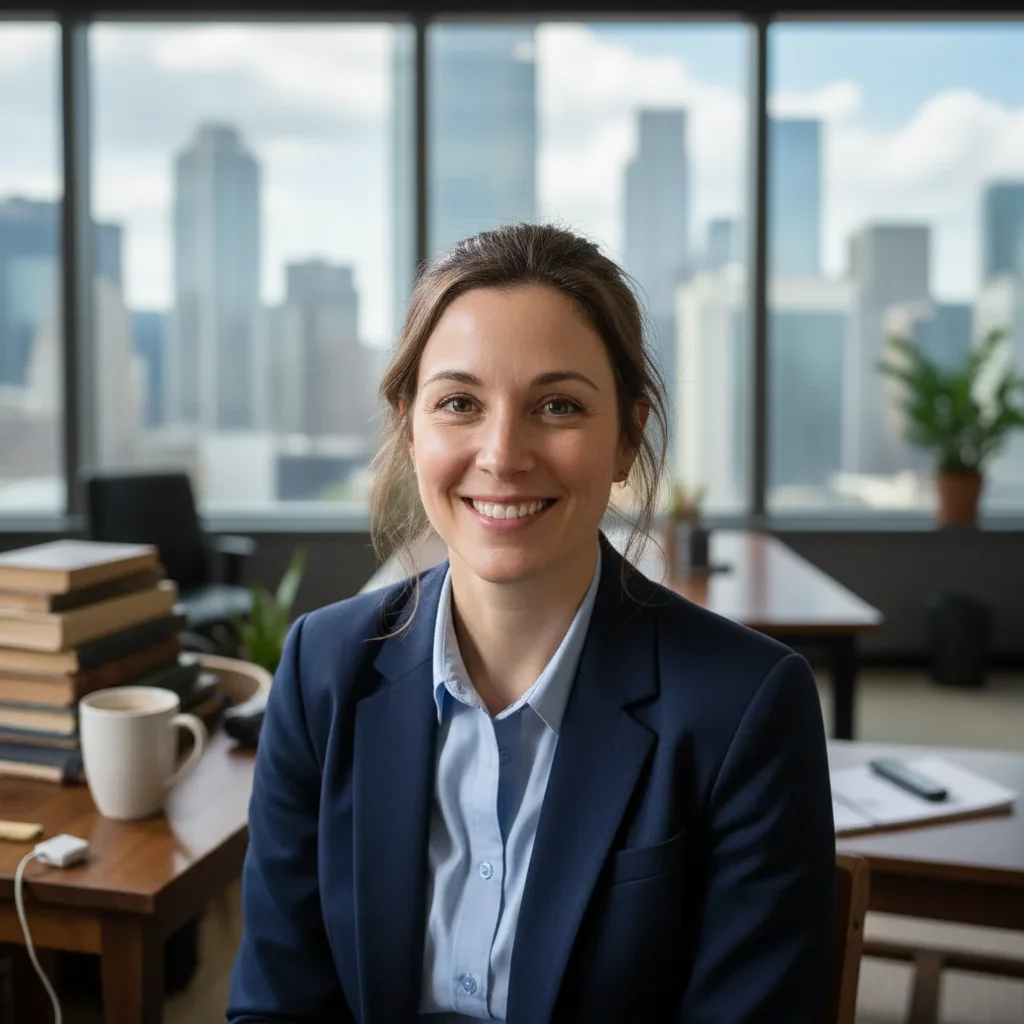
Same portrait with modern office and city skyline background
After

How it works

1

Upload your photo

Drop your image into EditThisPic. JPG, PNG, and WebP up to 7MB. Photos with clear subject separation from the background work best, but the AI handles complex scenarios like hair and semi-transparent objects too.

⏱ Simple scene changes: 15-30 seconds. Complex subjects with detailed edges: may need 2-3 refinements.
2

Describe the new background

Type exactly what you want: 'change the background to a tropical beach at sunset' or 'change background to modern minimalist office.' Be specific about lighting, mood, and atmosphere. No marking needed—the AI knows what 'background' means and will preserve your subject.

💡 Match the new background lighting to your subject. If your face is lit from the left, mention 'with light from the left side' in your prompt.

Copy one of these to get started:

Professional headshot for LinkedIn change the background to a modern corporate office with soft natural light through windows, professional atmosphere
Travel photo you never took change the background to the Eiffel Tower at golden hour, soft warm lighting matching the subject
Product in lifestyle setting change the background to a rustic wooden kitchen counter with morning sunlight streaming in from the right
Beach vacation composite change the background to a tropical beach with turquoise water, white sand, and palm trees under bright midday sun
3 more prompts
Creative portrait with abstract background change the background to flowing colorful abstract gradients in purple and teal, artistic studio photography style
Outdoor nature scene change the background to a misty forest with tall pine trees and soft diffused morning light
Urban street photography look change the background to a busy Tokyo street at night with neon signs and bokeh city lights, cinematic mood
3

Generate and review

Tap generate and check the result at full zoom. Verify that subject edges blend naturally with the new scene, lighting feels consistent, and the overall composition looks believable.

💡 Check where your subject meets the new background. Shadows and lighting mismatches are most visible at edges.
4

Refine with markers if needed

If the AI changed something you wanted to keep, or edges look unnatural, tap markers on those specific areas and regenerate. This is optional—most background changes work without any marking.

💡 Markers are for precision refinement. If the new background doesn't match, try adjusting your description first before using markers.
Try it free
"Needed my headshot on a professional office background for a proposal. Typed exactly that and got three usable options in under a minute." @FreelanceMarkDev

See it in action

Professional portrait with living room couch visible behind
Before
Same portrait with modern office and city skyline background
After

Living room to corporate office

Professional needed a headshot with office background but only had casual home photos. One prompt created a convincing corporate setting.

Prompt: change the background to a modern corporate office with large windows, city skyline visible, soft professional lighting
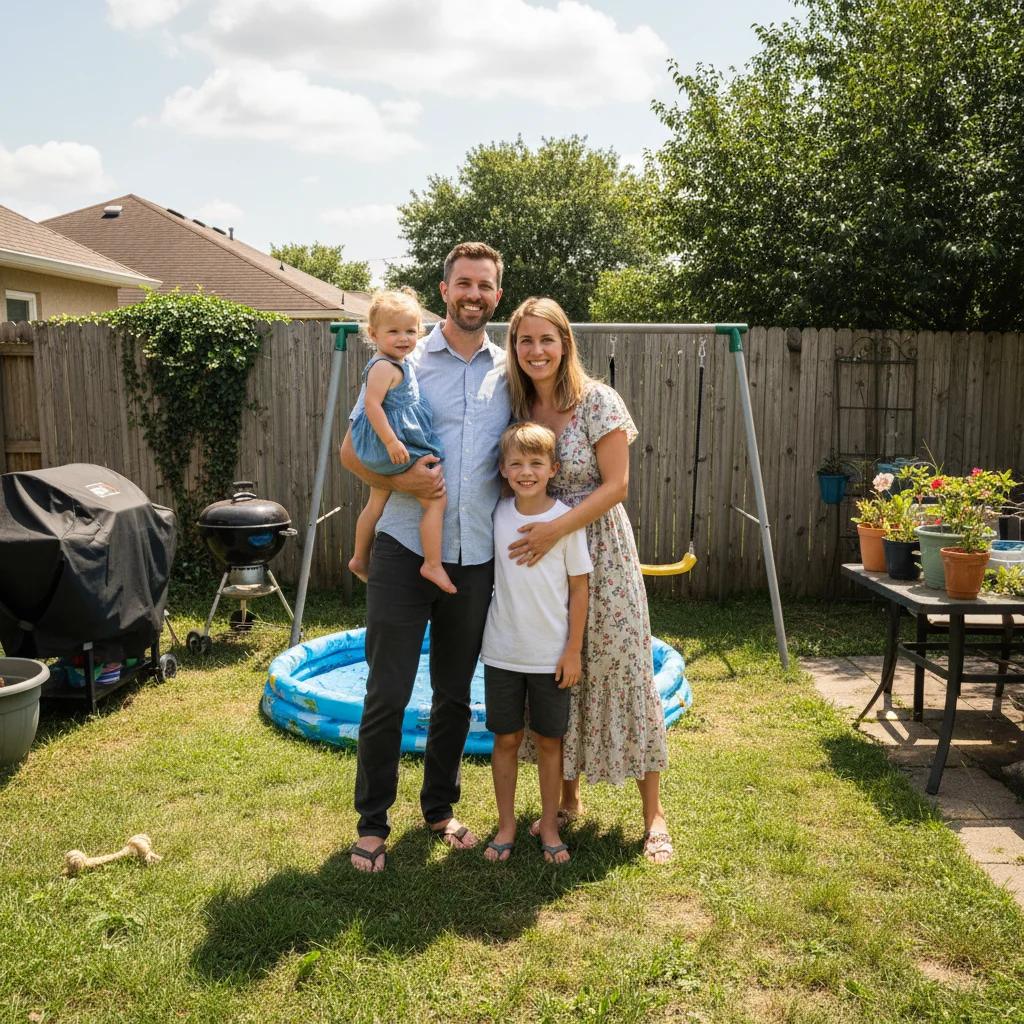
Family in backyard with fence and grass
Before
Same family now appearing at tropical beach
After

Backyard to tropical beach

Family photo taken in the backyard transformed into a vacation memory. Lighting was matched to create a believable beach scene.

Prompt: change the background to a tropical beach with white sand, turquoise ocean, and palm trees, bright sunny day matching the subjects' lighting
Coffee mug on plain gray office desk
Before
Same mug now on rustic kitchen counter with warm lighting
After

Product on desk to lifestyle kitchen

Coffee mug product shot needed lifestyle context for marketing. Changed from plain desk to cozy kitchen scene with matching warm lighting.

Prompt: change the background to a warm rustic kitchen counter with brick wall, soft morning window light from the left, cozy coffee shop atmosphere

If something looks off

AI changed the wrong area or something I didn't want changed

Why: The AI interpreted 'background' differently than you expected, possibly including parts of your subject or missing areas you wanted changed.

Try: Tap a marker on the specific area you want to keep unchanged, then regenerate with the same prompt

💡 Markers tell the AI 'I mean THIS area specifically.' Use them when description alone is ambiguous.

New background lighting doesn't match subject

Why: You described a scene but not its lighting direction. A sunset behind the subject looks wrong if their face is lit from the front.

Try: change the background to [your scene] with lighting direction matching the subject, light source from [direction your subject is lit from]

💡 Look at shadows on your subject's face to determine where the original light came from, then mention that in your prompt.

Subject edges look cut-out or unnatural against new scene

Why: The contrast between your original photo quality and the generated background creates a visible mismatch at the boundaries.

Try: change the background to [your scene] with natural edge blending and subtle ambient glow around the subject

💡 Adding 'subtle ambient glow' or 'natural edge integration' helps blend the subject into the new scene.

Generated scene doesn't look realistic

Why: The description was too vague or asked for conflicting elements. 'Beach at night with sunny weather' confuses the AI.

Try: change the background to [specific scene] at [specific time of day] with [specific weather], photorealistic style

💡 Be consistent with time, weather, and lighting. 'Sunset beach' works; 'sunset beach with midday shadows' doesn't.

Hair or fine details blend poorly with new background

Why: Fine edges like hair are the hardest to separate cleanly. The original background may be bleeding through at strand level.

Try: change the background to [your scene] preserving all hair strand detail with clean separation and no color fringing

💡 If hair edges still look rough, tap markers on the problem areas and regenerate.

Background scale looks wrong (too close or too far)

Why: The AI generated a scene at a different depth than expected. A distant mountain shouldn't look like it's 10 feet away.

Try: change the background to [your scene] in the far distance with appropriate depth and perspective matching the subject

💡 Add depth cues: 'distant mountains with atmospheric haze' or 'close-up office desk with shallow depth of field.'

Quick answers

Do I need to mark the background before describing?

No! Just describe the new background you want: 'change the background to a beach sunset' or 'change background to modern office.' The AI understands what 'background' means without selection. Only use markers if you need to refine specific areas after your first attempt.

How do I make the new background look realistic?

Match lighting direction and intensity. If your subject is lit from the left, mention that: 'change background to beach scene with sunlight from the left matching the subject.' Also add weather and time of day for consistency: 'at golden hour' or 'on an overcast day.'

Can I change the background to a specific photo I have?

EditThisPic generates new backgrounds based on descriptions rather than compositing existing images. Describe what you want as specifically as possible—the AI can create highly specific scenes like 'modern Tokyo street with cherry blossoms' or 'cozy cabin interior with fireplace.'

What's the difference between changing and removing the background?

Removing creates transparency or solid colors—useful for product photos and design work. Changing replaces with a realistic scene—useful for portraits, creative composites, and lifestyle imagery. Use 'change background to beach' for scenes, 'replace background with white' for product shots.

Why does my subject look pasted onto the new background?

Usually a lighting mismatch. Your subject was lit differently than the scene you described. Fix by adding lighting direction to your prompt: 'change background to sunset beach with warm light from the right side matching the subject.' Also try adding 'natural edge blending' to soften the transition.

Ready to change your background?

Free to try. No signup required.

Try it free