Do I need to mark anything before creating a double exposure?
No. Just upload your primary photo, click '+ Add reference image' to add the second photo, and describe the blend: 'create a double exposure blending this portrait with the landscape, soft cinematic quality.' The AI handles the entire blend.
How do I create a double exposure from two photos online for free?
Upload your primary photo (usually a portrait or silhouette) to EditThisPic, then click '+ Add reference image' to upload your second photo — a landscape, forest, cityscape, or texture. Type what blend you want: 'create a double exposure merging both images with warm amber tones.' You preview the result in seconds, free and with no account needed, and the purchased download is clean.
What types of photos work best for double exposure?
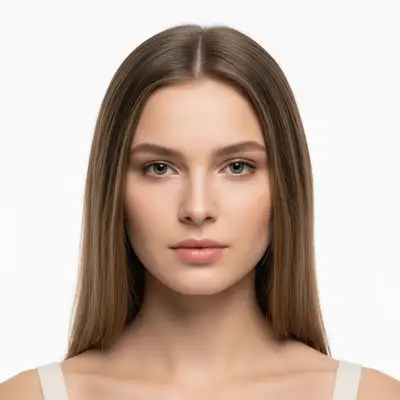
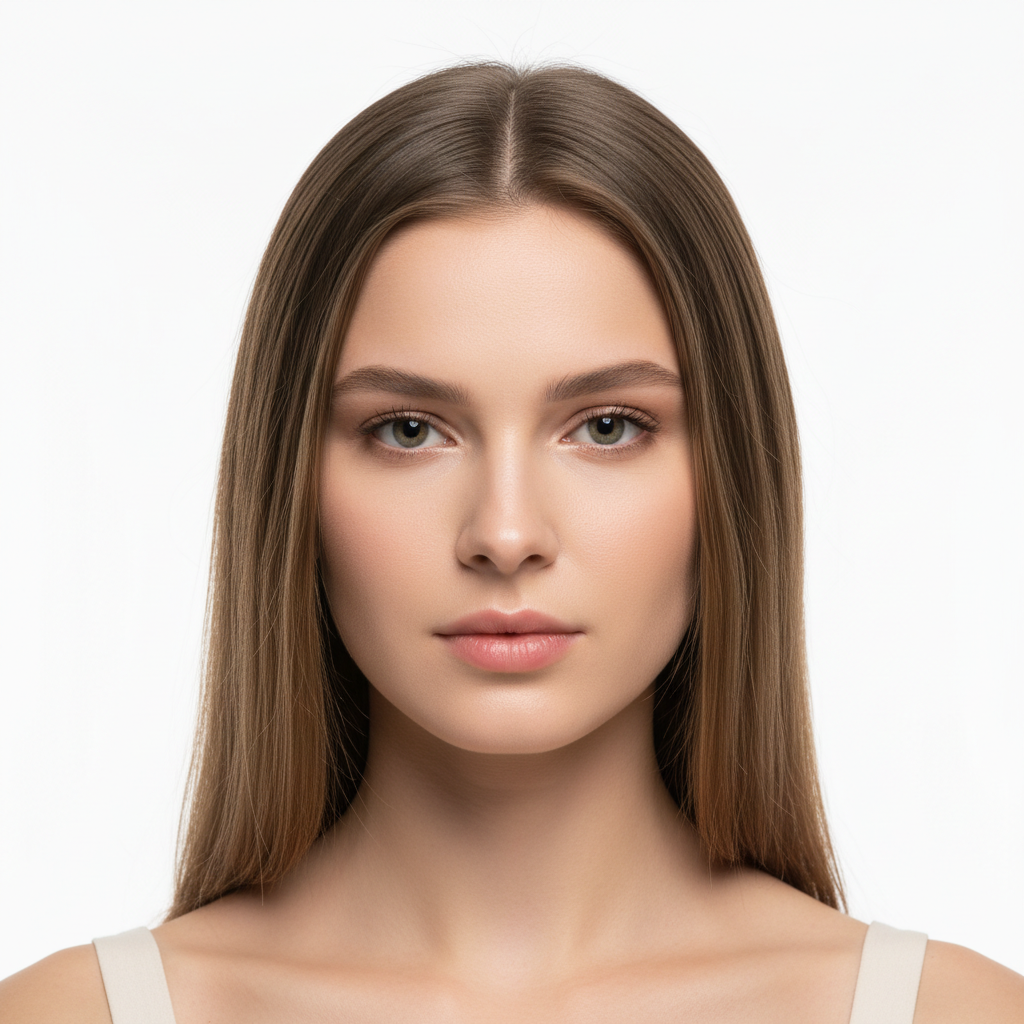
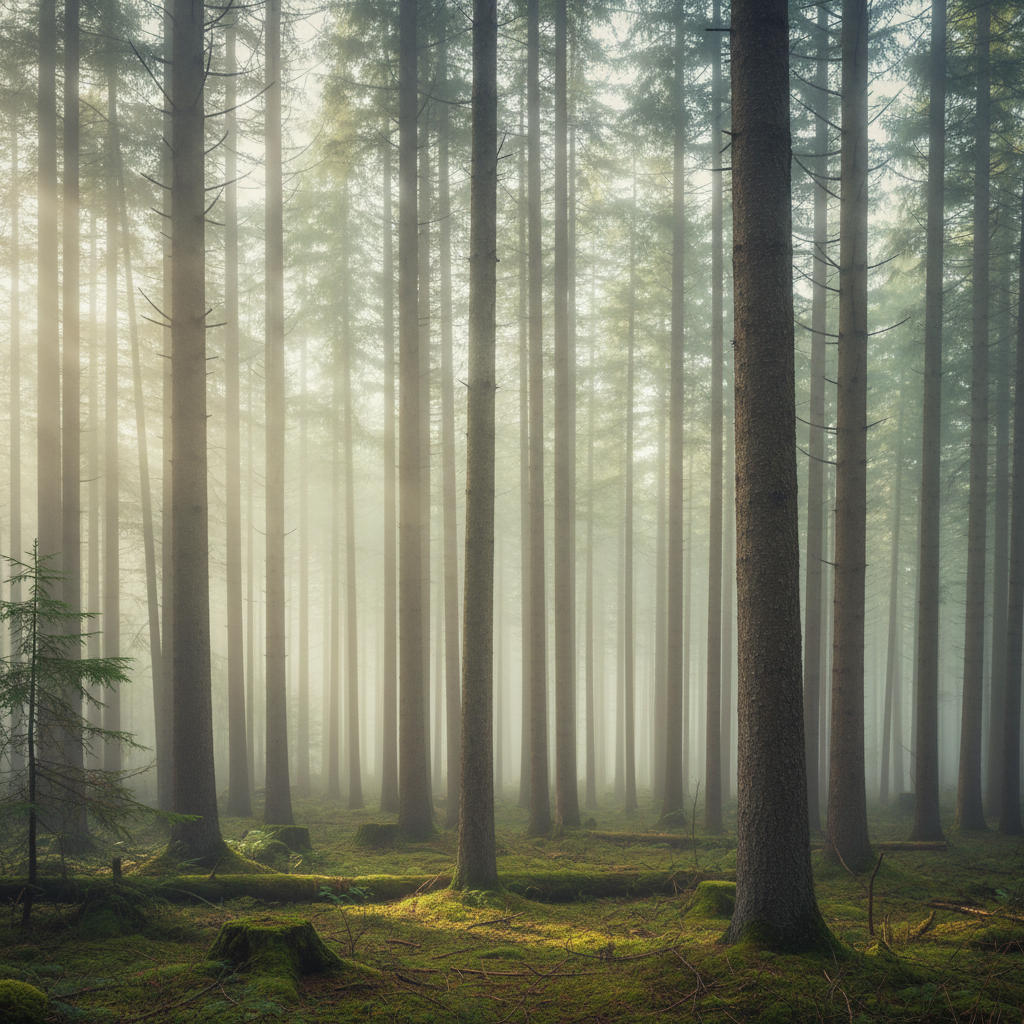
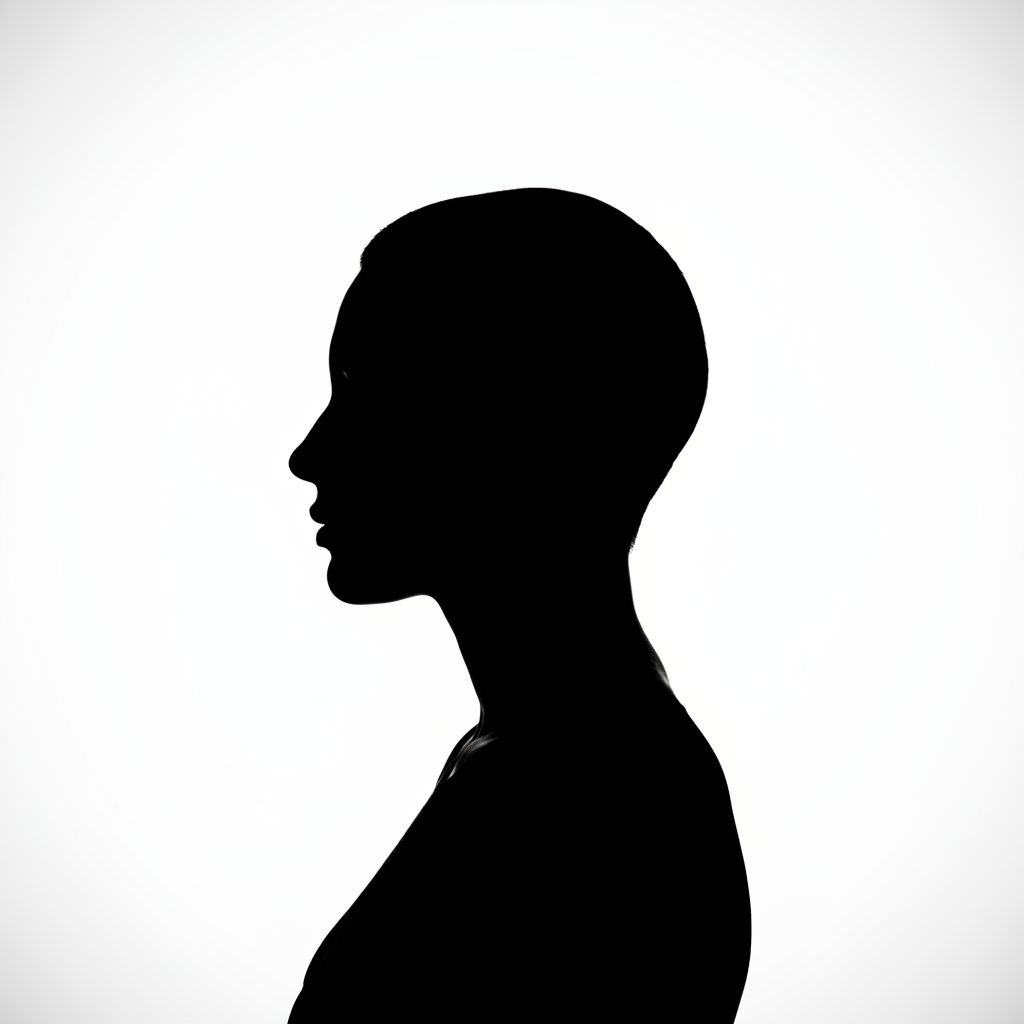
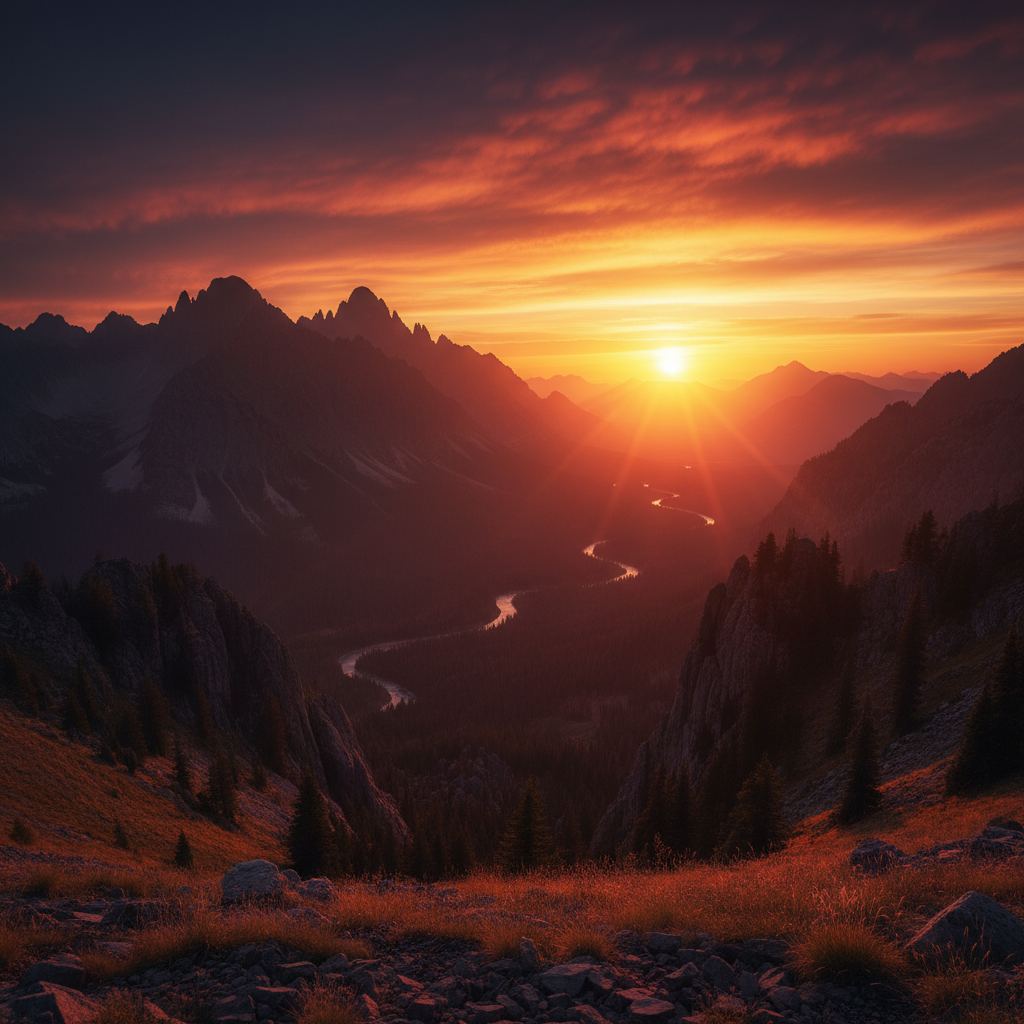
For the primary image: high-contrast portraits, sharp silhouettes, or close-up faces with simple backgrounds work best because the subject shape needs to be clearly readable through the blend. For the reference image: landscapes with strong tonal contrast — dense forests, dramatic skies, ocean horizons, cityscapes — produce the most striking results. Avoid reference images that are mostly one flat color, as they produce dull blends.
Is there a free double exposure tool that doesn't require login or Photoshop?
Yes. EditThisPic creates double exposure effects from two photos entirely in your browser — no Photoshop, no account, and no signup required. In Photoshop this technique involves layer masks, blend modes, and manual adjustment layers. Here you describe the blend and the AI does it in 30 seconds. One free preview edit per week, and clean paid downloads.
What is the best way to blend a portrait with a landscape for double exposure?
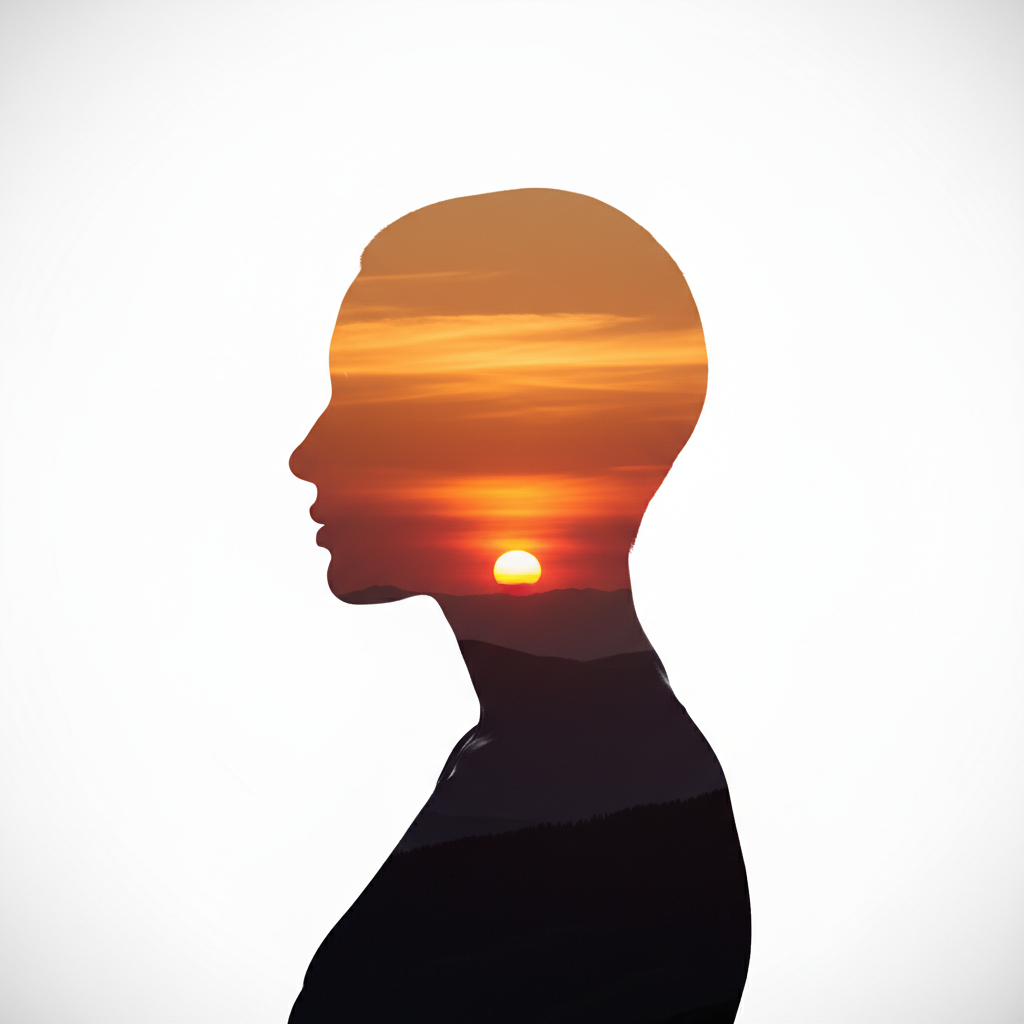
Use a front-facing or profile portrait with a plain or dark background as your primary photo. Upload a high-contrast landscape — mountains, forest, ocean, or cityscape — as the reference image. Describe the tonal mood you want: 'cool blue cinematic blend' or 'warm amber dreamlike quality.' The AI matches the luminosity of both images and merges them using a photographic screen blend. Specifying a single color grade prevents the two images from clashing.
How do I make a double exposure effect for an album cover?
Upload your artist portrait or silhouette as the primary photo. Click '+ Add reference image' and upload a landscape that matches the album mood — misty mountains for folk, neon cityscape for urban, ocean for ambient. In your prompt, describe the aesthetic: 'create a double exposure album cover, desaturated cool blue grade, bold and graphic.' Add 'fade to dark at the bottom' if you need space for album title text. The whole process takes under a minute.
How do I combine two photos into a double exposure without blending looking muddy?
The most common cause of muddy blends is competing color temperatures between the two images. Fix this by specifying a unified color grade in your prompt: 'convert both layers to a cool blue-green tone before blending' or 'desaturate slightly for a cinematic look.' Alternatively, use a black-and-white blend ('convert to monochrome') which eliminates color conflict entirely and often produces the sharpest double exposure results.
What is a double exposure photo effect?
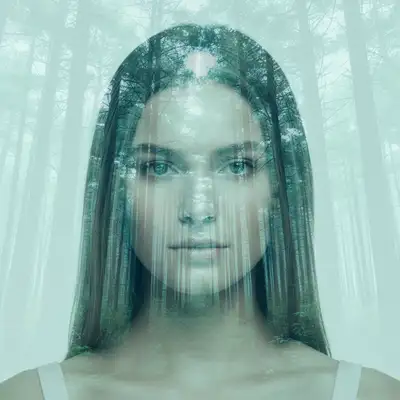
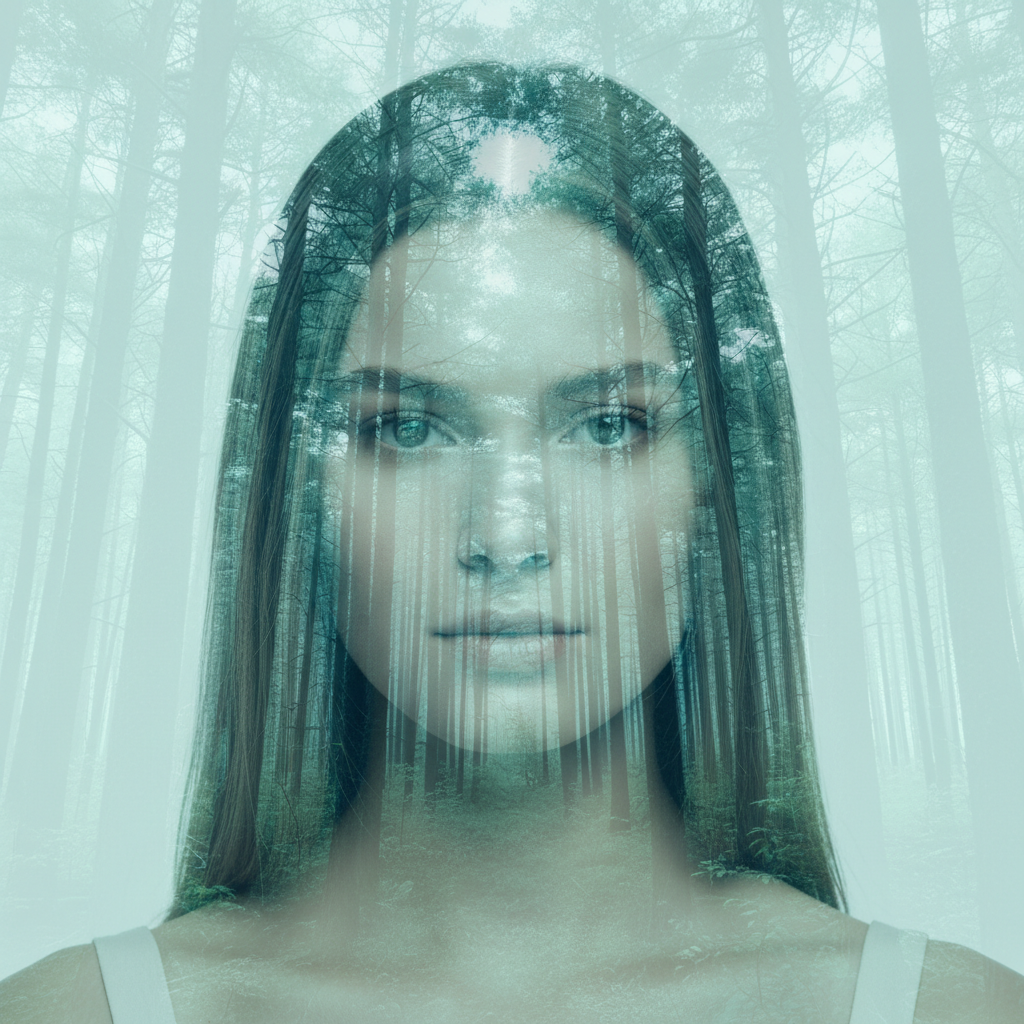
Double exposure is a photography technique where two images are combined into one frame, traditionally by exposing the same piece of film twice. The result is a blended, often surreal image — a portrait overlaid with a forest, a silhouette filled with a starfield, or a face merged with an ocean. With AI, you replicate this effect digitally by uploading two photos and describing how you want them blended.
Can I create a double exposure from a selfie and a landscape photo?
Yes. Selfies work well as the primary photo as long as your face fills most of the frame. Avoid selfies where the face is small and the background is busy — those make it harder for the AI to isolate the subject for blending. Upload the selfie as your main photo and add a landscape via '+ Add reference image.' Describe the blend: 'create a double exposure blending my portrait with the forest reference, dreamlike and soft.'
How long does it take to create a double exposure?
Most double exposure blends generate in 20-30 seconds. More complex blends involving very detailed reference images or precise color grading may take up to 45 seconds. If the first result isn't quite right, regenerating with a refined prompt takes another 20-30 seconds. The total time from upload to finished result is typically under two minutes.
Does EditThisPic add a watermark to double exposure photos?
No. Every result you buy from EditThisPic — including double exposure blends — downloads clean at full resolution. The free weekly edit shows you a preview first so you can check the blend before buying.
How much does EditThisPic cost?
You get 1 free edit per week — no account needed. After that, one-time credit packs start at $4.99 for 10 edits, valid 12 months, no subscription. Power users who edit daily can pick Studio Membership, a monthly workspace at $49.99/mo for 300 edits. Purchased downloads are clean with no watermark.