AI Etsy Resin Photo Editor
Last updated
Make your resin art shine without the unwanted glare and reflections.
Drop your photo here
"remove all glare and reflections from the resin surface, reveal the full design and color underneath, keep the glossy finish looking appealing"
Release to upload
Built for Etsy Resin Artists
Resin art is one of the hardest crafts to photograph well. That glossy, reflective surface fights your camera at every angle. EditThisPic understands resin-specific challenges like glare removal, depth enhancement, and color accuracy so your listings finally show what buyers will actually receive.
Tools Resin Sellers Use Most
Remove Reflections
Eliminate phone reflections and ring light glare from glossy resin surfaces
Enhance Lighting
Even out hot spots and shadows that distort your resin colors
Enhance Colors
Make resin pigments and inks pop true to their real-life vibrancy
Remove Background
Isolate your resin piece from workshop clutter for a clean listing
How to Edit Your Resin Product Photos
-
Upload your resin photo
Drop your resin piece photo into EditThisPic. JPG, PNG, and WebP up to 7MB. Phone photos work great - the AI is specifically good at handling glossy surface challenges.
Glare removal: 15-20 seconds. Full background swap with lighting fix: may need 2-3 refinements. -
Describe the fix you need
Type exactly what's wrong: 'remove the glare from the resin surface and show the design underneath' or 'fix the reflections and enhance the color depth of the ocean layers.' Be specific about what you want preserved - the AI understands resin terminology like layers, pigments, and inclusions.
Mention your resin style: 'ocean wave resin' or 'pressed flower resin' helps the AI understand what details matter most. -
Review the result
Zoom in to check that glare is gone, colors are accurate, and embedded elements (flowers, glitter, pigment swirls) are still visible and sharp. Compare with your original to ensure nothing was lost.
Check the edges of your resin piece carefully - the AI should maintain the clean resin border and any beveled edges.
Copy-Paste Prompts for Resin Sellers
remove all glare and reflections from the resin surface, reveal the full design and color underneath, keep the glossy finish looking appealing
You want to remove distracting reflections while keeping the resin looking shiny and premium
enhance the depth and layers in this ocean resin piece, make the wave layers distinct, boost the blue and teal tones to match real life
Ocean resin sells on the illusion of depth - mention 'layers' specifically so the AI enhances each one
replace background with pure white studio backdrop, remove all reflections from the resin surface, add soft natural shadow beneath
Combining background removal with glare fix in one prompt saves time and creates a cleaner result
reduce the visibility of small air bubbles on the resin surface, keep the design and colors intact, maintain the glossy appearance
Small bubbles are normal in handmade resin but can look like defects in close-up listing photos
Show 4 more prompts
enhance the visibility of the pressed flowers inside the resin, make petals and leaves more defined, accurate natural colors
Pressed flower details often get lost behind resin glare - fixing reflections first helps the flowers show through
replace background with dark marble surface, resin coaster centered, soft overhead lighting that shows the design without glare
Dark backgrounds create beautiful contrast for colorful resin pieces and make gold leaf elements pop
correct the colors in this resin piece to match real life, the purple should be deeper and the gold flakes should be warm metallic, not yellow
For custom orders, accurate color photos prevent returns - name the specific colors you need corrected
remove fingerprints, dust particles, and smudges from the resin surface, keep the design and finish clean and pristine
A quick wipe helps, but the AI can clean up what your cloth missed - especially in macro shots
| Edit Type | Prompt | Time | |
|---|---|---|---|
| Remove glare | remove glare and reflections from resin surface, keep glossy finish |
15s | Try This → |
| Enhance depth | enhance depth and layers in the resin, make each layer distinct |
15s | Try This → |
| Clean background | replace background with pure white, soft shadow beneath resin piece |
20s | Try This → |
| Fix colors | correct resin colors to match real life, boost pigment vibrancy |
15s | Try This → |
Real Resin Seller Transformations


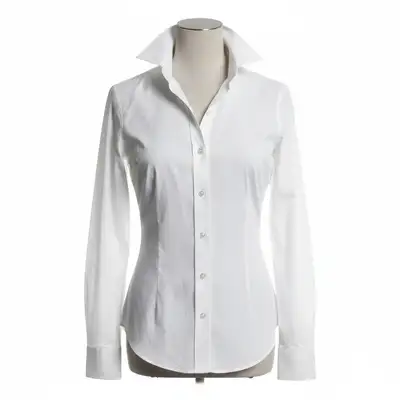
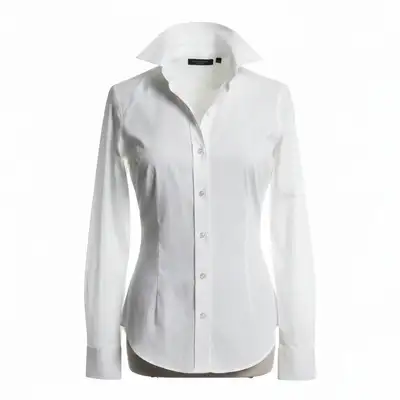
Resin jewelry with glare removed
Resin pendant photographed under ring light with distracting reflections. One prompt revealed the full design underneath.
remove all glare and reflections from the resin surface, reveal the design underneath, clean white background with soft shadow
Ocean resin coaster depth enhanced
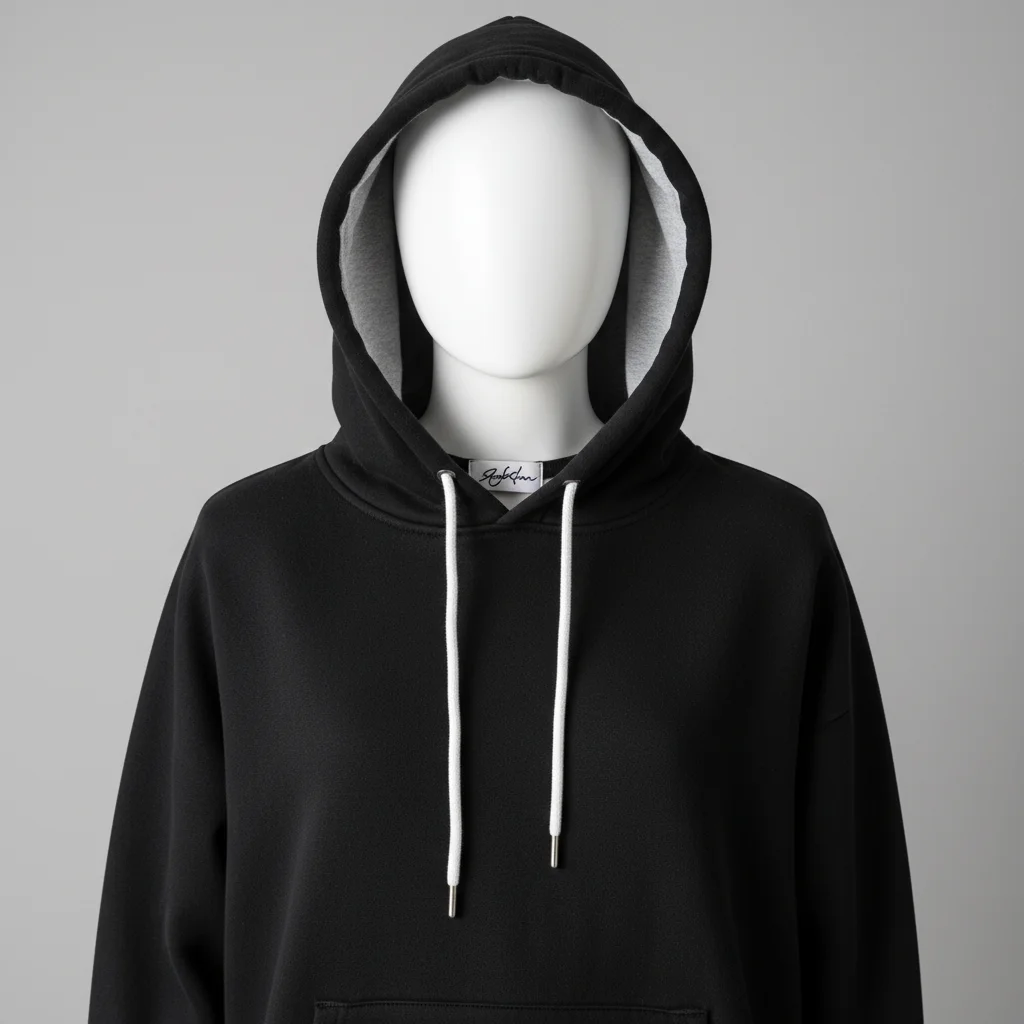
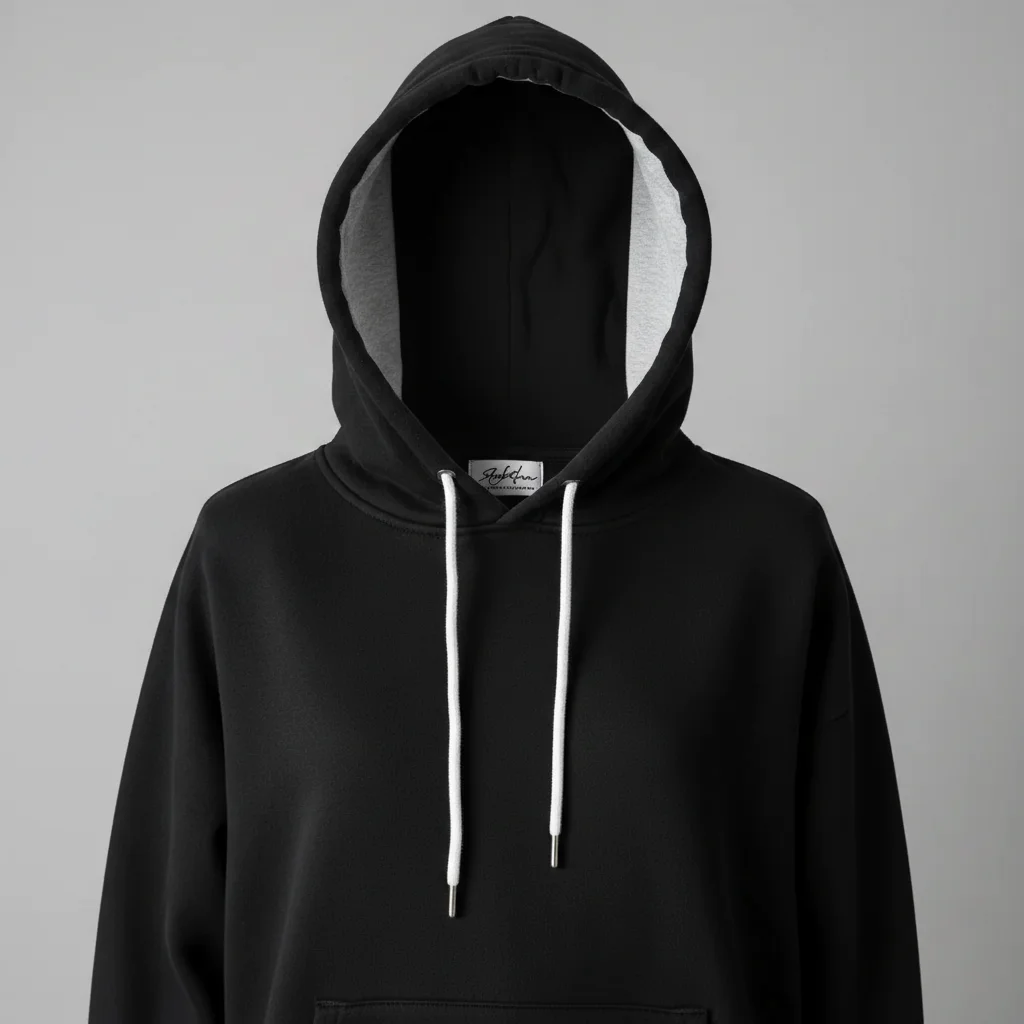
Ocean wave coaster looked flat in photos. AI brought out the distinct layers and boosted the ocean colors.
enhance the depth and layers in the ocean resin, make waves distinct, boost blue and teal tones, replace background with white marble surface
Resin tray with gold leaf accents
Decorative resin tray with gold leaf photographed on kitchen counter. Transformed into an elegant product shot.
replace background with dark slate surface, enhance gold leaf accents, remove reflections from resin surface, warm elegant lighting
Common Resin Photo Issues
Glare removal also removed the glossy look I want
Why: The AI may interpret 'remove reflections' as making the surface matte, which kills the premium resin aesthetic.
remove the distracting glare spots but keep the surface looking glossy and polished, maintain the premium resin finish
Specify 'keep the glossy finish' or 'maintain the shiny appearance' so the AI removes hot spots without flattening the surface.
Colors shifted after background change
Why: Resin's glossy surface picks up color casts from its surroundings. A new background changes implied reflections.
replace background with [your choice], maintaining the exact resin colors - the teal should stay teal, not shift green
Name specific colors you need preserved. Resin pigment names like 'ocean blue' or 'rose gold' help the AI understand your intent.
Depth layers look flat after editing
Why: Lighting changes can collapse the visual depth that makes layered resin pieces special.
enhance the distinct layers in the resin - each layer should be visually separated with clear depth between them
Mention how many layers your piece has: 'three distinct layers - sand, ocean, and foam' gives the AI a clear target.
Frequently Asked Questions
Can the AI really fix resin glare without making it look matte?
Yes! The key is being specific in your prompt. Say 'remove the distracting glare spots but keep the glossy resin finish.' The AI understands the difference between unwanted reflections (your phone, ring light) and the desirable glossy sheen that makes resin look premium. Most resin sellers get great results on the first try.
How do I photograph resin to get the best starting photo?
Angle is everything with resin. Shoot at a slight angle rather than straight down to avoid capturing your own reflection. Use diffused light (cloudy day or light through a white sheet) instead of direct light. Even imperfect starting photos work well with EditThisPic - the AI handles glare and color correction that would take 30+ minutes in Photoshop.
Will the AI preserve my embedded elements like flowers and glitter?
Yes, when you mention them in your prompt.
My ocean resin layers look flat in photos. Can the AI help?
Absolutely - this is one of the most common requests from resin sellers. Use a prompt like 'enhance the depth and layers in the ocean resin, make each wave layer visually distinct.' The AI can boost the contrast between layers to recreate the depth effect you see in person. Mention specific layer colors for best results.
What background works best for resin products?
It depends on your piece. White backgrounds are safe and clean for most items. Dark surfaces (slate, dark marble) create stunning contrast for colorful resin and make gold leaf pop. For ocean or nature-themed resin, natural wood or sand-colored backgrounds reinforce the aesthetic. Use the same background across your shop for brand consistency.
Can I fix photos of translucent or clear resin pieces?
Clear resin is the hardest to photograph because it reflects everything. The AI can reduce reflections while maintaining transparency. Tip: mention 'translucent resin' in your prompt so the AI knows to preserve the see-through quality. For best results, use simpler backgrounds that won't create complex reflections.
Is EditThisPic's AI etsy resin photo editor really free?
Yes — you get 1 free edit per week, no account needed. Plans start at $4.99/month for 15 edits.
Can I etsy resin on my phone?
Yes. EditThisPic works in any mobile browser — iPhone, Android, tablet. No app download needed.
Popular use cases
Ready to edit your photos?
Professional resin product photos without the photography headaches. Free to try.
Start Editing Your Resin PhotosTrusted by 15,000+ users