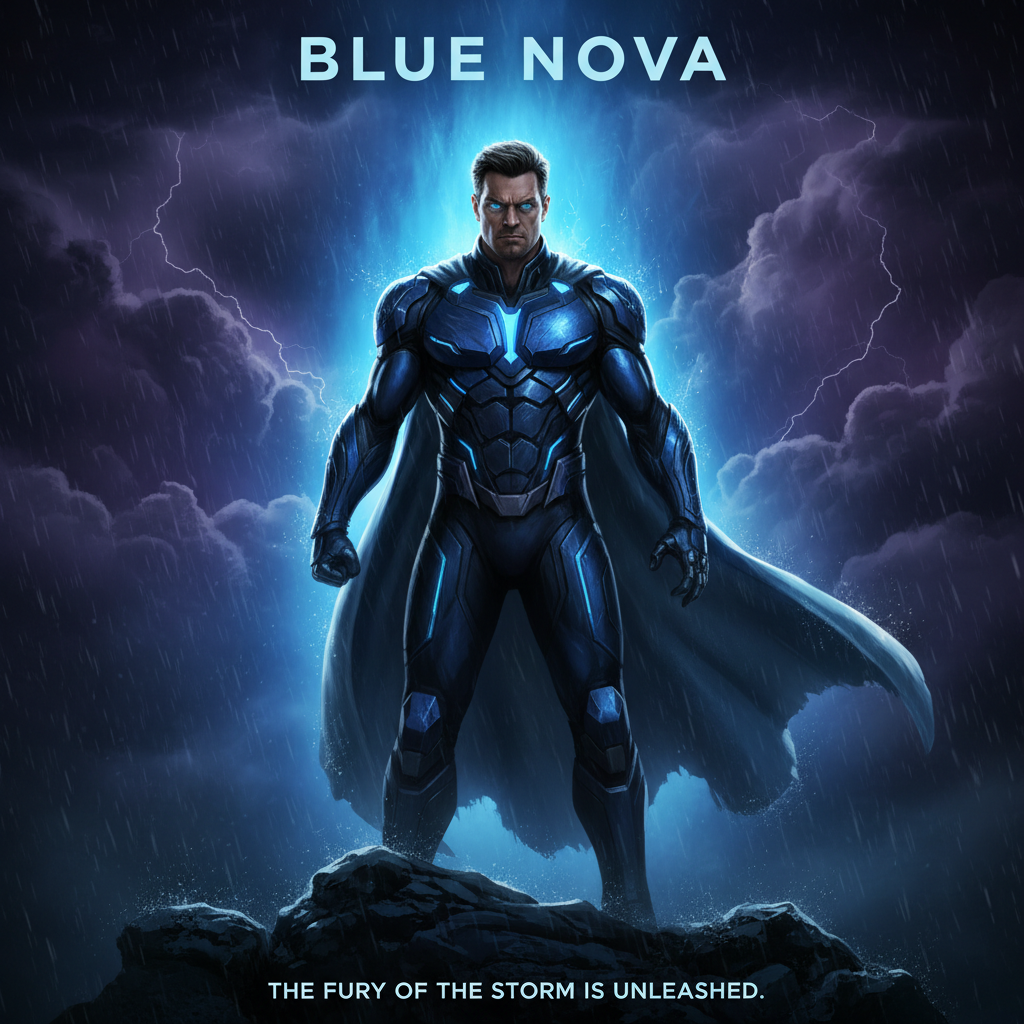
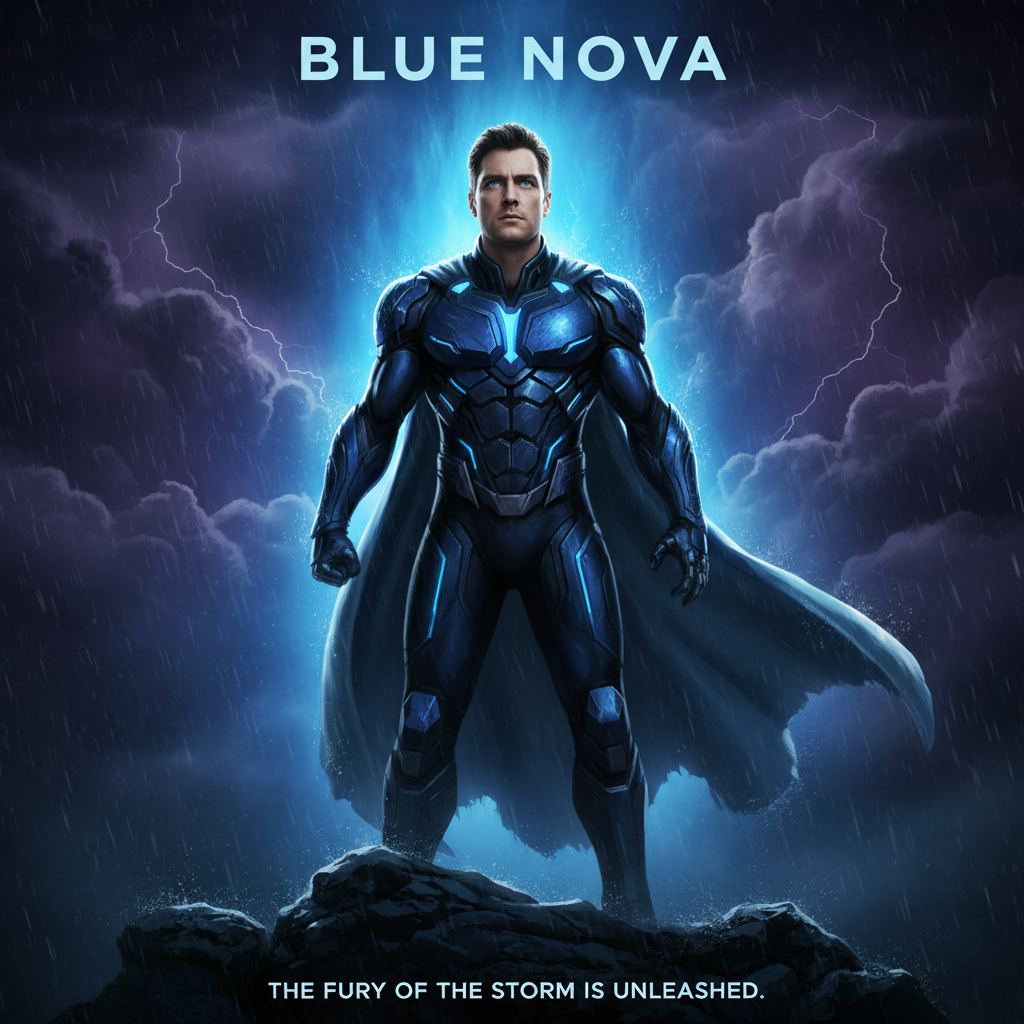
Do I need to mark the face in the painting before describing?
No. Just describe what you want: 'put the face from the reference photo onto the painting subject.' The AI understands painting subjects.
How do I put my face on a painting using AI for free?
Upload the painting as your main image on EditThisPic, then click '+ Add reference image' to upload your selfie or portrait photo. Type 'put the face from the reference photo onto the painting subject, preserve the oil painting texture and lighting style' and click edit. Preview the result — no account needed — and the purchased download is clean. Free to try, one preview edit per week at no cost.
Is there a free AI tool that puts my face on a painting without login?
Yes. EditThisPic does this without any account or login. Upload your painting and selfie, describe the placement, and preview the result in 30 seconds. No signup, no credit card, and clean paid downloads. One free preview edit per week — for more edits, credit packs start at $4.99.
What's the best way to put my face on a Renaissance painting?
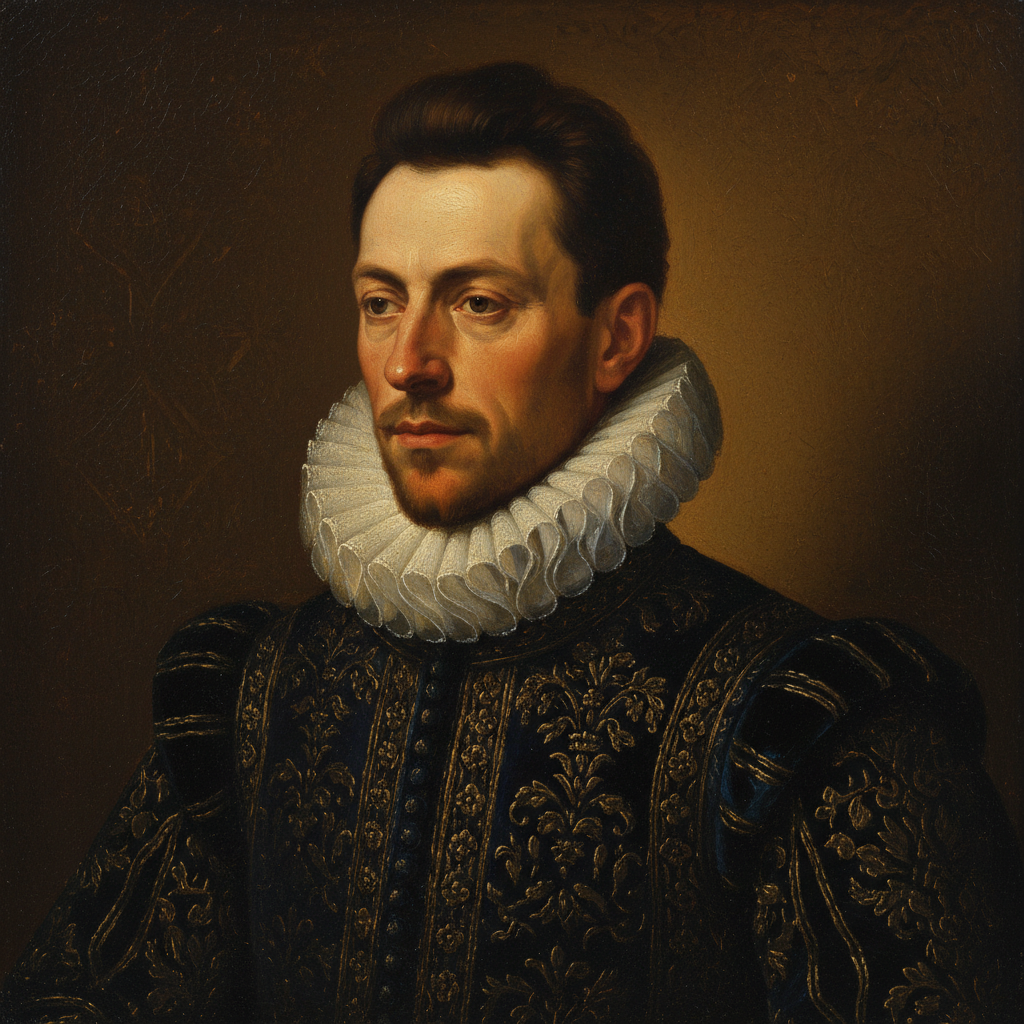
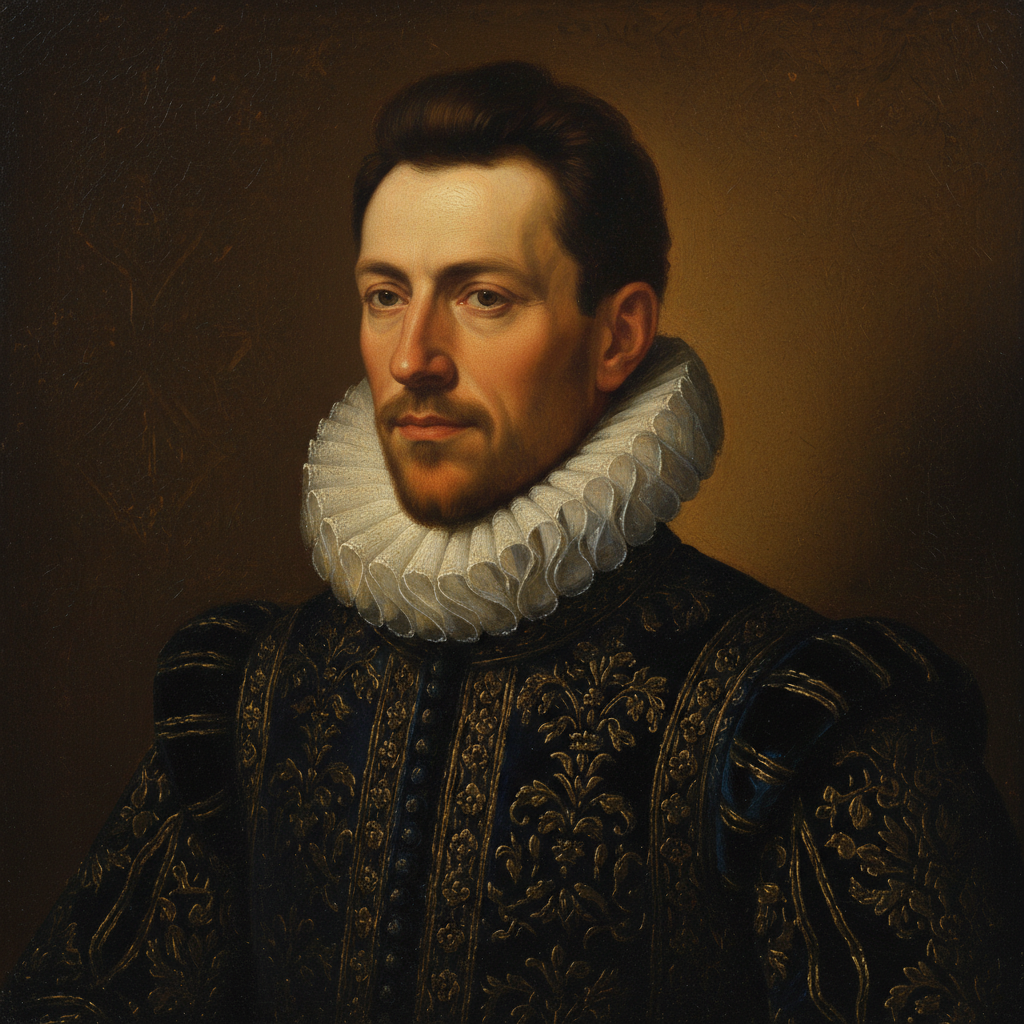
Upload the Renaissance painting as the main image and your portrait photo as the reference image using '+ Add reference image.' Use the prompt: 'put the face from the reference photo onto the painting subject, preserve the oil painting texture, brushwork, and warm Rembrandt-style lighting.' For best results, use a selfie where you're facing a similar direction to the painting's subject.
Can I put my face on a movie poster with AI?
Yes. Upload the movie poster as your main image and your photo as the reference. Use a prompt like: 'put the face from the reference photo onto the main character in this movie poster, preserve all title text, taglines, and the cinematic lighting style.' Explicitly asking to preserve text prevents the AI from altering poster typography.
How do I make my face look painted rather than photorealistic?
Include painting style instructions in your prompt. For oil paintings: 'render the face with oil painting brushwork and the warm color palette of the original.' For watercolors: 'render the face in soft watercolor washes.' For impressionist paintings: 'use soft impressionist brushstrokes, avoid photorealistic rendering.' The more specifically you name the style, the better the AI matches it.
What reference photo works best for face-on-painting results?
Use a well-lit portrait where your face is clearly visible and takes up a reasonable portion of the frame. Front-facing or slightly angled (3/4 profile) selfies work well. Avoid sunglasses, strong shadows across the face, or photos where your face is very small in the background. The reference photo's lighting doesn't need to match the painting — the AI adjusts.
Can I put my face on someone else's portrait painting as a personalized gift?
Yes, this is one of the most popular uses. Upload the portrait painting and the recipient's photo as the reference. Use a prompt like 'replace the face in this portrait with the face from the reference photo, keep all clothing, background, and painterly style intact.' Print at full resolution on canvas or photo paper for a memorable personalized gift.
What happens if the painting has two or more faces?
The AI may guess which face to replace. Then add 'replace the marked face with the face from the reference photo' to your instruction.
Will my face look natural in a very old or stylized painting style?
Yes, when prompted correctly. Include style-specific instructions — 'oil painting texture,' 'Old Master brushwork,' 'Baroque chiaroscuro lighting' — and the AI will render your face in that visual language rather than photorealistic. The key is explicitly describing the style; without it, the AI may default to a more photographic face that contrasts with the painted background.
Can I face-swap with a famous painting like the Mona Lisa?
Yes. Upload the painting image, add your selfie as the reference, and describe the placement. For the Mona Lisa specifically: 'put the face from the reference photo onto the Mona Lisa subject, preserve the sfumato soft-focus style and the warm amber tonality of the original.' Be specific about the style to get a result that looks like it belongs in the painting.
Is EditThisPic really free for face-on-painting edits?
EditThisPic is free to try with one preview edit per week — no account, no credit card, and clean paid downloads. Face-on-painting is a two-image edit and uses the standard credit system. If you need more than one edit per week, one-time credit packs start at $4.99 for 10 edits.
How much does EditThisPic cost?
You get 1 free edit per week — no account needed. After that, one-time credit packs start at $4.99 for 10 edits, valid 12 months, no subscription. Power users who edit daily can pick Studio Membership, a monthly workspace at $49.99/mo for 300 edits. Purchased downloads are clean with no watermark.