Free • No signup Transfer Hair color · Free

Hair Color Transfer from Photo

Upload your portrait + a reference photo, and the AI copies that exact hair color onto you.

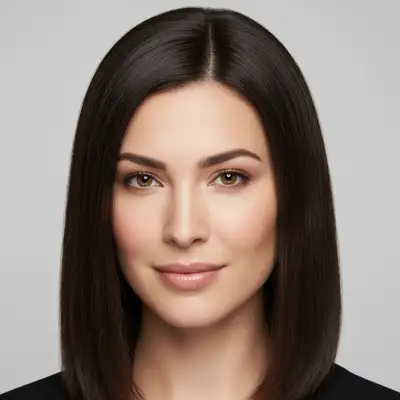
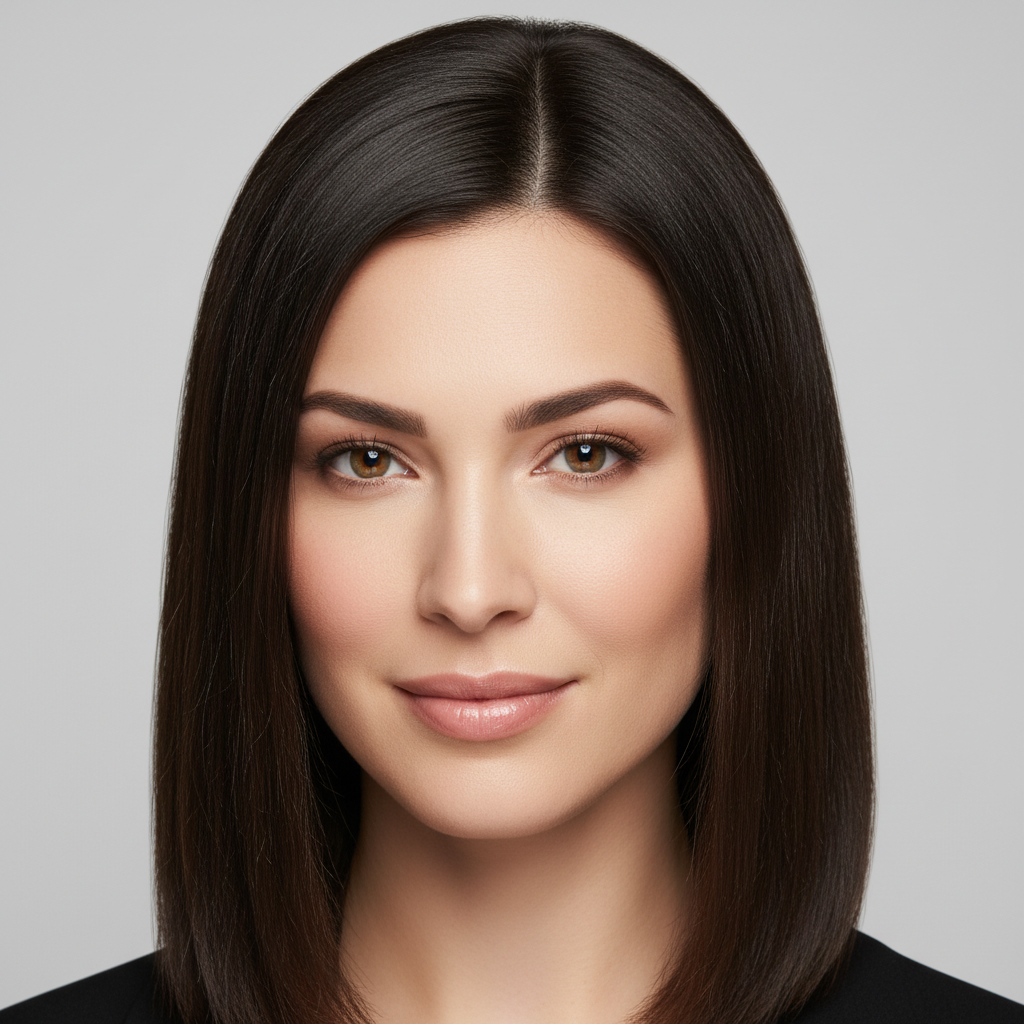
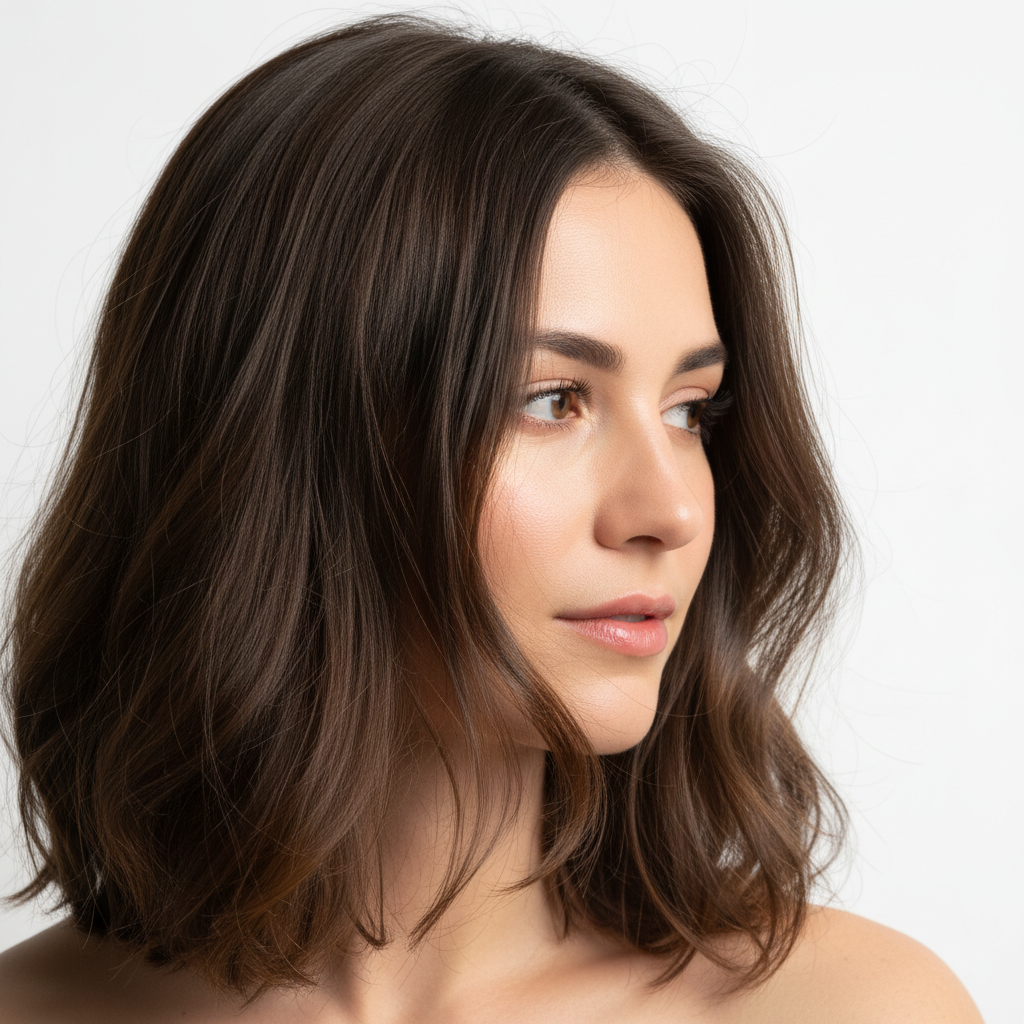
Portrait of woman with natural dark brown hair
Photo 1
+
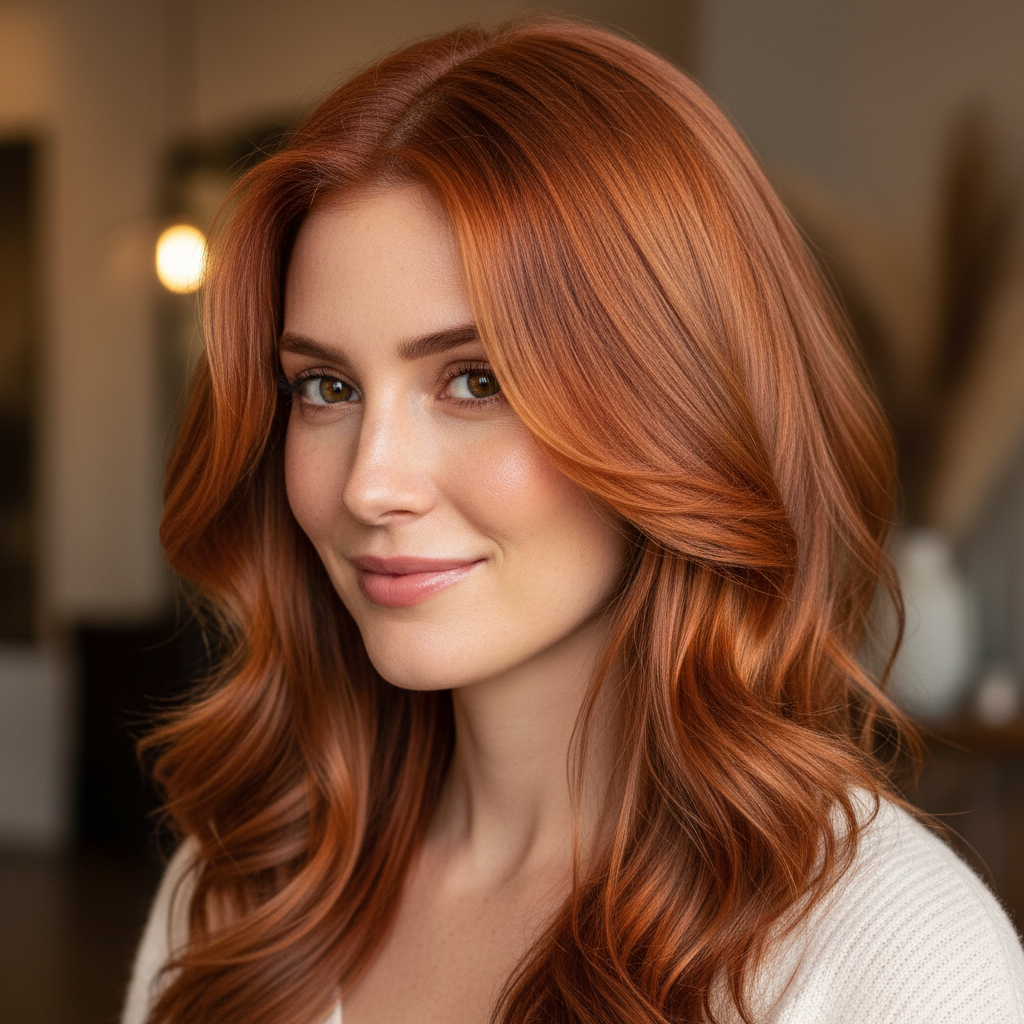
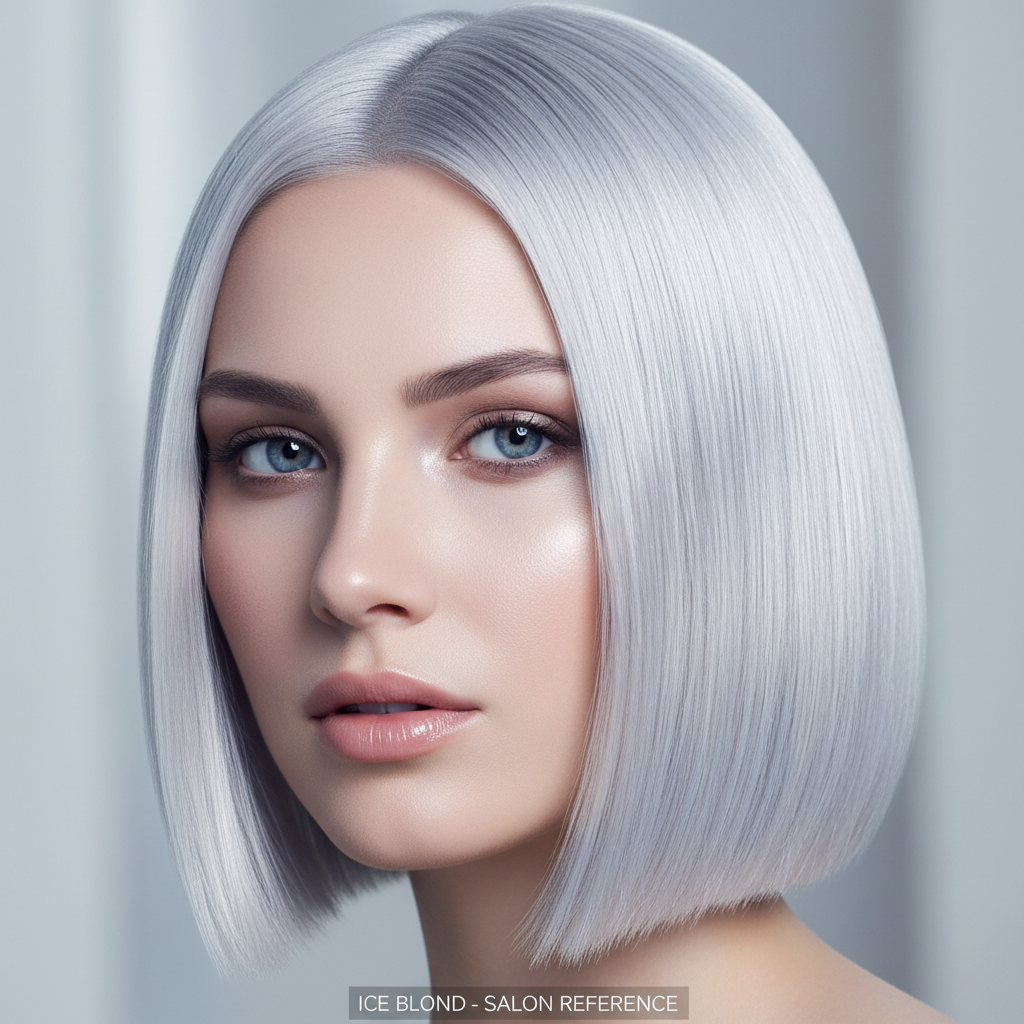
Reference image for Hair Color Transfer from Photo
Photo 2
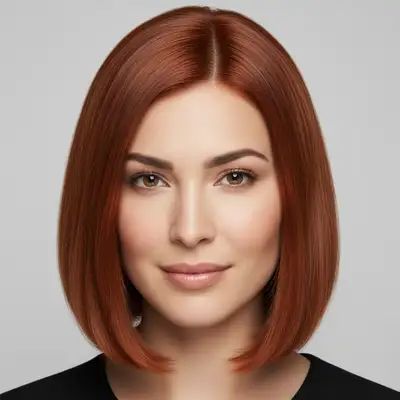
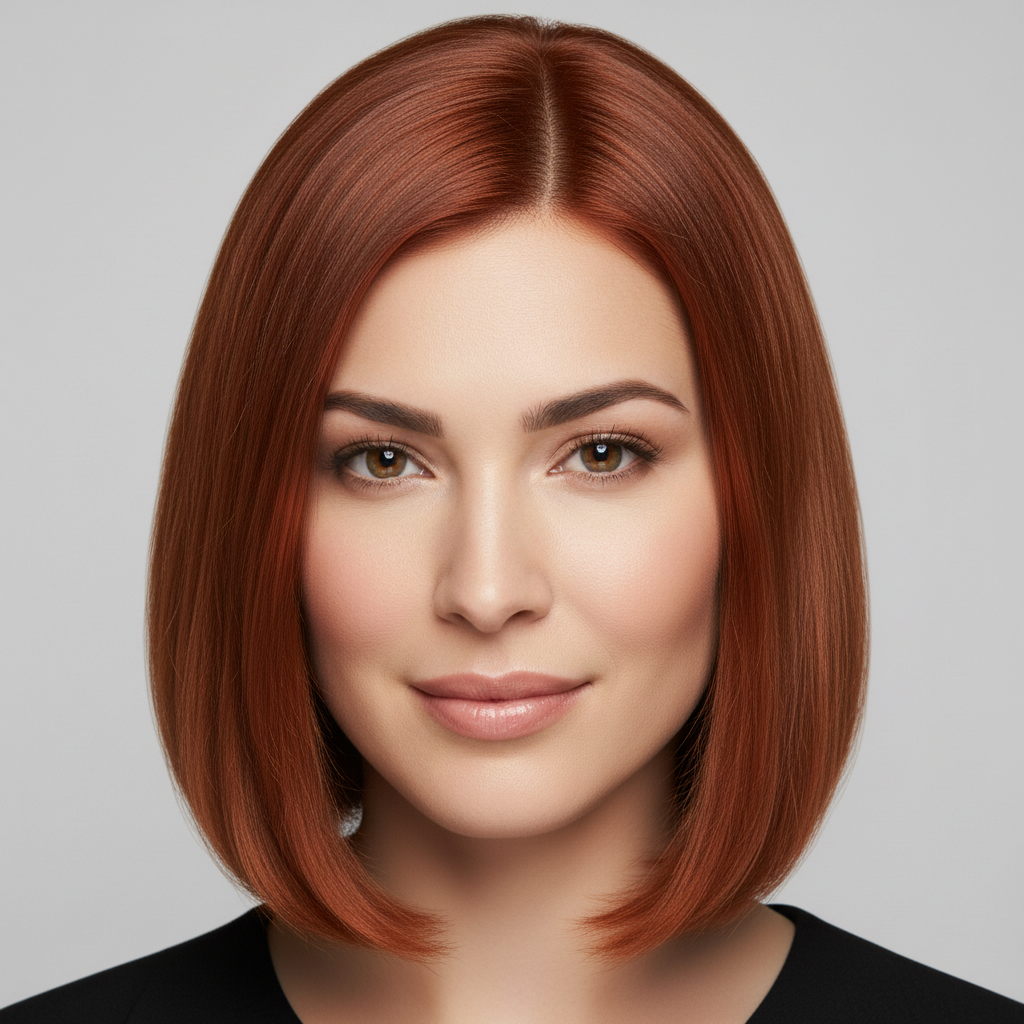
Same portrait with warm copper-red hair color transferred from reference
Result

Transfer Hair Color from Photo

Drop your photo here

or click to browse

Release to upload

Free • No signup

Popular use cases:
  • transfer hair color from photo
  • copy hair color from celebrity
  • virtual hair color try on from reference
  • preview hair color before dyeing
  • AI hair color changer reference photo
  • salon consultation hair color preview
  • match hair color from inspiration photo
  • try bold hair color risk-free
  • hair color from picture
  • see celebrity hair color on me

1Your photo
+
2Reference
=
Result
Portrait photo with original hair color Your photo
Reference photo showing desired hair color Hair color reference
Portrait with transferred hair color applied Result

"Transfer the hair color from the reference image onto my hair"

Cost
Free No signup required
Time
Instant results in 15-30 seconds
Works on
Any device - browser, phone, tablet, desktop
Powered by
AI-powered photo editing
Scenario Prompt Time
transfer the hair color from the reference image with natural highlights and dimension 20-30s
apply the vivid hair color from the reference, fully saturated from roots to ends 20-30s
transfer the balayage from the reference, darker at roots lightening to ends 30-45s
apply the hair color from the reference only to the ends, clean color-melt transition 30-45s

How it works

  1. Upload your portrait

    Drop your photo into EditThisPic. A clear portrait or headshot with your hair fully visible works best. Indoor or outdoor photos both work well — the AI reads your hair separately from the background. JPG, PNG, WebP up to 7MB.

    Expect: Clear portrait with visible hair: 20-30 seconds. Complex hair textures like curls or detailed highlights: may need 2-3 refinements for full accuracy.
  2. Add the hair color reference image

    Click '+ Add reference image' below the prompt and upload a photo containing the exact hair color you want. This can be a celebrity photo, a salon inspiration image, or any photo where you can clearly see the target hair color. The AI reads the precise hue, saturation, and tone directly from the reference — so the color transfer is exact, not a generic approximation.

    Tip: Use a reference photo where the hair is well-lit and clearly visible. A photo in natural daylight gives the most accurate color transfer. Avoid heavily filtered images — filters shift the actual color values.

    Copy one of these to get started:

    Hair Color Transfer from transfer the hair color from the reference image onto my hair — make it look natural and professional
    Warm tones — auburn, copper, or caramel apply the warm hair color from the reference photo to my hair, rich warm undertones, dimensional and glossy, blending naturally at the roots
    Cool tones — ashy, silver, or platinum transfer the cool-toned hair color from the reference image onto my hair, icy and even with bright highlights, no warm brassiness
    Bold fashion color from reference photo apply the vivid hair color from the reference photo to my hair, fully saturated from roots to ends, bold and editorial
    3 more prompts
    Balayage or ombre effect from reference transfer the balayage hair color from the reference image, darker at roots gradually lightening to the ends, natural sun-kissed blend
    Partial color — just the ends or just highlights apply the hair color from the reference only to the ends of my hair, leaving the roots in their natural color, clean color-melt transition
    Subtle natural refresh — same family, better version transfer the hair color from the reference image, keeping my natural undertones but richer and more vibrant, subtle enhancement not a full change
  3. Describe the transfer

    Type your instruction: 'transfer the hair color from the reference image onto my hair, preserving natural highlights and dimension.' Be specific about finish — glossy, matte, sun-kissed — and whether you want full coverage or a more gradient effect. No need to mark your hair; the AI identifies it automatically.

    Tip: If you want the color to look natural rather than flat, add 'with natural dimension and highlights' to your prompt. For a bold fashion-color result, add 'vivid and saturated.'

    Copy one of these to get started:

    Hair Color Transfer from transfer the hair color from the reference image onto my hair — make it look natural and professional
    Warm tones — auburn, copper, or caramel apply the warm hair color from the reference photo to my hair, rich warm undertones, dimensional and glossy, blending naturally at the roots
    Cool tones — ashy, silver, or platinum transfer the cool-toned hair color from the reference image onto my hair, icy and even with bright highlights, no warm brassiness
    Bold fashion color from reference photo apply the vivid hair color from the reference photo to my hair, fully saturated from roots to ends, bold and editorial
    3 more prompts
    Balayage or ombre effect from reference transfer the balayage hair color from the reference image, darker at roots gradually lightening to the ends, natural sun-kissed blend
    Partial color — just the ends or just highlights apply the hair color from the reference only to the ends of my hair, leaving the roots in their natural color, clean color-melt transition
    Subtle natural refresh — same family, better version transfer the hair color from the reference image, keeping my natural undertones but richer and more vibrant, subtle enhancement not a full change
  4. Generate and review

    Check the result at full zoom. Verify the color matches your reference, that the roots and ends look natural, and that the color doesn't bleed onto your skin or background. Look for realistic light reflection on the hair.

  5. Refine with markers if needed

    If the color transferred to the wrong area or missed sections of hair, tap a marker on the specific spot and regenerate with the same prompt. This is optional — most hair color transfers work cleanly without markers.

    Tip: Markers are most useful if you have a complex style like highlights or an undercut where you only want part of the hair changed.
Try it free

Transfer Hair Color from Photo

Drop your photo here

or click to browse

Release to upload

Free • No signup

"I uploaded my selfie and a photo of Zendaya's hair color and it showed me exactly how that shade would look on me. Took about 20 seconds. Saved me a bad dye decision." @HairColor_Nikki

See it in action

Portrait of woman with natural dark brown hair
Main Photo
Reference image for Hair Color Transfer from Photo
Reference
Same portrait with warm copper-red hair color transferred from reference
Result

Dark brown to warm copper-red

Using a celebrity editorial photo as reference, the AI transferred a rich warm copper-red onto natural dark brown hair.

Prompt: transfer the warm copper-red hair color from the reference image onto my hair, glossy and dimensional with natural highlights, blending from dark roots
Portrait of woman with medium brown hair
Main Photo
Reference image for Hair Color Transfer from Photo
Reference
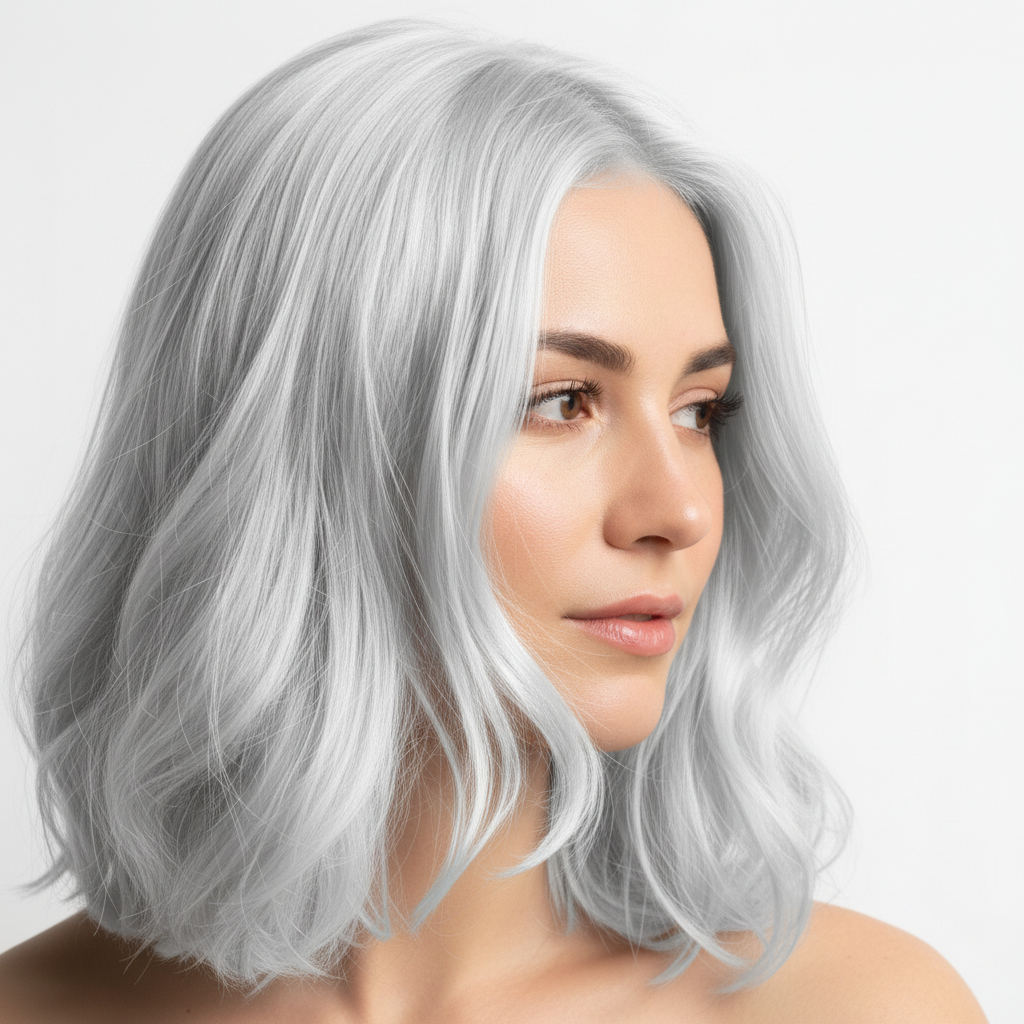
Same portrait with platinum blonde hair color applied from reference photo
Result

Natural brunette to platinum blonde

A reference photo of platinum blonde hair was uploaded alongside a portrait to preview a dramatic lightening transformation.

Prompt: apply the platinum blonde hair color from the reference photo to my hair, icy cool tone throughout, bright and luminous with no warm brassiness

Detailed Guides by Scenario

📷

Preview Hair Color Before Your Salon Appointment

Show up to your stylist knowing exactly what you want — and whether it will actually suit you. Transfer any inspiration color onto your own photo before committing.

Common Scenarios

  • Verifying a Pinterest inspiration color will work with your skin tone
  • Comparing two candidate colors before booking
  • Showing your stylist a realistic preview on your actual hair
  • Checking whether a drastic color change will look right on you

Best Practices

  • Use a recent photo where your hair is in its natural state
  • Upload a well-lit reference image — salon or editorial photos work well
  • Try multiple reference colors in separate edits to compare side by side
  • Add 'matching my natural hair texture' to preserve your curl or wave pattern
Realistic salon preview from inspiration photo transfer the hair color from the reference image onto my hair, preserving my natural highlights and hair texture, realistic salon result
Natural-looking color transfer for stylist consultation apply the exact hair color from the reference photo to my hair, blending naturally at the roots and ends with dimensional tone
📷

Try Bold and Fantasy Colors Risk-Free

Considering going pink, blue, silver, or platinum? See the result before any bleach touches your hair. Upload a reference of the exact bold shade and preview it on yourself.

Common Scenarios

  • Trying pastel pink, lilac, or teal from a fashion editorial
  • Previewing bleached platinum blonde before committing
  • Testing a bold red or copper tone from a reference photo
  • Seeing how a silver or grey look suits you

Best Practices

  • Use editorial or influencer photos as references for bold colors — they're better lit than stock images
  • Add 'vibrant and saturated' for fashion colors or 'icy and cool-toned' for platinum
  • For pastels, try 'soft and diffused, not overly bright' to keep it wearable
  • Bold colors look different at different lengths — use a photo where the reference hair is similar in length to yours
Pastel pink fantasy color preview transfer the vivid pastel pink hair color from the reference image onto my hair, vibrant and saturated from roots to ends
Platinum blonde transformation preview apply the platinum blonde color from the reference photo to my hair, icy cool tone with bright highlights throughout
📷

Copy a Celebrity or Influencer Hair Color

Found a celebrity with the perfect hair color? Upload their photo as a reference and the AI extracts the exact hue — not a generic match, but the actual tone from that photo.

Common Scenarios

  • Copying a specific shade from a red carpet photo
  • Matching the exact warm caramel tone from a social media post
  • Recreating a signature brunette with golden undertones
  • Previewing a trending color from a fashion week photo

Best Practices

  • Use high-resolution reference photos for the most accurate color extraction
  • Choose a reference where the celebrity's hair is under similar lighting to your photo
  • Describe the finish you want: 'glossy,' 'matte,' or 'sun-kissed highlights'
  • For balayage or gradient looks, add 'with ombre effect darker at roots and lighter at ends'
Warm auburn celebrity color transfer transfer the exact warm auburn hair color from the reference image onto my hair, glossy finish with natural-looking dimension
Chestnut brown with golden tone transfer apply the rich chestnut brown hair color from the reference photo to my hair, with warm golden undertones and natural highlights

If something looks off

The color looks flat or uniformly dyed, not natural

Why: The AI applied the base color without adding dimensional variation, which real hair always has — different tones at roots, mids, and ends.

Try: transfer the hair color from the reference image with natural dimension and tonal variation, darker at roots, slightly lighter at mid-lengths and ends

Tip: Always include 'dimensional' or 'with natural highlights' in your prompt to prevent a flat, all-over-dyed appearance.

Hair color bled onto skin or background

Why: The AI slightly misidentified the hair boundary, extending the color onto adjacent areas like the forehead, neck, or background.

Try: transfer the hair color from the reference image, keeping the color strictly within the hair, clean edges against skin and background

Tip: If bleeding persists, tap a marker on a clean section of hair and regenerate — this helps the AI accurately identify the hair region.

The transferred color doesn't match the reference photo

Why: The reference photo may have strong color filters, unusual white balance, or the lighting dramatically shifted the apparent color.

Try: transfer the natural hair color from the reference image, ignoring any filters or yellow/orange cast from indoor lighting, read the true underlying hair color

Tip: For the most accurate color extraction, use a reference photo taken in natural daylight without heavy filters or Instagram-style color grading.

Only part of the hair changed — some sections stayed the original color

Why: Complex hair textures, braids, updos, or photos where portions of hair are in deep shadow can cause the AI to miss covered or underlit sections.

Try: transfer the hair color from the reference to all visible hair including the darker sections, even coverage throughout

Tip: For complex styles with sections in shadow, tap markers on the unchanged areas to guide the AI to those specific regions.

AI changed the wrong area or something I didn't want changed

Why: The AI couldn't determine exactly which area you meant from description alone. This happens with ambiguous requests.

Try: Tap a marker on the specific hair area you want to change, then regenerate with the same prompt

Tip: Markers tell the AI 'I mean THIS area specifically.' Use them when description alone is ambiguous or when only part of the hair should be recolored.

The result looks obviously edited — unnatural or over-processed

Why: The color may be too saturated relative to the lighting in the original photo, or the hair texture was altered during the color transfer.

Try: transfer the hair color from the reference image naturally, preserving the original hair texture and light reflection, photorealistic result

Tip: Adding 'preserving the original hair texture' prevents the AI from over-smoothing curly, wavy, or coarse hair types during the color change.

Quick answers

Do I need to mark my hair before describing the color transfer?

No. Just describe what you want: 'transfer the hair color from the reference image onto my hair.' The AI identifies your hair automatically. Markers are only useful if the AI misses a section of hair or applies color to the wrong area — which is rare for straightforward portraits. Try without markers first.

How do I transfer hair color from a reference photo using AI?

Upload your portrait to EditThisPic, then click '+ Add reference image' and upload the photo with the hair color you want. Type 'transfer the hair color from the reference image onto my hair' and click edit. The AI reads the exact color from your reference and applies it to your hair in about 30 seconds. Free, no signup required.

Is there a free hair color changer from reference photo that doesn't need an account?

Yes. EditThisPic is completely free with no account or signup required. Upload your photo and a reference image, describe the color transfer, and download the result without any watermark. You get one free edit per week, or you can purchase credits for unlimited editing.

Can I copy a celebrity's exact hair color onto my photo?

Yes. Upload a clear photo of the celebrity as your reference image and the AI extracts the precise hue, tone, and saturation from their hair. It applies that exact color to your portrait — not a generic approximation, but the actual color values from the reference. Works with any photo: celebrity, editorial, social media, or salon photos.

What is the best free AI tool for trying on a hair color from a reference photo?

EditThisPic is built for exactly this two-image workflow. You upload your portrait and a separate reference image, and the AI transfers the exact hair color from the reference onto your photo. Unlike generic AI hair recolor tools that let you pick from a color palette, this reads the color directly from your reference photo — so you get the exact shade you're looking at, not a closest match.

How do I see what a hair color looks like on me before dyeing?

Upload a recent selfie or portrait where your hair is clearly visible. Then upload a photo with the hair color you're considering as a reference image. Describe 'transfer the hair color from the reference image onto my hair.' The AI shows you a realistic preview in seconds. It's useful before salon appointments — you can compare multiple colors and bring the results to show your stylist.

Can I try bold or fantasy hair colors like pink or blue from a reference photo?

Yes. Upload a photo of someone with the bold color you want as a reference and the AI transfers that exact vivid shade onto your portrait. For best results with fashion colors, add 'fully saturated and vivid' to your prompt so the color comes out bold rather than washed out. Works for pastel pink, electric blue, platinum, silver, teal, and any other color visible in a reference photo.

What makes a good reference photo for hair color transfer?

The best reference photos are well-lit with clearly visible hair — outdoor natural light photos or professional/editorial photos work best. Avoid heavily filtered or color-graded images because filters shift the actual color values and the AI may transfer the filtered color rather than the intended shade. The hair doesn't need to be the same length or texture as yours — only the color matters.

Can I transfer a balayage or ombre effect from a reference photo?

Yes. Upload a reference with the exact balayage or ombre you want and describe the gradient: 'transfer the balayage from the reference image, darker at roots gradually lightening to the ends.' The AI reads the tonal gradient from the reference and applies the same effect to your hair. You can also add 'sun-kissed blend' or 'seamless color melt' to refine the transition.

Will the color look natural or obviously edited?

When done well, the result looks photorealistic. The AI preserves your hair texture, natural light reflection, and dimensional variation rather than applying a flat overlay. Add 'preserving natural hair texture and highlights' to your prompt for the most realistic result. Complex hairstyles like tight curls or very dark hair may need a second refinement pass.

Can I change just part of my hair — like just the ends or just highlights?

Yes. Describe the area you want changed: 'apply the hair color from the reference only to the ends of my hair' or 'add highlights in the color from the reference, leaving the base color natural.' For partial changes, using a marker on the target section significantly improves accuracy.

Does this work on curly, textured, or very dark hair?

Yes, though very dark hair and tight curl patterns sometimes need 2-3 refinements for full coverage. For dark hair, add 'fully covering the dark base, rich and saturated' to help the AI achieve complete color change. For curly or coarse textures, add 'preserving natural curl pattern and hair texture' to prevent over-smoothing.

Ready to preview your new hair color?

Upload your photo + a reference. Free, no signup required.

Try it free