Free • No signup Insert Someone · Free

AI Insert Someone into Picture

Last updated

Insert anyone into your picture using a reference image — AI composites them in with matched lighting, correct scale, and clean blending.

01Photo 1
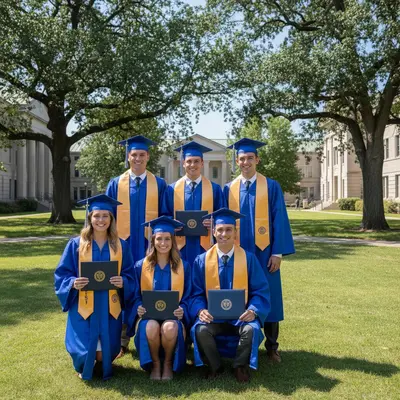
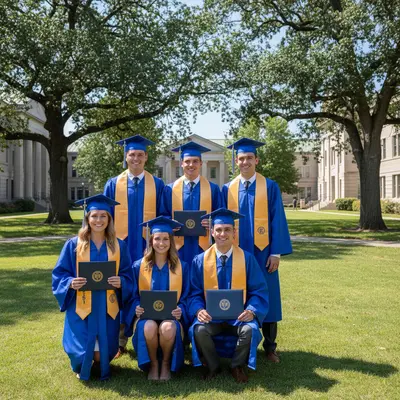
Graduation group picture with gap in back row on the right
02Photo 2
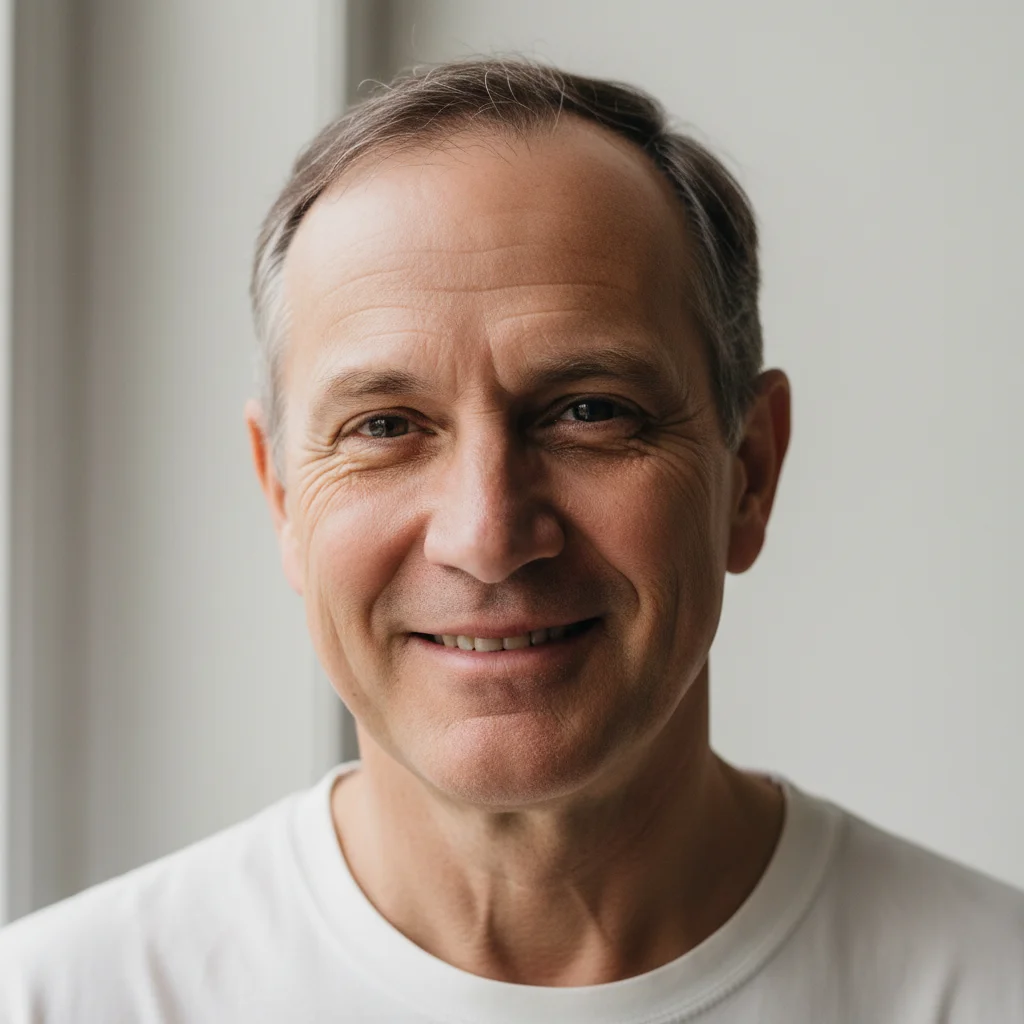
Portrait of the friend to insert
03Result
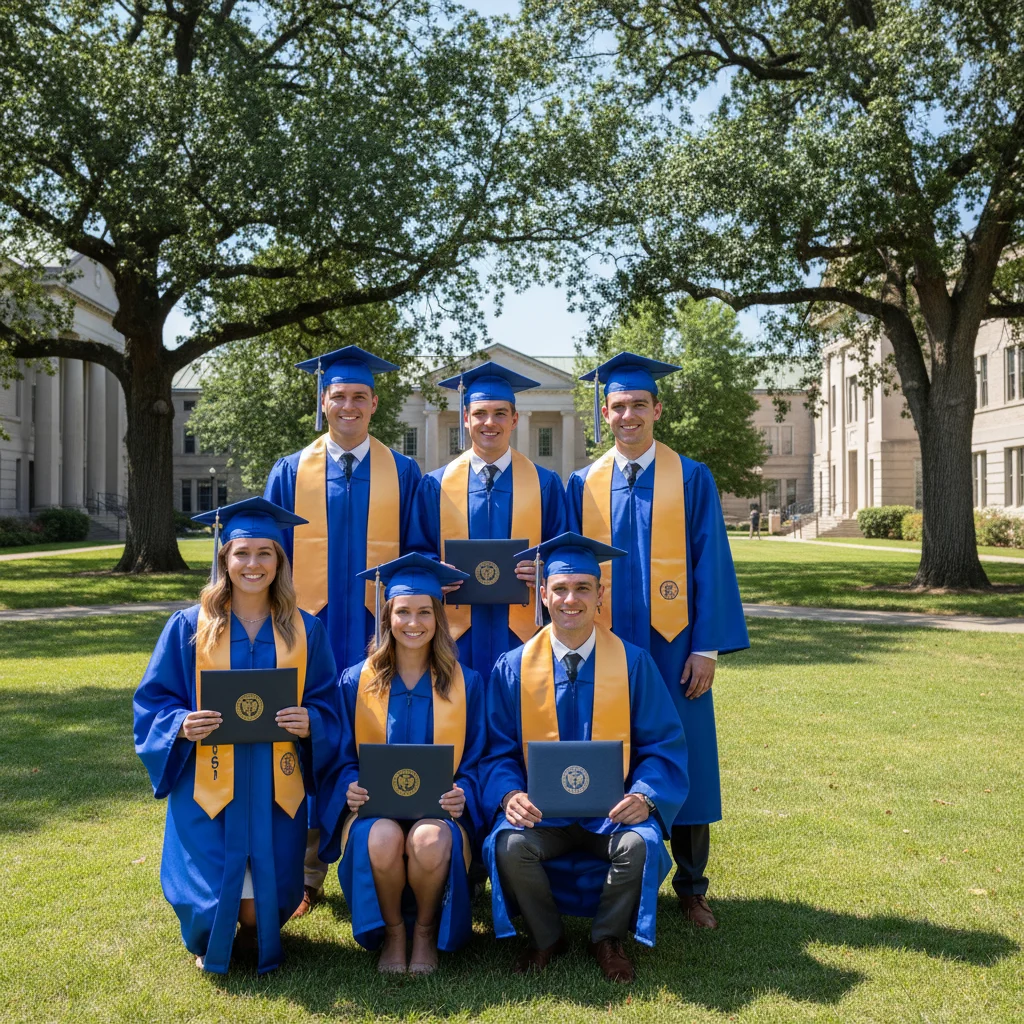
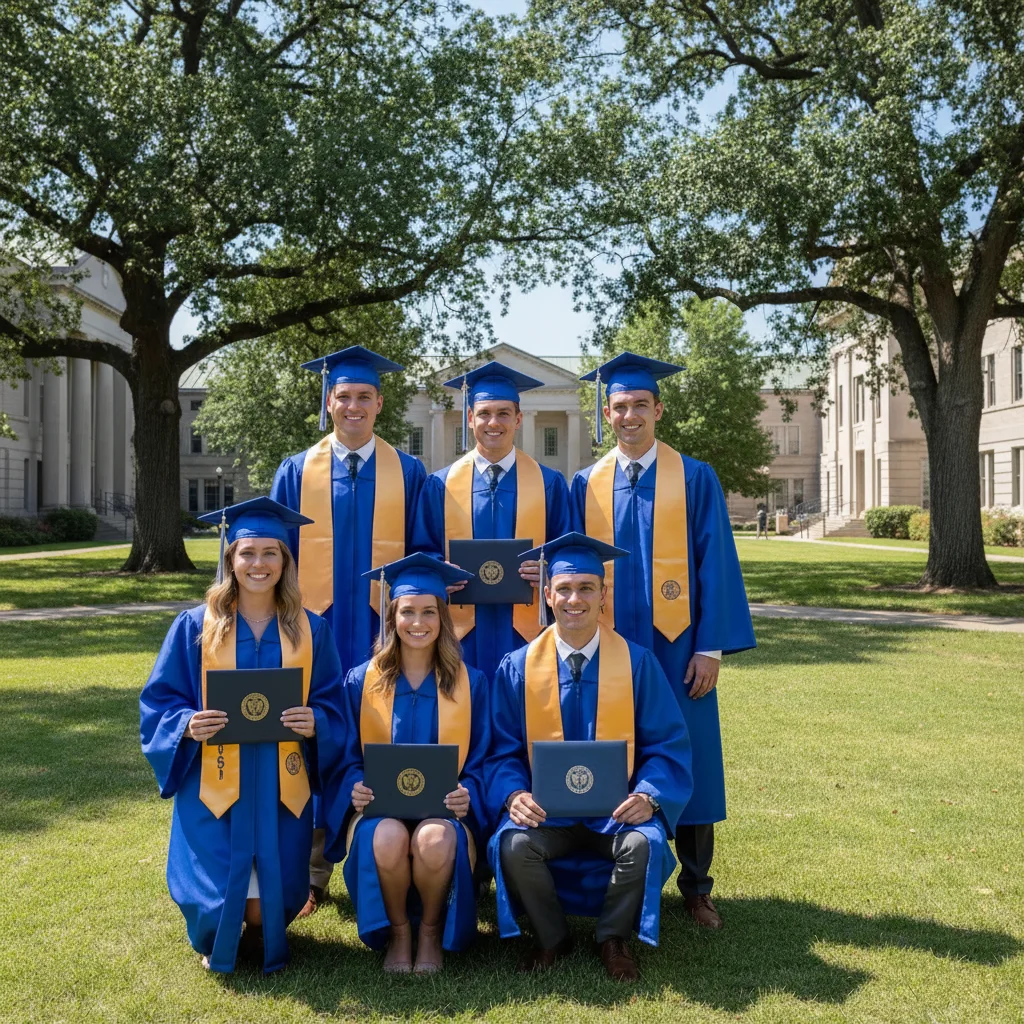
Complete graduation picture with the friend inserted in the back row

Upload photo to insert someone

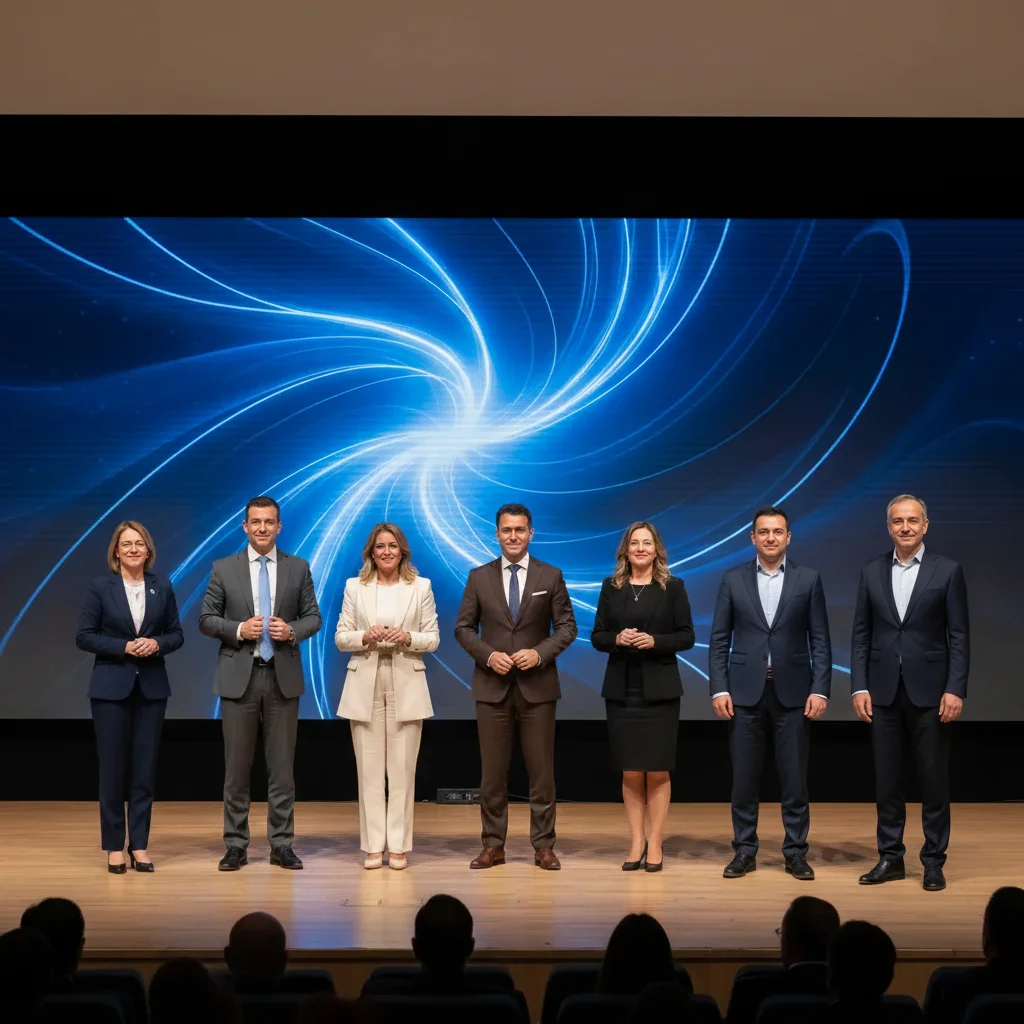
"insert this person at the left end of the formal group lineup, wearing a dark blazer matching the other attendees, same upright posed stance, conference lighting"

Release to upload

1 free edit·then from $4.99

Popular use cases:
  • insert someone into group picture
  • insert missing person into picture
  • composite person into picture
  • insert person using reference image
  • family picture editing
  • memorial picture creation

1Your photo
+
2Reference
=
Result
Group picture with gap in the lineup Your picture
Reference photo of the person to insert Reference
Picture with the person inserted Result

"Insert this person at the right end of the group"

Cost
Free No signup required
Time
Instant results in 15-30 seconds
Works on
Any device - browser, phone, tablet, desktop
Powered by
AI-powered photo editing

How it works

  1. Upload your two photos

    Drop your main picture into EditThisPic — the scene you want to keep. Then click '+ Add reference photo' below the prompt box to upload a photo of the specific person you want to insert. You need both: the main picture for the scene, and the reference for the real person.

    Expect: JPG, PNG, WebP up to 7MB each. Positions at the edges of groups are easiest for the AI to fill naturally.
  2. Describe the insertion point and details

    Tell the AI where and how: 'insert this person standing at the right end of the group, wearing similar formal attire, matching the studio lighting.' Position, clothing, and lighting cues together give the AI what it needs for a convincing result.

    Tip: If the scene has very specific lighting (e.g. golden hour, studio flash), mention it explicitly — the AI will calibrate the insertion accordingly.

    Copy one of these to get started:

    Insert someone into a group picture insert this person at the right end of the group, scale to match the others, matching the casual outdoor lighting
    Insert someone into a formal event picture insert this person at the left end of the formal group lineup, wearing a dark blazer matching the other attendees, same upright posed stance, conference lighting
    Insert someone into a travel picture insert the person from the reference photo standing next to the group, casual tourist clothing, bright outdoor sunlight, natural shadow on the ground
    Insert someone into a memorial picture insert this person standing softly behind the family group, gentle expression, matching the warm indoor lighting, seamlessly blended
    2 more prompts
    Insert someone into a class picture insert this person in the back row, third from the right, wearing similar school clothing, matching the neutral outdoor or gym lighting
    Insert someone into a holiday picture insert this person seated at the holiday dinner table between the two people on the right, wearing festive attire, matching the warm candlelit dining room lighting
  3. Generate and review the result

    Check scale proportionality with nearby subjects, shadow consistency, and edge blending. Look at the hairline and shoulders particularly — that's where composite edges are most visible.

  4. Use markers for exact placement

    If the inserted person isn't quite in the right spot, tap a marker on the exact location in the picture and regenerate. Markers override the description-based placement and give the AI a precise anchor.

    Tip: Mark the foot position, not the torso. The AI uses foot position to calculate correct ground-plane scale.

See it in action

Graduation group picture with gap in back row on the right
Main Photo
Portrait of the friend to insert
Reference
Complete graduation picture with the friend inserted in the back row
Result

Friend inserted into graduation picture

A graduation group picture with one friend missing — AI inserted them into the back row using a reference photo, wearing a matching graduation cap and gown.

Prompt: insert this person in the back row on the right, wearing a matching blue graduation cap and gown, bright outdoor commencement lighting
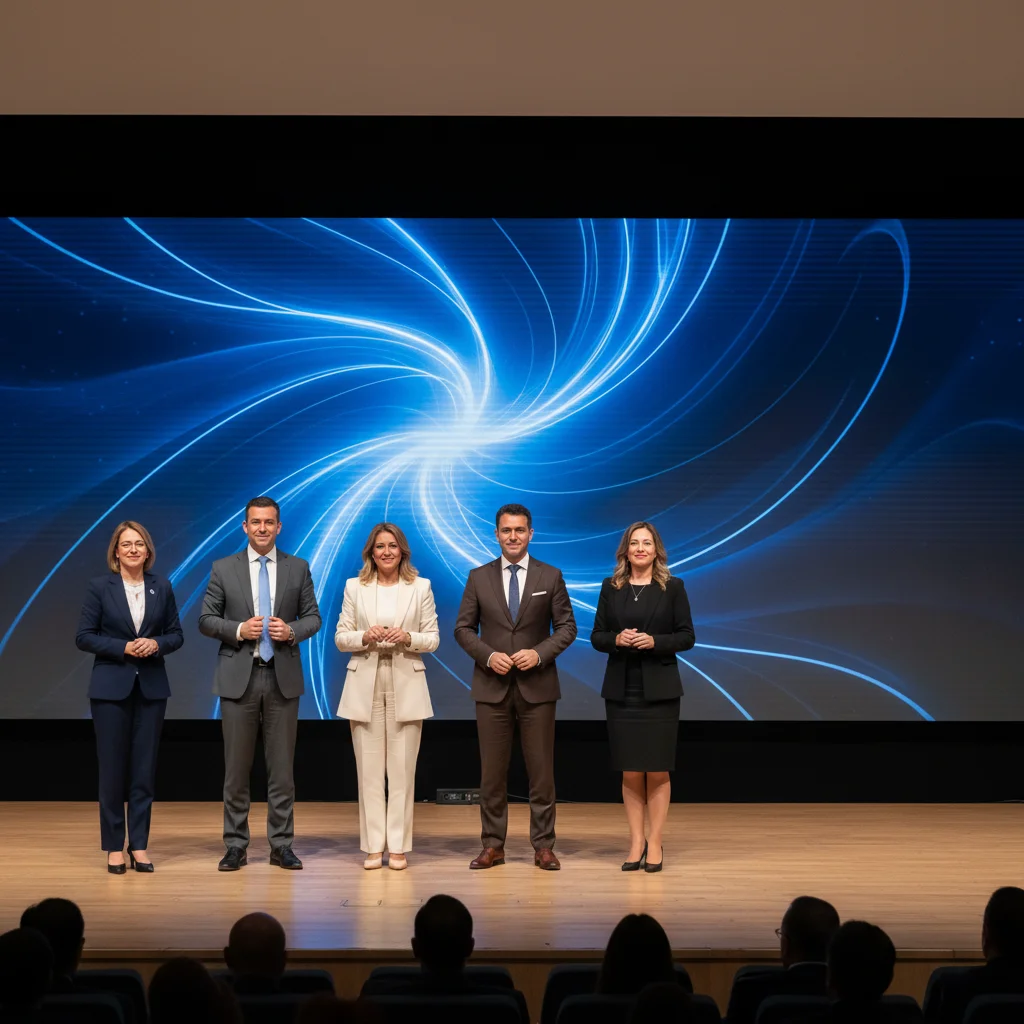
Conference stage picture with gap at right end of presenter row
Main Photo
Reference image for AI Insert Someone into Picture
Reference
Complete conference picture with the presenter inserted
Result

Colleague inserted into team conference picture

A team conference picture missing one key presenter — AI inserted them at the end of the standing row using a professional headshot.

Prompt: insert this person at the right end of the conference row, wearing a navy blazer similar to the other presenters, neutral conference stage lighting
Holiday family picture with gap at left end of the group
Before
->
Complete holiday picture with the sibling inserted on the left
After

Sibling inserted into holiday family picture

A holiday family picture where one sibling was overseas — AI inserted them into the group using a reference photo, matching the warm Christmas indoor lighting.

Prompt: insert this person standing at the left end of the family group, wearing casual holiday clothing, matching the warm Christmas tree indoor lighting, naturally blended

If something looks off

Inserted person is the wrong scale

Why: The AI misjudged depth and perspective relative to other subjects in the picture.

Try: insert this person at the correct proportional scale to match other people at the same depth in the picture

Tip: Place a marker at the expected foot position to give the AI precise ground-plane scale reference

Shadow direction is wrong

Why: The AI used default shadow direction instead of matching the scene's light source.

Try: insert this person with a shadow falling to the right to match the other subjects, light source from the left

Tip: Look at the shadow direction on the person nearest to the insertion point and describe it explicitly

Person ended up in the wrong spot

Why: Description-based placement is approximate without a position anchor.

Try: Tap a marker on the exact location in the picture, then regenerate with the same prompt

Tip: Markers override description-based placement — always use them for precise positioning

Facial features don't look like the reference

Why: The reference photo quality or angle limited facial feature extraction.

Try: insert this person preserving their exact facial features and overall likeness from the reference photo

Tip: Use a well-lit, front-facing or three-quarter reference photo for the best facial accuracy

Edges look cut-out or artificial

Why: The edge blending algorithm had difficulty with the background complexity at that location.

Try: insert this person with natural, seamlessly blended edges, no harsh cutout lines, realistic hair edges

Tip: Complex backgrounds like foliage or crowds require explicit 'seamlessly blended' instruction

Quick answers

Do I need TWO photos for this?

Yes — inserting a specific person requires two photos. First, upload your main picture (the scene you want). Then click '+ Add reference photo' to upload a photo of the person you want to insert. The AI reads the reference to identify the real person and inserts them into your main picture with matched lighting and scale. Without a reference, it can only generate a generic described figure.

How do I insert someone into a picture for free?

Upload your main picture to EditThisPic, click '+ Add reference photo' to upload the person, then describe the insertion point: 'insert this person at the right end of the group.' Results in 30 seconds. Completely free, no account, no signup, no watermark.

Can I insert someone into a picture without Photoshop?

Yes. EditThisPic handles masking, scaling, lighting, and blending automatically. You just upload two photos and type a description. No design software, no manual editing, no experience needed. Results in about 30 seconds.

Can I insert a deceased loved one into a family picture?

Yes. Upload a reference photo of your loved one, describe where to insert them, and the AI blends them into the scene while preserving their likeness. Many families use this for memorial pictures, holiday cards, and family portraits.

What if the insertion looks artificial?

Add 'seamlessly blended edges' and 'natural shadow beneath them' to your prompt. If lighting still looks off, describe the exact light direction in the scene: 'light coming from the upper left, matching the other subjects.' For persistent issues, try a different reference photo taken in similar lighting conditions.

How much does EditThisPic cost?

You get 1 free edit per week — no account needed. After that, credit packs start at $1.99 for 3 edits. Monthly plans start at $4.99/mo for 15 edits with unused credits rolling over. All edits are full resolution with no watermark.

Ready to insert someone into your picture?

Upload two photos, describe placement. Free, no signup required.

1 free edit included·Credit packs from $4.99