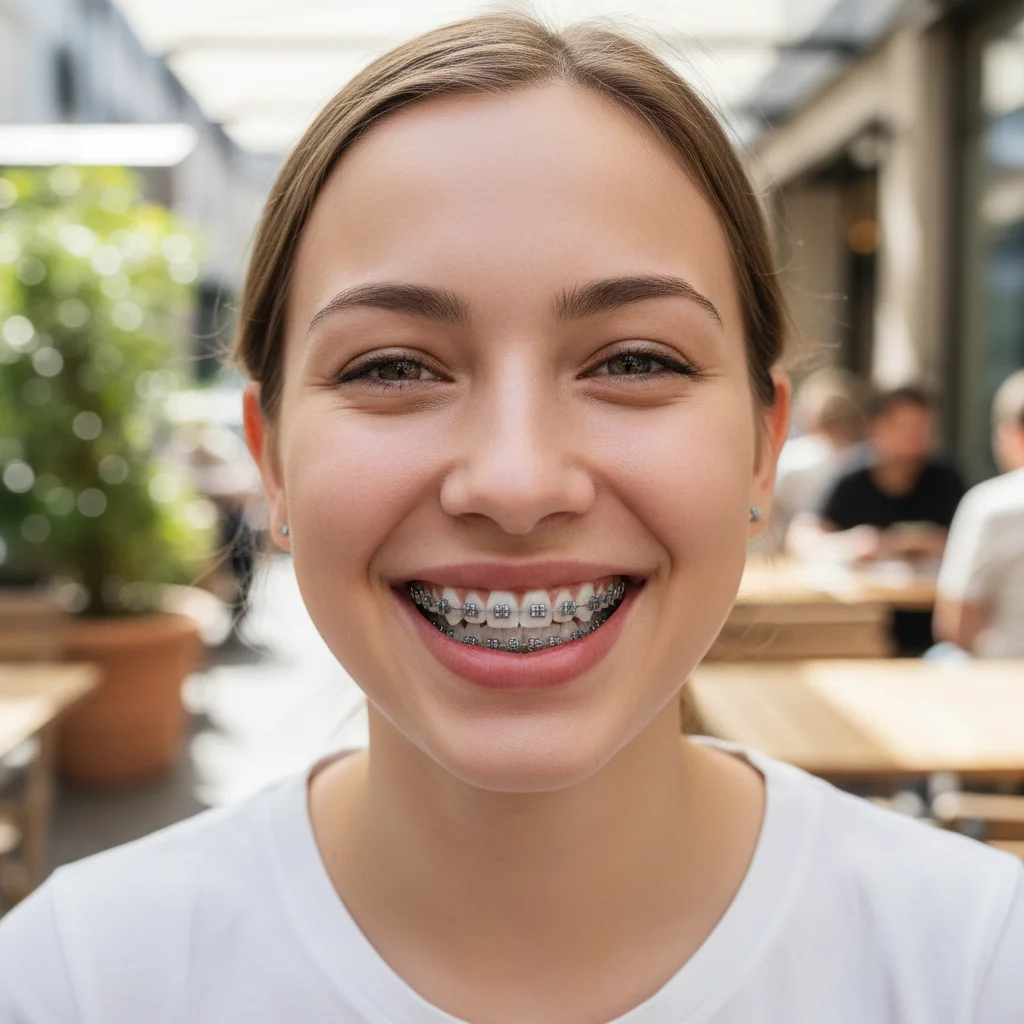
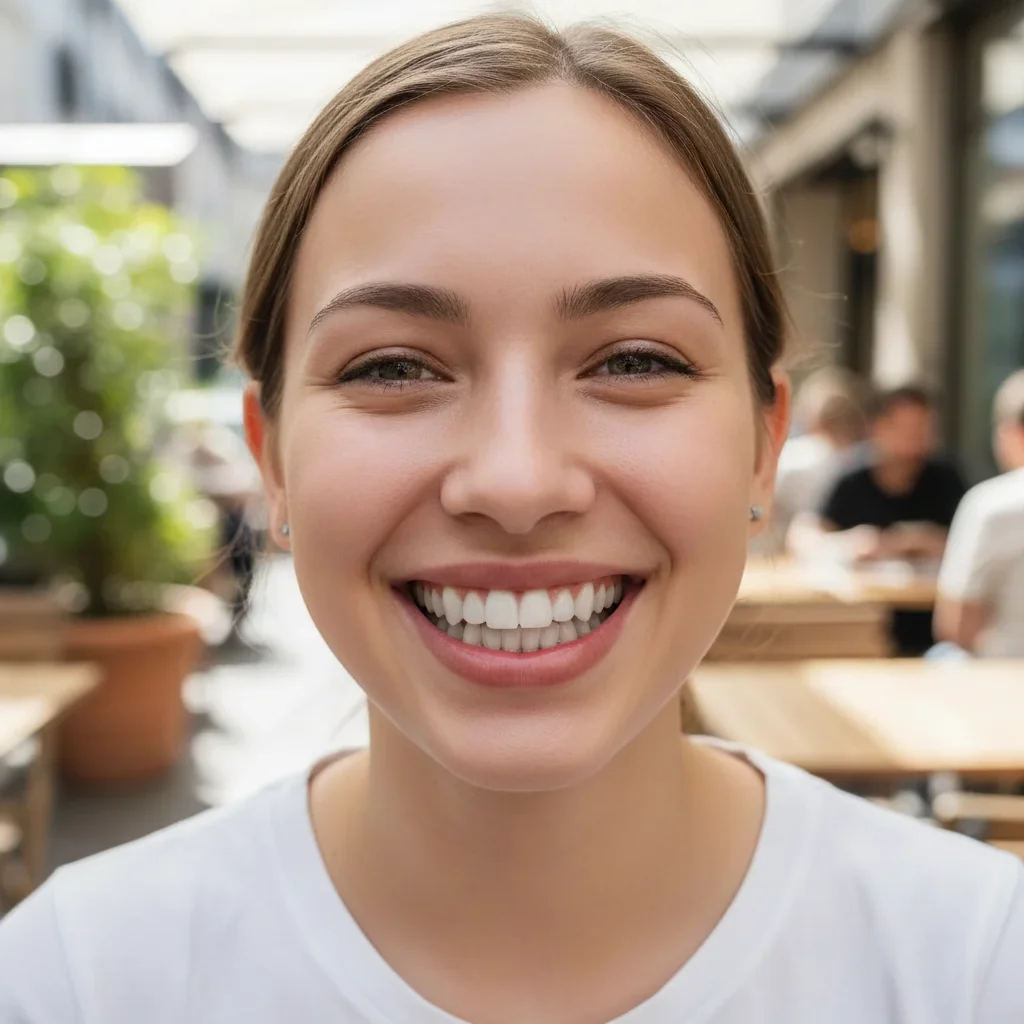
Remove Braces from Photo
Preview your smile without braces for special photos and events.
Type 'remove the braces and show natural straight teeth' or 'replace the braces with clean white teeth' and EditThisPic's AI transforms your smile in 20-40 seconds. Great for previewing your post-treatment smile or special occasion photos. Works on clear shots with visible teeth. Free to try, no account needed.
How it works
Upload your photo
Drop your image into EditThisPic. JPG, PNG, WebP up to 7MB. Clear photos where teeth are visible work best. Good lighting helps the AI create natural-looking results.
Describe the transformation you want
Type your instruction: 'remove the braces and show natural straight teeth' or 'replace the metal braces with clean white teeth.' Specify how you want the teeth to look. No marking needed for most braces removal.
Copy one of these to get started:
remove the braces and show natural straight teeth, realistic appearance
replace the metal braces with clean white teeth, maintain natural tooth shape
remove the clear aligners and show the teeth naturally
remove the colored braces and brackets, show natural healthy teeth
2 more prompts
remove all the braces from my wide smile and create natural-looking straight teeth
show what my smile will look like after braces are removed, natural aligned teeth
Review the result
Check that teeth look natural and proportioned. Verify the gum line looks realistic and there are no odd shadows where braces used to be. Zoom in to check tooth edges.
Refine if teeth don't look right
If certain teeth look unnatural or braces remnants remain visible, tap markers on those specific areas and request refinement. Sometimes a second pass perfects the result.
"Used this for my senior portraits while still in braces. The result looked so natural, even my orthodontist was impressed!" @class_of_2024
See it in action
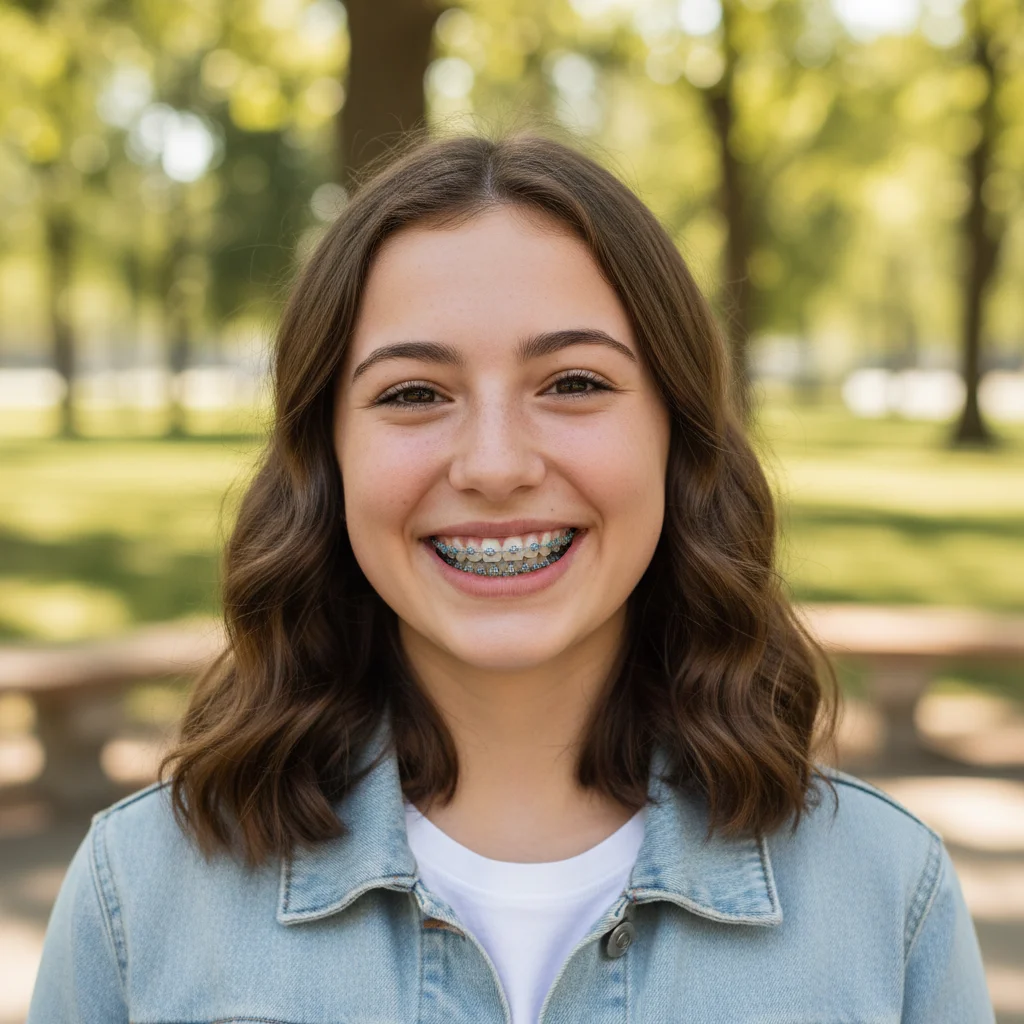
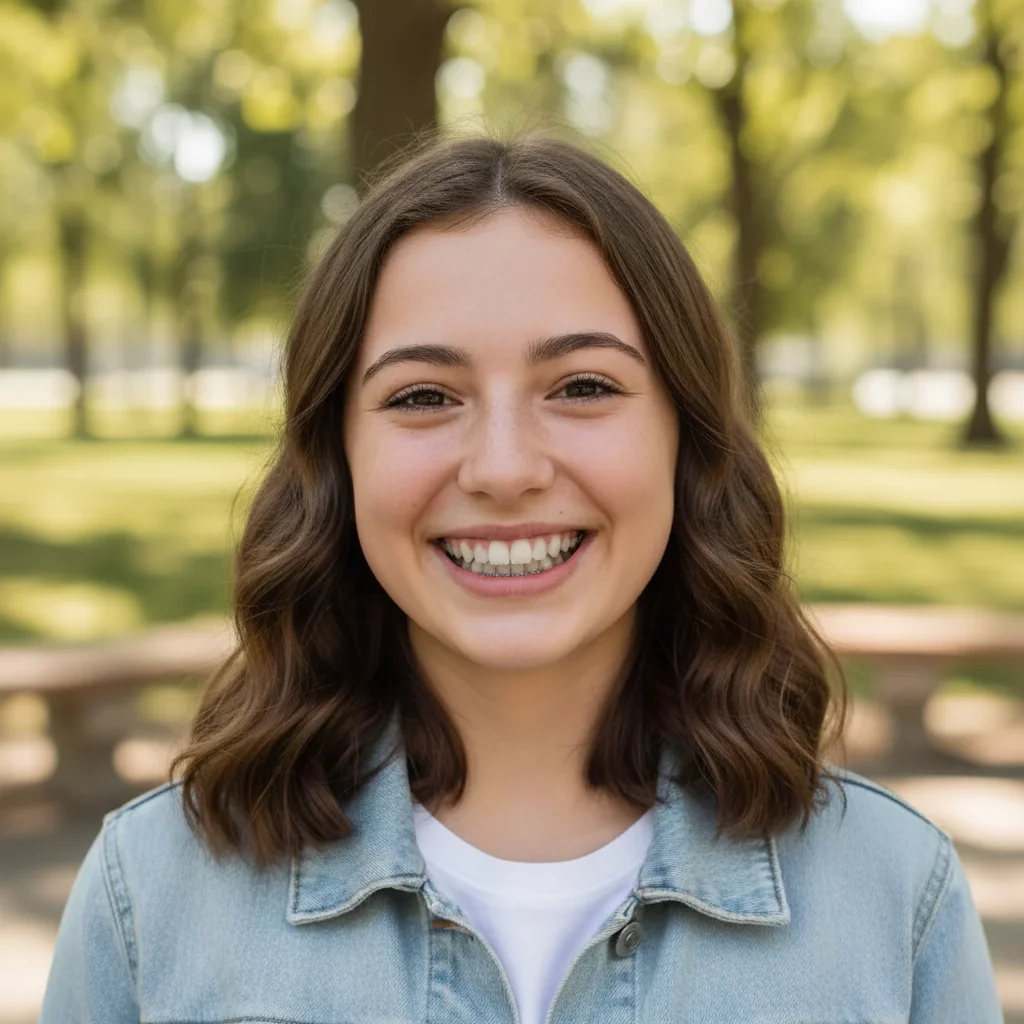
Senior portrait braces removed
Metal braces removed for graduation photos. Natural-looking teeth that matched the person's face shape.
remove the braces and show natural straight teeth, realistic appearance
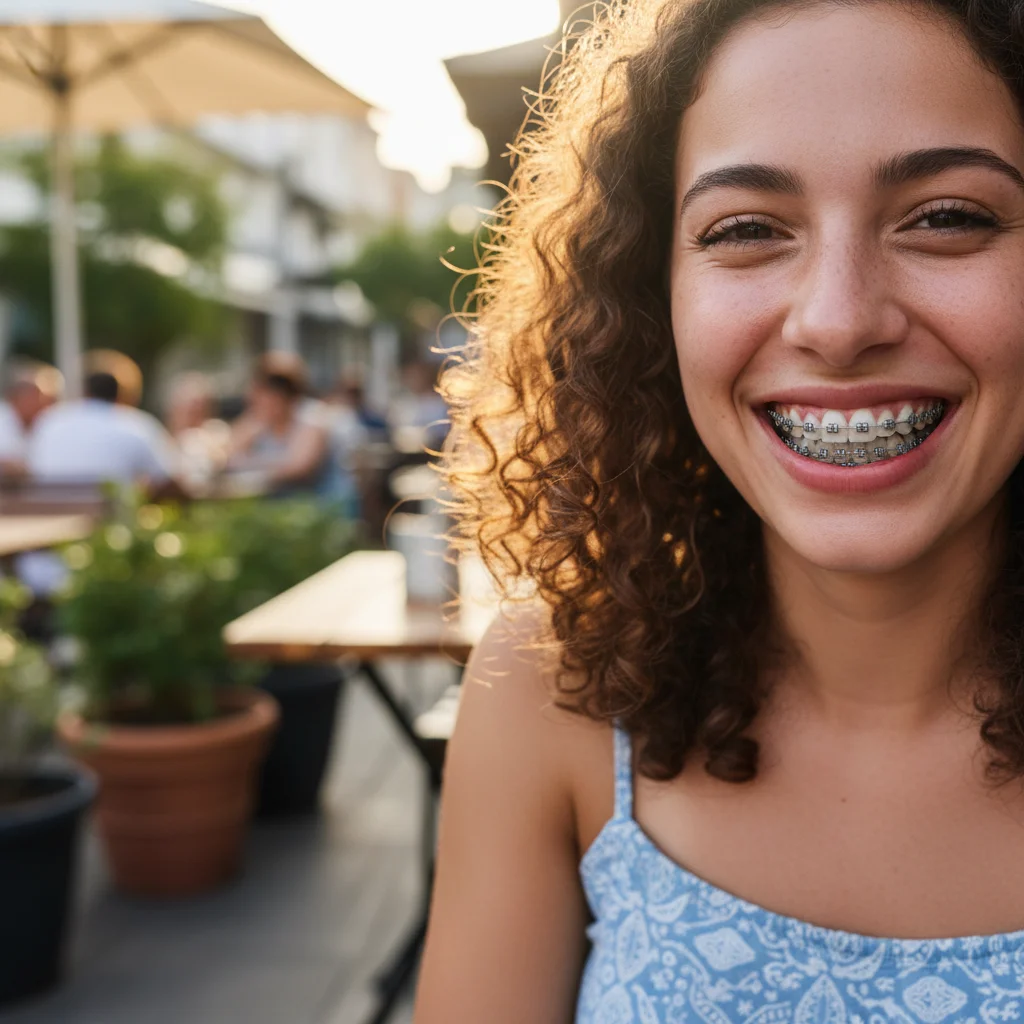
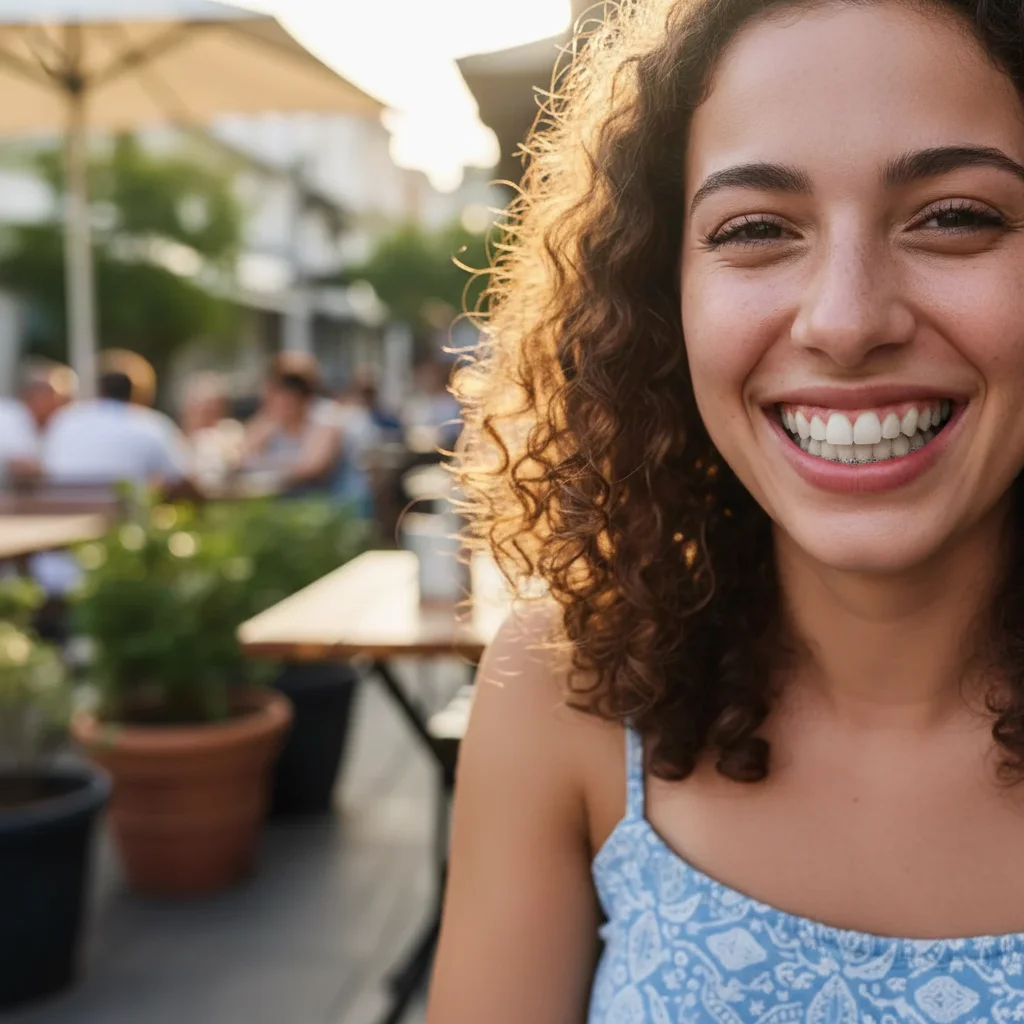
Wedding guest photo fixed
Wanted photos from a wedding without braces showing. AI created a natural smile perfect for the album.
replace the metal braces with clean white teeth, maintain natural tooth shape
Colorful braces removed from selfie
Teen wanted to see what their smile would look like post-treatment. Removed braces with colored bands for a natural preview.
remove the colored braces and brackets, show natural healthy teeth
If something looks off
Teeth look too perfect or fake
Why: The AI created overly uniform teeth that don't match your natural tooth shape and size.
redo with more natural, realistic teeth that have slight variations
💡 Include 'natural variation' or 'realistic imperfections' in your prompt for believable results.
Some braces brackets still visible
Why: The AI missed some hardware, especially at the edges of the smile or on side teeth.
Tap markers on remaining brackets and remove any visible braces hardware
💡 Markers work great for cleaning up leftover brackets the AI missed.
Gum line looks unnatural
Why: Removing braces sometimes affects how the gums are rendered around the teeth.
fix the gum line to look natural and healthy, pink and even
💡 A second pass focused on gums usually fixes any oddities.
AI changed something else in the photo
Why: The AI couldn't isolate just the braces from description alone and modified other areas.
Tap markers specifically on the braces and teeth area, then regenerate
💡 Markers tell the AI to focus only on the marked area, leaving everything else unchanged.
Teeth don't match my original tooth color
Why: The AI may have whitened teeth beyond your natural shade.
remove braces but keep my natural tooth color, don't whiten
💡 Specify tooth color in your prompt if you want to maintain your natural shade.
Quick answers
Do I need to mark the braces before describing?
No! Just describe what you want: 'remove the braces and show natural teeth.' The AI understands what braces look like and where they appear. Only use markers if some brackets remain after the first try, or if you want to target specific teeth for refinement.
Will the result look realistic?
Yes, especially if you include 'natural' in your prompt. The AI creates teeth that match your face shape and existing tooth structure. Include 'realistic' or 'natural variation' to avoid overly perfect teeth that look fake.
Does it work on all types of braces?
Yes! Metal braces, ceramic braces, colored bands, and clear aligners all work. Metal braces with visible brackets typically produce the best results since they're clearly defined for the AI to remove.
Can I use this to preview my post-braces smile?
Absolutely! This is a popular use case. The AI can show you what your smile might look like after treatment, though actual results depend on your orthodontist's work.
Will people be able to tell the braces were edited out?
Not if done well. The AI creates natural-looking teeth and gum lines. For best results, use photos with good lighting and a clear view of your smile.
Ready to preview your braces-free smile?
Free to try. No signup required.