Whiten Teeth from Photo
Type 'brighten the smile' and watch yellow stains vanish in seconds.
Just type 'whiten the teeth' or 'brighten the smile' and the AI handles everything in 10-20 seconds. No need to zoom in or mark anything. The AI finds the teeth automatically and whitens them naturally. Works on portraits, wedding photos, and headshots. Free, no signup needed.
How it works
Upload your photo
Drop your portrait into EditThisPic. JPG, PNG, and WebP up to 7MB work best. Photos where teeth are visible in a smile give the best results.
Describe what you want
Type 'whiten the teeth' or 'brighten the smile to look natural and healthy.' That's it. The AI finds the teeth automatically and applies a natural whitening effect. No marking or selecting needed.
Copy one of these to get started:
brighten the smile to look naturally white and healthy, subtle enhancement
whiten the teeth for a radiant wedding smile, keep it natural looking
brighten the smile for professional headshot, clean and confident appearance
remove yellow stains from teeth and brighten to natural white
2 more prompts
whiten all visible teeth in the photo naturally, even brightness across all smiles
brighten the smile significantly for a Hollywood-style white smile
Review the result
Check that the whitening looks natural and even. Zoom in to verify no teeth look artificially bright or blue-tinted. The goal is healthy-looking teeth, not blindingly white.
Refine if needed
If some teeth need more work or the effect is uneven, tap a marker on those specific teeth and regenerate. This is rarely needed for straightforward portraits.
"Finally a tool that whitens teeth without making them look fake. Just typed 'brighten smile' and it looked so natural." @WeddingPhotoMike
See it in action
Portrait retouching for social media
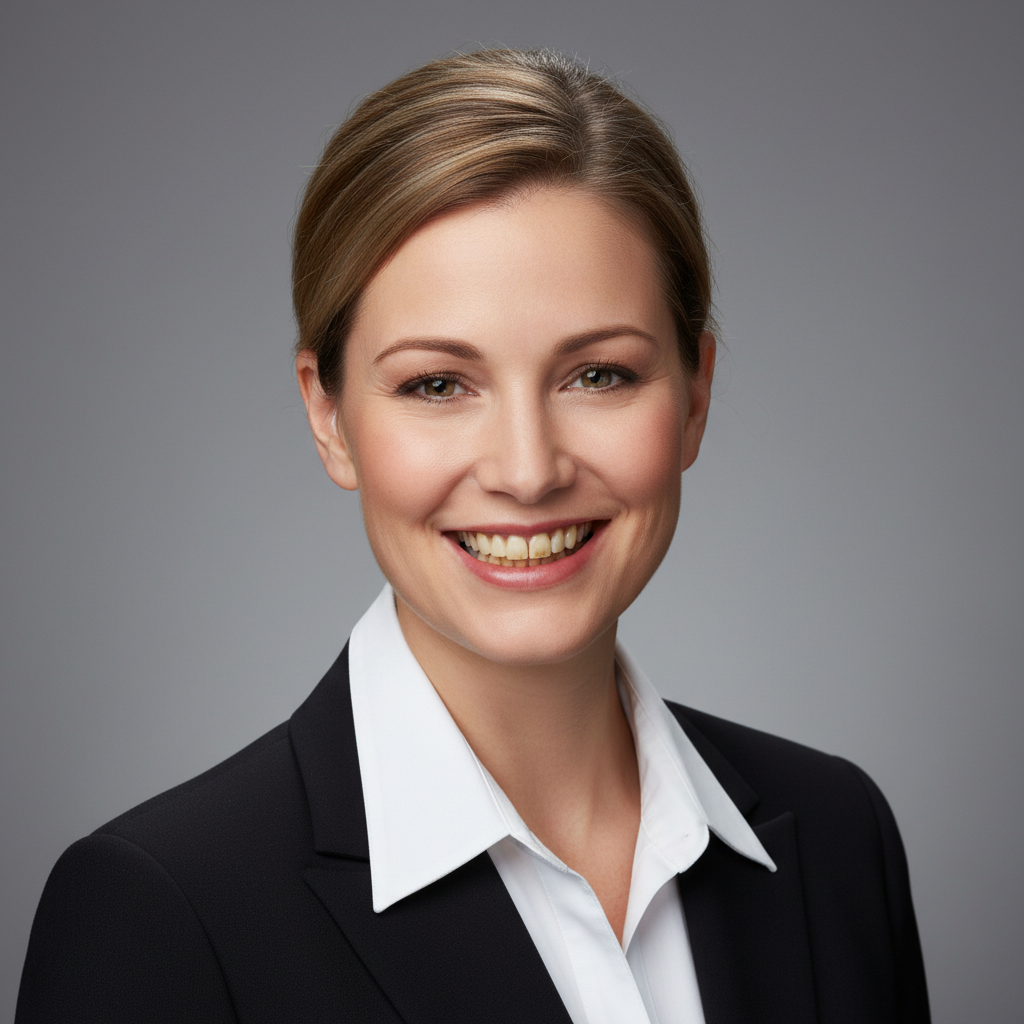
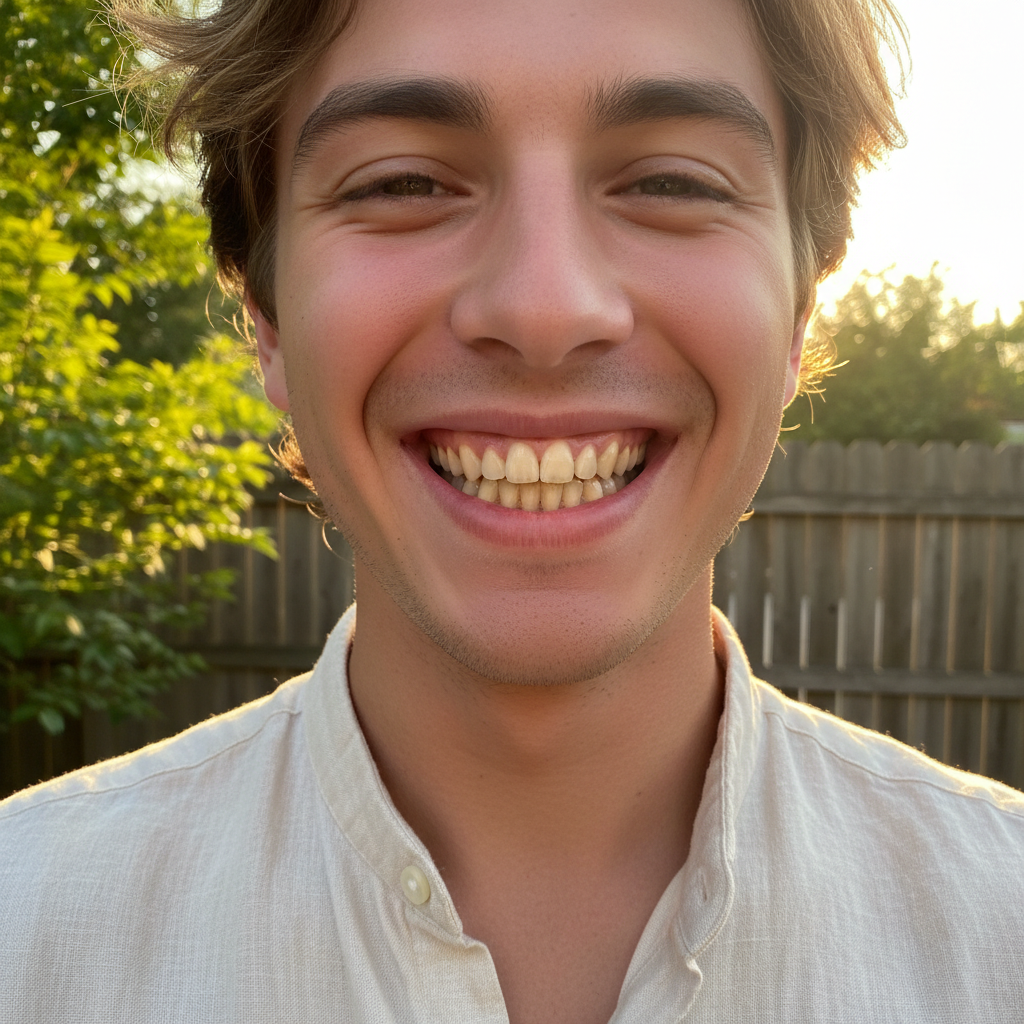
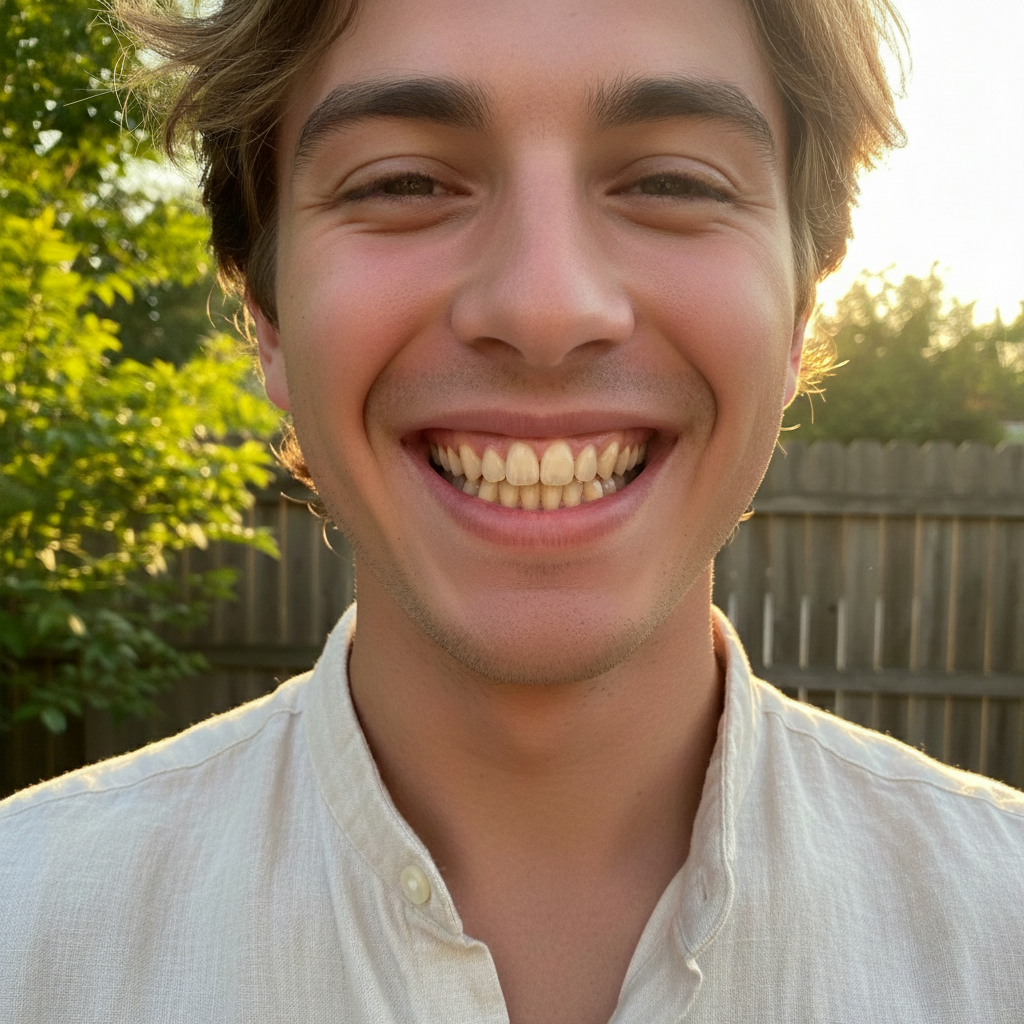
Casual portrait with slightly yellowed teeth from coffee stains. One prompt created a bright, natural-looking smile.
brighten the smile to look naturally white and healthy
Wedding photo smile enhancement
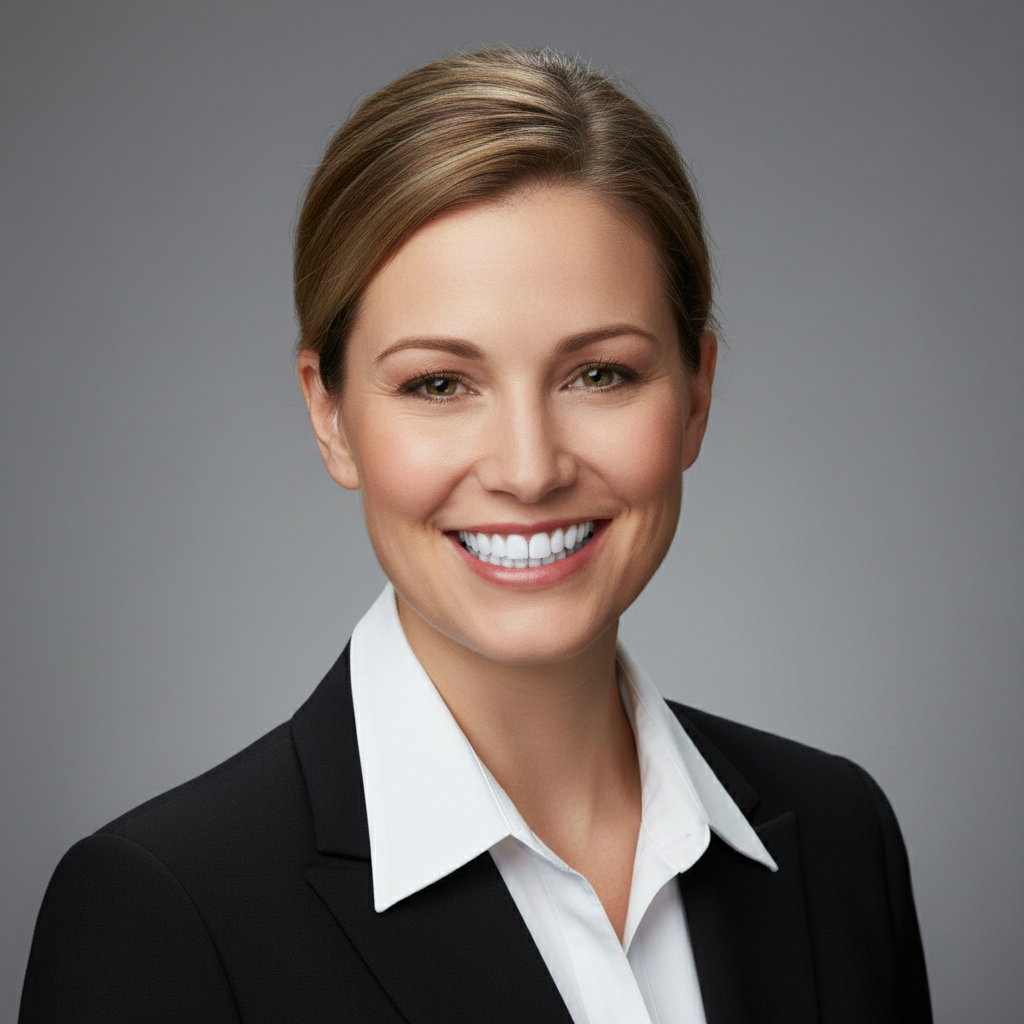
Bride portrait where the smile needed a subtle boost. Kept the natural look while brightening for the special day.
whiten the teeth for a radiant wedding smile, keep it natural looking
If something looks off
AI changed the wrong area or whitened something besides teeth
Why: The AI may have interpreted 'brighten' broadly or detected other bright areas to enhance.
Tap a marker directly on the teeth, then regenerate with 'whiten only the teeth'
💡 Markers tell the AI exactly which area you mean when the description alone is ambiguous.
Teeth look unnaturally white or blue-tinted
Why: The AI applied too strong a whitening effect. Over-whitening can make teeth look artificial or give them a blue cast.
brighten the smile subtly for a natural healthy look, avoid pure white
💡 Adding 'subtle' or 'natural' to your prompt prevents the AI from going overboard.
Uneven whitening across different teeth
Why: Some teeth may have been in shadow or at an angle, causing inconsistent results.
even out the teeth brightness so all teeth match, consistent natural white
💡 Tap markers on the specific teeth that look different and ask for consistent brightness.
Whitening effect changed the lips or gums
Why: The AI may have expanded the editing area beyond just the teeth, affecting surrounding areas.
whiten only the teeth, preserve natural lip and gum color
💡 Being explicit about what NOT to change helps the AI stay focused on teeth only.
Quick answers
Do I need to mark the teeth before whitening?
No! Just type 'whiten the teeth' or 'brighten the smile' and the AI finds them automatically. Markers are only needed if the AI affects the wrong area or you need to target specific teeth for refinement.
How do I avoid making teeth look fake?
Include 'natural' or 'subtle' in your prompt. 'Brighten smile naturally' gives better results than 'make teeth pure white.' The goal is healthy-looking teeth, not blindingly white. Real teeth have slight variation in shade.
Can I whiten teeth in a group photo?
Yes. Type 'whiten all visible teeth in the photo naturally' to enhance everyone's smile. For very large groups, you may need to tap markers on specific people if the AI misses some smiles.
Will teeth whitening affect other parts of the photo?
Typically no. The AI is trained to identify teeth specifically. If you notice changes to lips or other areas, use a more specific prompt like 'whiten only the teeth, preserve everything else unchanged.'
Ready to brighten your smile?
Free to try. No signup required.