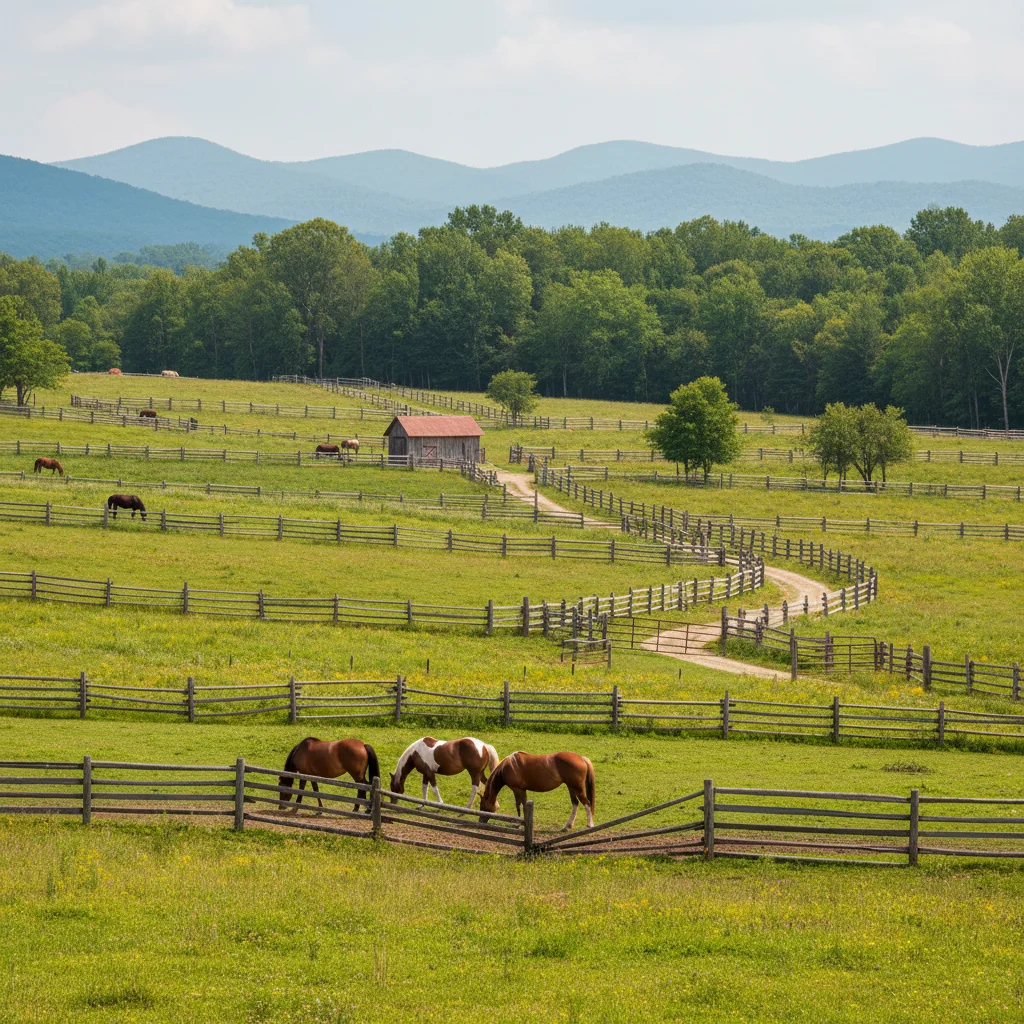
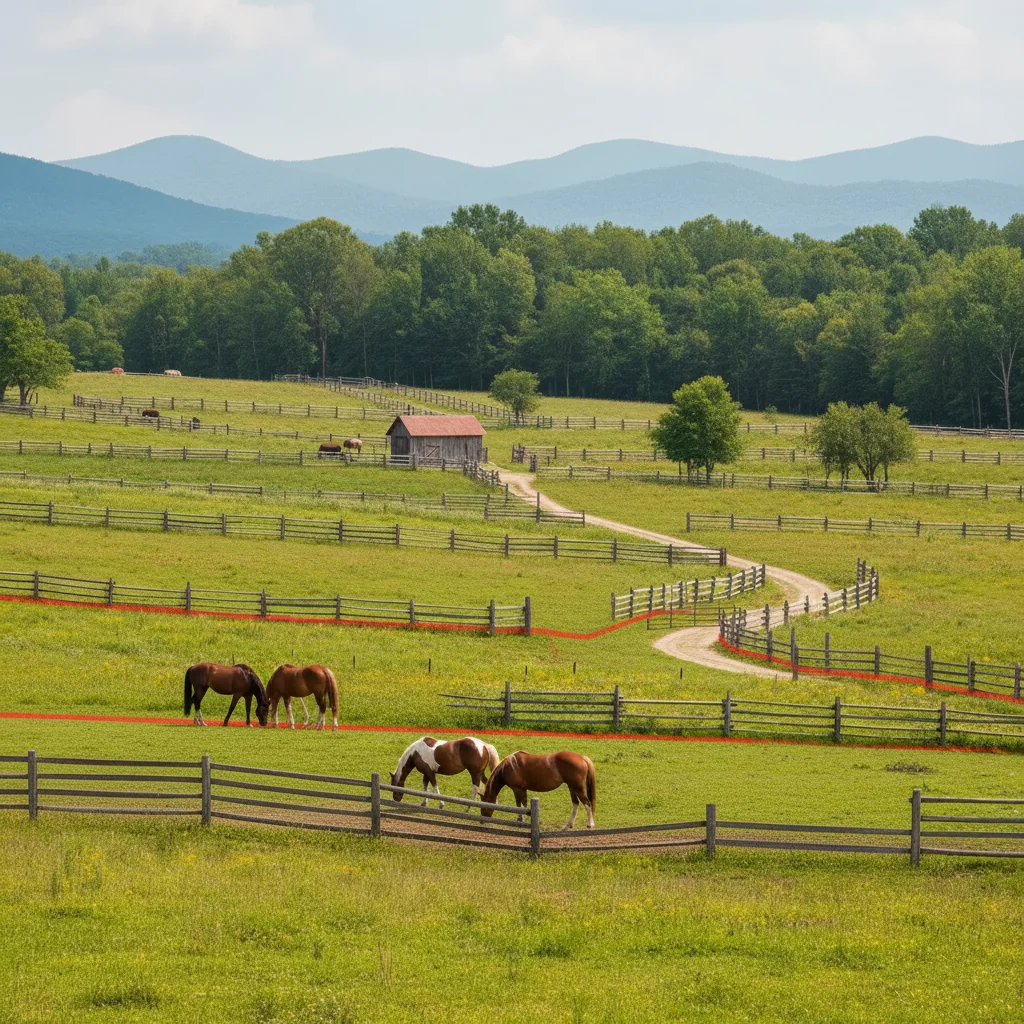
Remove Fence from Photo
Get clear photos without the fence lines ruining your shot
Type 'remove the fence and show the clear view behind it' and EditThisPic's AI removes the fence pattern in 30-60 seconds. No tedious clone stamping, no manual erasing of each wire. Just describe what you want. Works on chain link fences, wire fences, wooden slat fences, and mesh barriers. AI reconstructs the view behind the fence naturally. Free to try, no account needed.
How it works
Upload your photo
Drop your image into EditThisPic. JPG, PNG, WebP up to 7MB. Works on zoo shots, wildlife photos through enclosures, architectural photos with fences, and any image where a fence blocks your subject. Sharper fence patterns give better removal results.
Describe what you want
Type your instruction: 'remove the fence and show the clear view behind it' or 'remove the chain link fence from in front of the animal.' Describe the fence type if it helps. No marking needed - the AI recognizes fence patterns.
Copy one of these to get started:
remove the chain link fence from in front of the animal and show a clear view
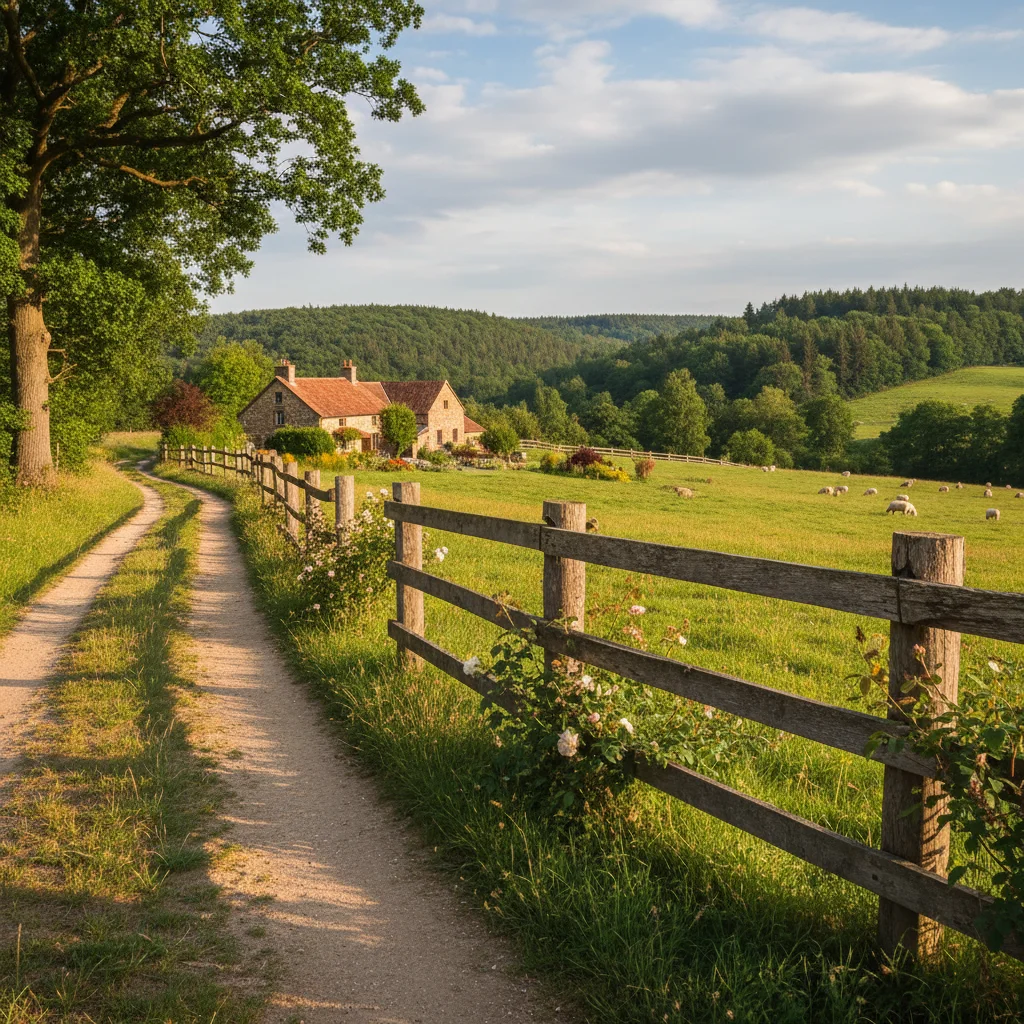
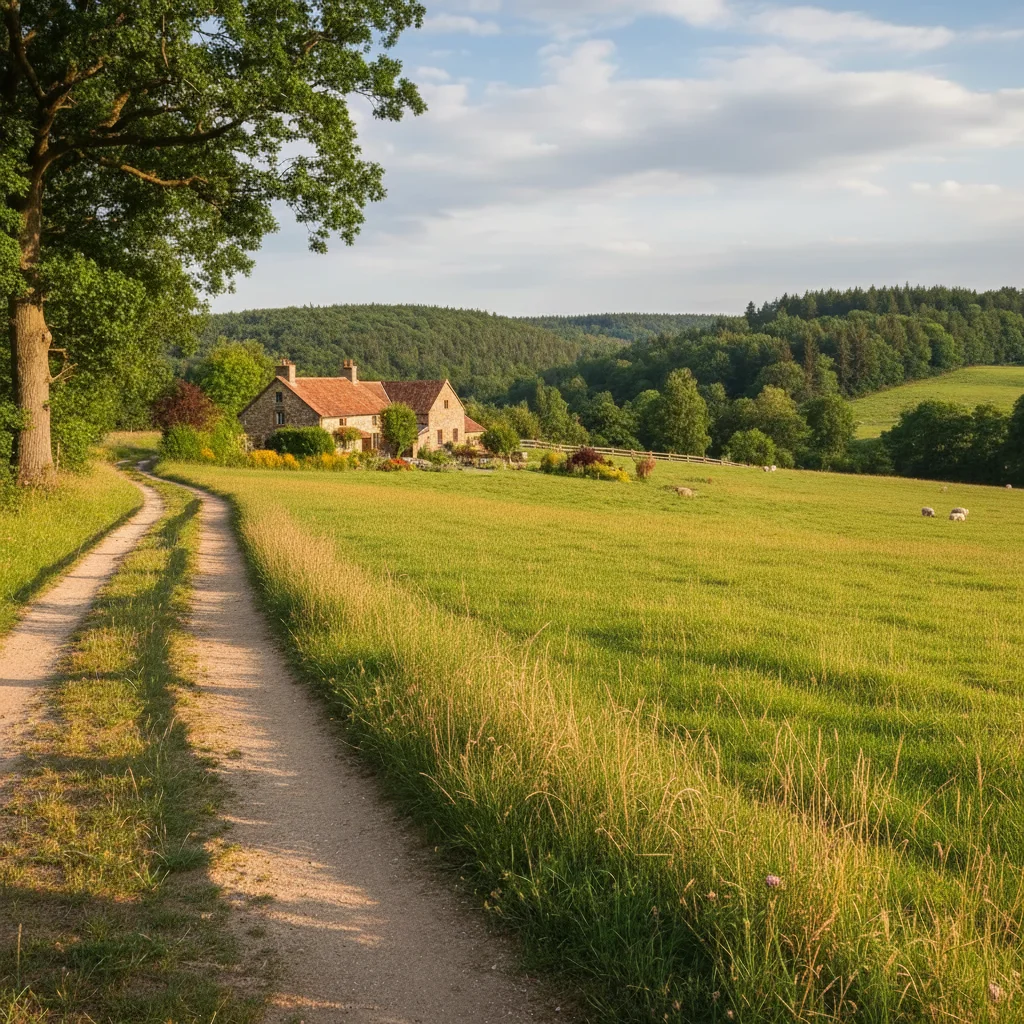
remove the wire fence and continue the natural landscape behind it
remove the safety mesh fence from this sports photo, show the clear action
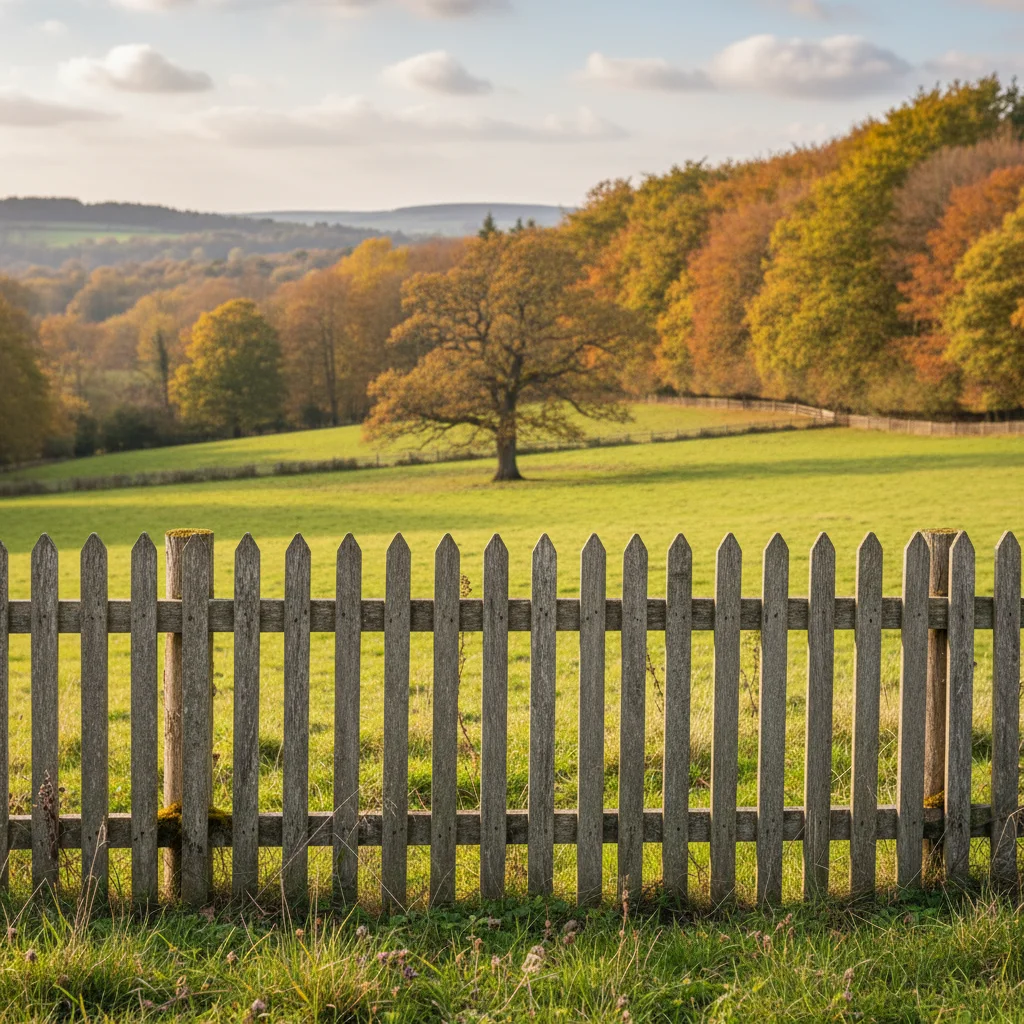
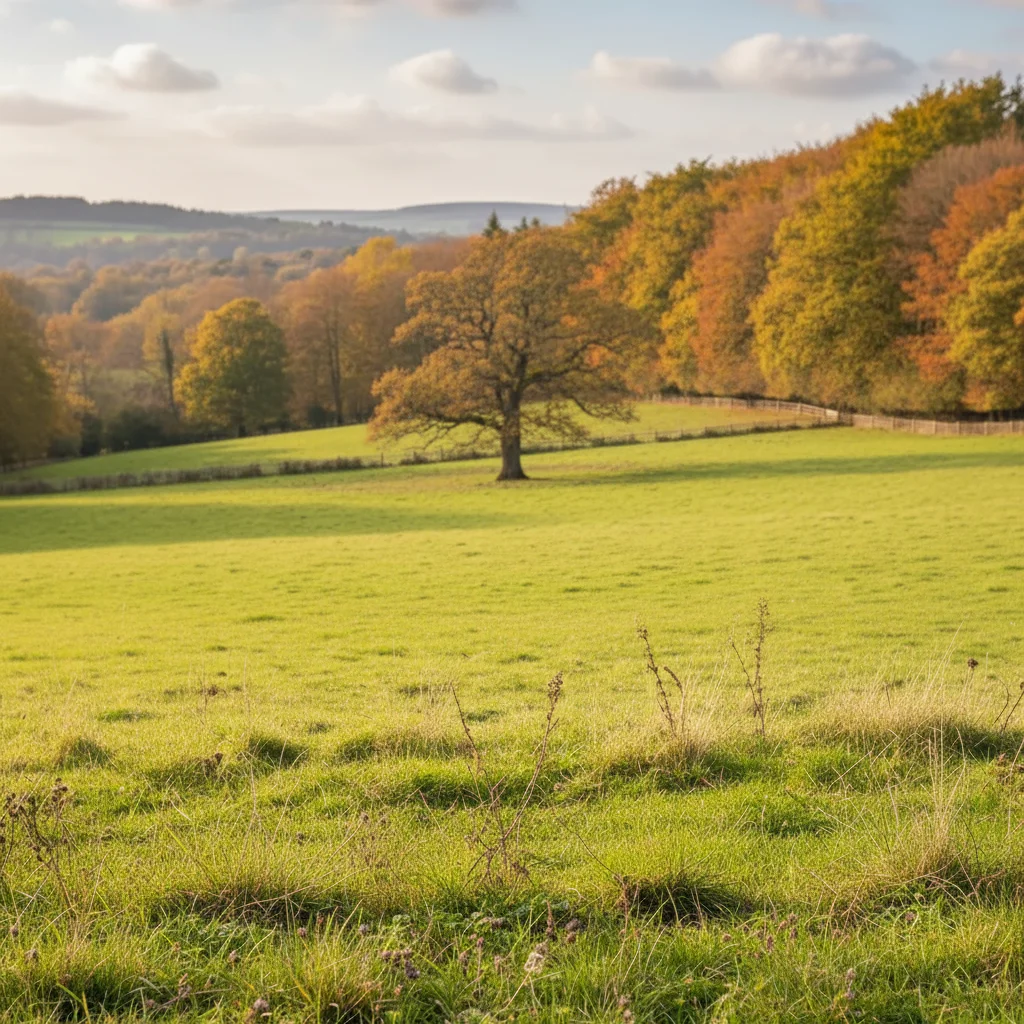
remove the wooden fence slats and reveal the view behind them
3 more prompts
remove the fence in front of the dog and complete the pet portrait naturally
remove the temporary fence barrier and show the building behind it
remove the fine mesh from this bird photo and reveal the clear bird image
Generate and review
Check that all fence lines are gone. Look for remnant wire patterns, shadow artifacts from the fence, and verify the reconstructed areas blend naturally with the subject and background.
Refine with markers if needed
If some fence wires remain or certain areas need more work, tap markers on those specific spots and request cleanup. Dense fence patterns may need multiple passes for complete removal.
"Finally got a clean shot of the lion at the zoo. Removed the chain link fence in one click - should have found this years ago." @WildlifePhotographerTom
See it in action
Zoo lion portrait cleared
Great shot of a lion ruined by chain link fence. AI removed the fence and restored the powerful portrait.
remove the chain link fence from in front of the lion and show a clear view
Baseball action shot cleaned
Great catch moment obscured by safety netting. AI removed the mesh for a clean sports photo.
remove the safety mesh fence from this sports photo, show the clear action
Backyard dog photo fixed
Cute dog behind fence looked like a shelter ad instead of a family pet. Fence removed for proper portrait.
remove the fence in front of the dog and complete the pet portrait naturally
If something looks off
Some fence wires or lines still visible
Why: The fence pattern was complex or partially blended with the background, causing the AI to miss some sections.
Tap markers on the remaining fence lines and say 'remove these remaining fence wires completely'
💡 Dense patterns may need 2-3 passes. Target remaining lines with markers for precision cleanup.
Subject looks smeared or blurry where fence was
Why: The AI had trouble reconstructing the subject through the fence gaps, especially with complex subjects like animal fur.
refine the subject's appearance in the areas where fence was removed, sharpen details
💡 For animal photos, say 'restore natural fur texture' in the follow-up prompt.
AI changed the wrong area or removed something else
Why: The AI couldn't determine exactly which element you meant from description alone. Other line patterns may have been mistaken for fence.
Tap a marker on the specific fence section you want to remove, then regenerate with the same prompt
💡 Markers tell the AI 'I mean THIS fence specifically.' Use them when the image has multiple linear elements.
Shadow of fence still visible on subject
Why: The AI removed the fence but not the shadow it cast, which is a separate visual element.
also remove the fence shadow pattern from the subject, natural lighting
💡 Fence shadows often need a separate prompt since they are technically not part of the fence itself.
Reconstructed area has obvious patches or color differences
Why: The area behind the fence was hard to reconstruct, especially where multiple fence wires crossed important details.
blend the reconstructed areas to match the surrounding colors and textures naturally
💡 Describe what should be there: 'blend with the fur pattern' or 'match the sky color.'
Wooden fence barely changed because slats are too wide
Why: Solid fences with very little visible through them give the AI minimal reference for reconstruction.
This is a limitation - if little is visible through the fence, reconstruction will be largely invented
💡 The AI works best when it can see most of the subject through fence gaps. Solid barriers are very difficult.
Quick answers
Do I need to mark the fence before describing?
No! Just describe what you want: 'remove the fence and show the clear view.' The AI recognizes common fence patterns like chain link, wire mesh, and wooden slats. Only use markers when remnants remain after the first attempt, or when you need to target a specific section of fence while keeping others.
What types of fences work best?
Chain link and wire fences with regular patterns work best because the AI can easily identify what is fence and what is subject. Wooden fences with gaps work well when significant portions of the subject are visible. Solid fences where you can barely see through are very difficult because the AI has minimal reference for reconstruction.
Will the subject behind the fence look natural?
For most shots yes, especially when much of the subject is visible through the fence gaps. The AI reconstructs hidden parts based on visible portions. Complex subjects like animal fur may need refinement. The more of your subject visible through the fence, the better the reconstruction.
Can it remove very fine mesh like bird aviary netting?
Fine mesh is more challenging and works best with high-resolution photos where the mesh is clearly distinguishable. Very fine mesh that blends with the subject may leave traces. Start with a clear prompt and refine with markers if needed.
What about photos shot through glass and reflections?
This tool is optimized for physical barriers like fences. For glass reflections, try 'remove glass reflection from photo' which uses a different approach. Fences and glass behave differently and need different prompts.
Ready to remove that fence?
Free to try. No signup required.