Free • No signup Remove Tree · Free

AI Tree Remover

Remove trees blocking your view in seconds. Just describe which tree to delete.

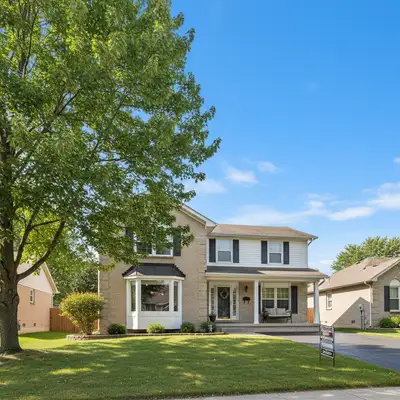
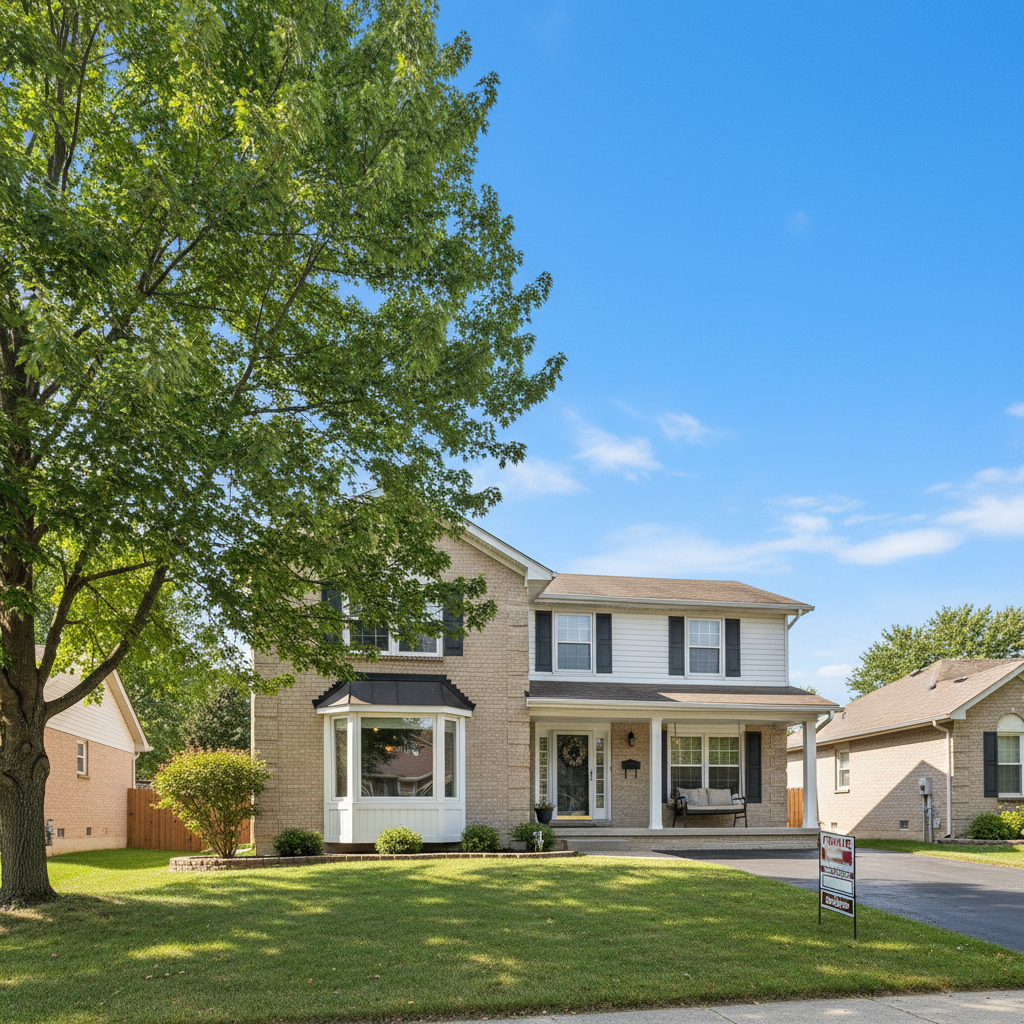
House with tree on the left blocking view
Before
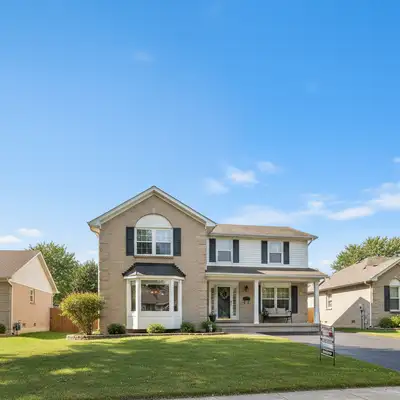
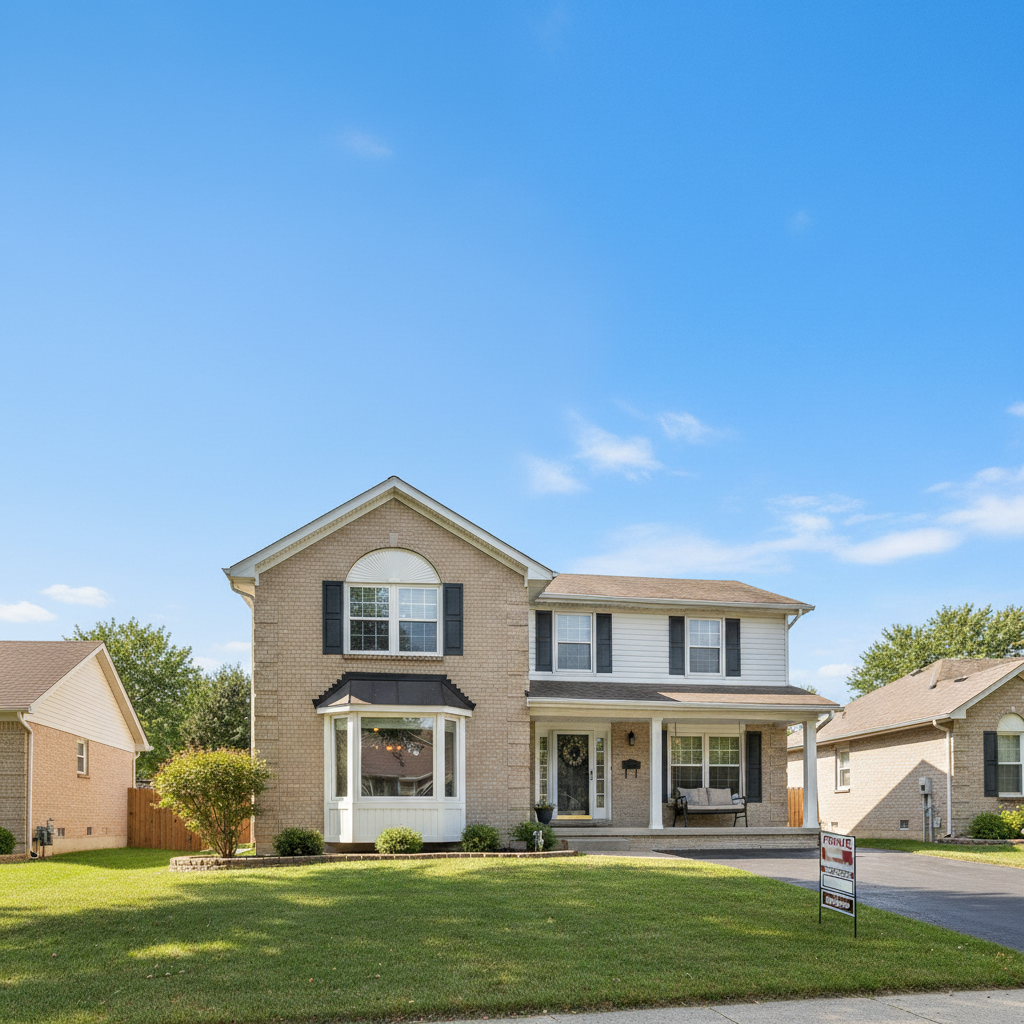
Clean house view with tree removed
After

AI Tree Remover

Drop your photo here

or click to browse

Release to upload

Free • No signup

Advertisement
Popular use cases:
  • real estate photos
  • landscape photography
  • property listings
  • architecture photography
  • outdoor events

Cost
Free No signup required
Time
Instant results in 15-30 seconds
Works on
Any device - browser, phone, tablet, desktop
Powered by
AI-powered photo editing
Scenario Prompt Time
Small tree remove the tree on the [left/right] 20s
Large tree delete the tree and fill with [sky/landscape] 30-40s
Tree branches remove the branches from the top 20s

How it works

  1. Upload your photo

    Drop your image into EditThisPic. JPG, PNG, WebP up to 7MB. Works best when the tree you want to remove is clearly visible and distinct from other trees.

    Expect: Small trees or branches: 20-30 seconds. Large trees covering significant areas: may need 1-2 refinements for natural blending.
  2. Describe which tree to remove

    Type your instruction: 'remove the tree on the left' or 'delete the dead tree.' Be specific about which tree if there are multiples: 'remove the tall pine tree in the center.' The AI understands tree types, positions, and characteristics.

    Tip: Describe the tree's position, size, or type: 'the small tree on the right,' 'the bare tree,' or 'the palm tree near the house.'

    Copy one of these to get started:

    Single tree blocking view remove the tree on the left and fill with sky
    Tree in front of building delete the tree blocking the house and show the building behind it
    Dead or bare tree remove the dead tree and extend the background landscape
    Small tree or sapling delete the small tree on the right and show grass
    3 more prompts
    Tree branches only remove the tree branches hanging from the top and show clear sky
    Specific tree type remove the palm tree in the center and extend the beach view
    Multiple trees remove only the leftmost tree, keep the others
  3. Review the result

    Check where the tree was. Zoom in to verify the AI filled the area naturally with sky, landscape, or background elements. Look for any remaining branches, trunk remnants, or unnatural edges.

  4. Refine with markers if needed

    If branches remain or the fill looks unnatural, tap a marker on the problem area and say 'remove this completely' or 'blend this with the sky.' Large trees may need multiple passes.

    Tip: For trees with complex branch structures, try removing in sections: first the main trunk, then remaining branches.
Advertisement
Try it free

AI Tree Remover

Drop your photo here

or click to browse

Release to upload

Free • No signup

"Removed a tree blocking my house view for a real estate listing. Saved the photo shoot." @realtor_mike

See it in action

House with tree on the left blocking view
Before
->
Clean house view with tree removed
After

Tree removed from house photo

Tree blocking the front view of a house for a real estate listing. Removed cleanly.

Prompt: remove the tree on the left and show the sky behind it
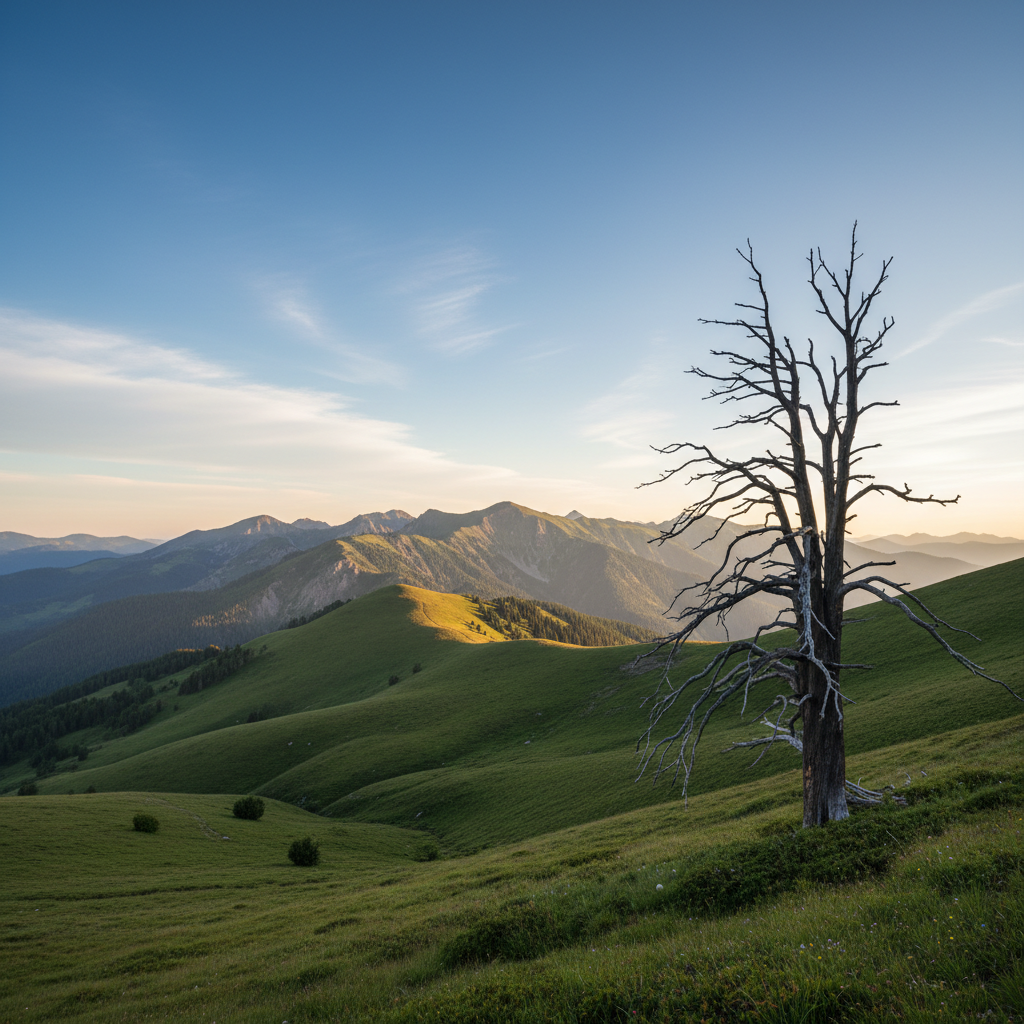
Mountain landscape with dead tree on the right
Before
->
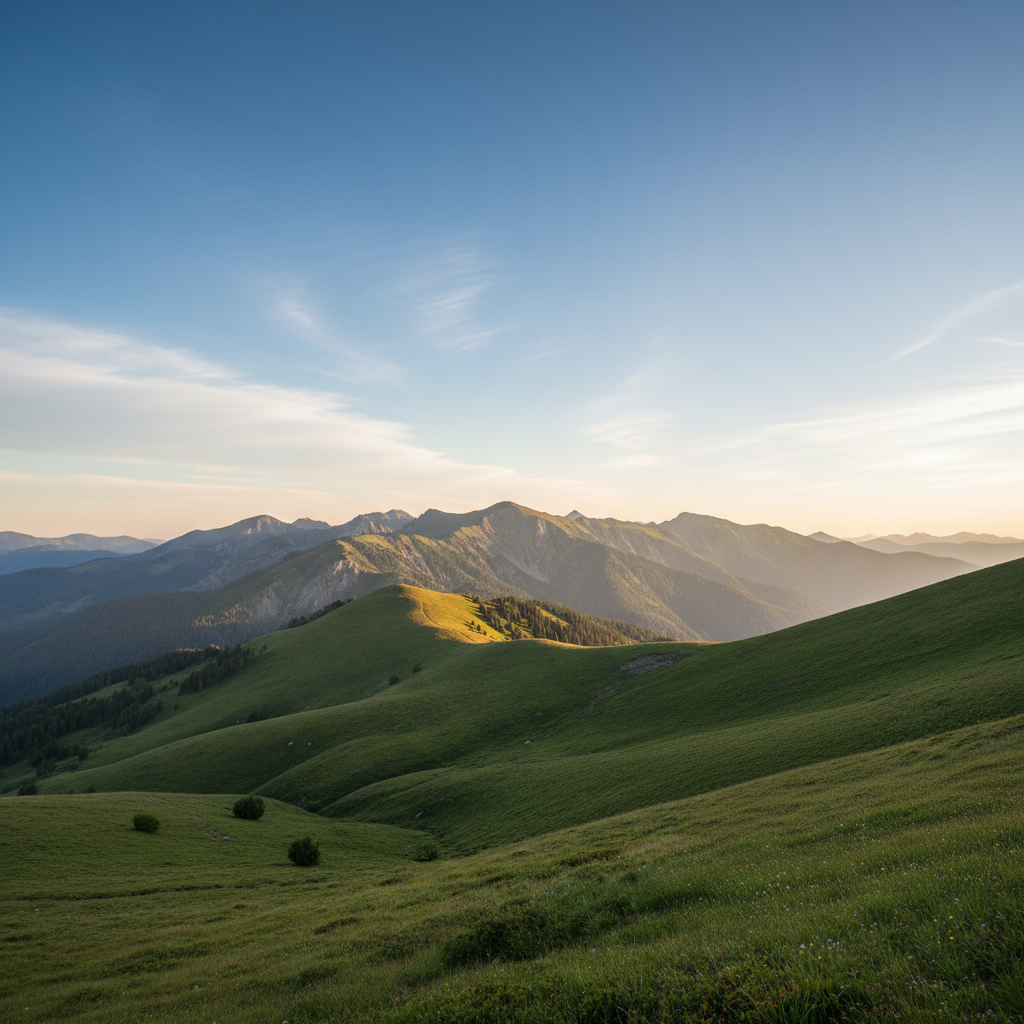
Clean mountain view with tree removed
After

Dead tree deleted from landscape

Bare dead tree ruining a beautiful mountain landscape shot.

Prompt: delete the dead tree and extend the mountain view
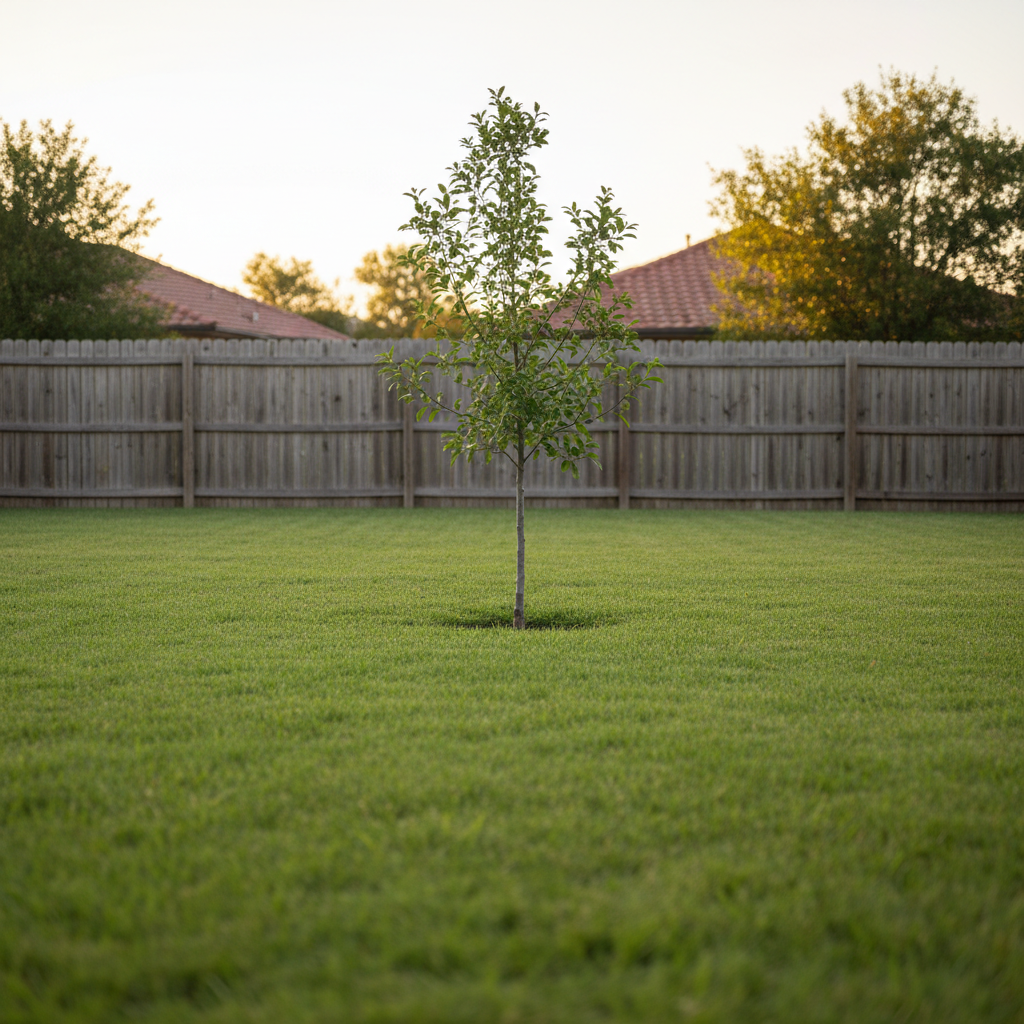
Yard with small tree in the center
Before
->
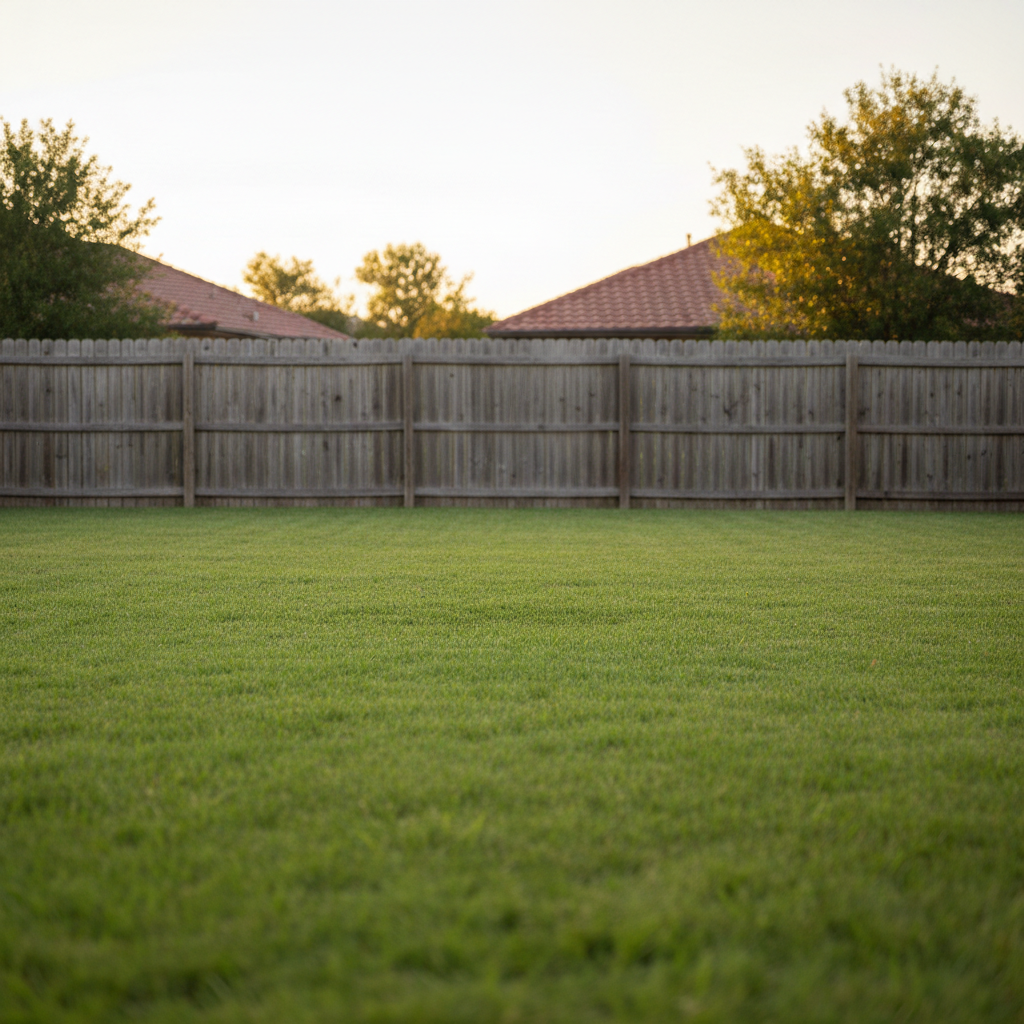
Clean lawn with tree removed
After

Small tree removed from yard

Young sapling in the middle of the lawn before landscaping was finished.

Prompt: remove the small tree in the center and fill with grass

If something looks off

AI removed the wrong tree

Why: When multiple trees exist, the AI may guess which one you meant. Your description wasn't specific enough.

Try: Tap a marker on the exact tree you want removed, then use the same prompt

Tip: Use position words: 'the tree on the far left' or 'the tallest tree in the center.'

Tree trunk or branches still visible

Why: Large trees with complex branch structures may leave remnants after the first pass.

Try: remove the remaining tree trunk and blend with the background

Tip: Try removing large trees in two passes: main trunk first, then branches.

Fill area looks unnatural or blurry

Why: The AI had to reconstruct a large area. Trees covering significant portions are harder to fill naturally.

Try: blend the area where the tree was with the surrounding landscape

Tip: Trees against simple backgrounds (sky, grass, water) remove more cleanly than those against buildings or complex scenes.

Sky or background has weird patterns

Why: The AI tried to fill a large tree area but created artificial-looking textures.

Try: make the sky look more natural where the tree was removed

Tip: Specify what should be there: 'fill with blue sky and clouds' rather than just 'remove the tree.'

Shadow of tree still visible

Why: Tree shadows on the ground are separate from the tree itself.

Try: remove the tree shadow on the ground and fill with grass

Tip: Mention shadows in your original prompt: 'remove the tree and its shadow on the lawn.'

Quick answers

Do I need to mark the tree before describing what to remove?

No! Just describe it: 'remove the tree on the left' or 'delete the dead tree.' The AI understands positions and characteristics. Only use markers when there are multiple similar trees and you need to specify exactly which one.

Can I remove large trees that cover a lot of the photo?

Yes, but large trees may need refinement. The AI will reconstruct what was behind the tree. For best results, remove very large trees in sections: trunk first, then remaining branches. Trees against simple backgrounds (sky, grass) work better than those against complex scenes.

Will the background look natural after removing the tree?

Usually yes. The AI reconstructs the background based on surrounding areas. Trees against sky, grass, or water give the cleanest results. Trees in front of buildings or complex backgrounds may show some artifacts and need refinement.

Can I remove just tree branches, not the whole tree?

Absolutely. Say 'remove the branches hanging from the top' or 'delete the branch on the right side.' Branches against clear sky are easiest to remove cleanly.

What if the tree is in front of a house or building?

The AI will attempt to reconstruct the building behind the tree. This is more complex and may need refinement. Describe what should be visible: 'remove the tree and show the house behind it' helps the AI understand what to reconstruct.

Can I remove multiple trees at once?

Yes, but it's usually better to remove them one at a time for more control. If you want to remove multiple, say 'remove all the trees on the left side' or 'delete the two small trees.' Complex multi-tree removals may need several passes.

Is EditThisPic's AI tree remover really free?

Yes — you get 1 free edit per week, no account needed. For unlimited edits, plans start at $3.99/month.

Can I remove tree on my phone?

Yes. EditThisPic works in any mobile browser — iPhone, Android, tablet. No app download needed.

Ready to remove trees from your photos?

Free to try. No signup required.

Try it free