AI Collectible Photo Editor for StockX
Last updated
PSA 10 or BGS 9.5 - show the condition that justifies the grade and the price.
Drop your photo here
"replace background with clean white, show every collectible detail for authentication"
Release to upload
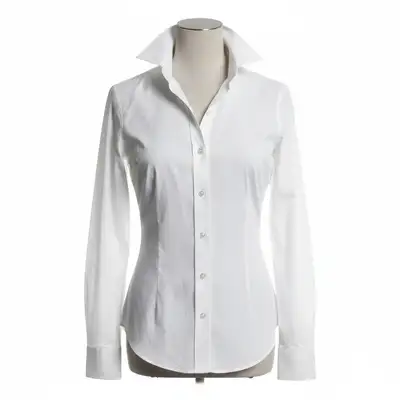
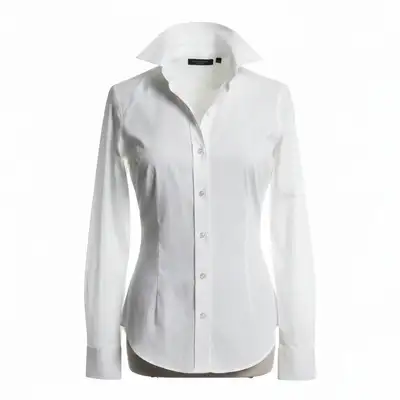
Built for StockX Collectible Sellers
Collectible value lives in condition. Card centering, surface quality, edge sharpness, and corner condition determine grading and price. EditThisPic reduces glare and enhances detail so collectors can assess condition from your photos alone.
Tools for StockX Collectibles Photos
Replace Background
Authentication-grade white backgrounds
Enhance Lighting
Show every detail for authentication inspection
Enhance Photo
Sharpen tags, labels, and authentication details
Fix Color
Accurate colorway representation
Remove Shadow
Shadow-free documentation photos
How to AI Collectible Photo Editor for StockX
-
Photograph your collectibles
Photograph from all required angles. Include overall shots and close-ups of authentication details. Clean the collectible first. Natural daylight gives the most accurate colors.
Processing: 20-30 seconds.Natural daylight gives the most accurate colors for collectibles. -
Upload and describe your edit
Drop your photo into EditThisPic: 'replace background with clean white, show collectible detail for authentication.'
Combine edits in one prompt for consistent results. -
Review the result
Check that all authentication details are visible and sharp. Colors should be accurate. Condition should be honestly documented.
-
Download for StockX
Create a comprehensive set of photos. Consistent white backgrounds across all angles create a professional, trustworthy listing.
Consistent quality across all StockX listing photos.
Copy-Paste Prompts for StockX Collectibles
replace background with clean white, show every collectible detail for authentication
White backgrounds are the standard for authentication-grade photos
brighten and enhance to show collectible condition, wear, and construction detail clearly
Clear condition documentation prevents disputes and builds trust
correct the indoor lighting to show the true color of this collectible accurately
Color accuracy is critical for authentication and buyer confidence
enhance clarity to show tag text, serial number, and label detail in sharp readable focus
Readable tags and serial numbers are essential for authentication
Show 3 more prompts
enhance to show stitching quality, material texture, and construction precision
reduce glare and reflections while keeping collectible detail visible
Angle the item slightly before photographing to minimize starting glare
white background, enhance detail, correct color, show every authentication feature
One comprehensive prompt for consistent authentication-grade results
| Edit Type | Prompt | Time | |
|---|---|---|---|
| White background | replace background with clean white |
20s | Try This → |
| Show condition | brighten to show collectible condition |
15s | Try This → |
| Fix colorway | correct color for accurate representation |
15s | Try This → |
| Authentication polish | white background, enhance detail, correct color |
30s | Try This → |
Real Examples


Collectibles on cluttered surface
Collectibles photographed on cluttered surface. Clean background creates authentication-grade listing.
replace background with white, enhance to show collectible detail for authentication
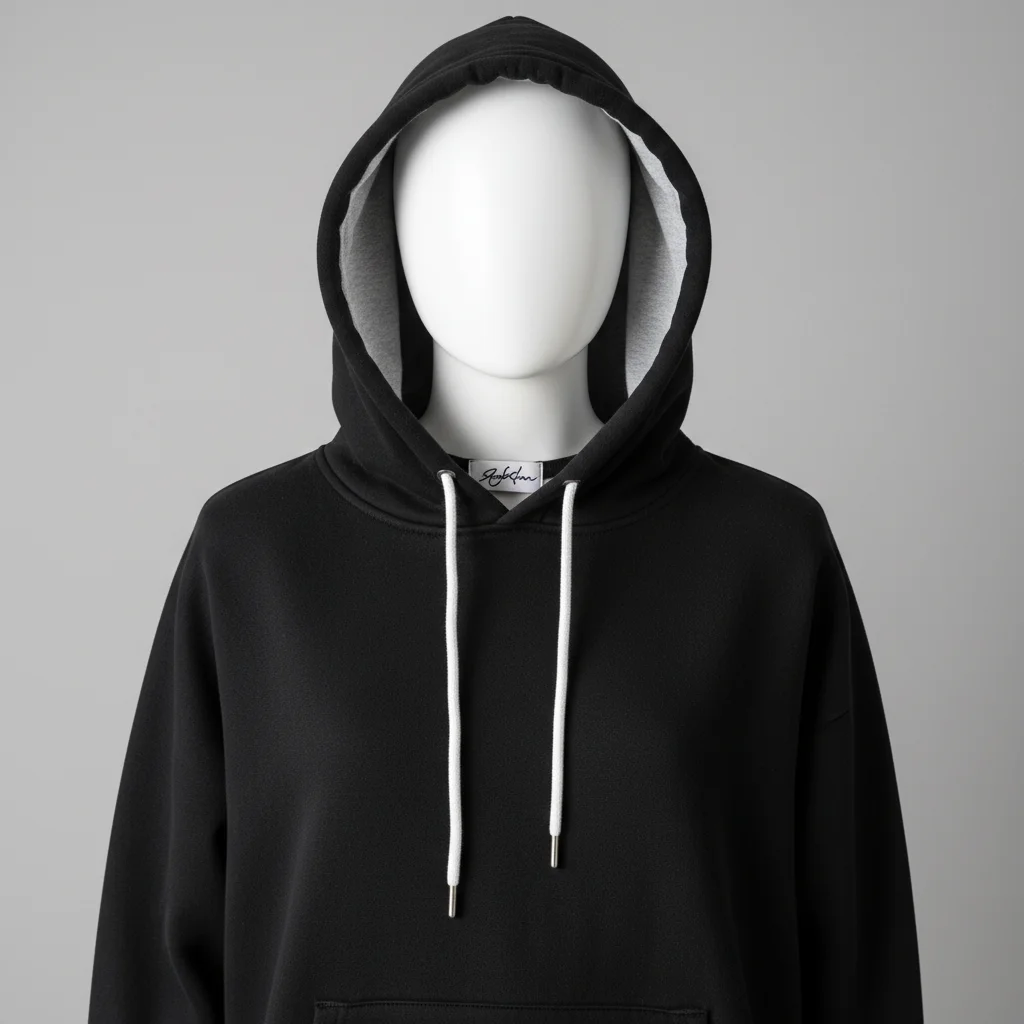
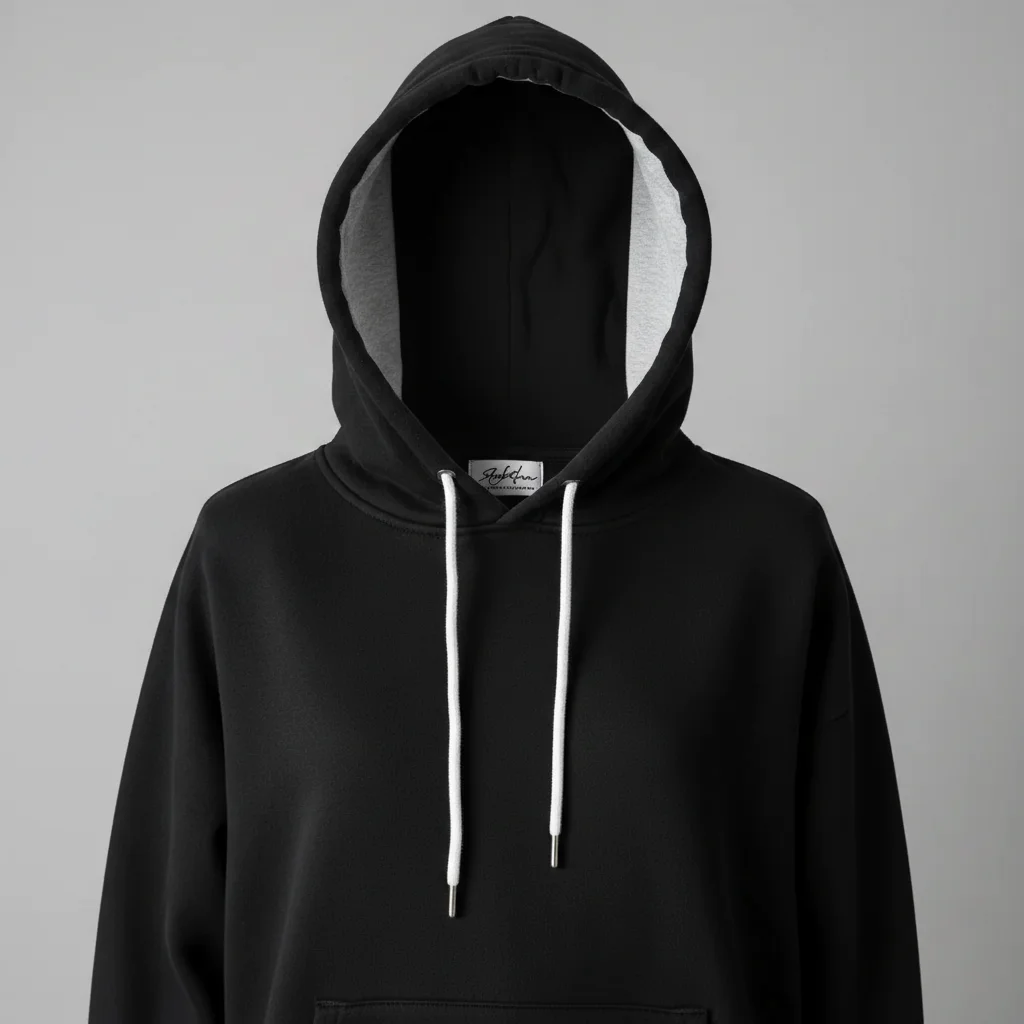
Collectibles in dim room
Collectibles in dim lighting. Enhancement reveals true colors and condition.
Collectibles detail close-up
Close-up authentication detail. Enhancement creates sharp, readable documentation.
When Things Go Wrong
Colors don't match the real item
Why: Color correction overcorrected or mixed lighting.
Photograph in consistent daylight for best results.
Details got smoothed away
Why: Enhancement over-processed the image.
'Do not alter the item' preserves all detail.
Result looks fake
Why: Lighting mismatch with new background.
'Match existing lighting' creates realistic composites.
Frequently Asked Questions
What photos does StockX require for collectibles?
Multiple angles showing overall condition, brand tags/labels, serial numbers or authentication features, and any wear or damage. Clean white backgrounds and sharp detail are expected. EditThisPic helps meet these standards from phone photos.
Will editing help pass StockX authentication?
EditThisPic improves presentation - clean backgrounds, sharp detail, accurate colors - not the item itself. Better photos help authenticators see the genuine details. It won't make a fake look real, but it ensures genuine items look genuine.
How do I get sharp close-ups of tags and labels?
Get as close as your phone allows while keeping focus. Use natural light. Then use EditThisPic to enhance clarity. If the original is too blurry, retake closer in better light first.
What background works best for StockX collectibles?
Clean white is the standard. It provides maximum contrast, looks professional, and is what authenticators expect. Consistent white across all angles creates a cohesive listing.
How do I reduce glare on collectibles?
Angle the item slightly when photographing. Avoid direct overhead light. Use diffused natural light. EditThisPic can reduce remaining glare: 'reduce glare while keeping detail visible.'
Is this free for StockX sellers?
Yes, EditThisPic is free to try. No account, no watermarks. Authentication-grade photos from your phone.
Can I stockx collectible on my phone?
Yes. EditThisPic works in any mobile browser — iPhone, Android, tablet. No app download needed.
What photo formats does the AI collectible photo editor for stockx support?
JPG, PNG, WebP, and HEIC. Upload any common photo format and EditThisPic handles the rest.
Popular use cases
Ready to sell your collectibles on StockX?
Free to try. No signup required. No watermarks.
Upload Your Collectibles PhotoTrusted by 15,000+ users