Free • No signup Remove Person · Free

AI Person Remover

Describe who to remove and AI erases them from your photo. Tap a marker for precision.

Beach family photo with stranger in yellow shirt on the right
Before
Same beach photo with stranger removed, clean sand and ocean
After

AI Person Remover

Drop your photo here

or click to browse

Release to upload

Free • No signup

Advertisement
Popular use cases:
  • remove photobomber
  • remove stranger from photo
  • remove ex from photo
  • remove person from group photo
  • tourist removal from landmark
  • wedding photo editing
  • clean up crowd photos
  • remove passerby from shot

Cost
Free No signup required
Time
Instant results in 15-30 seconds
Works on
Any device - browser, phone, tablet, desktop
Powered by
AI-powered photo editing
Scenario Prompt Time
Photobomber in background remove the person in background, fill with scenery 20s
Person at edge of group remove person on far right, fill background 25s
All tourists from landmark remove all tourists, show clean landmark 35s

How it works

  1. Upload your photo

    Drop your image into EditThisPic. JPG, PNG, WebP up to 7MB. Works best when the person to remove isn't overlapping with people you want to keep.

    Expect: Single person at edge of frame: 20-30 seconds. Person in complex scene: 30-45 seconds and may need refinement for the filled area.
  2. Describe who to remove

    If there's one obvious person to remove, just describe them: 'remove the person in the red jacket on the right.' For groups, tap a marker on the specific person first, then type 'remove this person and fill the background.' The AI understands who you mean from description or marker.

    Tip: Use distinguishing features: 'the tall person in blue on the left' is more precise than just 'remove the person.'

    Copy one of these to get started:

    Remove photobomber from background remove the person in the background and fill with the scenery behind them
    Remove stranger from group edge remove the person on the far right side of the photo and fill with the background behind them
    Remove ex from photo remove the person on the left end of the group, fill with the background that would be behind them
    Remove tourist from landmark shot remove all the tourists and strangers from this photo, show just the landmark with clean surroundings
    3 more prompts
    Remove person from reflection remove the person and their reflection from the glass, fill with what would be behind them
    Remove person from wedding photo remove the person at the far end of the lineup, close the gap naturally between remaining people
    Remove person walking through shot remove the walking person who is blurred in the foreground and restore the scene behind them
  3. Review the removal

    Check that the person is completely gone and the filled area looks natural. Verify that no body parts, shadows, or reflections remain. The background should flow seamlessly where they were standing.

  4. Refine with markers if needed

    If remnants like shadows, reflections, or partial limbs remain, tap markers on those spots and regenerate. Also useful if the filled background needs adjustment.

    Tip: Markers are especially important for person removal in groups—always tap the specific person to avoid removing the wrong one.
Try it free

AI Person Remover

Drop your photo here

or click to browse

Release to upload

Free • No signup

"Had the perfect family photo from our reunion except a random stranger walked into the background. Tapped on him, typed 'remove this person' and he was gone. The background filled in perfectly." @FamilyFirst_Rachel

See it in action

Beach family photo with stranger in yellow shirt on the right
Before
->
Same beach photo with stranger removed, clean sand and ocean
After

Photobomber removed from beach photo

A stranger walking through a family beach photo removed cleanly with the ocean and sand filled in naturally.
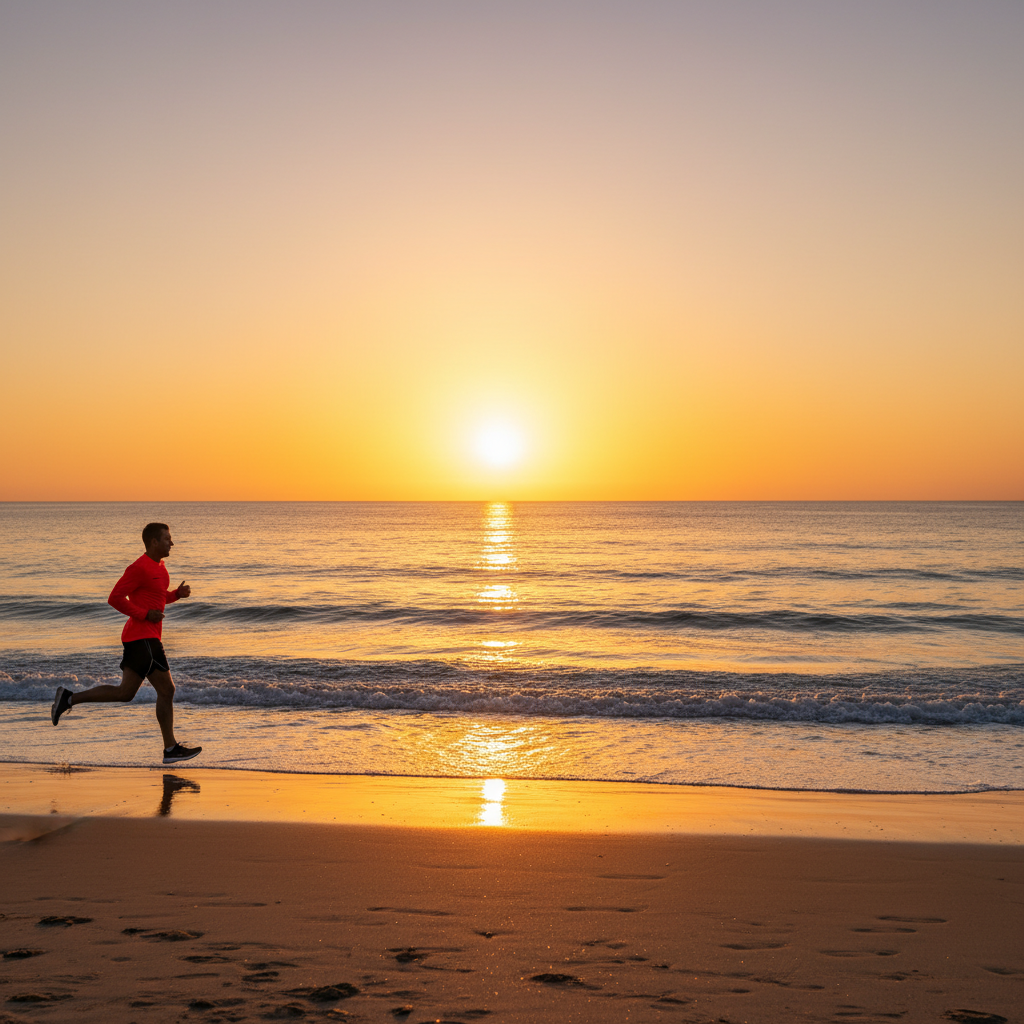
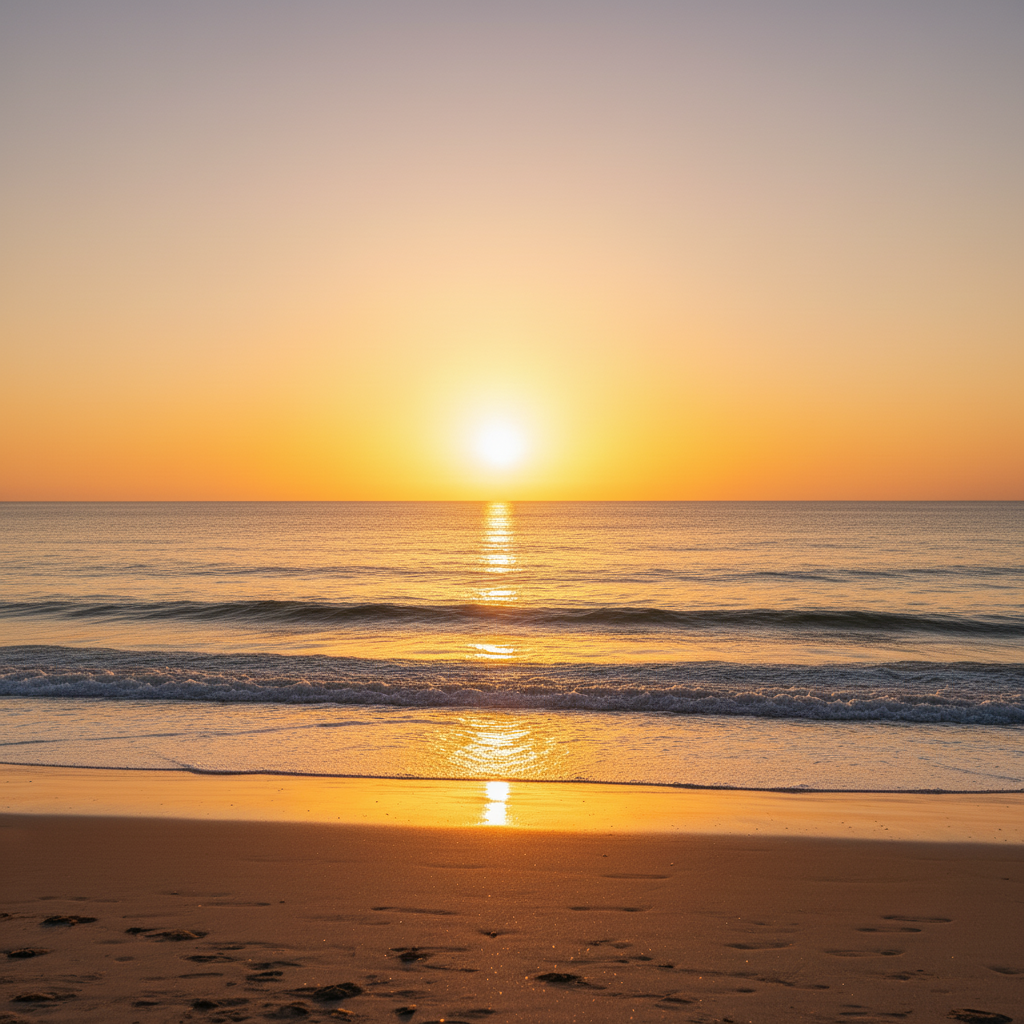
Prompt: remove the person on the far right and fill with the beach and ocean behind them
Group of 5 people with person in red on far right
Before
->
Group of 4 people with right side filled with clean hedge
After

Person removed from end of group lineup

An unwanted person at the end of a group photo removed with the hedge background filled in seamlessly.

Prompt: remove the person on the far right end of the group and fill with the hedge background
Advertisement

If something looks off

AI removed the wrong person

Why: The description was ambiguous or matched multiple people in the photo. This is common in groups.

Try: Tap a marker on the specific person you want removed, then regenerate: remove this marked person

Tip: Markers are the most reliable way to specify a person in a group. Always tap before typing for multi-person photos.

Person's shadow or reflection still visible after removal

Why: The AI treated the person and their shadow as separate elements, only removing the person's body.

Try: remove the person and also remove their shadow on the ground and any reflection

Tip: Always mention 'and their shadow' when removing people in sunny conditions or near reflective surfaces.

Gap or blank space where the person was in a group

Why: The AI removed the person but didn't adjust the spacing, leaving an obvious hole in the group arrangement.

Try: remove the person and close the gap between the remaining people so the group looks natural

Tip: 'Close the gap' works best for people at the edges. For someone in the middle of a group, you may need 2-3 passes.

Background fill looks wrong or has artifacts

Why: The area behind the person was complex (detailed architecture, multiple overlapping elements) and the AI couldn't reconstruct it accurately.

Try: Tap markers on the artifacts in the filled area and regenerate: fix these areas to match the surrounding background

Tip: Complex backgrounds may need a second targeted pass—remove the person first, then fix the fill in a separate step.

Part of another person was accidentally removed

Why: Overlapping people make it hard for the AI to determine boundaries, especially when arms or clothing overlap.

Try: remove only the person in [color/position], preserve everyone else completely including overlapping areas

Tip: For overlapping subjects, be very specific: 'only remove the person in the red jacket, keep the person in blue intact.'

Quick answers

Do I need to outline the person before removing them?

No! For a single person or obvious photobomber, just describe them: 'remove the person on the right.' For groups with multiple people, tap a marker on the specific person—this is more precise than outlining. No cutting, no lasso tool, no manual selection.

How do I remove a person from a photo for free?

Upload your photo to EditThisPic and type 'remove the person on the [location]' or tap a marker on them. The AI erases them and fills the background in 25-35 seconds. Works on photobombers, strangers, and groups. Free to use, no account required, no watermarks.

Is there a free AI person remover that doesn't require login?

Yes, EditThisPic removes people from photos for free with no account needed. Upload your image, identify who to remove, and download the result. No watermarks on outputs. Handles single people, photobombers, and group adjustments.

Can I remove someone from the middle of a group photo?

Yes, though people at the edges are easier to remove cleanly. For someone in the middle, tap a marker on them and type 'remove this person and close the gap.' The AI fills the space and adjusts the composition. Very tight groups may need 2-3 refinement passes.

Ready to remove people from your photos?

Free to try. No signup required.

Try it free