Free โ€ข No signup Remove Unwanted objects and distractions ยท Free

AI Cleanup Tool

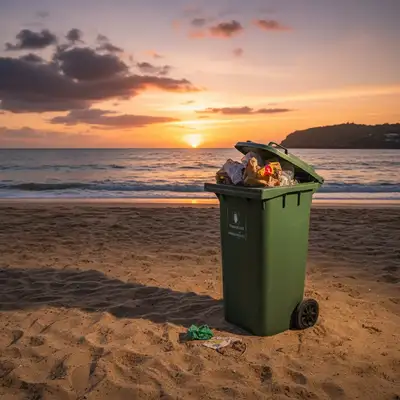
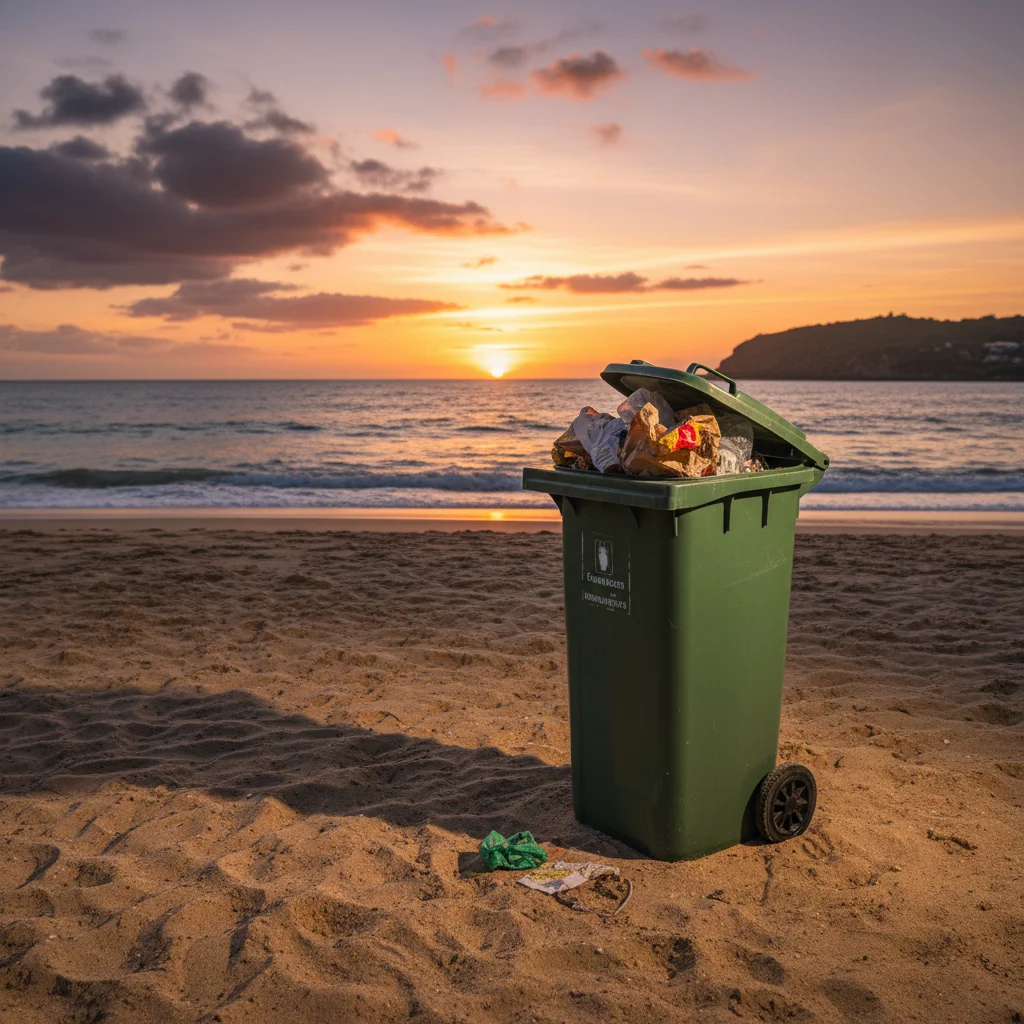
Before
Before
โ†’
After
After

Free AI Cleanup Tool

Drop your photo here

or click to browse

Release to upload

Free โ€ข No signup

Advertisement
Popular use cases:
  • ai cleanup tool
  • remove unwanted objects
  • photo cleanup free
  • apple intelligence clean up alternative
  • remove distractions from photos
  • clean up photo background
  • free cleanup tool
  • ai object removal
  • photo distraction remover

Cost
Free No signup required
Time
Instant results in 15-30 seconds
Works on
Any device - browser, phone, tablet, desktop
Powered by
AI-powered photo editing
Scenario Prompt Time
15-30s
15-30s
15-30s
15-30s
15-30s

How it works

  1. Upload Your Photo

    Drag and drop or click to browse. Works with all common formats: JPG, PNG, HEIC, WebP. Your photo processes instantly and stays private.

    Expect: Upload completes in 2-5 seconds.
  2. Mark What to Remove

    Tap or brush over unwanted objects, people, or distractions. You can mark multiple things at once. The AI will remove everything you've marked in one go.

    Tip: For best results, mark slightly inside the edges of objects. AI extends cleanup beyond your marks to ensure smooth removal.

    Copy one of these to get started:

    Tourist photos Remove people from the background
    Outdoor photography Clean up trash and litter
    Landscape photos Remove power lines from sky
    Event photos Delete photobombers
    5 more prompts
    Architecture photography Remove cars from street scenes
    Real estate photos Clean up construction equipment
    Clean aesthetic photos Remove signs and billboards
    Reclaim photos Delete text and watermarks
    Advanced cleanup Remove complex overlapping objects
  3. Review the Clean Result

    AI automatically fills in the background where removed objects were. Use the before/after slider to verify the cleanup looks natural. If needed, mark additional areas and regenerate.

    Expect: Most cleanups complete in 20-30 seconds.
  4. Download Your Clean Photo

    Save the cleaned photo in full resolution. No watermark added. The cleanup is permanent and looks natural at any zoom level.

Try it free โ†“

Free AI Cleanup Tool

Drop your photo here

or click to browse

Release to upload

Free โ€ข No signup

See it in action

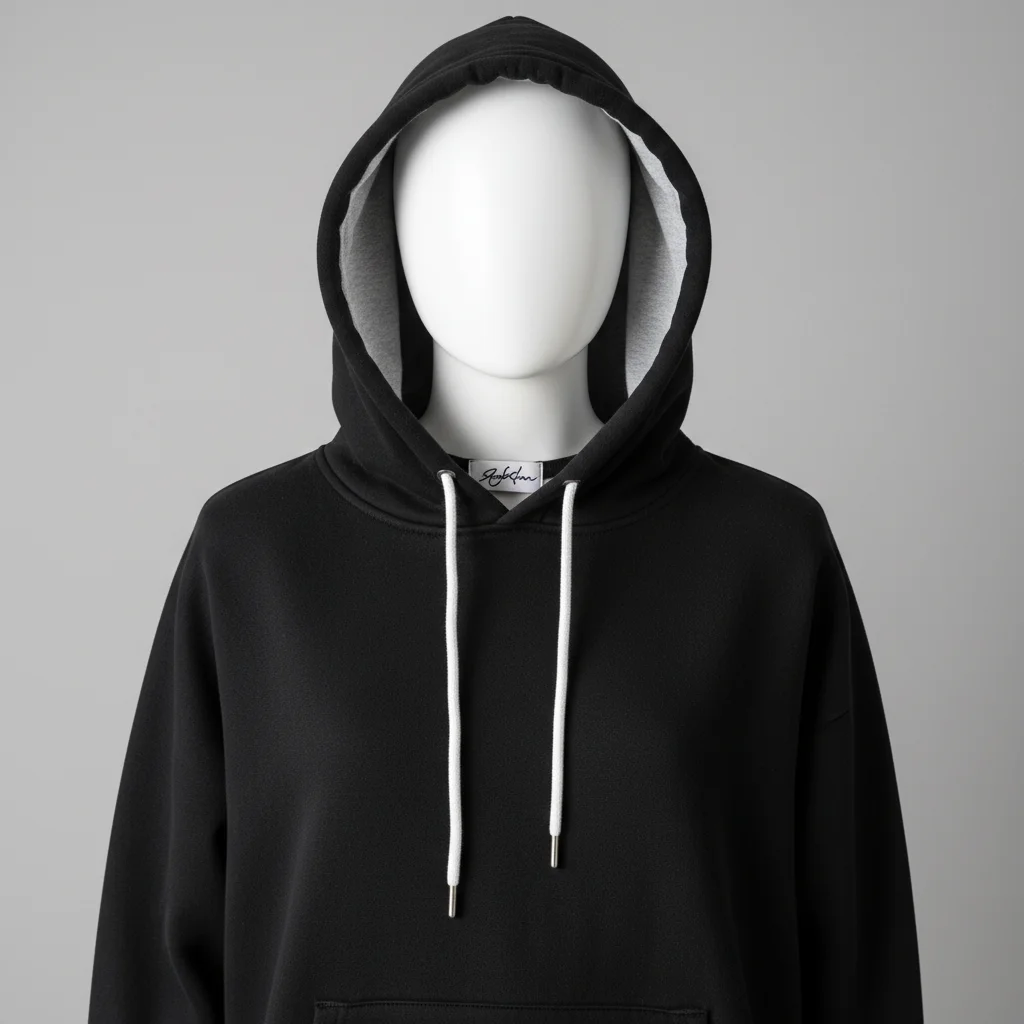
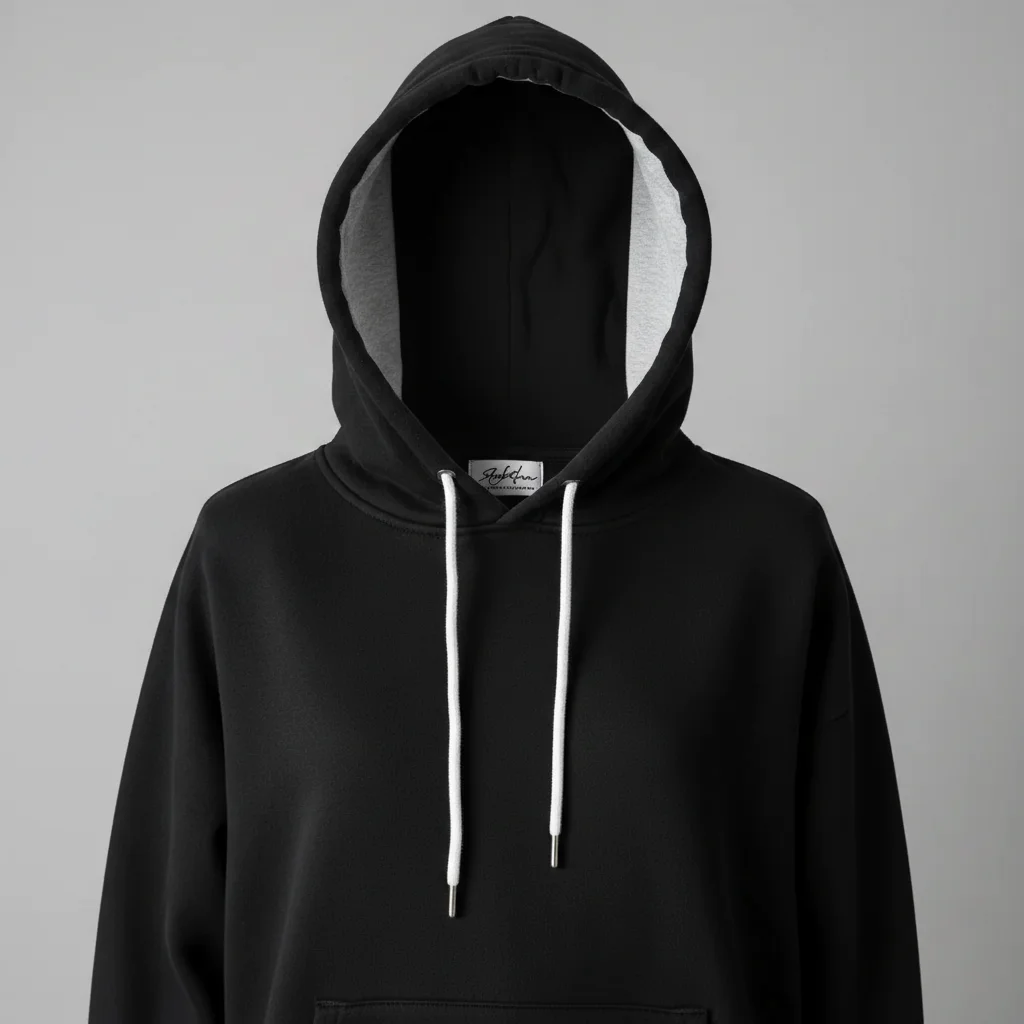
Before
Before
->
After
After

Prompt:
Before
Before
->
After
After

Prompt:
Before
Before
->
After
After

Prompt:
Advertisement

If something looks off

AI changed the wrong area or something I didn't want changed

Why: The AI couldn't determine exactly which area you meant from description alone.

Try: Tap a marker on the specific area you want to change, then regenerate with the same prompt

Tip: Markers tell the AI 'I mean THIS one specifically.' Use them when description alone is ambiguous.

AI left smudges or blur where objects were removed

Why: The background pattern was complex or the removed object was very large.

Try: Mark a smaller area at a time. For large objects, remove in sections by running cleanup multiple times.

Tip: Smaller cleanup areas give AI more context to fill naturally. Break big removals into 2-3 smaller passes.

Cleanup removed part of something I wanted to keep

Why: Your marker overlapped with areas you wanted preserved.

Try: Mark more precisely inside the object to remove. Avoid brushing near edges of things you want to keep.

Tip: Use zoom and careful marking. AI extends cleanup beyond marks, so err on the side of marking smaller.

Background fill doesn't match the surroundings

Why: AI couldn't determine the correct background pattern from available context.

Try: Try removing the object in multiple smaller sections, or use the prompt editor to describe what the background should look like.

Tip: For complex backgrounds, describing the desired fill ('grass', 'blue sky', 'brick wall') helps AI choose the right pattern.

Some parts of the object are still visible

Why: Your marking didn't cover the entire object, especially edges or shadows.

Try: Expand your marking to cover the full object including shadows and reflections. Then regenerate.

Tip: Objects cast shadows and reflections - mark those too for complete removal.

Cleanup looks artificial or has repeated patterns

Why: AI fell back on pattern repetition when it couldn't infer natural background.

Try: Use prompt mode and describe the background: 'fill with sky' or 'continue the grass pattern' to guide AI.

Tip: When cleanup alone isn't enough, combining with prompt descriptions produces more natural results.

Quick answers

Do I need to outline objects precisely?

No! Just scribble or tap roughly over what you want removed. The AI automatically detects object boundaries and extends cleanup beyond your marks to ensure complete removal. Rough marking works fine.

How is this different from Apple Intelligence Clean Up?

It's the same technology, but EditThisPic works on any device with a browser - no iPhone 15 Pro required. It's also completely free with no signup, while Apple's feature only works in their Photos app on newest devices.

Can I remove multiple objects at once?

Yes! Mark all the objects you want removed before generating. AI will remove everything marked in one pass. This is faster than removing objects one at a time.

Will cleanup work on complex backgrounds?

Usually yes, but results vary. Simple backgrounds (sky, grass, walls) cleanup perfectly. Complex patterns (crowds, intricate architecture) may need multiple passes or prompt descriptions to look natural.

Can I undo if I don't like the result?

Yes, your original photo is never modified. You can always re-upload and try different marking, or download the original. Each cleanup attempt is independent.

Are there limits on how much I can clean up?

No hard limits, but removing more than 30-40% of a photo may look artificial. Best results come from removing smaller distractions rather than trying to delete half the image.

Clean Up Your Photos Now

Free to try. No signup required.

Try it free โ†’