Free โ€ข No signup Blur Face ยท Free

AI Face Blur Tool

Type which faces to blur - AI handles the rest automatically.
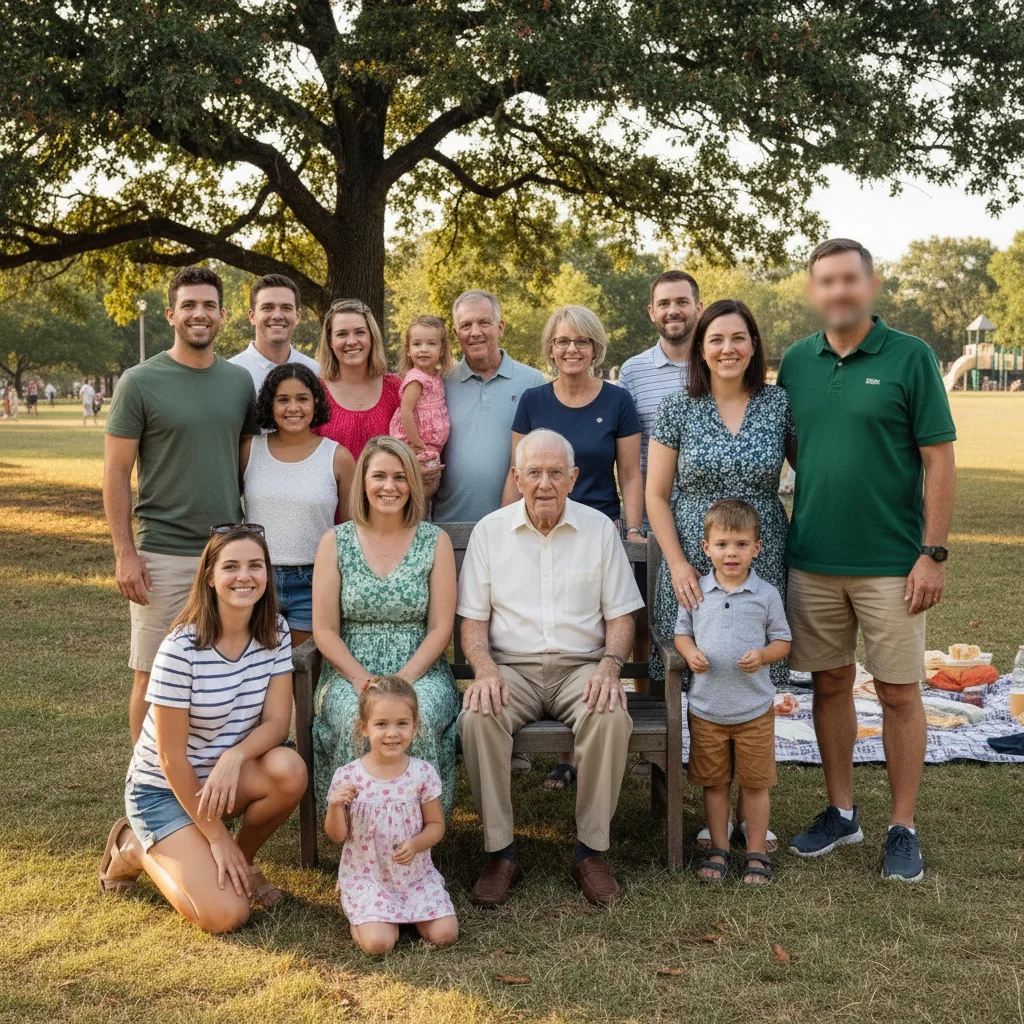
Group photo with 5 visible faces
Before
โ†’
Same group photo with all 5 faces blurred for privacy
After

Blur Faces in Photos

Drop your photo here

or click to browse

Release to upload

Free โ€ข No signup

Advertisement
Popular use cases:
  • social media privacy
  • blog post privacy
  • street photography ethics
  • children's privacy protection
  • GDPR photo compliance
  • witness protection photos
  • event photography privacy
  • real estate photography

Cost
Free No signup required
Time
Instant results in 15-30 seconds
Works on
Any device - browser, phone, tablet, desktop
Powered by
AI-powered photo editing
Scenario Prompt Time
Blur all faces blur all faces in this photo 15s
Blur everyone except main subject blur all faces except the person in the center front 15s
Blur background faces only blur all faces in the background, keep the person in front sharp 20s
Blur specific people by position blur the two people on the left side of the photo 15s

How it works

  1. Upload your photo

    Drop your image into EditThisPic. JPG, PNG, WebP up to 7MB. Works with any photo containing faces - portraits, groups, crowd shots, or street photography.

    Expect: Single face blur: 10-15 seconds. Multiple faces or crowd: 15-25 seconds.
  2. Describe which faces to blur

    Type 'blur all faces' for everyone, 'blur faces in the background' for specific areas, or 'blur the person on the right' for individuals. The AI automatically detects faces - no manual marking needed unless you want to be very specific.

    Tip: For selective blurring, use positions: 'blur the two people on the left' or 'blur everyone except the person in front'

    Copy one of these to get started:

    Blur all faces in a group or crowd photo blur all faces in this photo
    Blur everyone except yourself in a group photo blur all faces except the person in the center front
    Blur background people while keeping subject clear blur all faces in the background, keep the person in front sharp
    Blur specific people by position blur the two people on the left side of the photo
    2 more prompts
    Blur bystanders in street photography blur the faces of people walking in the background
    Blur children's faces for online sharing blur the faces of the children in this photo
  3. Download your privacy-protected photo

    Verify all desired faces are blurred at full zoom, then download. The blur is permanent and suitable for public sharing while protecting privacy.

Try it free โ†“

Blur Faces in Photos

Drop your photo here

or click to browse

Release to upload

Free โ€ข No signup

"Needed to blur faces in a crowd photo for my blog. Just typed 'blur all faces except mine' and it worked perfectly on the first try." @privacyfirst_jen

See it in action

Group photo with 5 visible faces
Before
->
Same group photo with all 5 faces blurred for privacy
After

All faces blurred in group photo

Privacy protection for a group event photo before sharing publicly.
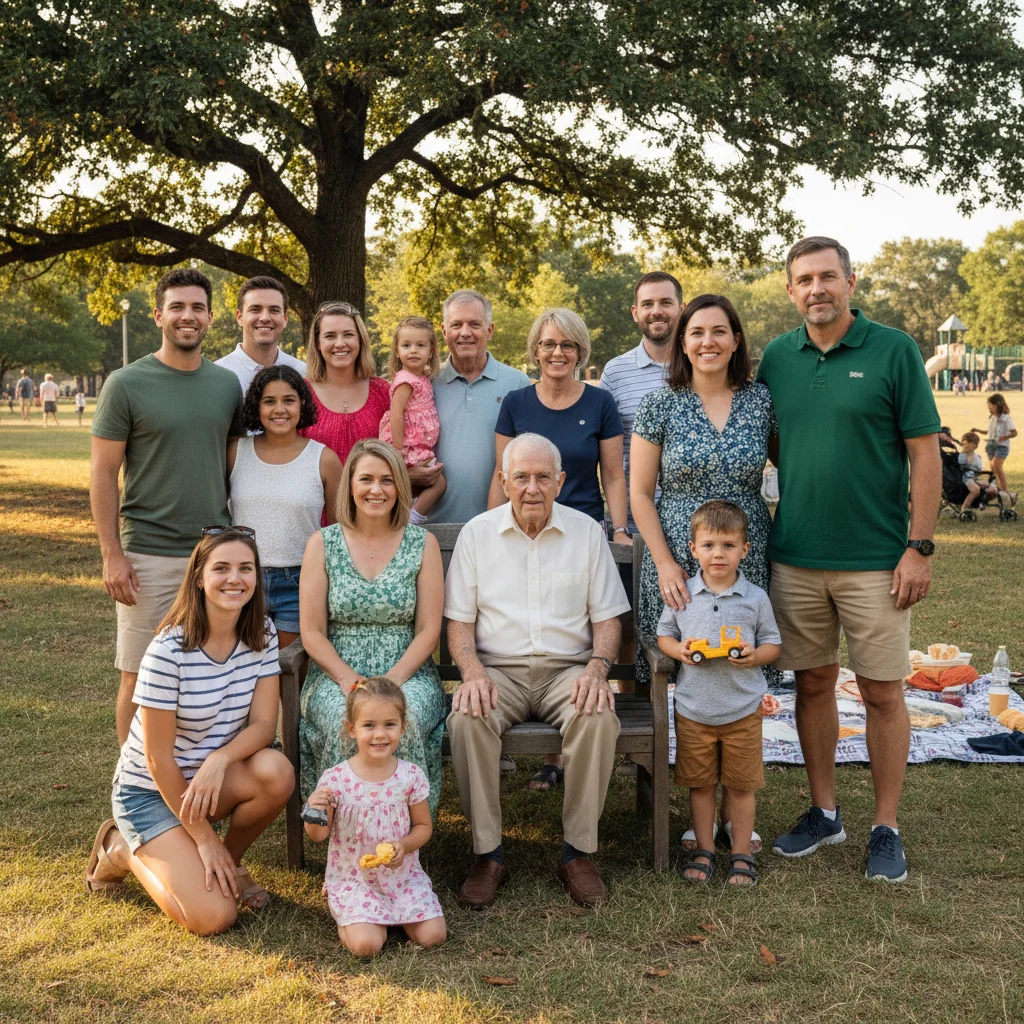
Prompt: blur all faces in this photo
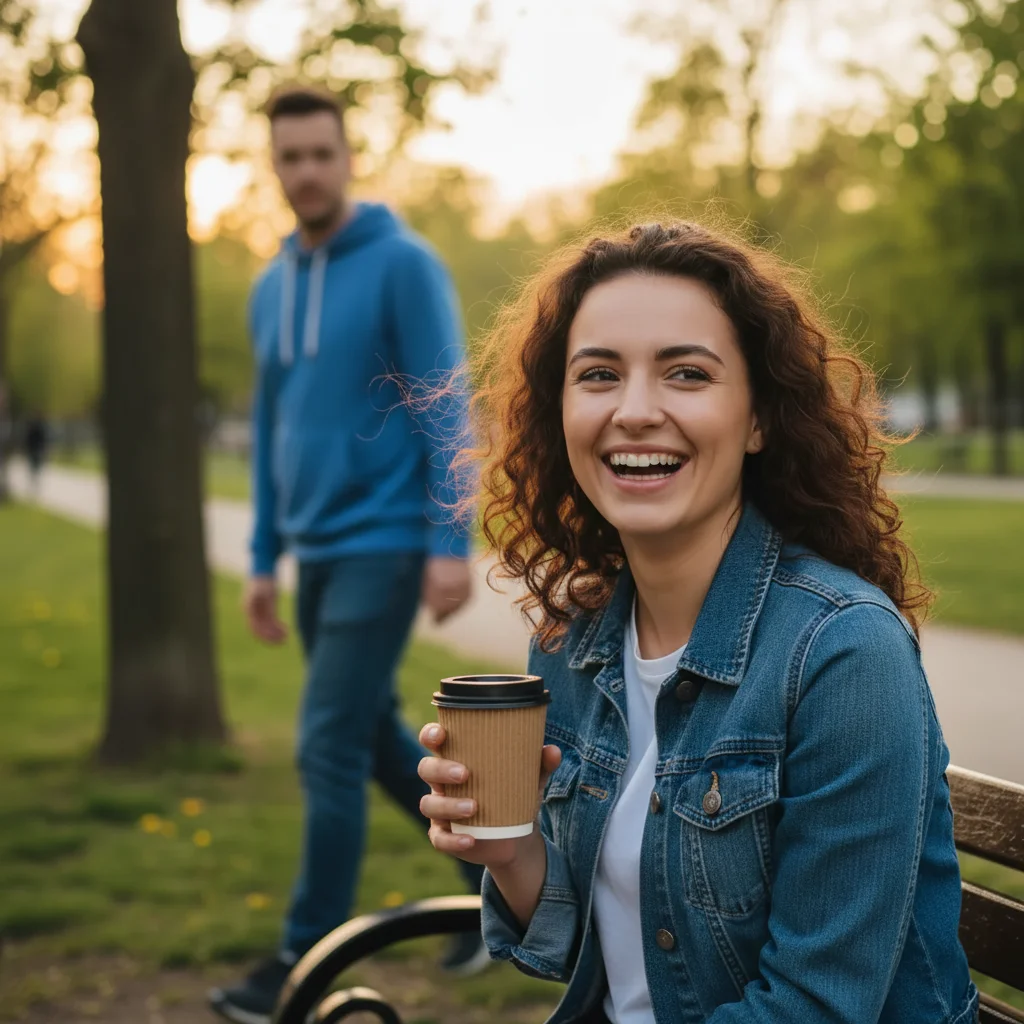
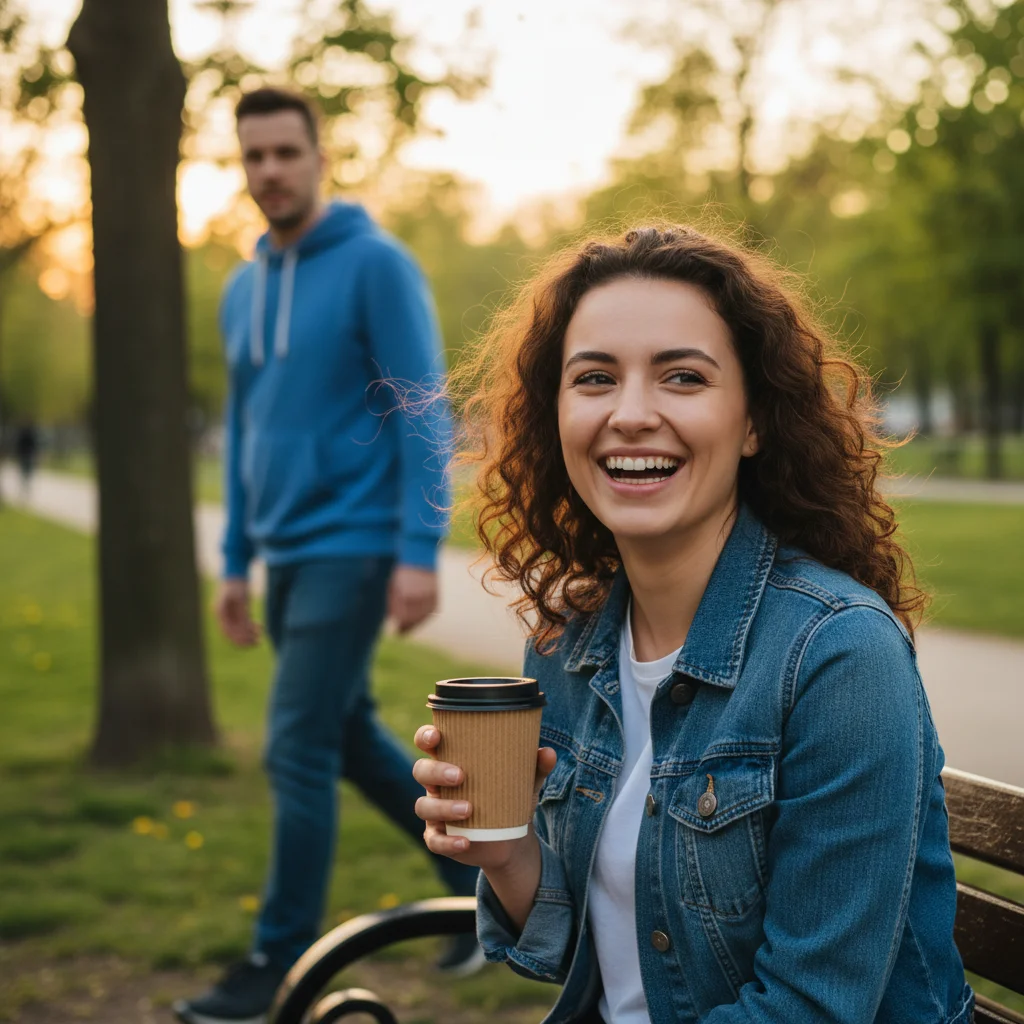
Street photo with person in front and bystanders behind
Before
->
Street photo with foreground person clear and background faces blurred
After

Background faces blurred in street photo

Main subject stays clear while protecting privacy of bystanders in the background.

Prompt: blur all faces in the background, keep the person in front sharp
Advertisement

If something looks off

AI blurred the wrong person or missed a face

Why: The AI might not distinguish between people correctly when they're overlapping or descriptions are ambiguous.

Try: Tap a marker directly on the specific face you want blurred, then regenerate with the same prompt

Tip: Markers are perfect for targeting specific faces when 'left' and 'right' descriptions aren't precise enough.

Blur is too weak or faces are still recognizable

Why: The default blur strength balances privacy with maintaining the photo's overall composition.

Try: Add 'heavily' to your prompt: 'heavily blur all faces' for stronger privacy protection

Tip: Heavy blur makes recognition impossible but may look more obvious in the photo.

Blur extended beyond the face to hair or shoulders

Why: The AI's face detection region includes some surrounding area to ensure full coverage.

Try: Request precise blur: 'blur only the facial features, not the hair' for tighter masking

Tip: Face-only blur looks more natural but requires clear face detection.

AI changed the wrong area or something I didn't want changed

Why: The AI couldn't determine exactly which area you meant from description alone. This happens with ambiguous requests.

Try: Tap a marker on the specific area you want to change, then regenerate with the same prompt

Tip: Markers tell the AI 'I mean THIS one specifically.' Use them when description alone is ambiguous.

Quick answers

Do I need to mark faces before blurring them?

No! Just describe which faces to blur: 'blur all faces' or 'blur the person on the left.' The AI automatically detects faces and applies blur. Only use markers if you need to target a specific face that's hard to describe by position.

Is there a free face blur tool that doesn't require signup?

Yes - EditThisPic's Face Blur tool is completely free to try with no account needed. Upload your photo, describe which faces to blur, and download your privacy-protected image in seconds. No watermarks, no registration.

Can I blur some faces while keeping others clear?

Absolutely. Use selective descriptions like 'blur all faces except the person in the center' or 'blur the two people on the left, keep the right person clear.' The AI understands positional instructions.

Is the face blur permanent or can it be reversed?

The blur is permanent in the downloaded image. Once faces are blurred, the original facial details cannot be recovered from the blurred photo. This ensures genuine privacy protection for public sharing.

Ready to protect privacy in your photos?

Free to try. No signup required.

Try it free โ†’