Free • No signup Expand Image · Free

AI Image Expander

Extend any photo beyond its borders by describing what should appear outside the frame. No marking needed.
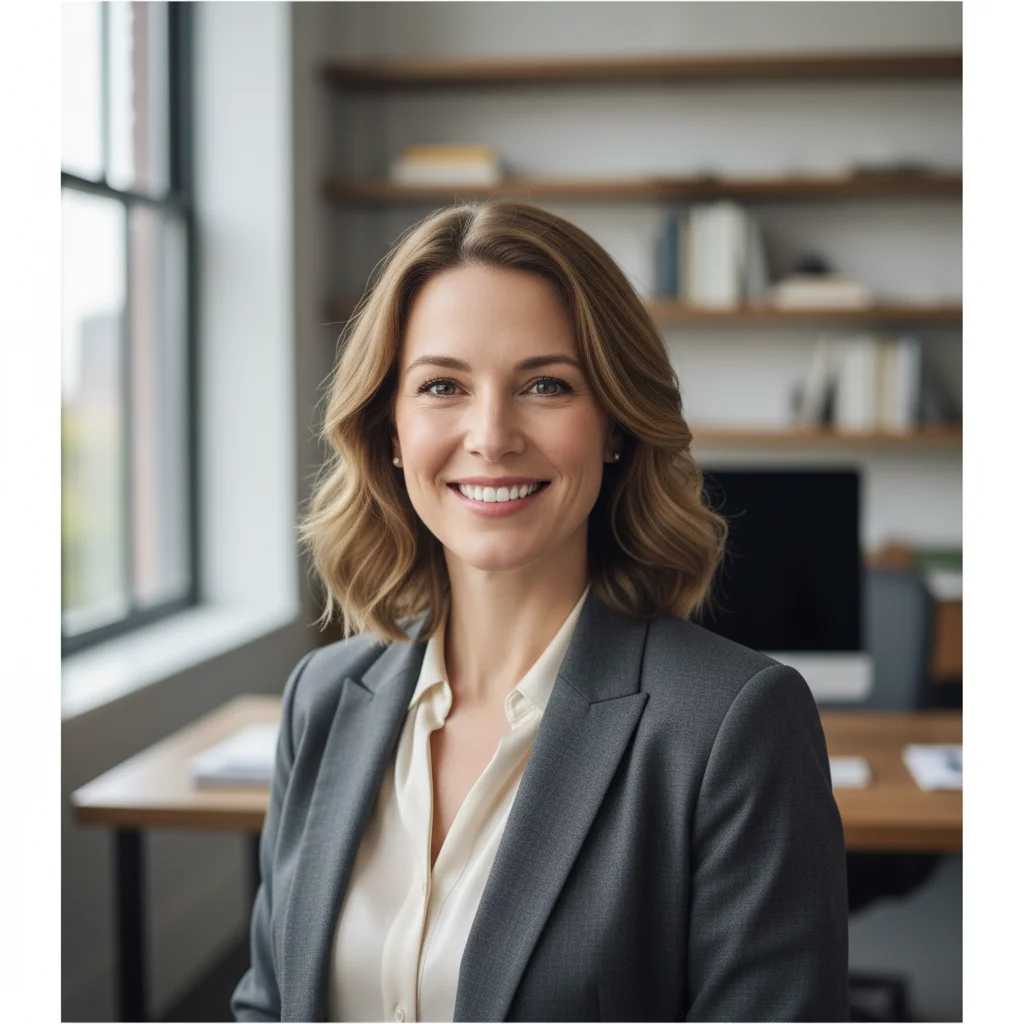
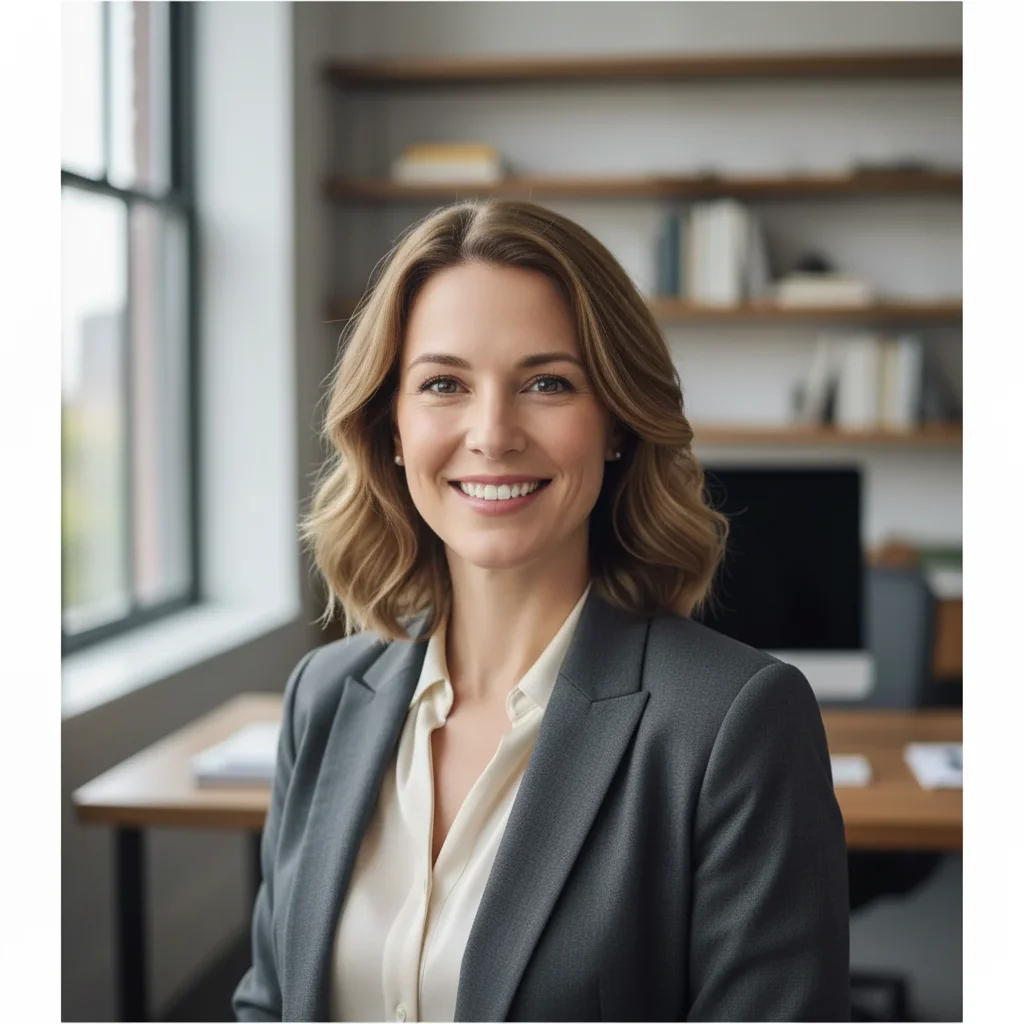
Tightly cropped narrow beach photo
Before
Same beach photo expanded to show wider coastline and full palm tree
After

AI Image Expander

Drop your photo here

or click to browse

Release to upload

Free • No signup

Advertisement
Popular use cases:
  • outpainting
  • image extension
  • uncrop photo
  • widen photo
  • add headroom
  • aspect ratio change
  • social media banner
  • panoramic conversion

Cost
Free No signup required
Time
Instant results in 15-30 seconds
Works on
Any device - browser, phone, tablet, desktop
Powered by
AI-powered photo editing
Scenario Prompt Time
Add headroom to portrait extend the top with more background above the head 30s
Widen landscape photo expand both sides with more landscape, match lighting 40s
Convert to banner format expand to 16:9 banner, fill with matching content 45s

How it works

  1. Upload your photo

    Drop your image into EditThisPic. JPG, PNG, WebP up to 7MB. Any photo works—landscapes, portraits, product shots. The image edges should have enough context for the AI to understand what to generate beyond the border.

    Expect: Simple extensions (more sky, more grass): 30-40 seconds. Complex content generation (buildings, people): 45-60 seconds and may need refinements.
  2. Describe the expansion you want

    Type your instruction: 'expand this image to the right with more of the beach and ocean' or 'extend the top with more blue sky and clouds.' Specify the direction (left, right, top, bottom, all sides) and what should appear. No marking needed—the AI understands 'expand' and 'extend' as outpainting commands.

    Tip: Be specific about what to generate: 'more of the same forest' works better than just 'expand right.' The AI matches style when it knows the content.

    Copy one of these to get started:

    Widen a landscape photo expand this image to both sides with more of the natural landscape, match the lighting and color palette
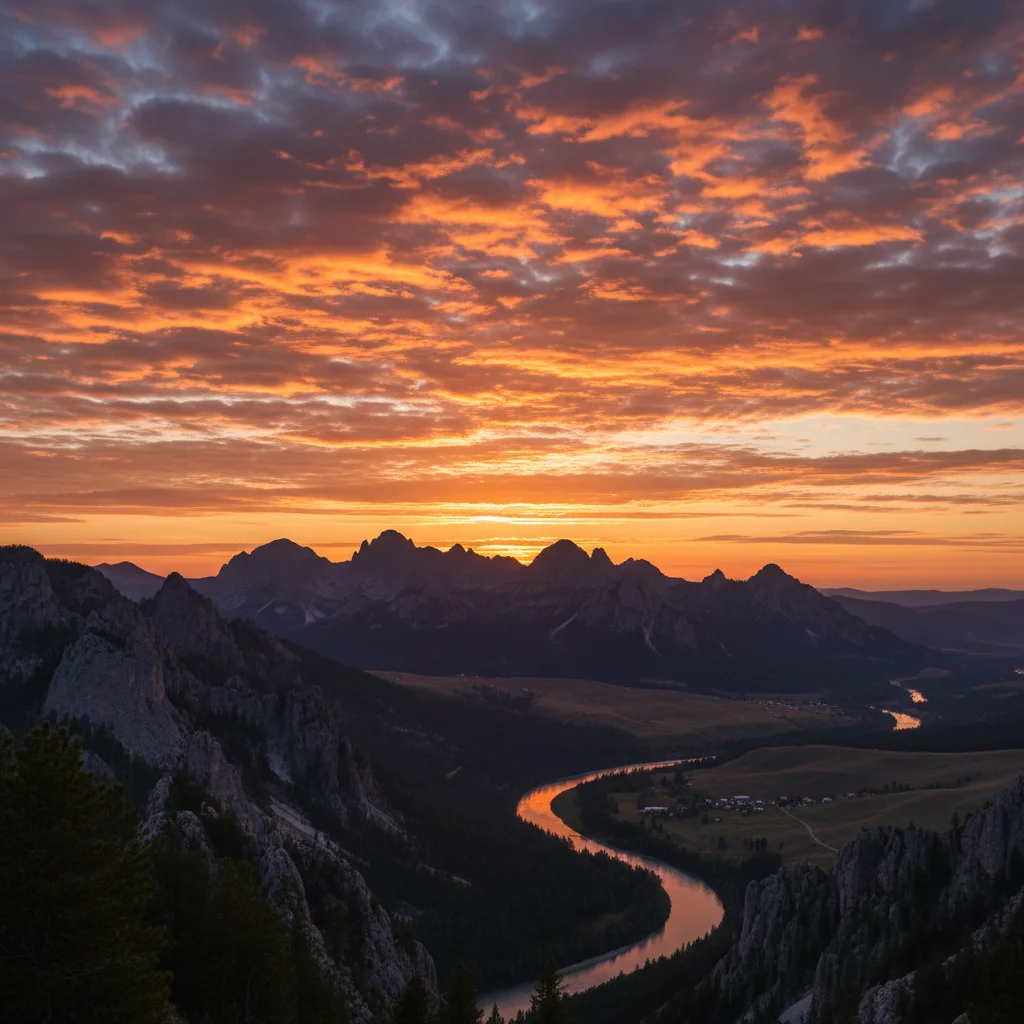
    Add headroom to a portrait extend the top of this photo with more background space above the person's head, keep the same background style
    Convert portrait to landscape ratio expand this vertical photo to landscape orientation by extending both sides with matching scenery
    Extend product photo background expand this product photo on all sides with more of the clean white background, maintain even lighting
    3 more prompts
    Add more sky to a cityscape extend the top of this city photo with more dramatic sky, matching the existing clouds and sunset colors
    Widen a group photo expand this group photo to the left and right to add more space around the people, match the background environment
    Extend for social media banner expand this photo to a wide 16:9 banner format by extending both sides, fill with matching content for a seamless panoramic look
  3. Check the seamless blend

    Zoom in on where the original image meets the new content. Look for color matching, texture continuity, and natural transitions. The expanded area should look like it was always part of the original photo.

  4. Refine with markers if needed

    If the transition between old and new content has visible seams or the generated content doesn't match, tap markers on those areas and regenerate. Most expansions blend smoothly on the first try.

    Tip: Markers are for precision refinement only. Try without them first—you usually won't need them.
Try it free

AI Image Expander

Drop your photo here

or click to browse

Release to upload

Free • No signup

"Cropped a photo too tight on a family vacation. Used this to extend the sides and suddenly the whole beach was in frame. The new parts matched perfectly—no one can tell they were AI-generated." @PhotoFix_Rachel

See it in action

Tightly cropped narrow beach photo
Before
->
Same beach photo expanded to show wider coastline and full palm tree
After

Cropped beach photo expanded

A tightly cropped beach vacation photo extended on both sides to show more of the coastline and ocean.

Prompt: expand this image to both sides with more of the natural landscape, match the lighting and color palette
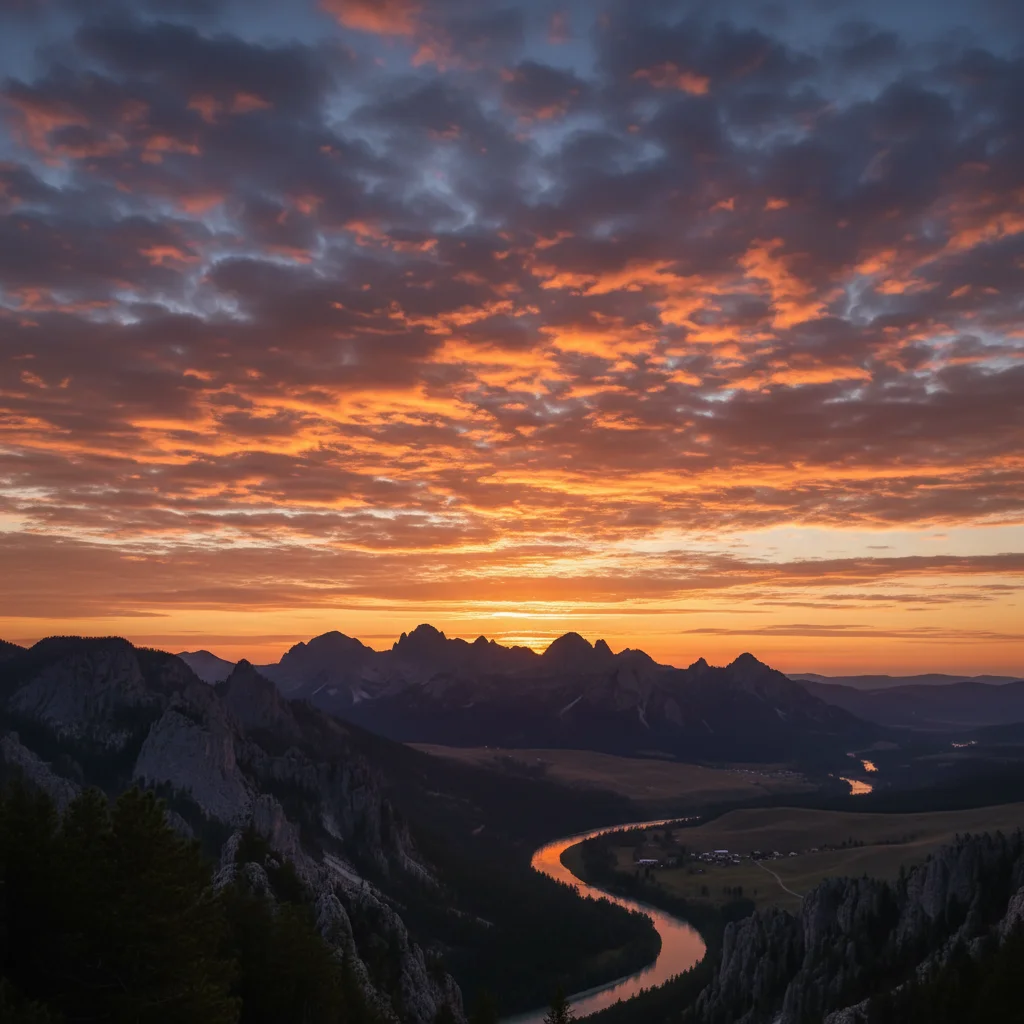
Portrait cropped too tight with hair touching top edge
Before
->
Same portrait with proper headroom showing more wall above
After

Portrait with more headroom added

A portrait that was cropped too close to the top of the head, extended upward to add proper headroom.

Prompt: extend the top of this photo with more background space above the person's head, keep the same background style
Advertisement

If something looks off

AI changed the wrong area or modified the original image

Why: The AI misinterpreted 'expand' as 'edit' and changed content within the original frame instead of generating new content beyond the borders.

Try: Tap a marker on the edge where you want expansion, then regenerate: extend outward from this edge, do not change the original image

Tip: Markers on the border tell the AI 'I want new content beyond HERE.' Adding 'do not change the original' prevents unwanted modifications.

Visible seam between original and expanded area

Why: The color temperature, lighting, or texture of the generated content doesn't perfectly match the original image's edge.

Try: expand this image to the right, ensure a perfectly seamless blend where new content meets the original, match exact colors and lighting

Tip: If the seam persists, tap markers directly on the transition line and regenerate to focus blending effort there.

Generated content looks repetitive or unrealistic

Why: The AI repeated existing patterns too literally instead of generating natural variations, creating a tiled or artificial look.

Try: expand this image with natural variations, not a copy-paste of existing content—generate realistic continuation of the scene

Tip: 'Natural variations' tells the AI to create diverse new content rather than cloning what already exists.

New content doesn't match the perspective or depth

Why: The original photo has a strong vanishing point or perspective that the AI didn't continue correctly in the expanded area.

Try: expand this image, maintain the same perspective, vanishing point, and depth of field in the new content

Tip: For architecture and street scenes, mentioning 'vanishing point' helps the AI continue perspective lines naturally.

Expanded area has different image quality or sharpness

Why: The AI-generated portion has a slightly different resolution or sharpness level compared to the original photo.

Try: expand this image, match the exact resolution and sharpness of the original photo in the new areas

Tip: Higher-resolution originals produce better expansions—the AI has more detail to match when generating new content.

Quick answers

Do I need to mark the edges before expanding an image?

No! Just type 'expand this image to the right' or 'extend the top with more sky' and the AI generates new content beyond the borders. Only use markers if the AI changes the wrong area or you need to specify exactly which edge to extend.

How do I expand an image beyond its borders for free?

Upload your photo to EditThisPic, type 'expand this image to both sides with more scenery,' and download the result. The AI generates new content that seamlessly matches the original. Also called outpainting or image extension. Free to try, no account needed.

Is there a free AI image expander that doesn't require login?

Yes, EditThisPic expands images for free with no account needed. Upload any photo, describe which direction to expand and what content to add, and download the extended result. No watermarks on outputs. Works for landscapes, portraits, and product photos.

What's the best AI tool for outpainting and extending photos?

EditThisPic offers free AI outpainting with natural-language control. Unlike tools that only expand in fixed increments, you can describe exactly what should appear in the new area. The AI matches lighting, perspective, and style for seamless results.

Ready to expand your photos?

Free to try. No signup required.

Try it free