Free • No signup Edit Real estate photos · Free

AI Real Estate Photo Editor

Describe your property photo edit and AI fixes lighting, clutter, and curb appeal. No marking needed.
Dark living room with blown-out windows and shadowy interior
Before
Same living room bright and inviting with balanced lighting showing both room and window views
After

AI Real Estate Photo Editor

Drop your photo here

or click to browse

Release to upload

Free • No signup

Advertisement
Popular use cases:
  • MLS listing photos
  • Zillow property images
  • real estate photography
  • rental listing photos
  • property photo enhancement
  • curb appeal photos
  • realtor marketing photos
  • home listing images

Cost
Free No signup required
Time
Instant results in 15-30 seconds
Works on
Any device - browser, phone, tablet, desktop
Powered by
AI-powered photo editing
Scenario Prompt Time
Brighten dark room brighten room with warm natural light 30s
Curb appeal fix blue sky, green lawn, warm sunlight 35s
Full listing cleanup brighten, balance windows, remove clutter 50s

How it works

  1. Upload your property photo

    Drop your real estate image into EditThisPic. JPG, PNG, WebP up to 7MB. Interior rooms, exterior shots, and aerial views all work. Wide-angle photos showing the full space give the best results.

    Expect: Simple lighting fixes: 25-35 seconds. Complex edits like decluttering plus lighting plus sky replacement: 45-60 seconds and may need refinements.
  2. Describe the edit you want

    Type your instruction: 'brighten this room and make the windows glow with natural light' or 'replace the grey sky with a clear blue sky and green lawn.' Be specific about lighting, colors, and mood. No marking needed—the AI understands real estate terms like 'room', 'windows', 'sky', and 'lawn.'

    Tip: Mention the room type for better results: 'brighten this kitchen with warm inviting light' gives more targeted enhancement than generic brightening.

    Copy one of these to get started:

    Brighten dark interior brighten this room with warm natural light from the windows, make the space look bright and inviting
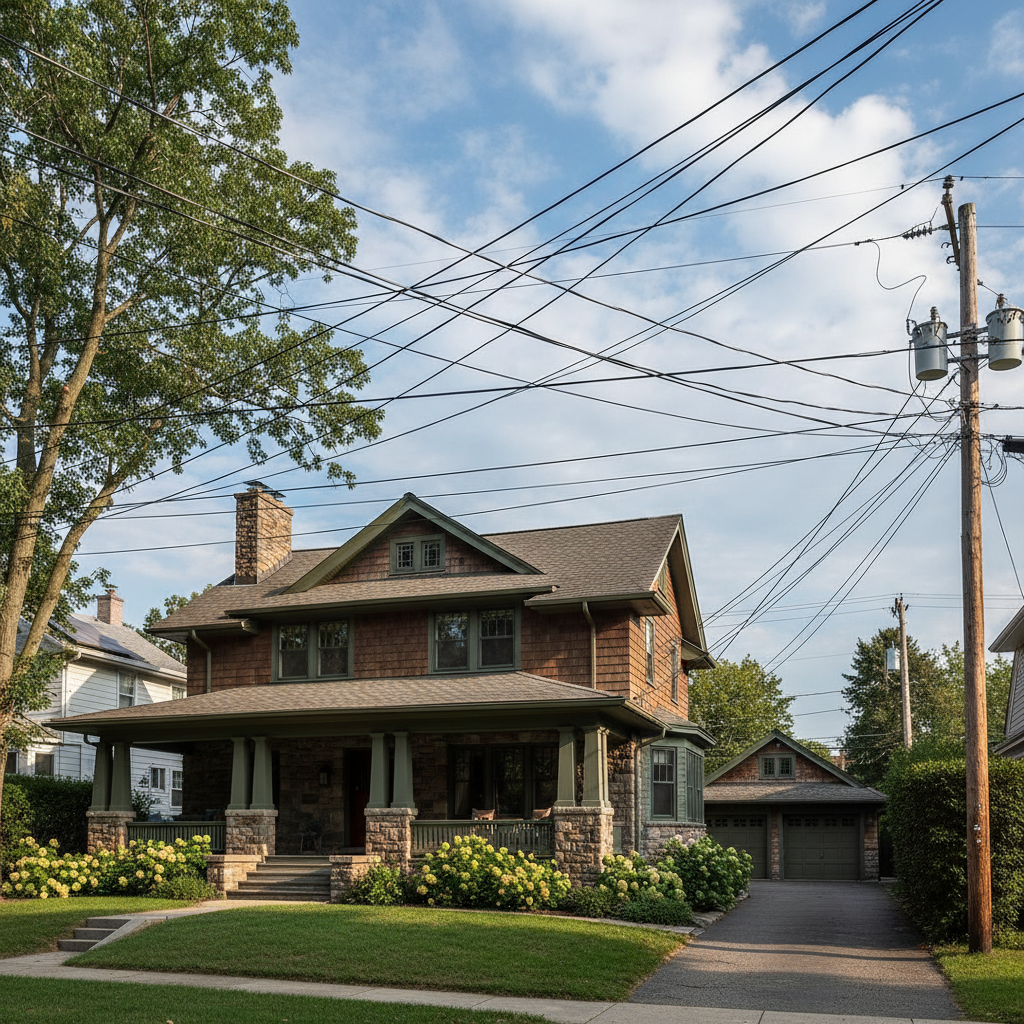
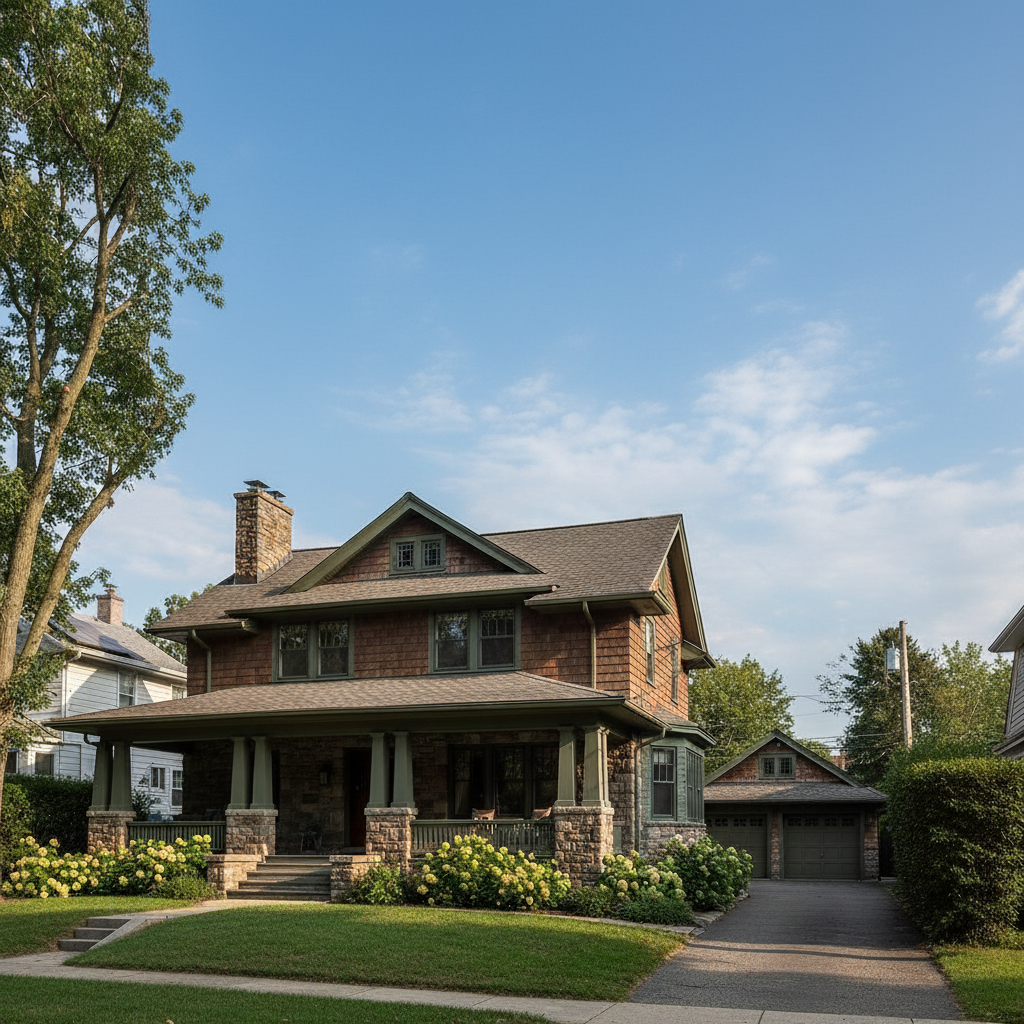
    Enhance curb appeal exterior enhance this home exterior with a bright blue sky, green lawn, and warm afternoon sunlight
    Fix window blow-out balance the interior lighting so both the room and the view through the windows are clearly visible
    Remove clutter from rooms remove the clutter and personal items from this room, leave the furniture and architectural features
    3 more prompts
    Twilight exterior shot transform this daytime exterior into a twilight photo with warm interior lights glowing and a deep blue sky
    Green up the landscaping make the lawn and landscaping look lush and green, enhance the garden plants and flowers
    Kitchen or bathroom enhancement enhance this kitchen photo to look bright and modern, make the countertops shine and the appliances look clean
  3. Review the result

    Check that room proportions look natural, window views aren't blown out, and colors are realistic. Verify that key selling features like countertops, flooring, and fixtures are clearly visible.

  4. Refine with markers if needed

    If specific areas like window views, ceiling corners, or fixture details need adjustment, tap markers on those spots and regenerate. Most property photo edits work well on the first try.

    Tip: Markers are for precision refinement only. Try without them first—room photos with good composition rarely need them.
Try it free

AI Real Estate Photo Editor

Drop your photo here

or click to browse

Release to upload

Free • No signup

"I'm a solo real estate agent and can't afford a photographer for every listing. This tool takes my phone photos and makes them MLS-ready. My listings get more clicks and faster showings." @RealtorSolo_Priya

See it in action

Dark living room with blown-out windows and shadowy interior
Before
->
Same living room bright and inviting with balanced lighting showing both room and window views
After

Dark living room to bright and inviting

A dim living room with harsh shadows transformed into a bright, welcoming space ready for MLS.

Prompt: brighten this room with warm natural light from the windows, make the space look bright and inviting
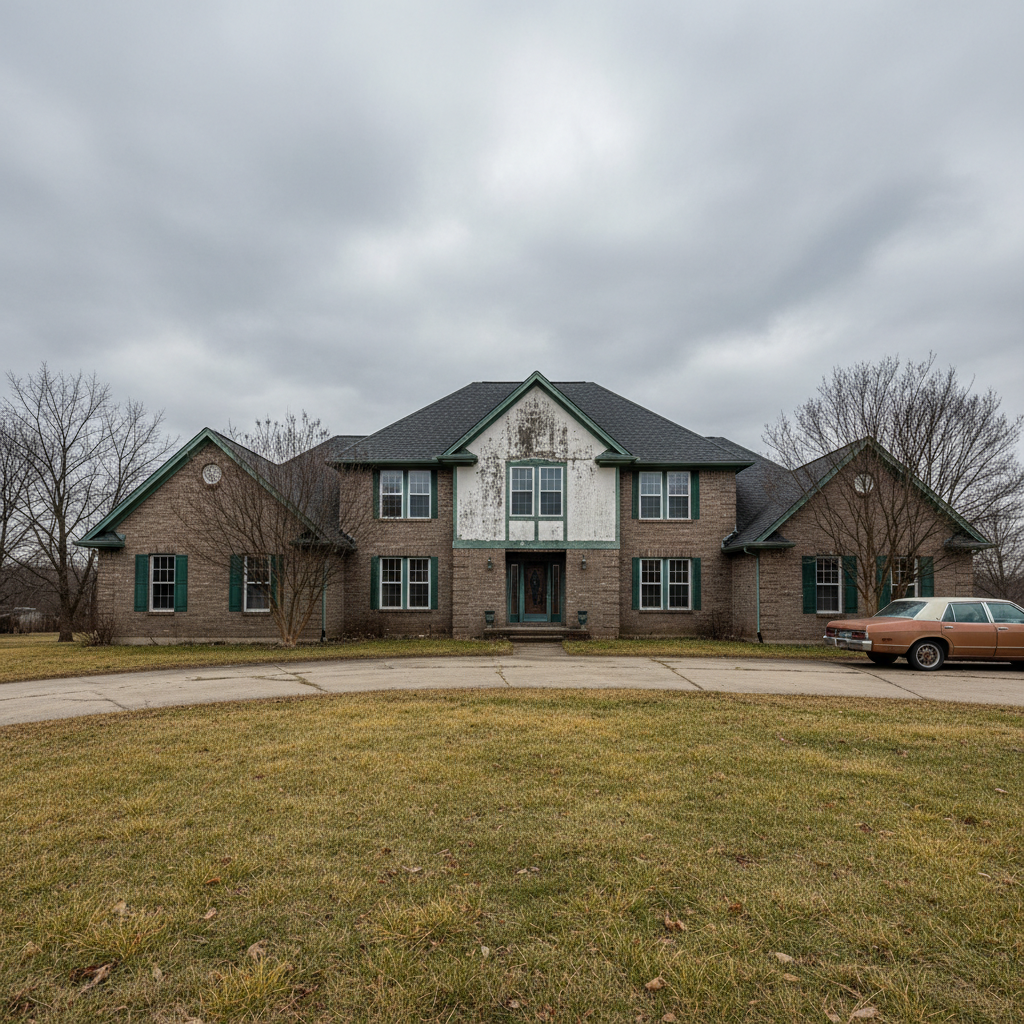
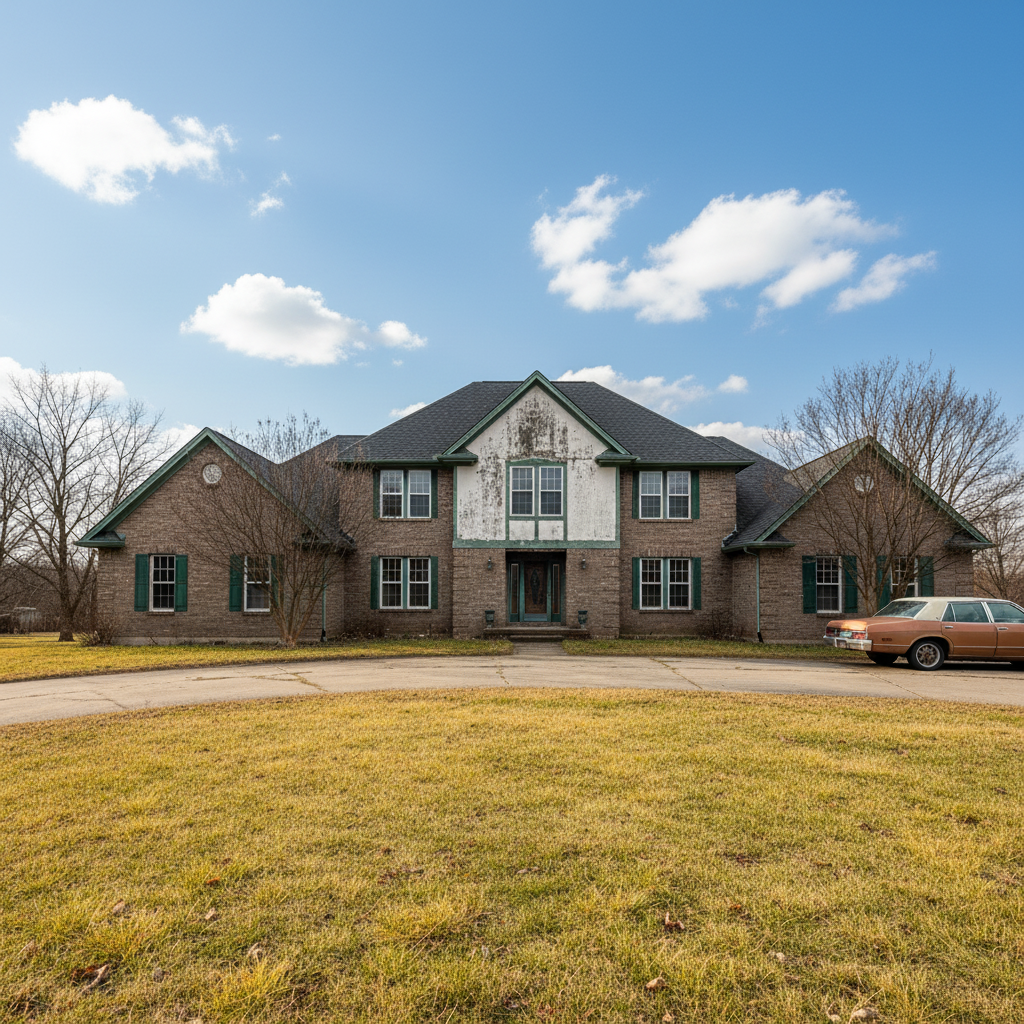
House exterior under grey sky with brown patchy lawn
Before
->
Same house with bright blue sky, green lush lawn, and warm afternoon sunlight
After

Overcast exterior to curb appeal hero

A home exterior shot under grey skies enhanced with blue sky, green lawn, and warm sunlight.

Prompt: enhance this home exterior with a bright blue sky, green lawn, and warm afternoon sunlight
Advertisement

If something looks off

AI changed the wrong area or something I didn't want changed

Why: The AI couldn't determine exactly which part of the property photo you meant from description alone. This happens in rooms with many similar-colored surfaces.

Try: Tap a marker on the specific area you want to change, then regenerate with the same prompt

Tip: Markers tell the AI 'I mean THIS area specifically.' Use them when multiple walls or surfaces need different treatments.

Room proportions look warped or unnatural

Why: Heavy enhancement can distort wide-angle lens perspectives, making rooms look stretched or curved.

Try: enhance the lighting only, keep the room geometry and proportions exactly as they are

Tip: 'Keep room geometry exactly' prevents the AI from modifying perspective, which is critical for honest listings.

Window views look fake or pasted in

Why: When balancing interior and exterior exposure, the AI may generate window views that don't match the actual location.

Try: balance the lighting between room and windows, keep the actual view through the windows realistic and natural

Tip: 'Keep actual view realistic' tells the AI to enhance what's there rather than replace window scenes.

Colors look over-processed or unrealistic

Why: Aggressive color enhancement can make walls, floors, or fixtures look nothing like their real-life colors.

Try: enhance the brightness and clarity but keep all surface colors natural and true to life

Tip: Real estate photo ethics require accurate colors. Use 'true to life' to prevent misleading enhancements.

Sky replacement looks obvious or mismatched

Why: The new sky has different lighting direction or color temperature than the rest of the exterior photo.

Try: replace the sky with clear blue and adjust the house lighting to match the new sunny sky direction

Tip: 'Adjust lighting to match' ensures the whole exterior looks cohesive, not like a sky was pasted on.

Quick answers

Do I need to mark areas of the property photo before describing what I want?

No! Just describe what you want: 'brighten the room' or 'replace the grey sky with blue.' The AI understands room layouts, windows, and exteriors. Only use markers when you need a specific area treated differently—like brightening just one dark corner while leaving the rest unchanged.

How do I make my real estate photos look professional for MLS listings?

Upload your property photo and type: 'brighten with warm natural light, balance windows, make the space look inviting.' For exteriors, add: 'blue sky, green lawn, warm sunlight.' This handles the most common listing photo improvements in one prompt. Works with phone photos from any property.

Is there a free real estate photo editor that doesn't require login?

Yes, EditThisPic edits property photos for free with no account needed. Upload your listing photo, describe the improvements, and download the result. No watermarks. Handles interior brightening, sky replacement, decluttering, and curb appeal enhancement.

What's the best free AI tool for real estate listing photos?

EditThisPic handles the most common real estate photo needs: dark room brightening, window exposure balancing, sky replacement, and lawn enhancement. Just describe what the photo needs in plain language. Works for MLS, Zillow, Realtor.com, and rental platforms.

Ready to edit your property photos?

Free to try. No signup required.

Try it free