Free β€’ No signup Edit Real estate photos Β· Free

AI Real Estate Photo Editor

Replace skies, stage rooms, declutter, and enhance β€” all your listing photo edits in one tool.
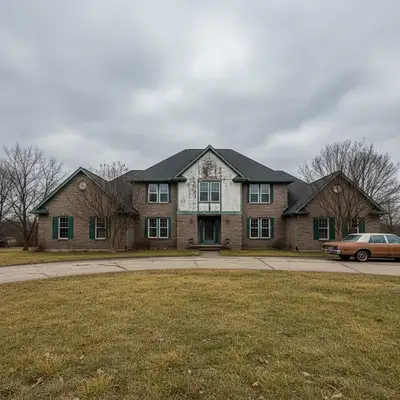
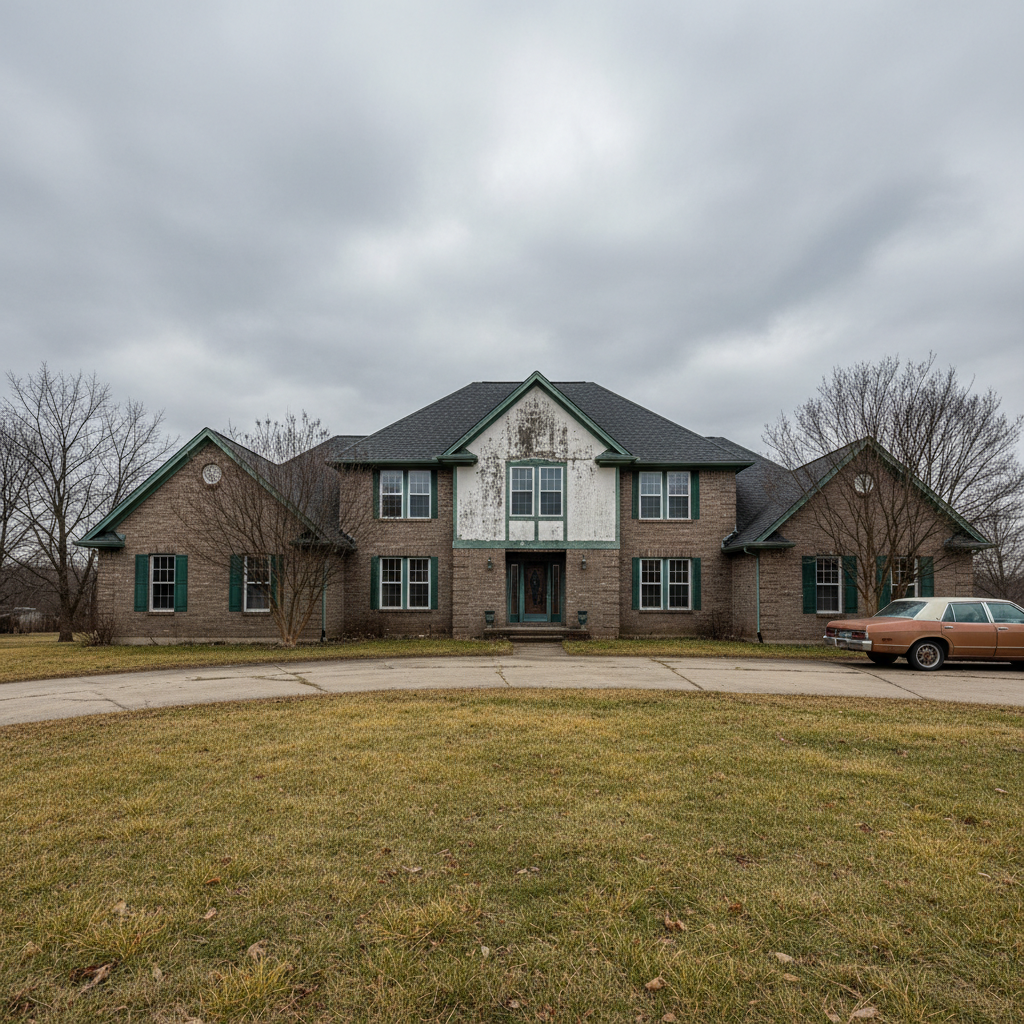
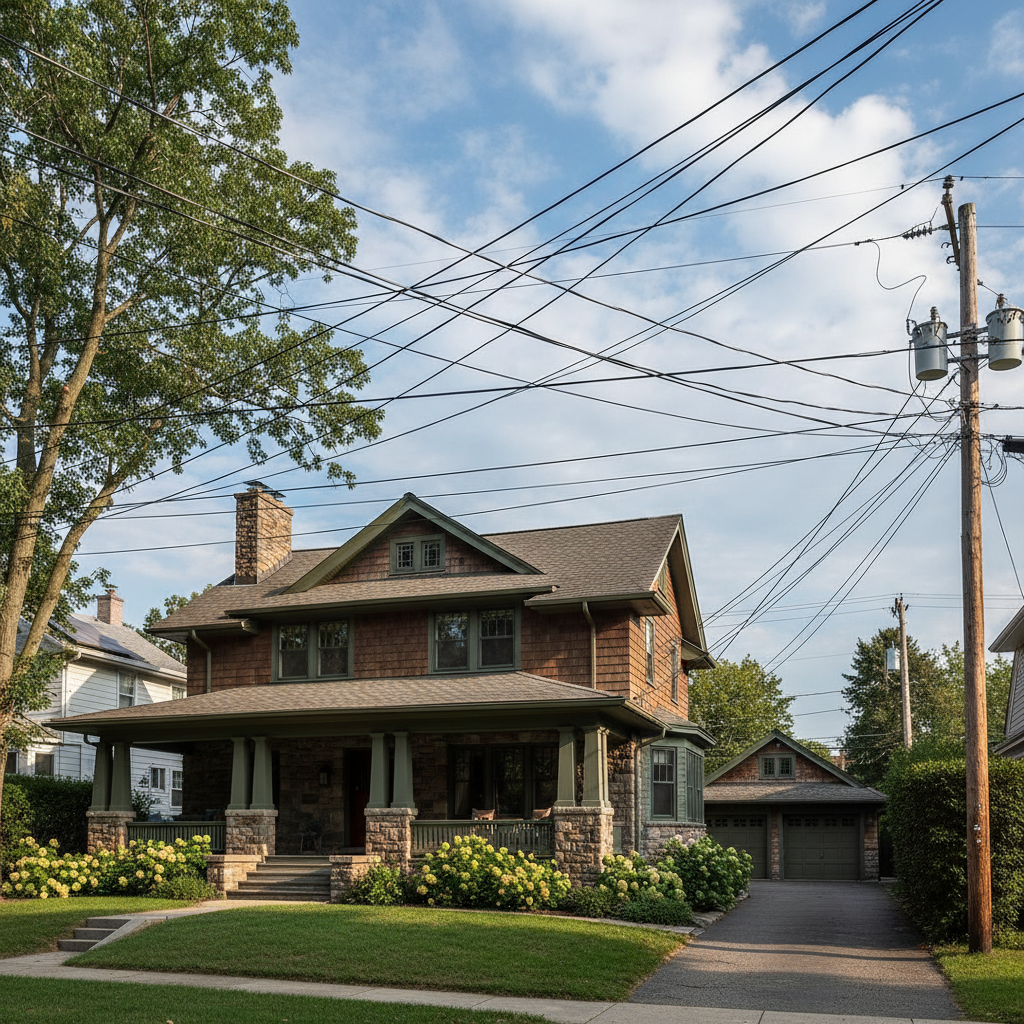
House exterior with gray overcast sky
Before
β†’
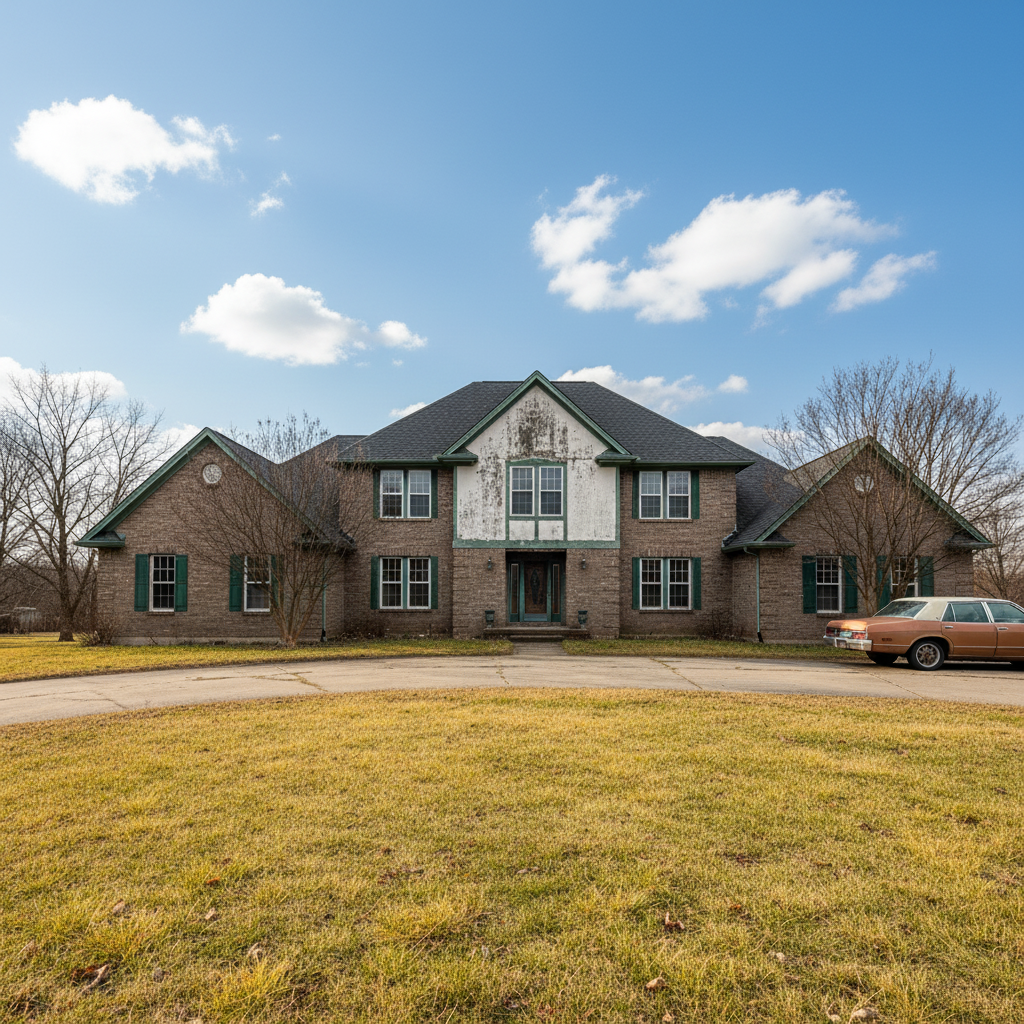
Same house with bright blue sky and white clouds
After

AI Real Estate Photo Editor

Upload photo to edit real estate photos

Free β€’ Results in 30 seconds β€’ No signup

Release to upload

FreeNo signupNo watermark
Popular use cases:
  • real estate photography
  • listing photo editing
  • property photo enhancement
  • MLS photo editing
  • sky replacement
  • virtual staging
  • real estate decluttering
  • twilight photo conversion

Cost
Free No signup required
Time
Instant results in 15-30 seconds
Works on
Any device - browser, phone, tablet, desktop
Powered by
AI-powered photo editing
Scenario Prompt Time
Sky replacement replace overcast sky with bright blue sky and clouds 20s
Room decluttering remove clutter and personal items, show clean surfaces 25s
Interior enhancement brighten with natural warm lighting, keep colors true 20s

How it works

  1. Upload your property photo

    Drop your listing photo into EditThisPic β€” interior or exterior. JPG, PNG, WebP up to 7MB. Works with phone photos, DSLR shots, and wide-angle lens images.

    Expect: Sky replacement and single edits: 20-30 seconds. Complex staging or multi-element edits: may need 2-3 refinement passes.
  2. Describe the edit you want

    Type your instruction: 'replace the gray sky with bright blue sky and white clouds' or 'remove the trash cans from the driveway' or 'stage this empty room with modern furniture.' Be specific about what you want changed. No marking needed β€” the AI understands real estate photo concepts like sky, rooms, and clutter.

    Tip: For exterior shots, specify time of day: 'bright midday sky' vs 'golden hour sunset' for different moods.

    Copy one of these to get started:

    Sky replacement for exterior replace the overcast gray sky with a bright blue sky with scattered white clouds, matching the natural lighting direction
    Declutter a messy room remove the clutter, personal items, and mess from this room, show clean surfaces and tidy space
    Enhance dark interior lighting brighten this interior photo with natural-looking warm lighting, make windows glow and shadows softer, keep colors true to life
    Stage an empty room stage this empty living room with modern neutral furniture: gray sectional sofa, walnut coffee table, and two accent chairs
    3 more prompts
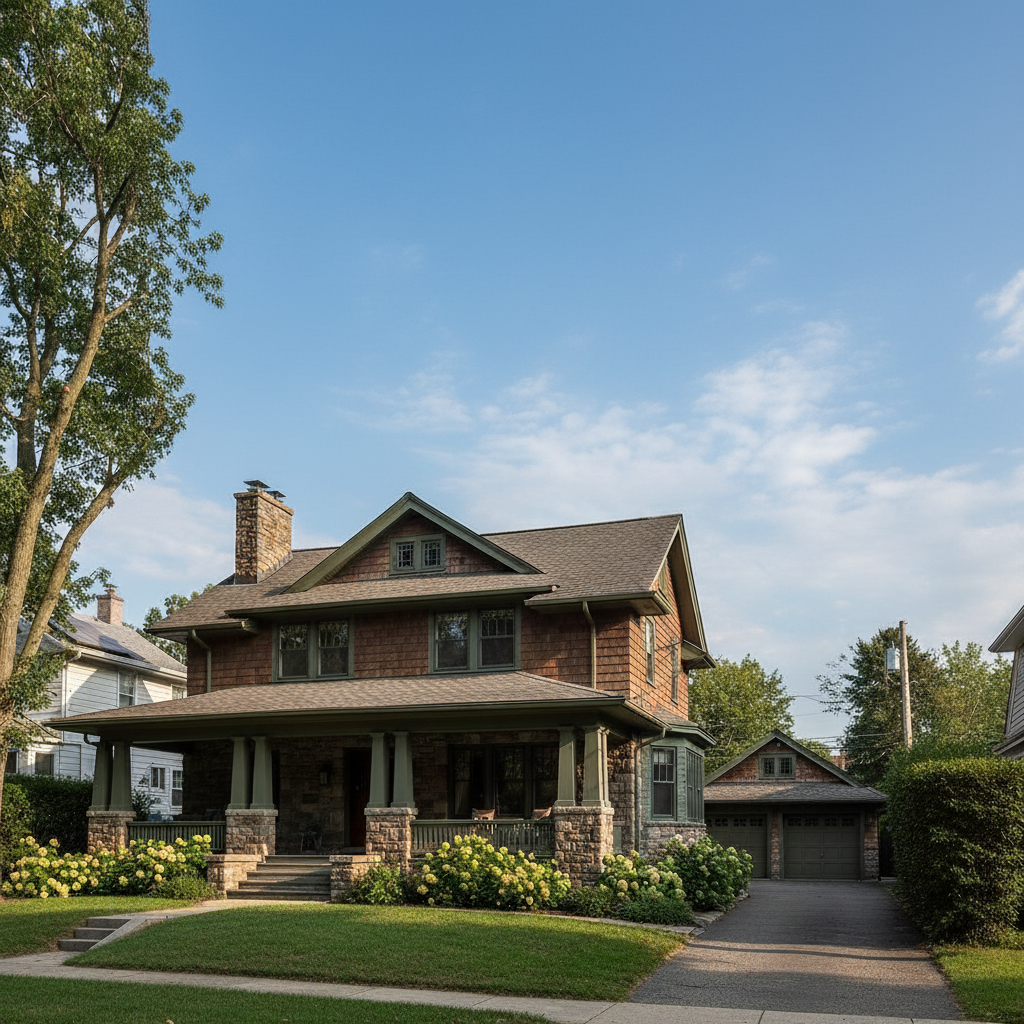
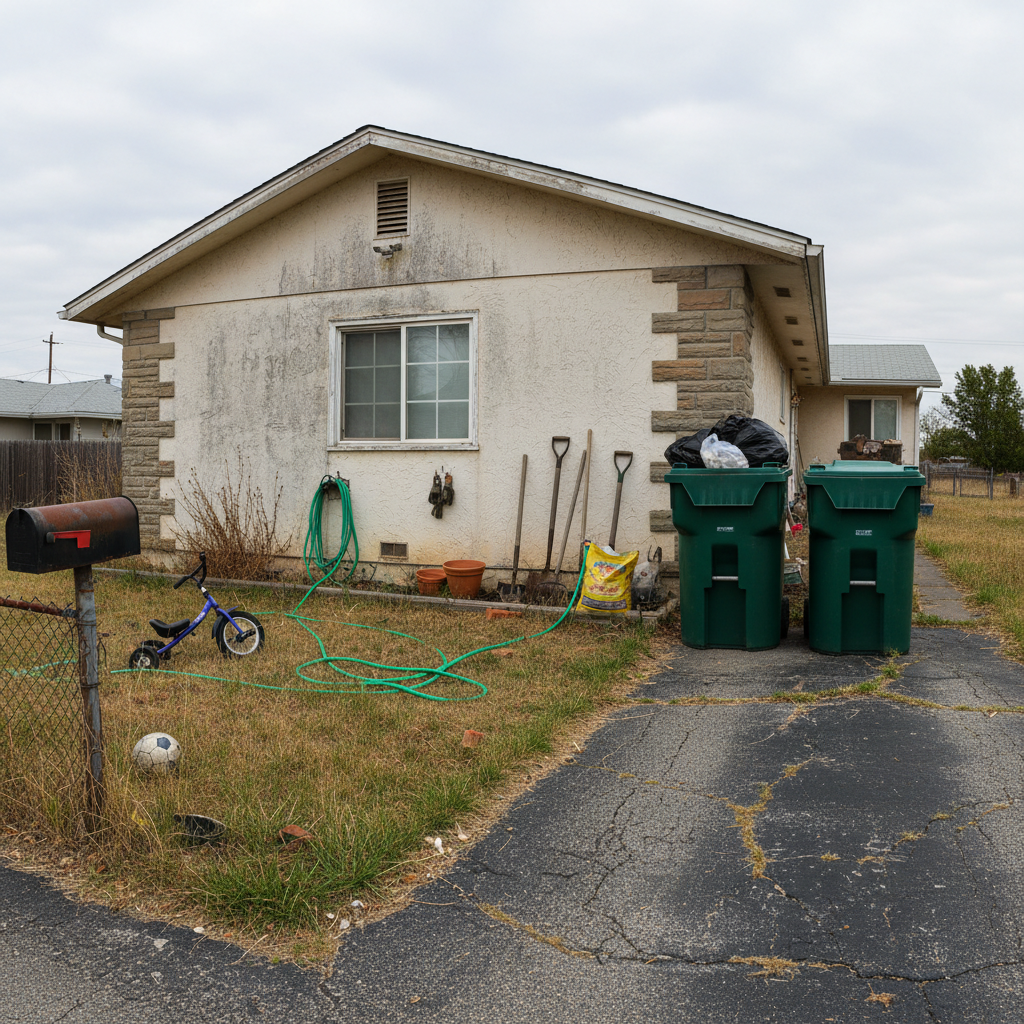
    Remove unwanted objects from exterior remove the trash cans, garden hose, and toys from the front yard, show clean grass and driveway
    Twilight conversion convert this daytime exterior photo to a dramatic twilight shot with warm interior lights glowing through windows and a deep blue evening sky
    Enhance curb appeal make the lawn greener and more lush, brighten the flowers in the landscaping, and clean up the driveway surface
  3. Review the result

    Check that the edit looks natural: sky matches the lighting direction, staging has proper perspective, removed objects leave clean backgrounds. For listings, verify colors look true-to-life and nothing appears artificially enhanced.

  4. Refine or make additional edits

    Run multiple edits on the same photo: replace the sky first, then enhance the lawn, then remove the neighbor's car. Each edit builds on the previous result. Tap markers for precision on specific areas.

    Tip: Process the whole listing in one session: exteriors first (sky + curb appeal), then interiors (staging + cleanup).
Try it free ↓

AI Real Estate Photo Editor

Upload photo to edit real estate photos

Free β€’ Results in 30 seconds β€’ No signup

Release to upload

Free β€’ No signup

"Replaced the sky, removed the trash cans, and enhanced the interior lighting on a 12-photo listing in 30 minutes. My photographer charges $150 for the same edits." @BrookeRealtyCA

See it in action

House exterior with gray overcast sky
Before
->
Same house with bright blue sky and white clouds
After

Overcast sky replaced for exterior listing

A listing exterior shot on a cloudy day transformed with a bright blue sky to maximize curb appeal on Zillow.

Prompt: replace the overcast gray sky with a bright blue sky with scattered white clouds, matching the natural lighting direction
Cluttered living room with personal items and toys scattered around
Before
->
Same room decluttered with clean surfaces and tidy space
After

Cluttered room cleaned up for listing

A messy living room with personal items and clutter cleaned up to look presentable for MLS listing photos.

Prompt: remove the clutter, personal items, and mess from this room, show clean surfaces and tidy space
Dark underexposed kitchen interior with poor lighting
Before
->
Same kitchen with bright warm lighting showing countertops and cabinets clearly
After

Dark interior brightened for listing

A dark, underexposed interior photo enhanced with natural-looking warm lighting to show the space at its best.

Prompt: brighten this interior photo with natural-looking warm lighting, make windows glow and shadows softer, keep colors true to life

Detailed Guides by Scenario

πŸ“·

Exterior & Curb Appeal Enhancement

Transform exterior listing photos with sky replacement, lawn enhancement, and object removal to maximize curb appeal and click-through rates on listing sites.

Common Scenarios

  • Replacing a gray overcast sky with blue sky on a listing shot on a cloudy day
  • Removing trash cans, garden hoses, and toys from the front yard
  • Enhancing lawn color and landscaping to look lush and well-maintained

Best Practices

  • Always match the replacement sky to the existing shadow direction on the building
  • Remove distracting items but don't fabricate landscaping that doesn't exist β€” buyers will visit
  • Process all exterior shots in one session for consistent sky and lighting across the listing
πŸ“·

Interior Photo Editing & Staging

Brighten dark interiors, declutter messy rooms, and virtually stage empty spaces. Turn phone photos into professional-quality listing images.

Common Scenarios

  • Brightening a dark kitchen or bathroom that was shot with poor lighting
  • Decluttering a lived-in room before the listing goes live
  • Staging an empty room with furniture to help buyers visualize the space

Best Practices

  • Enhance lighting before decluttering β€” the AI handles both better when the image is properly exposed
  • For staging, use neutral furniture styles that appeal to the widest buyer pool
  • Keep edits realistic β€” listing photos that don't match the property erode buyer trust
πŸ“·

Listing Marketing & Social Media

Create marketing-ready photos for social media, email campaigns, and listing presentations. Add twilight effects, enhance colors, and produce scroll-stopping listing images.

Common Scenarios

  • Converting a daytime exterior to a dramatic twilight shot for social media
  • Creating before/after comparisons for renovation marketing materials
  • Producing polished listing photos for Instagram and Facebook ads

Best Practices

  • Twilight photos get 2-3x more engagement β€” use them for hero images on social media
  • Before/after comparisons are powerful for renovation and flip marketing
  • For social media, slightly warmer color grading creates more aspirational listing images

If something looks off

Replaced sky doesn't match the lighting on the house

Why: The AI placed a sunny sky but the house shadows indicate overcast light, creating a mismatch.

Try: replace the sky with a bright blue sky that matches the existing lighting direction on the building

Tip: Note which side shadows fall on and mention it: 'with sunlight from the left side matching the house shadows.'

Interior enhancement looks oversaturated or fake

Why: The AI over-corrected the brightness or color balance, making the room look artificially processed.

Try: brighten this interior with subtle, natural-looking light, keep colors realistic and not oversaturated

Tip: 'Natural-looking' and 'true to life' in your prompt prevent the AI from over-processing.

AI changed the wrong area or something I didn't want changed

Why: The AI couldn't determine exactly which area you meant from description alone. This happens with ambiguous requests.

Try: Tap a marker on the specific area you want to change, then regenerate with the same prompt

Tip: Markers tell the AI 'I mean THIS one specifically.' Use them when description alone is ambiguous.

Virtual staging looks out of scale or style

Why: Without explicit style and size guidance, the AI may generate furniture that doesn't match the room's proportions.

Try: stage with [apartment-sized/standard] [modern/traditional] furniture that fits proportionally in this room

Tip: Include design style AND size: 'apartment-sized modern furniture' produces better-scaled staging results.

Object removal left artifacts or blurry patches

Why: The AI struggled to reconstruct the background behind a large or complex removed object.

Try: Tap markers on the remaining artifacts and regenerate: 'show clean [surface type] where the object was'

Tip: For large objects, remove in two passes: first the object, then clean up any remaining artifacts.

Quick answers

Do I need to mark areas before describing the edit?

No! Just describe what you want: 'replace the sky with blue,' 'remove the clutter,' or 'stage this room.' The AI understands real estate photo concepts. Only use markers for precision β€” like specifying which of multiple similar objects to remove.

What real estate photo edits can this handle?

Sky replacement, virtual staging, decluttering, object removal, interior lighting enhancement, twilight conversion, lawn/landscaping enhancement, and color correction. Describe any edit in plain language and the AI handles it.

How does this compare to hiring a real estate photo editor?

Professional RE photo editors charge $25-75 per image with 1-3 day turnaround. EditThisPic handles the same edits β€” sky replacement, staging, decluttering, enhancement β€” in seconds for free. You keep full control and can iterate instantly.

Can I make multiple edits to the same listing photo?

Yes. Run edits sequentially on the same photo: replace the sky first, then enhance the lawn, then remove the trash cans. Each edit builds on the previous result. Process a full listing in one session for consistent quality.

Are the results realistic enough for MLS listings?

Yes. EditThisPic produces listing-quality results suitable for MLS, Zillow, Realtor.com, and marketing materials. For sky replacement and staging, always disclose AI edits per your state's real estate disclosure requirements.

Is EditThisPic's real estate photo editor really free?

Yes β€” you get 1 free edit per week, no account needed. For unlimited edits across entire listings, plans start at $3.99/month β€” far less than professional editing services charging per image.

Can I edit listing photos on my phone?

Yes. EditThisPic works in any mobile browser β€” iPhone, Android, tablet. No app download needed. Edit photos right at the property or during open houses.

What photo formats work with the real estate editor?

JPG, PNG, WebP, and HEIC. Works with phone photos, DSLR shots, and wide-angle lens images. Upload any standard format and start editing.

Ready to edit your listing photos?

Free to try. No signup required.