Free • No signup Retouch Face · Free

AI Face Retoucher

Describe the retouching you want and AI perfects your face naturally. No marking needed.

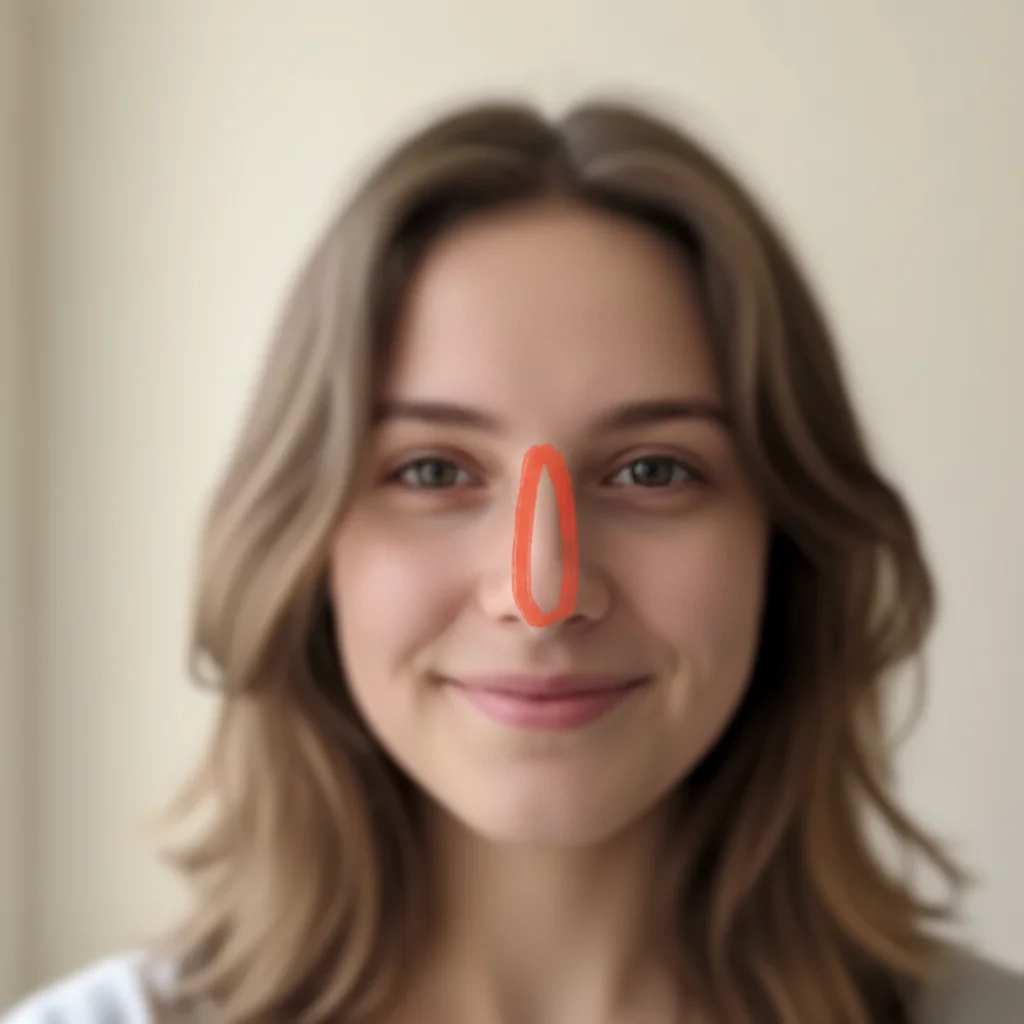
Woman with visible skin blemishes and uneven tone
Before
Same woman with smooth, naturally retouched skin
After

AI Face Retoucher

Drop your photo here

or click to browse

Release to upload

Free • No signup

Advertisement
Popular use cases:
  • portrait retouching
  • headshot editing
  • wedding photo retouching
  • selfie enhancement
  • professional photo editing
  • blemish removal
  • skin tone correction
  • social media photo polish

Cost
Free No signup required
Time
Instant results in 15-30 seconds
Works on
Any device - browser, phone, tablet, desktop
Powered by
AI-powered photo editing
Scenario Prompt Time
Basic blemish removal remove blemishes from the face naturally 30s
Full face retouching retouch face - smooth skin, even tone, reduce blemishes 40s
Professional headshot polish retouch for professional headshot with natural look 45s

How it works

  1. Upload your photo

    Drop your image into EditThisPic. JPG, PNG, WebP up to 7MB. Clear portraits with good lighting work best. Close-up headshots and upper body shots both produce great retouching results.

    Expect: Basic retouching (skin smoothing): 30-40 seconds. Full face retouching (multiple areas): 45-60 seconds and may need refinements.
  2. Describe the retouching you want

    Type what you want: 'retouch the face to smooth skin and reduce blemishes' or 'even out skin tone and soften dark spots under the eyes.' Be specific about which imperfections to fix. No marking needed—the AI understands facial features and skin areas.

    Tip: Mention 'natural' or 'subtle' to avoid over-retouching. The AI keeps pores and texture when you ask for a natural look.

    Copy one of these to get started:

    General face retouching retouch the face to smooth skin, reduce blemishes, and even out skin tone while keeping it natural
    Blemish and acne removal remove all visible blemishes, pimples, and acne marks from the face while preserving natural skin texture
    Under-eye circle reduction reduce the dark circles under the eyes and brighten the under-eye area for a more rested appearance
    Professional headshot polish retouch this portrait for a professional headshot - smooth skin, even tone, reduce shine, and subtle enhancement
    3 more prompts
    Wedding photo retouching retouch the face for a wedding photo - soft, glowing skin with subtle smoothing and a warm natural tone
    Subtle anti-aging touch-up subtly retouch the face to reduce fine lines and age spots while keeping the natural character and expression
    Social media selfie polish retouch this selfie to smooth skin, minimize pores, and add a subtle healthy glow for social media
  3. Review the retouching

    Check that skin looks smooth but still natural. Zoom in on key areas—forehead, cheeks, under eyes, and jawline. Verify that pores and natural texture remain visible and the result doesn't look plastic.

  4. Refine with markers if needed

    If specific spots like a stubborn blemish or uneven area need extra work, tap markers on those spots and regenerate. Most face retouching works perfectly on the first try without any markers.

    Tip: Markers are for precision refinement only. Try without them first—you usually won't need them.
Try it free

AI Face Retoucher

Drop your photo here

or click to browse

Release to upload

Free • No signup

"I photograph weddings and this saves me hours of Photoshop retouching. Upload the portrait, describe what I want fixed, and the faces look flawless but still natural. My clients love the results." @WeddingLens_Sarah

See it in action

Woman with visible skin blemishes and uneven tone
Before
->
Same woman with smooth, naturally retouched skin
After

Professional headshot retouching

A casual portrait retouched for professional use with smooth skin and even tone.

Prompt: retouch the face to smooth skin, reduce blemishes, and even out skin tone while keeping it natural

Man's selfie with oily skin and visible pores
Before
->
Same selfie with smooth skin and healthy glow
After

Selfie polished for social media

A phone selfie enhanced with skin smoothing and a healthy glow for Instagram posting.

Prompt: retouch this selfie to smooth skin, minimize pores, and add a subtle healthy glow for social media
Advertisement

If something looks off

AI changed the wrong area or something I didn't want changed

Why: The AI couldn't determine exactly which facial area you meant from description alone. This happens when multiple issues are present and you only want one fixed.

Try: Tap a marker on the specific blemish or area you want retouched, then regenerate with the same prompt

Tip: Markers tell the AI 'I mean THIS spot specifically.' Use them when description alone is ambiguous.

Face looks plastic or over-retouched

Why: The AI applied too much smoothing, removing natural skin texture like pores and fine lines that make a face look real.

Try: retouch the face subtly - smooth blemishes but keep natural skin texture, pores, and fine lines visible

Tip: Adding 'subtle' and 'keep natural texture' explicitly prevents the plastic look.

Retouching looks uneven across the face

Why: Different lighting conditions across the face caused the AI to apply inconsistent smoothing—more on highlights, less on shadows.

Try: retouch the face evenly across all areas including shadows, maintain consistent smoothing from forehead to chin

Tip: Mentioning 'evenly across all areas' tells the AI to balance the retouching regardless of lighting variation.

Eyes or eyebrows look blurred after retouching

Why: The AI's smoothing accidentally affected sharp features near the skin areas being retouched.

Try: retouch only the skin - keep eyes, eyebrows, eyelashes, and lips completely sharp and untouched

Tip: Specifying which features to preserve helps the AI limit retouching to skin areas only.

Skin tone changed or looks ashy after retouching

Why: The smoothing algorithm altered the color values while blending, shifting the overall skin tone.

Try: retouch the face to smooth skin while preserving the exact original skin tone and color warmth

Tip: Adding 'preserve original skin tone' ensures color stays true while texture is smoothed.

Quick answers

Do I need to mark blemishes before describing the retouching I want?

No! Just describe what you want: 'retouch the face to smooth skin and reduce blemishes.' The AI understands facial features and automatically identifies areas to retouch. Only use markers when you need to target a specific spot—like one stubborn blemish the AI missed on the first try.

How do I retouch a face in a photo without making it look fake?

Include 'natural' or 'subtle' in your prompt: 'retouch the face naturally, smooth blemishes but keep skin texture visible.' This tells the AI to preserve pores, fine lines, and natural shadows while reducing imperfections. The result looks polished but still real—not plastic or airbrushed.

Is there a free AI face retoucher that doesn't require login?

Yes, EditThisPic is free to try with no account needed. Upload your portrait, describe the retouching you want, and download the result. No watermarks on outputs. Works for blemish removal, skin smoothing, and full face retouching without any commitment.

What's the best free AI tool for retouching portraits and selfies?

EditThisPic offers free AI face retouching with no signup required. Unlike apps that need manual selection or brush tools, just describe what you want retouched. It handles everything from simple blemish removal to full portrait polish, generating natural results in seconds.

Ready to retouch your photos?

Free to try. No signup required.

Try it free