Free • No signup Fix Photos for Google Ads · Free

Fix photos for Google Ads

Ad rejections from non-compliant images cost time and money. Fix compliance issues in 20 seconds.
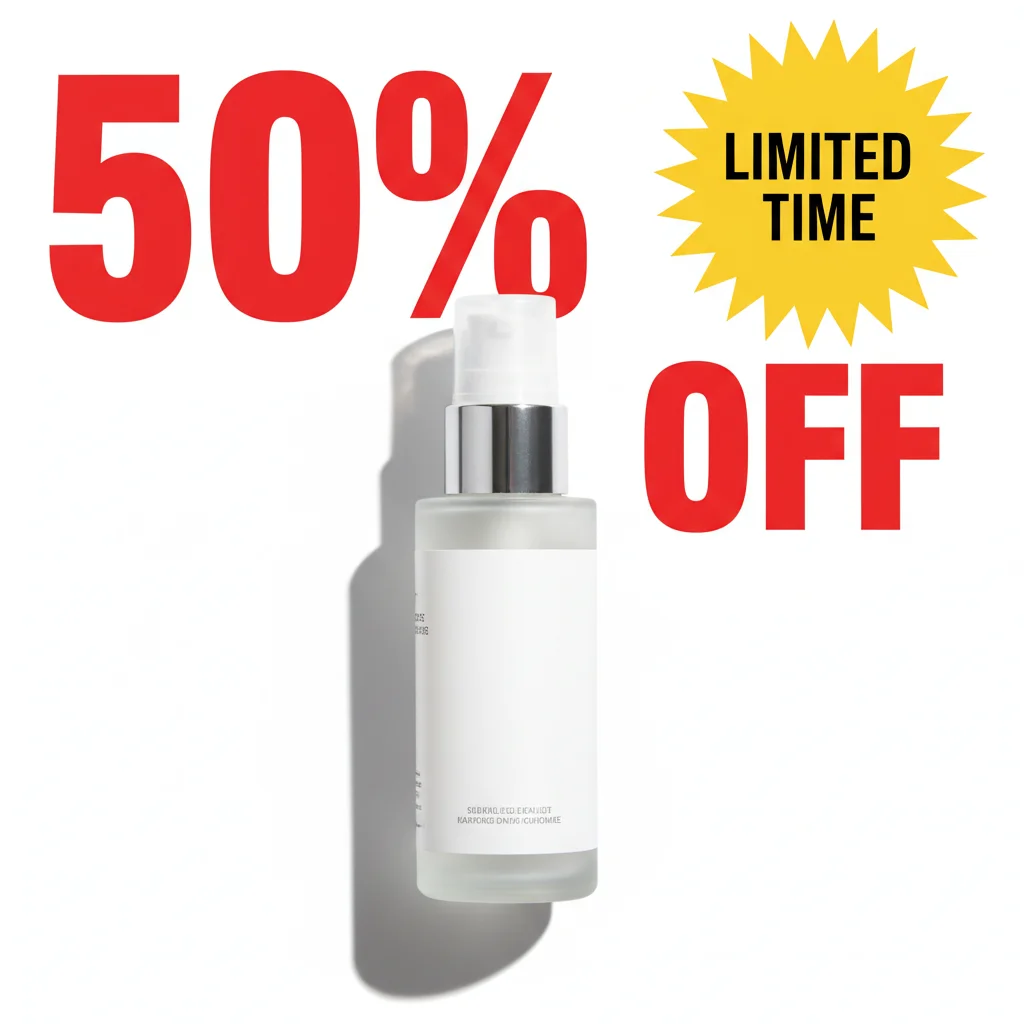
Product ad with large 50% OFF text and promotional overlays
Before
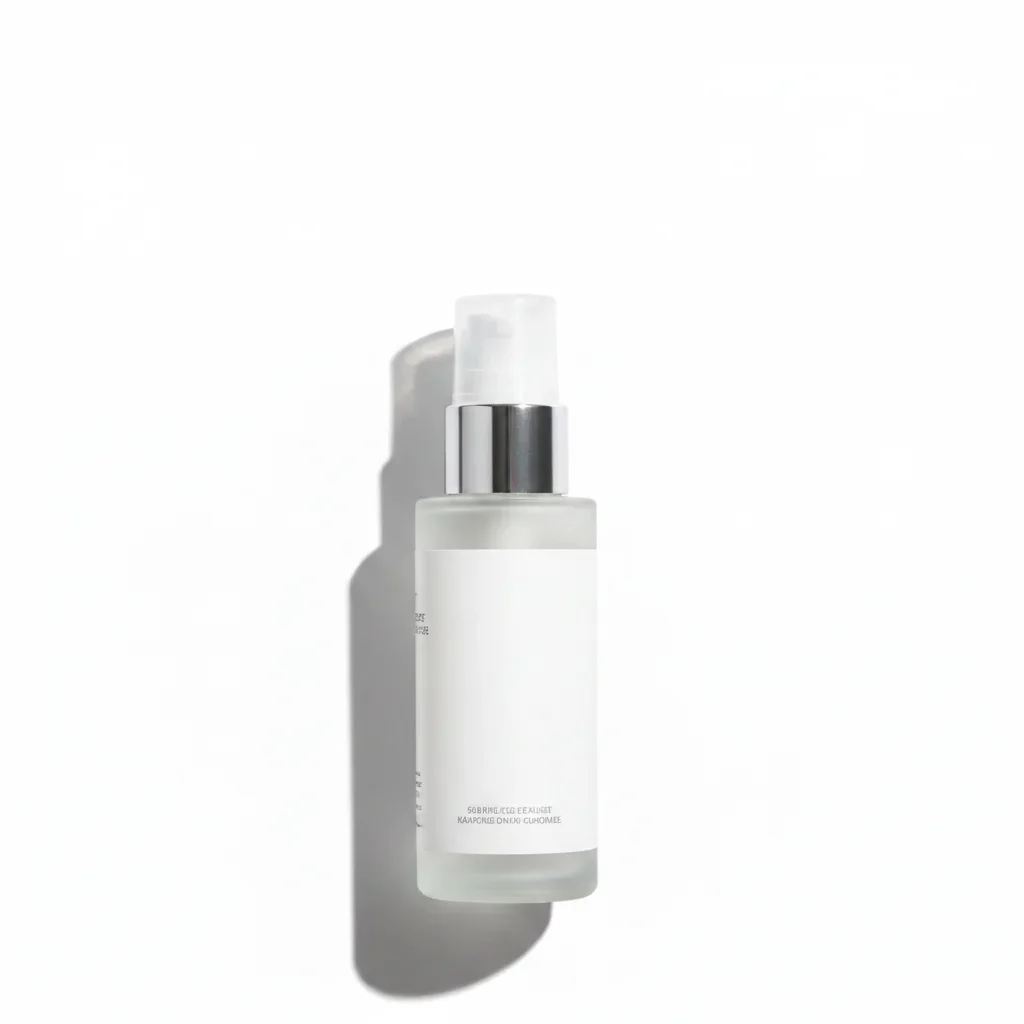
Clean product photo with text removed for compliance
After

Fix Photos for Google Ads Compliance & | EditThisPic

Drop your photo here

or click to browse

Release to upload

Free • No signup

Advertisement
Popular use cases:
  • Google Ads image compliance
  • Fix rejected ad images
  • Google Ads photo requirements
  • Remove text from ads
  • Ad image approval
  • PPC image editing
  • Google Ads policy compliance

Cost
Free No signup required
Time
Instant results in 15-30 seconds
Works on
Any device - browser, phone, tablet, desktop
Powered by
AI-powered photo editing
Scenario Prompt Time
Remove text overlay remove all text overlays, keep product packaging 15s
Fix unprofessional background replace messy background with clean professional setting 20s
Remove before-after remove before image, keep only after result 20s
Enhance quality enhance image quality to meet ad requirements 20s

How it works

  1. Upload your rejected or at-risk ad image

    Drop the image that was rejected or that you want to make compliant before submitting. Common issues: text overlays, busy backgrounds, before-after comparisons, unprofessional elements.

    Expect: Simple fixes (remove text, clean background): 15-25 seconds. Complex edits: may need refinement.
  2. Describe the compliance fix needed

    Type 'remove all text overlay for Google Ads compliance' or 'replace messy background with clean professional setting that meets ad requirements.' Be specific about the rejection reason. The AI understands ad policy context—'remove before-after comparison elements' or 'create single professional product shot.'

    Tip: Google's text limit is roughly 20% of image area—remove decorative text, keep only product packaging text if essential.

    Copy one of these to get started:

    Rejected for excessive text in image remove all text overlays and decorative text, keep only essential product packaging text
    Unprofessional background hurting CTR replace messy background with clean professional setting that meets Google Ads requirements
    Before-after comparison not allowed remove the before image side, keep only the after result as single professional shot
    Logo or branding too prominent reduce the logo size to subtle branding, remove excessive promotional elements
    3 more prompts
    Image quality too low for ads enhance image quality and sharpness to meet Google Ads resolution requirements
    Cluttered image reducing click-through simplify the image, remove clutter, create clear focal point for ad performance
    Image looks unprofessional or low-quality enhance professionalism, create polished look that builds trust for high-value products
  3. Review for Google Ads compliance

    Check that text overlays are removed. Verify background looks professional and trustworthy. Ensure no prohibited content (weapons, adult content, before-after medical claims). Your ad image should look clean and credible.

  4. Refine if needed

    If specific elements need removal or adjustment, tap markers and regenerate. Most compliance fixes work on the first try.

    Tip: Save compliant templates—same background and style—for future ad creative to avoid rejections.
Try it free

Fix Photos for Google Ads Compliance & | EditThisPic

Drop your photo here

or click to browse

Release to upload

Free • No signup

"Had 8 ads rejected for 'excessive text in image.' Removed all text overlays in 15 minutes. All approved on resubmit. Saved my campaign launch." @PPCManager

See it in action

Product ad with large 50% OFF text and promotional overlays
Before
->
Clean product photo with text removed for compliance
After

E-commerce ad with excessive text overlay

Product ad rejected for 'excessive text in image'—had large '50% OFF' and 'LIMITED TIME' text covering 40% of image. Removed all promotional text, kept only product. Approved immediately.

Prompt: remove all text overlays and decorative text, keep only essential product packaging text
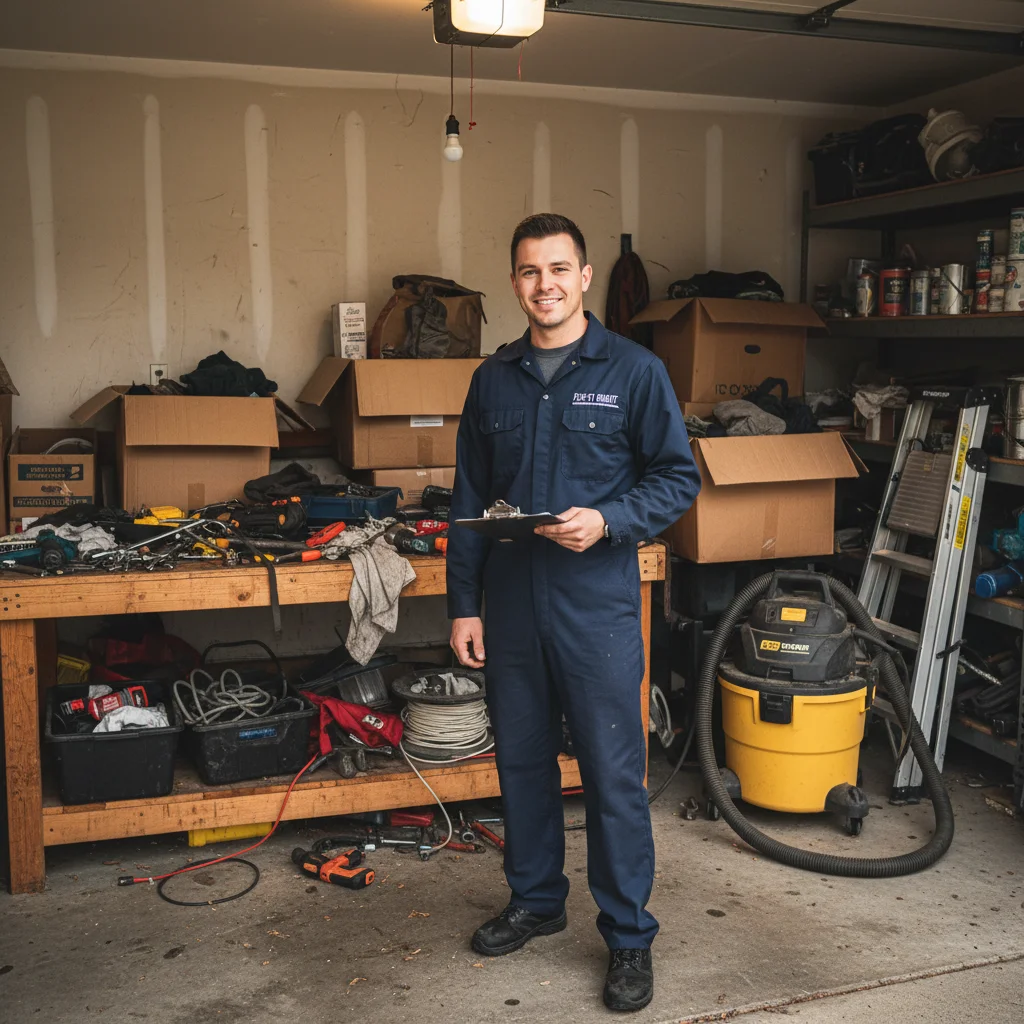
Technician in messy garage with cluttered background
Before
->
Professional technician photo with clean neutral background
After

Service ad with unprofessional background

Home service ad showing technician in messy garage background with tools and clutter visible. Low CTR and poor quality score. Fixed to professional setting, CTR jumped 35%.

Prompt: replace messy background with clean professional setting that meets Google Ads requirements
Advertisement

If something looks off

AI removed product packaging text I needed to keep

Why: The AI interpreted 'remove all text' too broadly including essential product labels.

Try: remove only overlay text and promotional graphics, keep all product packaging text and labels

Tip: Specify 'overlay' or 'decorative' text to distinguish from product packaging that should stay.

New background looks fake or obviously edited

Why: The AI didn't match lighting or depth properly between subject and new background.

Try: replace background naturally, match lighting direction and blur depth for realistic appearance

Tip: Google's human reviewers spot obvious edits—natural-looking backgrounds pass review better.

Image still getting rejected after editing

Why: The rejection may be for policy reasons beyond the image itself (prohibited product, deceptive claims in ad copy).

Try: Review Google's specific rejection reason—image edits only fix image policy issues, not product policy

Tip: Check the exact rejection category in Google Ads dashboard—some rejections need copy changes, not image fixes.

Quality looks worse after removing text

Why: Text removal may have left artifacts or reduced overall image quality.

Try: remove text cleanly and enhance overall image quality and sharpness

Tip: Combine 'remove text' with 'enhance quality' in one prompt for better results.

AI changed something I wanted to keep

Why: Vague descriptions like 'clean it up' can cause the AI to remove important elements.

Try: Tap markers on exactly what to remove, then: remove only these specific items, keep everything else intact

Tip: Be specific: 'remove the red sale badge' not 'remove promotional stuff' when other branding should stay.

Quick answers

Do I need to mark areas before describing what to remove?

No! Just describe what needs removal: 'remove text overlays' or 'remove messy background.' The AI understands Google Ads context. Only use markers if you need to specify exactly which text or element when there are multiple similar items.

What are the most common Google Ads image rejections?

Top rejection reasons: (1) Excessive text in image (over 20% coverage), (2) Before-after comparisons in prohibited categories, (3) Unprofessional or low-quality images, (4) Prohibited content (weapons, adult, medical claims), (5) Misleading or deceptive imagery. Most can be fixed with AI edits. Policy violations (product type restrictions) need different solutions.

Can I use AI-edited images in Google Ads?

Yes. Google's policies prohibit deceptive imagery, not image editing. Removing text overlays, cleaning backgrounds, and enhancing quality are legitimate improvements. Don't create false representations (adding features that don't exist, fake testimonials, misleading before-after). Show your actual product/service in the best professional light.

How much text is allowed in Google Ads images?

Google's guideline is roughly 20% of image area. There's no automatic rejection, but excessive text reduces ad quality score and delivery. Text in product packaging doesn't count against you. Decorative text, promotional callouts, and large slogans do. When in doubt, less text performs better—let your ad copy do the talking.

Will fixing my image improve ad performance?

Yes. Professional, compliant images get: (1) Higher quality scores from Google (lower CPC), (2) Better click-through rates (simple focused images outperform cluttered ones), (3) Higher conversion rates (professional appearance builds trust). Clean, compliant images also avoid review delays and rejections that pause campaigns.

Ready to fix your Google Ads images?

Free to try. No signup required.

Try it free