Amazon Image Size Requirements Editor - Zoom-Ready Photos
Upscale product photos to meet Amazon's 1000x1000 minimum with AI enhancement. Zoom-ready quality without blurriness.
Drop your photo here
or click to browse
Release to upload
Free • No signup
"My supplier only sent 500px product images. EditThisPic enhanced them to zoom-ready quality. Customers can now see every detail in my listings." @DropshipDave
Why Image Size Matters on Amazon
Amazon's zoom feature lets shoppers inspect product details before buying. Listings without zoom-capable images see lower conversion rates because customers can't verify quality. EditThisPic doesn't just resize - it uses AI to enhance actual detail, sharpen edges, and add clarity. The result is a genuinely higher-quality image, not a stretched low-res one.
Tools for Amazon Image Quality
Enhance Photo
Improve overall image quality, sharpness, and detail for Amazon zoom
Fix Blurry Photo
Sharpen blurry or soft product photos for clear zoom viewing
Enhance Lighting
Improve lighting to reveal product details that become visible at zoom
Enhance Colors
Ensure accurate, vibrant colors that look great at any zoom level
Get Zoom-Ready Amazon Product Images
-
Upload your product photo
Drop your product image into EditThisPic. It works with any resolution - from 300px supplier thumbnails to phone photos where the product is small in the frame. The AI will enhance whatever you provide.
Slightly soft images: dramatic improvement in one pass. Very low resolution (under 400px): may need enhancement plus careful cropping. -
Enhance image quality
Type 'enhance image quality and sharpness to professional product photography standard, maximize detail clarity and resolution' and generate. The AI reconstructs detail, sharpens edges, and improves overall clarity.
If your image is very low-res, run enhancement twice: first pass recovers basic detail, second pass refines and sharpens further. -
Check zoom quality
Zoom to 100% on the enhanced image and inspect product details. Can you read text on labels? Can you see material texture? Are edges crisp? This is what Amazon shoppers will see when they hover over your image.
Check the areas shoppers care about most: brand labels, material textures, buttons/switches, stitching on fabric products. -
Download at optimal size
Download your enhanced image as high-quality PNG. Amazon requires minimum 1000px on the longest side but recommends 2000x2000px. If your enhanced image is still under 1000px after enhancement, you may need to start with a higher resolution source photo.
2000x2000px is the sweet spot for Amazon - it enables smooth zoom without excessively large file sizes. PNG preserves quality better than JPG.
Amazon Image Quality Prompts
enhance image quality to professional product photography standard, maximize sharpness, detail clarity, and resolution, crisp edges and clean textures
The all-purpose enhancement prompt. Works for most product types and starting quality levels.
fix blurry and soft image, sharpen product edges and details, restore professional clarity, remove blur artifacts while keeping natural look
Supplier photos are often soft or slightly out of focus. This recovers sharpness without making it look over-processed.
enhance product surface texture and material detail, make fabric weave/metal grain/plastic finish clearly visible when zoomed, professional macro-level detail
When zoom quality matters most - shoppers want to see material quality before buying.
remove grain and noise from product photo, enhance clarity and sharpness, professional studio quality from phone camera image
Phone photos in low light produce grain that becomes very visible at Amazon zoom levels.
Show 4 more prompts
enhance product label and text clarity so it is readable when zoomed in, sharpen text and fine print on product packaging
Shoppers zoom in to read ingredients, instructions, and certifications. Make sure labels are legible.
enhance image quality across all products in the bundle, each item should be sharp and detailed when zoomed, consistent quality across frame
Bundle images need every item to be equally sharp. Edges of frame often lose quality.
enhance extreme close-up detail of this product section, maximum sharpness and texture visibility, macro photography quality
Detail shots in secondary slots benefit from maximum enhancement since they'll be viewed at zoom.
remove JPG compression artifacts and blocky areas, restore smooth gradients and clean edges, professional uncompressed quality
Heavily compressed images show blocky artifacts at zoom. This smooths them out while preserving real detail.
| Edit Type | Prompt | Time | |
|---|---|---|---|
| General enhancement | enhance to professional quality, maximize sharpness and detail |
15s | Try This → |
| Fix blurry image | fix blurry image, sharpen edges and details, restore clarity |
15s | Try This → |
| Remove noise/grain | remove grain and noise, enhance clarity, studio quality |
15s | Try This → |
| Texture enhancement | enhance material texture and detail, zoom-ready quality |
20s | Try This → |
Image Quality Enhancement Examples
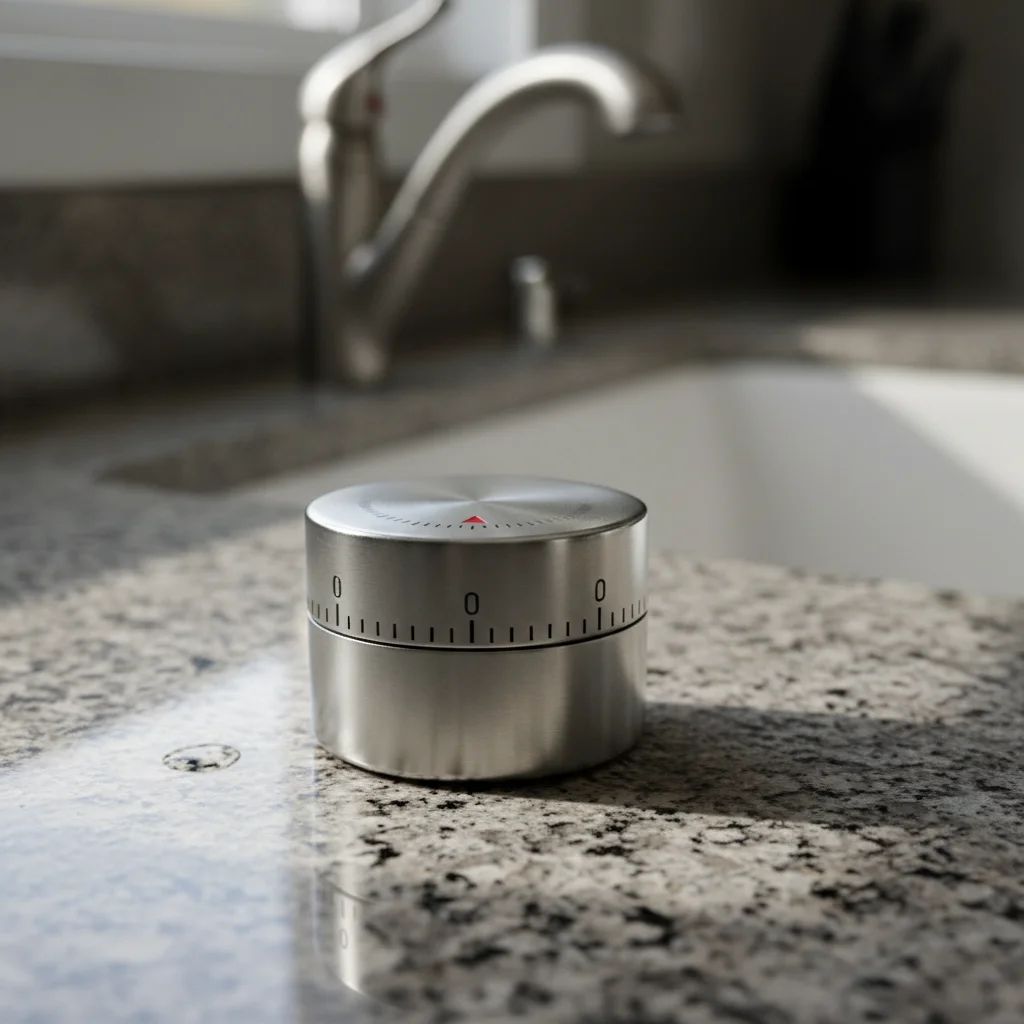
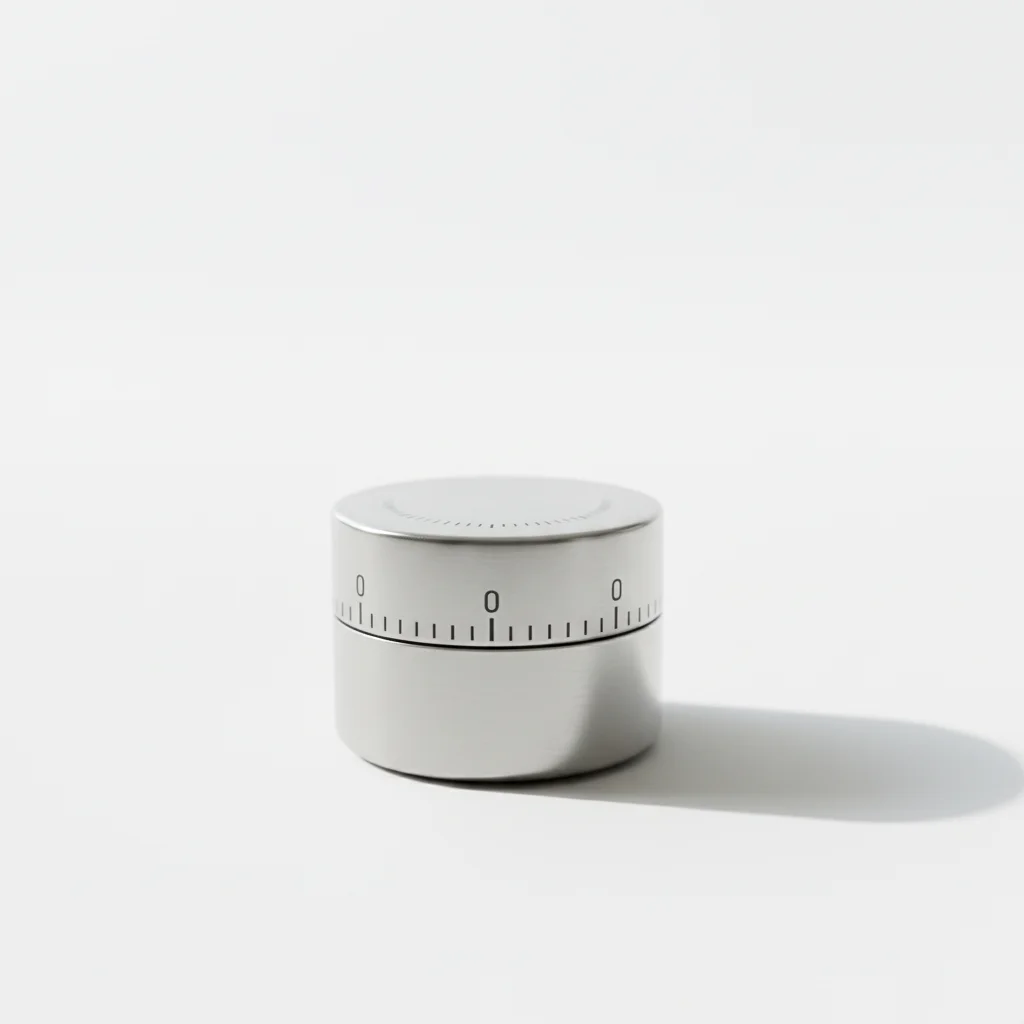
Low-res supplier image enhanced
600px supplier product image enhanced to zoom-ready quality with clear details and sharp edges.
enhance image quality to professional product photography standard, maximize sharpness and detail
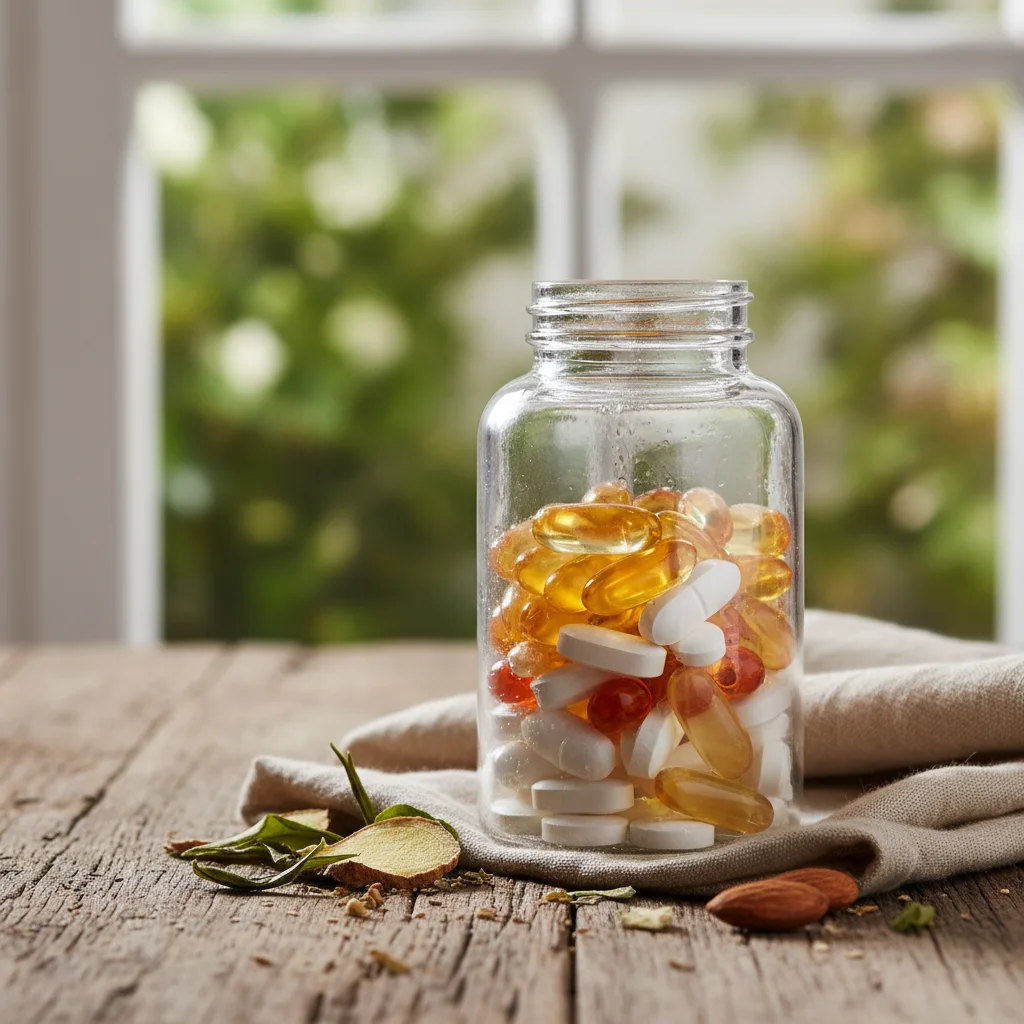

Phone photo noise removal
Grainy phone photo of a supplement bottle cleaned up to professional studio quality with clear label text.
remove grain and noise, enhance clarity and sharpness, professional studio quality

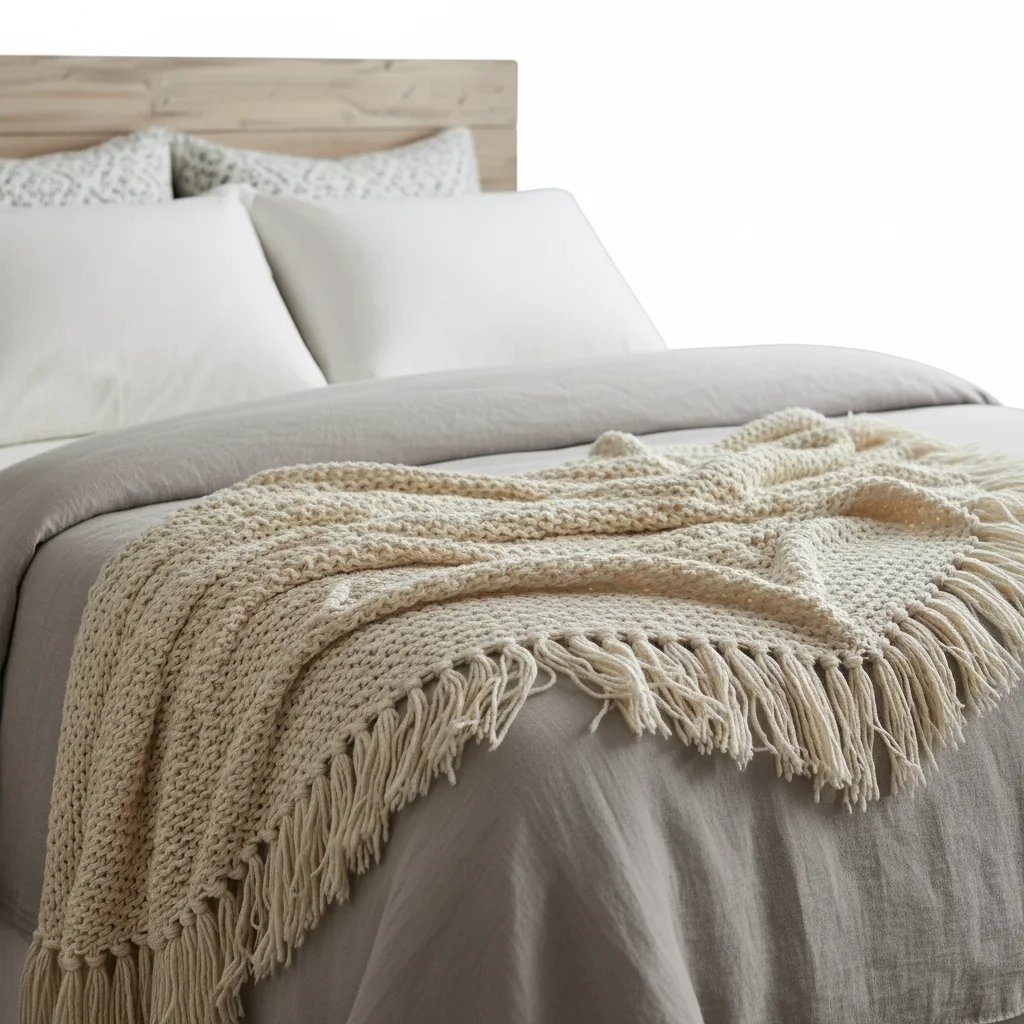
Fabric texture enhancement
Blanket photo enhanced to show fabric weave and texture detail that shoppers can inspect at zoom.
enhance fabric texture and material detail, make weave pattern clearly visible at zoom, professional quality
Common Image Size and Quality Issues
Enhanced image still looks blurry when zoomed
Why: The source image was extremely low resolution (under 400px). AI can enhance detail but can't create detail from almost nothing.
Run enhancement a second time: enhance image sharpness further, add detail to soft areas, professional clarity
If double enhancement doesn't help, you need a higher resolution source. Ask your supplier for larger images or re-photograph the product.
Enhancement made the image look artificial or over-processed
Why: Too much sharpening can create halos around edges and an unnatural HDR-like look.
enhance image quality with natural appearance, subtle sharpening that looks realistic, not over-processed
Add 'natural looking' to your enhancement prompts to prevent over-processing.
Image is high resolution but product is small in the frame
Why: A 2000px image where the product only fills 30% doesn't help - the product is still only 600px worth of detail.
This isn't an enhancement issue - crop the image to focus on the product, then enhance the cropped version
Crop to put the product at 85%+ of the frame first, then enhance. The enhancement works on the product pixels, not the background.
Colors shifted after enhancement
Why: Some enhancement algorithms adjust color balance as part of quality improvement, which may not match your actual product.
enhance image quality and sharpness while maintaining original product colors exactly, no color shift
If colors shifted, compare to your original and specify: 'keep the exact same color tones as the original.'
File size is too large after enhancement
Why: High-resolution PNG files can be very large. Amazon accepts up to 10MB per image.
Not a prompt issue - save as JPG at 90% quality to reduce file size while maintaining visual quality
If the file is under 10MB, upload it to Amazon as-is. Amazon compresses images internally anyway.
Amazon Image Size FAQ
What are Amazon's exact image size requirements?
Amazon requires a minimum of 1000 pixels on the longest side to enable the zoom feature. Recommended is 2000 pixels on the longest side for optimal zoom quality. Minimum acceptable is 500 pixels (but zoom won't work). Maximum file size is 10MB. Accepted formats: JPEG, PNG, GIF, TIFF. Square (1:1) aspect ratio is recommended for consistent display.
Why is the zoom feature so important?
When a product image has zoom enabled (1000px+), shoppers can hover over it to see detail. This is critical for products where texture, material quality, labels, or fine details matter. Studies show zoom-enabled listings convert 28% better because shoppers can verify quality before buying, reducing hesitation and returns.
Can AI enhancement really replace high-resolution photography?
AI enhancement works best for moderately low-resolution images (600-900px) where real detail exists but needs sharpening. For very low-resolution images (under 400px), AI can improve but not match the quality of a proper high-res photo. If possible, always start with the highest resolution source available.
Should I use PNG or JPG for Amazon?
PNG preserves more detail and is better for images with sharp edges, text, and graphics. JPG is smaller and works well for photographs. For main images, PNG is recommended. For lifestyle images, JPG at 90%+ quality is fine. Amazon accepts both formats up to 10MB.
What resolution should my original product photo be?
Start with the highest resolution possible. Modern phone cameras (12MP+) produce images well above Amazon's requirements. If using supplier images, request the largest available size. Shoot at your camera's maximum resolution - you can always downscale, but upscaling loses quality.
Does Amazon compress my images after upload?
Yes, Amazon applies its own compression to serve images efficiently. This means extremely large files (over 3000px) won't look significantly better than 2000px after Amazon's processing. The 2000x2000px sweet spot gives you great zoom quality without wasting effort on pixels Amazon will compress away.
Get zoom-ready product images for Amazon
Free to try. No signup. Enable zoom on every listing.
Start Editing