AI Phone Photo Upgrade for Mercari
Your phone camera is good enough. Your lighting and background are not.


Drop your photo here
or click to browse
Release to upload
Free • No signup
"I only have my phone camera. Used to think I needed a real camera for good listings. EditThisPic makes my iPhone photos look like they were taken in a studio." @PhonePhotoPro
Built for Phone-Only Mercari Sellers
Most Mercari sellers use only their phone. That's perfectly fine - phone cameras are capable. The difference between amateur and professional listings is lighting and background, not the camera. EditThisPic fixes what your phone can't.
Mercari Phone Photos
Replace Background
Clean white backgrounds for phone photography items
Enhance Lighting
Show true colors and condition of phone photography items
Fix Color
Accurate colors for phone photography items
Enhance Photo
Sharpen detail for phone photography items close-ups
Remove Shadow
Remove shadows from phone photography items photos
How to AI Phone Photo Upgrade for Mercari
-
Photograph your phone photography items
Photograph your phone photography items from multiple angles in available light. Show condition details. Background doesn't matter - EditThisPic handles it.
Processing: 20-30 seconds.Natural daylight gives the best colors for phone photography items. -
Upload and describe your edit
Drop your photo into EditThisPic: 'replace background with clean white, show phone photo condition and detail clearly.'
Combine edits in one prompt for consistent results. -
Review the result
Check that condition is visible, colors are accurate, and the phone photo looks appealing. Presentation should be clean but honest.
-
Download for Mercari
Use consistent backgrounds across all your Mercari listings for a professional shop look.
Consistent backgrounds across Mercari listings build buyer trust.
Copy-Paste Prompts for Mercari Phone Photo Upgrade
replace background with clean white, keep the phone photo exactly as it is
White backgrounds make any item look professional
brighten and enhance to show phone photo condition, wear, and detail clearly
Clear condition photos prevent disputes and build trust
correct the indoor lighting to show the true color of this phone photo
Accurate colors prevent the #1 reason for returns
enhance clarity to show close-up detail, texture, and quality of this phone photo
Detail shots justify pricing and answer buyer questions
Show 3 more prompts
replace the cluttered background with clean white, remove any distracting objects near the phone photo
Fewer distractions mean more focus on what you're selling
white background, enhance lighting and color, make this look like a professional product photo
Professional presentation commands higher prices
white background, correct color, brighten, show all phone photo condition details
One prompt for consistent results across all your photos
| Edit Type | Prompt | Time | |
|---|---|---|---|
| Clean white background | replace background with clean white |
20s | Try This → |
| Show condition | brighten to show phone photo condition |
15s | Try This → |
| Fix colors | correct to show true color |
15s | Try This → |
| Full listing polish | white background, correct color, show condition |
30s | Try This → |
Real Examples
Phone Photography Items on cluttered surface
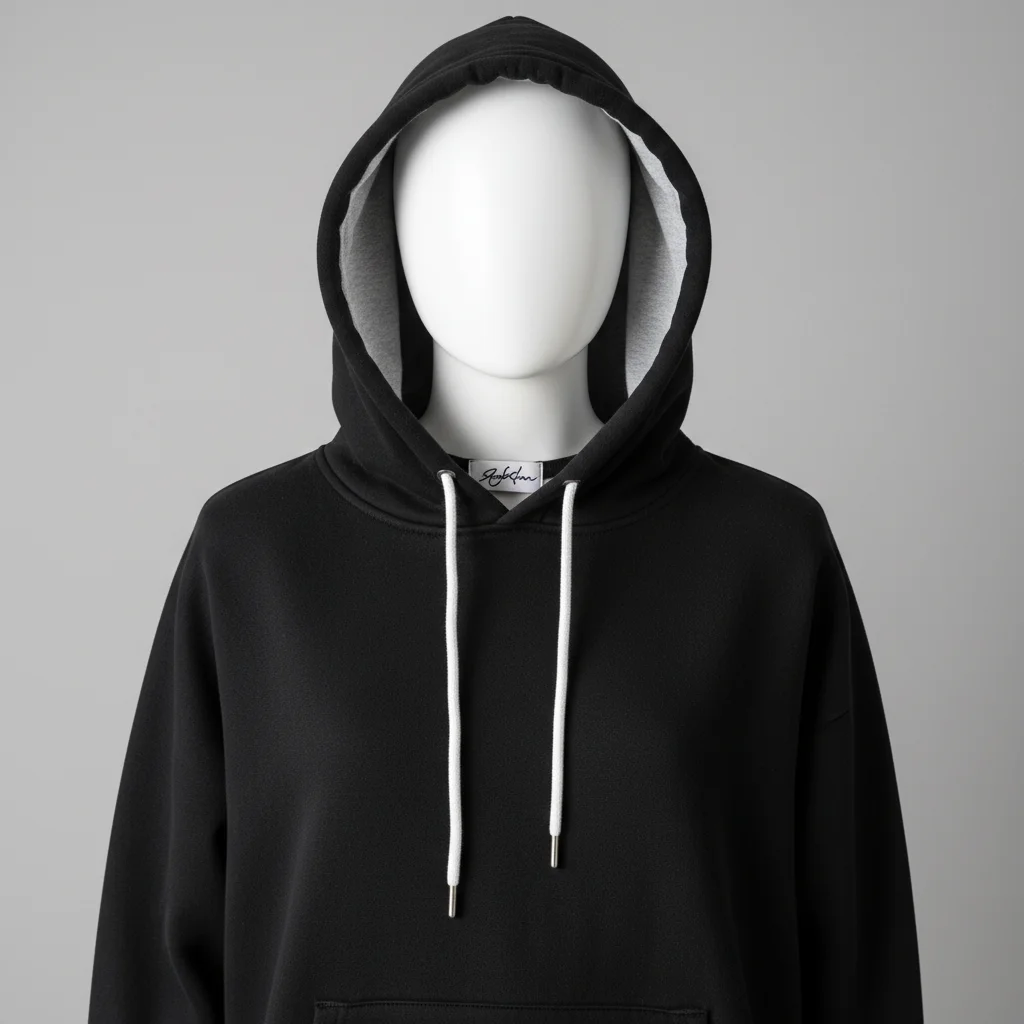
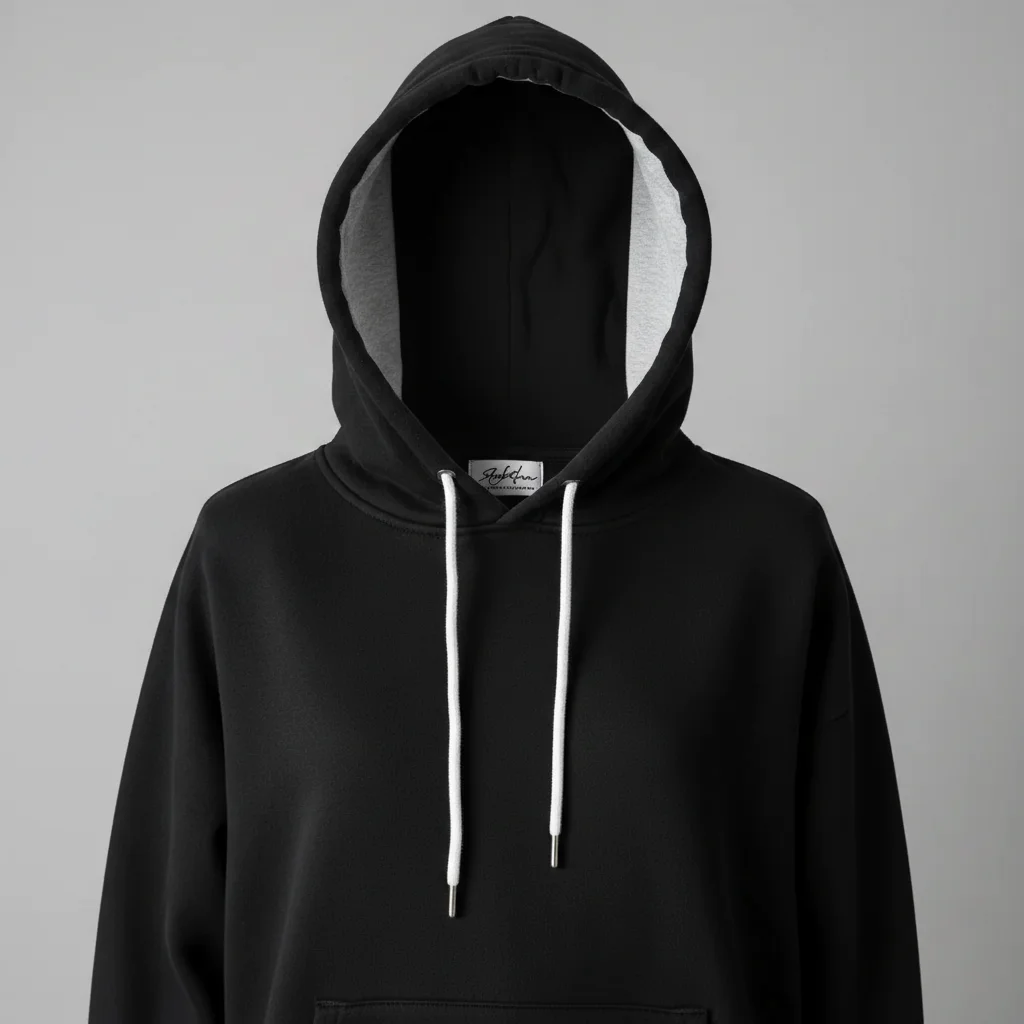
Good phone photo on cluttered background. Clean swap creates professional listing.
Phone Photography Items in dim room
Used phone photo in dim lighting. Enhancement reveals true condition and colors.
Phone Photography Items detail close-up
Close-up condition photo that was too blurry. Enhancement creates clear documentation.
When Things Go Wrong
Edges look choppy on the item
Why: Complex outlines challenge AI edge detection.
High contrast between item and original background works best.
Colors don't match the real item
Why: Color correction overcorrected or mixed lighting.
Photograph in consistent daylight for best results.
Details got smoothed away
Why: Enhancement over-processed the image.
'Do not alter the item' preserves all detail.
AI changed the wrong area
Why: Description was ambiguous.
Markers tell the AI exactly where to focus.
Result looks fake
Why: Lighting mismatch with new background.
'Match existing lighting' creates realistic composites.
Frequently Asked Questions
How do I photograph phone photography items for Mercari?
Photograph from multiple angles in the best light available. Show the item from front, back, and sides. Include close-ups of condition details. Don't worry about the background - EditThisPic handles that.
Will editing hide phone photo condition?
Not with proper prompts. Use 'keep the item exactly as it is' or 'show condition honestly.' Better lighting and clean backgrounds actually make condition more visible. Honest photos build trust.
What background works best for phone photography items on Mercari?
Clean white is the gold standard. It makes any item look professional and is what top Mercari sellers use. Consistent backgrounds across your listings build a trustworthy shop appearance.
How many photos should I include for phone photography items?
3-5 minimum: overall front and back, any included pieces or accessories, and close-ups of condition details. More photos build buyer confidence and reduce questions.
Can I edit multiple phone photography items photos quickly?
Yes, use the same prompt for consistent results: 'white background, correct color, show condition.' Each photo takes 20-30 seconds. Batch editing is fast and creates a cohesive listing.
Is this free for Mercari sellers?
Yes, EditThisPic is free to try. No account, no watermarks. Upload, describe, download. Professional listing photos in seconds.
Can I mercari phone on my phone?
Yes. EditThisPic works in any mobile browser — iPhone, Android, tablet. No app download needed.
What photo formats does the AI phone photo upgrade for mercari support?
JPG, PNG, WebP, and HEIC. Upload any common photo format and EditThisPic handles the rest.
Ready to sell your phone photography items faster on Mercari?
Free to try. No signup required. No watermarks.
Upload Your Phone Photography Items Photo