Free • No signup Remove Shadow · Free

AI Shadow Remover

Just describe which shadow to remove - AI handles the lighting automatically.
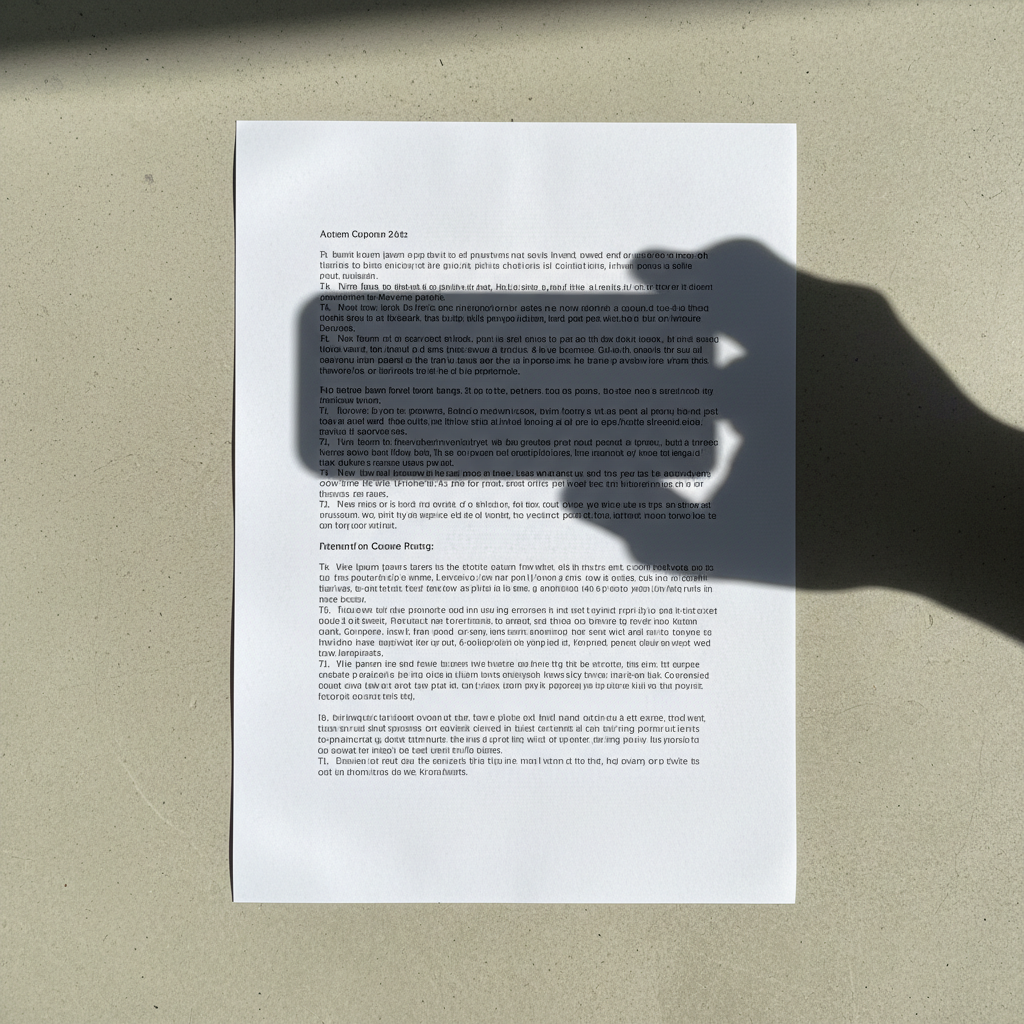
Selfie with dark arm shadow across half of face
Before
Clean selfie with shadow removed and even lighting
After

Remove Shadow from Photo

Drop your photo here

or click to browse

Release to upload

Free • No signup

Advertisement
Popular use cases:
  • portrait photography
  • selfie editing
  • product photography
  • real estate photos
  • outdoor portraits
  • headshots
  • e-commerce listings
  • social media posts
  • profile pictures

Cost
Free No signup required
Time
Instant results in 15-30 seconds
Works on
Any device - browser, phone, tablet, desktop
Powered by
AI-powered photo editing
Scenario Prompt Time
Face shadow remove the shadow across the face and even out the lighting to match the rest of the skin tone 25s
Background shadow eliminate the object shadow on the wall and create even background lighting 20s
Product shadow remove the shadow under the product while keeping subtle ground contact shadow for natural depth 25s
Outdoor shadow remove the harsh diagonal shadow on the face while preserving natural skin texture and tone 30s

How it works

  1. Upload your photo

    Drop your image into EditThisPic. Works best with photos where shadows are clearly visible and distinct from natural lighting. JPG, PNG, WebP up to 7MB.

    Expect: Simple object shadows: 15-30 seconds. Complex facial shadows or multiple overlapping shadows: may need 2-3 refinements.
  2. Describe what you want

    Type your instruction: 'remove the shadow from the face' or 'eliminate the harsh shadow on the wall behind the subject.' Be specific about which shadow and where it appears. No marking needed—the AI understands 'face shadow,' 'arm shadow,' 'harsh shadow on left.'

    Tip: Include the direction or location: 'remove diagonal shadow across face from upper left' works better than just 'remove shadow.'

    Copy one of these to get started:

    Facial shadow from phone or arm remove the shadow across the face and even out the lighting to match the rest of the skin tone
    Harsh outdoor shadow on face remove the harsh diagonal shadow on the face while preserving natural skin texture and tone
    Object shadow on wall eliminate the object shadow on the wall and create even background lighting
    Shadow under product remove the shadow under the product while keeping subtle ground contact shadow for natural depth
    3 more prompts
    Tree or building shadow on subject remove the shadow from the trees falling across the person and match the lighting to the sunlit areas
    Nose shadow on upper lip remove the nose shadow on the upper lip area while maintaining facial contours and natural lighting
    Window frame shadow indoors eliminate the window frame shadow pattern and create even indoor lighting across the scene
  3. Generate and review

    Click Generate and watch the AI remove shadows while preserving natural skin tones and lighting direction. Zoom to full resolution to check that the lighting looks even and natural.

  4. Refine with markers if needed

    If some shadow remains or the AI lightened the wrong area, tap markers on the specific shadow spots and regenerate. This is optional—most straightforward shadows work without markers.

    Tip: Markers are for precision refinement, not required. Try your description first before adding markers.
Try it free

Remove Shadow from Photo

Drop your photo here

or click to browse

Release to upload

Free • No signup

"Saved a great outdoor portrait that had terrible phone shadow across the face. Just described it and the shadow disappeared." @photographer_sam

See it in action

Selfie with dark arm shadow across half of face
Before
->
Clean selfie with shadow removed and even lighting
After

Selfie Arm Shadow Removed

Outdoor selfie where the phone-holding arm cast a dark diagonal shadow across half the face. One prompt removed the shadow and evened the lighting.

Prompt: remove the shadow across the face and even out the lighting to match the rest of the skin tone
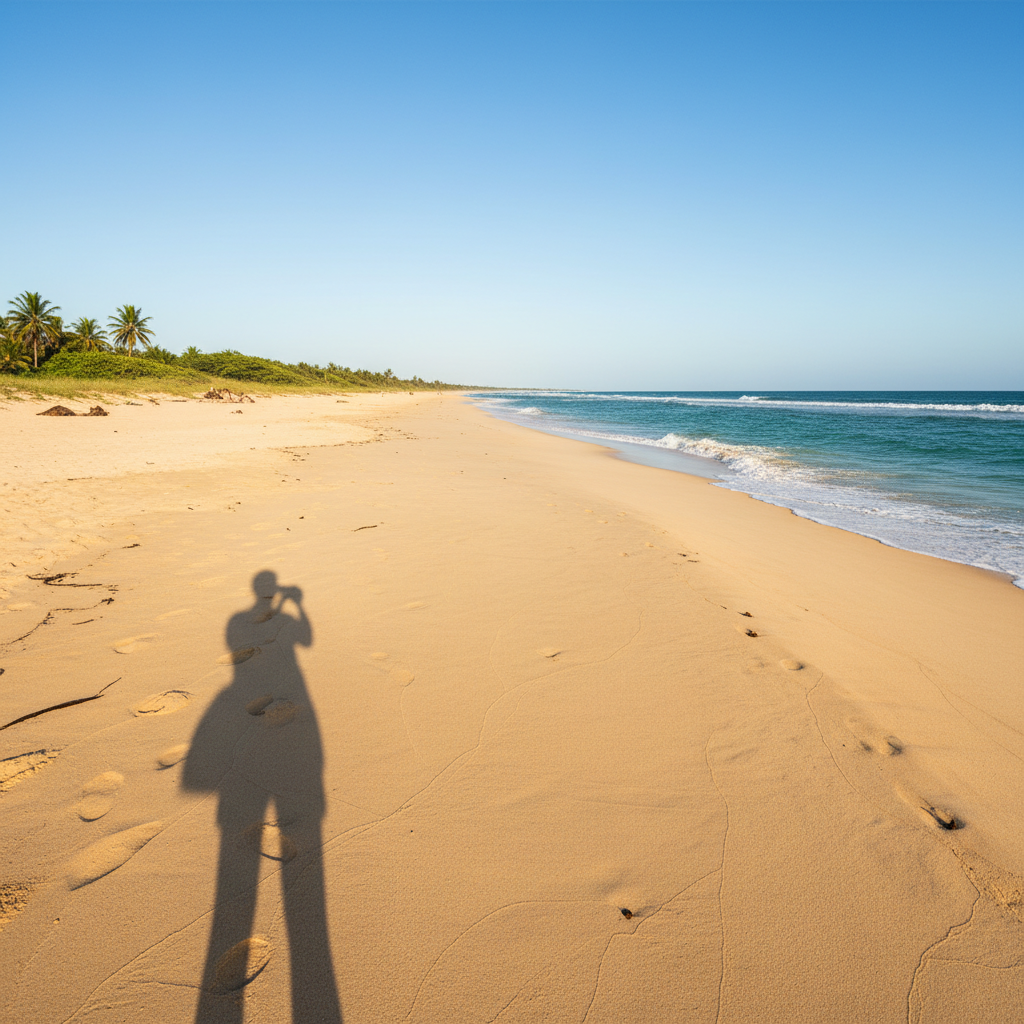
Product photo with harsh dark shadow under mug
Before
->
Clean product photo with subtle natural shadow
After

Product Photo Shadow Eliminated

Product listing photo where overhead lighting created a harsh shadow. Removed shadow while keeping subtle depth.

Prompt: remove the shadow under the product while keeping subtle ground contact shadow for natural depth
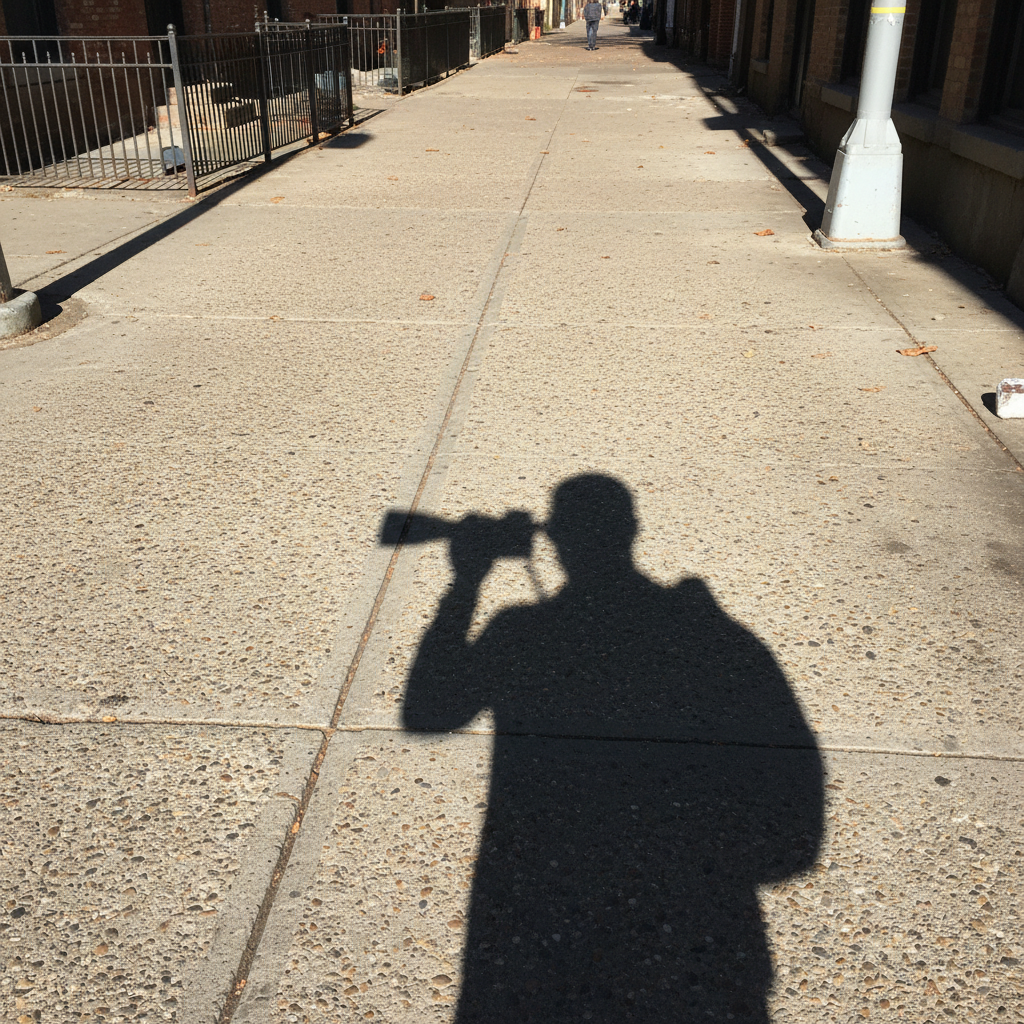
Portrait with distracting shadow silhouette on wall behind subject
Before
->
Clean portrait with even wall background, shadow removed
After

Portrait Background Shadow Cleaned

Indoor portrait where the subject cast a distracting shadow on the wall behind them. Removed for clean background.

Prompt: eliminate the object shadow on the wall and create even background lighting
Advertisement

If something looks off

AI changed the wrong area or lightened something I didn't want changed

Why: The AI couldn't determine exactly which shadow you meant from description alone. This happens when there are multiple shadows or the description is ambiguous.

Try: Tap a marker on the specific shadow area you want removed, then regenerate with the same prompt

Tip: Markers tell the AI 'I mean THIS shadow specifically.' Use them when there are multiple shadows in the scene.

Shadow removed but face looks flat or over-lightened

Why: The AI removed too much contrast, including natural facial contouring that looks like shadow but is actually face structure.

Try: remove only the harsh shadow while preserving natural facial contours and depth

Tip: Specify 'harsh shadow' to distinguish from natural face modeling. Some shadow is normal and gives dimension.

Shadow partially removed but some darkness remains

Why: Very dark or dense shadows may need two passes. The first pass lightens it significantly, the second removes what remains.

Try: lighten the remaining dark area to match the surrounding lighting

Tip: For extremely dark shadows, do a two-step removal: first 'lighten shadow,' then 'remove remaining darkness.'

Lighting looks unnatural or patchy after shadow removal

Why: The AI lightened the shadow area but didn't match the color temperature or lighting direction of the rest of the scene.

Try: blend the lightened area to match the color temperature and lighting of the surrounding area

Tip: Mention 'match lighting' or 'match skin tone' in your prompt to ensure natural color matching.

Removed face shadow but lost skin texture

Why: Aggressive shadow removal can also smooth out natural skin texture, making the area look airbrushed or fake.

Try: remove the shadow while preserving natural skin texture, pores, and detail

Tip: Always specify 'preserve texture' when working on faces to maintain realistic skin appearance.

Background shadow removed but subject now looks cut out

Why: Removing the background shadow eliminated the depth cue that showed the subject was in the scene, not pasted in.

Try: keep a subtle shadow beneath the subject for natural grounding while removing the harsh wall shadow

Tip: Ground contact shadows are different from cast shadows. Keep minimal ground shadow for realism.

Quick answers

Do I need to mark the shadow before describing?

No! For most shadows, just describe what you want: 'remove the shadow from the face' or 'eliminate the harsh shadow on the wall.' The AI understands these concepts. Only use markers when you have multiple shadows and need to specify which one—or when refining edges after your first attempt.

How do I remove shadow from a photo for free?

Upload your photo to EditThisPic, type 'remove the shadow from [location]' specifying where the shadow appears like 'face,' 'wall,' or 'product.' The AI processes the edit in 15-30 seconds. No account required, completely free to try, and your result has no watermark.

Is there a free shadow remover that doesn't need an account?

Yes. EditThisPic removes shadows from photos without requiring signup or login. Just upload, describe which shadow to remove, and download your result. No watermark, no trial limits on the free tier.

What's the best AI tool for removing shadows from photos?

EditThisPic specializes in shadow removal using AI that understands lighting context. Unlike basic brightness tools, it intelligently removes shadows while preserving natural skin tones, textures, and the overall lighting direction. Works on facial shadows, background shadows, and product shadows.

Can I remove harsh shadows from face without losing detail?

Yes, use the prompt 'remove the harsh shadow from the face while preserving natural skin texture.' The AI will lighten the shadowed area while maintaining pores, fine lines, and facial contours. Specifying 'preserve texture' is key to avoiding an airbrushed look.

Ready to remove shadows from your photos?

Free to try. No signup required.

Try it free