Free • No signup Edit Product photos · Free

AI Product Photo Editor

Describe your product photo edit and AI handles the rest. No marking needed.

Blue ceramic mug on cluttered desk with papers and keyboard
Before
Same blue ceramic mug on clean pure white background with soft shadow
After

AI Product Photo Editor

Drop your photo here

or click to browse

Release to upload

Free • No signup

Advertisement
Popular use cases:
  • Amazon product photos
  • Etsy listing images
  • Shopify product photography
  • e-commerce photo editing
  • product white background
  • marketplace listing photos
  • online store images
  • product photography enhancement

Cost
Free No signup required
Time
Instant results in 15-30 seconds
Works on
Any device - browser, phone, tablet, desktop
Powered by
AI-powered photo editing
Scenario Prompt Time
White background swap replace background with pure white 30s
Lighting enhancement enhance product lighting to bright and even 35s
Full product cleanup white background, fix lighting, sharpen details 45s

How it works

  1. Upload your product photo

    Drop your product image into EditThisPic. JPG, PNG, WebP up to 7MB. Photos with the product clearly visible against any background work best. Smartphone photos are fine.

    Expect: Simple edits like background swap: 30-40 seconds. Multiple fixes like background plus lighting plus color: 45-60 seconds and may need refinements.
  2. Describe the edit you want

    Type your instruction: 'replace background with clean white studio backdrop' or 'enhance the product lighting and remove shadows.' Be specific about what you need. No marking needed—the AI understands product photography terms like 'background', 'shadows', and 'lighting.'

    Tip: Combine multiple fixes in one prompt: 'replace background with white, enhance lighting, and increase color saturation' saves time over separate edits.

    Copy one of these to get started:

    Clean white e-commerce background replace background with pure white studio backdrop, keep natural product shadows
    Fix dark or uneven lighting enhance the product lighting to be bright and even, remove harsh shadows from all sides
    Lifestyle context background replace background with a modern kitchen countertop scene, soft natural window light
    Color correction for accuracy correct the product colors to look natural and true-to-life, remove any yellow or blue color cast
    3 more prompts
    Remove reflections from shiny products remove unwanted reflections from the product surface while keeping natural highlights
    Add professional product shadow add a soft drop shadow beneath the product on the white background for a floating effect
    Multiple product angle cleanup clean up this product photo - straighten the product, remove dust spots, and sharpen the details
  3. Review the result

    Check that the product looks accurate—colors match the real item, edges are clean, and the background is consistent. Zoom in on product edges where the old background meets the new one.

  4. Refine with markers if needed

    If edges around the product need cleanup or a specific area wasn't edited correctly, tap markers on those spots and regenerate. Most product photo edits work perfectly on the first try.

    Tip: Markers are for precision refinement only. Try without them first—product photos with clear outlines rarely need them.
Try it free

AI Product Photo Editor

Drop your photo here

or click to browse

Release to upload

Free • No signup

"I sell handmade jewelry on Etsy and this saves me hours. Upload a photo, ask for white background and better lighting, and my listings look professional. No Photoshop skills needed." @EtsyCrafter_Jen

See it in action

Blue ceramic mug on cluttered desk with papers and keyboard
Before
->
Same blue ceramic mug on clean pure white background with soft shadow
After

Messy desk to white background product shot

A ceramic mug photographed on a cluttered desk transformed into a clean e-commerce listing image.
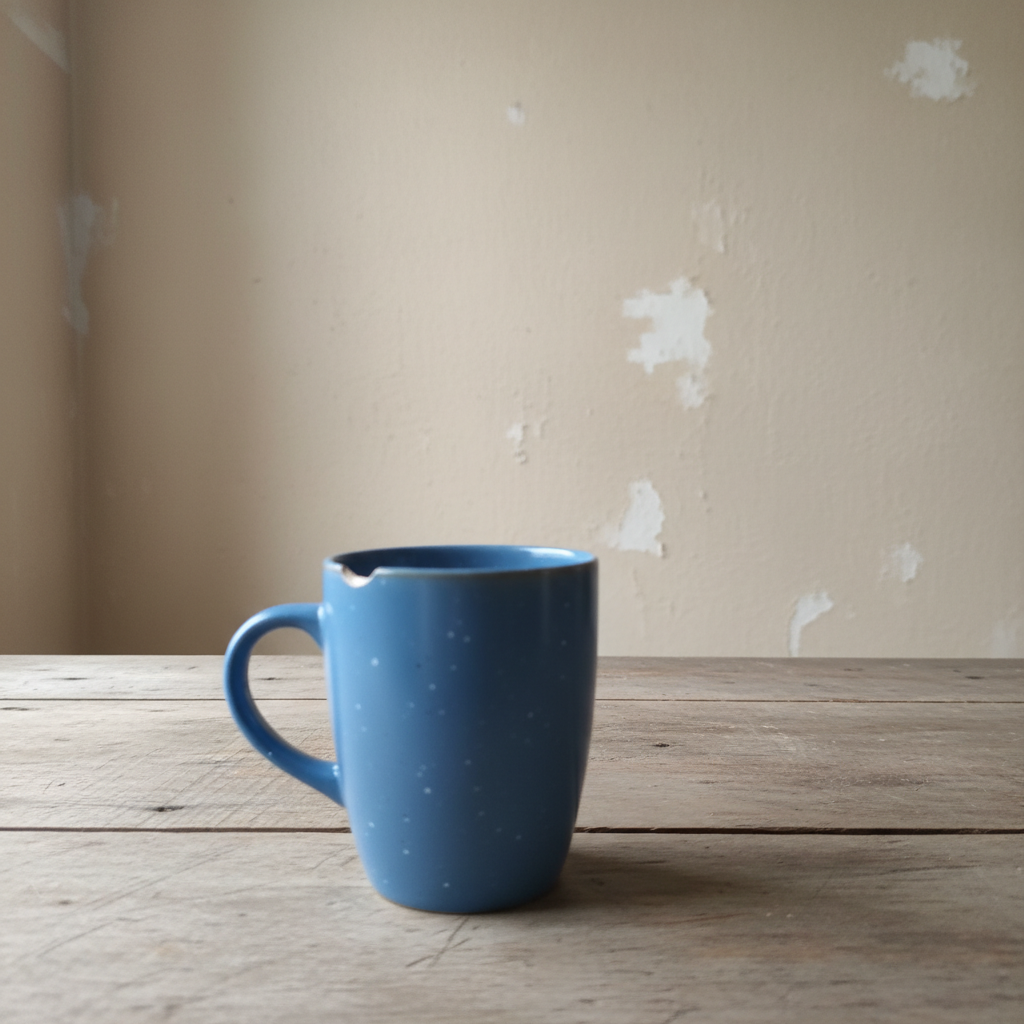
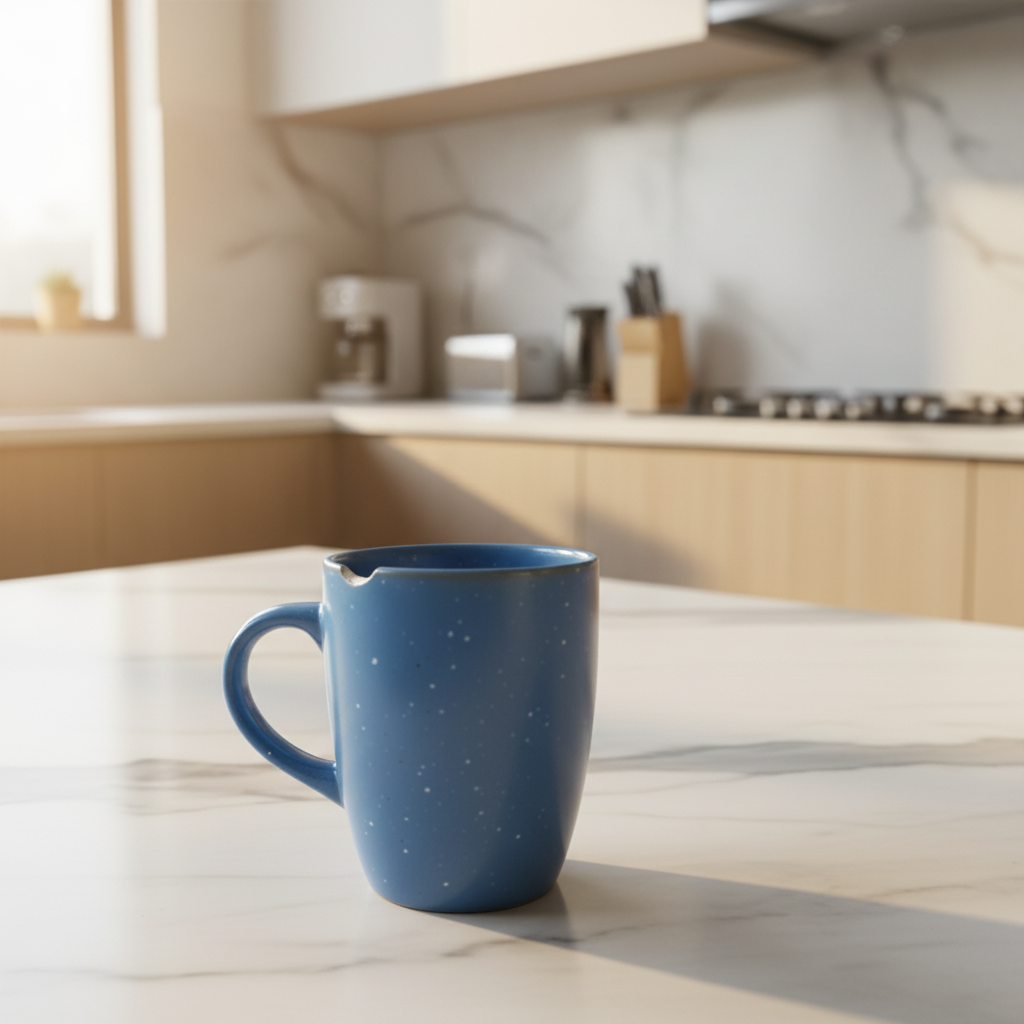
Prompt: replace background with pure white studio backdrop, keep natural product shadows
Dark underexposed photo of brown leather wallet with heavy shadows
Before
->
Same leather wallet with bright even lighting and accurate brown color
After

Dark product photo with fixed lighting

An underexposed leather wallet photo brightened and color-corrected for an online store.

Prompt: enhance the product lighting to be bright and even, correct the colors to look natural and true-to-life
Advertisement

If something looks off

AI changed the wrong area or something I didn't want changed

Why: The AI couldn't determine exactly which part of the product photo you meant from description alone. This happens when the product blends with other objects in the scene.

Try: Tap a marker on the specific area you want to change, then regenerate with the same prompt

Tip: Markers tell the AI 'I mean THIS area specifically.' Use them when multiple objects are present.

Product edges look rough or have halo artifacts

Why: The product outline is similar in color to the original background, making it harder for the AI to find clean edges.

Try: Tap markers along the rough edges and regenerate: clean up the product edges and make them crisp

Tip: Focus markers on the worst 2-3 edge spots. The AI usually fixes nearby edges too.

Product colors changed after the edit

Why: Changing the background or lighting can shift how the AI interprets the product's actual colors.

Try: replace background with white but keep the exact original product colors unchanged

Tip: Adding 'keep original product colors unchanged' explicitly tells the AI to preserve color accuracy.

Shadows look unnatural on the new background

Why: The AI either removed all shadows or generated shadows that don't match the lighting direction.

Try: add a natural soft shadow beneath the product consistent with overhead lighting

Tip: Specifying the light direction like 'overhead' or 'from upper left' creates believable shadows.

Product details look blurry or soft after editing

Why: Heavy edits like background replacement can sometimes soften fine details like text, textures, or stitching.

Try: sharpen the product details and textures while keeping the clean background

Tip: Run a sharpening pass as a second edit after your background or lighting changes.

Quick answers

Do I need to mark the product before describing the edit I want?

No! Just describe what you want: 'replace background with white' or 'enhance the lighting.' The AI understands product photography terms. Only use markers when you need to point out a specific area—like one scratch to remove or an edge that needs cleanup after the first attempt.

How do I make my product photos look professional for e-commerce?

Upload your product photo and type: 'replace background with pure white, enhance lighting, and sharpen details.' This gives you marketplace-ready images in one prompt. For lifestyle shots, describe the scene: 'place product on marble countertop with soft natural light.' Works for Amazon, Etsy, Shopify, and any online store.

Is there a free product photo editor that doesn't require login?

Yes, EditThisPic is free to try with no account needed. Upload your product photo, describe what you want edited, and download the result. No watermarks on your outputs. Handles background removal, lighting fixes, color correction, and more.

What's the best free AI tool for Amazon and Etsy product photos?

EditThisPic handles the most common product photo needs: white background replacement, lighting enhancement, shadow cleanup, and color correction. Just describe what you need in plain language. No Photoshop skills required, and it works on smartphone photos too.

Ready to edit your product photos?

Free to try. No signup required.

Try it free