Free • No signup Clean Whiteboard photo · Free

AI Whiteboard Cleaner
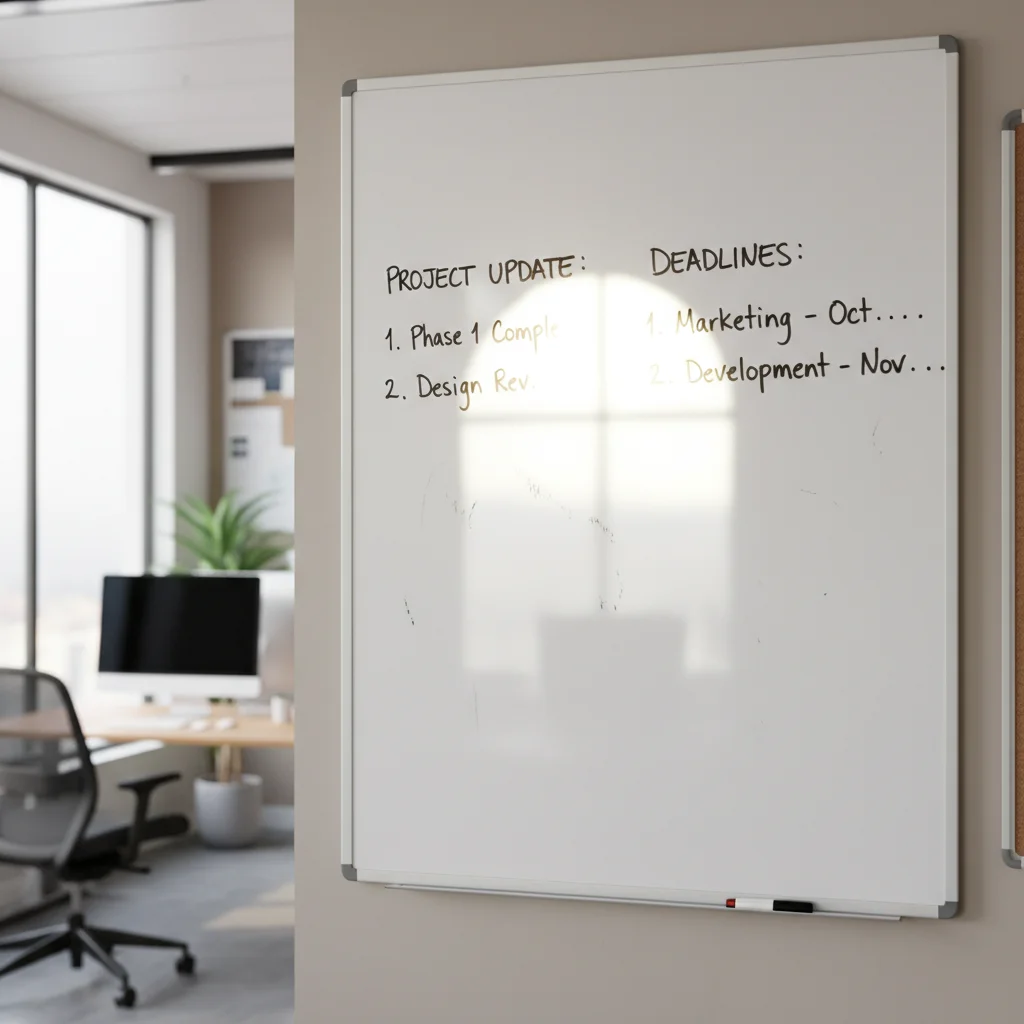
Before
Before
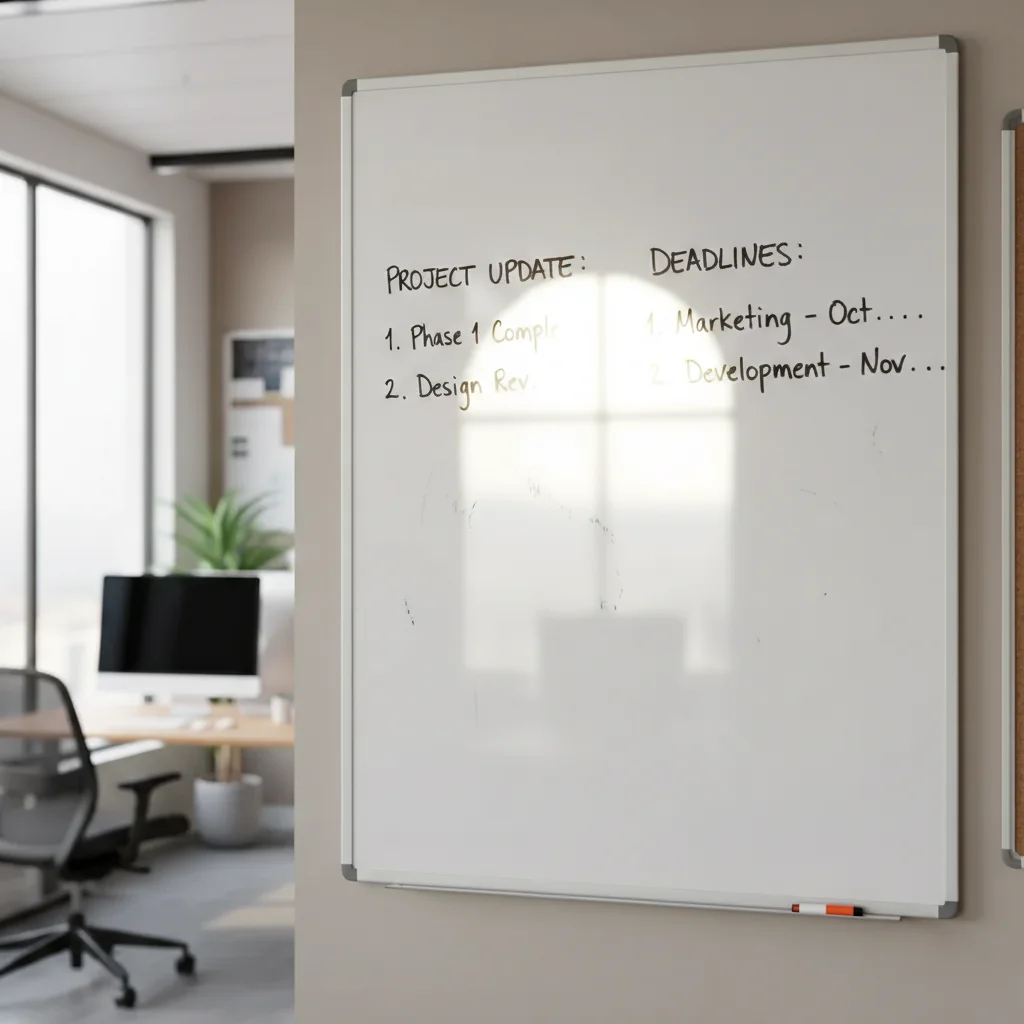
After
After

Free AI Whiteboard Cleaner

Drop your photo here

or click to browse

Release to upload

Free • No signup

Advertisement
Popular use cases:
  • whiteboard photo cleanup
  • remove whiteboard glare
  • meeting notes photo
  • classroom whiteboard photo
  • presentation capture
  • brainstorming session notes
  • whiteboard documentation
  • enhance whiteboard text

Cost
Free No signup required
Time
Instant results in 15-30 seconds
Works on
Any device - browser, phone, tablet, desktop
Powered by
AI-powered photo editing
Scenario Prompt Time
Glare from lights 15-30s
Angled photo 15-30s
Faded writing 15-30s
Complete cleanup 15-30s

How it works

  1. Upload your whiteboard photo

    Take a photo of your whiteboard with any camera or phone. The AI works with any angle, lighting, or quality level. Photos taken from directly in front work best, but angled shots work too.

    Expect: 20-30 seconds for AI to analyze your whiteboard and identify cleanup areas.
  2. Describe what needs cleaning

    Simply type what you want fixed—the AI handles the rest. Common requests include removing glare, enhancing text, fixing shadows, or straightening the board. No need to mark specific areas.

    Tip: Combine multiple fixes in one prompt: 'remove glare, enhance text, and straighten board' works great. The AI can handle multiple improvements at once.

    Copy one of these to get started:

    Fixing lighting issues Remove glare and reflections from the whiteboard
    Improving readability Enhance text clarity and make writing easier to read
    Fixing angled photos Straighten the whiteboard and correct perspective
    Fixing uneven lighting Remove shadows and even out lighting
    3 more prompts
    Complete cleanup Clean up the whiteboard, remove glare, enhance text, and straighten
    Faded or light writing Increase contrast to make marker text stand out more
    Isolating the whiteboard Remove background clutter and focus on whiteboard content only
  3. Review the cleaned result

    Check that text is readable, glare is removed, and the board looks clear. The AI automatically enhances contrast and corrects distortion. If you need further adjustments, just describe them.

  4. Download Your Clean Whiteboard Photo

    Save your cleaned whiteboard image in full resolution with no watermark. Perfect for sharing notes, documentation, or presentations.

Try it free

Free AI Whiteboard Cleaner

Drop your photo here

or click to browse

Release to upload

Free • No signup

See it in action

Before
Before
->
After
After

Glare Removal

Prompt: Remove glare and reflections from the whiteboard
Before
Before
->
After
After

Perspective Correction

Prompt: Straighten the whiteboard and correct perspective
Before
Before
->
After
After

Complete Cleanup

Prompt: Clean up the whiteboard, remove glare, enhance text, and straighten
Advertisement

If something looks off

AI changed the wrong area or something I didn't want changed

Why: The AI couldn't determine exactly which area you meant from description alone.

Try: Tap a marker on the specific area you want to change, then regenerate with the same prompt

Tip: Markers tell the AI 'I mean THIS one specifically.' Use them when description alone is ambiguous.

Some text is still hard to read after cleaning

Why: Very faded or thin marker lines may need extra contrast enhancement.

Try: Add 'increase contrast significantly' or 'make text bold and dark' to your prompt

Tip: If text was very light in the original, you may need to specifically request contrast increase even after initial cleanup.

The whiteboard looks too bright or washed out

Why: Aggressive glare removal can sometimes overcompensate.

Try: Request 'remove glare while maintaining natural brightness' or 'subtle glare reduction'

Tip: For natural-looking results, mention you want to preserve the original tone while fixing specific issues.

Background is still visible and distracting

Why: Standard cleanup focuses on the whiteboard surface itself, not surrounding areas.

Try: Add 'remove background and show only whiteboard content' or 'isolate whiteboard from surroundings'

Tip: If you want a clean extraction, explicitly mention removing the background or cropping to just the board.

Perspective correction made the board look stretched

Why: Extreme angles can sometimes create distortion when corrected.

Try: Try 'gently straighten perspective' or use the original photo if distortion is too noticeable

Tip: Photos taken from moderately straight-on angles give the best results for perspective correction.

Colors of markers changed during cleanup

Why: Contrast and brightness adjustments can affect color balance.

Try: Specify 'preserve original marker colors while cleaning' in your request

Tip: If color accuracy matters (like color-coded notes), mention it in your initial prompt to maintain original hues.

Quick answers

Do I need to mark the glare or problem areas?

No! The AI automatically detects common whiteboard issues like glare, shadows, and distortion. Just describe what you want fixed and the AI finds and corrects those problems. Markers are only needed for very specific spot corrections.

Is this really free with no watermark?

Yes, completely free with no watermark on your downloaded images. No account required, no hidden fees. You get full-resolution photos ready to share or present.

Can this work with photos taken from the side?

Yes! The AI can straighten and correct perspective on photos taken from angles. Just include 'straighten board' or 'correct perspective' in your description. Extreme angles may have some limitations, but most side shots work fine.

Will it work on glass whiteboards too?

Absolutely. Glass whiteboards often have more glare than standard boards, and the AI is particularly good at removing reflections from glass surfaces. Use 'remove glare' in your prompt for best results.

Can I clean up old, faded whiteboard writing?

Yes! Request 'enhance text clarity' or 'increase contrast' to make faded marker writing more readable. The AI can significantly improve visibility of old or lightly-written content.

What if there are people or objects in front of the whiteboard?

For best results, use photos where the content is visible. If something is blocking important text, you can try 'remove person and show whiteboard behind' but results will depend on how much is obscured.

Ready to clean your whiteboard photo?

Free to try. No signup required.

Try it free