Free • No signup Clean Document scan · Free

AI Document Scan Cleaner

Describe what needs fixing and AI cleans document scans instantly. No marking needed.
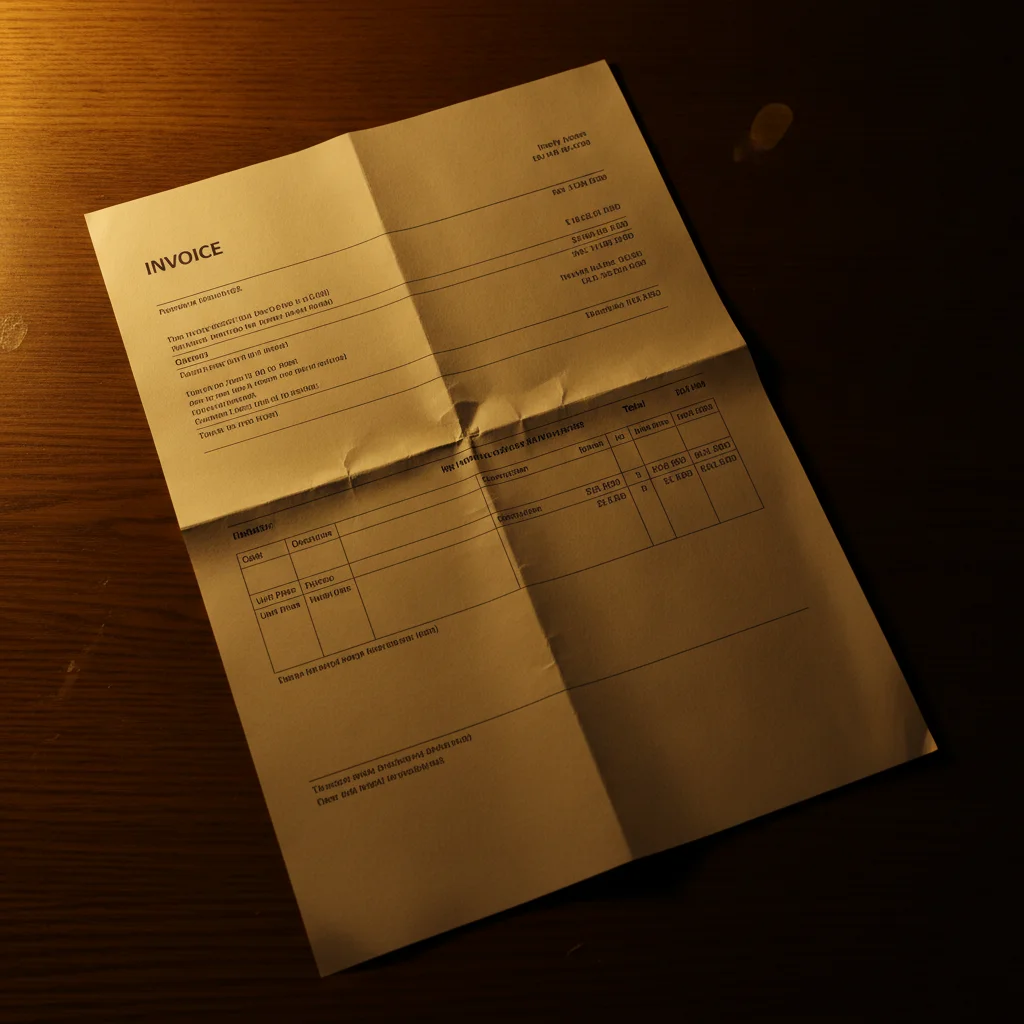
Receipt with shadows and faded text
Before
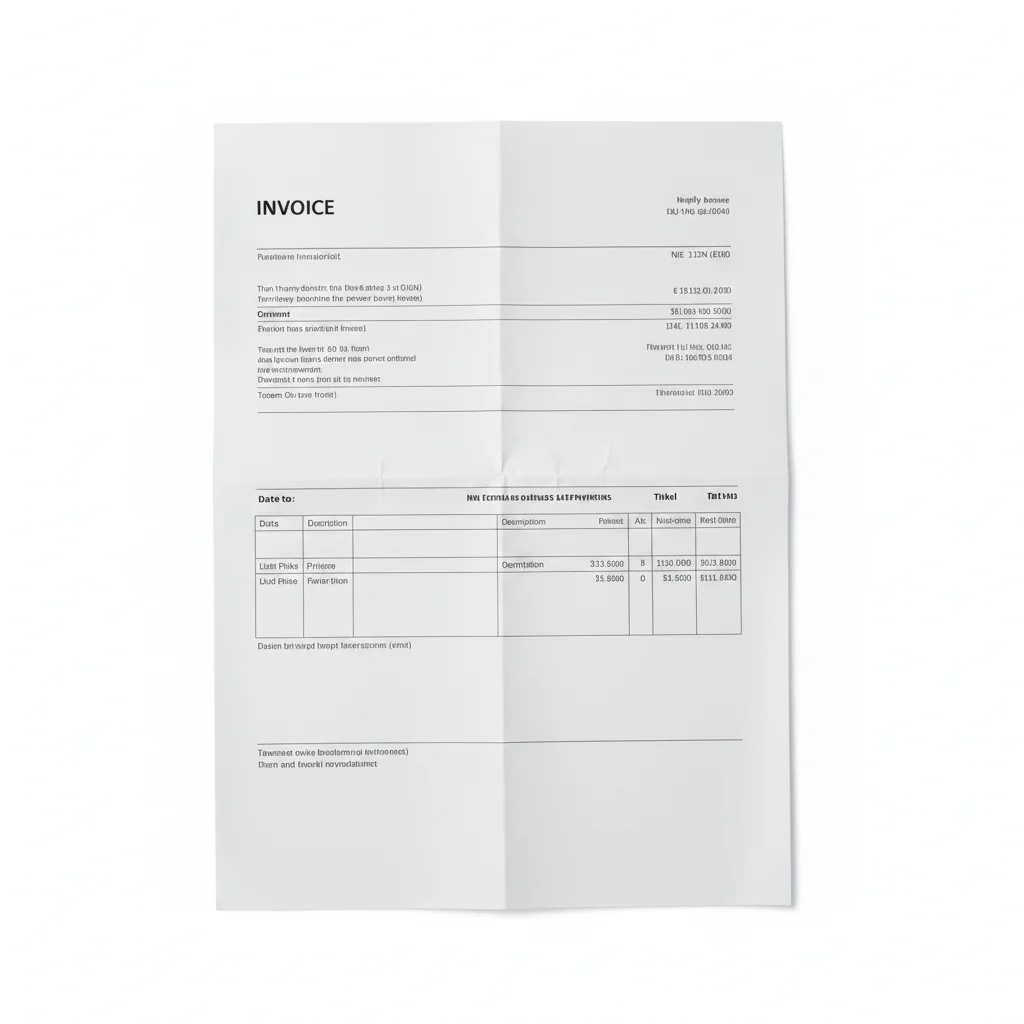
Same receipt clean with clear black text on white
After

AI Document Scan Cleaner

Drop your photo here

or click to browse

Release to upload

Free • No signup

Advertisement
Popular use cases:
  • document scanning
  • receipt cleanup
  • contract preparation
  • OCR improvement
  • archive digitization
  • invoice processing
  • form scanning
  • document digitization

Cost
Free No signup required
Time
Instant results in 15-30 seconds
Works on
Any device - browser, phone, tablet, desktop
Powered by
AI-powered photo editing
Scenario Prompt Time
Shadow removal remove shadows and make background white 30s
Text enhancement enhance faded text to make it readable 30s
Full cleanup clean scan, remove shadows, enhance text 35s

How it works

  1. Upload your document scan

    Drop your image into EditThisPic. JPG, PNG, WebP up to 7MB. Phone photos of documents, scanner outputs, or camera-captured pages all work. Even crooked or shadowy scans can be cleaned.

    Expect: Simple cleaning: 25-35 seconds. Complex fixes with perspective: 35-45 seconds.
  2. Describe what to fix

    Type what you want: 'clean the scan and enhance text clarity' or 'remove shadows and straighten the page.' The AI understands document problems—shadows, wrinkles, perspective distortion, faded text. No marking needed.

    Tip: Combine fixes for comprehensive cleaning: 'remove shadows, enhance text, and straighten the perspective' handles everything at once.

    Copy one of these to get started:

    General scan cleanup clean the document scan, remove shadows, and enhance text clarity
    Perspective correction straighten the page and fix the perspective to make it look flat and professional
    Shadow removal remove shadows from the document and make the background pure white
    Faded text enhancement enhance the faded text to make it dark and readable, increase contrast
    2 more prompts
    Wrinkle and fold removal remove wrinkles and fold lines from the paper, make it look smooth
    Comprehensive document restoration clean the scan completely - remove shadows, enhance text, straighten perspective, and remove wrinkles
  3. Review the cleaned document

    Check that text is clear and readable, shadows are gone, and the page looks flat and straight. Verify important details like signatures, numbers, and fine print are preserved and legible.

  4. Refine with markers if needed

    If specific areas still have shadows or text needs more enhancement, tap markers on those spots and regenerate. Most document cleaning works perfectly on the first try.

    Tip: Markers are optional precision tools. Try describing first—the AI usually handles entire document cleaning well.
Try it free

AI Document Scan Cleaner

Drop your photo here

or click to browse

Release to upload

Free • No signup

"I scan receipts and invoices with my phone for expense tracking. The shadows and wrinkles made OCR fail constantly. Now I clean them first—text extraction works perfectly every time." @Freelancer_Maya

See it in action

Receipt with shadows and faded text
Before
->
Same receipt clean with clear black text on white
After

Shadow removal and text enhancement

A phone-photographed receipt cleaned to remove shadows and enhance text for OCR and archiving.

Prompt: clean the document scan, remove shadows, and enhance text clarity
Contract document tilted with perspective distortion
Before
->
Same contract straightened with flat professional appearance
After

Perspective correction on contract

A crooked photo of a contract straightened to look like a professional flat scan.

Prompt: straighten the page and fix the perspective to make it look flat and professional
Advertisement

If something looks off

AI changed the wrong area or something I didn't want changed

Why: The AI couldn't determine exactly which area you meant from description alone.

Try: Tap a marker on the specific area you want to change, then regenerate with the same prompt

Tip: Markers tell the AI 'I mean THIS one specifically.' Use them when description alone is ambiguous.

AI removed important text or signatures while cleaning

Why: Very faint text or light handwriting can be mistaken for noise or shadows to remove.

Try: Tap markers on important text areas, regenerate: clean the document but preserve all text and signatures

Tip: 'Preserve all text and signatures' explicitly tells the AI to keep written content intact.

Background isn't pure white after cleaning

Why: The original scan had colored or off-white paper that the AI tried to preserve.

Try: clean the scan and make the background pure white, increase brightness

Tip: 'Pure white' and 'increase brightness' force the background to clean white regardless of original color.

Text enhancement made some areas too dark or blurry

Why: Aggressive text enhancement can over-darken or blur certain fonts or handwriting.

Try: enhance text clarity while keeping it sharp and natural-looking, not over-processed

Tip: 'Sharp and natural-looking' prevents the AI from over-enhancing to the point of degradation.

Perspective correction warped or distorted parts of the document

Why: Complex page curves or multiple folds make perfect perspective correction challenging.

Try: straighten the document gently, keep text readable and proportions natural

Tip: 'Gently' and 'natural proportions' prevent aggressive warping that can distort content.

Quick answers

Do I need to mark areas before cleaning the document?

No! Just describe what to fix: 'clean the scan and enhance text' or 'remove shadows and straighten the page.' The AI recognizes document content and fixes problems automatically. Only use markers if specific areas need different treatment or if the AI accidentally removes important content.

Can this fix documents photographed with a phone camera?

Yes! Phone photos often have shadows, angles, and perspective distortion. The AI handles all of these: 'remove shadows, straighten perspective, and enhance text.' It transforms casual phone photos into clean professional-looking scans suitable for printing or OCR.

Will cleaning improve OCR text recognition?

Absolutely! OCR fails on shadowy, faded, or crooked text. Cleaning documents first—removing shadows, enhancing text, fixing perspective—dramatically improves OCR accuracy. Clean scans with high-contrast text are what OCR software needs to succeed.

Can I clean old faded documents to make them readable?

Yes! Tell the AI: 'enhance the faded text to make it dark and readable, increase contrast.' This brings out text that's hard to see in original scans, perfect for old receipts, contracts, or archived documents that have degraded over time.

Ready to clean your document scans?

Free to try. No signup required.

Try it free