Free • No signup Fix Harsh flash · Free

Fix Harsh Flash in Photo

Turn washed-out flash photos into natural-looking images with one command.
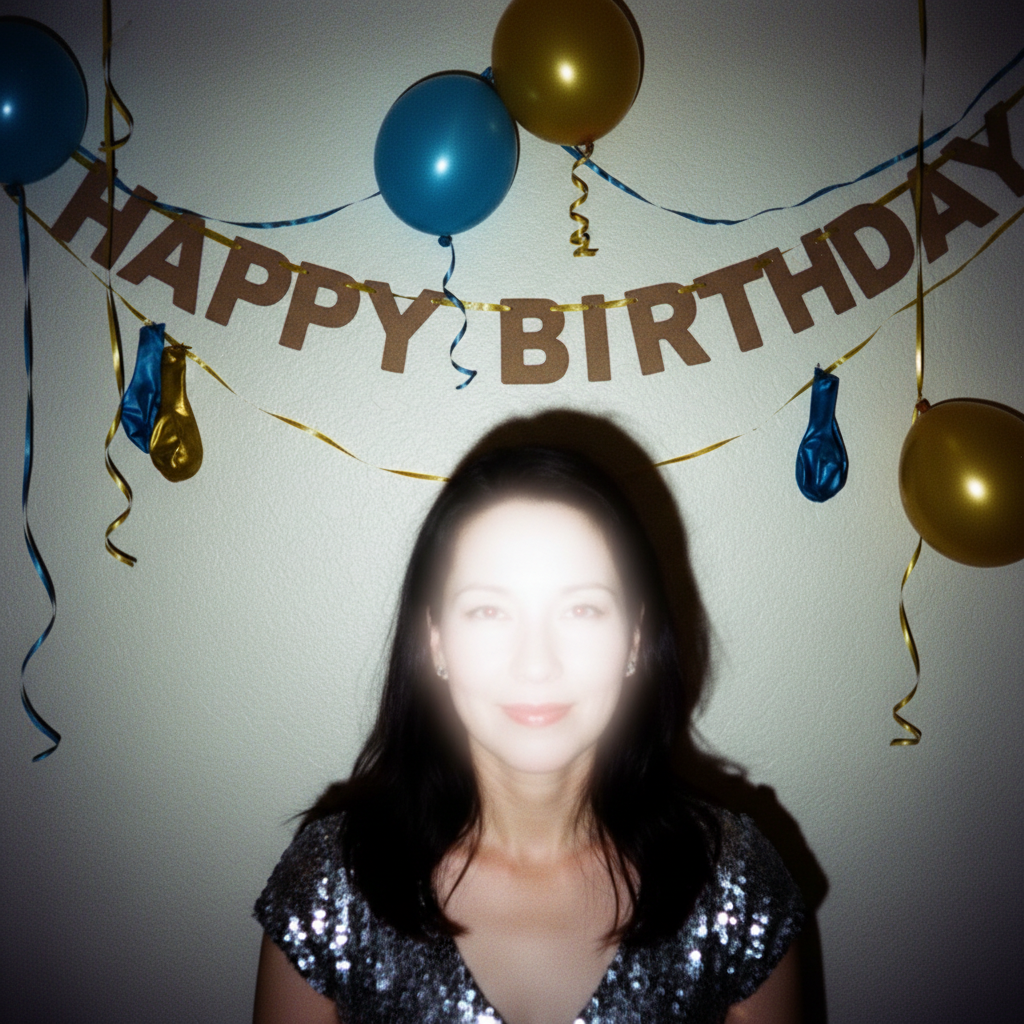
Party photo with harsh flash creating washed out face and shiny skin
Before
Same photo with natural lighting and restored skin texture
After

Fix Harsh Flash in Photo

Drop your photo here

or click to browse

Release to upload

Free • No signup

Advertisement
Popular use cases:
  • party photographers
  • event photos
  • wedding reception
  • indoor photography
  • family gatherings
  • restaurant photos
  • nightclub photos
  • birthday parties

Cost
Free No signup required
Time
Instant results in 15-30 seconds
Works on
Any device - browser, phone, tablet, desktop
Powered by
AI-powered photo editing
Scenario Prompt Time
General flash fix fix the harsh flash and restore natural lighting and skin tones 15s
Shiny skin fix reduce the flash shine on the face and make the skin look natural 20s
Group photo balance 25s

How it works

  1. Upload your flash-damaged photo

    Drag your overexposed flash photo into EditThisPic. JPG, PNG, WebP up to 7MB. The AI works best on photos where flash created bright hotspots, washed out skin, or harsh reflections while some detail remains visible.

    Expect: Simple flash fixes: 15-30 seconds. Severely blown highlights: may need 2-3 refinements.
  2. Describe what you want

    Type your instruction: 'fix the harsh flash and restore natural lighting and skin tones' or 'correct the overexposed flash and make it look like natural light.' Be specific about what bothers you most. No marking needed—the AI automatically identifies flash-damaged areas by their telltale brightness patterns.

    Tip: Mention 'skin tones' for portraits—this tells the AI to prioritize making faces look natural rather than just darkening everything.

    Copy one of these to get started:

    General flash overexposure fix fix the harsh flash and restore natural lighting and skin tones
    Portrait with shiny forehead reduce the flash shine on the face and make the skin look natural and matte
    Group photo with flash hotspots fix the overexposed flash areas on all the faces and balance the lighting across everyone
    Indoor party photo correct the harsh direct flash and make it look like soft ambient lighting
    3 more prompts
    Flash reflection on glasses remove the flash reflection from the glasses and restore the eyes behind them
    Red-eye from flash fix the red-eye from the flash and make the eyes look natural
    Washed out background fix the flash that washed out the background and restore the colors and details behind the subject
  3. Generate and review

    Check the corrected result at full zoom. Look for restored skin texture, reduced shine, and natural-looking shadows. Compare the hotspots and reflections with the original to verify the flash damage is fixed without making the image too dark.

  4. Refine with markers if needed

    If some areas are still too bright or the AI over-corrected certain zones, tap markers on those specific spots and regenerate. This is optional—most flash fixes work without markers.

    Tip: Use markers when flash created multiple hotspots at different intensities that need individual attention.
Try it free

Fix Harsh Flash in Photo

Drop your photo here

or click to browse

Release to upload

Free • No signup

"Party photos looked like everyone was a ghost. This fixed the flash damage and made everyone look normal again." @mike_eventphotos

See it in action

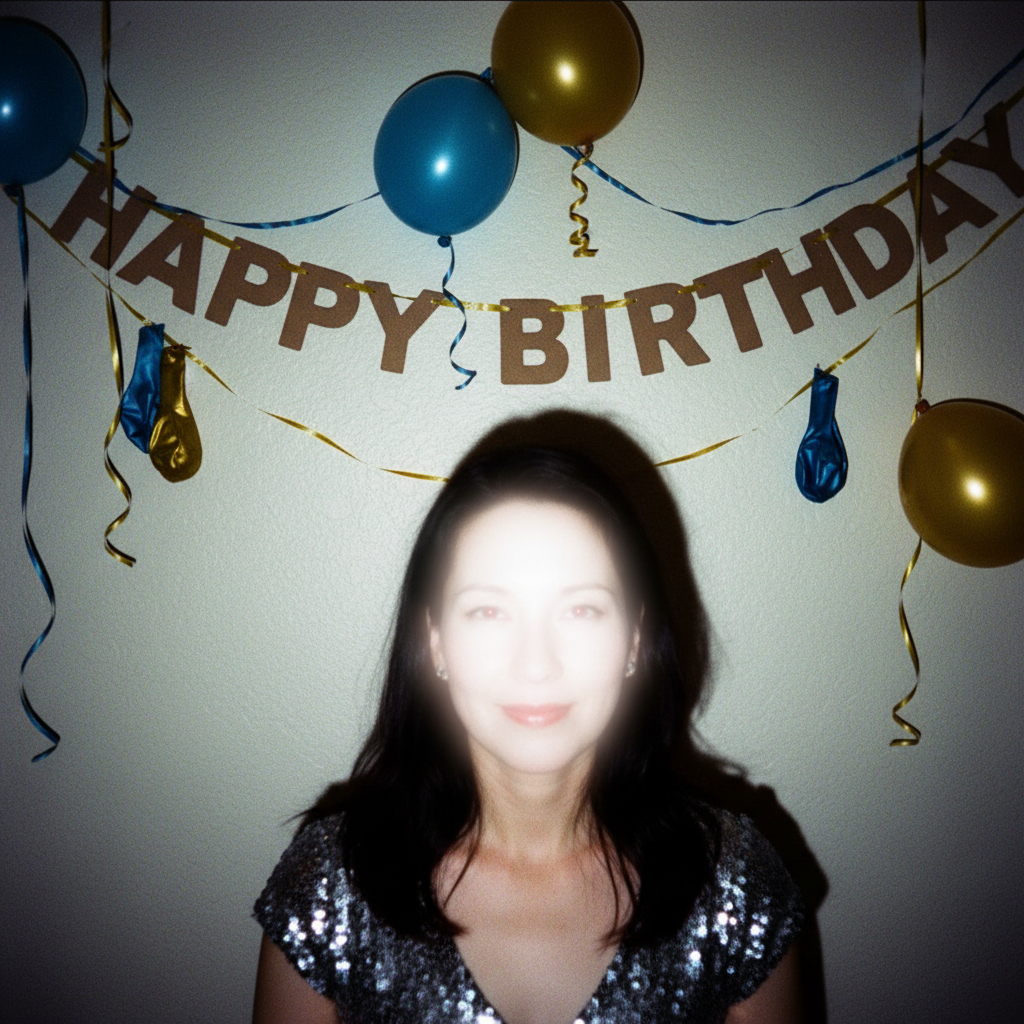
Party photo with harsh flash creating washed out face and shiny skin
Before
->
Same photo with natural lighting and restored skin texture
After

Birthday party portrait rescued

A candid photo at a birthday party had harsh direct flash making the subject look washed out with shiny skin. One command restored natural skin tones and balanced lighting.
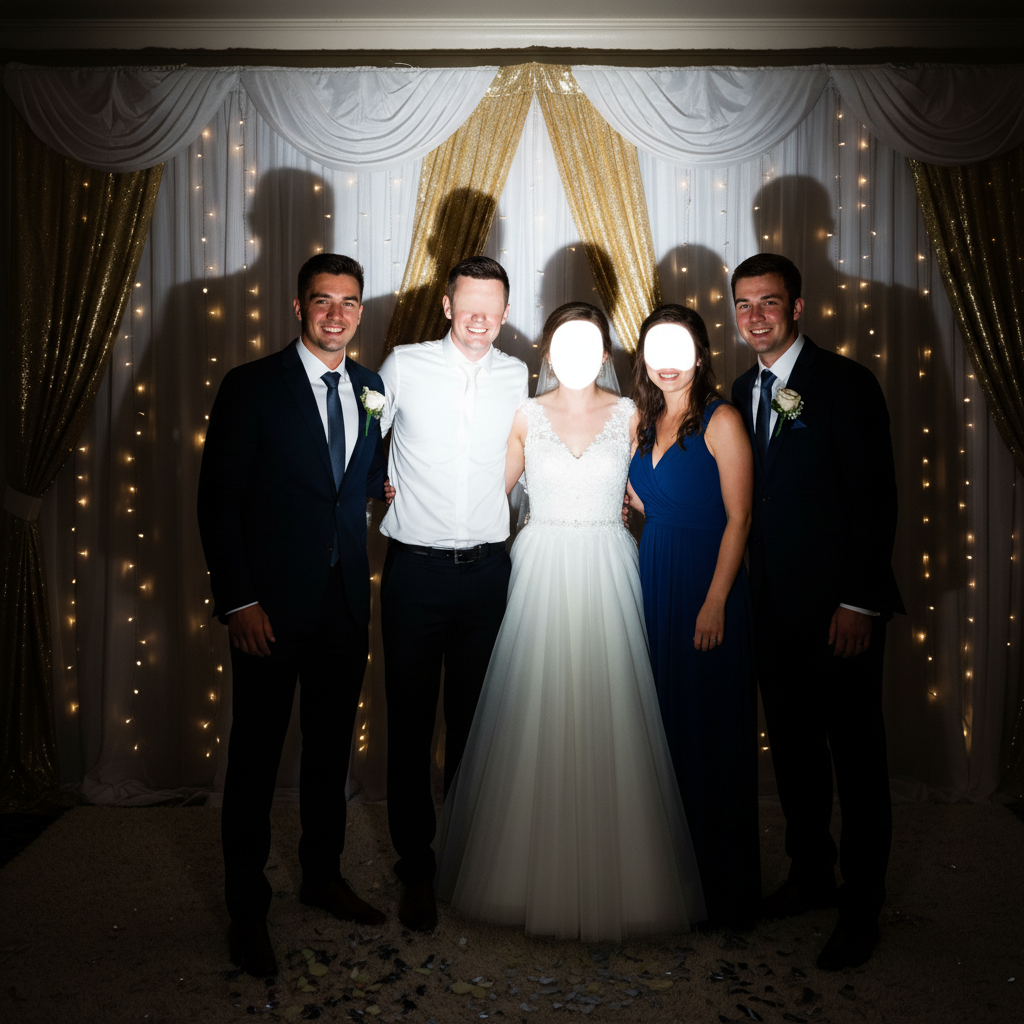
Prompt: fix the harsh flash and restore natural lighting and skin tones
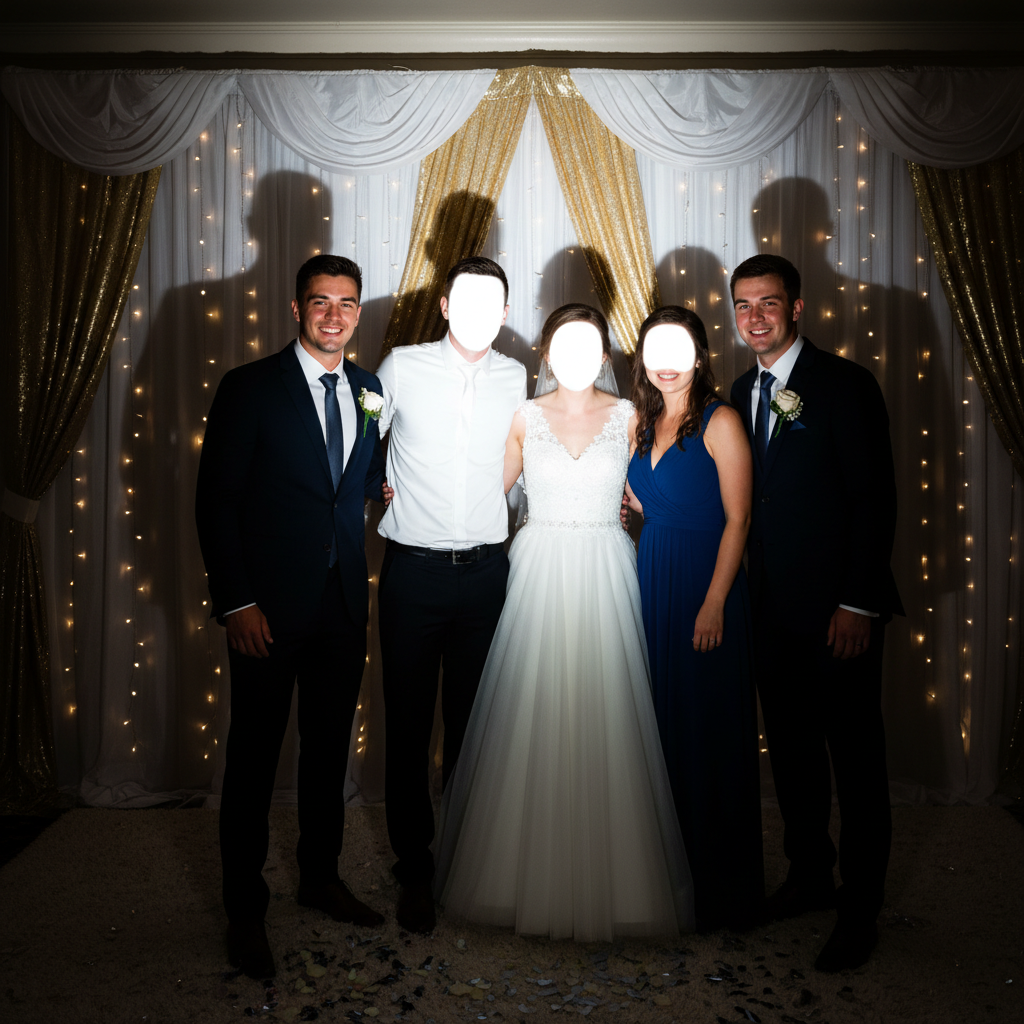
Wedding group photo with uneven flash exposure across faces
Before
->
Balanced group photo with natural-looking lighting on all faces
After

Wedding reception group shot fixed

A group photo from a wedding reception had uneven flash exposure across multiple faces. The AI balanced everyone's lighting while preserving the celebration atmosphere.

Prompt: fix the overexposed flash areas on all the faces and balance the lighting across everyone
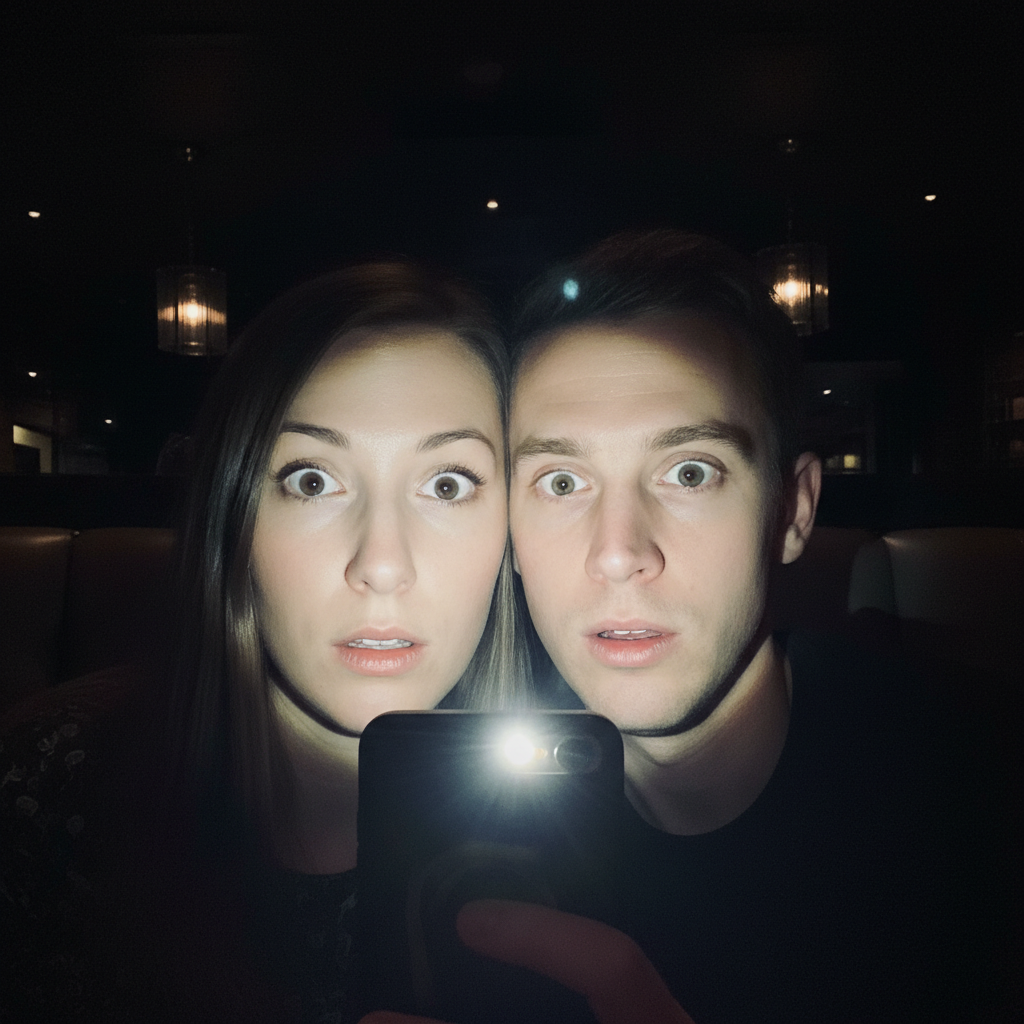
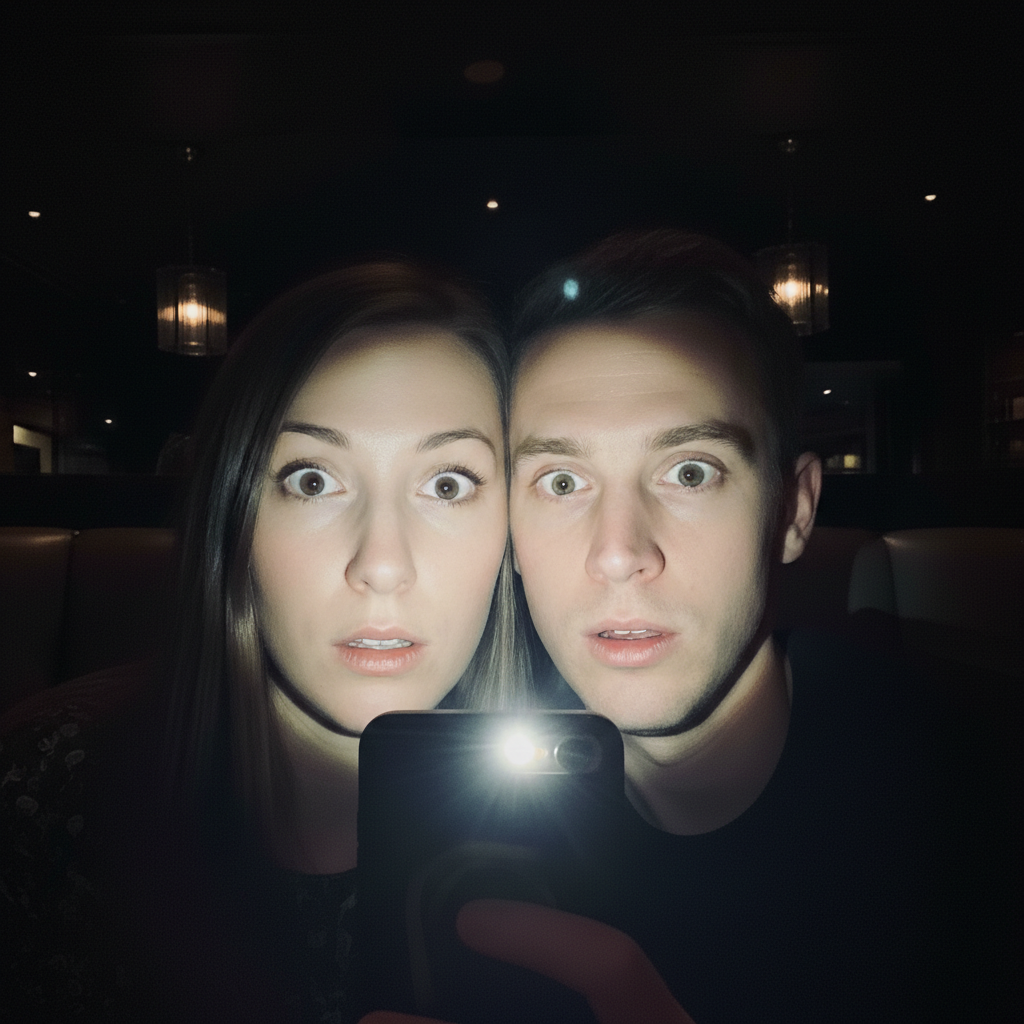
Restaurant selfie with harsh phone flash creating spotlight effect
Before
->
Same selfie looking like natural ambient restaurant lighting
After

Restaurant selfie made natural

A selfie taken at a dark restaurant used phone flash that created an unnatural spotlight effect. The AI transformed it to look like soft ambient lighting.

Prompt: correct the harsh direct flash and make it look like soft ambient lighting
Advertisement

If something looks off

Photo became too dark after fixing

Why: The AI may have over-corrected the bright areas, bringing down the overall exposure too much.

Try: fix the harsh flash while keeping the overall image bright and well-lit

Tip: Add 'keep it bright' or 'maintain exposure' to prevent over-darkening.

Skin looks unnatural or plastic

Why: Heavy flash correction can sometimes remove too much skin texture along with the shine.

Try: fix the flash and restore natural skin texture with subtle pores and detail

Tip: Mentioning 'skin texture' tells the AI to preserve realistic detail.

Some hotspots remain while others are fixed

Why: Different areas may have different levels of overexposure that need individual attention.

Try: Tap a marker on the remaining bright spot, then: reduce this flash hotspot to match the rest of the image

Tip: Use markers to point out specific problem areas after the first pass.

AI changed the wrong area or something I didn't want changed

Why: The AI couldn't determine exactly which area you meant from description alone. This happens with ambiguous requests.

Try: Tap a marker on the specific area you want to fix, then regenerate with the same prompt

Tip: Markers tell the AI 'I mean THIS area specifically.' Use them when description alone is ambiguous.

Colors look wrong after flash correction

Why: Flash can create color casts, and correcting exposure without addressing color can leave unnatural tones.

Try: fix the harsh flash and correct the color balance to look natural

Tip: Combining flash fix with color correction often produces better results.

Background is still too dark after fixing subject

Why: Flash falloff means the subject was overlit while the background was underlit—two different problems.

Try: fix the flash on the subject and also brighten the dark background to balance the scene

Tip: Address foreground and background separately if they have opposite exposure problems.

Quick answers

Do I need to mark the flash areas before describing?

No! Just describe what you want: 'fix the harsh flash and restore natural lighting.' The AI recognizes flash damage patterns—the blown highlights, shiny skin, and harsh shadows. Only use markers if you need to target a specific hotspot the AI missed on the first try.

How do I fix a flash photo for free without signing up?

Upload your flash-damaged photo to EditThisPic, type 'fix the harsh flash and restore natural lighting,' and download the result. No account needed, no watermarks added. The AI automatically detects and corrects overexposed areas from camera flash.

Can AI really fix completely blown out areas?

For mild to moderate flash damage, yes. AI can reconstruct skin texture and color by understanding what natural faces should look like. Completely white areas with zero detail are harder—the AI may not fully recover them but can usually improve them significantly and make the photo usable.

What's the best free tool for fixing flash photography?

EditThisPic handles flash correction well because you describe the problem naturally instead of manually adjusting exposure curves. Unlike Photoshop's highlight recovery that just darkens, AI understands what natural skin and lighting should look like and reconstructs accordingly.

Will fixing flash make my photo look edited or fake?

Not with natural phrasing. The AI aims to make photos look like they were taken with good lighting, not obviously processed. If results look artificial, add 'naturally' or 'realistically' to your prompt. The goal is to simulate what good lighting would have captured.

Ready to fix your flash photo?

Free to try. No signup required.

Try it free