Amazon Electronics Photo Editor for Gadgets and Tech
Create professional Amazon listing photos for electronics, gadgets, and tech accessories. Handle reflective surfaces, screens, and complex shapes.
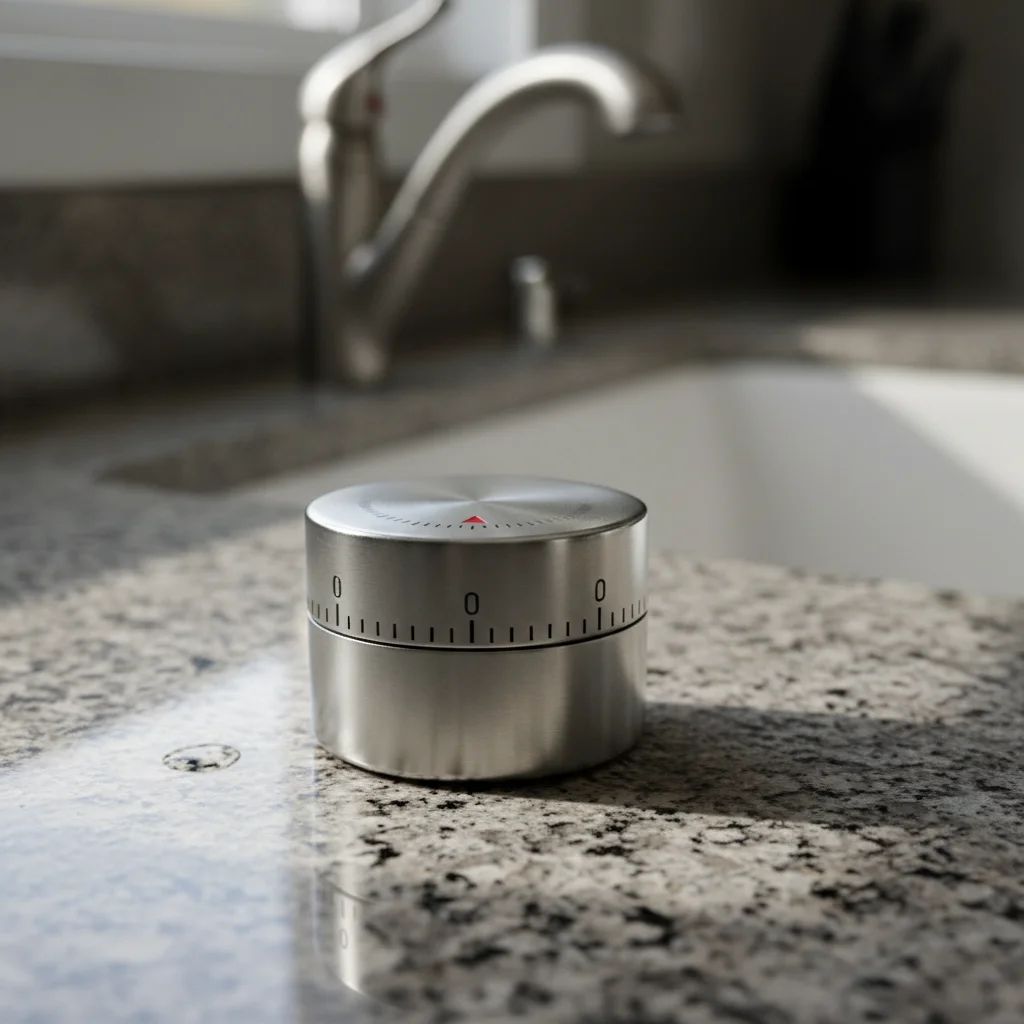
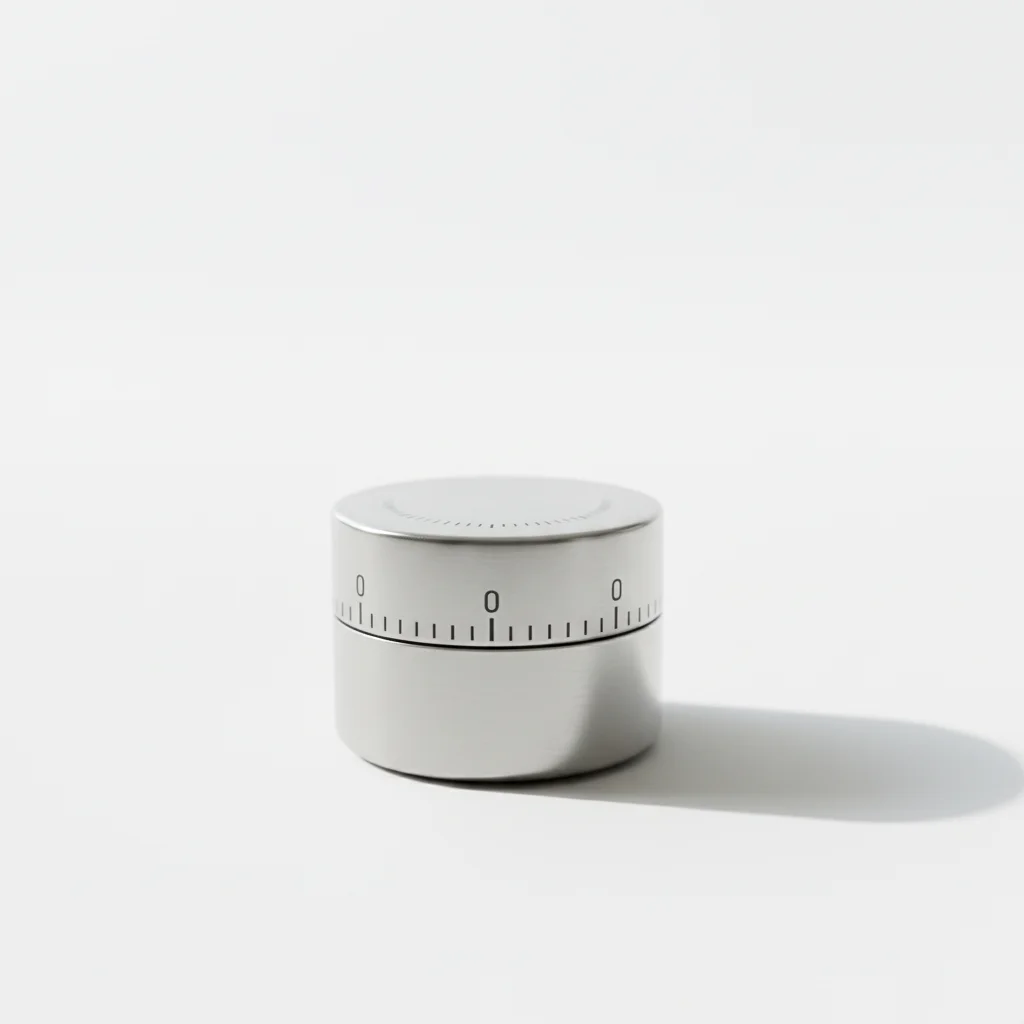
Drop your photo here
or click to browse
Release to upload
Free • No signup
"I sell phone accessories and black products are a nightmare to photograph. EditThisPic handles the edges perfectly and the metallic finishes look great." @TechSellerMark
Built for Electronics Sellers
Electronics are among the most photographically challenging products on Amazon. Black gadgets blend into backgrounds, glossy surfaces catch every reflection, screens show fingerprints, and complex shapes with ports and buttons make clean background removal difficult. EditThisPic understands these challenges and delivers clean product isolation while preserving the premium metallic and glossy finishes that make electronics look professional.
Tools for Electronics Product Photos
Remove Background
Clean isolation of complex electronics shapes on pure white
Remove Reflection
Remove room reflections from screens and glossy surfaces while keeping natural product shine
Enhance Photo
Sharpen product details and make buttons, ports, and features clearly visible
Enhance Lighting
Even out lighting on reflective surfaces to show product shape without hotspots
Create Amazon Electronics Product Photos
-
Clean and photograph your product
Clean your product with a microfiber cloth to remove fingerprints and dust. Photograph on any clean surface - EditThisPic will handle the background. Use diffused lighting to minimize hotspots on glossy surfaces. Multiple angles are better than one.
Matte-finish electronics: 20 seconds. Highly reflective or all-black products: may need 2 refinement passes. -
Replace background and fix reflections
Type 'replace background with pure white RGB 255,255,255, preserve metallic and glossy product finish, remove environmental reflections from screen, clean professional electronics photography.' This addresses the three main electronics photo challenges in one prompt.
For all-black products, add 'maintain clear edge definition between black product and white background' to prevent edge blending. -
Clean up surface imperfections
If fingerprints, dust, or scratches are visible, follow up with 'remove fingerprints, dust, and smudges from product surface while keeping the natural product finish.' For screens, add 'clean screen to look brand new.'
Tap markers directly on visible fingerprints or dust spots for targeted removal without affecting the rest of the product. -
Download multiple angle shots
Download and process photos from multiple angles: front view, side profile, back with ports visible, close-up of key features. Electronics shoppers want to see every port, button, and detail before purchasing.
Must-have angles for electronics: front, back (showing ports), side profile (showing thickness), and any LED indicators or displays.
Electronics Photo Prompts
replace background with pure white RGB 255,255,255, preserve metallic and glossy product finish, remove environmental reflections, clean professional electronics product photography
Works for most electronics products. Handles the three main challenges: background, reflections, and finish preservation.
replace background with pure white, maintain crisp edge definition on black product, preserve matte/glossy black finish, clear separation between product and white background
Black products need extra attention at the edges. This ensures the product doesn't blend into or contrast harshly with white.
replace background with pure white, clean screen to show no fingerprints or reflections, slight screen glow to show it is a display, premium device photography
For devices with screens, a subtle screen glow or gentle gradient suggests the screen is active without showing content.
replace background with pure white, enhance small product details, make connectors and features clearly visible, professional macro product photography quality
Small accessories need extra sharpening. Shoppers zoom in to see connector types and build quality.
Show 4 more prompts
remove all fingerprints, smudges, and dust from product surface, restore clean factory-new appearance while keeping natural material finish
A quick cleanup pass that makes any electronics product look brand new and unhandled.
replace background with pure white, preserve LED light colors and glow effects, make indicator lights visible and vibrant, professional product photography
LED indicators are often a selling point. Keeping them visible and vibrant adds to the premium feel.
replace background with pure white, enhance port details and labels to be clearly visible at zoom, show all connectivity options crisply, professional back view
Port close-ups are one of the most zoomed-in images for electronics. Make every port identifiable.
replace background with pure white, neatly arrange all included accessories around main product, consistent lighting and finish across all items, professional bundle shot
Show everything that comes in the box. Consistent lighting across all items makes the bundle look premium.
| Edit Type | Prompt | Time | |
|---|---|---|---|
| Standard electronics | white background, preserve finish, remove environmental reflections |
25s | Try This → |
| All-black product | white background, crisp edge definition, preserve black finish |
25s | Try This → |
| Screen device | white background, clean screen, no reflections on display |
25s | Try This → |
| Small accessories | white background, enhance connector details, macro quality |
20s | Try This → |
Electronics Photo Examples
Glossy gadget with controlled reflections
Black glossy electronics gadget with room reflections removed while preserving the premium metallic finish. Clean edge separation on white.
replace background with pure white, preserve glossy finish, remove environmental reflections, professional electronics photography


Clear bottle-style device transparency
Transparent electronics housing showing internal components. Background removed while preserving the see-through design element.
replace background with pure white, preserve transparent housing showing internal components, professional product photography


Cable and accessory detail shot
Small electronics cable with connectors enhanced for clarity. Every port and connector type clearly identifiable at zoom.
replace background with pure white, enhance connector details, professional macro electronics photography
Common Electronics Photo Issues
Black product edges blend into or look harsh against white background
Why: High contrast between black products and white backgrounds can create either blending (AI uncertainty) or harsh, unnatural edges.
maintain clear crisp edge definition between black product and white background, subtle edge highlight to define product boundary naturally
Adding 'subtle edge lighting' gives black products a natural rim light effect that defines their shape against white.
Glossy surface lost all reflections and looks matte
Why: The AI removed all reflections including the natural highlights that give glossy products their premium look.
remove environmental reflections but preserve natural product highlights and glossy shine, maintain premium surface appearance
Specify 'keep natural highlights' vs 'remove environmental reflections.' Natural highlights show product shape; environmental reflections show the room.
Screen shows visible content or reflection that shouldn't be there
Why: The AI may have kept or generated content on a screen that should appear off or neutral.
make screen appear clean and off or show subtle neutral dark display, no visible content or reflections on screen
For powered-off appearance: 'dark neutral screen.' For powered-on: 'subtle screen glow, no specific content.'
Small buttons and ports lost detail after editing
Why: Background removal and reflection cleanup can sometimes soften small details, especially at product edges where ports and buttons are located.
enhance button and port details, sharpen small features, make every connector and control clearly visible at zoom
Run enhancement after background removal. The detail recovery works better as a second pass focused on sharpness.
LED indicator colors look wrong or washed out
Why: Color enhancement or background removal can shift LED colors, especially when they're small bright spots against a dark product body.
restore accurate LED indicator colors, make lights vibrant and true to actual product, preserve colored glow effects
If LED colors shifted, specify the correct color: 'blue power LED' or 'green indicator light' to guide the AI.
Electronics Photo FAQ
How do I photograph black electronics products for Amazon?
Black products are challenging because they absorb light and blend into backgrounds. Use a lightbox or white backdrop with diffused side lighting to create subtle rim light that defines edges. Avoid direct overhead light which creates harsh hotspots on glossy surfaces. After uploading to EditThisPic, request 'clear edge definition on black product against white background.'
Should electronics screens be on or off in listing photos?
For the main image, show the screen off or with a neutral appearance. Secondary images can show the screen active with actual UI if relevant (like a smartwatch showing a watch face). Never show third-party logos or copyrighted content on screens. Many top sellers show screens off for main image and active for secondary shots.
How do I show all the ports and connections clearly?
Dedicate a listing slot to a back/side view specifically highlighting ports. Photograph at a slight angle so all ports are visible. Use 'enhance port details to be clearly visible at zoom level' to ensure shoppers can identify every connection type. This is one of the most zoomed-into images for electronics.
Can I show my electronics product plugged in or charging?
For the main image, show the product standalone. For secondary images, showing the product in use (plugged in, charging, connected to other devices) is excellent because it helps shoppers understand how it's used. Include these as lifestyle shots in Slots 3-5.
How many angles should an electronics listing have?
At minimum: front view (main), back view (ports), side profile (thickness), and a 3/4 angle for overall shape. Ideally add: close-up of key feature, scale reference, and a lifestyle/in-use shot. Electronics shoppers are detail-oriented and will examine every angle.
How do I handle reflective chrome or aluminum finishes?
Chrome and aluminum create mirror-like reflections that pick up the environment. Use diffused lighting during photography, then use EditThisPic to 'remove environmental reflections while preserving natural metallic shine.' The goal is to keep the premium metallic look without showing the room in the reflection.
Create professional electronics photos that look premium
Free to try. No signup. Handle reflections, black products, and complex shapes.
Start Editing