Free β€’ No signup Add Stranger to office photo Β· Free

Add Stranger to Office Photo

Upload your workspace photo. AI adds someone who definitely doesn't work there. Confuse your coworkers.

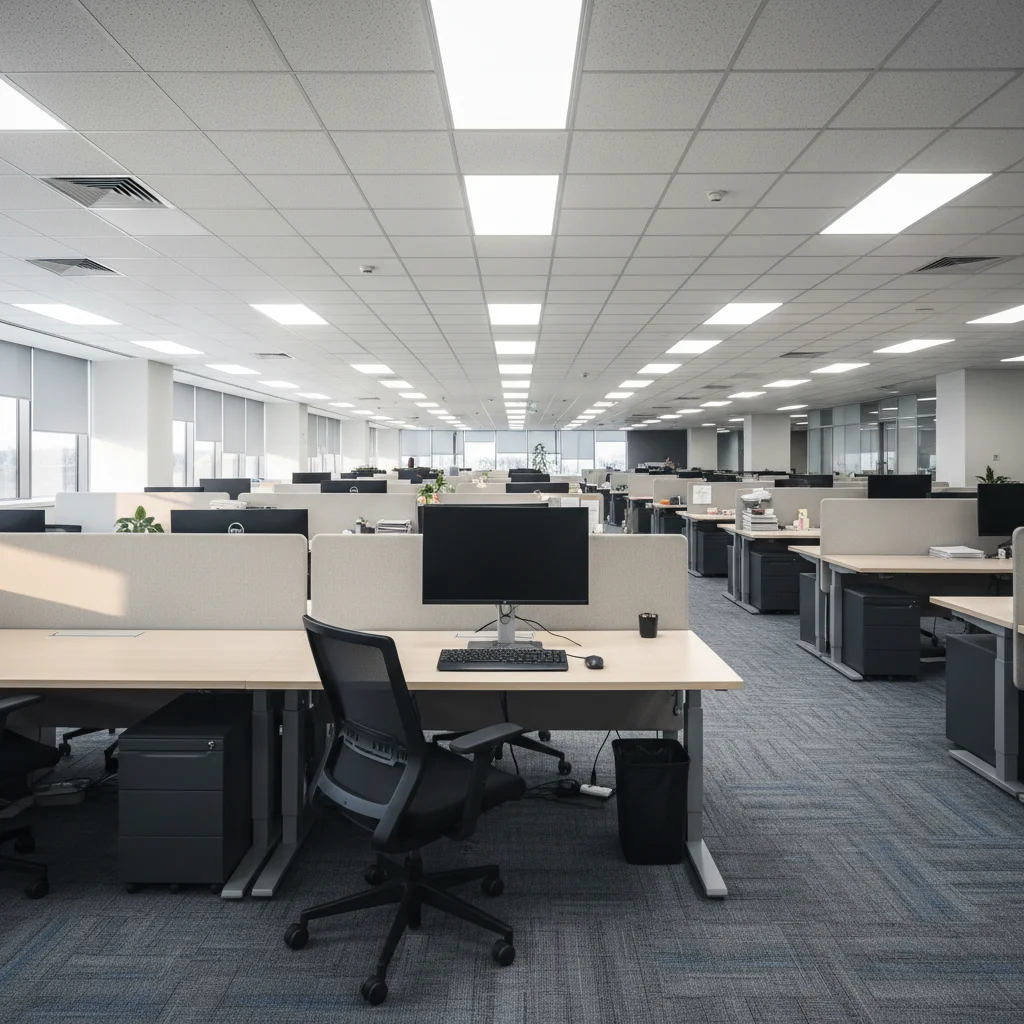
Empty office desk
Before
β†’
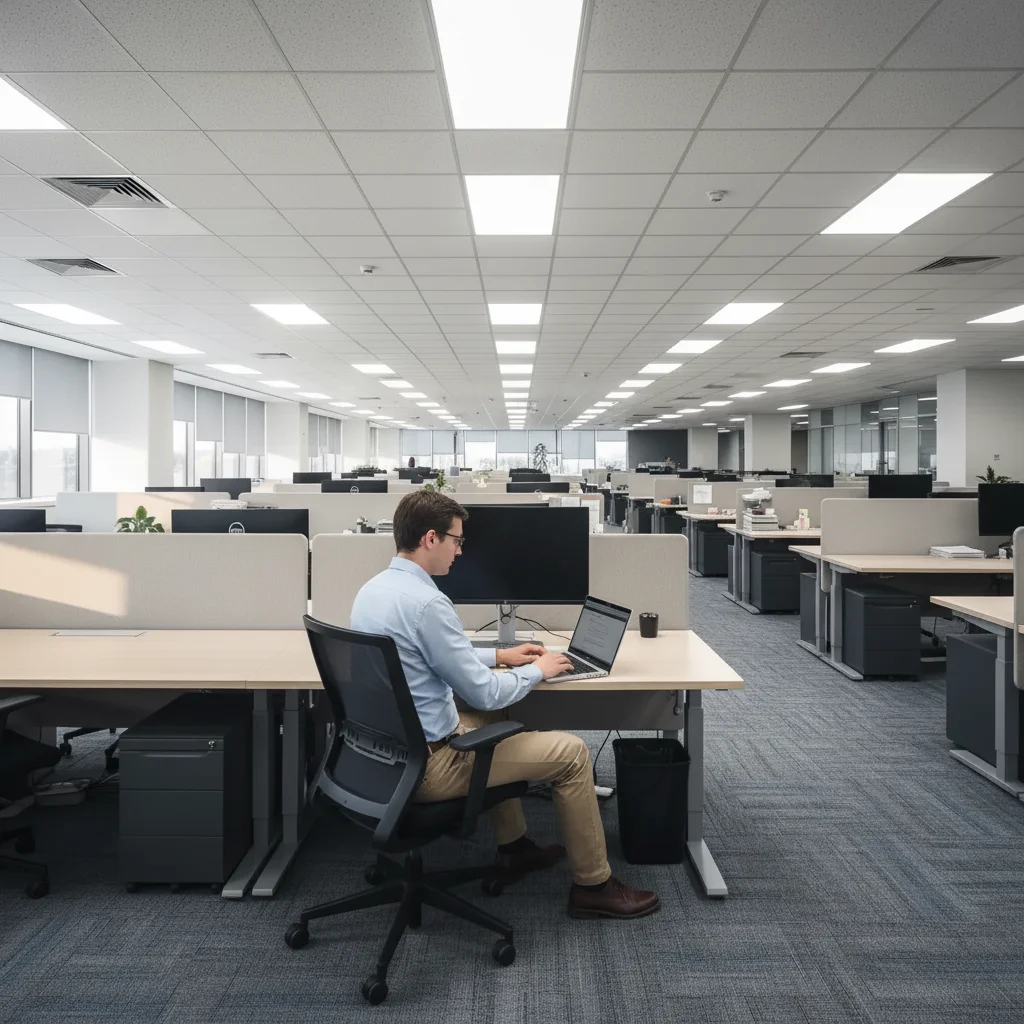
Office desk with AI-added stranger working
After

Add Stranger to Office Photo

Upload photo to add stranger to office photo

Free β€’ Results in 30 seconds β€’ No signup

Release to upload

FreeNo signupNo watermark

1 free edit·then from $1.99

Popular use cases:
  • add stranger to office photo
  • office stranger prank AI
  • add person to workplace photo
  • office prank photo tool

Cost
Free No signup required
Time
Instant results in 15-30 seconds
Works on
Any device - browser, phone, tablet, desktop
Powered by
AI-powered photo editing
Scenario Prompt Time
Desk worker Person in business casual at empty desk, on laptop 30-45 sec
Break room Person eating lunch at break room table 30 sec
Conference room Person in suit at head of conference table 30-45 sec

How it works

  1. Upload your office photo

    Drop a photo of your workplace into EditThisPic. JPG, PNG, WebP up to 7MB. Desks, conference rooms, break rooms, lobbies β€” any work environment.

    Expect: Most edits complete in 20-45 seconds.
  2. Describe the stranger

    Type: 'Add a random person sitting at the empty desk working on a laptop' or 'Add a stranger standing by the coffee machine.' Describe their clothing and what they're doing.

    Tip: Match the dress code. If your office is business casual, describe 'person in khakis and a polo.' The more they blend in, the more confusing the prank becomes.

    Copy one of these to get started:

    New hire nobody knows Add a person in business casual sitting at the empty desk, working on a laptop, looking completely settled in
    Break room stranger Add a random person sitting at the break room table eating lunch from a Tupperware container, looking at their phone
    Conference room interloper Add a person in a suit sitting at the head of the conference table, looking at papers, as if they're about to run a meeting
    Printer area lurker Add a person standing by the printer in the background, looking at a printed document, seeming lost
    2 more prompts
    Wrong floor person Add a person in a completely different dress code β€” like a construction worker in a corporate office β€” standing in the hallway looking confused
    Multiple strangers Add a random person standing at the whiteboard, drawing something, while another person watches from a desk
  3. Send to the group chat

    Check the person blends naturally. Download and post in your work chat with: 'Did anyone meet the new person?' or 'Who is sitting at Dave's desk?'

Try it free ↓

Add Stranger to Office Photo

Upload photo to add stranger to office photo

Free β€’ Results in 30 seconds β€’ No signup

Release to upload

Free β€’ No signup

See it in action

Empty office desk
Before
->
Office desk with AI-added stranger working
After

New hire prank

Office with an AI-added stranger working at an empty desk.

Prompt: Add a person in business casual sitting at the empty desk, working on a laptop
Empty conference room
Before
->
Conference room with AI-added stranger at head of table
After

Conference room authority prank

Conference room with an AI-added stranger sitting at the head of the table.

Prompt: Add a person in a suit sitting at the head of the conference table, looking at papers

If something looks off

Person doesn't match the office dress code

Why: The AI defaulted to generic clothing.

Try: Specify the exact clothing: 'wearing khakis and a blue button-down shirt' or 'in a gray suit'

Tip: Match your actual office dress code for maximum believability.

Person placed at the wrong desk or area

Why: Office has many similar-looking spots.

Try: Tap a marker on the exact desk or area and regenerate

Tip: In open offices, markers are essential for getting the right spot.

Lighting looks off

Why: Office fluorescent lighting can be tricky.

Try: Add 'matching the overhead fluorescent lighting of the office' to your prompt

Tip: Office photos taken during work hours with normal lighting produce the best results.

Person looks too conspicuous

Why: The AI made the person too prominent.

Try: Add 'blending naturally with the office environment, looking like they belong' to your prompt

Tip: The more the stranger blends in, the more confusing the prank is.

Quick answers

What kind of office photos work best?

Any workspace β€” open offices, cubicles, conference rooms, break rooms, home offices. Photos with empty desks or chairs give the AI a natural place to put the stranger.

Is this free?

Yes, one free edit per week, no signup. Credit packs start at $1.99.

Can I make the stranger look like they belong?

Yes β€” describe clothing that matches your office dress code. The AI generates a person who blends in naturally. The prank works best when coworkers think 'who is this person?' not 'that's obviously fake.'

Will there be a watermark?

No, EditThisPic never adds watermarks.

Does this work on mobile?

Yes, fully works in any mobile browser.

How much does EditThisPic cost?

You get 1 free edit per week β€” no account needed. After that, credit packs start at $1.99 for 3 edits. Monthly plans start at $4.99/mo for 15 edits with unused credits rolling over. All edits are full resolution with no watermark.

Ready to confuse your coworkers?

Free to try. No signup required.

1 free edit included·Credit packs from $1.99