Free β€’ No signup Add Intruder to office photo Β· Free

AI Boss Prank Office Intruder

Upload your office photo. AI adds a mysterious figure in the background. Send to your coworkers.

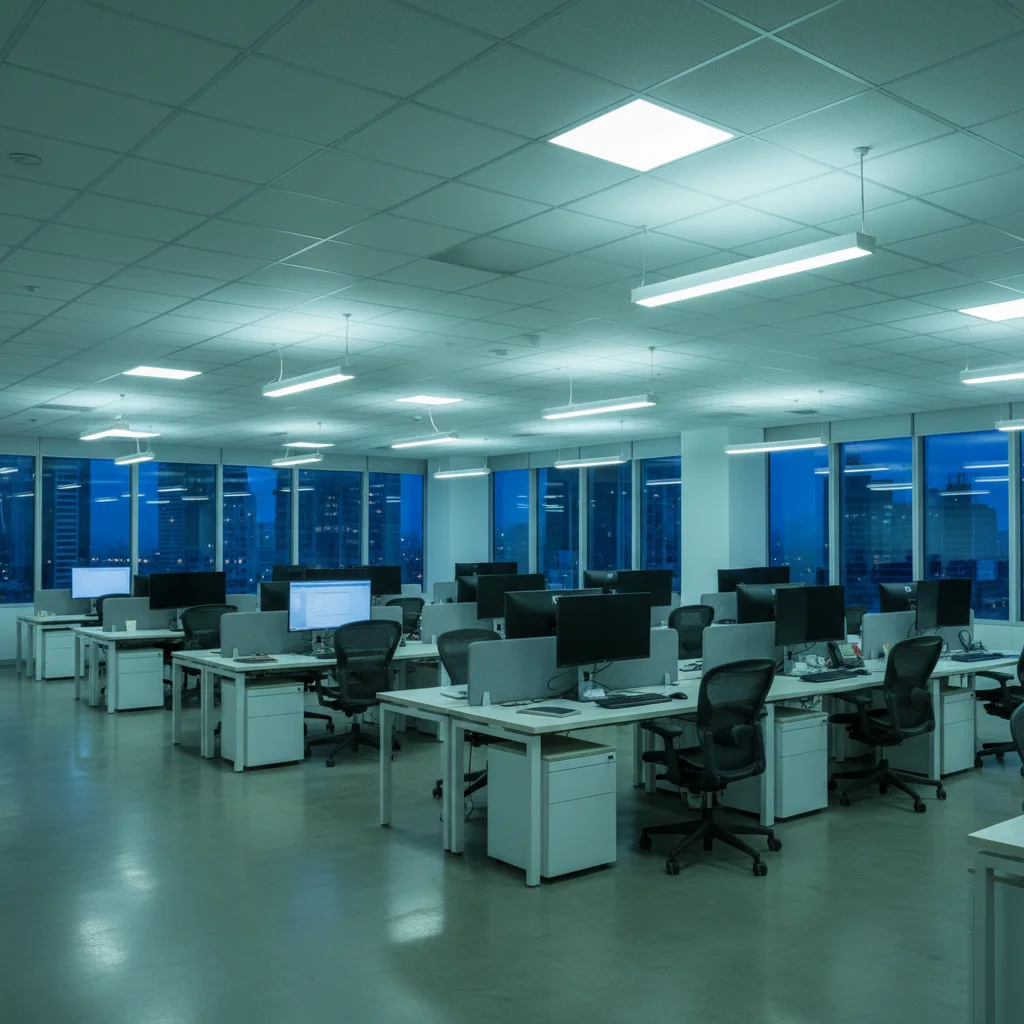
Empty office before prank
Before
β†’
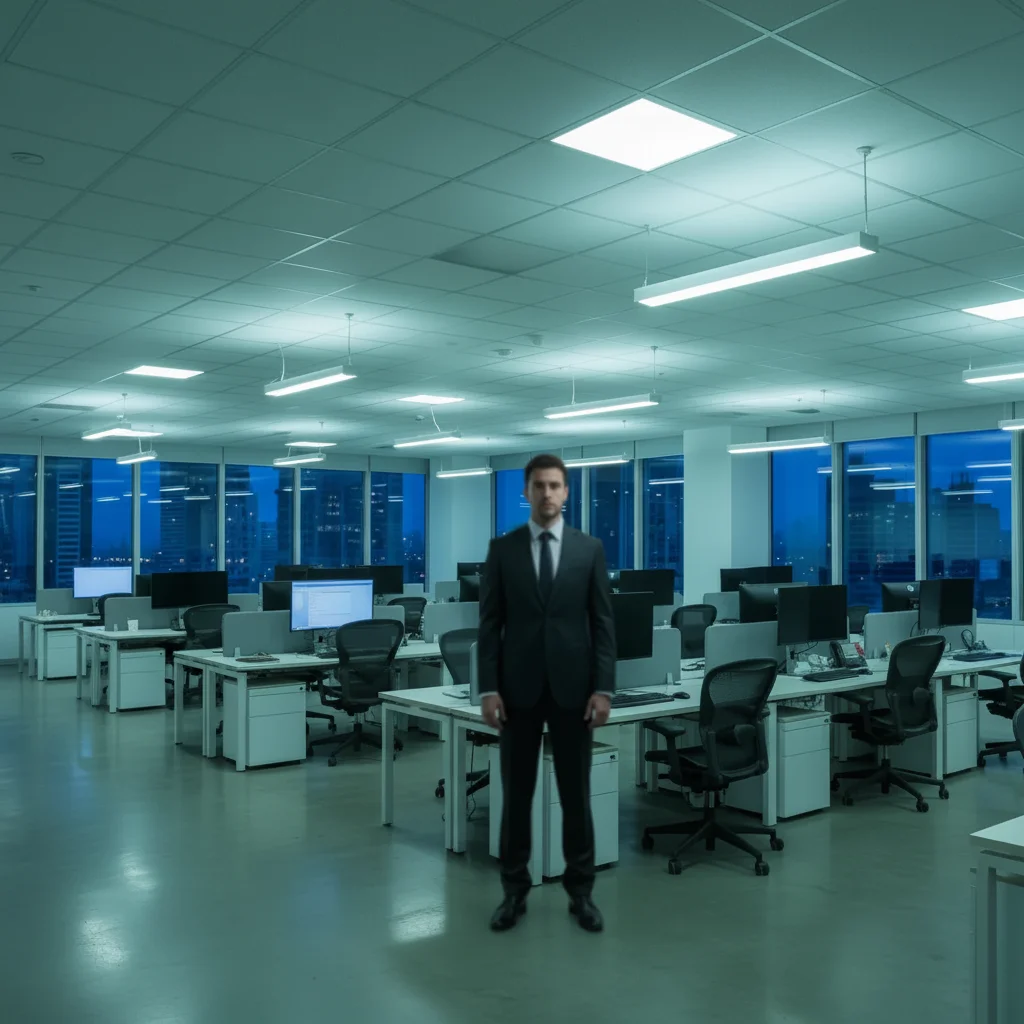
Office with AI-added mysterious figure in background
After

AI Boss Prank Office Intruder

Upload photo to add intruder to office photo

Free β€’ Results in 30 seconds β€’ No signup

Release to upload

FreeNo signupNo watermark

1 free edit·then from $1.99

Popular use cases:
  • office intruder prank photo
  • AI boss prank photo
  • add stranger to office photo
  • office prank photo generator

Cost
Free No signup required
Time
Instant results in 15-30 seconds
Works on
Any device - browser, phone, tablet, desktop
Powered by
AI-powered photo editing
Scenario Prompt Time
Background starer Person in suit standing motionless in background 30-45 sec
Cubicle peeker Face peeking over cubicle wall 30-45 sec
Glass wall lurker Figure visible through conference room glass 30-60 sec

How it works

  1. Upload your office photo

    Drop a photo of your workspace into EditThisPic. JPG, PNG, WebP up to 7MB. Open offices, cubicle areas, conference rooms, and home offices all work.

    Expect: Most edits complete in 20-45 seconds.
  2. Describe the office intruder

    Type what you want: 'Add a person in a suit standing motionless in the background staring at the camera' or 'Add someone peeking over a cubicle wall.' Describe the creep factor you want.

    Tip: Subtle placement in the background is scarier than front-and-center. 'Barely visible behind the monitor' or 'reflected in the glass door' makes coworkers look twice.

    Copy one of these to get started:

    The staring figure Add a person in a dark suit standing motionless in the background of the office, staring directly at the camera, slightly out of focus
    Peeking over cubicle Add a person's face peeking over the top of a cubicle wall in the background, just their eyes and forehead visible
    Conference room creeper Add a shadowy figure visible through the glass conference room wall, standing in the dark room watching
    After-hours intruder Add a person in casual clothes standing by the office entrance in the background, holding a bag, as if they don't belong there
    2 more prompts
    IT guy prank Add a person crouching under a desk in the background, half-visible, as if they're doing something to the cables
    Reflection in monitor Add a person's reflection visible in a turned-off monitor screen, standing behind the photographer
  3. Drop it in the group chat

    Check the figure blends with the office environment. Download and send to your work group chat with: 'Does anyone know who this is in our office?' or 'Look at the background of this photo...'

Try it free ↓

AI Boss Prank Office Intruder

Upload photo to add intruder to office photo

Free β€’ Results in 30 seconds β€’ No signup

Release to upload

Free β€’ No signup

See it in action

Empty office before prank
Before
->
Office with AI-added mysterious figure in background
After

Office background figure

Office photo with an AI-added figure standing motionless in the background.

Prompt: Add a person in a dark suit standing motionless in the background, staring at the camera, slightly out of focus
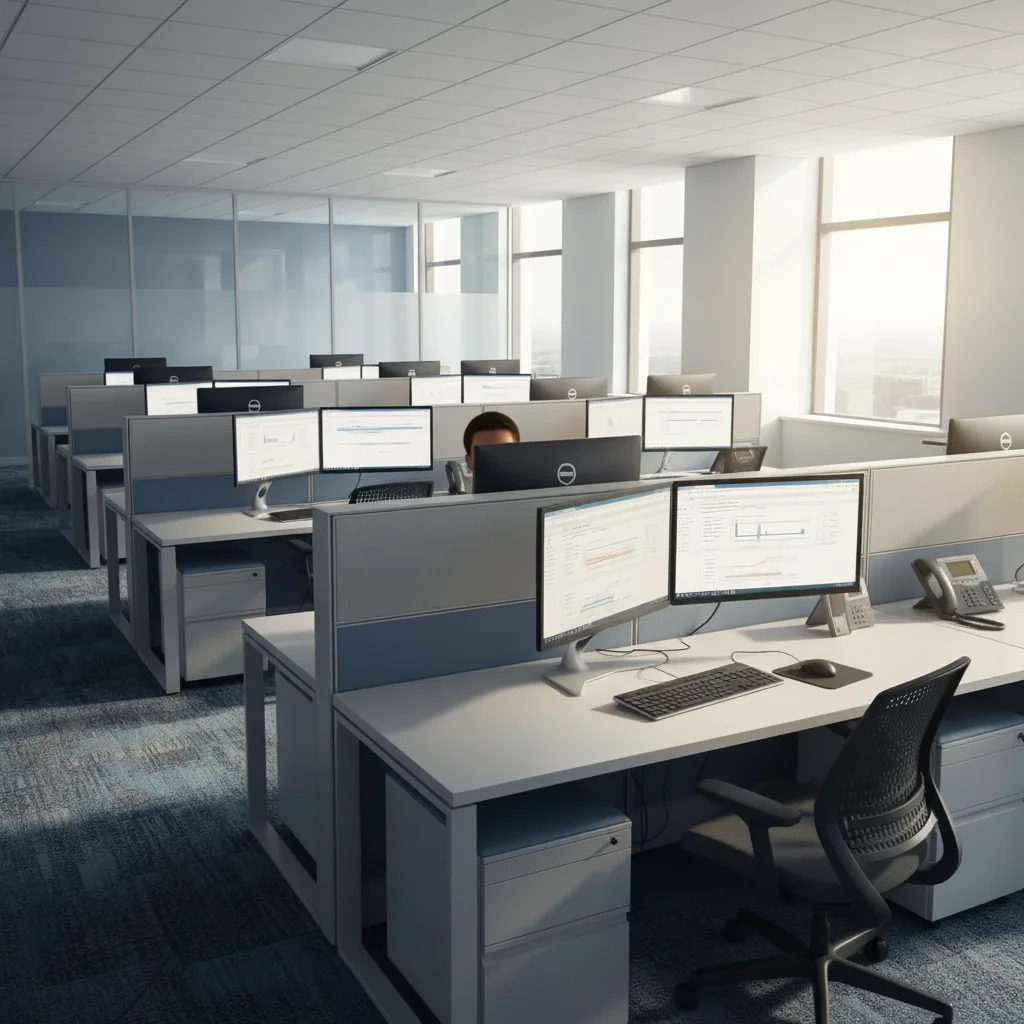
Empty cubicle area
Before
->
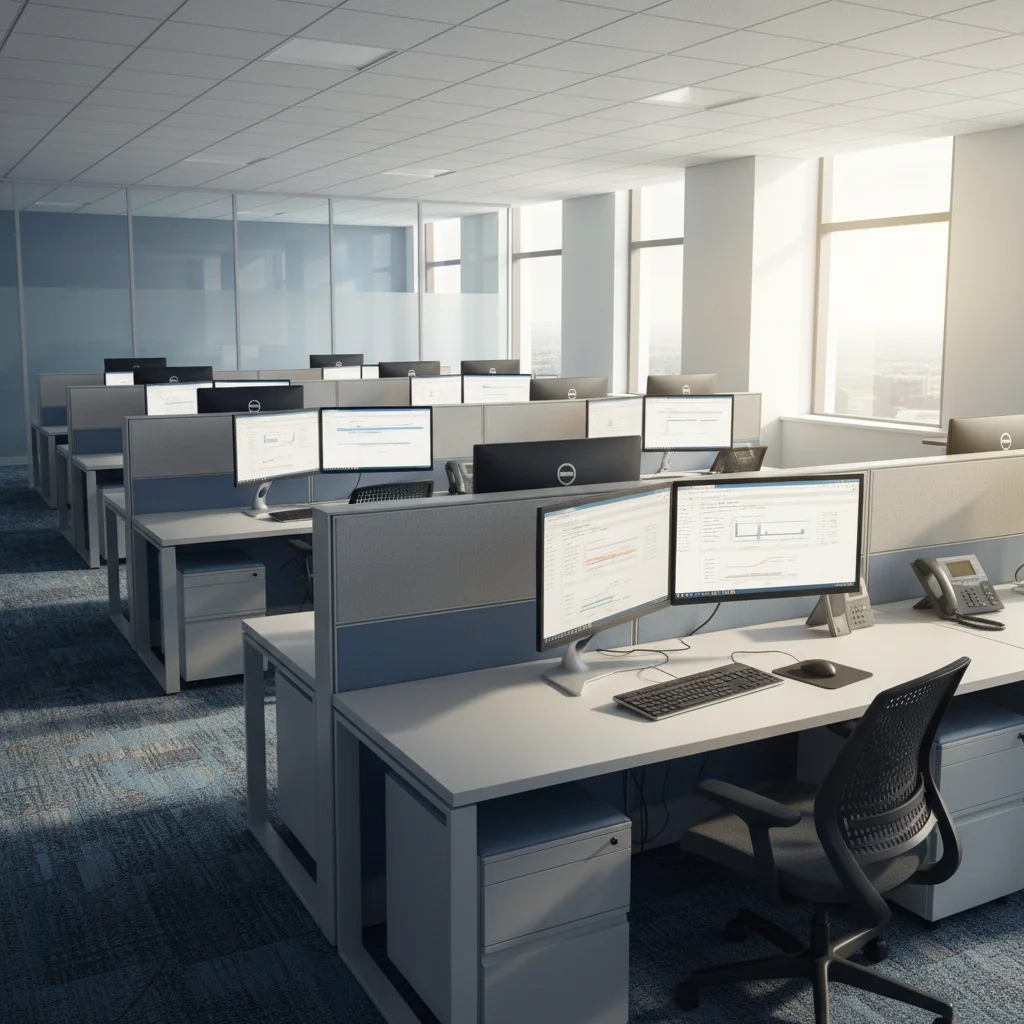
Cubicle area with AI-added face peeking over wall
After

Cubicle peeker

Open-plan office with someone peeking over a cubicle wall.

Prompt: Add a person's face peeking over the top of a cubicle wall in the background

If something looks off

Figure is too prominent β€” not subtle enough

Why: The AI placed the figure in the foreground instead of the background.

Try: Add 'in the far background, slightly out of focus, barely noticeable at first glance' to your prompt

Tip: The best office pranks are subtle β€” the figure should require a second look to spot.

Person doesn't match office environment

Why: The AI generated someone in inappropriate clothing for an office.

Try: Specify office attire: 'wearing a dark business suit' or 'in casual office clothes'

Tip: Matching the dress code of your actual office makes the figure blend in naturally.

Placed in wrong area of the office

Why: Open offices have many possible spots.

Try: Tap a marker on the exact background spot and regenerate

Tip: Markers work great for precise background placement in busy office photos.

Lighting on the figure doesn't match

Why: Office lighting (fluorescent) can be tricky for the AI.

Try: Add 'matching the overhead fluorescent office lighting' to your prompt

Tip: Mentioning the specific light type (fluorescent, natural from windows) helps the AI match.

Quick answers

What kind of office photos work best?

Any office photo β€” open plans, cubicle areas, conference rooms, home offices. Photos with depth (hallways, glass walls, background areas) give the intruder more places to lurk convincingly.

Is this free?

Yes, one free edit per week, no signup. Credit packs start at $1.99.

Can I use my home office photo?

Yes β€” home offices, co-working spaces, and any workspace photo works. The AI adapts to any indoor environment.

How do I make it look like a real candid photo?

Keep the intruder in the background and slightly out of focus. Describe them doing something subtle β€” standing, watching, peeking β€” rather than something dramatic.

Will there be a watermark?

No, EditThisPic never adds watermarks.

Does this work on mobile?

Yes, fully works in any mobile browser. No app needed.

How much does EditThisPic cost?

You get 1 free edit per week β€” no account needed. After that, credit packs start at $1.99 for 3 edits. Monthly plans start at $4.99/mo for 15 edits with unused credits rolling over. All edits are full resolution with no watermark.

Ready to prank your coworkers?

Free to try. No signup required.

1 free edit included·Credit packs from $1.99