Free • No signup Visualize Room paint colors with AI · Free

AI Room Color Visualizer

Upload your listing photo and describe the improvement. AI visualizes the change instantly.

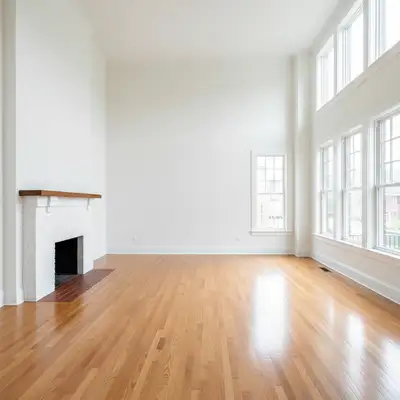
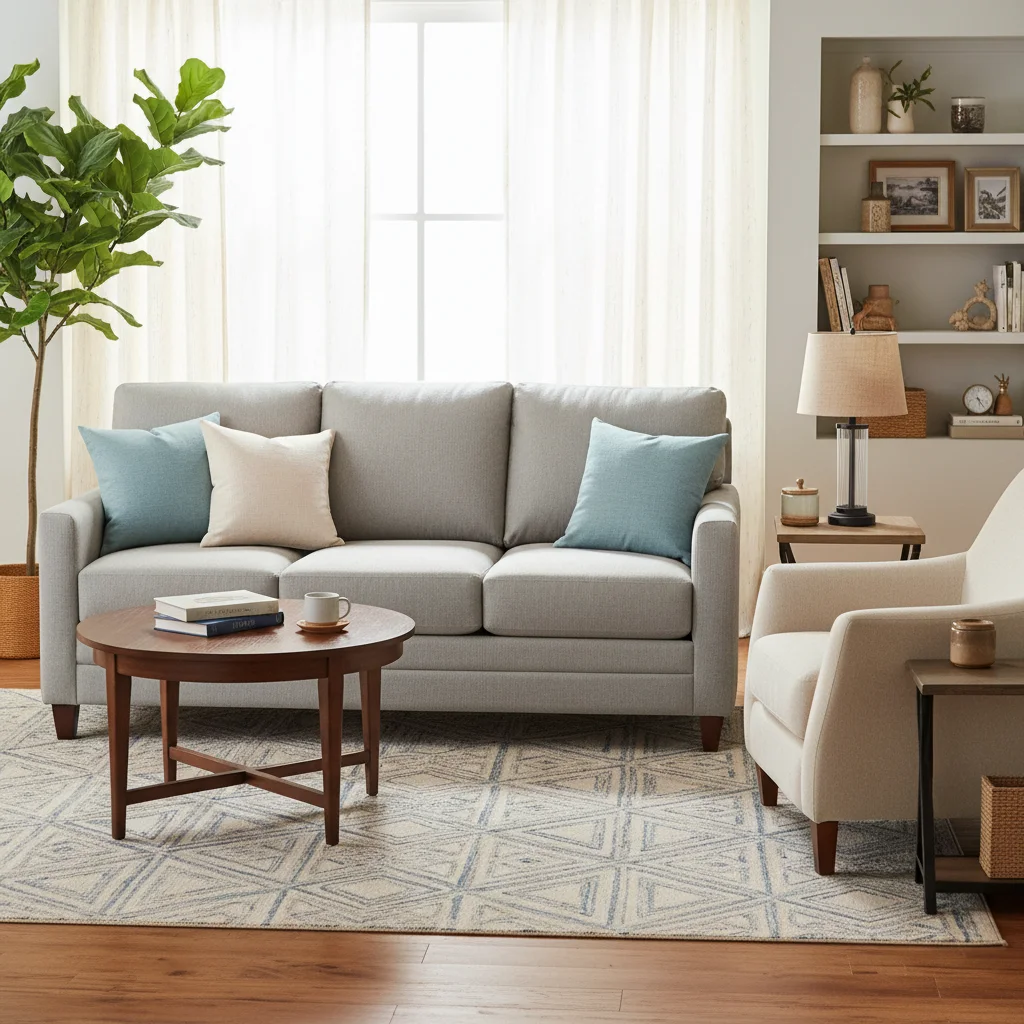
Original photo before visualize room paint colors with AI
Before
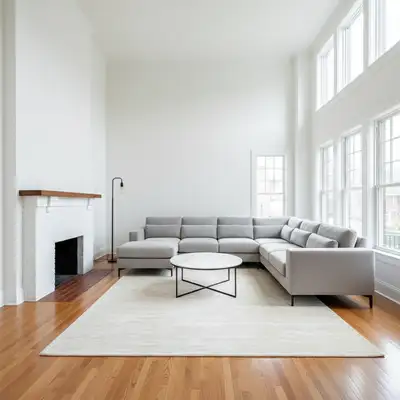
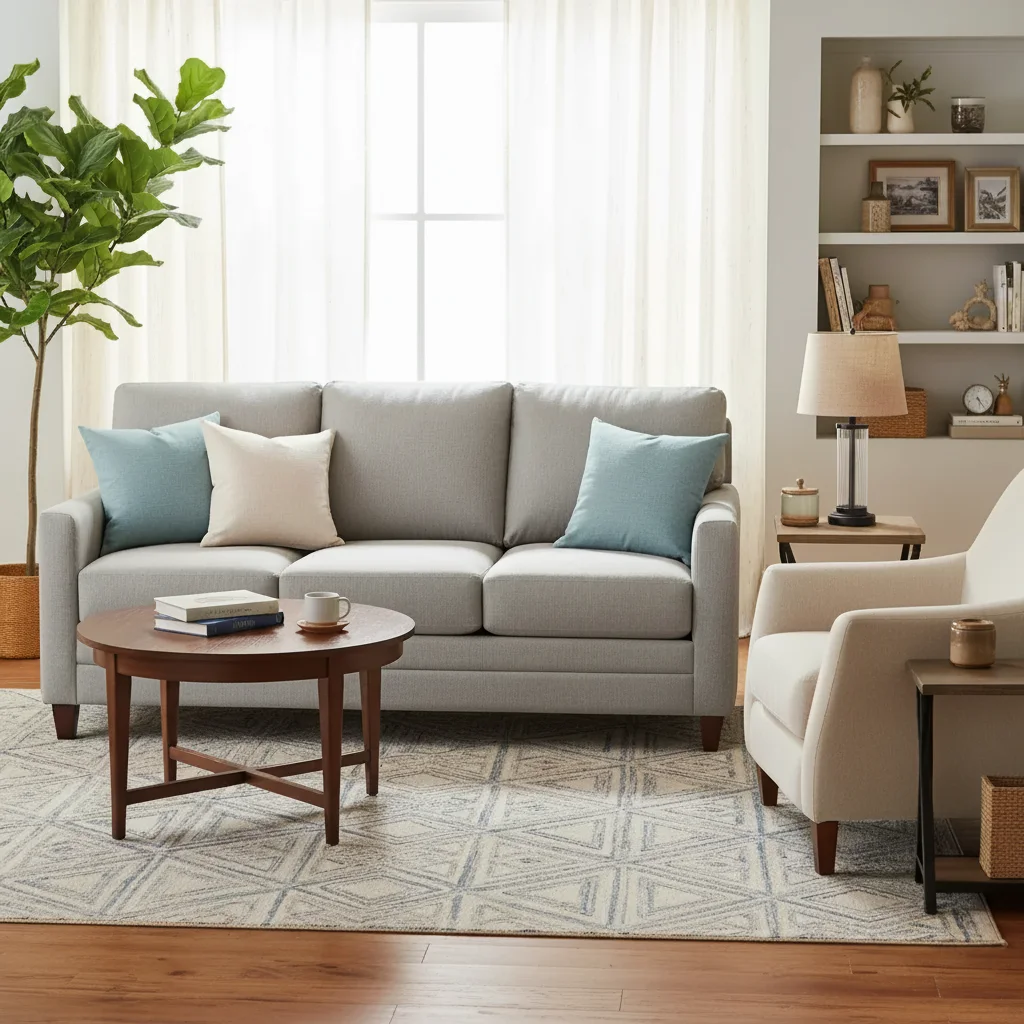
Photo after visualize room paint colors with AI with AI
After

AI Room Color Visualizer Free Online | EditThisPic AI

Drop your photo here

or click to browse

Release to upload

Free • No signup

Popular use cases:
  • visualize room paint colors with AI
  • AI room paint colors with AI editor
  • photo room paint colors with AI tool
  • free room paint colors with AI editing

Cost
Free No signup required
Time
Instant results in 15-30 seconds
Works on
Any device - browser, phone, tablet, desktop
Powered by
AI-powered photo editing

How it works

  1. Upload your photo

    Drop your image into EditThisPic. JPG, PNG, WebP up to 7MB. Choose a clear photo where the area you want to edit is visible.

    Expect: Most edits complete in 20-45 seconds. Complex changes may need 1-2 refinements.
  2. Describe your edit

    Type what you want: 'change the wall color to visualize this paint color in the room.' Be specific about details for best results. The AI understands natural language — no technical skills needed.

    Tip: Mention specific materials and colors — 'stainless steel appliances' gets better results than just 'modern appliances.'

    Copy one of these to get started:

    Room Color Visualizer paint the walls sage green — make it look natural and professional
    Bold accent wall paint the wall behind the sofa deep forest green, keep all other walls white
    Full room recolor change all walls from beige to soft warm gray, preserve the trim, ceiling, and all furniture colors
    Moody dark walls paint the bedroom walls deep charcoal gray for a moody, cozy atmosphere
    2 more prompts
    Coastal blue living room change the walls to a soft coastal blue — think Nantucket fog, light and airy
    Two-tone walls paint the lower half of the wall dark navy and the upper half crisp white with a thin chair rail dividing them
  3. Review the result

    Check the output carefully. Look for natural blending, consistent lighting, and realistic details. Compare before and after using the slider.

  4. Refine if needed

    If specific areas need adjustment, tap markers on those spots and regenerate. Most edits work well on the first try.

    Tip: Markers are optional. Try without them first — the AI usually gets it right.
Try it free

AI Room Color Visualizer Free Online | EditThisPic AI

Drop your photo here

or click to browse

Release to upload

Free • No signup

"Staged an empty listing in 30 seconds. My clients thought I hired a professional photographer." @RealEstateKelly

See it in action

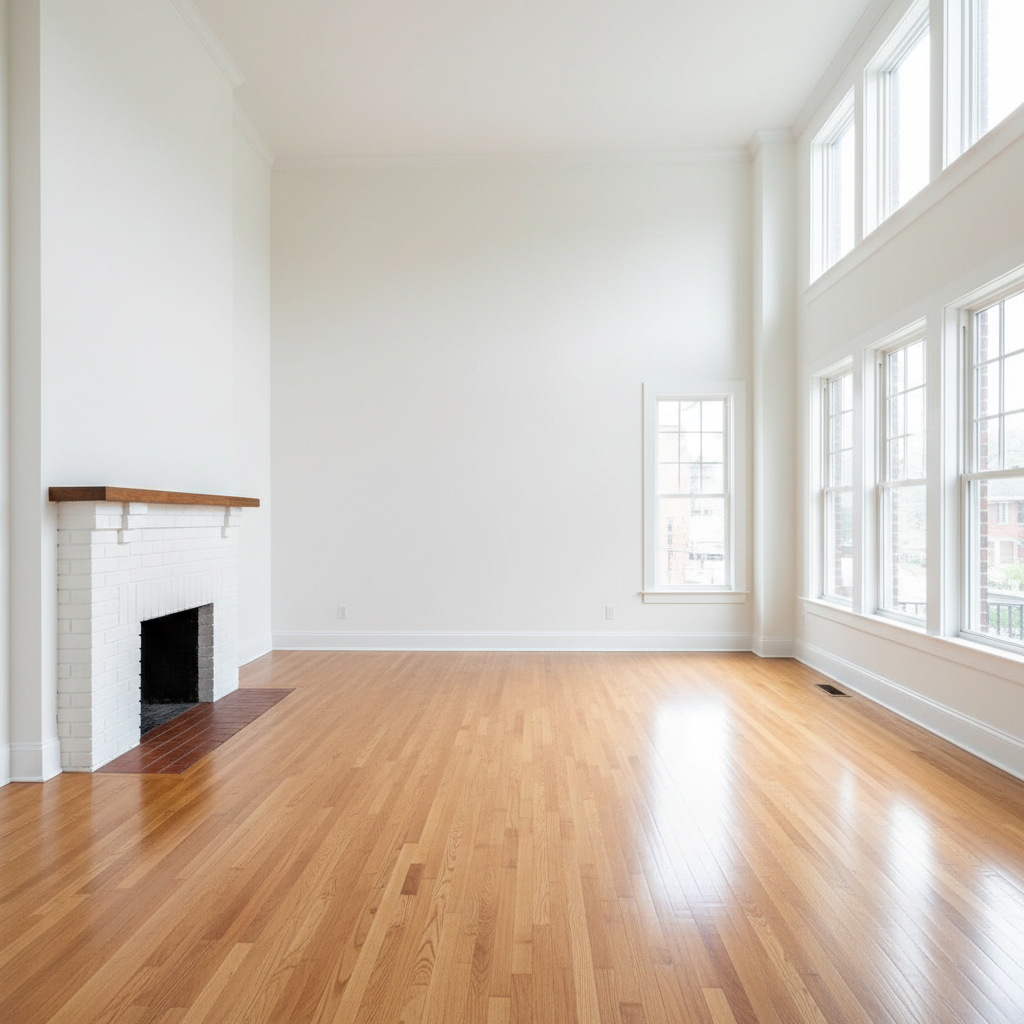
Original photo before visualize room paint colors with AI
Before
->
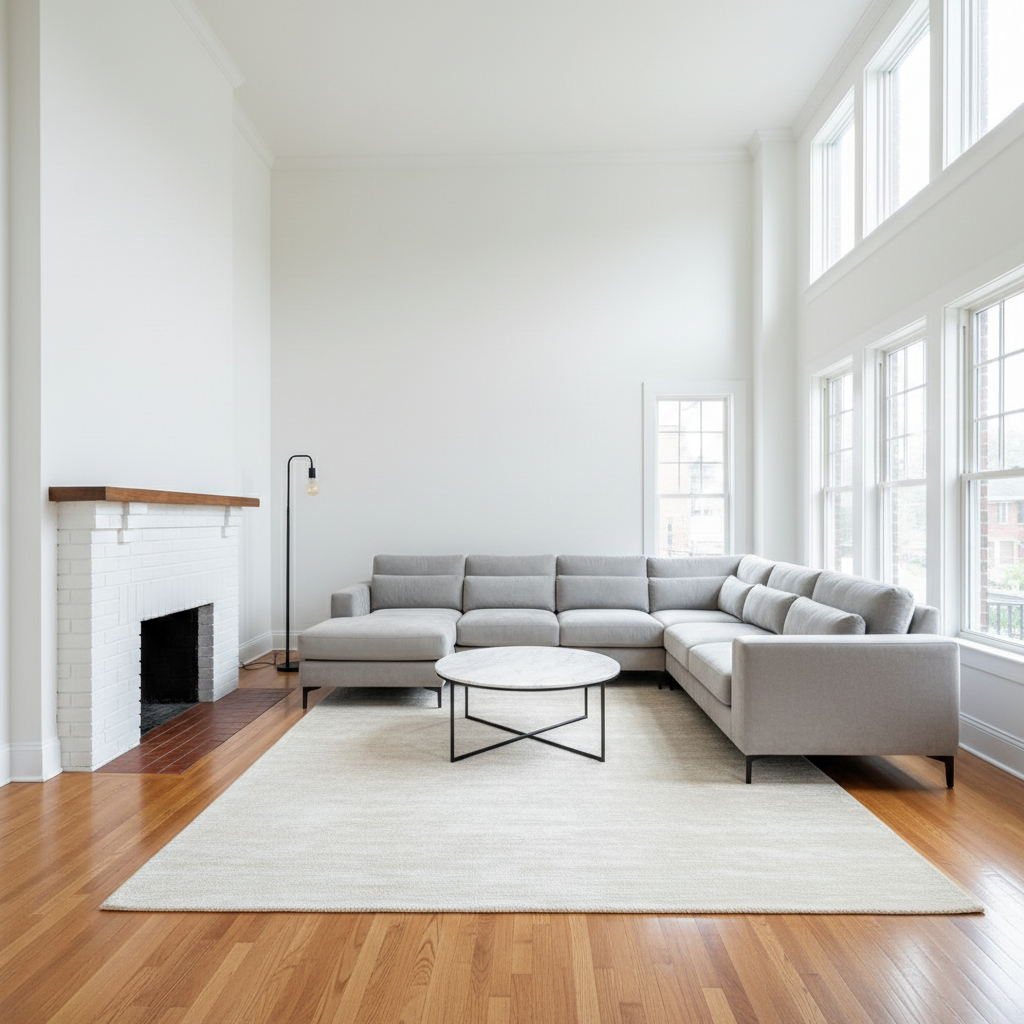
Photo after visualize room paint colors with AI with AI
After

AI Room Color Visualizer — Example 1

A photo edited using EditThisPic to visualize room paint colors with AI.

Prompt: paint the living room walls Sherwin-Williams Alabaster — a warm off-white with creamy undertones
Original photo before visualize room paint colors with AI
Before
->
Photo after visualize room paint colors with AI with AI
After

AI Room Color Visualizer — Example 2

Another example showing a different scenario for this editing task.

Prompt: paint the wall behind the sofa deep forest green, keep all other walls white

Detailed Guides by Scenario

For Real Estate Agents

Common Scenarios

  • Stage empty listings to visualize room paint colors with AI
  • Clean up property photos for MLS

Best Practices

  • Use natural lighting
  • Show rooms from corner angles

For Home Sellers

Common Scenarios

  • DIY listing photos to visualize room paint colors with AI
  • Declutter room shots digitally

Best Practices

  • Photograph in daylight
  • Remove personal items digitally

For Interior Designers

Common Scenarios

  • Client presentations to visualize room paint colors with AI
  • Visualize design changes before renovation

Best Practices

  • Show multiple style options
  • Maintain accurate proportions

If something looks off

New element looks pasted on

Why: The lighting or perspective doesn't match the room.

Try: Regenerate with: 'match the perspective and natural lighting of the room'

Tip: Photos taken straight-on work best for virtual staging and renovation previews.

Wrong room area was modified

Why: The AI couldn't tell which area from description alone.

Try: Tap a marker on the exact wall, floor, or fixture you want changed, then regenerate

Tip: Markers are especially helpful in busy rooms with multiple similar surfaces.

Material or color doesn't look realistic

Why: The AI needs more specific material guidance.

Try: Add material details: 'brushed oak hardwood with matte finish' instead of just 'wood floor'

Tip: Naming the exact material variant produces dramatically more realistic textures.

Proportions look off

Why: The AI estimated the size of the new element incorrectly.

Try: Specify dimensions or reference existing objects: 'standard-size refrigerator matching the cabinet height'

Tip: Referencing something already in the photo gives the AI a scale anchor.

Quick answers

Can I visualize paint colors in my room for free?

Yes. Upload a photo of your room to EditThisPic and describe the color — 'paint the walls sage green' or 'try warm white.' The AI visualizes the color on your walls instantly. Free, no signup or credit card.

How accurate is the AI room color visualizer?

The AI produces realistic previews that account for your room's existing lighting, shadows, and textures. Results are close enough to confidently choose a paint color — much better than paint swatches alone.

Can I try multiple paint colors before deciding?

Yes. Each edit is independent. Upload the same photo multiple times with different color descriptions to compare options side by side before committing to a purchase.

Do I need to mark the walls before visualizing?

No marking required. Describe which walls to change in plain English — 'paint the accent wall,' 'change the left wall,' or 'all walls.' The AI identifies the correct surfaces automatically.

Can I use specific paint brand color names?

Yes. The AI recognizes common paint brand colors by name — 'Benjamin Moore Revere Pewter,' 'Sherwin-Williams Sea Salt,' or 'Farrow & Ball Elephant's Breath.' Naming the exact color produces the most accurate preview.

Does it work for dark colors like navy or charcoal?

Yes. The AI handles dark colors well, preserving shadows and depth. For very dark colors, make sure your room photo has good lighting so the AI can see the wall texture clearly.

Is this useful for rental properties or staging?

Absolutely. Real estate agents, landlords, and home stagers use EditThisPic to show buyers and renters what a fresh coat of paint would look like — without spending a dime on actual paint.

Will the room color visualizer add a watermark?

No. EditThisPic never adds watermarks, even on free edits. Your color preview downloads clean and ready to share with a painter or designer.

Ready to edit your photos?

Free to try. No signup required.

Try it free