Upgrade Depop Phone Photos to Professional Quality
Last updated
Your phone camera is fine. Your photos just need a 30-second AI upgrade.
Drop your photo here
"upgrade to professional quality: brighten, sharpen details, enhance colors, clean background, Depop-ready"
Release to upload
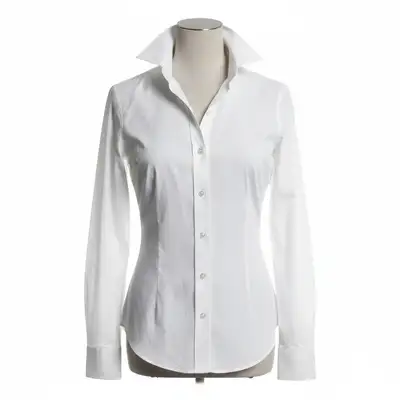
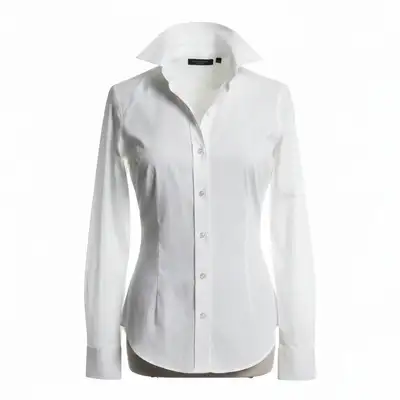
Built for Phone Camera Depop Sellers
Most Depop sellers use their phone - and that's totally fine. The difference between amateur and professional-looking listings isn't the camera, it's the editing. Professional sellers spend time on lighting, color correction, and sharpening. EditThisPic does all three in one prompt, turning any phone photo into a listing that competes with DSLR-quality shots.
Tools for Phone Photo Enhancement
Replace Background
Swap plain walls for pastel gradients, chrome surfaces, and Y2K aesthetic backdrops
Add Filter
Apply Y2K color grading - soft pinks, chrome tints, and early 2000s disposable camera vibes
Enhance Colors
Boost pastels and make Y2K color palettes pop in listings
Enhance Lighting
Create soft, diffused Y2K lighting instead of harsh phone flash
How to Use the Upgrade Depop Phone Photos to Professional Quality
-
Upload your Y2K piece
Drop your photo into EditThisPic. Any phone photo works - JPG, PNG, WebP up to 7MB.
Quick background swap: 25-30 seconds. Y2K filter + background combo: 45-60 seconds. -
Describe your Y2K aesthetic
Type what you want: 'upgrade to professional quality: brighten, sharpen details, enhance colors, clean background, Depop-ready' or customize for your specific needs.
Use Y2K-specific language: 'baby pink,' 'chrome finish,' 'iridescent shimmer,' 'Bratz doll aesthetic,' 'Paris Hilton vibes' - the AI gets these references. -
Review the Y2K transformation
Check that the aesthetic matches the era without overpowering the item. Colors should be enhanced but still show the actual piece accurately. The Y2K vibe should complement, not compete with your listing.
Compare with top Y2K sellers' feeds - your aesthetic should match that energy without losing product accuracy.
Copy-Paste Prompts for Upgrade Depop Phone Photos to Professional Quality
upgrade to professional quality: brighten, sharpen details, enhance colors, clean background, Depop-ready
This single prompt addresses the four biggest phone photo issues at once
sharpen all details, enhance fabric texture, make every detail crisp and clear, professional sharpness
Phone cameras often produce soft images - AI sharpening reveals detail buyers need to see
fix indoor lighting to bright and natural, remove yellow cast, even illumination, no harsh shadows
Most phone photos are taken indoors with bad lighting - this fixes the #1 issue
enhance colors to be vibrant and true to life, the item is more colorful in person than this phone photo shows
Phone cameras often mute colors - let AI restore what your eyes actually see
Show 4 more prompts
remove harsh flash, replace with soft even lighting, natural-looking shadows, no hot spots or washed areas
Flash photos look amateurish - soft even lighting looks professional
fix blurry areas, sharpen throughout, stabilize any motion blur, make the entire item tack sharp
Slight motion blur is common with phone cameras - AI can recover lost detail
transform into studio-quality product photo: even bright lighting, sharp details, clean background, professional
Describe the end result you want - the AI handles the technical details
clean up mirror selfie: remove phone from reflection, straighten perspective, enhance lighting and sharpness
Mirror selfies are popular on Depop but need cleanup to look intentional
| Edit Type | Prompt | Time | |
|---|---|---|---|
| All-in-one upgrade | brighten, sharpen, enhance colors, professional quality |
15s | Try This → |
| Fix soft details | sharpen all details, enhance texture, crisp and clear |
15s | Try This → |
| Fix bad lighting | bright natural light, remove yellow cast, even illumination |
15s | Try This → |
| Studio quality | studio-quality: even lighting, sharp, clean background |
25s | Try This → |
Real Upgrade Depop Phone Photos to Professional Quality Transformations


Indoor phone photo to professional listing
A jacket photographed with an iPhone under bedroom lighting. AI enhancement made it look like it was shot in a studio.
upgrade to professional quality: brighten, sharpen, enhance colors, remove yellow cast, Depop-ready listing
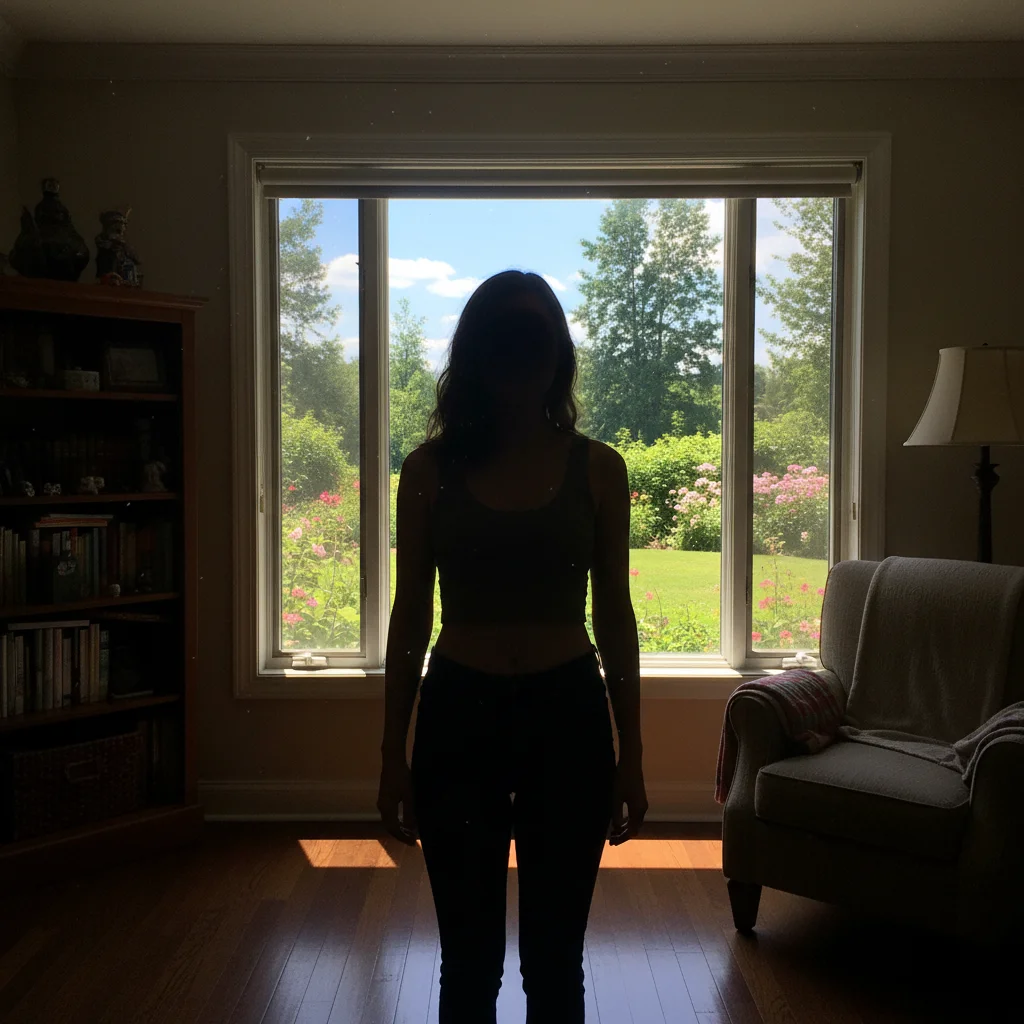
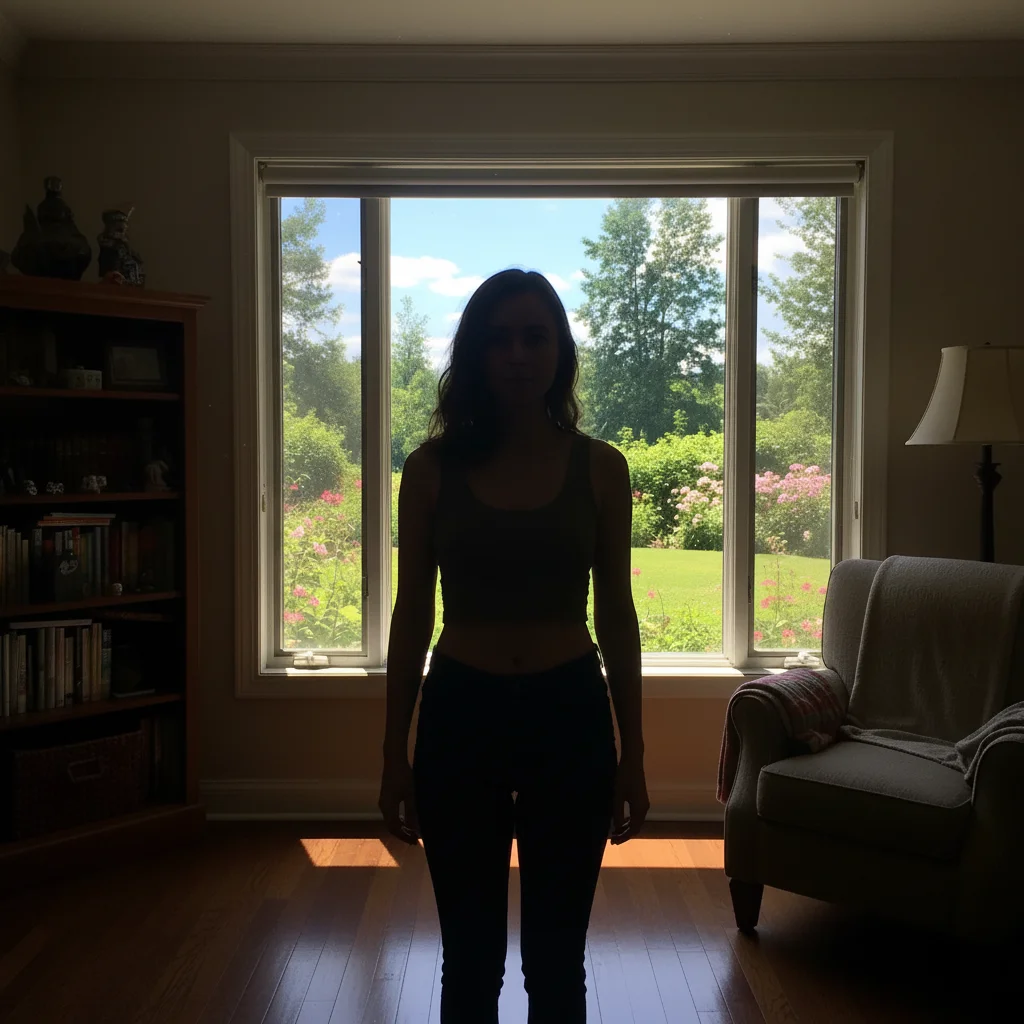
Dark phone photo brightened
A pair of shoes photographed at night. AI lighting fix made the colors and details pop.
brighten significantly, enhance to natural daylight quality, sharpen details, make colors vivid


Blurry phone photo sharpened
A slightly blurry phone photo of a bag. AI sharpening revealed all the texture and detail.
sharpen all details, enhance texture, make stitching and material crisp and clear
Common Issues
Enhancement made the photo look over-processed
Why: Applying too many enhancements at once can create an artificial look.
enhance naturally: subtle brightness boost, gentle sharpening, keep it looking like a real photo
Add 'natural-looking' or 'subtle' to tone down the enhancement.
Sharpening added noise/grain to the photo
Why: Phone cameras in low light produce noise, and sharpening can amplify it.
sharpen the item details but reduce noise and grain in the background, clean and smooth
Fix lighting first, then sharpen. Better lighting reduces the need for aggressive sharpening.
Colors look oversaturated after enhancement
Why: Color boost on already-warm phone photos can over-saturate.
enhance with natural, true-to-life colors, avoid oversaturation, the item should look like it does in person
Compare enhanced photo with the actual item. If colors don't match, dial back with 'natural colors'.
Still looks like a phone photo despite enhancement
Why: Some issues (bad angle, poor composition) can't be fixed with AI enhancement alone.
enhance lighting, sharpen, clean background, crop to center the item, professional composition
Retake at eye level, arm's length, with natural window light. Then AI handles the rest.
Phone flash left a bright spot on reflective items
Why: Flash creates hot spots on shiny materials like patent leather, metal, or satin.
remove flash hot spot, even out lighting across the entire item, soft natural illumination
For reflective items, turn off flash and use window light. AI can fix the rest.
Frequently Asked Questions
Will Upgrade Depop Phone Photos to Professional Quality output meet marketplace photo rules — plain background, no watermarks?
Yes. By default the AI returns a clean, marketplace-ready image on a plain background with no logos or watermarks. For stricter listings, add 'pure white background, centered product, no shadows.' Each pass takes 20-45 seconds. Free first edit per week, no signup.
What phone camera settings should I use before editing?
Use your phone's standard camera (not portrait mode), tap to focus on the item, and shoot in the highest resolution available. Natural window light is ideal. The AI handles the rest - lighting, colors, sharpness.
Is it worth buying a camera for Depop or should I just use AI?
For most Depop sellers, phone + AI editing is more than enough. A DSLR only makes sense if you're doing high-volume professional photography. Your time is better spent on listing more items than learning camera settings.
How do I keep photos consistent across my Depop shop?
Use the same AI prompt for all your listings. Save a prompt like 'brighten, sharpen, enhance colors, clean white background' and apply it to every photo. Consistency makes your shop look curated and professional.
Will AI editing change how my items actually look?
Good AI editing enhances what's there - better lighting reveals true colors, sharpening shows real details. It shouldn't change the item itself. Always compare your enhanced photo with the actual item to ensure accuracy.
My phone is older - will AI still help?
Yes. AI enhancement is actually most impactful on older phone cameras because they have more room for improvement. Lower resolution photos benefit greatly from sharpening and lighting fixes.
Can I depop phone on my phone?
Yes. EditThisPic works in any mobile browser — iPhone, Android, tablet. No app download needed.
What photo formats does the AI upgrade depop phone photos to professional quality support?
JPG, PNG, WebP, and HEIC. Upload any common photo format and EditThisPic handles the rest.
Popular use cases
Ready to fix your Depop photos?
Better photos = more likes, more saves, more sales. Free to try, no signup.
Start Editing Your PhotosTrusted by 15,000+ users