Fix Dark eBay Product Photos
Last updated
Brighten dark garage and basement product photos for eBay listings in seconds. Professional lighting from any environment.
Drop your photo here
"brighten photo and enhance lighting, natural even illumination, show all product details clearly"
Release to upload
Built for eBay Sellers with Poor Lighting
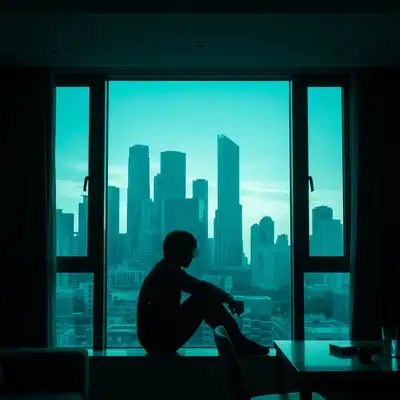
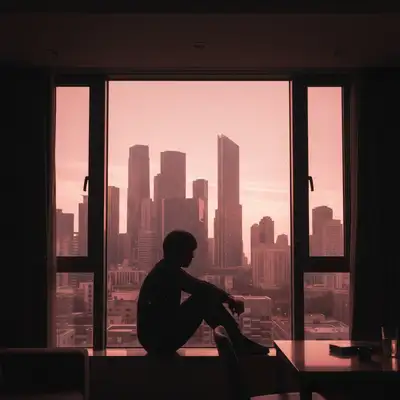
Most eBay sellers photograph where they store inventory - garages, basements, storage units. These spaces have terrible lighting. EditThisPic brightens your photos to look like they were shot in a professional studio. Bright, well-lit photos get more bids and higher prices because buyers can actually see what they are buying.
Tools for Fixing Dark eBay Photos
Enhance Lighting
Brighten dark photos with natural-looking illumination
Fix Dark Photo
Recover details from severely underexposed shots
Enhance Photo
Overall quality improvement including brightness and clarity
Remove Shadow
Clean up harsh shadows from flash or single light source
Fix Dark eBay Product Photos
-
Upload your dark product photo
Drop your underexposed photo into EditThisPic. JPG, PNG, and WebP up to 7MB. Even very dark photos can be recovered - the AI finds details hidden in shadows.
Simple brightening: 15 seconds. Severely dark photos with detail recovery: may need 2 passes. -
Ask the AI to brighten and enhance
Type 'brighten photo and enhance lighting, show all product details clearly' and the AI illuminates your product. It adds natural-looking light without washing out colors or hiding condition details.
Add 'preserve condition wear marks' for vintage items to ensure honest representation stays visible after brightening. -
Check detail visibility
Verify that all product details are now clearly visible. Check condition-relevant areas like labels, serial numbers, and wear marks. Dark photos sometimes reveal surprises when brightened.
Zoom in on text and serial numbers - they should be readable now. If not, run a second pass focused on sharpness.
Dark Photo Fix Prompts
brighten photo and enhance lighting, natural even illumination, show all product details clearly
Works on most dark photos regardless of how underexposed they are.
brighten dark garage photo, add natural daylight-quality lighting, professional product photography
Mentioning the specific environment helps the AI apply the right type of correction.
remove harsh flash shadows, replace with soft even lighting, natural look
Flash creates hard shadows. This replaces them with soft, professional illumination.
recover all details hidden in shadows, brighten evenly, preserve color accuracy
For severely underexposed photos where product details are barely visible.
Show 4 more prompts
brighten photo while preserving vintage patina and authentic wear, natural warm lighting
Vintage items need honest representation even after brightening.
brighten underexposed photo, maintain vibrant accurate colors, no washed-out appearance
Prevents the common issue of colors looking faded after brightening.
even out lighting across entire product, fill in shadow areas, consistent brightness
For photos where one side is lit and the other is in shadow.
brighten all items in photo evenly, professional lighting across entire frame, consistent illumination
For lots or bundles photographed together in poor light.
| Edit Type | Prompt | Time | |
|---|---|---|---|
| General brightness fix | brighten photo and enhance lighting, show all details clearly |
15s | Try This → |
| Garage/basement shot | brighten dark garage photo, add natural daylight-quality lighting |
20s | Try This → |
| Flash shadow cleanup | remove harsh flash shadows, soft even lighting |
15s | Try This → |
| Recover shadow details | recover details hidden in shadows, brighten evenly |
20s | Try This → |
Dark Photo Fix Examples
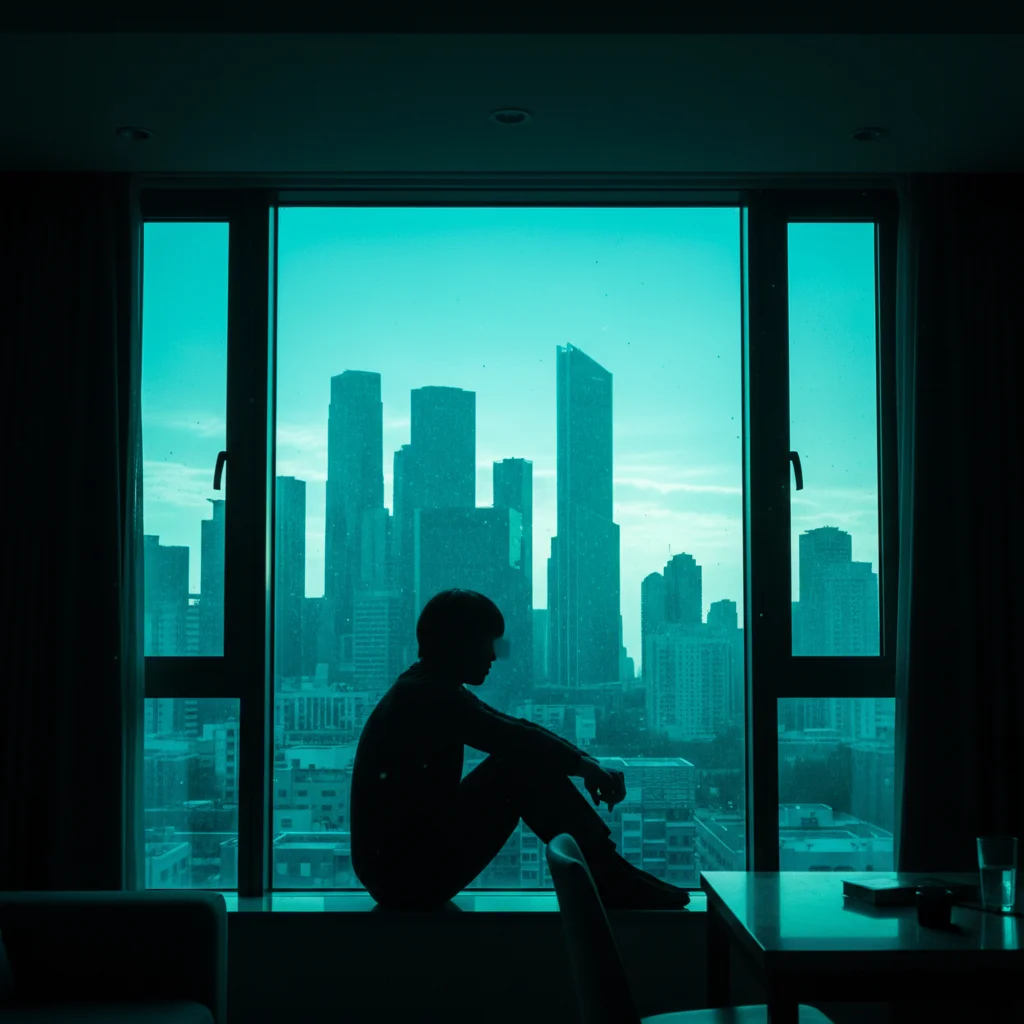
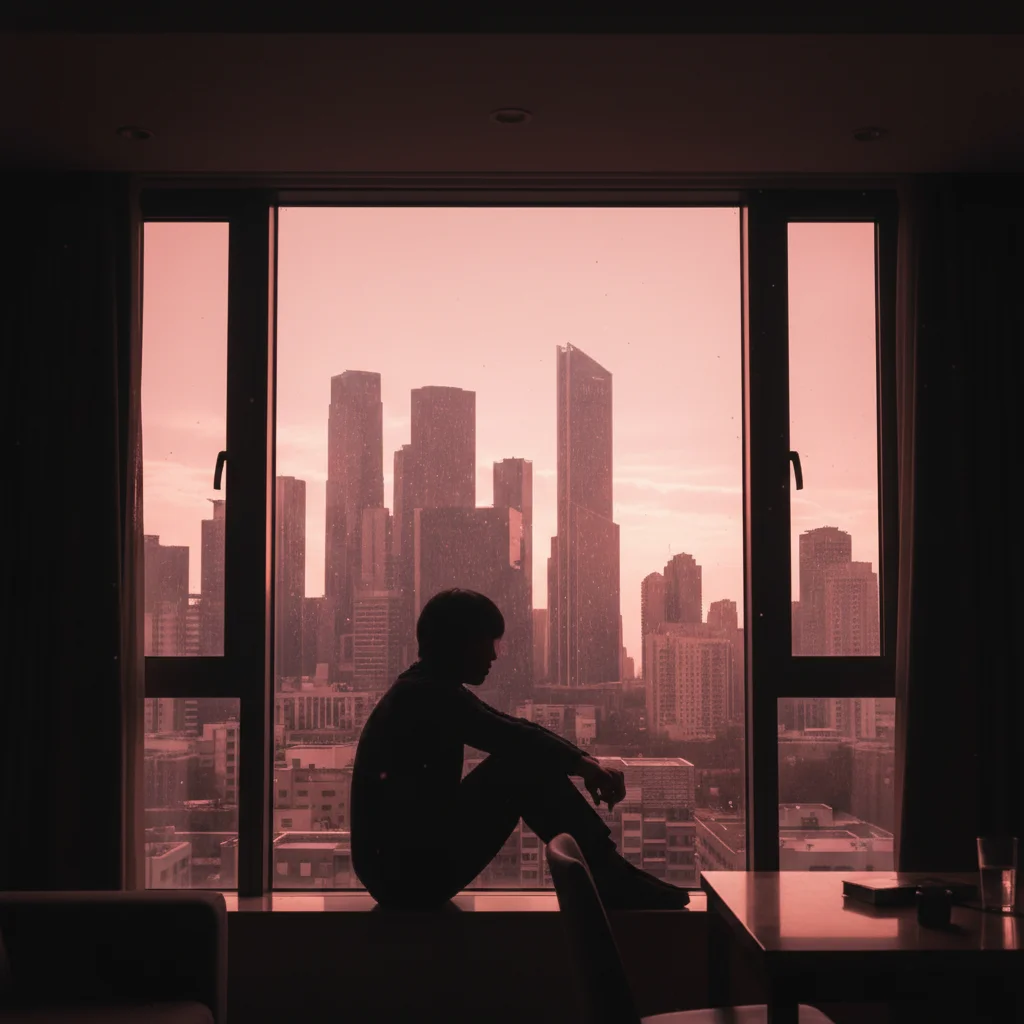
Garage product photo brightened
Dark product photo taken in poorly lit garage. AI brightened to professional studio quality.
brighten photo and enhance lighting, natural even illumination, show all product details clearly
Basement storage shot recovered
Nearly invisible product in dark basement storage. AI recovered all hidden details.
Flash shadow cleanup for listing
Harsh flash shadows removed and replaced with even professional lighting.
Common Dark Photo Issues
Brightened photo looks washed out or faded
Why: Over-brightening can desaturate colors and make the photo look flat. The AI needs guidance to maintain color vibrancy.
brighten photo while maintaining vibrant accurate colors, no washed-out appearance, rich natural tones
Add 'maintain vibrant colors' or 'preserve color accuracy' to prevent the washed-out look.
Brightening revealed more clutter in background
Why: Dark photos hide messy backgrounds. When brightened, the clutter becomes visible.
Run brightening first, then a second pass to clean up the now-visible background.
Flash hotspots became more prominent after brightening
Why: If the original photo had flash, those bright spots get even brighter when the overall image is lightened.
Address flash hotspots specifically by asking to 'balance exposure' rather than just 'brighten'.
Colors look different from actual item after brightening
Why: Artificial lighting in the original photo plus AI correction can shift colors away from reality.
If color accuracy is critical, photograph the item next to a white sheet of paper as a color reference.
Dark eBay Photo Questions
How dark of a photo can be fixed?
Very dark photos can usually be recovered. The AI finds details hidden in shadows that you cannot even see on screen. However, completely black areas with zero data cannot be recovered. If you can see even faint outlines, the AI can usually brighten them.
Will brightening hide condition issues I need to disclose?
Not if you are specific. Add 'preserve condition wear marks' or 'honest condition documentation' to your prompt. The AI will brighten the photo while keeping scratches, dents, and wear visible for honest representation.
Should I use flash or just let EditThisPic fix the darkness?
Skip the flash - it creates harsh shadows and hotspots that are harder to fix than simple darkness. Take the photo in whatever available light you have, then let the AI handle the brightening evenly.
Can I fix photos taken in a completely dark storage unit?
If there is any light at all captured in the photo, the AI can enhance it. Photos taken with your phone's screen as the only light source can usually be recovered. Completely pitch-black photos with no detail at all cannot be fixed.
Will this work on dark photos taken years ago?
Yes. The AI processes whatever image you upload regardless of when it was taken. Old dark photos from flip phones or early digital cameras can be brightened and enhanced.
Is it better to brighten first or remove background first?
Brighten first. The AI needs to see the product details to accurately separate it from the background. Once the photo is well-lit, background removal works much better.
Is EditThisPic's AI fix dark ebay product photos really free?
Yes — you get 1 free edit per week, no account needed. Plans start at $4.99/month for 15 edits.
Can I ebay photos on my phone?
Yes. EditThisPic works in any mobile browser — iPhone, Android, tablet. No app download needed.
Popular use cases
Ready to fix your dark eBay product photos?
Free to try. No signup required. Professional lighting in seconds.
Start EditingTrusted by 15,000+ users