Enhance Face from Photo
Just type 'enhance the face' and watch the AI bring out every detail.
Type 'enhance the face' or 'improve facial clarity and detail' and EditThisPic's AI sharpens eyes, smooths skin, and brings out natural features in 15-30 seconds. No selection tools, no marking required. The AI knows what a face is. Works on selfies, profile photos, group shots, and old photos. Free, no signup needed.
How it works
Upload your photo
Drop your image into EditThisPic. JPG, PNG, and WebP up to 7MB work best. Portrait photos and selfies work great, but group shots and old scanned photos also enhance well.
Describe the enhancement you want
Type what you need: 'enhance the face' or 'improve facial clarity and detail' or 'sharpen eyes and smooth skin naturally.' That's it. The AI understands faces—no marking, no selecting. Most enhancements work on the first try.
Copy one of these to get started:
enhance the face with sharper eyes, natural skin smoothing, and improved facial definition
improve facial clarity and detail, sharpen eyes and eyebrows while keeping natural skin texture
enhance face for professional headshot, brighten eyes, even skin tone, subtle natural smoothing
enhance and restore facial features, improve clarity and detail in face, reduce noise while sharpening eyes
3 more prompts
enhance face, reduce grain and noise while preserving facial detail, sharpen eyes and improve skin clarity
enhance eyes with sharper detail and subtle catchlights, brighten the iris while keeping natural color
enhance all faces in the photo with improved clarity, sharper eyes, and natural skin smoothing
Generate and review
Tap generate and examine the result at full zoom. Check eye sharpness, skin texture, and facial definition. Make sure the enhancement looks natural—you want improvement without the 'over-processed' look.
Refine with markers if needed
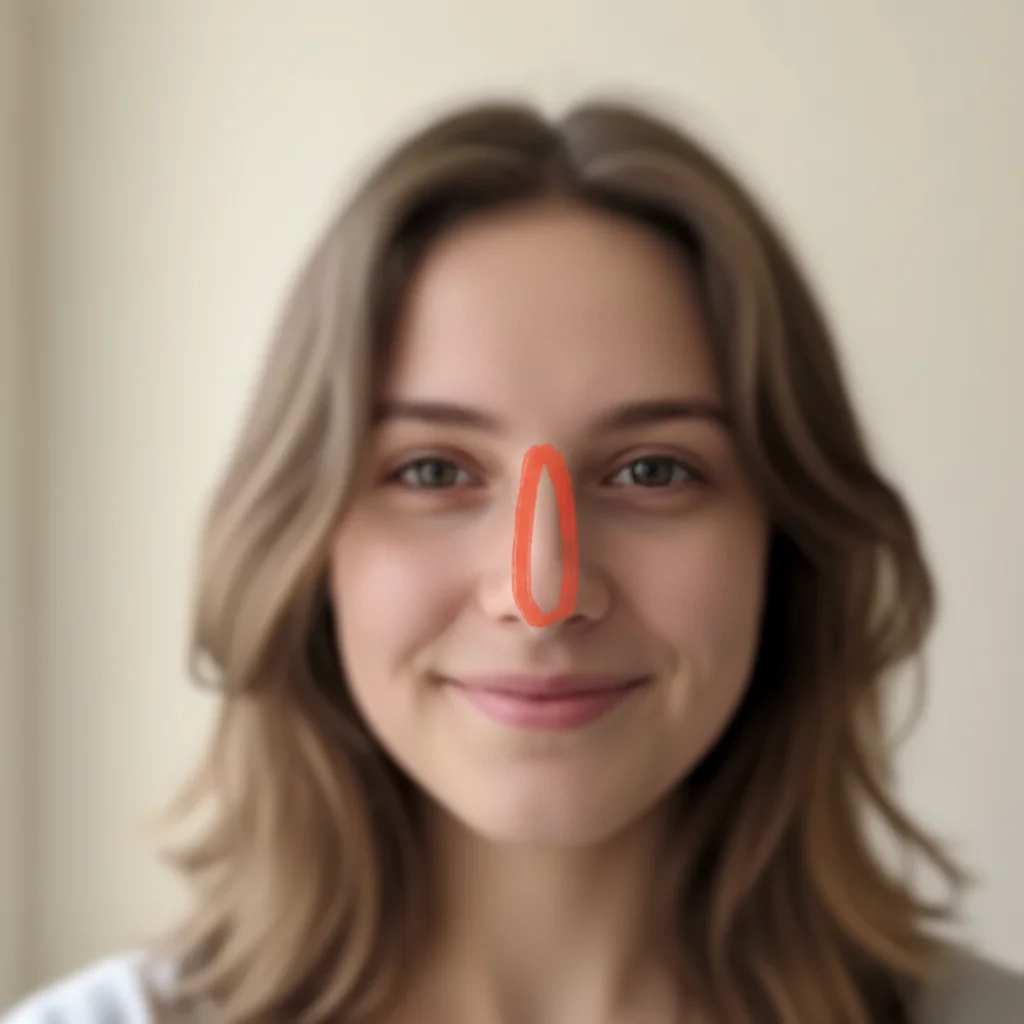
If the AI enhanced the wrong face in a group shot, or you want to target specific features, tap markers on those areas and regenerate. This precision step is optional—single portraits rarely need markers.
"My LinkedIn headshot looked like it was taken with a potato. One prompt later and I actually look professional." @CareerCoachMike
See it in action
Soft selfie to sharp portrait
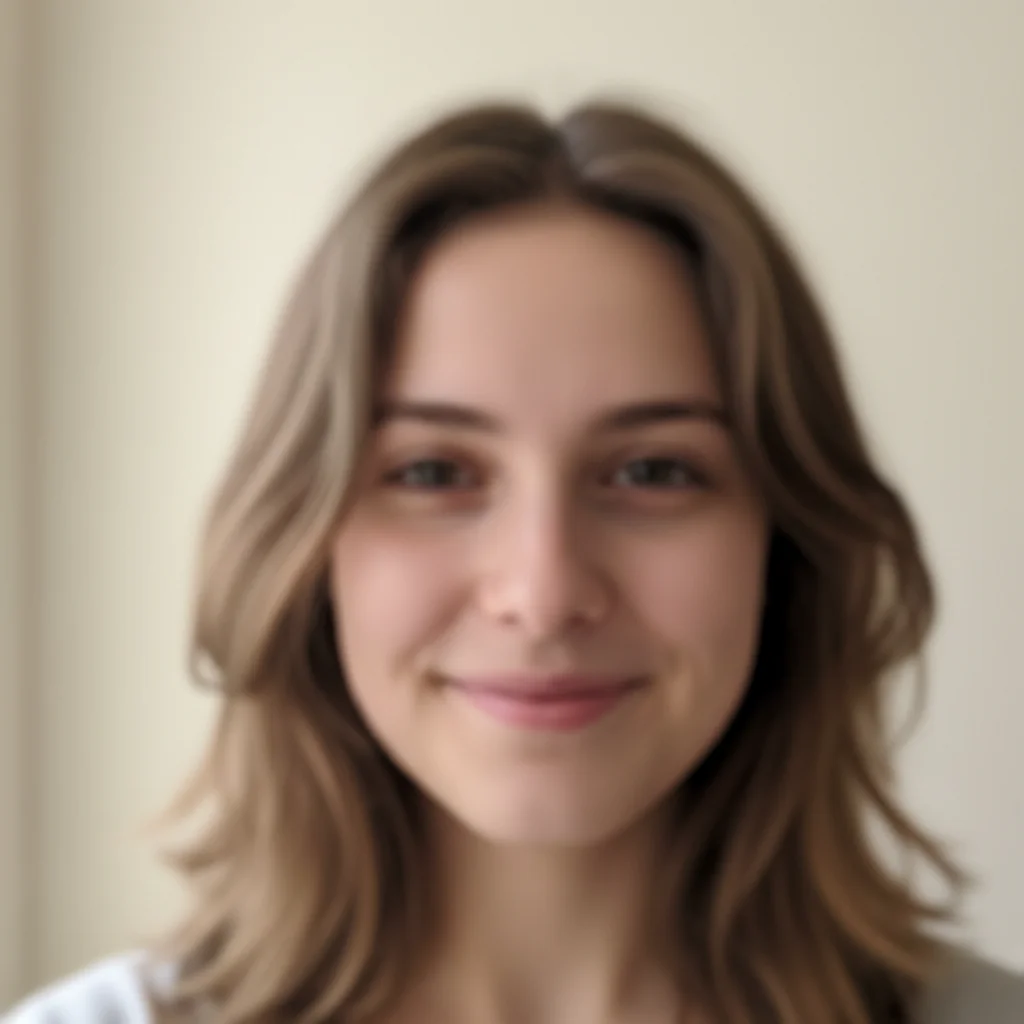
Phone selfie with soft focus and unclear features. One prompt brought out eye detail and natural skin texture.
enhance the face with sharper eyes, improved clarity, and natural skin smoothing while keeping authentic texture
Old scanned photo restoration
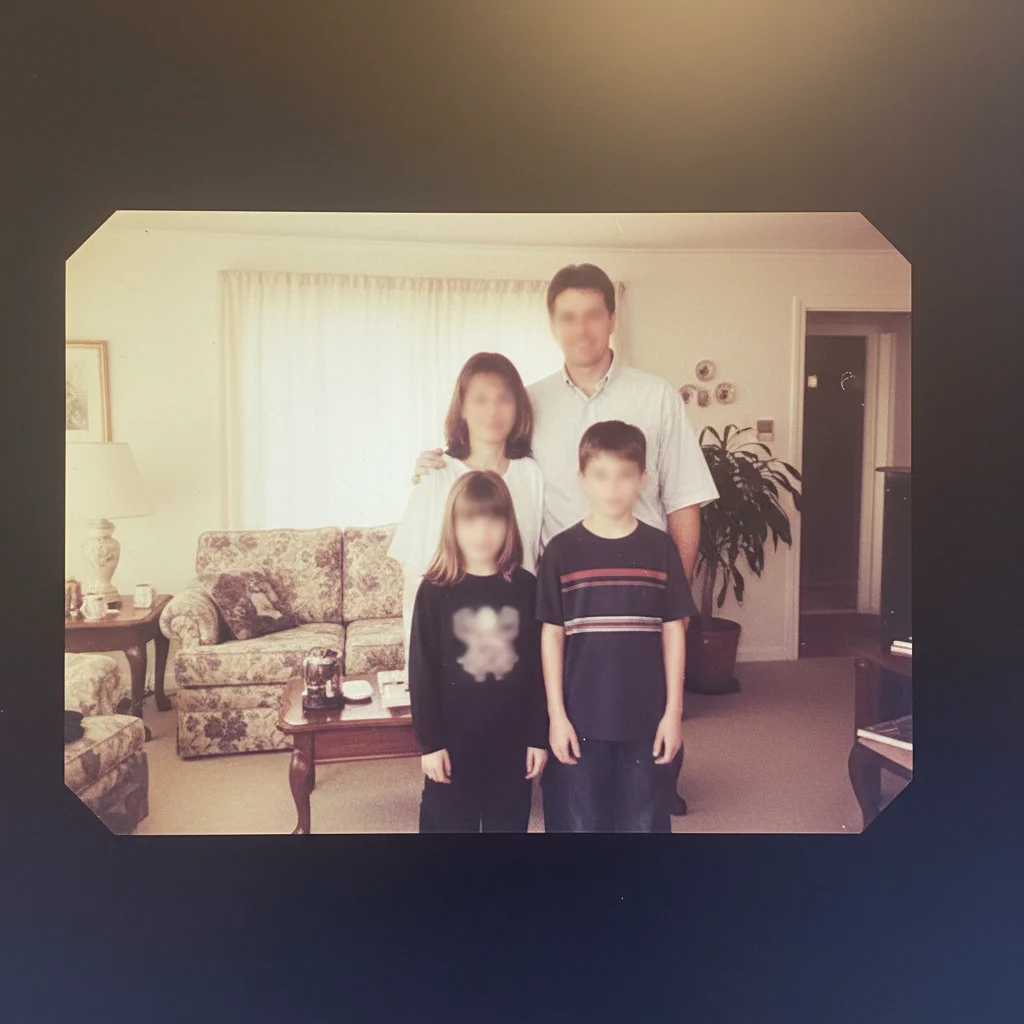
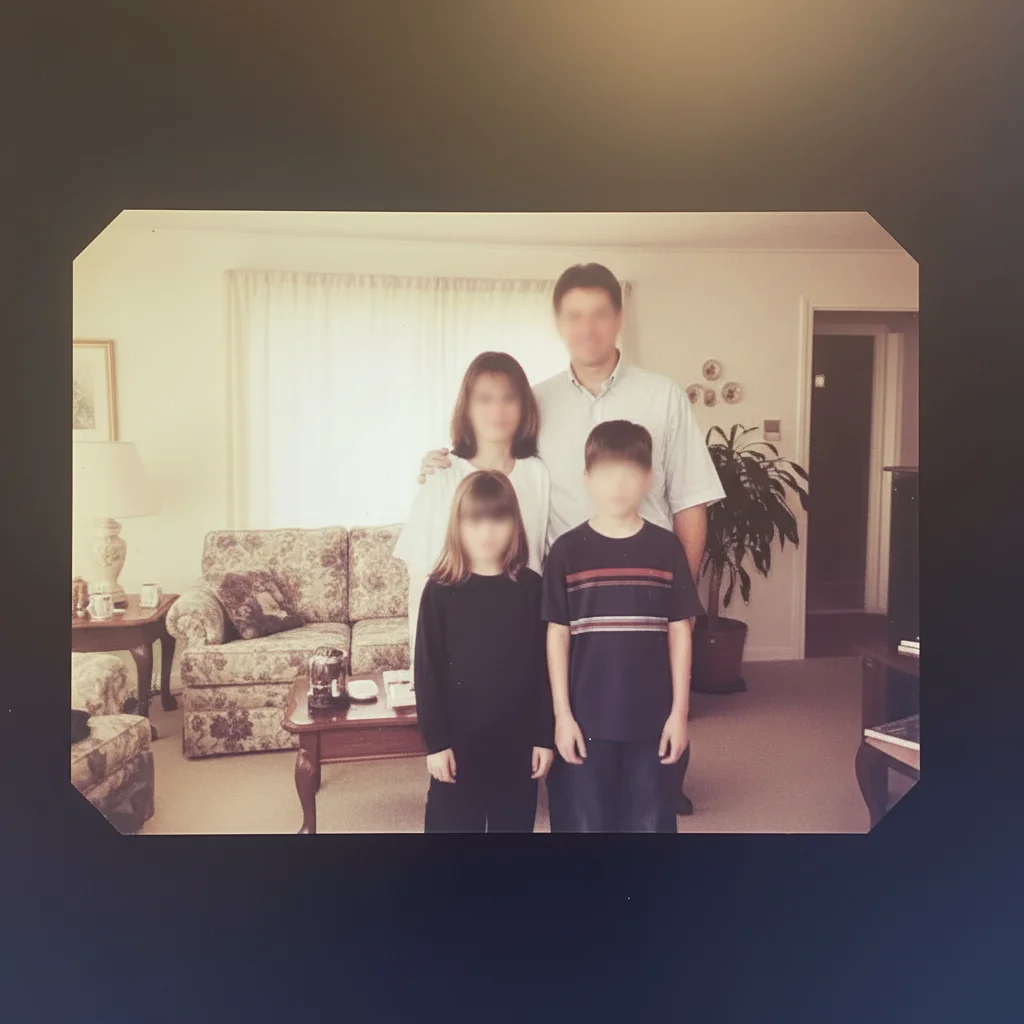
1990s family photo scan with faded colors and soft faces. Enhanced to reveal clear facial features while preserving the nostalgic feel.
enhance and restore facial features, improve clarity and detail in face, sharpen eyes while preserving the vintage character
Low light portrait improvement
Evening event photo with visible grain and unclear features. Enhanced to reduce noise while sharpening facial details.
enhance face, reduce grain and noise while preserving facial detail, sharpen eyes and improve skin clarity
If something looks off
AI changed the wrong face or enhanced something I didn't want
Why: In photos with multiple people or ambiguous subjects, the AI may not know which face you meant. This is common in group shots.
Tap a marker on the specific face you want enhanced, then regenerate with the same prompt
💡 Markers tell the AI 'I mean THIS face specifically.' Essential for group photos where description alone is ambiguous.
Face looks over-processed or plastic
Why: The AI applied too much smoothing, removing natural skin texture. This happens when prompts don't specify texture preservation.
enhance face naturally, keep authentic skin texture and pores visible, subtle improvement only
💡 Adding 'natural' and 'authentic texture' prevents the uncanny valley effect that makes enhanced photos look fake.
Eyes look artificial or too bright
Why: Eye enhancement went too far, creating an unnatural intensity. The AI needs guidance on subtlety.
enhance eyes subtly with natural brightness and catchlights, realistic iris detail
💡 Less is more with eye enhancement. Real eyes have natural variation—perfect uniformity looks artificial.
Enhancement changed skin color or tone
Why: The AI adjusted color while enhancing, which can shift skin undertones. This is more common in photos with unusual lighting.
enhance facial features and clarity while preserving original skin tone and color exactly
💡 Always specify 'preserve original skin tone' when working with portraits to prevent unwanted color shifts.
Only part of the face was enhanced
Why: The AI focused on one feature and missed others. This can happen with specific prompts that mention only one feature.
enhance entire face evenly, improve eyes, skin, and overall facial definition together
💡 Use comprehensive prompts for full-face enhancement. Specific feature targeting works best as a second pass.
Enhancement looks different from the rest of the photo
Why: The face now looks sharper or cleaner than the surrounding image, creating an obvious edit.
enhance face to match photo quality, subtle improvement that blends naturally with the rest of the image
💡 The goal is enhancement that's invisible. If the face looks 'different' from the photo, dial back the intensity.
Quick answers
Do I need to mark the face before describing?
No! For most photos, just describe what you want: 'enhance the face' or 'improve facial clarity.' The AI understands what faces are and where they are in your photo. Only use markers when you have multiple people and need to specify which face to enhance, or if the AI misses the face on the first try.
Will enhancement make my photo look fake or over-edited?
Not if you ask for natural results. Include words like 'natural,' 'subtle,' or 'keep authentic texture' in your prompt. The AI defaults to noticeable improvement, so specifying restraint helps. Try 'enhance face naturally with subtle improvements' for results that look better without looking edited.
Can I enhance faces in group photos?
Yes. For all faces, type 'enhance all faces in the photo.' For specific people, tap a marker on that person's face before generating. This tells the AI exactly who you want enhanced while leaving others unchanged. The marker approach works best when you want different levels of enhancement for different people.
Does this work on old or damaged photos?
Yes—old scanned photos and faded prints are great candidates for face enhancement. Use 'enhance and restore facial features' to both improve clarity and repair degradation. For heavily damaged photos, you may need 2-3 passes: first to restore, then to enhance details. The AI handles grain, fading, and softness well.
What's the difference between enhancing and retouching?
Enhancement improves what's there—sharper eyes, clearer skin, better definition. Retouching changes things—removing blemishes, whitening teeth, reshaping features. This tool focuses on enhancement. For retouching needs like 'remove the pimple' or 'whiten teeth,' you'd use more specific editing prompts that target those changes directly.
Ready to enhance your face photos?
Free to try. No signup required.