Fix Pixelated Photo
Just describe the fix you need. The AI restores detail automatically.

Type 'fix the pixelation' or 'remove pixelation and restore detail' and EditThisPic's AI smooths blocky artifacts while recovering lost sharpness in 15-30 seconds. No sliders to adjust, no technical knowledge required. Works on over-compressed JPEGs, low-res screenshots, and old webcam photos. Free, no signup needed.
How it works
Upload your photo
Drop your pixelated image into EditThisPic. JPG, PNG, and WebP up to 7MB. Even heavily compressed or low-resolution images can be improved—the AI works with whatever detail remains.
Describe what you want
Type your instruction: 'fix the pixelation' or 'remove pixelation and restore detail.' That's it. The AI identifies blocky artifacts and smooths them while recovering sharpness. No marking or selection needed.
Copy one of these to get started:
remove pixelation and restore detail, smooth out compression artifacts
fix the pixelation and make text readable, sharpen edges while smoothing blocks
remove pixelation from this old photo, restore natural skin texture and smooth gradients
fix compression artifacts and pixelation, restore original image quality
2 more prompts
fix the pixelation on faces, restore facial detail while keeping the background unchanged
remove pixelation and enhance product detail, make edges crisp and colors accurate
Generate and review
Check the result at full zoom. Look for smooth gradients where blocks used to be, readable text, and natural-looking edges. The goal is clarity without artificial smoothness.
Refine with markers if needed
If certain areas still look blocky while others are fine, tap markers on those problem spots and regenerate. This focuses the AI's attention on specific regions. Optional for most fixes.
"Had an important screenshot that looked like a Minecraft texture. Typed 'remove pixelation' and it actually looked readable again." @TechSupportMike
See it in action
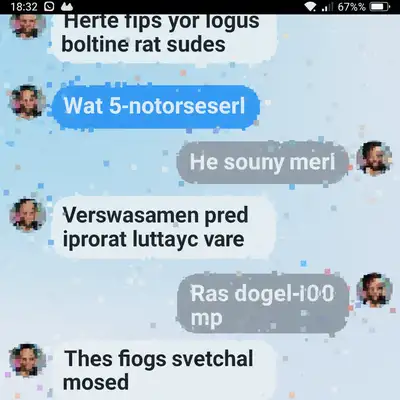
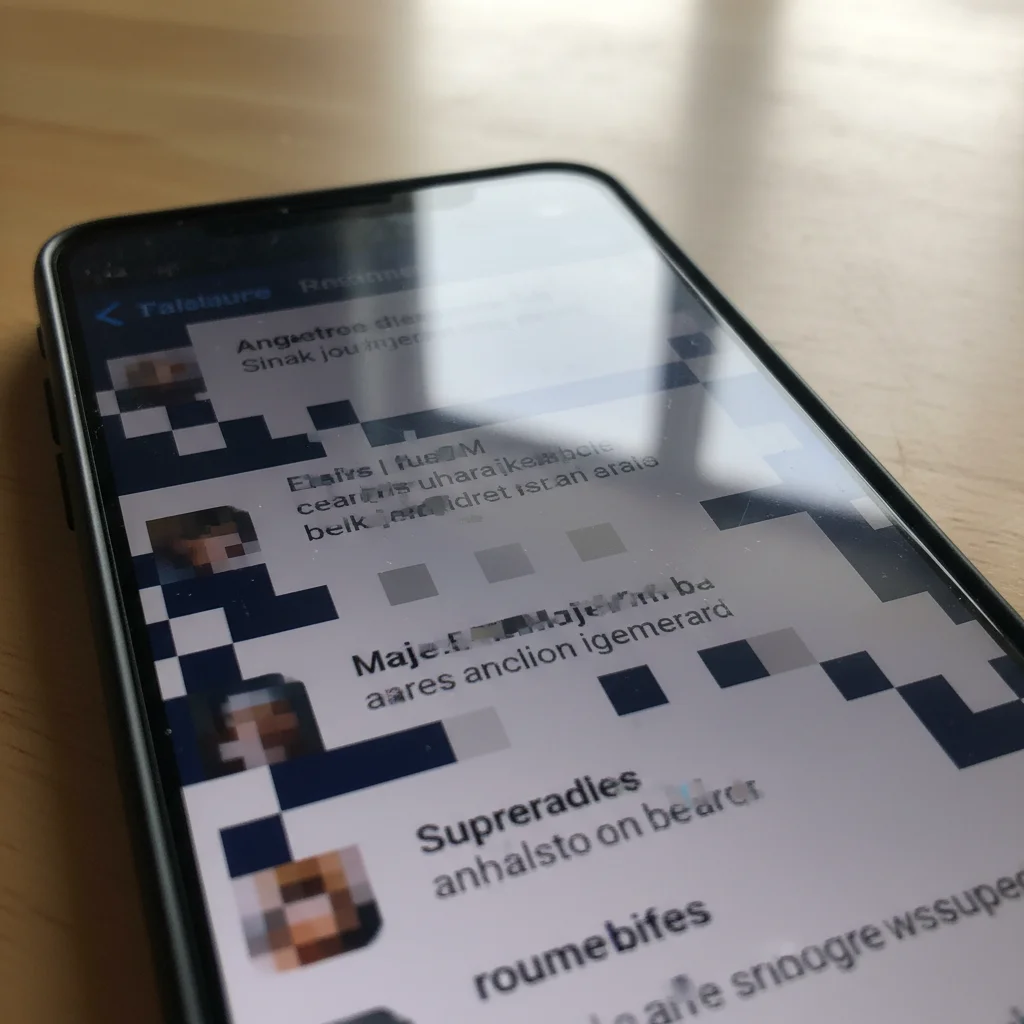
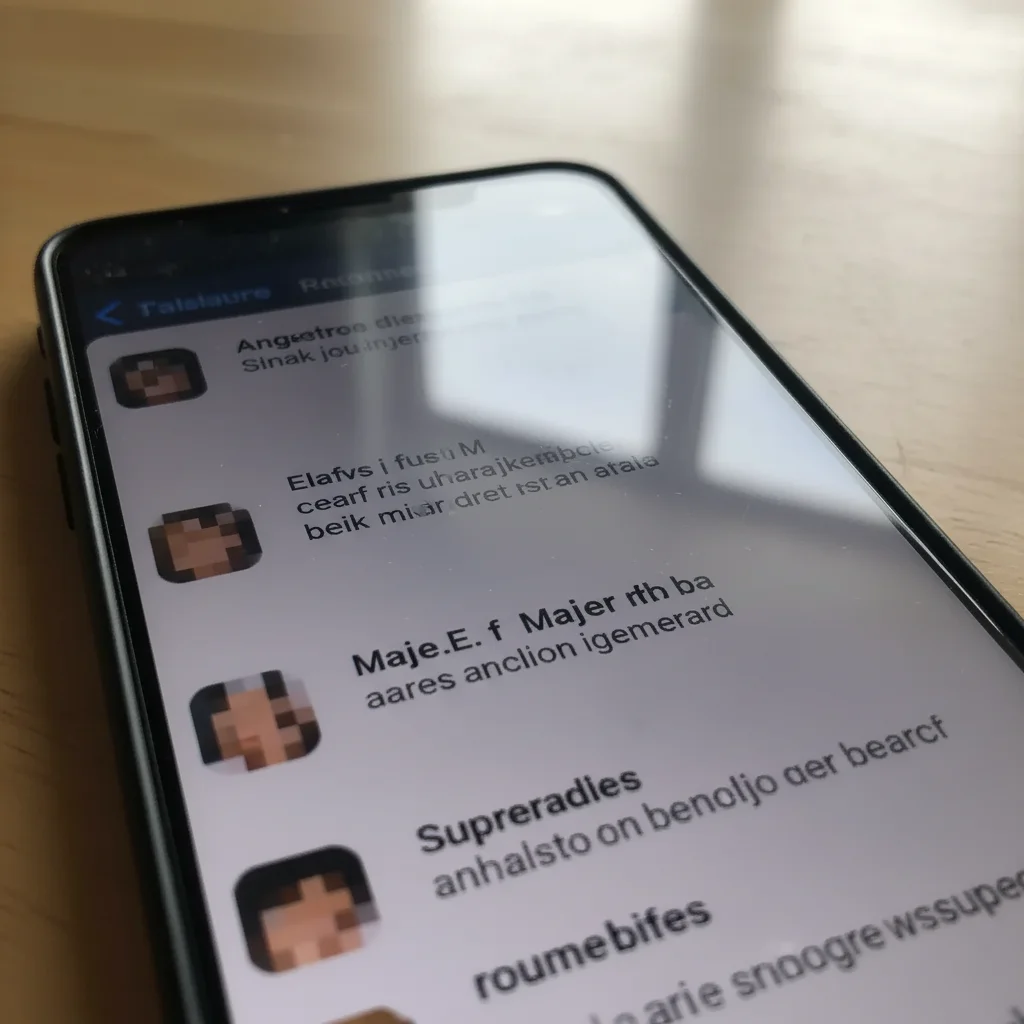
Compressed screenshot restored
Screenshot saved through multiple messaging apps became blocky and hard to read. One prompt brought back legible text.
remove pixelation and restore detail, make text sharp and readable
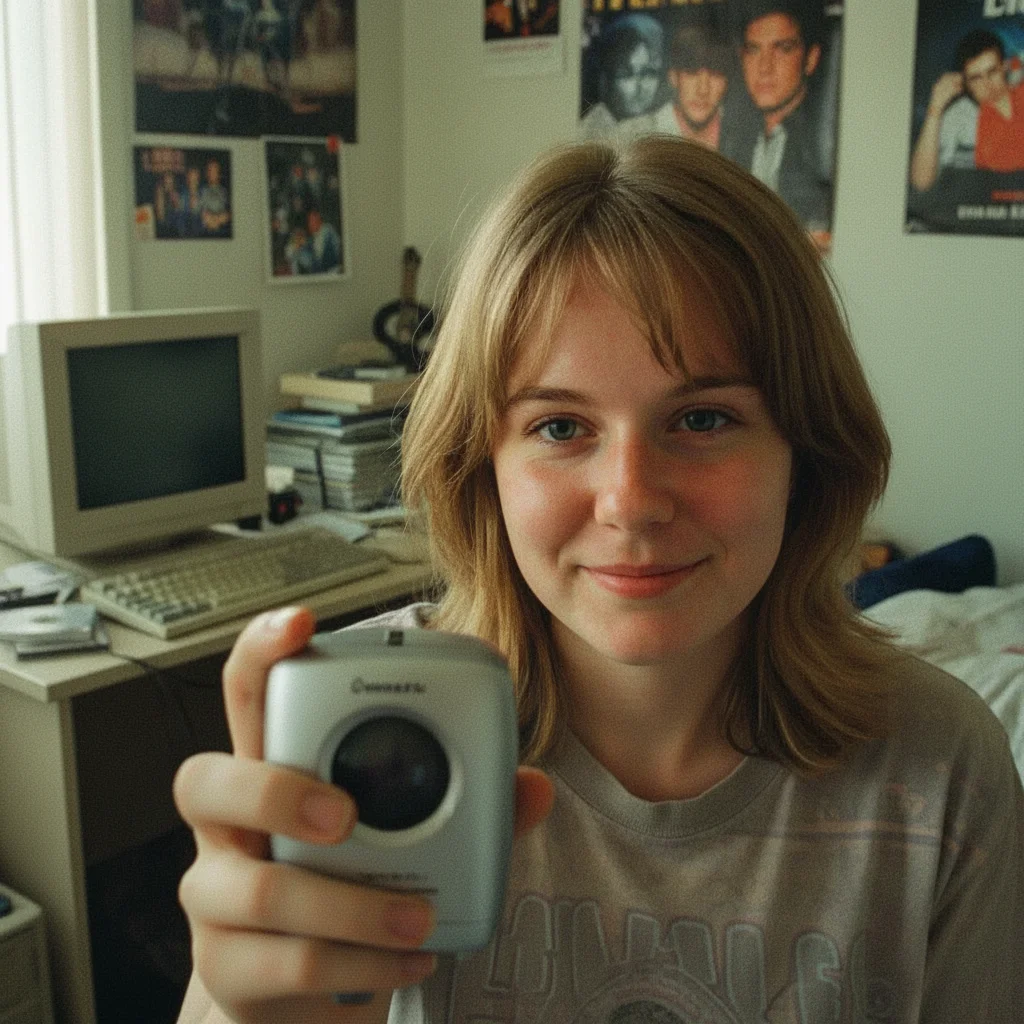
Old webcam photo cleaned up
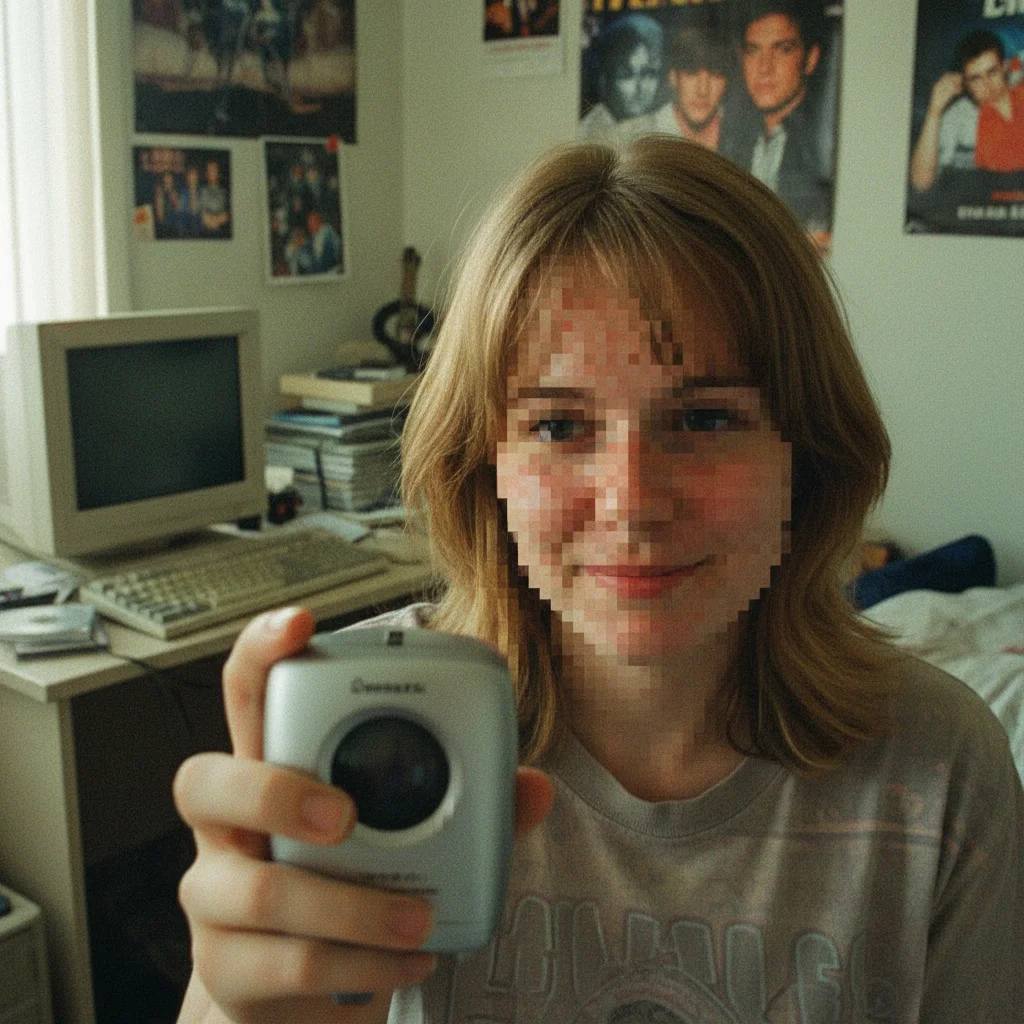
Early 2000s webcam selfie with severe pixelation. AI restored natural-looking skin and smoothed the blocky artifacts.
fix the pixelation on this old photo, restore natural skin texture and facial detail
If something looks off
AI changed the wrong area or over-smoothed parts I wanted to keep sharp
Why: The AI applied smoothing too broadly, affecting areas that weren't pixelated or removing intentional texture.
Tap a marker on the specific pixelated area you want fixed, then regenerate with 'fix pixelation only in marked area'
💡 Markers tell the AI 'focus HERE specifically.' Use them when the AI is too aggressive with smoothing.
Image looks blurry instead of sharp after depixelation
Why: The AI smoothed the blocks but didn't add back sharpness. This happens when the prompt doesn't mention detail recovery.
remove pixelation and restore sharp detail, enhance clarity without losing edge definition
💡 Always include 'restore detail' or 'sharpen' in your prompt—smoothing alone just makes blur.
Text is still hard to read after fix
Why: Text requires different treatment than photos. Generic depixelation may not prioritize letter edges.
fix pixelation and make all text crisp and readable, prioritize text clarity
💡 For screenshots with important text, tap markers directly on the text areas for best results.
Faces look plastic or unnatural after depixelation
Why: The AI over-smoothed skin texture while removing blocks. Human faces need texture to look real.
fix pixelation while preserving natural skin texture, restore detail without plastic smoothing
💡 Add 'natural texture' to face-related prompts to prevent the AI from creating that uncanny smooth look.
Quick answers
Do I need to mark the pixelated areas before describing?
No—just describe what you want. 'Fix the pixelation' or 'remove pixelation and restore detail' works for most images. The AI recognizes compression artifacts automatically. Only use markers if you need to focus on specific areas, like fixing just the face in a group photo.
Can this really restore detail that's been lost?
The AI can intelligently reconstruct likely detail based on surrounding pixels and learned patterns from millions of images. It's not magic—severely degraded images have limits. But for typical compression artifacts, low-res screenshots, and old webcam photos, results are usually remarkably better than the original.
Will this work on screenshots with text?
Yes, and it often makes text readable again. Include 'make text readable' or 'sharpen text' in your prompt for best results. The AI treats text differently than photos, focusing on edge clarity. For very small or severely pixelated text, try marking the specific text areas.
What causes pixelation in the first place?
Pixelation happens when images are heavily compressed (like JPEGs saved at low quality), enlarged beyond their resolution, or captured by low-quality cameras. Messaging apps like WhatsApp and Facebook Messenger compress images aggressively, causing the blocky artifacts you see.
Ready to fix your pixelated photo?
Free to try. No signup required.