Do I need to mark the overlap area before stitching?
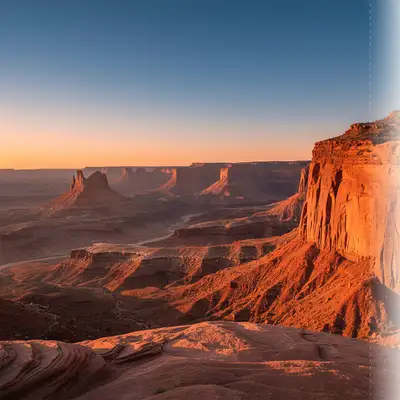
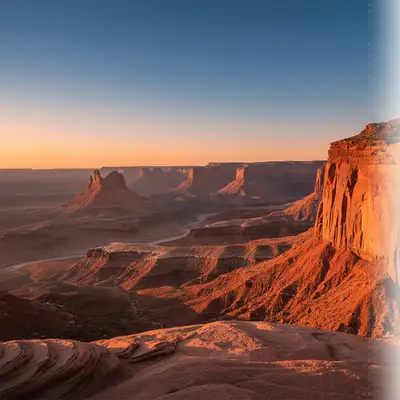
No. Just upload both photos and describe what you want: 'stitch these two overlapping photos into a seamless wide panorama.' The AI automatically detects the overlap region and aligns both images.
How do I stitch two photos into a panorama for free?
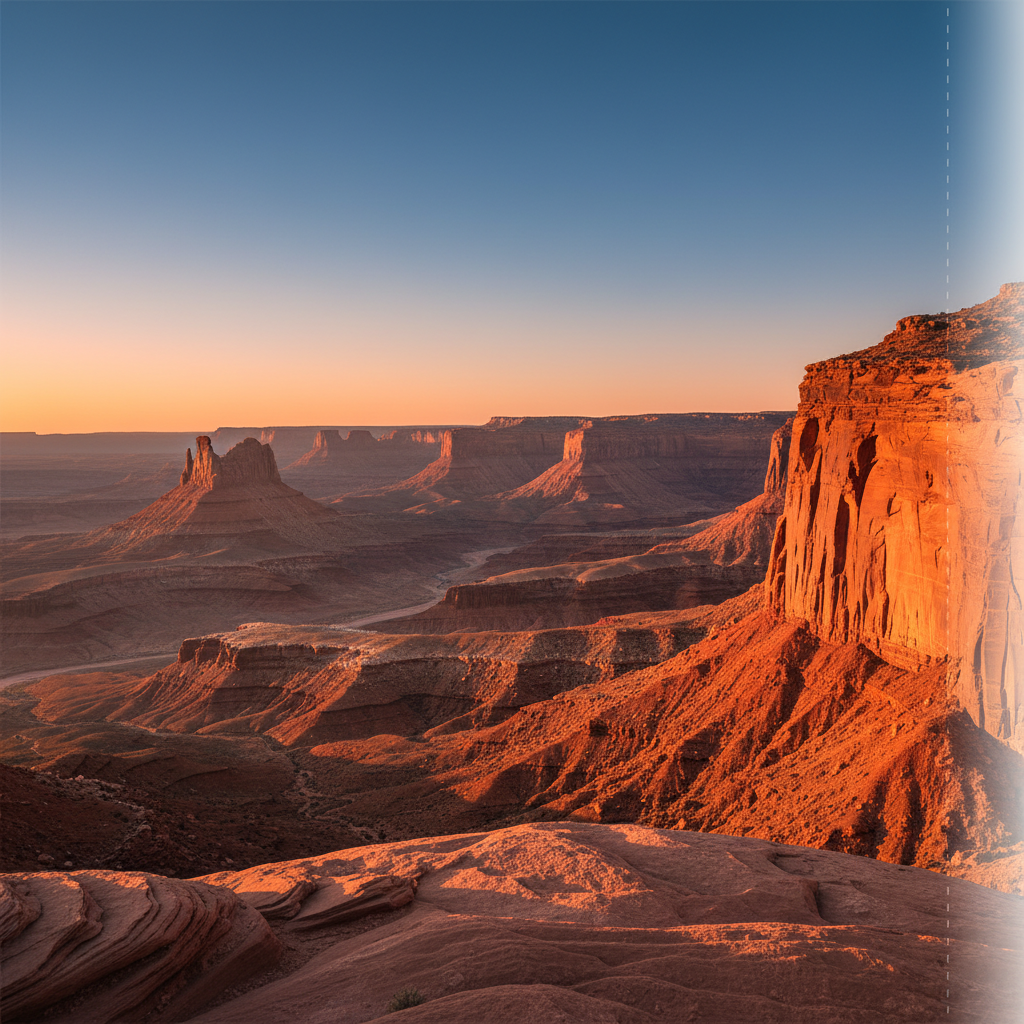
Upload your first photo to EditThisPic, then click '+ Add reference image' to add your second overlapping photo. Type: 'stitch these two overlapping photos into a seamless wide panorama.' The AI aligns the overlap, blends the seam, and produces a single wide result. Free to use, no account or watermark required. Results in about 30 seconds.
How much overlap do my two photos need for a good stitch?
Aim for 20-40% overlap between your two photos. This gives the AI enough matching pixels to accurately align the images. Less than 10% overlap often fails because there are not enough reference points. More than 50% overlap wastes frame space but still works fine.
Is there a free panorama stitcher online that does not require login?
Yes. EditThisPic stitches two photos into a panorama completely free with no login or account required. Upload both photos, type your instruction, and download the result without any watermark. You get one free stitch per week, with credit packs available if you need more.
Can I stitch photos taken on a phone without a tripod?
Yes. Handheld panorama shots work well as long as you pan horizontally from the same spot. Keep your feet planted, pivot your body to rotate the camera, and try to keep the camera at the same height between shots. Some tilt is fine — include 'level the horizon' in your prompt and the AI will straighten it.
What is the best free AI tool for stitching two photos into a panorama?
EditThisPic is purpose-built for this kind of two-image task. Unlike desktop tools like Lightroom Panorama Merge or Photoshop Photomerge — which require installs and accounts — EditThisPic works entirely in your browser with no signup. Upload both photos, describe the stitch, and get a seamless result in 30 seconds, all free.
Can I combine more than two photos into a panorama?
The two-image workflow is optimized for exactly two photos at a time. For wider panoramas with three or more shots, stitch them in pairs: combine photos 1 and 2 first, then use the result as your first photo and upload photo 3 as the reference to stitch in.
Why does the seam look obvious even after stitching?
Visible seams are almost always caused by an exposure mismatch between the two photos — one is brighter or has a different color temperature. Try the fix prompt: 'stitch these two photos into a seamless panorama, equalize the exposure and match the color temperature so the seam is invisible.' Shooting both photos at the same manual exposure setting in the first place prevents this.
How do I combine two landscape photos into a panorama without Photoshop?
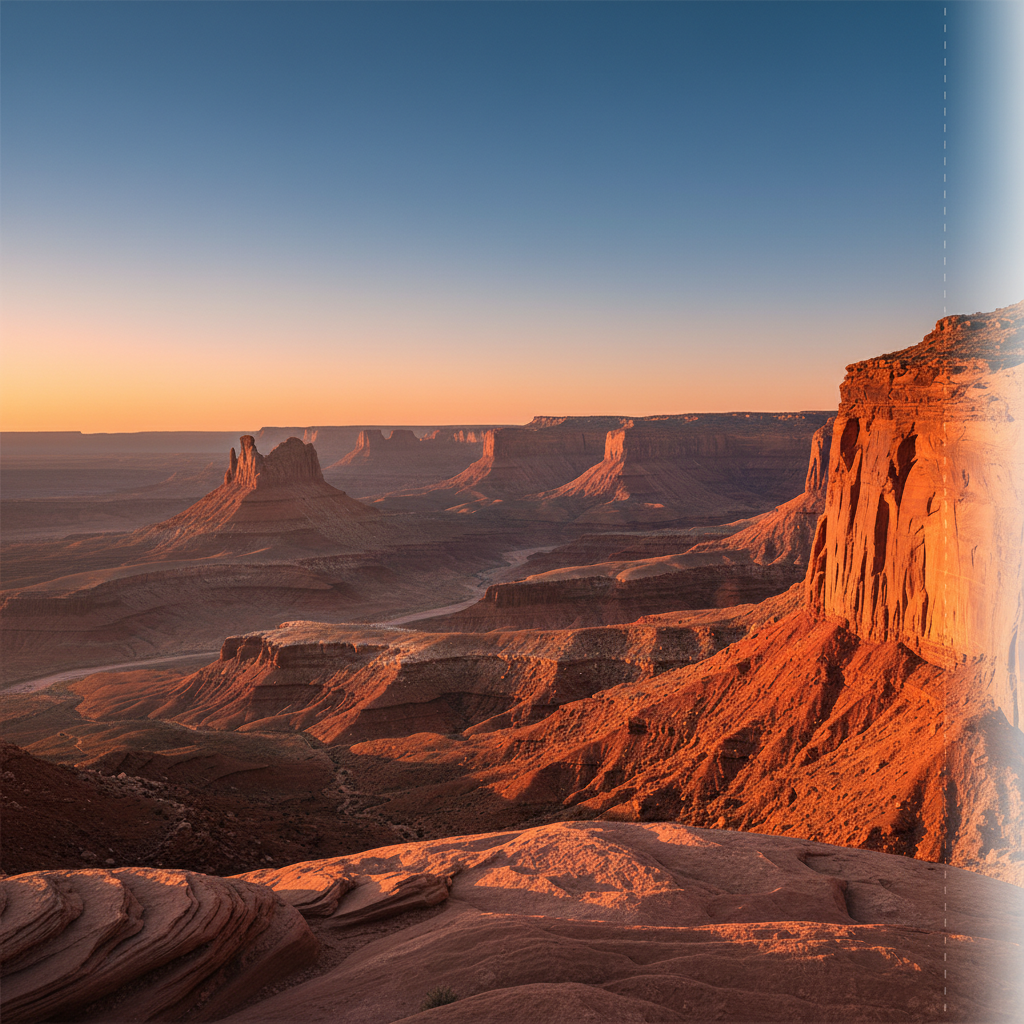
Upload your first landscape photo to EditThisPic, click '+ Add reference image' to add the second overlapping photo, and type: 'stitch these two overlapping landscape photos into a seamless wide panorama, blend the sky and horizon smoothly.' No Photoshop, no software install, no account needed. The AI handles alignment, exposure matching, and seam blending automatically.
Does the panorama stitch tool work for interior real estate photos?
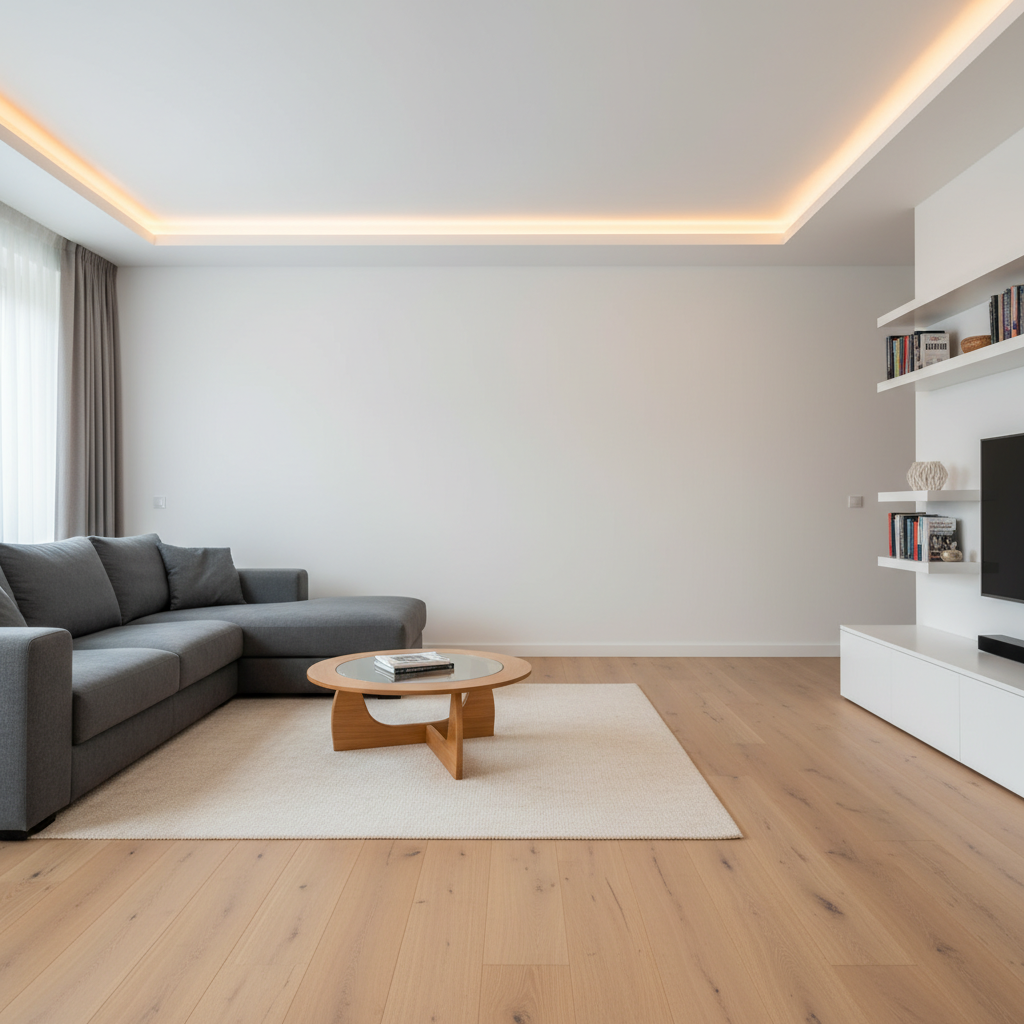
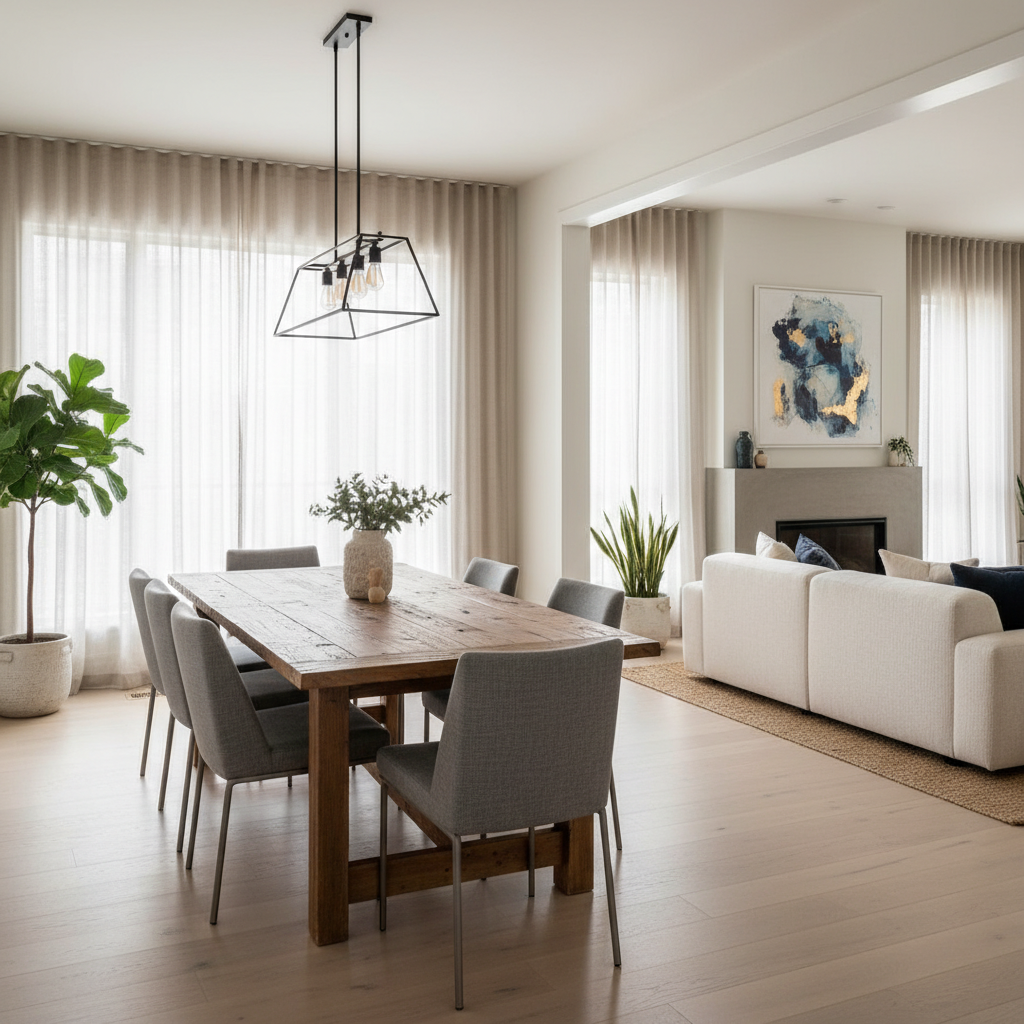
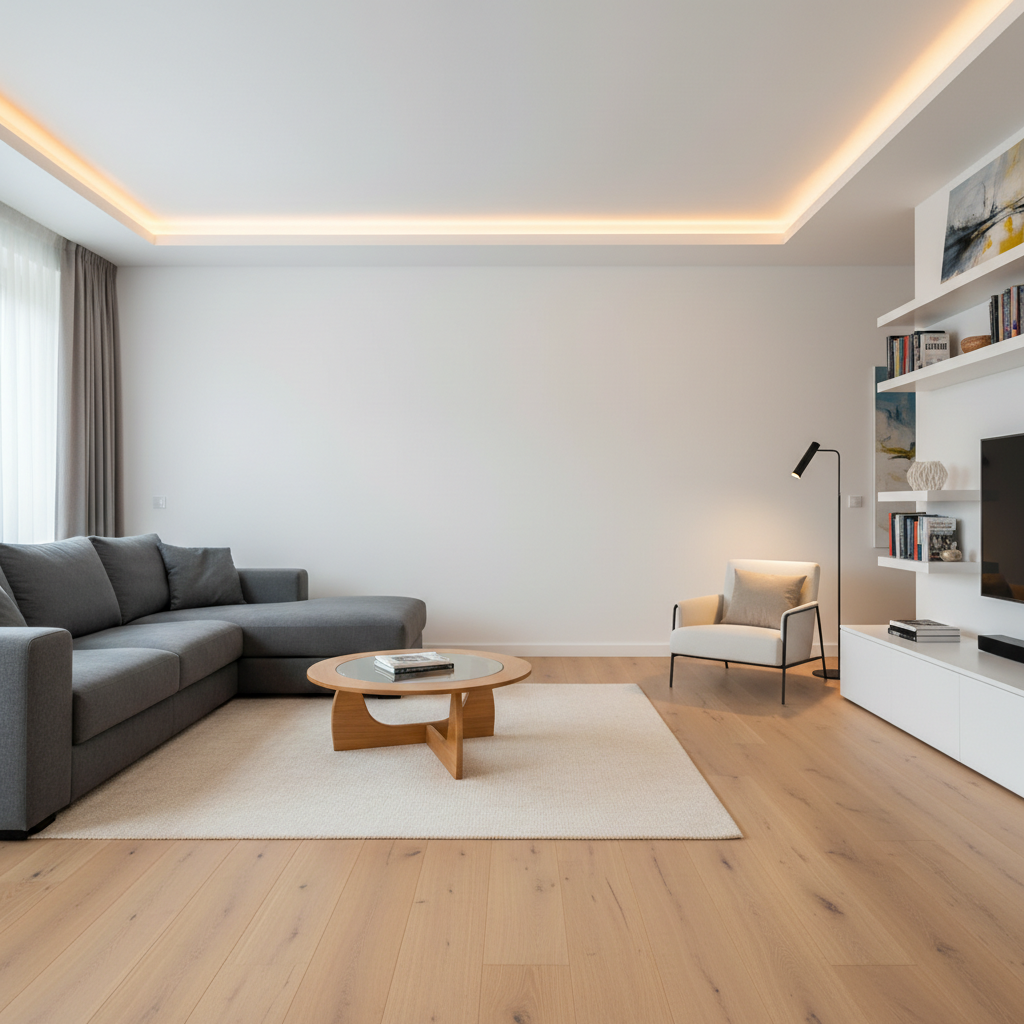
Yes, and it is one of the most practical applications. Shoot two overlapping interior photos of a wide room from the same standing position, upload both to EditThisPic, and describe the stitch. Include 'keep walls and vertical lines straight' in your prompt to prevent perspective distortion at the seam. Works well for living rooms, kitchens, and open-plan spaces.
Can I stitch a panorama from two travel photos taken at a landmark?
Yes. Upload both overlapping travel shots, click '+ Add reference image' for the second photo, and describe: 'stitch these two city photos into a seamless wide panorama, align the horizon and match the sky color across both sides.' The AI detects the overlap, aligns perspective, and blends the seam. Works well for cityscapes, famous landmarks, and wide scenic viewpoints.
How much does EditThisPic cost?
You get 1 free edit per week — no account needed. After that, one-time credit packs start at $4.99 for 10 edits, valid 12 months, no subscription. Power users who edit daily can pick Studio Membership, a monthly workspace at $49.99/mo for 300 edits. Purchased downloads are clean with no watermark.