Free • No signup Remove Tourist · Free

AI Tourist Remover

Remove strangers from your travel photos with just a description.
Eiffel Tower photo with stranger in red jacket on the right
Before
Clean Eiffel Tower photo with tourist removed
After

AI Tourist Remover

Drop your photo here

or click to browse

Release to upload

Free • No signup

Advertisement
Popular use cases:
  • travel photography
  • vacation photos
  • landmark photos
  • tourist attractions
  • beach photos
  • museum photos
  • Instagram travel content
  • photo cleanup

Cost
Free No signup required
Time
Instant results in 15-30 seconds
Works on
Any device - browser, phone, tablet, desktop
Powered by
AI-powered photo editing
Scenario Prompt Time
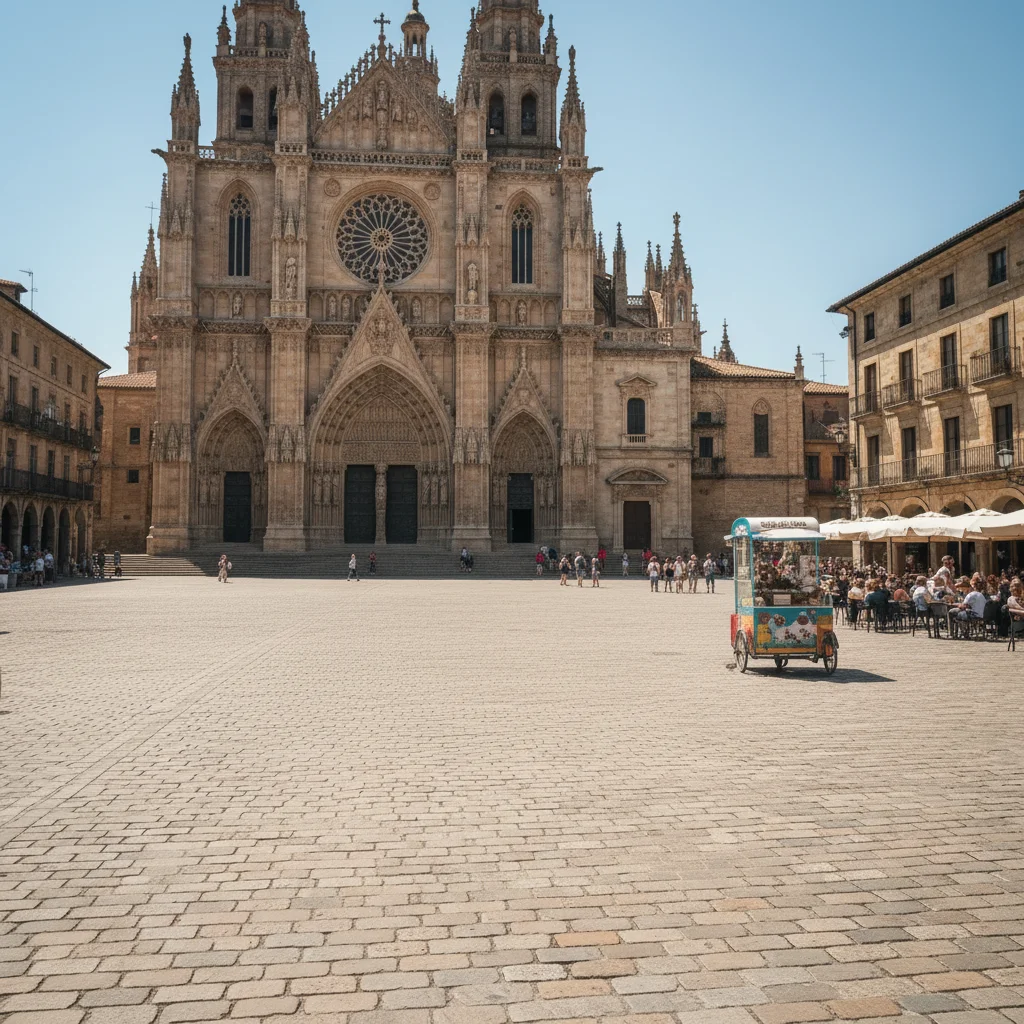
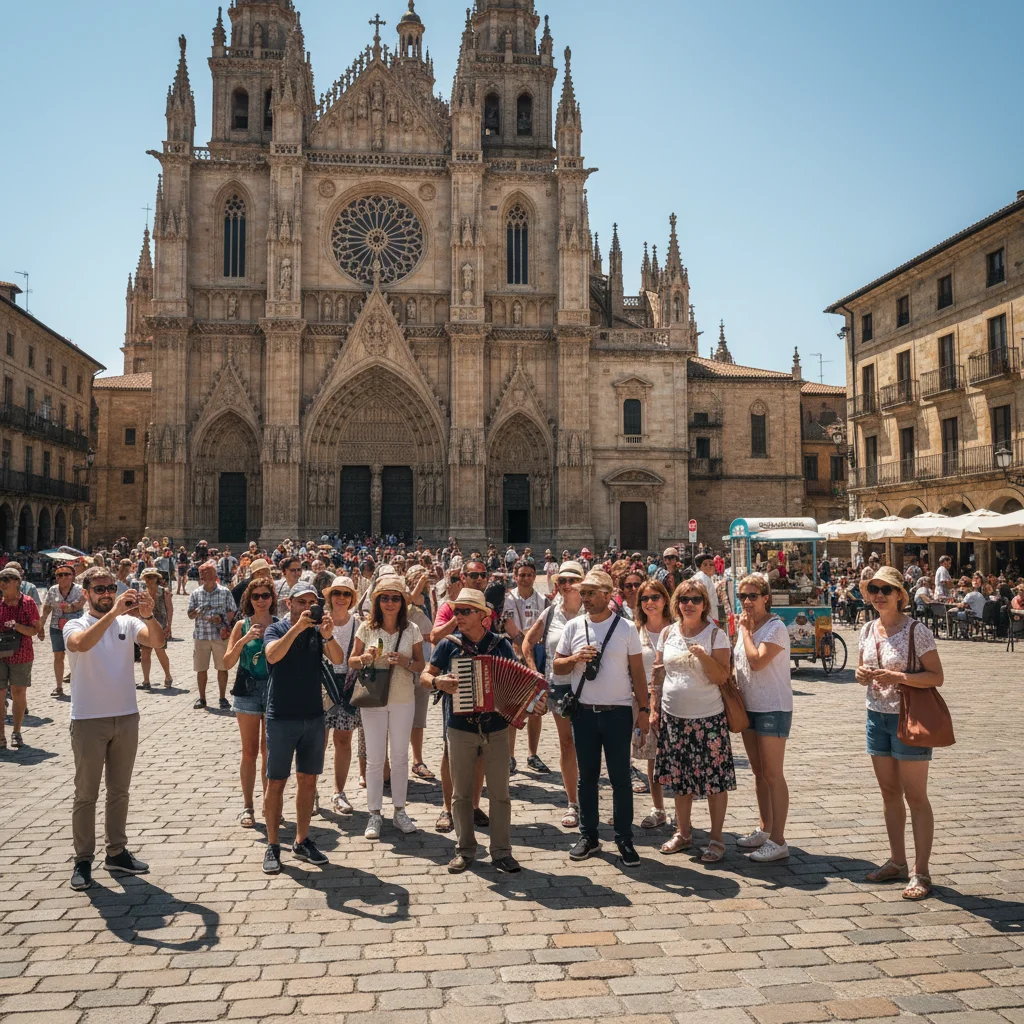
Single tourist at edge remove the person on the right and fill with the landmark background 15s
Background tourists remove all people in the background behind the main subject 20s
By clothing color remove the person wearing the yellow jacket on the left 15s
Photobomber at edge remove the person at the far left edge of the frame 15s

How it works

  1. Upload your travel photo

    Drop your image into EditThisPic. Works with JPG, PNG, WebP up to 7MB. Best results with photos where tourists are at the edges or clearly separated from your main subject.

    Expect: Simple edits (one tourist at edge): 15-30 seconds. Complex scenes (multiple tourists, crowded backgrounds): may need 2-3 refinements.
  2. Describe what you want

    Type your instruction: 'remove the person on the right' or 'remove all tourists in the background.' Be specific about which people to remove by referring to position, clothing color, or location. No marking needed—the AI understands descriptions like 'the woman in yellow' or 'people at far left.'

    Tip: Mention distinctive features: 'remove the person in the red jacket on the left edge' works better than just 'remove person.'

    Copy one of these to get started:

    Single tourist at landmark remove the person on the right and fill with the landmark background
    Multiple tourists in background remove all people in the background behind the main subject
    Tourist by clothing color remove the person wearing the yellow jacket on the left
    Photobomber at edge remove the person at the far left edge of the frame
    3 more prompts
    Tourist blocking monument remove the person standing in front of the statue and restore the statue base
    Stranger in group photo remove the person on the far right who isn't part of our group
    Walking tourist captured mid-motion remove the blurred person walking through the shot on the left side
  3. Review and download

    The AI removes tourists and fills the background naturally. Check the edges and background at full zoom. If the result looks good, download your clean travel photo—no watermark.

  4. Refine with markers if needed

    If the AI removed the wrong person or you have multiple similar tourists, tap a marker on the specific person you want removed and regenerate. This is optional—most single tourist removals work without markers.

    Tip: Markers are for precision when multiple people look similar. Try without them first.
Try it free

AI Tourist Remover

Drop your photo here

or click to browse

Release to upload

Free • No signup

"Finally got that perfect Eiffel Tower shot without the random tourists. Just typed what I wanted gone and it worked!" @travelphotog

See it in action

Eiffel Tower photo with stranger in red jacket on the right
Before
->
Clean Eiffel Tower photo with tourist removed
After

Tourist removed from Eiffel Tower photo

Random tourist walked into the shot right before the photo. One prompt removed them cleanly, restoring the clear view of the landmark.
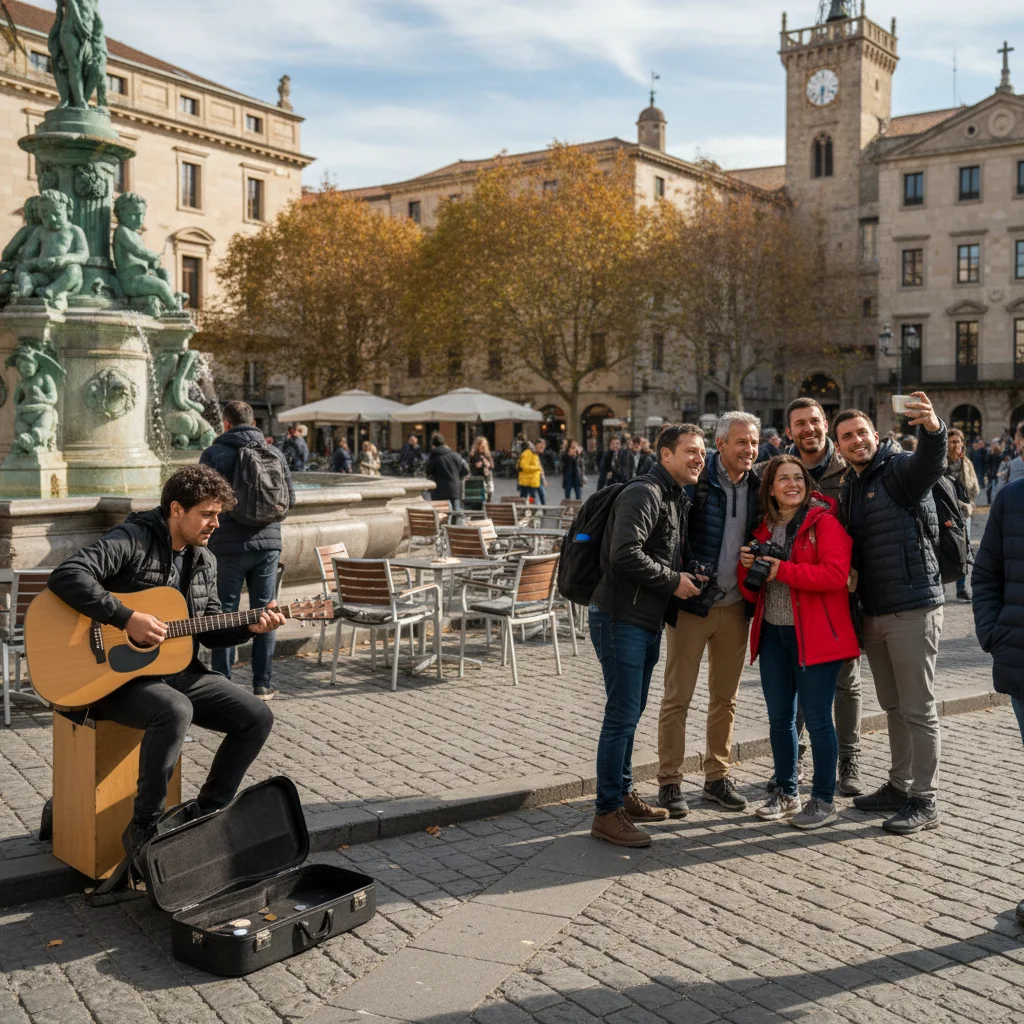
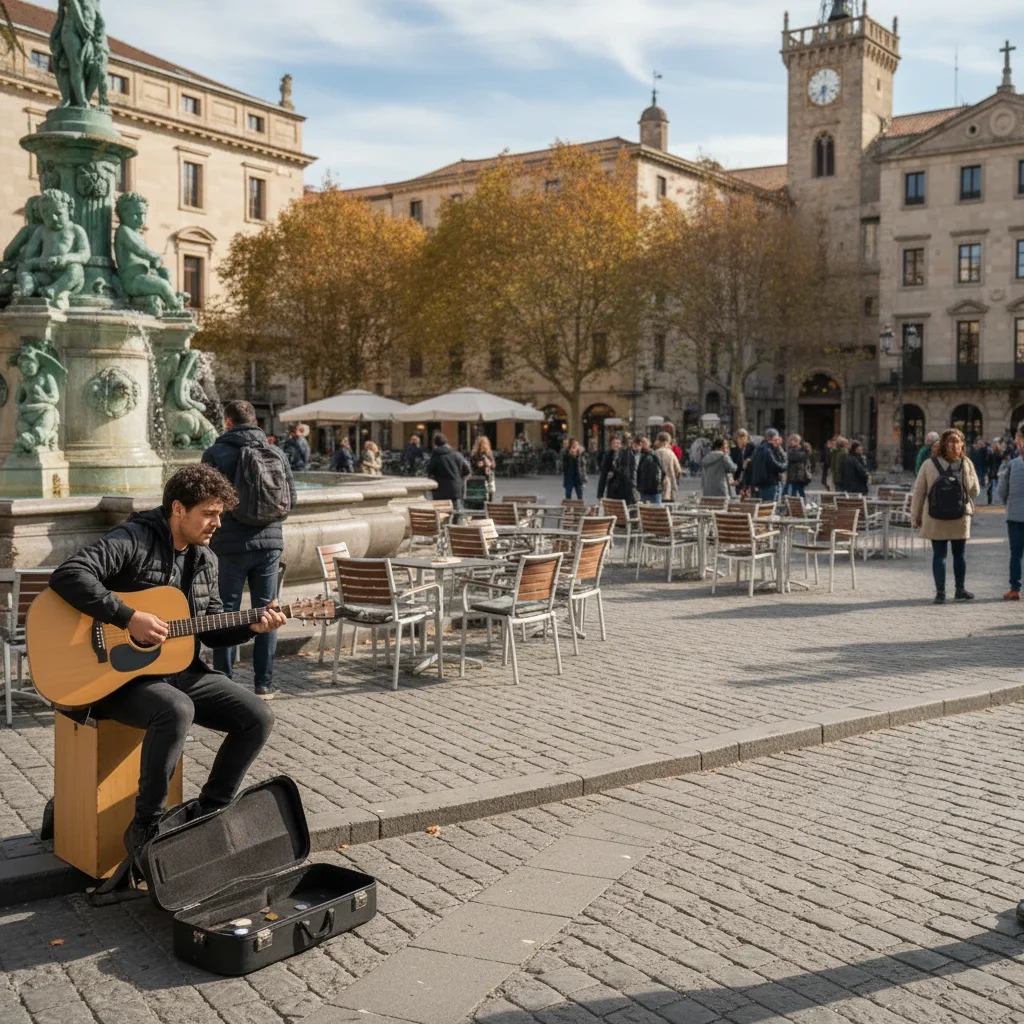
Prompt: remove the person on the right and fill with the landmark background
Beach family photo with tourists in background
Before
->
Clean beach photo with background tourists removed
After

Beach photo cleared of background tourists

Family beach photo had random tourists visible in the background. AI removed all background people while keeping the family sharp.
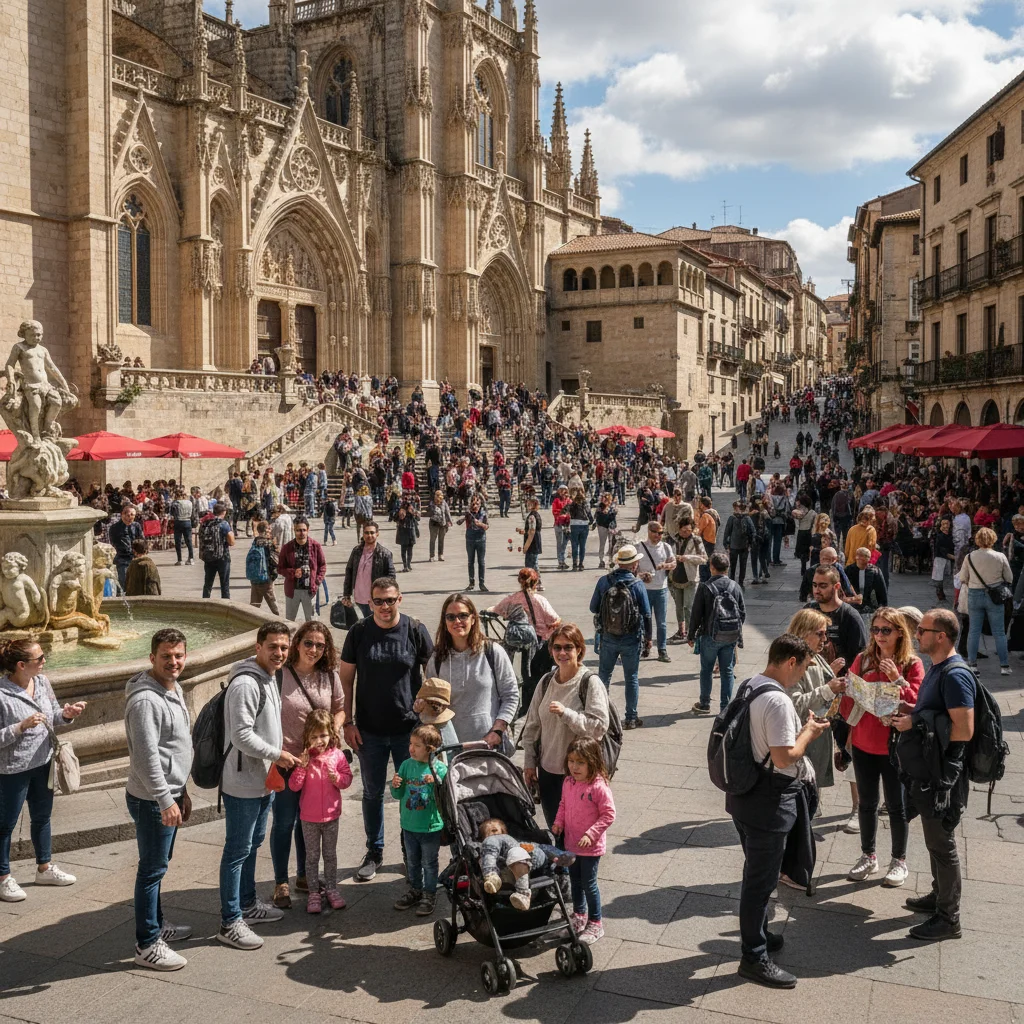
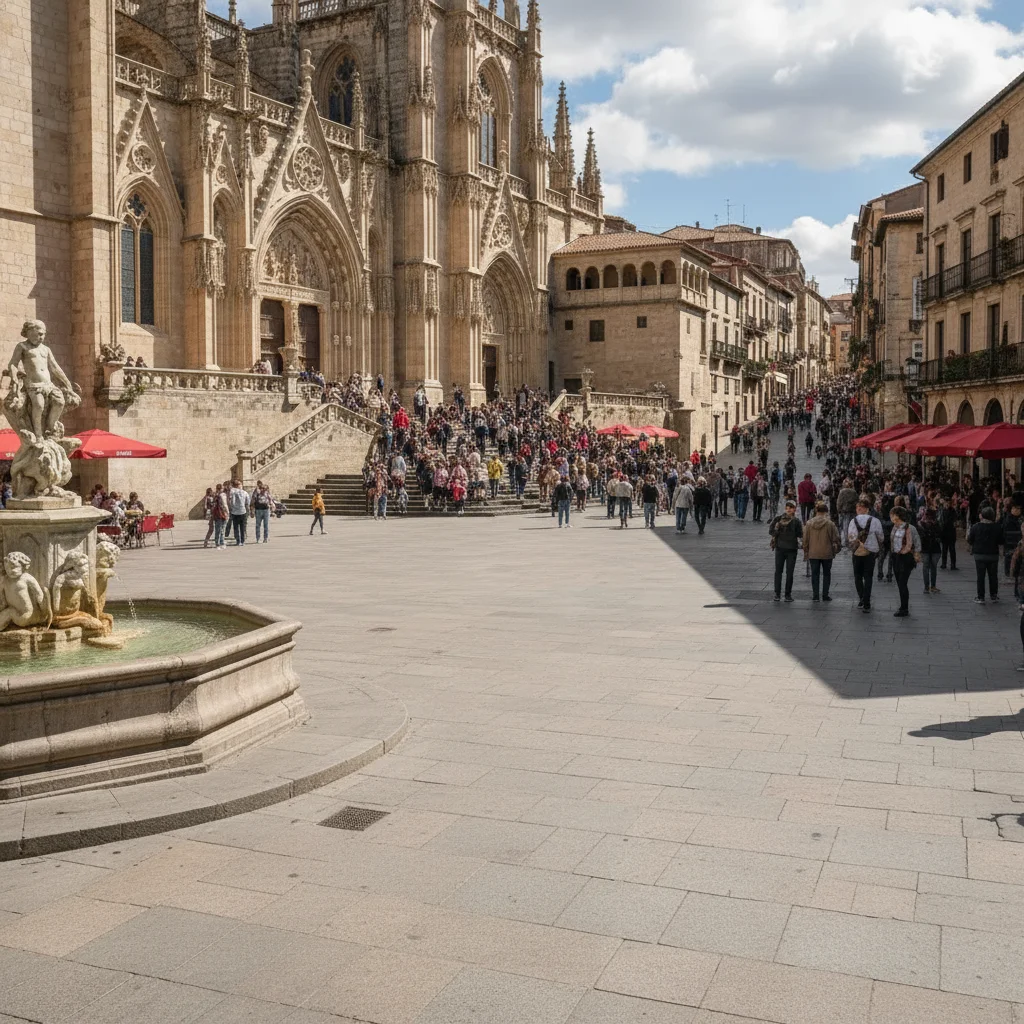
Prompt: remove all people in the background behind the main subject
Museum photo with photobomber at left edge
Before
->
Clean museum interior with photobomber removed
After

Photobomber removed from museum shot

Someone walked into frame at the last second. Quick removal gave us the clean museum interior photo we wanted.

Prompt: remove the person at the far left edge of the frame
Advertisement

If something looks off

AI removed the wrong person or removed my subject instead of the tourist

Why: The AI couldn't determine exactly which person you meant from description alone. This happens when multiple people have similar positions or clothing.

Try: Tap a marker on the specific tourist you want removed, then regenerate with the same prompt. The marker tells the AI 'remove THIS person specifically.'

Tip: Markers are essential when you have multiple similar-looking people. Use them to disambiguate.

Background behind removed tourist looks blurry or distorted

Why: The AI had to guess what was behind the tourist. Complex backgrounds (detailed patterns, text, faces) are harder to reconstruct than simple ones (sky, grass, plain walls).

Try: Try: 'remove the person on the right and fill with smooth [describe simple background]' or use a photo where the tourist is against a simpler background.

Tip: Photos with tourists against sky, water, or plain backgrounds work best.

Tourist removed but left a shadow or reflection

Why: The AI removed the person but didn't detect their shadow or reflection as part of the removal.

Try: Add to your prompt: 'remove the person on the right including their shadow' or do a second edit targeting just the shadow: 'remove the shadow on the ground.'

Tip: Mention shadows explicitly if they're obvious in the photo.

Removed tourist but nearby people look weird or incomplete

Why: The AI may have partially affected nearby people if they were close to the target. This happens when people overlap or touch in the image.

Try: Use markers to be more precise about removal area, or describe distance: 'remove only the person on the far right, not the person next to them.'

Tip: Best results when the tourist is clearly separated from others by at least a foot of space.

Can't remove tourist in the middle of a group

Why: Removing someone from the middle of a group is extremely difficult—the AI has to reconstruct parts of multiple people and the background.

Try: This is a hard edit. Try: 'remove the person in the center and shift the people on either side closer together.' May need multiple attempts.

Tip: Tourists at edges are much easier than tourists in the middle. Consider cropping instead if removal doesn't work.

Multiple tourists removed but background looks unnatural or repetitive

Why: Removing many people at once requires reconstructing large areas. The AI may repeat nearby patterns to fill space.

Try: Try removing tourists one at a time across multiple edits, or describe the desired background: 'remove all background people and fill with clear beach sand and ocean.'

Tip: Large removals work better when you describe what should fill the space.

Quick answers

Do I need to mark the tourists before describing?

No! For most edits, just describe which tourist to remove: 'remove the person on the right' or 'remove the woman in the yellow dress.' The AI understands these descriptions. Only use markers when you have multiple similar-looking people and need to specify exactly which one.

How do I remove tourists from photos for free?

Upload your photo to EditThisPic, type which tourist to remove (like 'remove the person on the left'), and the AI handles it in 15-30 seconds. Free to try with no signup or watermark. You get one free edit per day, or unlimited edits with a subscription.

Can I remove multiple tourists from one photo?

Yes. You can either describe 'remove all people in the background' for a batch removal, or remove them one at a time with separate edits for more control. Batch removal works best when all tourists are against simple backgrounds like sky or water.

What's the best free AI tool for removing tourists from travel photos?

EditThisPic offers free AI tourist removal with no signup or watermark. Unlike other tools that require manual selection or expensive subscriptions, EditThisPic works with simple text descriptions and gives you one free edit per day. Perfect for travelers who need quick photo cleanup.

Will the background look natural after removing tourists?

Yes, when tourists are against simple backgrounds (sky, water, grass, plain walls). The AI analyzes surrounding areas and reconstructs naturally. Complex backgrounds (detailed architecture, text, faces) may look slightly blurred or reconstructed. Best results when the tourist is clearly separated from your main subject.

Ready to remove tourists from your photos?

Free to try. No signup required.

Try it free