Free • No signup Open Editor

Restore Old Photo

Bring treasured family photos back to life in seconds.

Type 'restore this old photo, repair the damage and bring back the original colors' and EditThisPic's AI handles the restoration in 20-40 seconds. Works on faded colors, scratches, tears, water damage, and decades of wear. The AI recognizes aging patterns and restores them while preserving the faces and moments that matter most. No marking needed for full restoration. Free to try, no account needed.

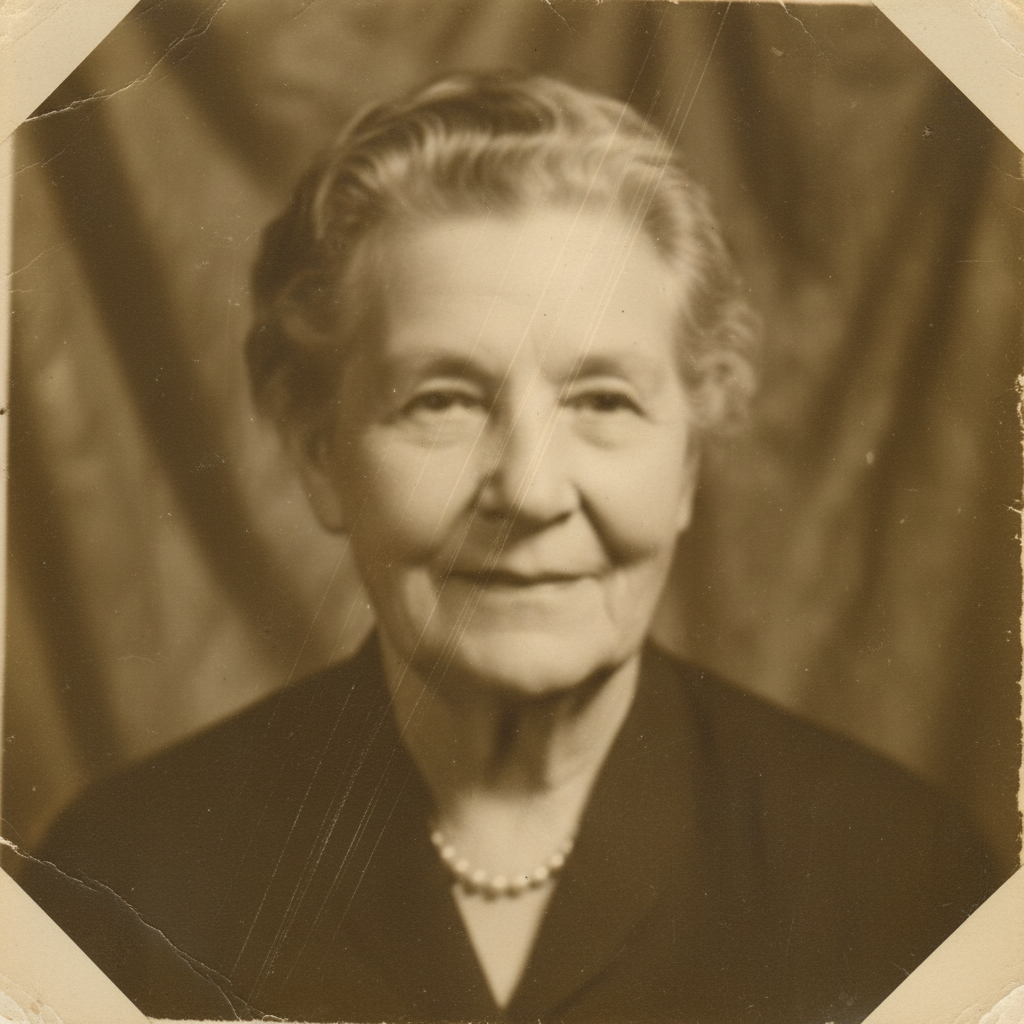
Severely faded 1950s portrait with yellowing, scratches, and barely visible face
Before
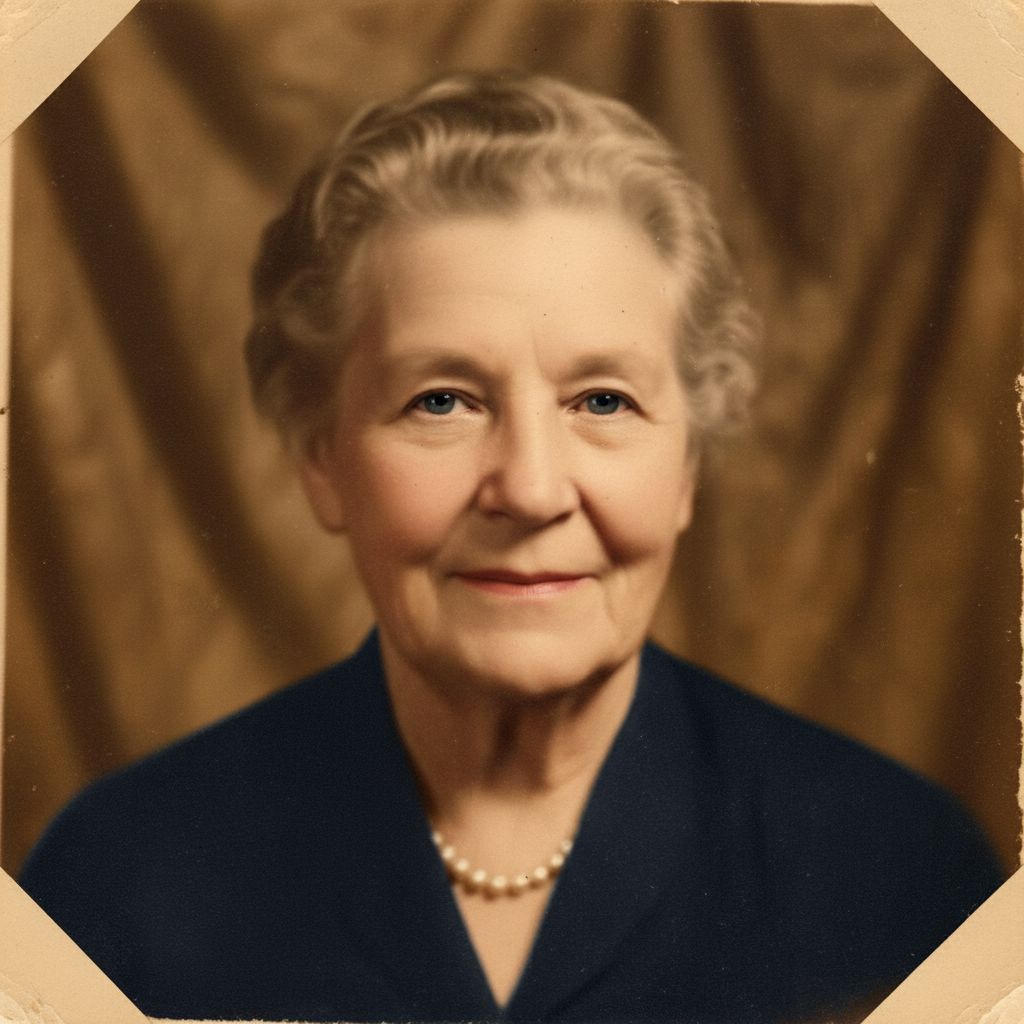
Beautifully restored portrait with clear face, natural colors, and all damage repaired
After

How it works

1

Upload your treasured photo

Drop your old photo into EditThisPic. Works with scanned prints, photos of photos, or digital copies. JPG, PNG, WebP up to 7MB. For best results, scan physical prints at 300-600 DPI. Handle originals gently - they've survived this long for a reason.

⏱ Light fading: 20-30 seconds. Heavily damaged photos: may need 2-4 refinements to get everything right.
2

Describe the restoration you need

Type what you want: 'restore this old photo, fix the fading and scratches, bring back clear faces and natural colors.' Be specific about what matters most - the faces, the colors, the details you want preserved. No marking needed - the AI understands 'restore' means fix all the aging damage.

💡 Add 'while preserving their likeness' to keep faces authentic to how you remember them, not over-processed.

Copy one of these to get started:

Complete restoration of aged family photo restore this old photo completely, fix all scratches and damage, restore the faded colors, and make the faces clear and natural while preserving their likeness
Faded photo with washed-out colors restore the original vibrant colors, remove the yellowing and fading, bring back natural skin tones and the colors as they would have looked when new
Photo covered in scratches repair all the scratches and surface damage, restore the underlying image seamlessly, make it look like the scratches were never there
Portrait with damaged face carefully restore the face, bring back clear eyes and natural skin, repair damage while keeping them looking exactly like themselves
4 more prompts
Water-damaged family photo repair the water damage and stains, restore the areas that were affected, bring back the original colors and details that were lost
Torn or creased photo repair the tear and reconstruct the missing parts, blend the repair naturally into the rest of the photo, restore what was torn away
Keep some vintage character gently restore this old photo while keeping its vintage warmth, fix the obvious damage but preserve the aged character that makes it special
Black and white photo restoration restore this old black and white photo, repair the damage and enhance contrast and clarity, keep it in beautiful monochrome
3

Review what the AI restored

Look at the faces first - these are what matter most. Check that eyes are clear, expressions are natural, and the people look like themselves. Examine the areas that had the worst damage. Zoom in on important details. This photo matters, so take your time.

4

Refine with markers if needed

If some damage remains or a face needs more attention, tap markers on those specific spots and regenerate. Some photos need a few passes, especially ones with severe water damage or torn sections. This is optional - most photos restore beautifully on the first try.

💡 For heavily damaged faces, restore the overall photo first, then use markers on just the face for a second, focused pass.
Try it free
"I found my parents' wedding photo from 1962 in a box, completely faded and scratched. EditThisPic brought it back beautifully. My mom cried happy tears seeing it restored." @FamilyMemories_Lisa

See it in action

Severely faded 1950s portrait with yellowing, scratches, and barely visible face
Before
Beautifully restored portrait with clear face, natural colors, and all damage repaired
After

Grandmother's faded portrait from the 1950s

Found in an old shoebox, this portrait had severe yellowing and the face was almost invisible. One prompt brought her smile back clearly.

Prompt: restore this old photo completely, fix all scratches and damage, restore the faded colors, and make the faces clear and natural while preserving their likeness
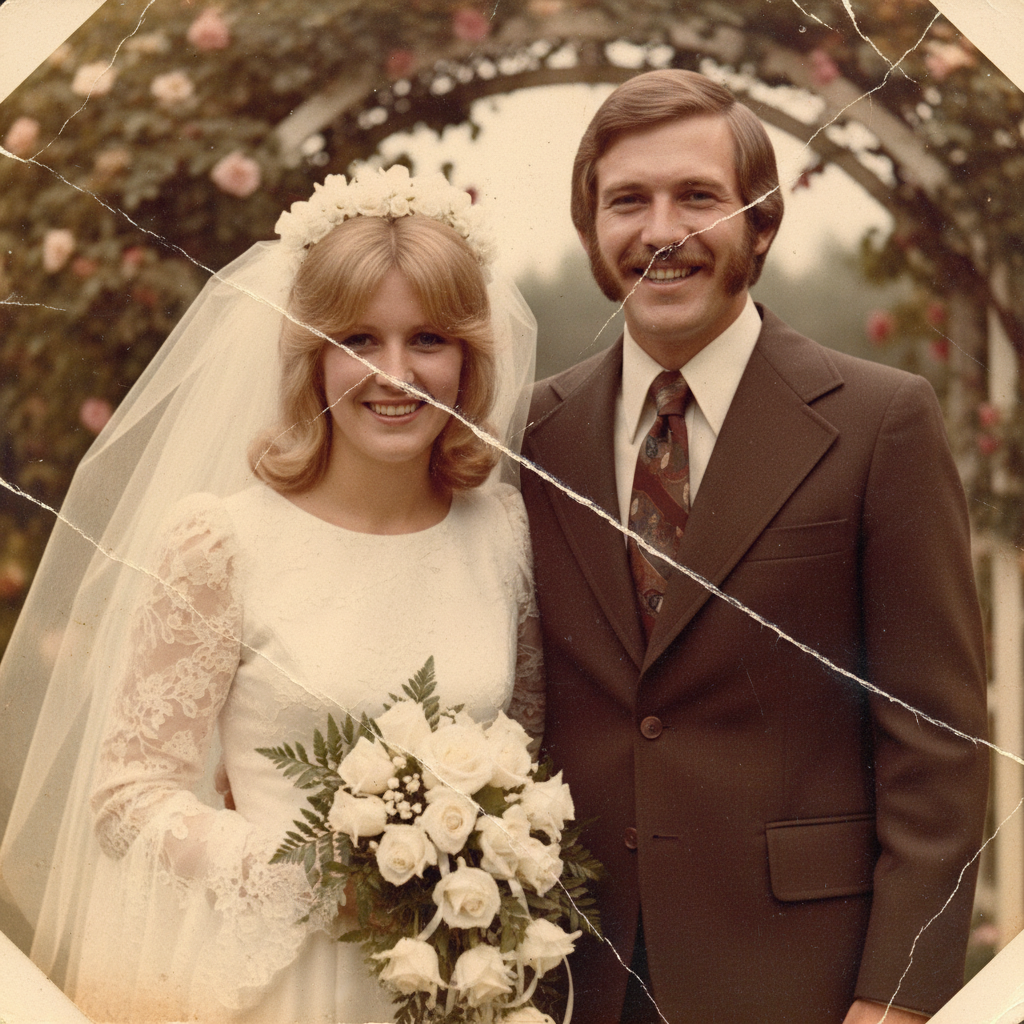
Wedding photo from the 1970s with deep scratches across both faces and surface damage
Before
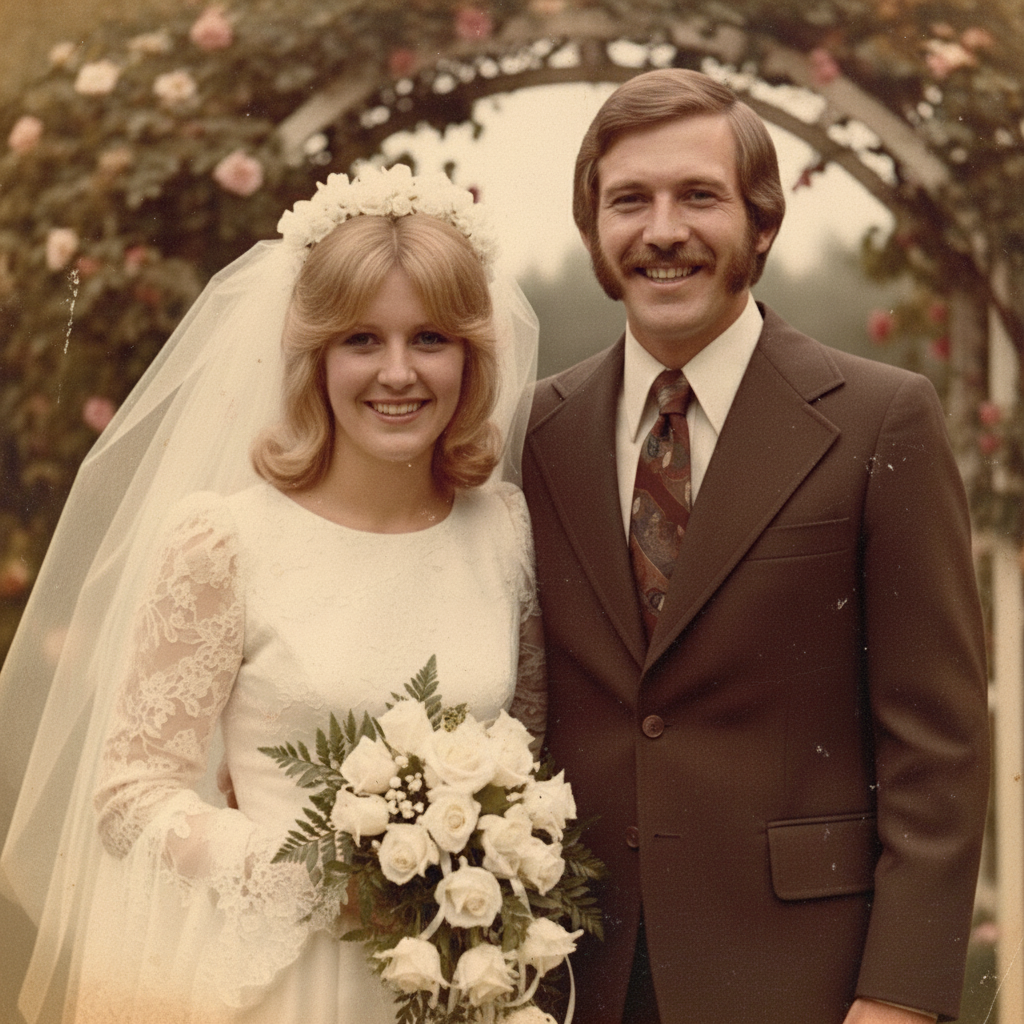
Restored wedding photo with all scratches removed and faces perfectly clear
After

Parents' wedding photo with deep scratches

This 1970s wedding photo had been stored loose in a drawer for decades. Deep scratches ran across both faces, but the AI restored it perfectly.

Prompt: repair all the scratches and surface damage, restore the underlying image seamlessly, make it look like the scratches were never there
1940s childhood photo with severe water damage and brown staining across lower half
Before
Fully restored photo with water damage removed and all details recovered
After

Water-damaged photo of grandfather as a child

This 1940s photo of grandfather as a young boy had water damage from a basement flood. The AI restored what seemed impossible to save.

Prompt: repair the water damage and stains, restore the areas that were affected, bring back the original colors and details that were lost

If something looks off

The restored face doesn't look quite right

Why: When faces are heavily damaged, the AI must infer missing details. These inferences may not match your memory of the person perfectly.

Try: restore the face more gently, preserve the original features as much as possible even if some damage remains, keep their authentic appearance

💡 Sometimes a slightly imperfect restoration that's authentic is better than a perfect reconstruction that doesn't look like them.

Colors look over-saturated or unnatural

Why: The AI may overcorrect fading, especially when original colors were severely degraded, pushing them too vibrant.

Try: restore with natural, period-appropriate colors from the [decade], avoid over-saturation, keep tones authentic to when the photo was taken

💡 Specifying the decade (1950s, 1960s, etc.) helps the AI choose era-appropriate color palettes.

AI changed the wrong area or something I didn't want changed

Why: The AI couldn't determine exactly which area you meant from description alone. This happens with ambiguous requests.

Try: Tap a marker on the specific damage you want fixed, then regenerate with the same prompt

💡 Markers tell the AI 'I mean THIS one specifically.' Use them when description alone is ambiguous.

Some scratches or damage still remain

Why: Complex or subtle damage can be missed in the first pass, especially fine scratches or faint stains.

Try: Tap markers on the remaining damage, then: remove these specific scratches and blend the repair naturally

💡 Multi-pass restoration works well: overall fix first, then targeted cleanup of remaining issues.

Photo lost its vintage warmth and feels too modern

Why: Aggressive restoration can remove the character that made the photo feel special and historic.

Try: restore the damage more gently while preserving the vintage aesthetic and original warmth, don't over-process

💡 Not every imperfection needs fixing - some vintage character is worth keeping.

Quick answers

Do I need to mark the damaged areas before describing?

No! Just describe what you want: 'restore this old photo' or 'fix the scratches and fading.' The AI recognizes common aging patterns like yellowing, scratches, fading, water stains, and tears. Only use markers when specific spots need extra attention after the first pass, or when you want to focus on just one area.

Will restoration change who the person looks like?

For minor to moderate damage, faces remain authentic to how they looked. For severe damage where facial features are missing or heavily obscured, the AI must infer what should be there - which may not perfectly match reality. For precious heritage photos, try 'gently restore while preserving their likeness' to keep authenticity even if some damage remains.

What's the best way to scan old photos?

Scan at 300-600 DPI for best results. Use a flatbed scanner rather than a phone camera if possible. Don't press down hard on fragile prints. If you must photograph, use a tripod, diffused lighting (no flash), shoot straight-on, and make sure the print is perfectly flat. The more detail you capture, the better the restoration.

Can you restore very old or severely damaged photos?

Yes. The AI works with photos from any era, including heavily faded, scratched, water-damaged, or partially torn prints. Very severe damage may need multiple refinement passes. The AI does its best to infer missing content, but some damage may be beyond complete reconstruction.

What types of damage can be fixed?

The AI handles most common damage: fading and yellowing, scratches and scuffs, water stains and tide marks, tears and creases, spots and discoloration, mold and mildew stains, and general aging deterioration. It can even reconstruct small missing areas based on context.

Is my family photo kept private?

Yes. EditThisPic processes your photos privately. Images are not stored after processing, not used for training, and not shared. Your family memories and your privacy are completely protected.

Ready to restore your treasured family memories?

Free to try. No signup required. Your photos stay private.

Try it free