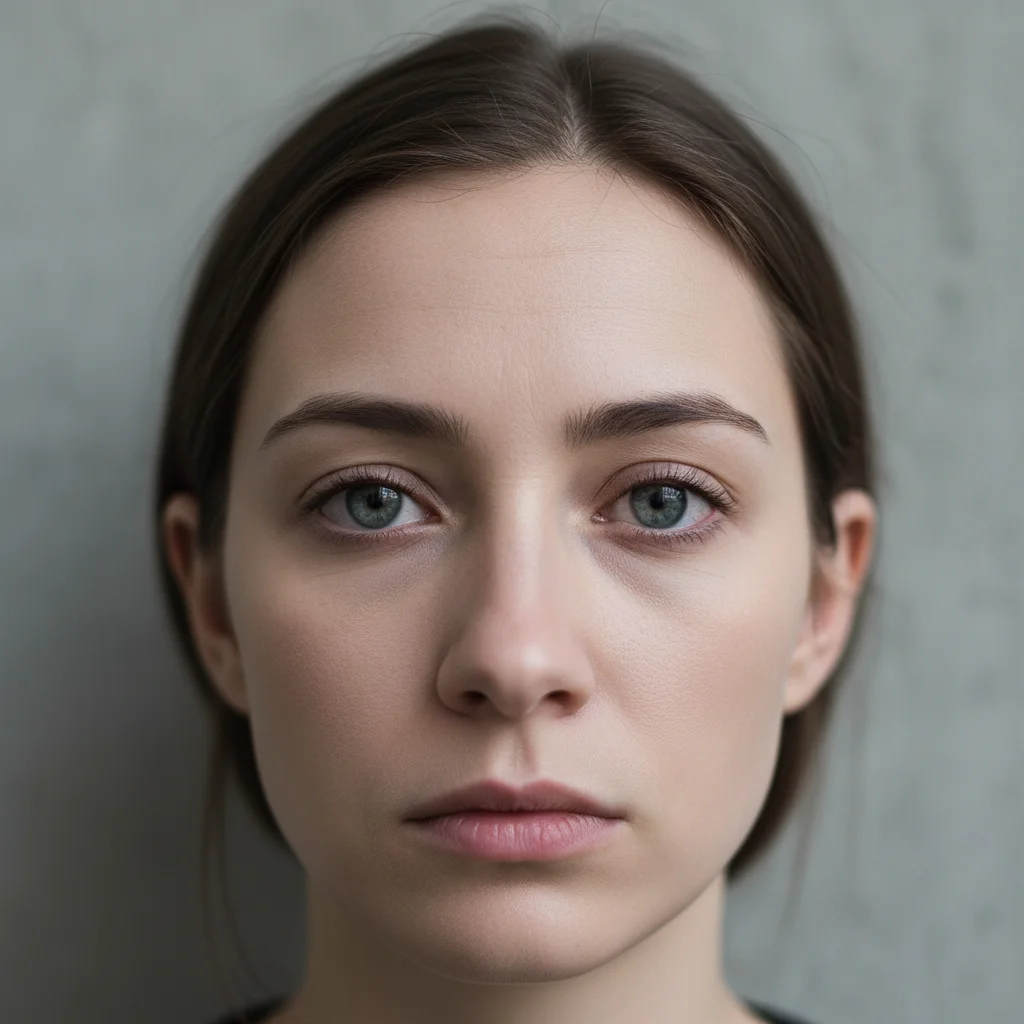
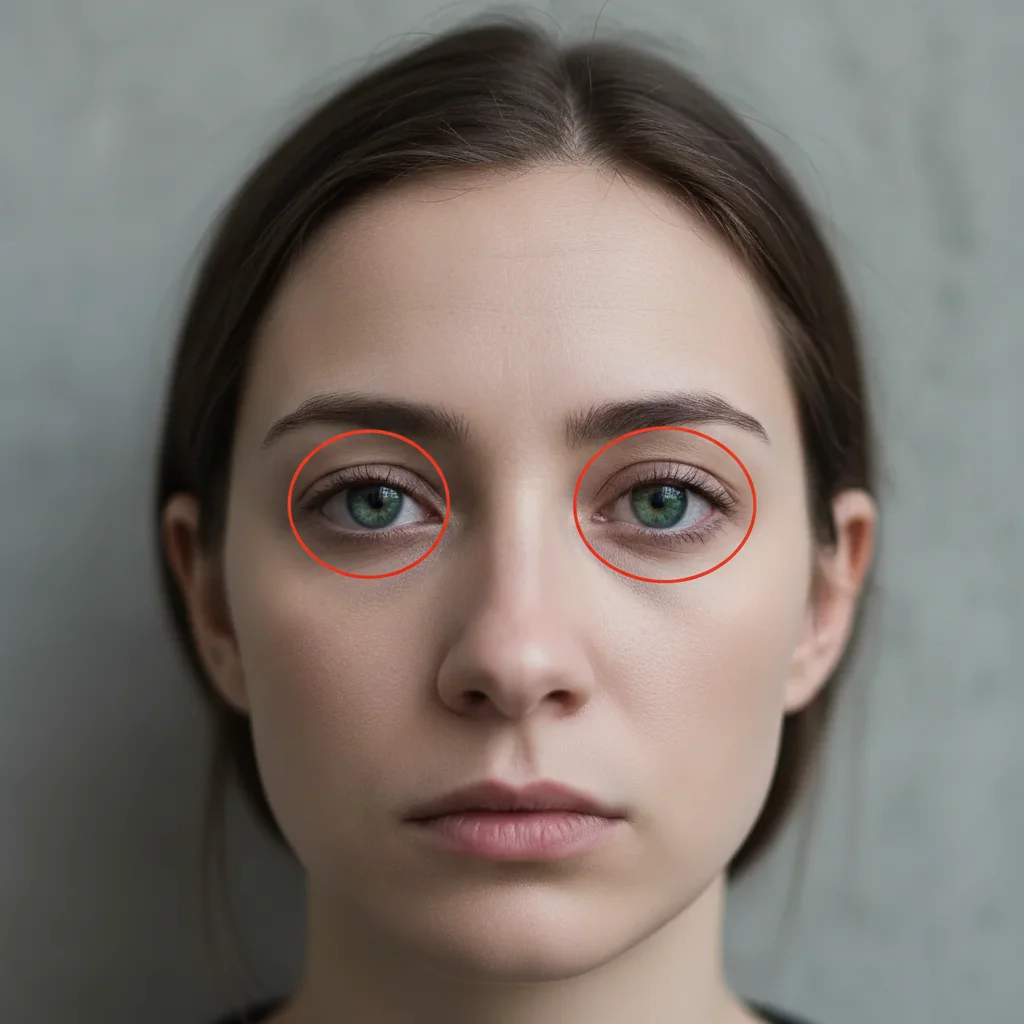
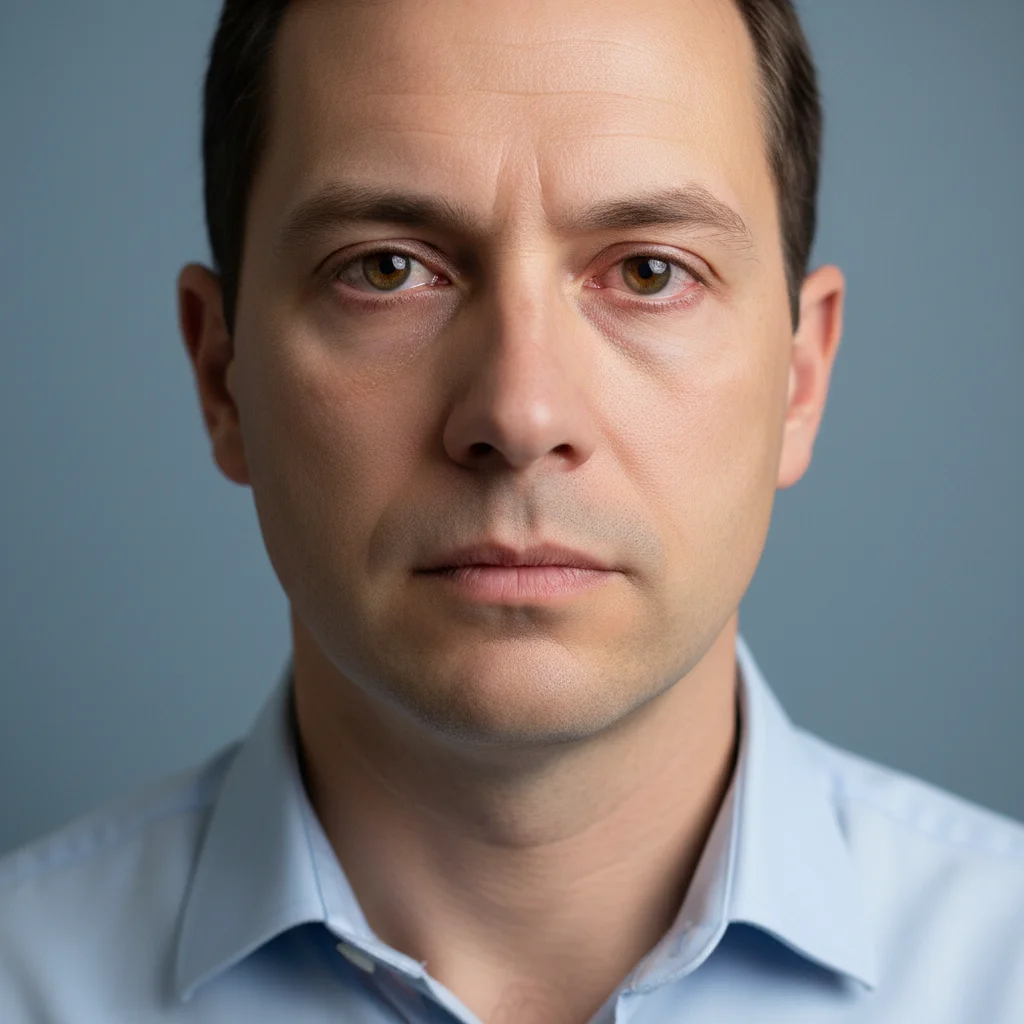
Whiten Eyes from Photo
Just type 'brighten the whites of the eyes' and you're done.
Type 'whiten the eyes' or 'brighten the whites of the eyes' and EditThisPic's AI handles it in 10-20 seconds. No need to zoom in and carefully select the sclera. The AI knows where eyes are and what 'whiten' means. Free to try, no signup required.
How it works
Upload your photo
Drop your portrait into EditThisPic. JPG, PNG, and WebP up to 7MB work best. Higher resolution photos give the AI more detail around the eye area for natural-looking results.
Describe what you want
Type your instruction: 'whiten the eyes' or 'brighten the whites of the eyes for a refreshed look.' That's it. The AI understands eye anatomy and will target the sclera without affecting iris color or pupil.
Copy one of these to get started:
whiten the eyes for a bright refreshed look
subtly brighten the whites of the eyes while keeping the natural eye color
reduce redness in the eyes and brighten the whites for a well-rested appearance
brighten the whites of the eyes for a professional headshot while maintaining natural appearance
2 more prompts
whiten the eyes on all people in the photo for a consistent refreshed look
brighten only the whites of the eyes, preserving the exact iris color and any natural eye details
Generate and review
Check the result at full zoom. Look for natural-looking whites that still have subtle shading near the corners. The eyes should look refreshed, not artificially bright or like contact lenses.
Refine with markers if needed
If the AI affected the iris color or didn't whiten evenly, tap markers directly on the eye area and regenerate. This is optional—most eye whitening works perfectly without markers.
"My headshots always made me look tired. One prompt and my eyes look bright and awake without looking fake." @HeadshotPro_Mike
See it in action
Professional headshot enhancement
Corporate headshot where the subject looked tired from a long day. One prompt brightened the eyes for a polished professional appearance.
brighten the whites of the eyes for a professional refreshed headshot appearance
Portrait retouching for social media
Casual portrait where late-night fatigue showed in the eyes. Quick enhancement made the photo share-worthy.
whiten the eyes and reduce redness for a bright awake look
If something looks off
AI changed the wrong area or something I didn't want changed
Why: The AI couldn't determine exactly which area you meant from description alone. This can happen with multiple faces or unusual angles.
Tap a marker on the specific eyes you want to whiten, then regenerate with the same prompt
💡 Markers tell the AI 'I mean THIS person's eyes specifically.' Use them when description alone is ambiguous.
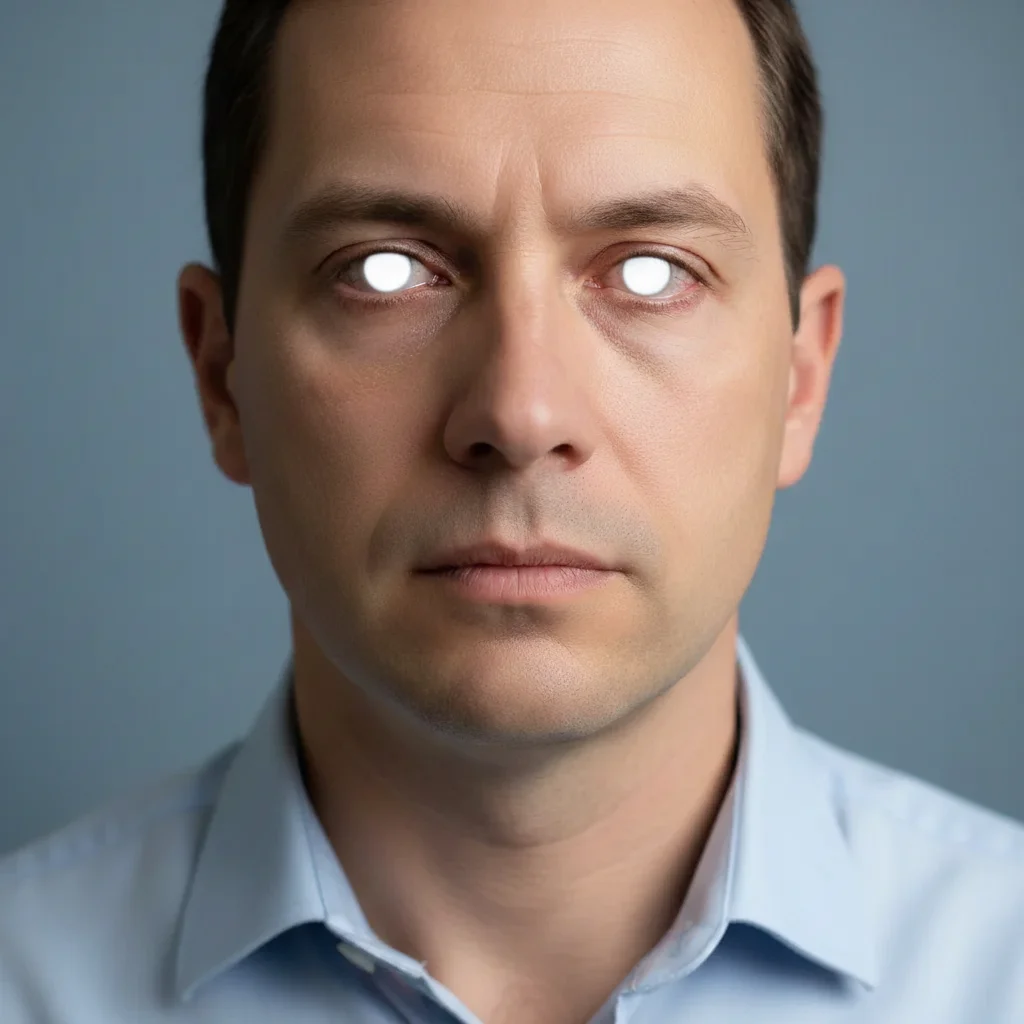
Eyes look unnaturally white or glowing
Why: The AI applied too much whitening. This happens when you don't specify a natural look.
subtly brighten the whites of the eyes while maintaining natural shading in the corners
💡 Real eyes have subtle gray shading near the inner and outer corners—preserving this prevents the 'contact lens' look.
Iris color was affected or looks washed out
Why: The whitening effect bled into the colored part of the eye. This can happen with light-colored eyes.
brighten only the sclera (whites) of the eyes, preserving the exact original iris color and pupil
💡 Using 'sclera' is more precise than 'whites' and helps the AI understand exactly which area to target.
One eye looks different from the other
Why: Lighting or angle differences caused the AI to process each eye differently.
whiten both eyes evenly with consistent brightness between left and right eye
💡 If unevenness persists, tap a marker on the eye that needs more work and regenerate.
Quick answers
Do I need to mark the eyes before describing?
No! Just type 'whiten the eyes' and the AI finds and processes them automatically. The AI understands facial anatomy and knows where eyes are. Markers are only needed if you want to target a specific person in a group photo or refine results afterward.
Will this change my iris color?
No, the AI specifically targets the sclera (the white part) and leaves your iris color untouched. If you want extra protection, add 'preserving iris color' to your prompt. For very light blue or gray eyes, you can say 'brighten only the sclera, not the iris' for maximum precision.
How do I avoid the 'fake contact lens' look?
Add 'subtly' or 'naturally' to your prompt: 'subtly whiten the eyes for a natural look.' Real eyes have slight gray shading near the corners—the AI preserves this when you ask for natural results. Avoid over-whitening by checking at 100% zoom before accepting.
Can I whiten eyes for multiple people in one photo?
Yes. Type 'whiten the eyes on all people in the photo' and the AI will process everyone. If you only want specific people's eyes whitened, tap markers on those faces first, then describe what you want.
Ready to brighten your eyes?
Free to try. No signup required.