Free • No signup Enhance Eyes · Free

AI Eye Enhancer

Describe the eye enhancement you want and AI transforms your eyes instantly. No marking needed.
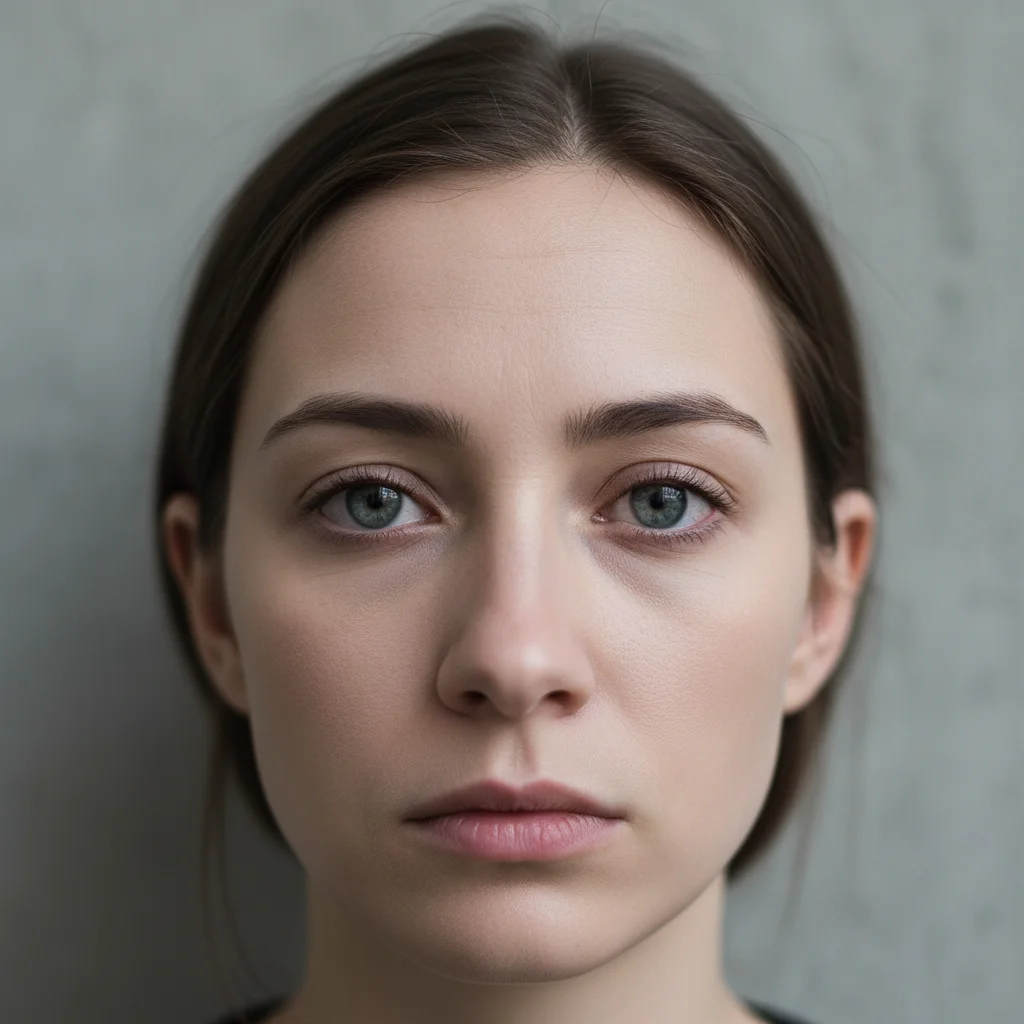
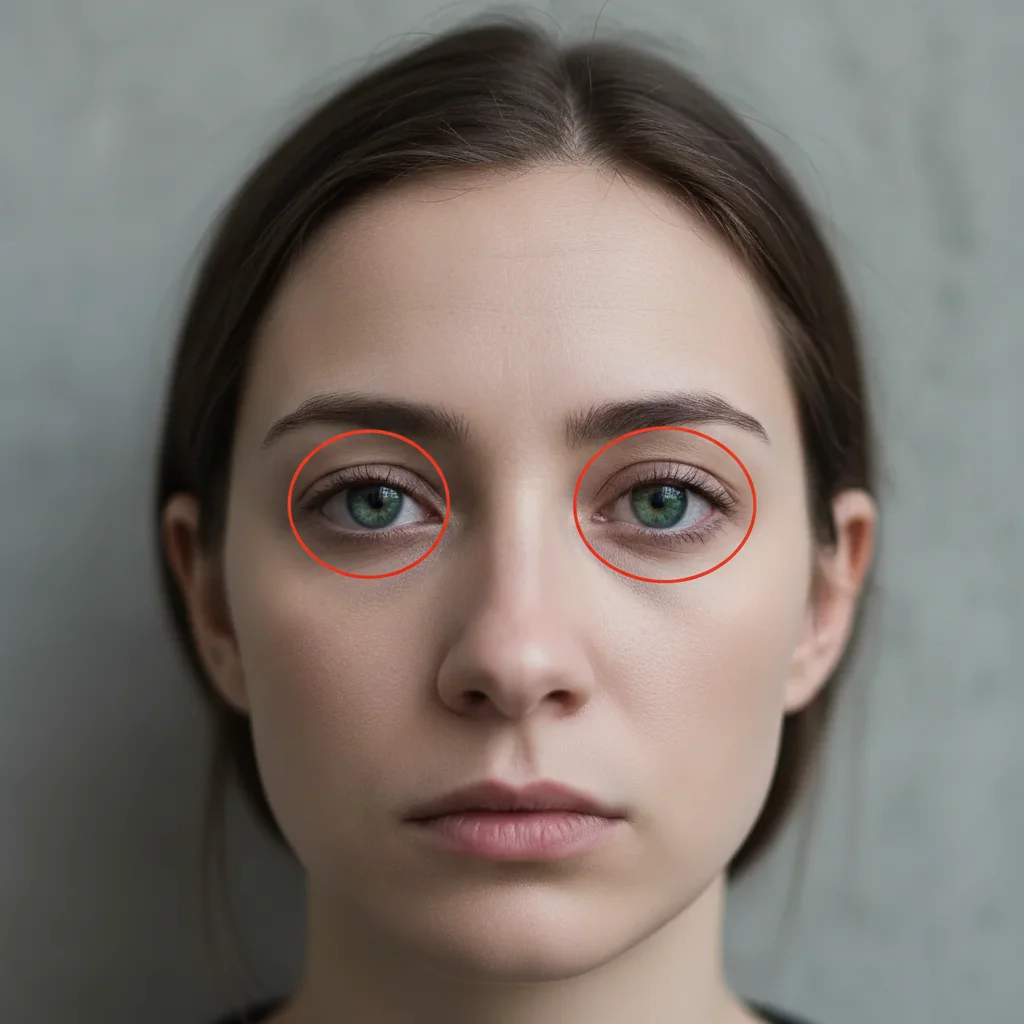
Woman with dull, flat-looking eyes lacking vibrancy
Before
Same woman with bright, vivid eyes and natural catchlights
After

AI Eye Enhancer

Drop your photo here

or click to browse

Release to upload

Free • No signup

Advertisement
Popular use cases:
  • eye enhancement
  • brighten eyes in photo
  • eye color enhancement
  • portrait eye sharpening
  • catchlight enhancement
  • red eye removal
  • eye whitening
  • professional portrait eyes

Cost
Free No signup required
Time
Instant results in 15-30 seconds
Works on
Any device - browser, phone, tablet, desktop
Powered by
AI-powered photo editing
Scenario Prompt Time
Basic eye brightening brighten the eyes and sharpen iris detail 30s
Eye color enhancement intensify natural eye color, keep it realistic 35s
Full eye enhancement enhance eyes - brighter, sharper, vivid color, catchlights 40s

How it works

  1. Upload your photo

    Drop your image into EditThisPic. JPG, PNG, WebP up to 7MB. Portraits where both eyes are clearly visible produce the best enhancement results. Close-up headshots work especially well for eye enhancement.

    Expect: Basic eye brightening: 30-35 seconds. Full eye enhancement with color and detail: 40-50 seconds and may need refinements.
  2. Describe the eye enhancement

    Type what you want: 'brighten the eyes and make the iris color more vivid' or 'sharpen the eyes, add catchlights, and enhance the natural eye color.' Be specific about what to improve—brightness, color, sharpness, or all three. No marking needed—the AI knows where eyes are.

    Tip: Mention 'catchlights' to add that bright reflection in the eyes that makes portraits look professional and alive.

    Copy one of these to get started:

    Natural eye brightening brighten and sharpen the eyes, make the iris color more vivid while keeping them natural
    Professional catchlights enhance the eyes with bright catchlights and sharper iris detail for a professional portrait look
    Reduce tired look make the eyes look more awake and refreshed - brighten the whites, reduce redness, and add a subtle sparkle
    Intensify eye color intensify the natural eye color to make it deeper and more striking without changing the color itself
    3 more prompts
    Clear eye whites whiten the whites of the eyes to be clearer and brighter, reduce any visible redness or yellowness
    Sharpen eye detail sharpen all eye detail - iris texture, eyelashes, and eyebrow definition for a high-definition look
    Dramatic editorial eyes enhance the eyes dramatically for an editorial look - intense color, sharp detail, prominent catchlights, and defined lashes
  3. Review the enhancement

    Check that eyes look naturally vibrant, not oversaturated. Zoom in to verify the iris detail, pupil remains natural, and both eyes are enhanced equally. Ensure the brightness matches the overall photo lighting.

  4. Refine with markers if needed

    If one eye needs more enhancement than the other or a specific area like the iris needs adjustment, tap a marker on that eye and regenerate. Most eye enhancements work perfectly on the first try.

    Tip: Markers are for precision refinement only. Try without them first—you usually won't need them.
Try it free

AI Eye Enhancer

Drop your photo here

or click to browse

Release to upload

Free • No signup

"Every portrait I take looks better after an eye enhancement. The catchlights pop, the irises look more vivid, and the whole photo comes alive. Takes 30 seconds and looks completely natural." @PortraitPro_Kai

See it in action

Woman with dull, flat-looking eyes lacking vibrancy
Before
->
Same woman with bright, vivid eyes and natural catchlights
After

Dull eyes brightened for portrait

A portrait with flat, dull-looking eyes enhanced to look vibrant and engaging with better iris color and catchlights.

Prompt: brighten and sharpen the eyes, make the iris color more vivid while keeping them natural
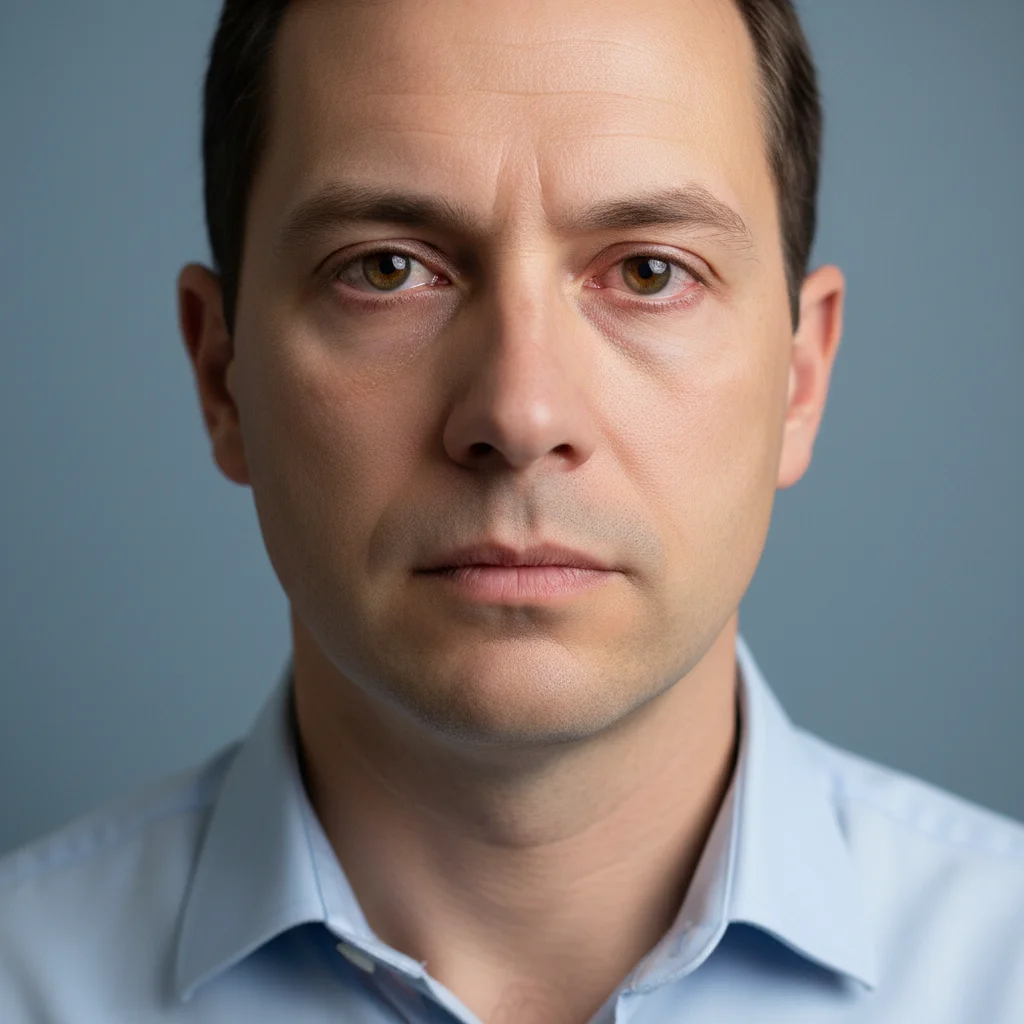
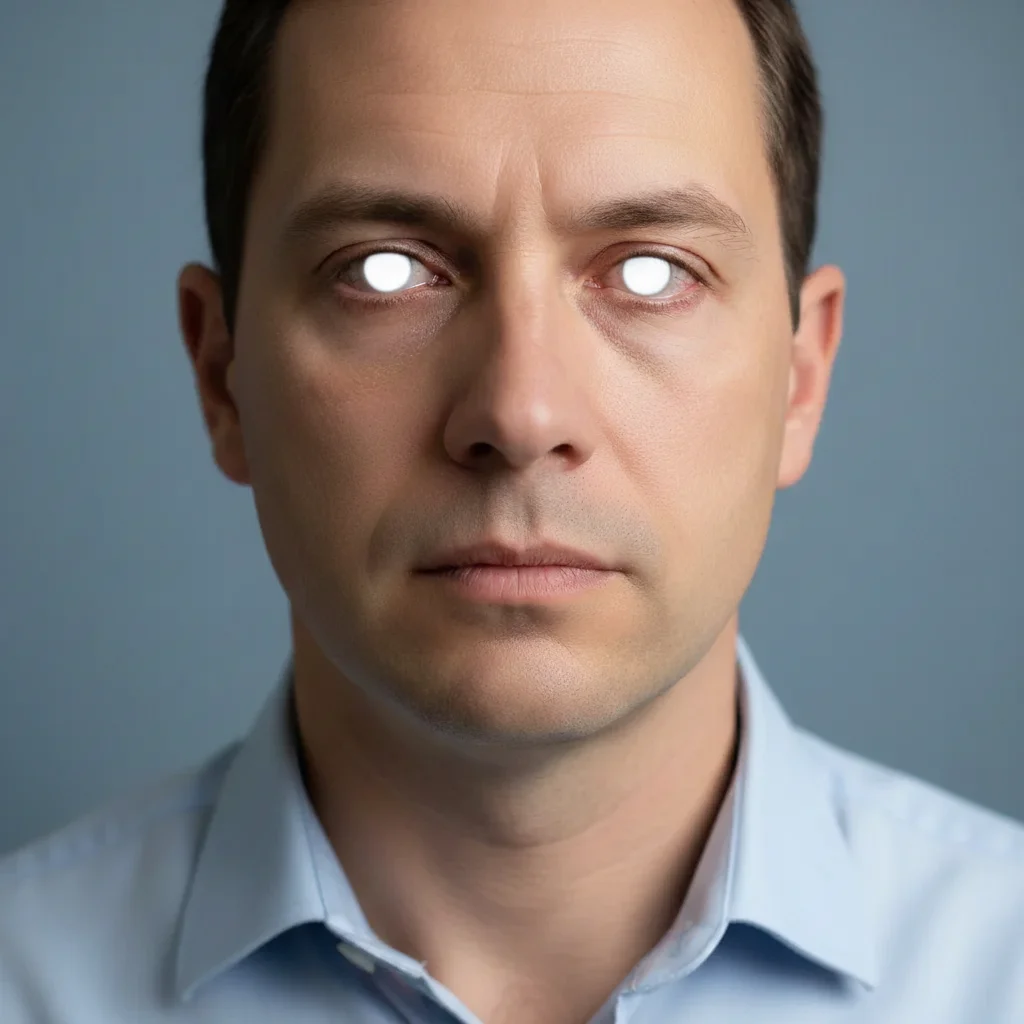
Man with visibly tired, red eyes in headshot
Before
->
Same man with bright, refreshed-looking eyes
After

Tired eyes refreshed for professional headshot

Eyes with visible tiredness enhanced to look awake and refreshed for a professional photo.

Prompt: make the eyes look more awake and refreshed - brighten the whites, reduce redness, and add a subtle sparkle
Advertisement

If something looks off

AI changed the wrong area or something I didn't want changed

Why: The AI modified skin around the eyes or eyebrows alongside the eye enhancement. This happens when enhancement bleeds into surrounding areas.

Try: Tap markers on both eyes specifically, then regenerate: enhance only the eyes themselves, do not change skin, eyebrows, or surrounding areas

Tip: Markers tell the AI 'I mean THIS area specifically.' Use them when description alone is ambiguous.

Eyes look oversaturated or alien-like

Why: The iris color was enhanced too aggressively, creating an unnaturally intense or neon-like appearance.

Try: enhance the eyes subtly - slightly brighter iris with natural color depth, avoid oversaturation

Tip: Adding 'avoid oversaturation' explicitly tells the AI to keep color enhancement within realistic bounds.

One eye looks different from the other

Why: Different lighting conditions on each eye caused the AI to apply uneven enhancement, especially in photos with side lighting.

Try: enhance both eyes equally and symmetrically, same brightness, color intensity, and catchlight on each eye

Tip: Specifying 'equally' and 'same brightness' addresses asymmetric enhancement directly.

Eye whites look too blue or artificial

Why: The whitening of eye whites shifted the color temperature, adding a blue cast that looks unnatural.

Try: brighten the eye whites to a clean, natural white - warm and realistic, not blue-tinted

Tip: 'Not blue-tinted' and 'warm' prevent the cold artificial look that aggressive whitening creates.

Pupils changed size or look unnatural

Why: The enhancement altered the pupil along with the iris, changing its size or shape in an unrealistic way.

Try: enhance only the iris color and brightness, keep the pupil size and shape exactly as it is in the original

Tip: Explicitly preserving the pupil ensures the AI only modifies the iris during enhancement.

Quick answers

Do I need to mark the eyes before describing the enhancement I want?

No! Just describe what you want: 'brighten the eyes and make the iris color more vivid.' The AI knows exactly where eyes are on a face. Only use markers if the enhancement accidentally affected surrounding skin or you want to adjust just one eye specifically.

How do I enhance eyes in a photo without them looking fake?

Use 'natural' or 'subtle' in your prompt: 'enhance the eyes naturally with slightly brighter iris color.' The AI preserves iris texture and natural color variations while boosting vibrancy. Avoid 'intense' or 'dramatic' if you want a realistic result that could pass as natural.

Is there a free AI eye enhancer that doesn't require an account?

Yes, EditThisPic is free to try with no account needed. Upload your photo, describe the eye enhancement you want, and download the result. No watermarks on outputs. Works for brightening, color enhancement, and sharpening without any signup.

What's the best free AI tool for making eyes look brighter in photos?

EditThisPic offers free AI eye enhancement with no signup required. Unlike apps with fixed eye filter presets, you describe exactly what you want. It handles brightness, color vibrancy, catchlights, and sharpness, generating natural results in seconds.

Ready to enhance your eyes in photos?

Free to try. No signup required.

Try it free