Free • No signup Remove Dark circles · Free

AI Dark Circle Remover

Just describe what you want and AI handles the dark circles editing.
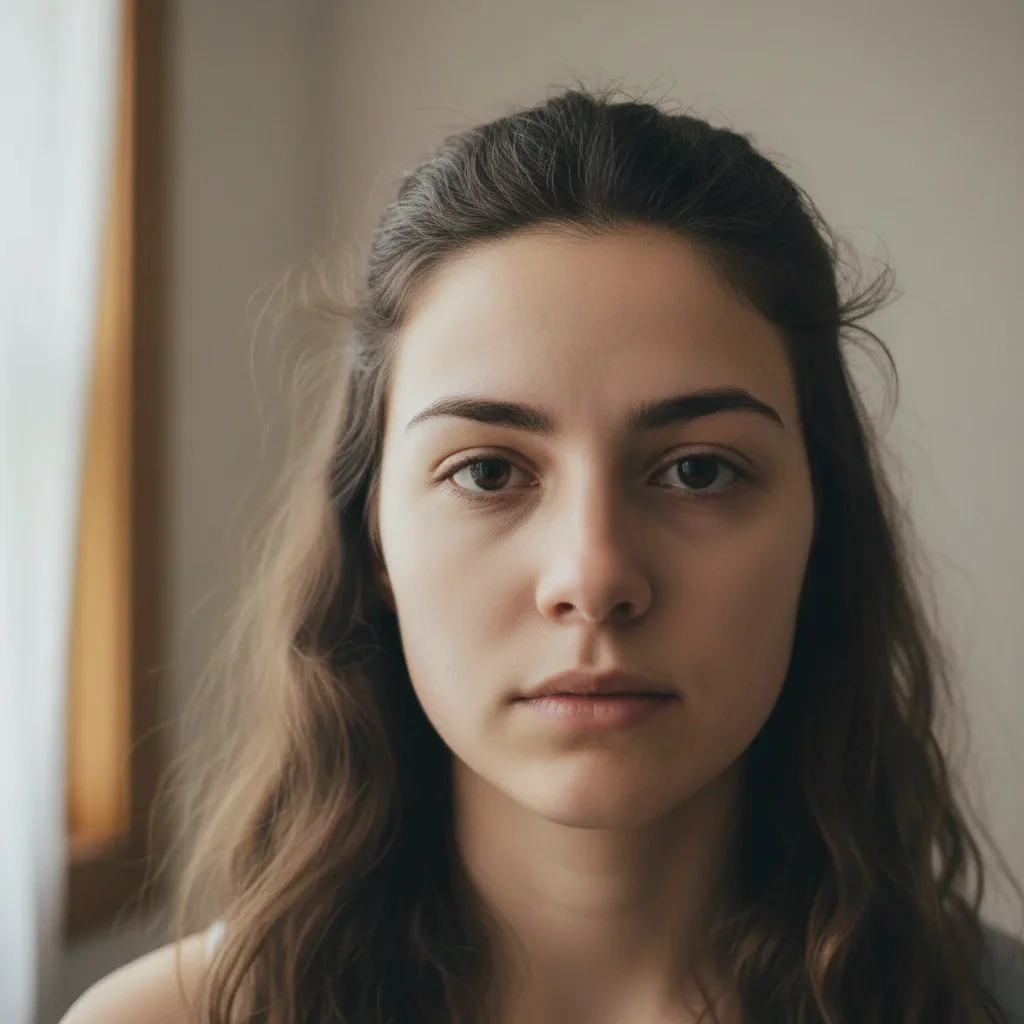
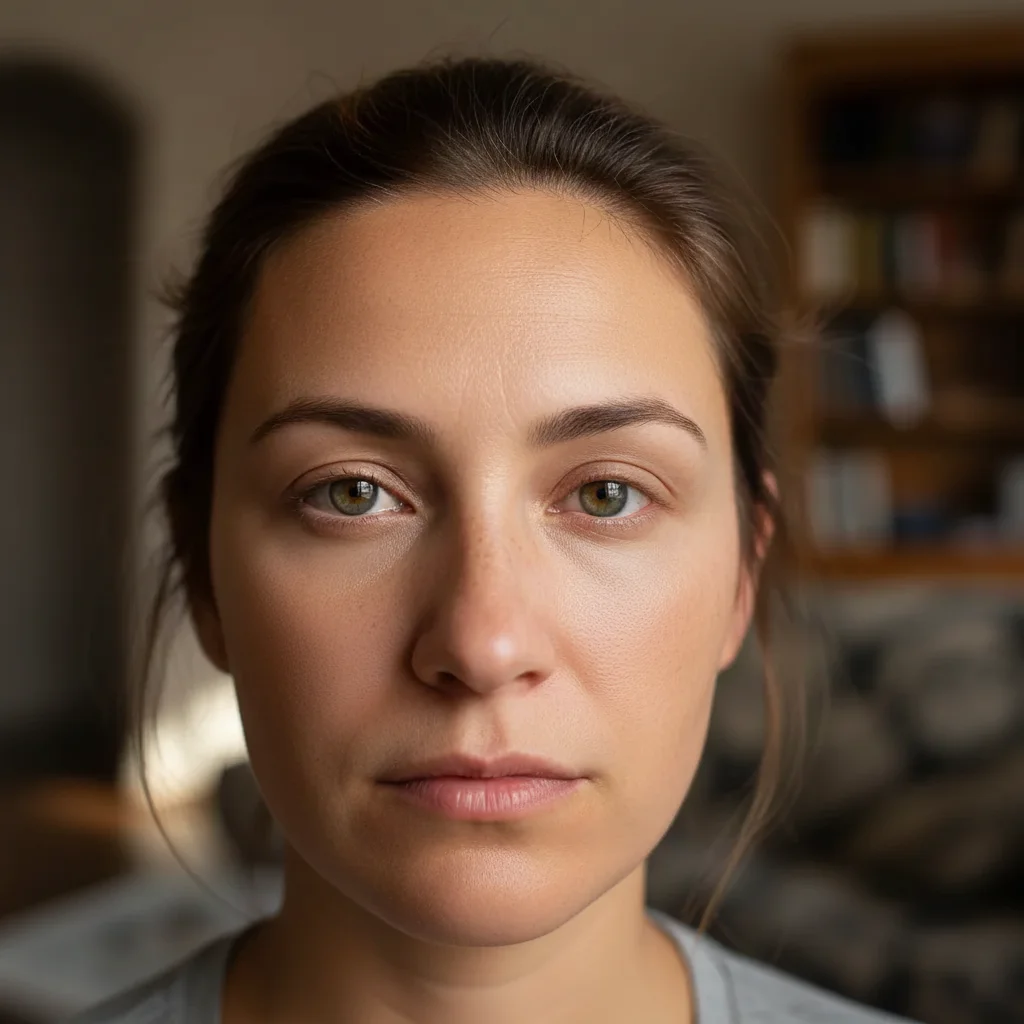
Before ai-dark-circle-remover edit
Before
After ai-dark-circle-remover edit
After

AI Dark Circle Remover

Drop your photo here

or click to browse

Release to upload

Free • No signup

Advertisement
Popular use cases:
  • social media photos
  • professional headshots
  • product photography
  • personal photos

Cost
Free No signup required
Time
Instant results in 15-30 seconds
Works on
Any device - browser, phone, tablet, desktop
Powered by
AI-powered photo editing
Scenario Prompt Time
Remove dark under-eye circles Remove dark circles under both eyes and brighten the under-eye area to match surrounding skin tone 15s
Brighten severe dark circles Remove severe dark circles and significantly brighten the under-eye area for a refreshed look 15s
Remove bluish dark circles Remove bluish dark circles and even out skin tone for natural-looking bright under-eyes 20s
Clear purple under-eye shadows Remove purple-toned dark circles and create even, brightened under-eye skin tone 20s

How it works

  1. Upload Your Photo

    Choose a clear photo where dark circles are visible under the eyes. Frontal or three-quarter portraits with good lighting show the under-eye area most clearly and produce the best results.

    Expect: Your photo loads immediately in the editor at full resolution. The original image appears without compression, ready for dark circle removal.
  2. Mark the Dark Circles

    Use the brush tool to paint over the dark or shadowed areas under each eye. Focus on the discolored regions beneath the lower eyelid. The AI will brighten and even out the tone while matching surrounding skin.

    Copy one of these to get started:

    Remove dark under-eye circles Remove dark circles under both eyes and brighten the under-eye area to match surrounding skin tone
    Brighten severe dark circles Remove severe dark circles and significantly brighten the under-eye area for a refreshed look
    Remove bluish dark circles Remove bluish dark circles and even out skin tone for natural-looking bright under-eyes
    Clear purple under-eye shadows Remove purple-toned dark circles and create even, brightened under-eye skin tone
    2 more prompts
    Remove hereditary dark circles Remove genetic dark circles and brighten under-eye pigmentation for an even complexion
    Brighten age-related dark circles Remove age-related dark circles while maintaining natural mature skin appearance
  3. Generate Brightened Look

    Click Generate to remove dark circles and brighten the under-eye area. The AI analyzes skin tone and texture to create natural, refreshed-looking results in seconds.

  4. Download Your Refreshed Photo

    Save your edited photo in full resolution with no watermark. Your image shows brightened, even-toned under-eye areas with a natural, well-rested appearance.

Try it free

AI Dark Circle Remover

Drop your photo here

or click to browse

Release to upload

Free • No signup

"This dark circles tool is incredible. Just described what I wanted and it worked perfectly on the first try." @happy_user

See it in action

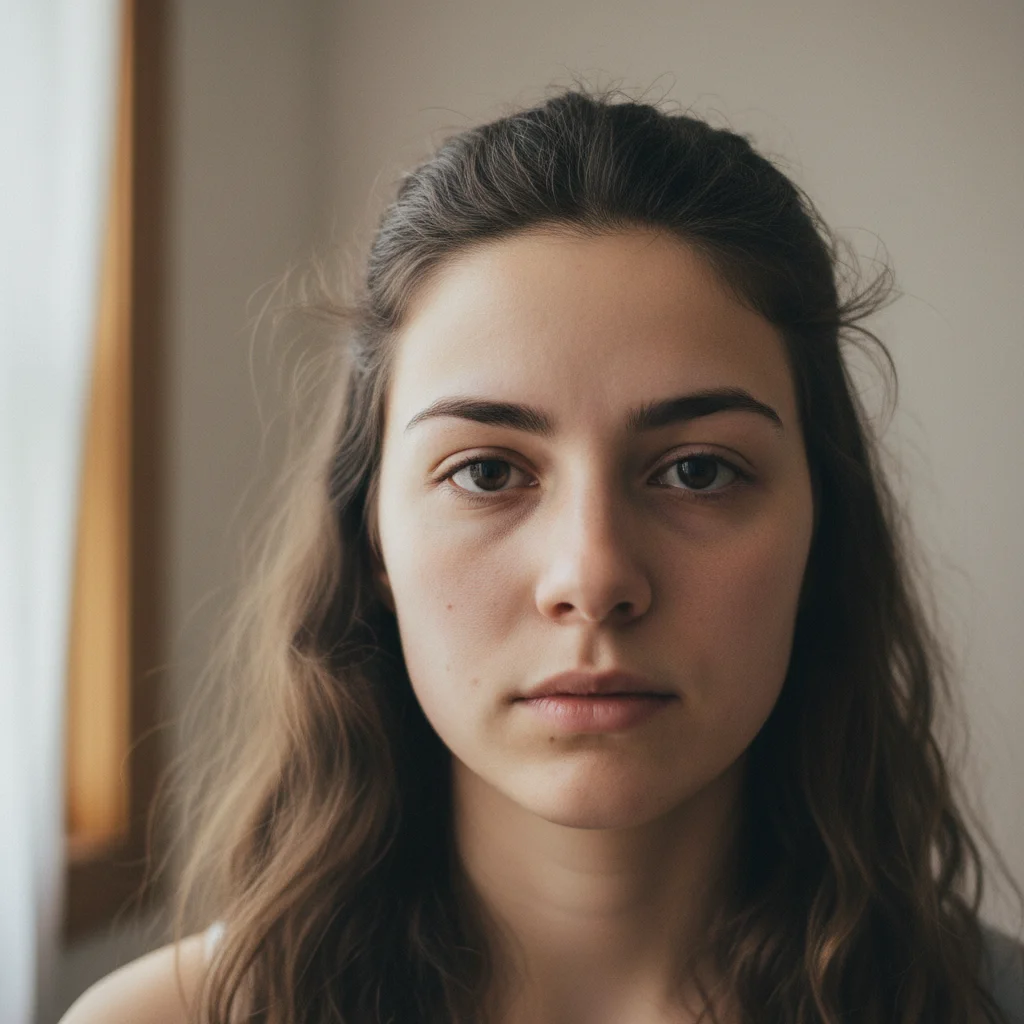
Before ai-dark-circle-remover edit
Before
->
After ai-dark-circle-remover edit
After

Severe Dark Circle Removal

Brightened deep purple-brown dark circles for a professional headshot with natural results.
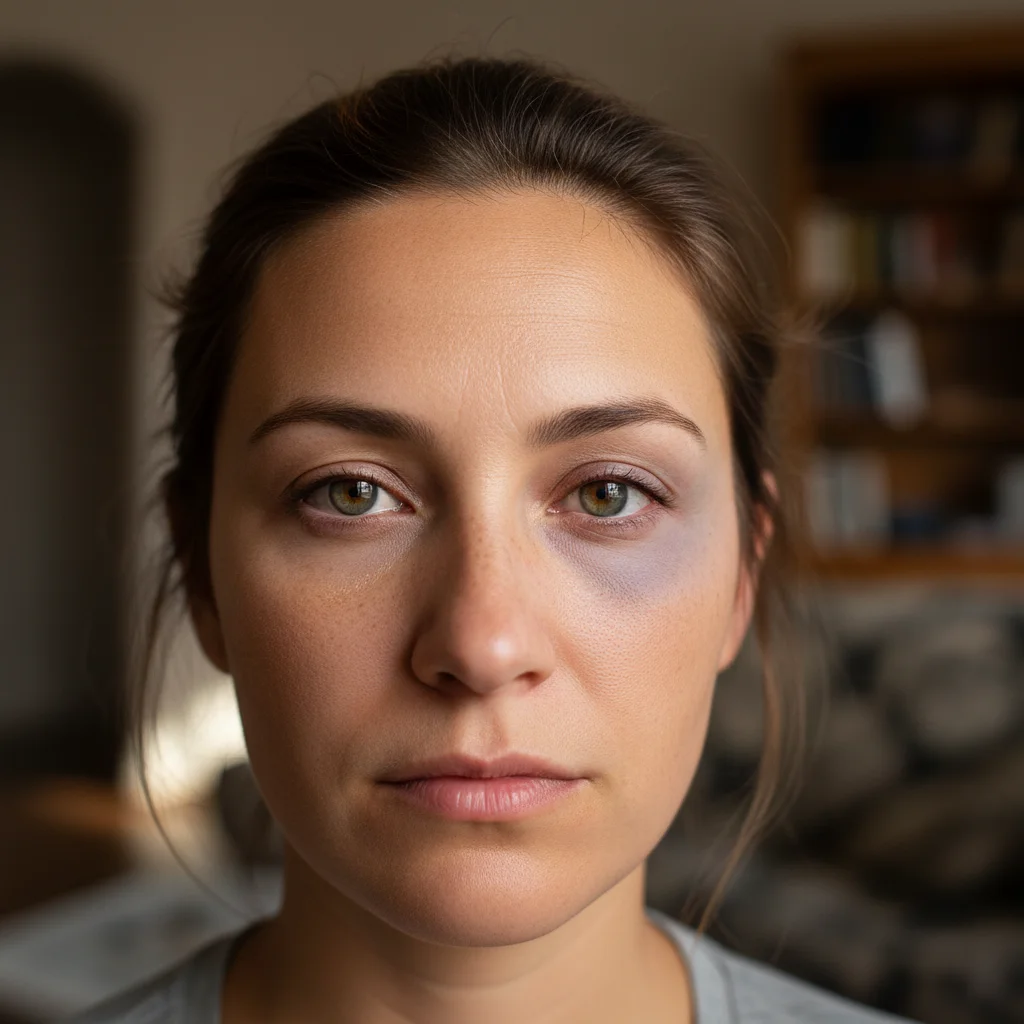
Prompt:
Before ai-dark-circle-remover edit
Before
->
After ai-dark-circle-remover edit
After

Genetic Dark Circle Correction

Reduced hereditary under-eye pigmentation for a refreshed dating profile photo.

Prompt:
Advertisement

If something looks off

AI changed wrong area

Why: The AI interpreted the instruction differently than expected.

Try: Mark only the darkened areas under the eyes, not the eyelids or cheeks. Use a brush size that covers just the discolored region beneath each lower eyelid.
Under-eye area looks too light or unnatural

Why: The AI interpreted the instruction differently than expected.

Try: This happens when marking extends too far onto the cheeks. Focus specifically on the darkened half-moon shape directly under each eye for more natural blending.
Dark circles still visible after removal

Why: The AI interpreted the instruction differently than expected.

Try: Very severe dark circles may need a second pass. Generate once, then mark any remaining darkness and generate again for more complete brightening.
Eye bags remain after dark circle removal

Why: The AI interpreted the instruction differently than expected.

Try: Dark circles (discoloration) and eye bags (puffiness) are different issues. After removing dark circles, use our AI Eye Bag Remover if you also need to address puffy under-eye bags.

Quick answers

Do I need to mark the dark circles?

Yes, paint over the darkened areas under your eyes using the brush tool. This guides the AI to brighten specifically those regions while preserving natural skin texture and surrounding areas.

What's the difference between dark circles and eye bags?

Dark circles are discoloration or shadowing under the eyes, while eye bags are physical puffiness or swelling. This tool removes dark pigmentation and shadows. For puffy bags, use our AI Eye Bag Remover.

Will it work on all dark circle types and colors?

Yes, the AI handles purple, blue, brown, and black dark circles regardless of cause (genetics, aging, lack of sleep, allergies). It brightens and evens tone across all skin colors and circle types.

Can I remove dark circles from just one eye?

Yes, mark only the eye with dark circles if you have asymmetric discoloration. This is useful when one eye has more pronounced darkness than the other.

Ready to edit your photos?

Free to try. No signup required.

Try it free