Free • No signup Open Editor

Remove Bags Under Eyes from Photo

Reduce puffy under-eye bags and look well-rested in any portrait

Type 'remove the bags under my eyes and smooth the under-eye area' and EditThisPic's AI reduces puffiness and swelling in 15-30 seconds. No selection tools, no manual retouching needed. Just describe what you want. Works on tired-looking portraits, professional headshots, and selfies. Maintains natural facial structure without the over-edited look. Free to try, no account needed.

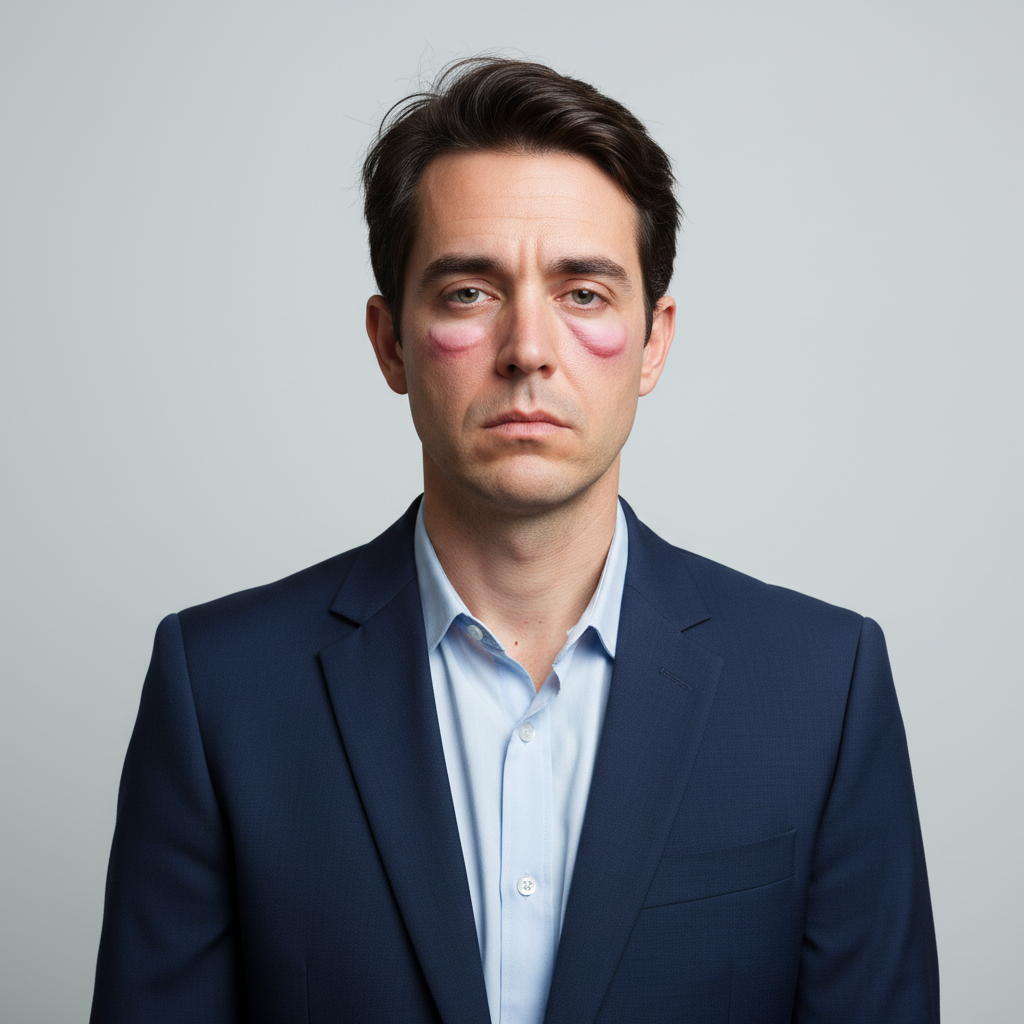
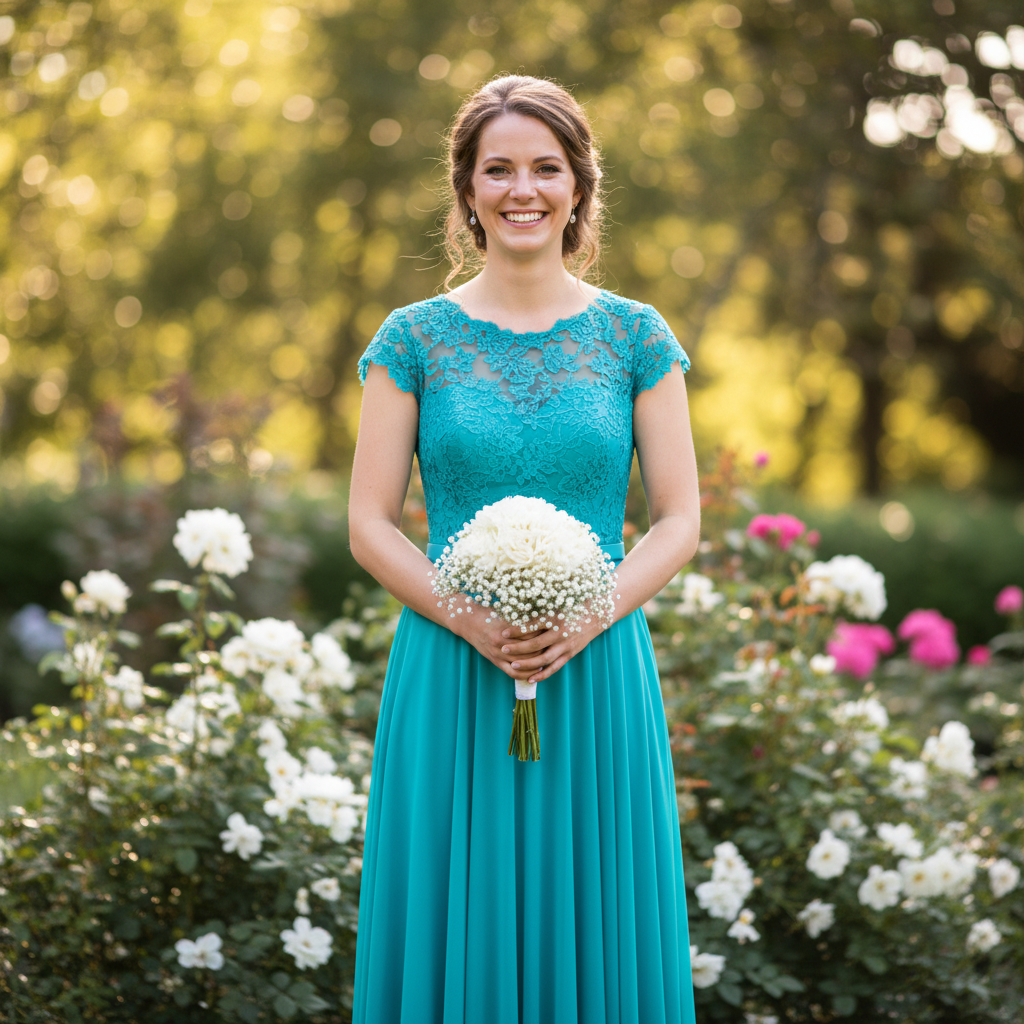
Professional headshot with visible puffy eye bags
Before
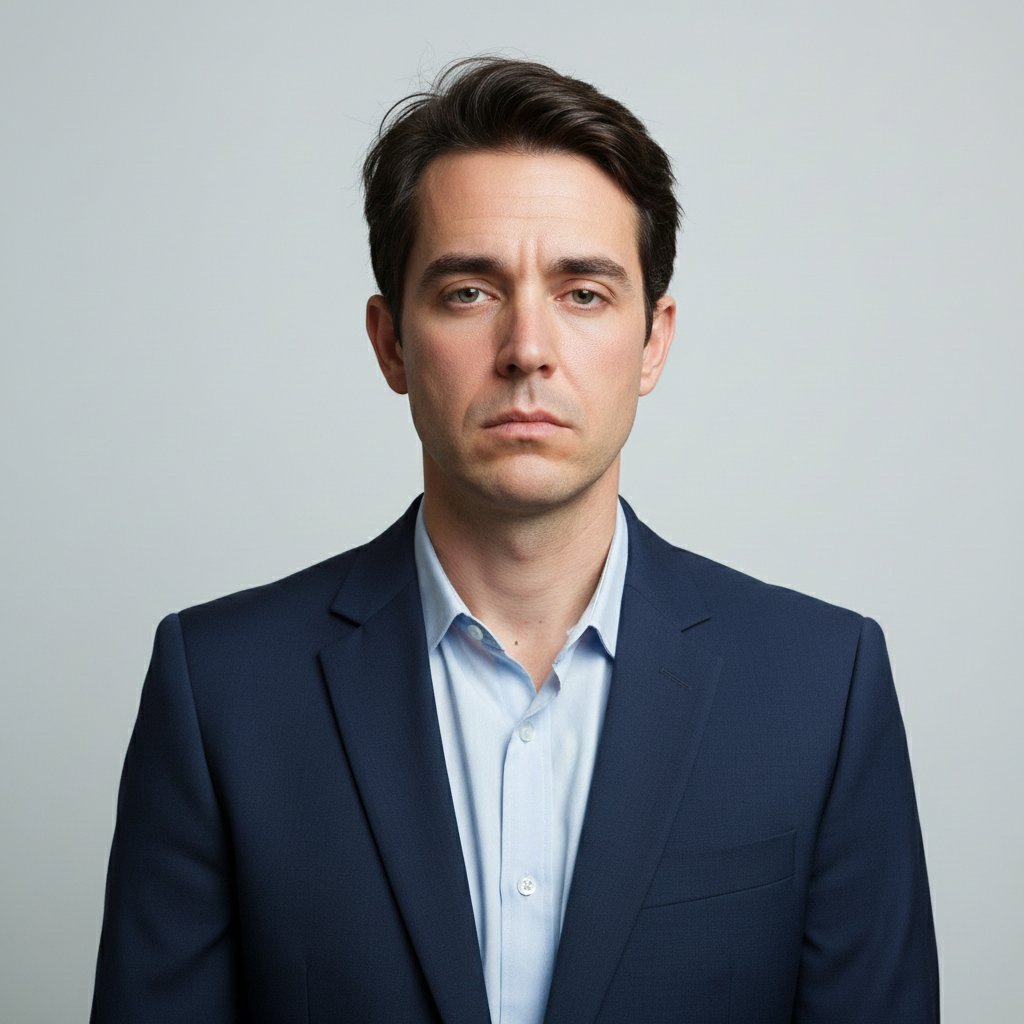
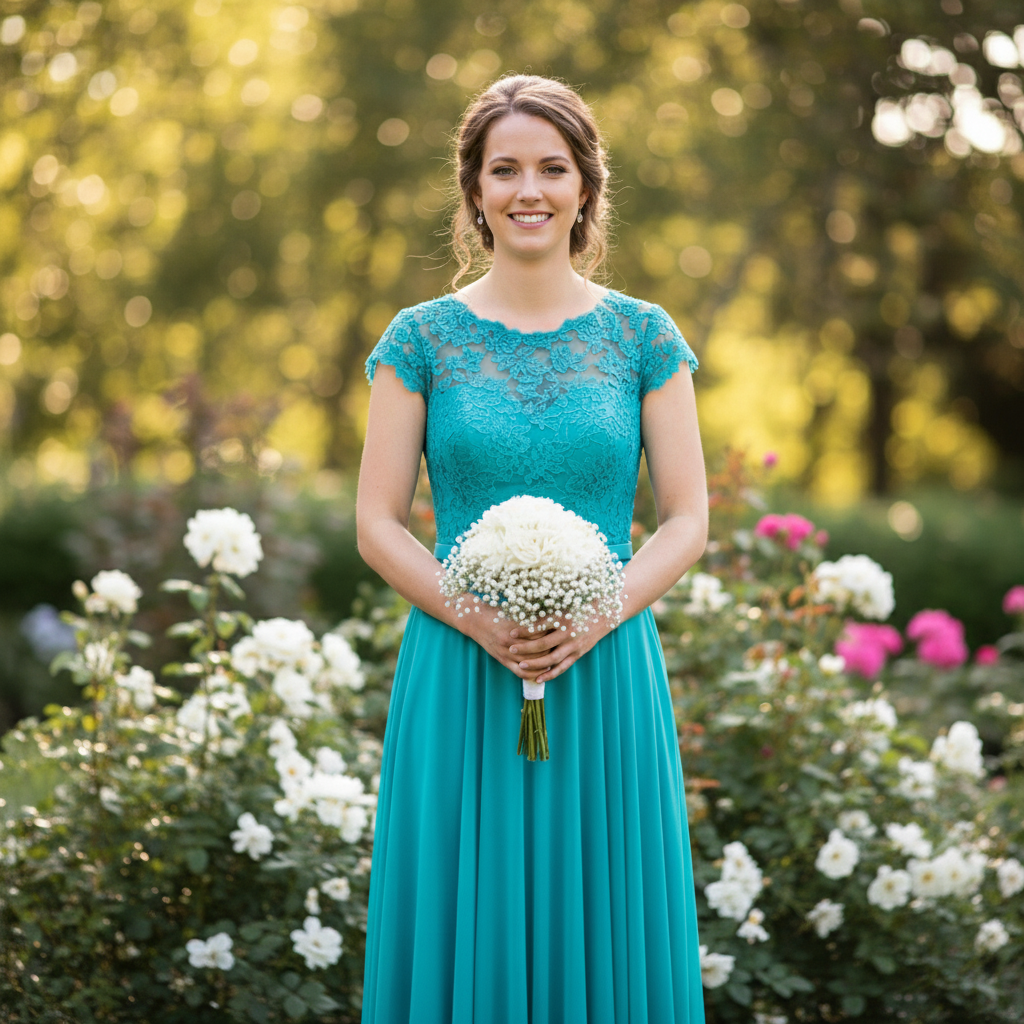
Same headshot looking refreshed and alert
After

How it works

1

Upload your photo

Drop your portrait into EditThisPic. JPG, PNG, WebP up to 7MB. Works best with clear photos where the eyes and under-eye area are visible. Good front-facing lighting helps the AI understand the natural contours to restore.

⏱ Mild puffiness: 15-25 seconds. Severe bags with shadows: may need 2-3 refinements for natural blending.
2

Describe what you want

Type your instruction: 'remove the bags under my eyes and smooth the under-eye area' or 'reduce the puffiness beneath my eyes for a rested look.' Be specific about the result you want. No marking needed - the AI understands facial anatomy and where eye bags appear.

💡 Add 'maintain natural contours' to avoid flattening the area too much, which can look unnatural.

Copy one of these to get started:

General eye bag removal remove the bags under my eyes and smooth the under-eye area naturally
Tired morning selfie reduce the puffiness under my eyes and make me look more awake and rested
Professional headshot remove eye bags and under-eye swelling for a polished professional appearance
With dark circles too remove the bags and dark circles under my eyes, restore a bright natural look
3 more prompts
Subtle reduction only slightly reduce the under-eye bags, keep some natural depth for realism
One eye puffier than other even out the under-eye area so both eyes match, reduce the puffier side
Special event photo remove eye bags for this important photo, smooth and natural under-eye area
3

Generate and review

Check that the under-eye area looks naturally smooth without obvious editing. Verify the skin tone matches your face, the eye shape hasn't changed, and the result looks like you after a good night's sleep.

4

Refine with markers if needed

If one eye needs more work than the other, or if the correction looks uneven, tap markers on the specific area and request targeted refinement. This is optional for most edits.

💡 Markers help when bags are more pronounced on one side. Tap the puffier area for focused correction.
Try it free
"Had a job interview photo after an all-nighter. The eye bags disappeared and I finally looked like a functioning adult." @ExhaustedEngineer

See it in action

Professional headshot with visible puffy eye bags
Before
Same headshot looking refreshed and alert
After

Job interview headshot fixed

Candidate looked exhausted after red-eye flight. Eye bags removed for a confident, alert appearance.

Prompt: remove the bags under my eyes and smooth the under-eye area naturally
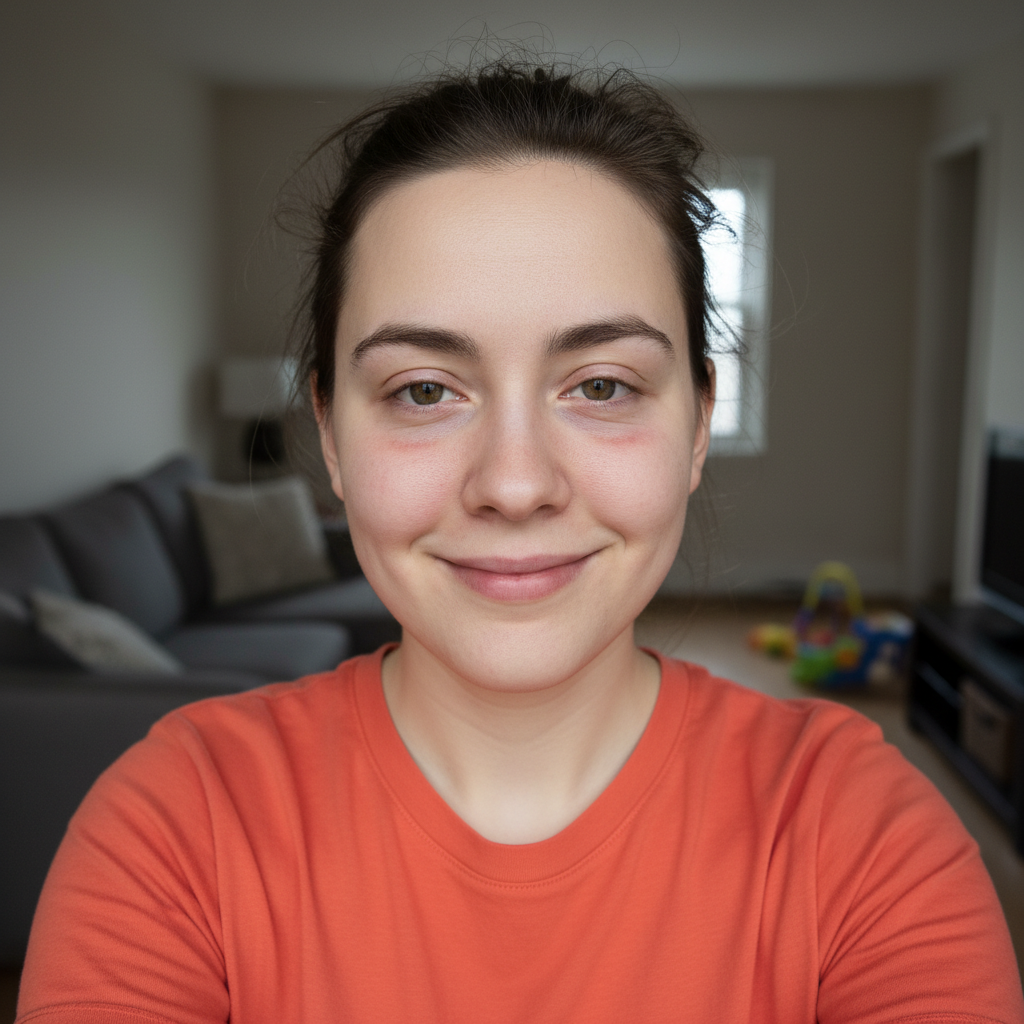
Tired parent selfie with puffy eye bags
Before
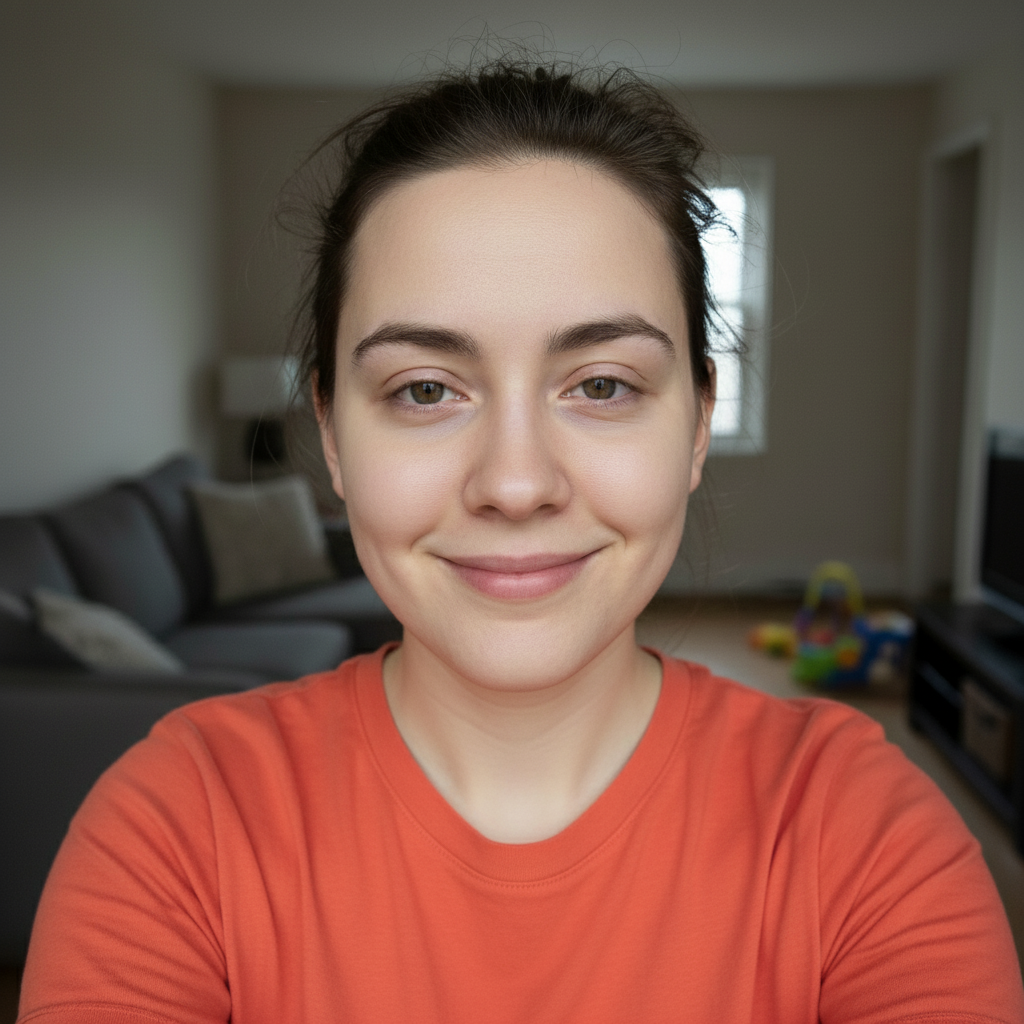
Same selfie looking rested and refreshed
After

New parent selfie rescued

Sleep-deprived parent with severe under-eye bags. AI smoothed the puffiness while keeping the genuine smile.

Prompt: reduce the puffiness under my eyes and make me look more awake and rested
Wedding guest photo with visible eye bags
Before
Same photo looking fresh and polished
After

Wedding guest photo enhanced

Great outfit, terrible eye bags from travel. Quick fix made the photo Instagram-ready.

Prompt: remove eye bags and under-eye swelling for a polished natural look

If something looks off

Under-eye area looks too flat or unnatural

Why: The AI over-corrected, removing too much natural contour and creating a flat, doll-like appearance.

Try: add back some subtle natural contouring under the eyes, less aggressive smoothing

💡 Include 'maintain natural contours' in your initial prompt to prevent over-flattening.

One eye looks different from the other

Why: The AI applied uneven correction, possibly because one side had worse bags or different lighting.

Try: Tap a marker on the eye that needs adjustment, then say 'match this side to the other eye'

💡 Markers help target specific eyes when corrections are asymmetric.

AI changed the wrong area or affected the whole face

Why: The AI couldn't determine exactly which area you meant from description alone. This happens with ambiguous requests.

Try: Tap a marker on the specific under-eye area you want to change, then regenerate with the same prompt

💡 Markers tell the AI 'I mean THIS area specifically.' Use them when description alone is ambiguous.

Bags reduced but dark circles still visible

Why: The AI addressed the puffiness but not the discoloration. These are technically separate issues.

Try: also brighten the under-eye area and remove any dark discoloration

💡 Mention both 'bags' and 'dark circles' in your prompt if you have both issues.

Skin texture looks different in corrected area

Why: The AI replaced skin texture when smoothing the area, creating a mismatch with surrounding skin.

Try: blend the under-eye correction to match surrounding skin texture naturally

💡 A second refinement pass focused on texture usually fixes blending issues.

Eye shape or size looks changed

Why: Aggressive smoothing affected the lower eyelid boundary, altering eye appearance.

Try: restore natural eye shape, only reduce the bags without changing eye contours

💡 Specify 'preserve eye shape' if you're concerned about this.

Quick answers

Do I need to mark the eye bags before describing?

No! Just describe what you want: 'remove the bags under my eyes.' The AI understands facial anatomy and where eye bags appear. Only use markers when you need precision - like when one eye needs more correction than the other, or when the initial result needs targeted refinement on a specific area.

Will it look obvious that I edited out the eye bags?

Not if you use natural-sounding prompts. Include phrases like 'smooth naturally' or 'maintain contours' to prevent over-correction. The AI is trained to create believable results. If the first attempt looks too dramatic, ask for a more subtle version. Most people get natural results on the first try.

What's the difference between eye bags and dark circles?

Eye bags are puffiness and swelling - raised areas under the eyes. Dark circles are discoloration - purple or brown shadows. Many people have both. If you want to address both, mention them separately: 'remove bags and dark circles under my eyes.'

Will it affect my eye makeup or lower lashes?

The AI focuses on the under-eye area and typically leaves eye makeup and lashes intact. If you have specific concerns, add 'keep eye makeup unchanged' to your prompt. Eyeliner and mascara on the lower lash line should remain untouched.

Does it work on severe or genetic eye bags?

Yes, though severe bags may need multiple refinement passes for the most natural result. The AI handles genetic eye bags (permanent puffiness) the same way as fatigue-related bags. Very deep bags might look most natural with partial reduction rather than complete removal.

Ready to look more rested in your photos?

Free to try. No signup required.

Try it free