Free โ€ข No signup Perfect Holiday card photos ยท Free

Holiday Card Photo Editor

Fix closed eyes, remove clutter, add festive backgrounds - all with simple descriptions

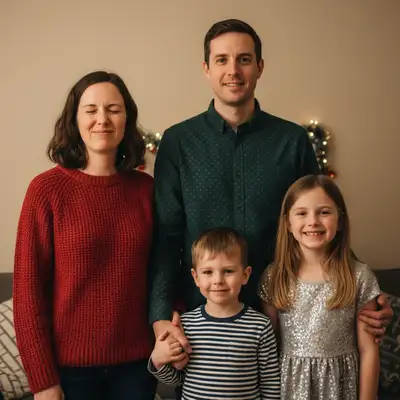
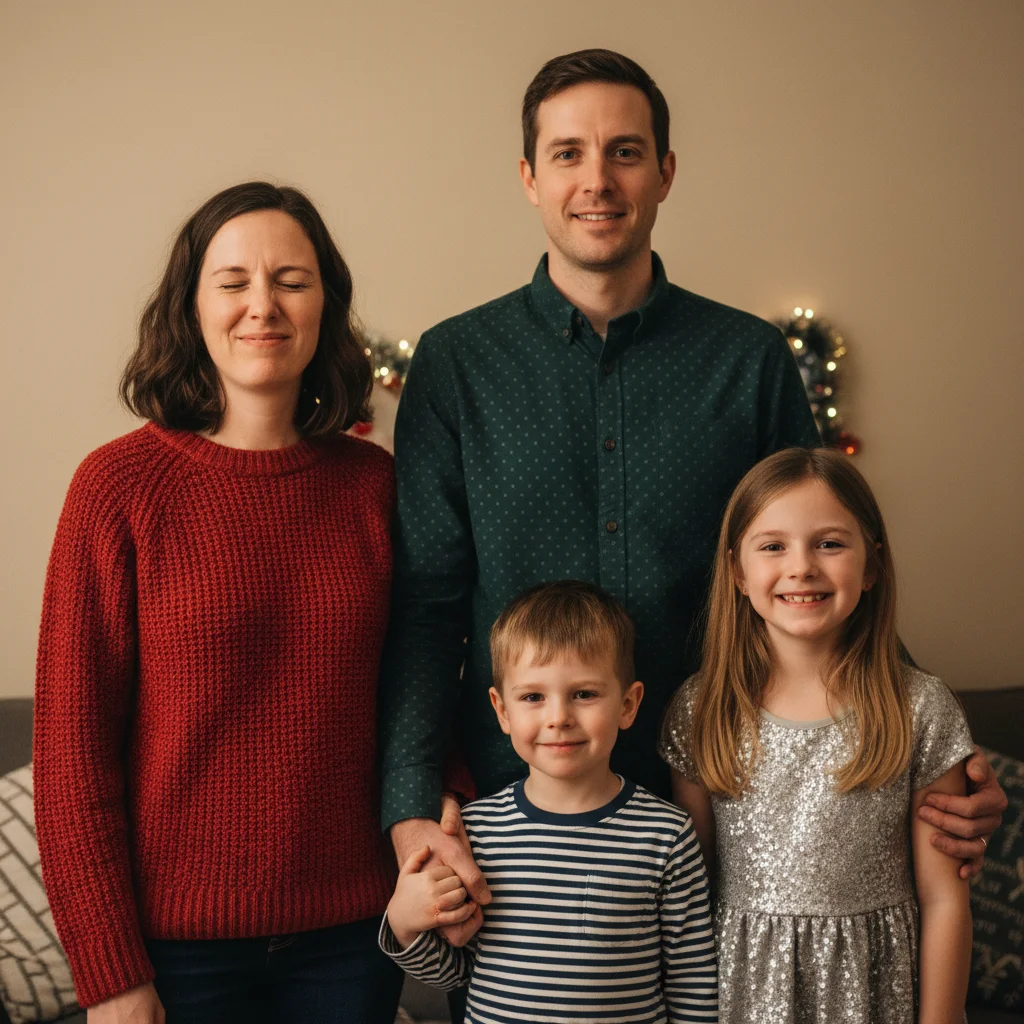
Family of four with mom's eyes closed in blink
Before
โ†’
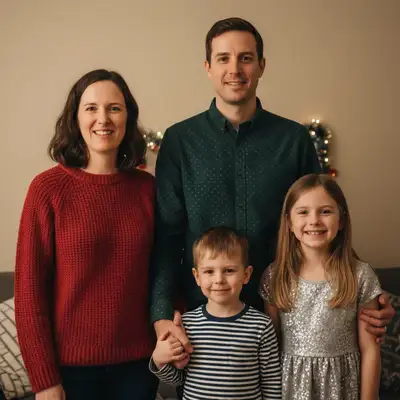
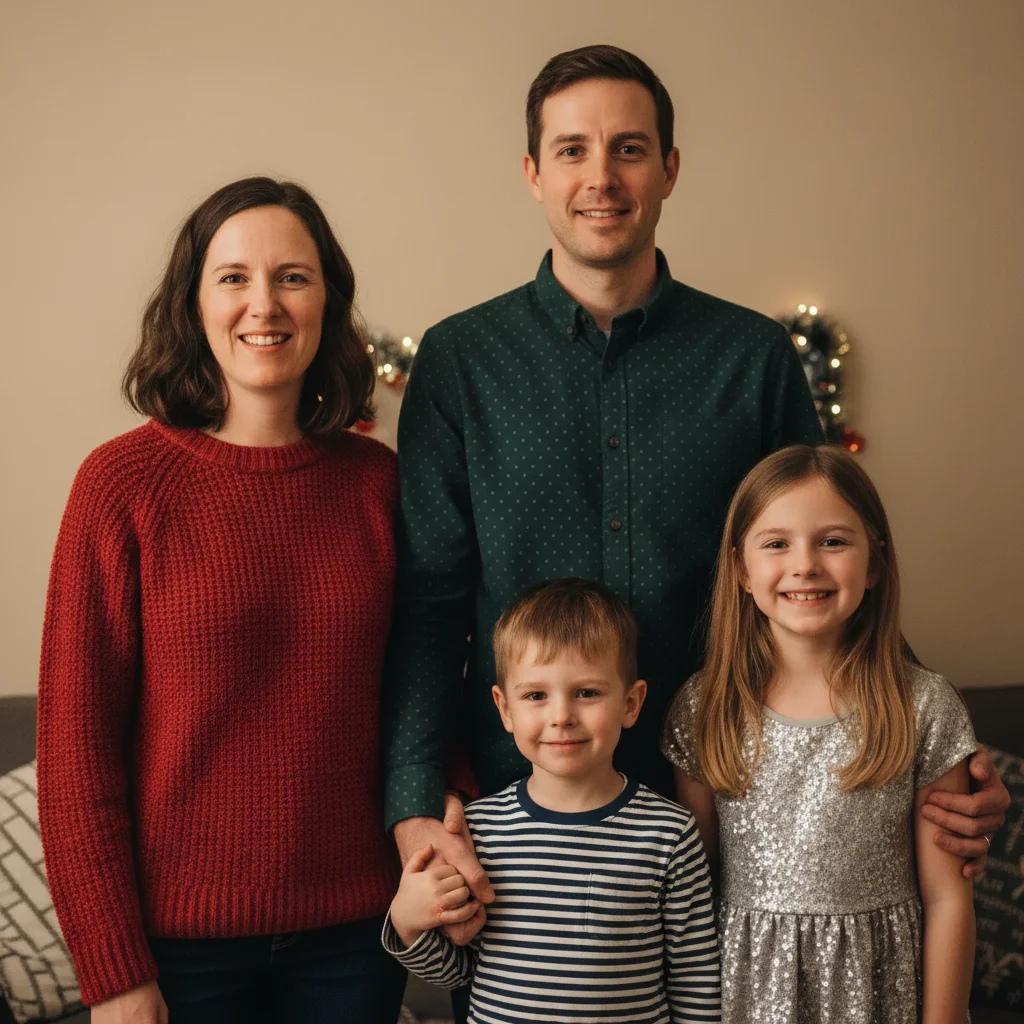
Same family with mom's eyes naturally open, everyone looking at camera
After

Holiday Card Photo Editor

Drop your photo here

or click to browse

Release to upload

Free โ€ข No signup

Advertisement
Popular use cases:
  • Christmas card photos
  • family holiday portraits
  • pet holiday cards
  • baby's first Christmas
  • engagement announcements
  • pregnancy announcements
  • Shutterfly photos
  • Minted cards
  • Costco Photo cards

Cost
Free No signup required
Time
Instant results in 15-30 seconds
Works on
Any device - browser, phone, tablet, desktop
Powered by
AI-powered photo editing
Scenario Prompt Time
Fix closed eyes fix the blinks and get everyone looking at camera 30s
Replace background replace background with cozy Christmas tree setting 45s
Remove clutter remove the toys and mess from the floor and background 35s
Fix pet photo remove leash and add snowy outdoor scene 40s

How it works

  1. Upload your holiday photo

    Drop your family photo into EditThisPic. Works with phone photos, selfies, or professional shots. JPG, PNG, WebP up to 7MB.

    Expect: Simple fixes like closed eyes: 30-45 seconds. Complex scenes with background replacement: may need 1-2 refinements.
  2. Describe what needs fixing

    Type your instruction: 'fix the blinks and get everyone looking at camera' or 'replace messy background with Christmas tree setting.' Be specific about what's wrong and what you want instead. The AI understands concepts like 'background,' 'closed eyes,' and 'clutter' without you marking anything.

    Tip: For backgrounds, specify the mood: 'cozy fireplace' vs 'elegant neutral backdrop' gives very different results

    Copy one of these to get started:

    Classic family photo with someone blinking fix the blinks and get everyone looking at camera
    Home background isn't festive or photo-ready replace background with cozy Christmas tree and fireplace setting
    Living room clutter visible in shot remove the toys and clutter, add elegant holiday backdrop
    Kids making silly faces instead of smiling replace silly faces with natural happy smiles for everyone
    3 more prompts
    Pet photo with leash and messy background remove the leash and replace background with snowy winter scene
    Photo lighting feels cold or harsh make the lighting warm and festive like golden hour
    Baby's first Christmas photo needs refinement open baby's eyes, add soft holiday lights in background, warm up lighting
  3. Review the result

    Check faces at full zoom to verify eyes look natural. Make sure the background blends seamlessly. If something's not quite right, you can refine with a follow-up prompt.

  4. Refine with markers if needed

    If the AI changed the wrong person's expression or you want to specify exactly which area to fix, tap markers on those spots and regenerate. This is optional - most holiday photo fixes work perfectly without markers.

    Tip: Markers are most useful when you have identical twins in the photo, or need to fix one specific person in a large group
Advertisement
Try it free โ†“

Holiday Card Photo Editor

Drop your photo here

or click to browse

Release to upload

Free โ€ข No signup

"We had 47 photos and every single one had at least one kid blinking. This fixed it perfectly - our cards turned out beautiful!" @sarahm_mom

See it in action

Family of four with mom's eyes closed in blink
Before
->
Same family with mom's eyes naturally open, everyone looking at camera
After

Fixed Closed Eyes in Family Photo

Classic holiday photo challenge - someone's always blinking. AI detected and opened the closed eyes naturally.

Prompt: fix the blinks and get everyone looking at camera
Family in living room with visible clutter and laundry
Before
->
Same family with elegant Christmas tree and fireplace backdrop
After

Replaced Messy Living Room with Festive Backdrop

Home wasn't photo-ready, but the photo was great otherwise. Background swap made it card-worthy.

Prompt: replace background with cozy Christmas tree and fireplace setting

Detailed Guides by Scenario

๐Ÿ“ท

Professional Use

Apply 'Holiday Card Photo Editor' to images for professional projects โ€” websites, marketing materials, client deliverables, and presentations.

Common Scenarios

  • Using 'Holiday Card Photo Editor' for client work or commercial photography
  • Applying 'Holiday Card Photo Editor' to product or marketing images for a business
  • Batch-processing multiple images with 'Holiday Card Photo Editor' for a project deadline

Best Practices

  • Use the highest resolution source image available for professional-quality results
  • Be specific in your prompt about the exact 'Holiday Card Photo Editor' effect you need
  • For consistency across multiple images, reuse the same prompt template
๐Ÿ“ท

Creative & Social Media

Use 'Holiday Card Photo Editor' creatively for social media content, personal projects, and artistic expression.

Common Scenarios

  • Applying 'Holiday Card Photo Editor' to a photo for a unique social media post
  • Using 'Holiday Card Photo Editor' to create artistic variations of a favorite image
  • Experimenting with 'Holiday Card Photo Editor' for a creative project or portfolio piece

Best Practices

  • Experiment freely โ€” AI editing lets you try bold ideas with no risk to the original
  • For social content, pair the visual effect with a caption that references the transformation
  • Try the effect on different types of photos to find what looks most striking
๐Ÿ“ท

Personal Photos & Memories

Apply 'Holiday Card Photo Editor' to personal photos to fix issues, enhance quality, or create something special from everyday images.

Common Scenarios

  • Using 'Holiday Card Photo Editor' on family photos to improve or personalize them
  • Applying 'Holiday Card Photo Editor' to vacation or event photos before printing or sharing
  • Trying 'Holiday Card Photo Editor' on a selfie or portrait for profile or personal use

Best Practices

  • Always work on a copy โ€” keep the original safe in case you want to try a different approach
  • Natural-looking results are almost always better than dramatic over-processing
  • If it doesn't look right the first time, rephrase your prompt with more specific details

If something looks off

AI changed the wrong person's expression

Why: With multiple people, the AI might pick the wrong face when the instruction is ambiguous

Try: Tap a marker on the specific person's face, then use 'fix this person's closed eyes'

Tip: Markers solve ambiguity. Use them when you have identical twins or need to target one specific person in a crowd

Background replacement looks unnatural or edges are rough

Why: Complex hair, fur, or overlapping people make edge detection harder

Try: Try 'blend the edges more naturally between subject and background' or tap markers along problem edges

Tip: Simpler backgrounds (solid colors, less detail) blend more easily than busy scenes

Opened eyes don't look natural or person looks different

Why: AI is guessing what the person's open eyes should look like based on face structure

Try: If you have another photo where that person's eyes are open, upload it as reference: 'use eyes from reference image'

Tip: Take multiple shots when possible - easier to combine good elements from different photos than to generate eyes from scratch

AI didn't remove all the clutter I wanted gone

Why: Vague terms like 'clutter' let the AI decide what counts - it might miss items

Try: Be specific: 'remove the toys on the floor, laundry basket, and coffee table items'

Tip: Name the objects explicitly rather than using 'mess' or 'clutter'

New background doesn't match the lighting on people

Why: Original photo had different lighting direction or color temperature than generated background

Try: Add 'and match the lighting to the background' to your prompt

Tip: Describe lighting when requesting backgrounds: 'soft warm light from the left' helps AI match

Quick answers

Do I need to mark faces before fixing closed eyes?

No! Just type 'fix the blinks' and the AI automatically detects all faces and opens closed eyes. Markers are only needed if the AI fixes the wrong person in a very large group, or you want to specify exactly which person needs help.

Is there a free holiday photo editor that works without signing up?

Yes! EditThisPic is completely free to try with no account needed. You can fix closed eyes, remove backgrounds, and make basic enhancements without any signup or payment. Just upload and describe what you need.

How do I fix multiple people blinking in one photo?

Use the prompt 'fix all the blinks and get everyone looking at camera' - the AI detects every face and opens all closed eyes in one edit. Works on family groups of any size.

Can I combine elements from multiple holiday photos?

Yes. If one photo has perfect expressions but bad background, and another has great background but blinks, upload both and prompt: 'use the expressions from the first photo with the background from the second.'

What's the best way to remove messy backgrounds?

Two approaches: (1) 'remove the clutter and add clean white background' for simple cleanup, or (2) 'replace background with cozy Christmas tree and fireplace' for complete festive transformation. Be specific about what you want instead of the mess.

Is EditThisPic's AI holiday card photos perfecter really free?

Yes โ€” you get 1 free edit per week, no account needed. For unlimited edits, plans start at $3.99/month.

Can I perfect holiday card photos on my phone?

Yes. EditThisPic works in any mobile browser โ€” iPhone, Android, tablet. No app download needed.

What photo formats does the AI holiday card photos perfecter support?

JPG, PNG, WebP, and HEIC. Upload any common photo format and EditThisPic handles the rest.

Ready to perfect your holiday card photos?

Free to try. No signup required. Results in 30-60 seconds.

Try it free โ†’