Free • No signup Reshape Nose · Free

AI Nose Reshaper

Describe the nose shape you want and AI reshapes it naturally. No marking needed.
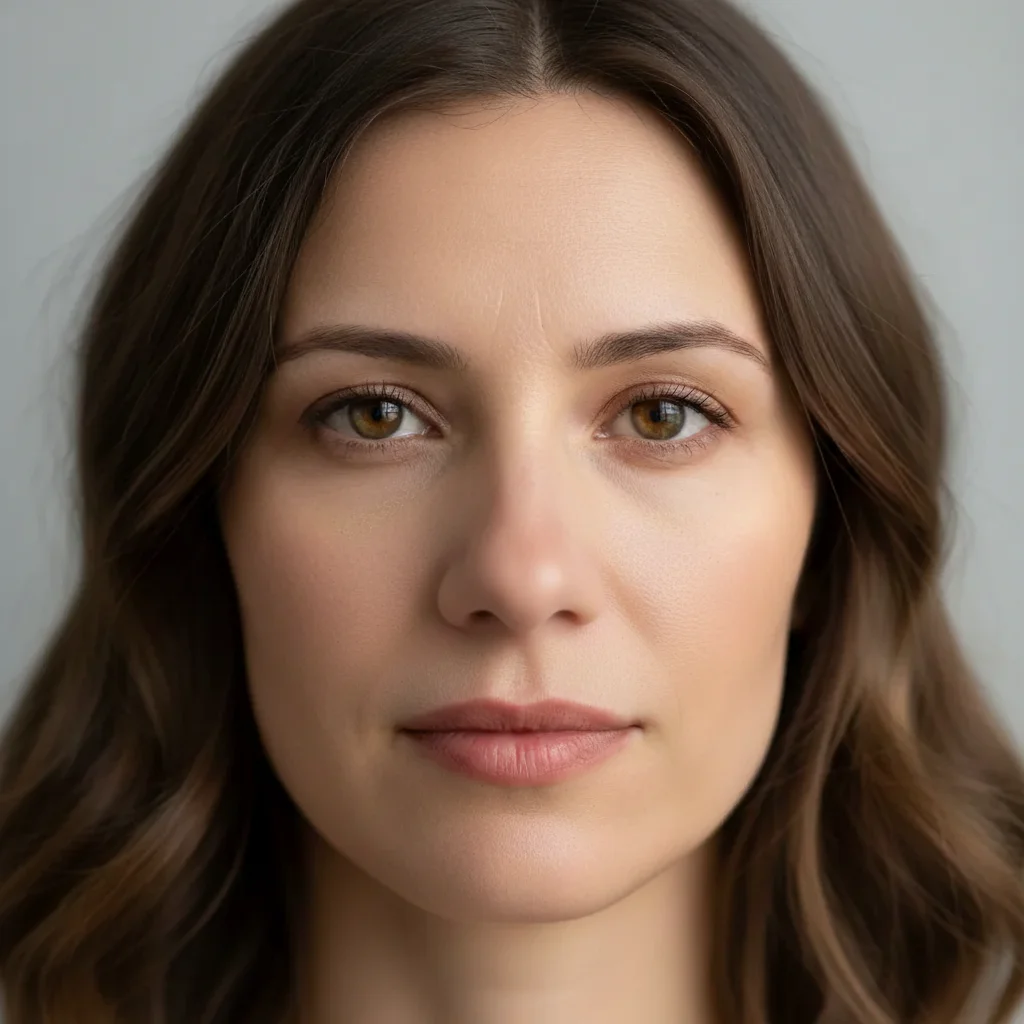
Woman with wider nose shape in headshot
Before
Same woman with subtly slimmed, refined nose
After

AI Nose Reshaper

Drop your photo here

or click to browse

Release to upload

Free • No signup

Advertisement
Popular use cases:
  • nose reshaping
  • nose slimming photo
  • rhinoplasty preview
  • nose refinement
  • facial symmetry
  • profile photo editing
  • nose bridge narrowing
  • headshot nose adjustment

Cost
Free No signup required
Time
Instant results in 15-30 seconds
Works on
Any device - browser, phone, tablet, desktop
Powered by
AI-powered photo editing
Scenario Prompt Time
Subtle slimming slim the nose slightly, keep it natural 30s
Bridge refinement narrow the nose bridge for a straighter profile 35s
Full nose reshaping refine nose - narrower bridge, smaller tip, reduced nostrils 45s

How it works

  1. Upload your photo

    Drop your image into EditThisPic. JPG, PNG, WebP up to 7MB. Front-facing portraits with good lighting show nose reshaping best. Both close-ups and standard headshots work well.

    Expect: Subtle nose refinement: 30-40 seconds. Significant shape change: 40-55 seconds and may need refinements.
  2. Describe the shape you want

    Type what you want: 'slim the nose slightly' or 'narrow the nose bridge and make the tip smaller and more defined.' Be specific about which part—bridge, tip, nostrils, or overall width. No marking needed—the AI knows exactly where the nose is.

    Tip: Use 'slightly' or 'subtly' for natural-looking changes. The most believable results come from small adjustments rather than dramatic reshaping.

    Copy one of these to get started:

    Subtle nose slimming slim the nose slightly for a more refined and elegant look while keeping it natural
    Narrow the bridge narrow the nose bridge to create a straighter, more defined profile while keeping proportions natural
    Refine the nose tip refine the nose tip to make it slightly smaller and more defined, keep the bridge the same
    Reduce nostril width reduce the nostril width slightly for a narrower, more refined nose shape
    3 more prompts
    Straighten a crooked nose straighten the nose to make it more symmetrical and aligned with the center of the face
    Smooth nose bump smooth out the bump on the nose bridge to create a straighter profile line
    Overall nose refinement refine the entire nose shape - slightly narrower bridge, smaller tip, and reduced nostrils for a balanced look
  3. Review the result

    Check that the reshaping looks natural and proportional to the rest of the face. Zoom in to verify that skin texture around the nose is consistent and shadows look realistic. Compare with the original to ensure the change is believable.

  4. Refine with markers if needed

    If one area like the bridge or tip needs further adjustment, tap a marker on that specific spot and regenerate. Most nose reshaping works well on the first try without any markers.

    Tip: Markers are for precision refinement only. Try without them first—you usually won't need them.
Try it free

AI Nose Reshaper

Drop your photo here

or click to browse

Release to upload

Free • No signup

"I wanted to see what a subtle nose refinement would look like before considering anything. This tool let me preview different shapes on my own photos. Super helpful for making decisions." @PreviewFirst_Nate

See it in action

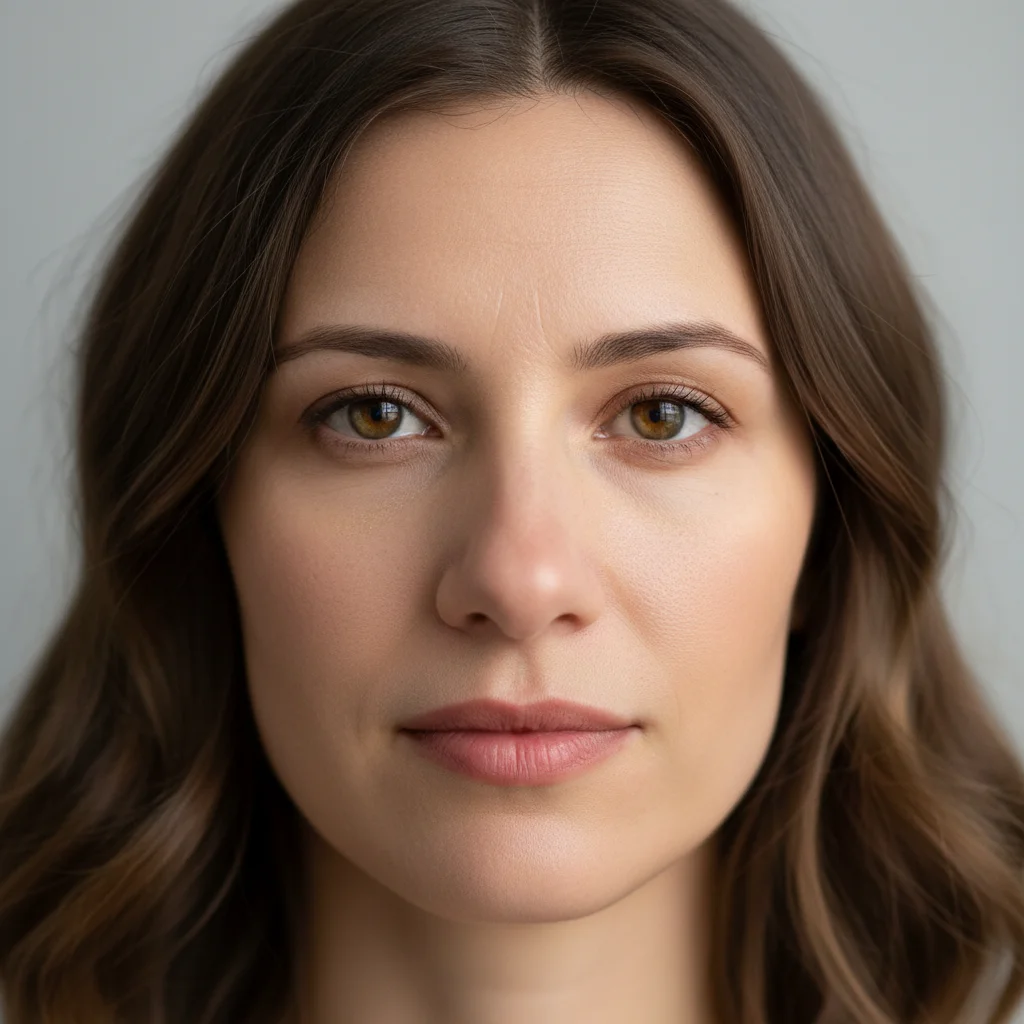
Woman with wider nose shape in headshot
Before
->
Same woman with subtly slimmed, refined nose
After

Subtle nose slimming for headshot

A portrait with the nose subtly slimmed for a more refined professional headshot.

Prompt: slim the nose slightly for a more refined and elegant look while keeping it natural
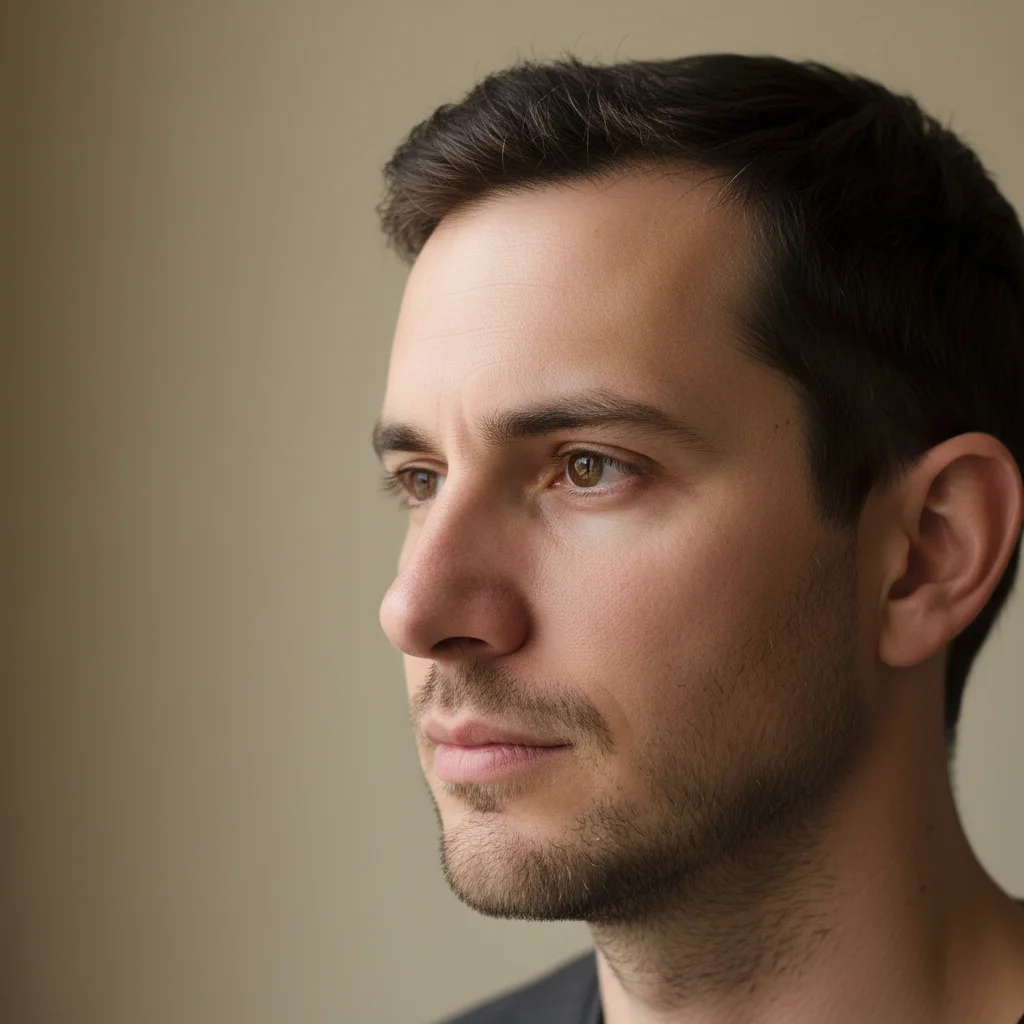
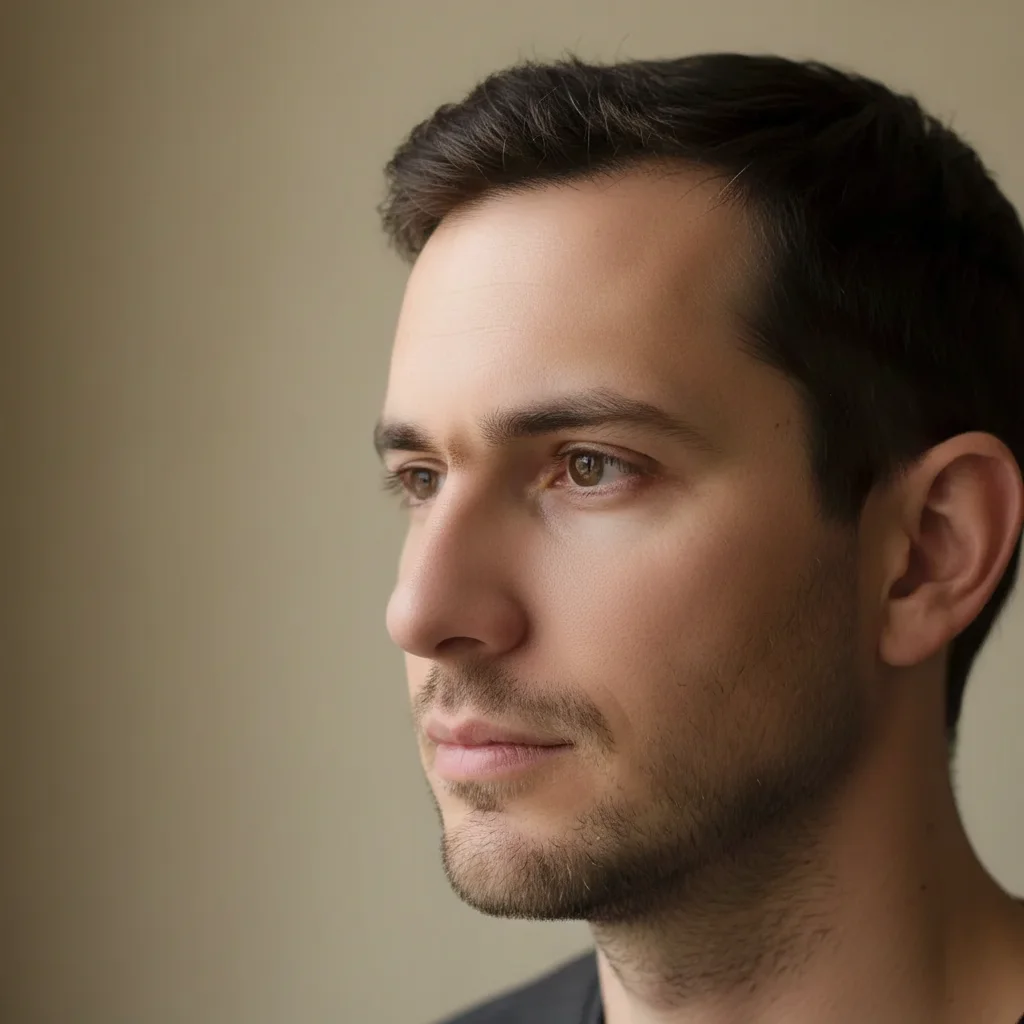
Man's profile showing bump on nose bridge
Before
->
Same profile with smooth, straight nose bridge
After

Nose bridge smoothed for profile photo

A nose with a visible bridge bump smoothed for a straighter profile appearance.

Prompt: smooth out the bump on the nose bridge to create a straighter profile line
Advertisement

If something looks off

AI changed the wrong area or something I didn't want changed

Why: The AI modified more of the face than intended, altering cheeks or eyes alongside the nose. This happens with vague descriptions.

Try: Tap a marker on only the nose area, then regenerate: reshape only the nose, keep all other facial features exactly the same

Tip: Markers tell the AI 'I mean THIS area specifically.' Use them when description alone is ambiguous.

Nose looks distorted or unnatural after reshaping

Why: The change was too dramatic relative to the original proportions, creating an unrealistic result that doesn't match the face.

Try: reshape the nose more subtly - only a slight refinement, keep the change small enough to look completely natural

Tip: Smaller adjustments always look more realistic. Use 'slightly' and 'subtle' to keep changes believable.

Skin texture around the nose looks blurry or warped

Why: The reshaping algorithm stretched or compressed nearby skin, creating visible artifacts around the nose area.

Try: reshape the nose while preserving sharp, natural skin texture on and around the nose area

Tip: Adding 'preserve sharp skin texture' tells the AI to maintain detail instead of blurring during the reshape.

Shadows on the nose look wrong after reshaping

Why: When the nose shape changes, the natural shadow patterns should change too. The AI didn't update them consistently.

Try: reshape the nose and update the shadows and highlights to match the new nose shape naturally

Tip: Mentioning shadows explicitly reminds the AI to recalculate lighting for the new shape.

Nostrils look uneven after the change

Why: The AI applied different amounts of reshaping to each nostril, creating asymmetry.

Try: reshape the nose with perfectly symmetrical nostrils, even size and shape on both sides

Tip: Specifying 'symmetrical' and 'even on both sides' addresses the unevenness directly.

Quick answers

Do I need to mark the nose before describing the reshaping I want?

No! Just describe what you want: 'slim the nose slightly' or 'narrow the bridge.' The AI knows exactly where the nose is on a face. Only use markers if the AI accidentally modified other facial features and you need to constrain the edit to the nose area only.

How do I reshape a nose in a photo without it looking edited?

Keep changes subtle by using words like 'slightly' or 'subtly' in your prompt. Small adjustments—narrowing the bridge by a little, refining the tip gently—look natural because they stay within believable proportions. Avoid dramatic changes in a single step; do two small edits instead.

Is there a free AI nose reshaper that doesn't require login?

Yes, EditThisPic is free to try with no account needed. Upload your photo, describe the nose reshaping you want, and download the result. No watermarks on outputs. Works for subtle slimming, tip refinement, and bridge smoothing without any signup.

What's the best free tool for reshaping a nose in photos?

EditThisPic offers free AI nose reshaping with no signup required. Unlike apps that need you to drag control points manually, just describe the change you want. It handles bridge narrowing, tip refinement, and nostril adjustments with natural-looking results in seconds.

Ready to reshape your nose in photos?

Free to try. No signup required.

Try it free