Free • No signup Create Quote poster · Free

AI Quote Poster Maker

Just describe the quote and style you want. AI creates the poster design.
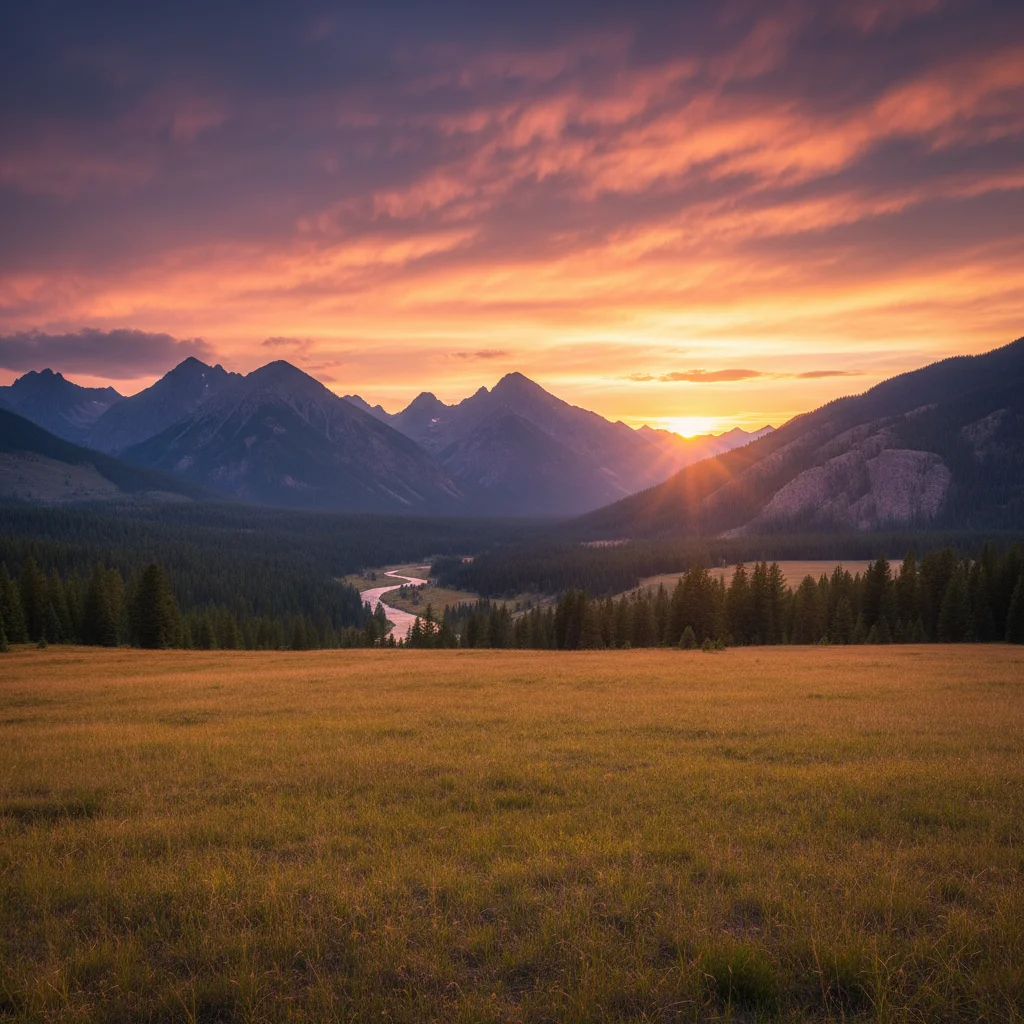
Mountain sunset landscape without text
Before
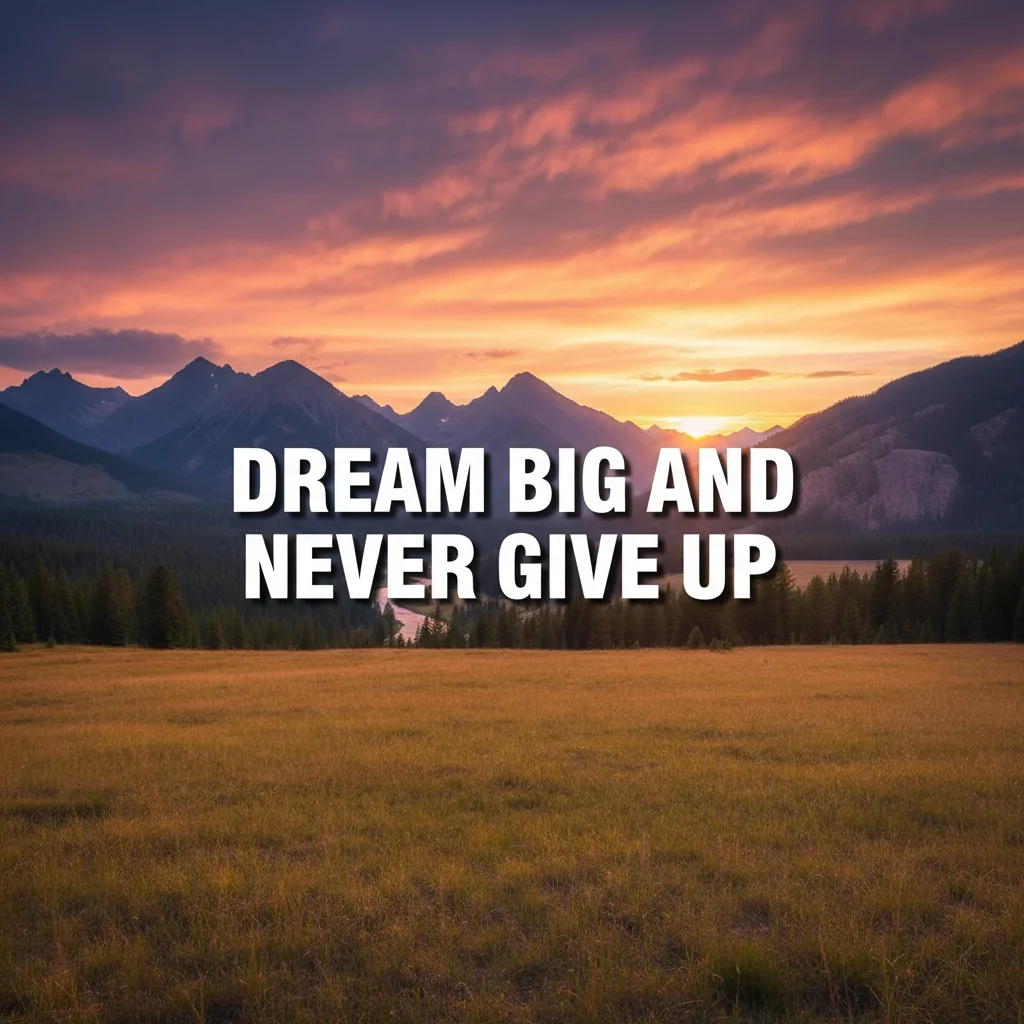
Mountain landscape with motivational quote text overlay
After

Create Quote Posters from Photos

Drop your photo here

or click to browse

Release to upload

Free • No signup

Advertisement
Popular use cases:
  • Instagram quotes
  • motivational posters
  • social media content
  • affirmation cards
  • wisdom sharing
  • inspirational posts
  • quote graphics
  • story posts

Cost
Free No signup required
Time
Instant results in 15-30 seconds
Works on
Any device - browser, phone, tablet, desktop
Powered by
AI-powered photo editing
Scenario Prompt Time
Simple centered quote add the quote Dream big in bold white uppercase text centered in the middle with black shadow 15s
Quote with attribution overlay The best time is now at center in elegant serif font white text, and add -Chinese Proverb in smaller italic text at bottom right 20s
Multi-line motivational add Dream Big Work Hard Stay Humble in three stacked lines, bold white centered, each line slightly smaller 25s

How it works

  1. Upload your photo

    Drop your background image into EditThisPic. Works with JPG, PNG, WebP up to 7MB. Use high-resolution photos for best text clarity. Landscapes, gradients, and simple backgrounds work great for quote posters.

    Expect: Simple quote additions: 15-30 seconds. Complex multi-line designs with styling: may need 2-3 refinements for perfect layout.
  2. Describe your quote and style

    Type your instruction: 'add the quote Dream big in bold white text centered at the top' or 'overlay Be yourself in elegant script font at the bottom with shadow effect.' Be specific about the text content, font style, size, color, and position. No marking needed—the AI understands placement terms like 'top', 'center', 'bottom'.

    Tip: Include style details for better results: 'with drop shadow', 'in elegant serif font', 'bold and uppercase'. Mention attribution if needed: 'with -Author Name underneath in smaller text'.

    Copy one of these to get started:

    Motivational Instagram post add the quote Be the change you wish to see in the world in bold white uppercase text centered in the middle with a subtle black shadow for contrast
    Inspirational story post overlay Success is not final, failure is not fatal at the top in elegant serif font, white text with soft glow, and add -Winston Churchill in smaller text at the bottom right
    Minimalist quote design place the single word Believe in large bold white letters perfectly centered with generous spacing around it for a clean minimal look
    Life motto poster add Dream Big Work Hard Stay Humble in three lines stacked vertically, bold white text centered, with each phrase progressively smaller for visual hierarchy
    3 more prompts
    Daily affirmation card overlay I am enough in handwritten script style font, centered, in soft gold color with elegant flourishes for an uplifting affirmation card
    Business motivation quote add The only way to do great work is to love what you do at the center in professional sans-serif font, dark gray text on light background, with -Steve Jobs attribution below in italic
    Vintage quote aesthetic overlay Not all who wander are lost in vintage typewriter font style, slightly faded black text centered with film grain texture for nostalgic aesthetic
  3. Generate and review

    Click Generate and AI creates your quote poster with professional typography and layout. Check text readability, positioning, and overall visual balance. Zoom in to verify text is crisp and properly styled.

  4. Refine with markers if needed

    If text placement needs adjustment or you want to emphasize specific areas, tap markers on those spots and regenerate. This is optional—most quote posters work perfectly without markers on first try.

    Tip: Markers are for precision refinement, not required. Try without them first. Use them to adjust exact text position or avoid covering important photo elements.
Try it free

Create Quote Posters from Photos

Drop your photo here

or click to browse

Release to upload

Free • No signup

"Made an Instagram post with a motivational quote in seconds. The text placement and styling looked professional without any design work." @contentcreator

See it in action

Mountain sunset landscape without text
Before
->
Mountain landscape with motivational quote text overlay
After

Motivational Instagram Quote

Added an inspirational quote with professional typography and shadow effect for social media sharing.

Prompt: add the quote Dream big and never give up in bold white uppercase text centered in the middle with a black drop shadow for readability
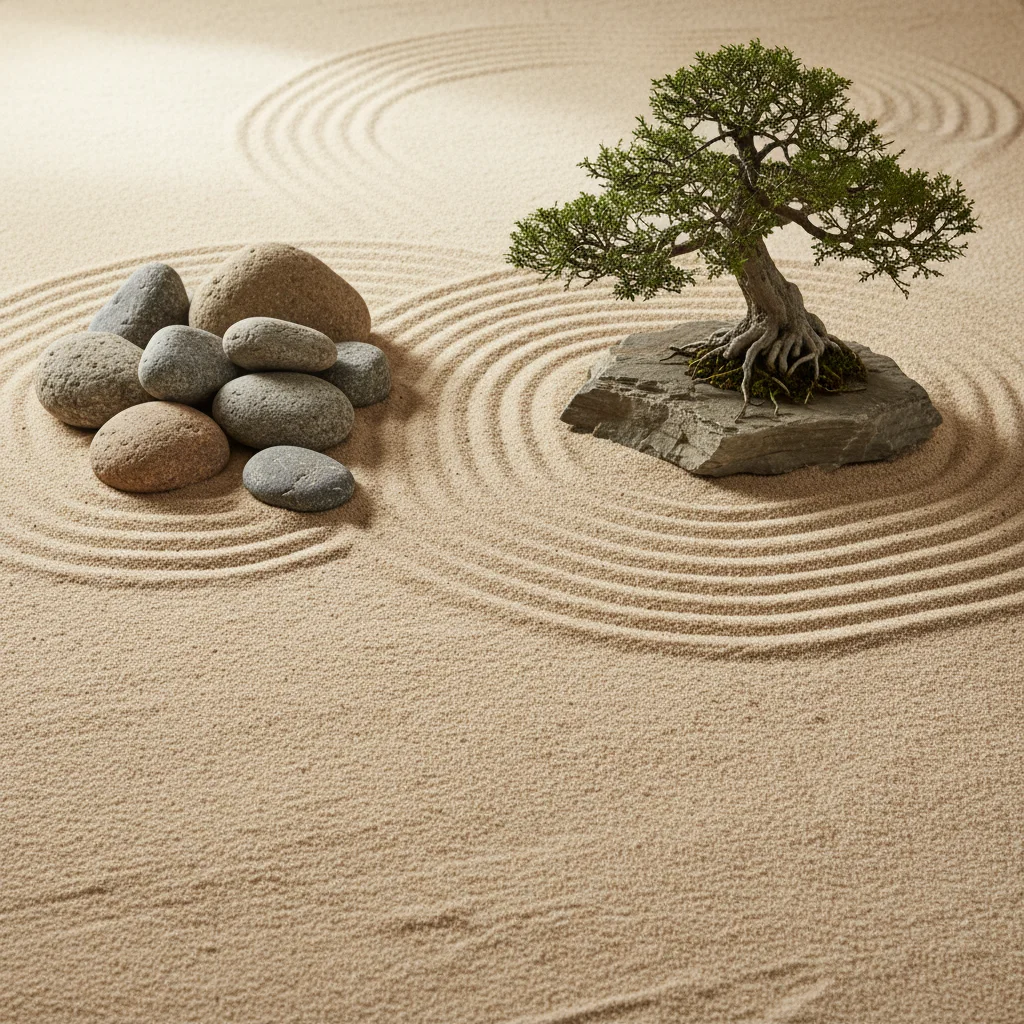
Zen garden without text
Before
->
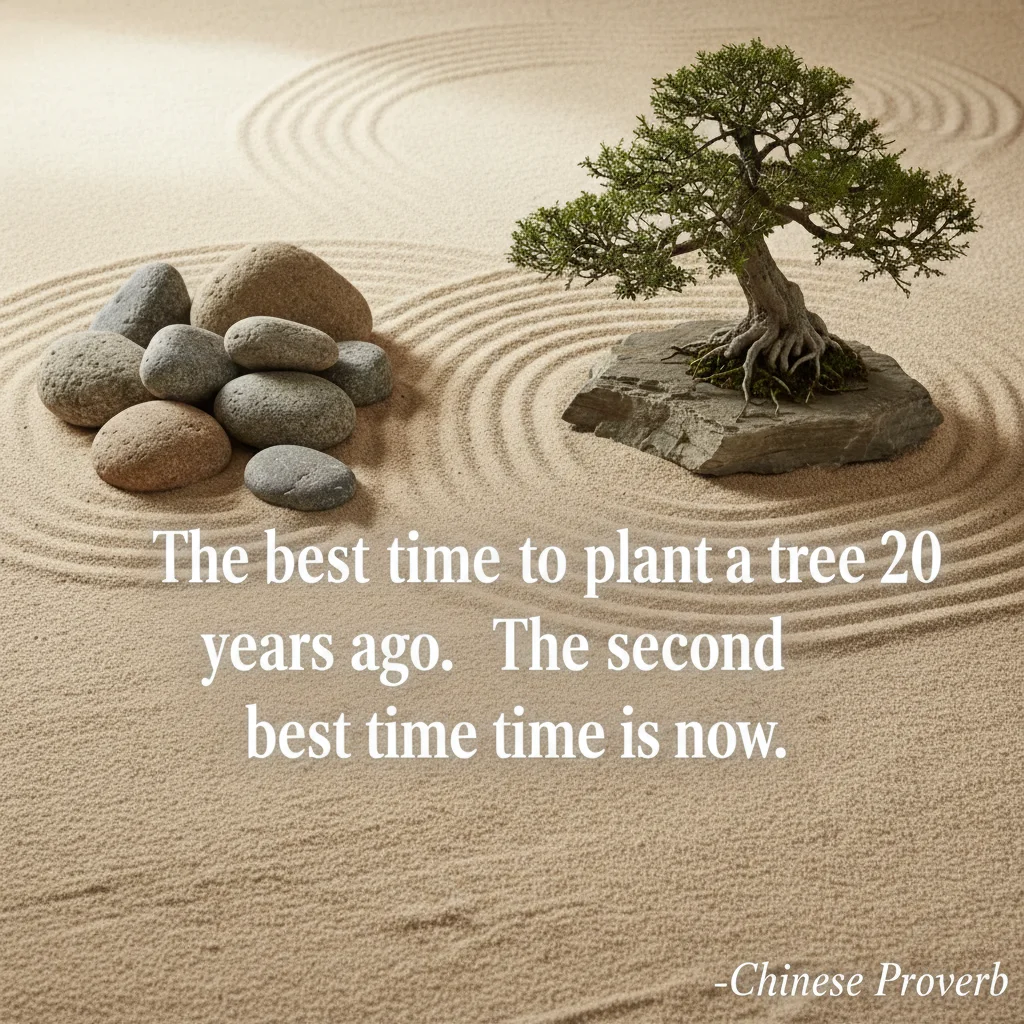
Zen garden with wisdom quote and attribution
After

Attributed Wisdom Quote

Created a professional quote poster with author attribution for sharing famous wisdom.

Prompt: overlay The best time to plant a tree was 20 years ago. The second best time is now. at the center in elegant serif font white text with soft glow, and add -Chinese Proverb in smaller italic text at the bottom right
Gradient background without text
Before
->
Gradient background with three-line motivational text
After

Multi-line Affirmation Card

Designed a three-line motivational poster with visual hierarchy for personal growth content.

Prompt: add Dream Big Work Hard Stay Humble in three lines stacked vertically, bold white text perfectly centered, with each line slightly smaller than the one above for visual flow
Advertisement

If something looks off

Text is hard to read against the background

Why: Insufficient contrast between text color and background image colors makes text blend in.

Try: Add 'with strong black drop shadow' or 'with white glow effect' to your prompt. Or try 'place text on semi-transparent dark overlay box' for guaranteed readability.

Tip: For photos with varied colors, use 'with both outline and shadow' for maximum text visibility across all background areas.

Text is in the wrong position or covering important parts

Why: The AI placed text where you described, but it's covering faces or key photo elements you wanted to keep visible.

Try: Tap a marker on the specific spot where text should go, then regenerate. Or refine your prompt with exact position: 'in the top third' or 'in the empty sky area' instead of just 'at the top'.

Tip: Check your photo first for clear empty spaces. Mention those explicitly: 'place text in the empty sky area on the left side'.

Font style doesn't match what I wanted

Why: Generic descriptions like 'nice font' or 'pretty text' are interpreted differently by the AI.

Try: Be specific about font characteristics: 'bold sans-serif', 'elegant script', 'vintage typewriter', 'modern geometric', 'classic serif'. Use style keywords: 'professional', 'playful', 'minimalist', 'ornate'.

Tip: Reference well-known styles: 'Instagram-style bold text', 'vintage poster typography', 'modern tech company font style'.

Quote text has typos or wrong words

Why: The AI occasionally misinterprets complex phrases or generates slight variations of the quote you specified.

Try: Use quotation marks around the exact text in your prompt: 'add the quote "Success is not final" exactly as written'. This signals to preserve exact wording.

Tip: For long quotes, break your request into main quote and attribution as separate elements to reduce errors.

Multiple lines aren't aligned or spaced properly

Why: Complex multi-line layouts need explicit spacing and alignment instructions.

Try: Add layout details: 'perfectly centered with even line spacing', 'left-aligned with consistent margins', 'stacked vertically with 20px gaps between lines'.

Tip: For three or more lines, specify hierarchy: 'with the first line largest, second line medium, third line smallest for visual flow'.

Attribution or author name is missing or wrong size

Why: When quote and attribution are requested together, the AI might emphasize one over the other.

Try: Separate them clearly: 'add main quote [text] in large bold font at center, and add -Author Name in smaller italic text at bottom right corner'. Use 'and add' to signal two distinct text elements.

Tip: Specify size ratio: 'author name should be 40% the size of the main quote' for precise control.

Quick answers

Do I need to mark where the text should go before describing?

No! Just describe the text and position: 'add quote at the top center' or 'place text in the middle'. The AI understands placement terms like top, bottom, center, left, right. Only use markers if you need to refine exact positioning after seeing the first result.

How do I make text readable on busy or colorful backgrounds?

Add contrast instructions to your prompt: 'with black drop shadow', 'with white glow effect', or 'on a semi-transparent dark overlay box'. Shadows and glows ensure text stands out regardless of background complexity. For challenging photos, request 'strong shadow and outline' for maximum visibility.

Can I create multi-line quotes with different text sizes?

Yes. Describe the layout: 'add Dream Big in large bold text on the first line, Work Hard in medium text on the second line, Stay Humble in small text on the third line, all centered and stacked vertically'. Use hierarchical language like 'largest', 'medium', 'smallest' to control relative sizing.

What's the best way to add author attribution to quotes?

Request the main quote and attribution separately in one prompt: 'add the quote [main text] in large font at center, and add -Author Name in smaller italic text at the bottom right'. Using 'and add' helps the AI create two distinct text elements with proper sizing and placement.

Is there a free quote poster maker without signup?

Yes, EditThisPic is completely free to try with no account required. Upload your photo, describe your quote and style, and download your poster with no watermark. No hidden fees or signup walls.

Ready to create your quote poster?

Free to try. No signup required.

Try it free