Free โ€ข No signup Change Person ยท Free

Replace Person in Photo

Upload a reference photo of the replacement person. The AI handles the swap with natural blending.
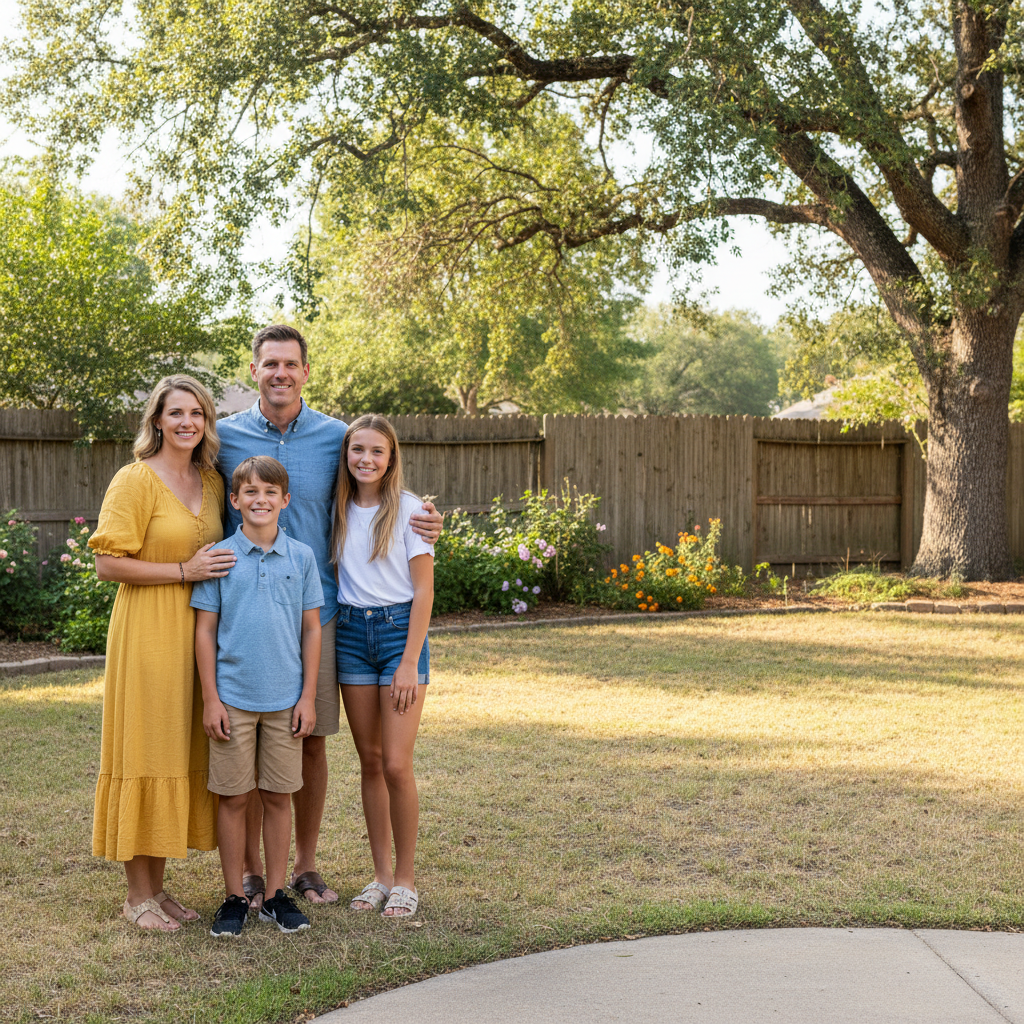
Family group of four with empty space on right
Before
โ†’
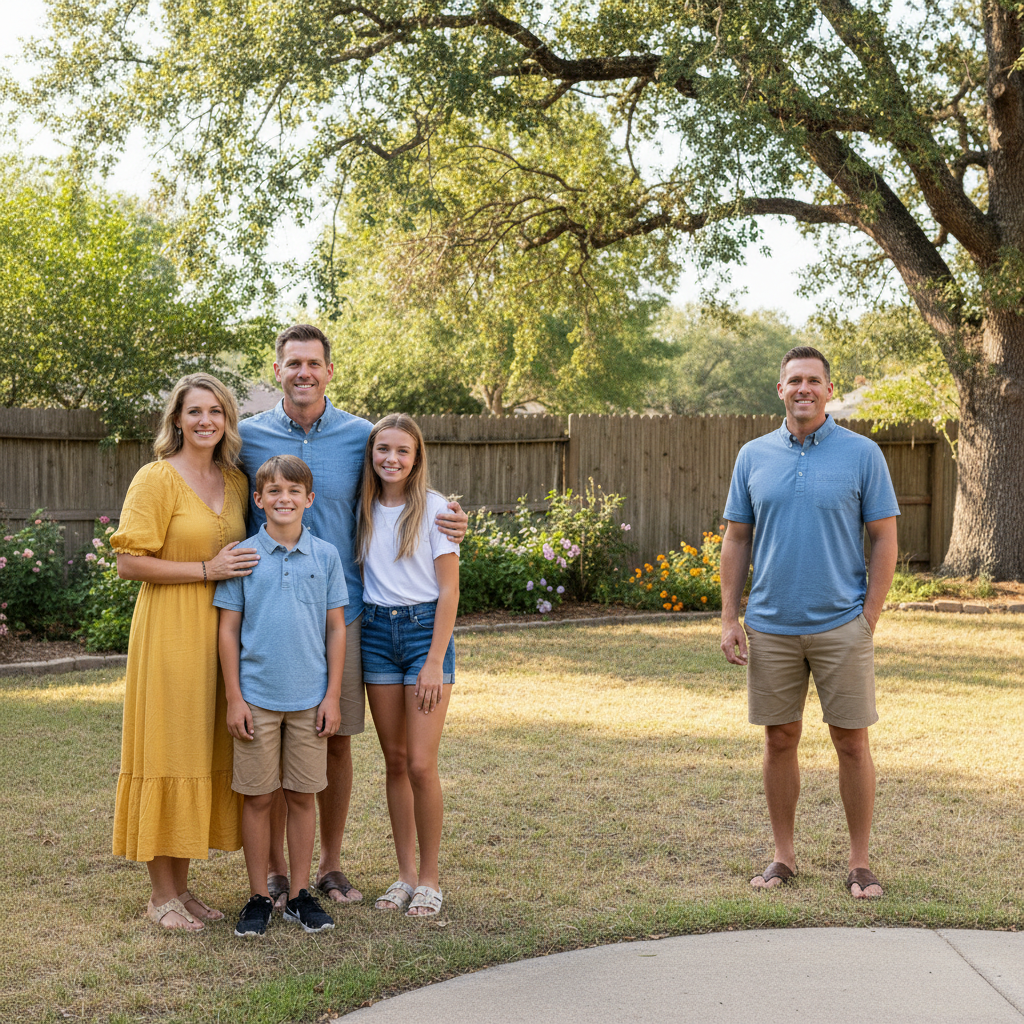
Same family photo now with five people
After

Replace Person in Photo

Drop your photo here

or click to browse

Release to upload

Free โ€ข No signup

Advertisement
Popular use cases:
  • Family photo fixes
  • Group photo corrections
  • Missing person addition
  • Wedding photo edits
  • Team photo updates
  • Memorial photos

Cost
Free No signup required
Time
Instant results in 15-30 seconds
Works on
Any device - browser, phone, tablet, desktop
Powered by
AI-powered photo editing
Scenario Prompt Time
Basic swap replace person on left with person from reference 35s
Group photo replace person in red shirt, keep others unchanged 50s
Add missing person add person from reference next to the group 45s

How it works

  1. Upload your main photo

    Drop your image into EditThisPic. JPG, PNG, WebP up to 7MB. This is the photo where you want to replace someone. The person to be replaced should be clearly visible.

    Expect: Simple swaps with clear subjects: 30-45 seconds. Group photos or complex poses: 45-60 seconds with possible refinement.
  2. Add your reference image

    Click '+ Add reference image' below the main photo. Upload a clear photo of the person you want to insert. Front-facing, well-lit photos work best. This person will replace someone in your main photo.

    Tip: The reference photo should show the person's face clearly. Similar head angle to the person being replaced gives the most natural results.

    Copy one of these to get started:

    Basic person replacement replace the person on the left with the person from the reference image, match the lighting and scale
    Add missing family member add the person from the reference image next to the group, blend naturally with the same lighting
    Replace person in group photo replace the person in the red shirt on the right with the person from photo 2, keep everyone else unchanged
    Swap couple photo partner replace the person on the right with the person from the reference, match the pose and body position
    4 more prompts
    Replace with similar pose swap the person in photo 1 with the person from photo 2, keep the same body position and clothing visible
    Replace person, keep original clothing replace the face and body with the person from the reference but keep the same clothing style visible
    Person in scenic location put the person from the reference image in this location, match the lighting and add natural shadows
    Replace with different pose replace the standing person with the person from the reference image in a sitting position, blend naturally
  3. Describe the replacement

    Type your instruction: 'replace the person on the left with the person from the reference image' or 'swap the man in blue with the person from photo 2.' Identify who to replace by location, clothing, or other distinguishing features.

    Tip: Add 'match the lighting and pose' to help the AI integrate the new person naturally into the scene.

    Copy one of these to get started:

    Basic person replacement replace the person on the left with the person from the reference image, match the lighting and scale
    Add missing family member add the person from the reference image next to the group, blend naturally with the same lighting
    Replace person in group photo replace the person in the red shirt on the right with the person from photo 2, keep everyone else unchanged
    Swap couple photo partner replace the person on the right with the person from the reference, match the pose and body position
    4 more prompts
    Replace with similar pose swap the person in photo 1 with the person from photo 2, keep the same body position and clothing visible
    Replace person, keep original clothing replace the face and body with the person from the reference but keep the same clothing style visible
    Person in scenic location put the person from the reference image in this location, match the lighting and add natural shadows
    Replace with different pose replace the standing person with the person from the reference image in a sitting position, blend naturally
  4. Generate and review

    Check that the new person looks naturally integrated. Verify skin tone, lighting, and scale match the scene. Look for proper shadows and ensure the pose fits the context.

  5. Refine if needed

    If the integration looks off, refine with specific guidance. You can ask to adjust skin tone matching, fix edge blending, or correct the scale. Tap markers on problem areas for targeted fixes.

    Tip: Common fixes: 'blend edges more naturally' or 'match the skin tone to the lighting.'
Try it free โ†“

Replace Person in Photo

Drop your photo here

or click to browse

Release to upload

Free โ€ข No signup

"My brother missed the family reunion photo. Used his portrait from another day and added him in. Nobody can tell." @FamilyFirst_Jen

See it in action

Family group of four with empty space on right
Before
->
Same family photo now with five people
After

Add missing family member

Brother couldn't make the family photo. His portrait was used to add him into the group shot naturally.

Prompt: add the person from the reference image next to the group on the right side, blend naturally with the same lighting

Two business people professional photo
Before
->
Same photo with different person on the right
After

Couple photo partner swap

Client needed to update marketing materials after a team change. The person on the right was seamlessly replaced.

Prompt: replace the person on the right with the person from the reference image, match the pose and lighting
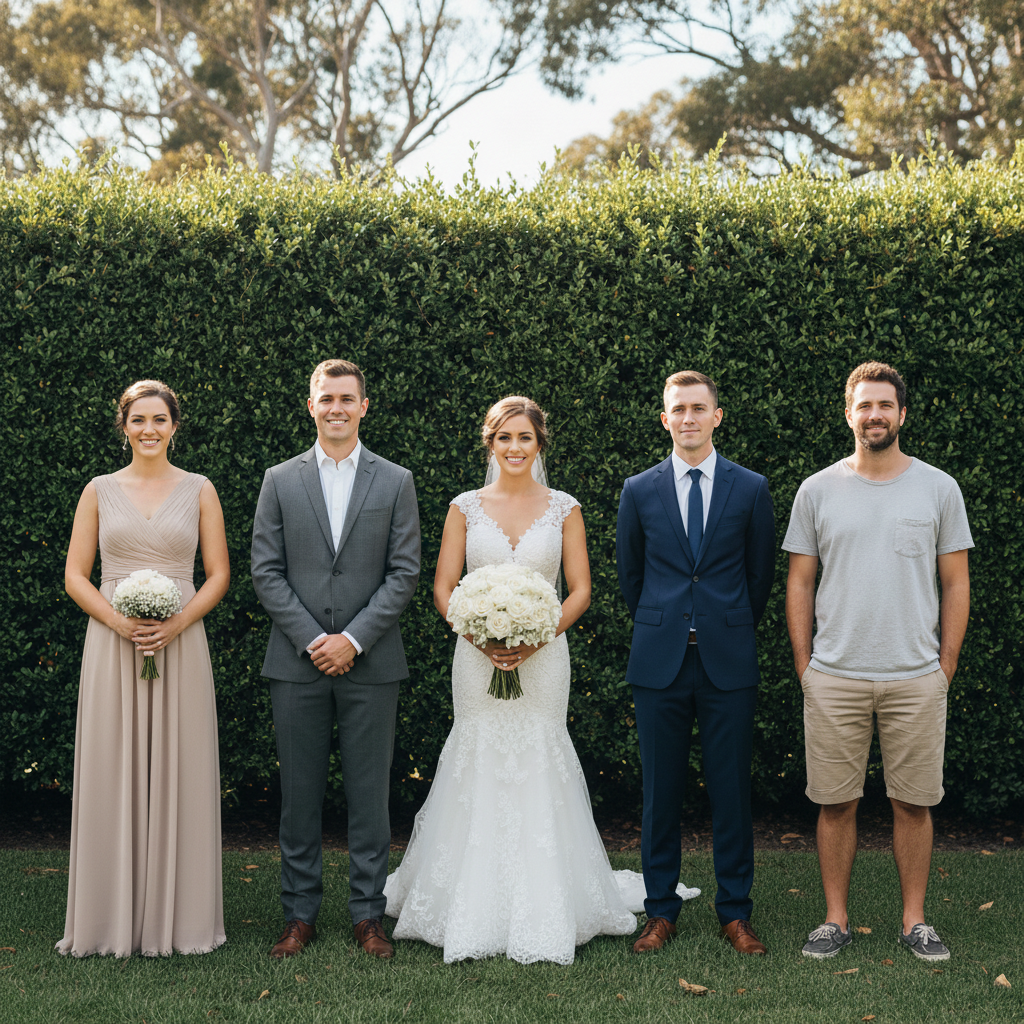
Wedding party with person in red on the right
Before
->
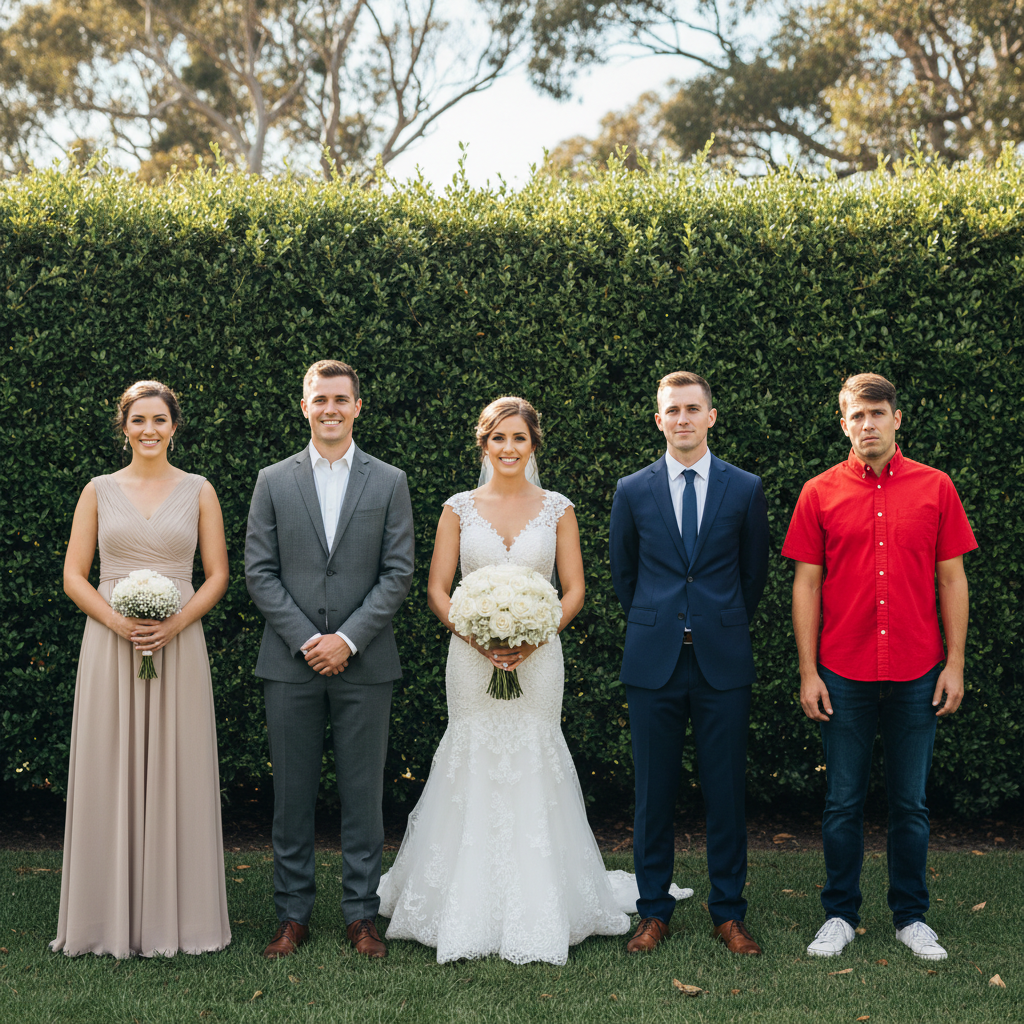
Same wedding party with different person on the right
After

Group photo one person replaced

Wedding party photo where one person needed to be swapped. Only that person changed, everyone else preserved exactly.

Prompt: replace the person in the red shirt on the right with the person from photo 2, keep everyone else unchanged
Advertisement

If something looks off

AI changed the wrong person

Why: Multiple people in the image made it unclear which one to replace.

Try: Tap a marker directly on the person you want to replace, then regenerate with the same prompt

Tip: Markers eliminate ambiguity in group photos. Tap the specific person to replace.

Replacement person looks pasted on

Why: Lighting or skin tone doesn't match the original scene.

Try: replace the person with the person from reference, carefully match skin tone and lighting direction from the scene

Tip: 'Match skin tone' and 'match lighting direction' help the AI blend more naturally.

Scale is wrong - person too big or small

Why: The AI misjudged the appropriate size for the new person.

Try: replace with the person from reference at the same scale as the original person, match the height

Tip: 'Same scale as original' and 'match the height' enforce proper proportions.

Pose looks unnatural in the context

Why: The reference photo pose doesn't fit the scenario of the main photo.

Try: replace with the person from reference and adjust their pose to match the context naturally

Tip: Better results come from reference photos with similar poses to what's being replaced.

Edges around the person look rough

Why: The AI struggled with edge detection, especially around hair or complex outlines.

Try: blend the edges around the replaced person more smoothly, especially the hair

Tip: Tap markers on the rough edges and ask specifically to 'blend hair edges naturally.'

Quick answers

Do I need a reference image to replace a person?

Yes. Click '+ Add reference image' to upload a photo of the person you want to insert. The AI uses this reference to place them into your main photo. The reference should clearly show the person's face.

How do I replace a person in a photo for free?

Upload your main photo to EditThisPic, click '+ Add reference image' to add the replacement person's photo, then type 'replace the person on the [location] with the person from the reference image.' Free, no login, no watermarks.

Is there a free person replacement tool that doesn't need an account?

Yes. EditThisPic replaces people in photos without signup. Upload both images, describe the swap, download. No watermarks. Works in your browser.

What makes a good reference image?

Clear, well-lit photos showing the person's face work best. Front-facing photos are ideal. If possible, use a reference with a similar head angle to the person being replaced for more natural results.

Can I replace one person in a group photo without affecting others?

Yes. Describe which person to replace clearly: 'replace the person in the red shirt on the right, keep everyone else exactly the same.' Use markers to tap on the specific person if needed.

Will the replaced person match the lighting of the original photo?

The AI attempts to match lighting automatically. For best results, add 'match the lighting and skin tone' to your prompt. Reference photos with neutral lighting adapt more easily.

Ready to replace someone in your photo?

Free to try. No signup required.

Try it free โ†’