Free • No signup Add Hair extensions · Free

AI Hair Extensions Preview

← Browse all body & person tools

Last updated

Preview hair extensions on your portrait using a reference photo — try before you buy, or confirm the length and style with your stylist.
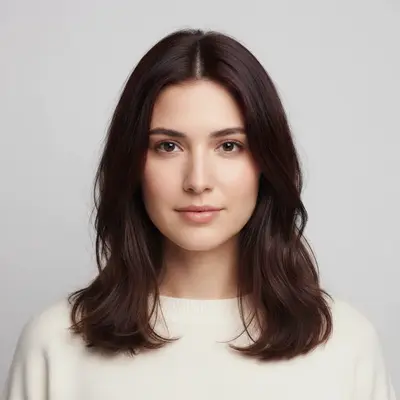
01Photo 1
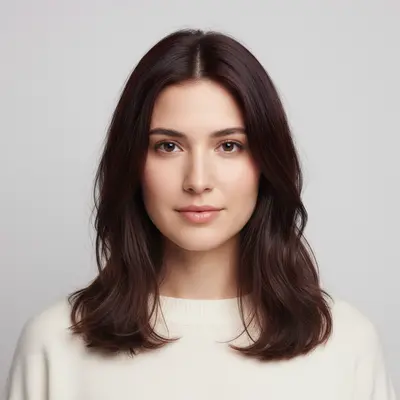
Woman with shoulder-length dark brown hair
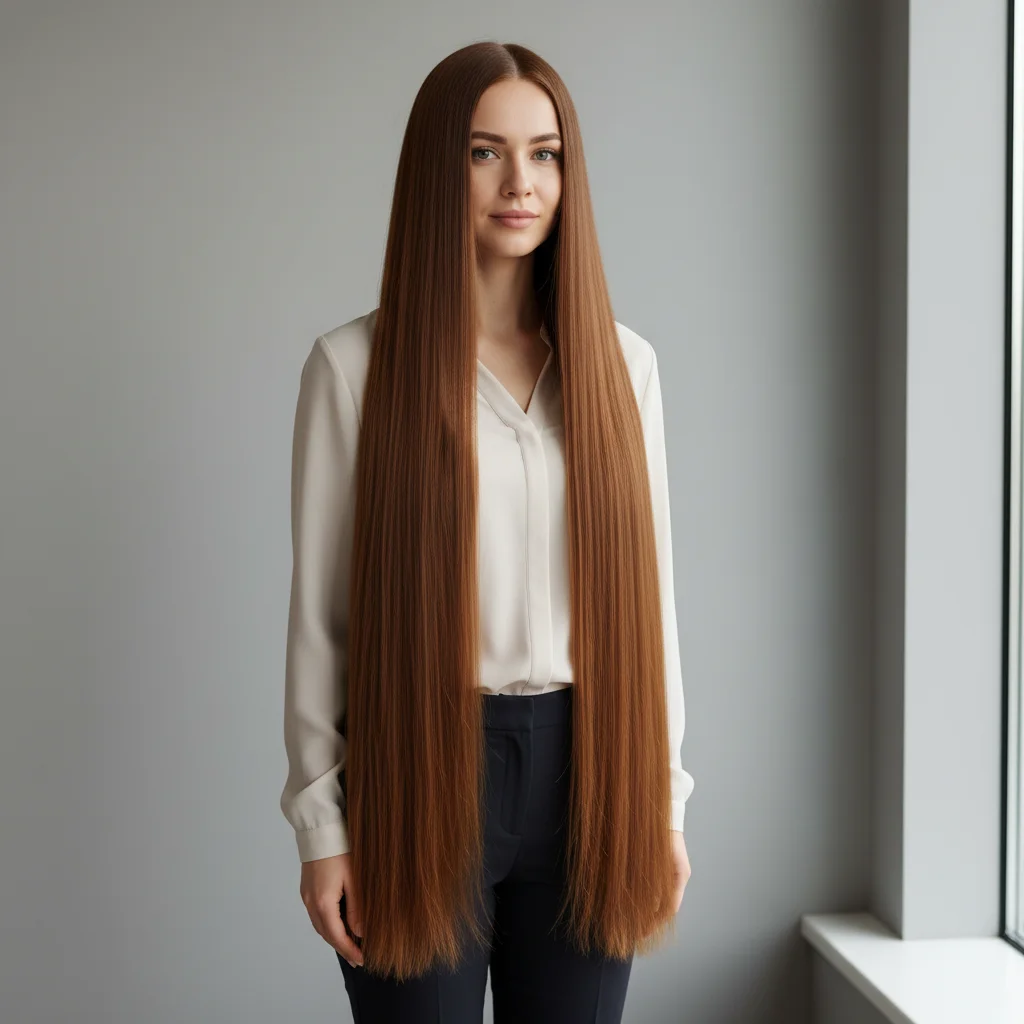
02Photo 2
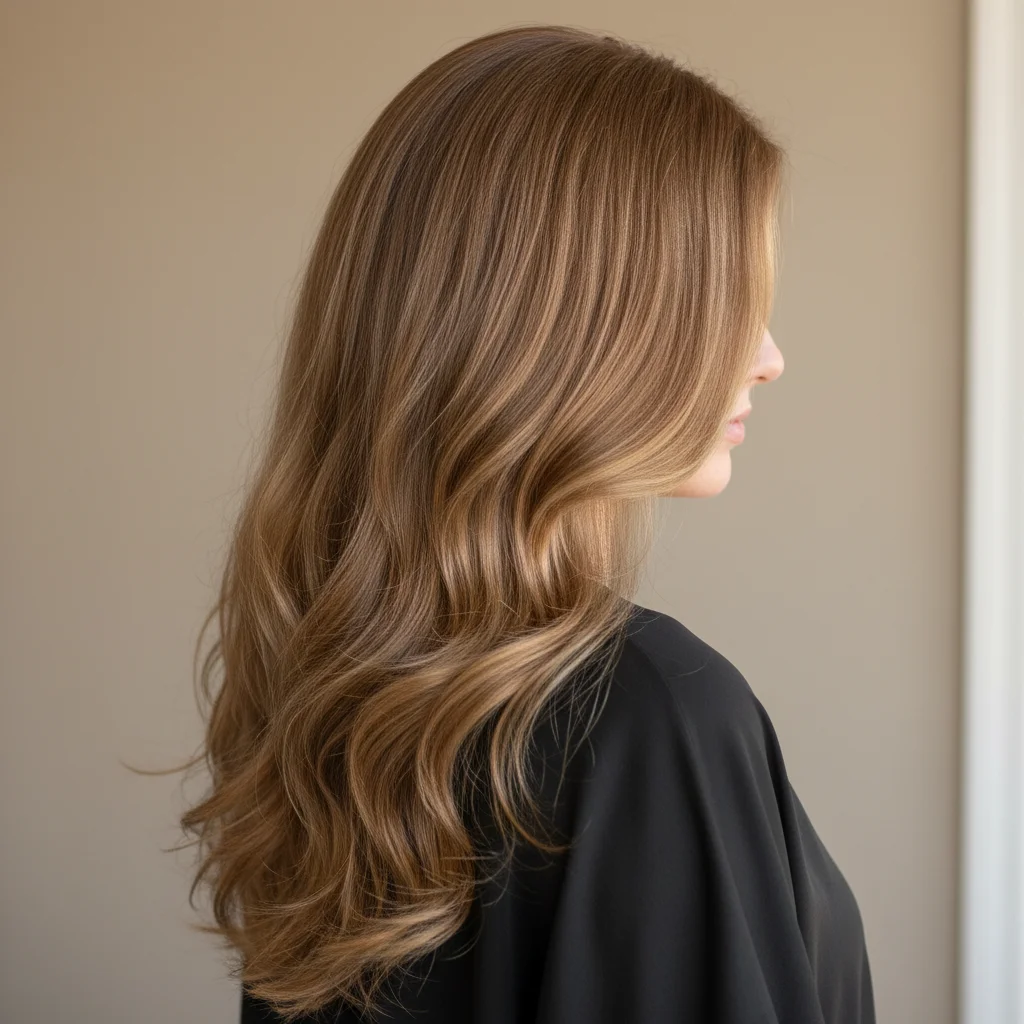
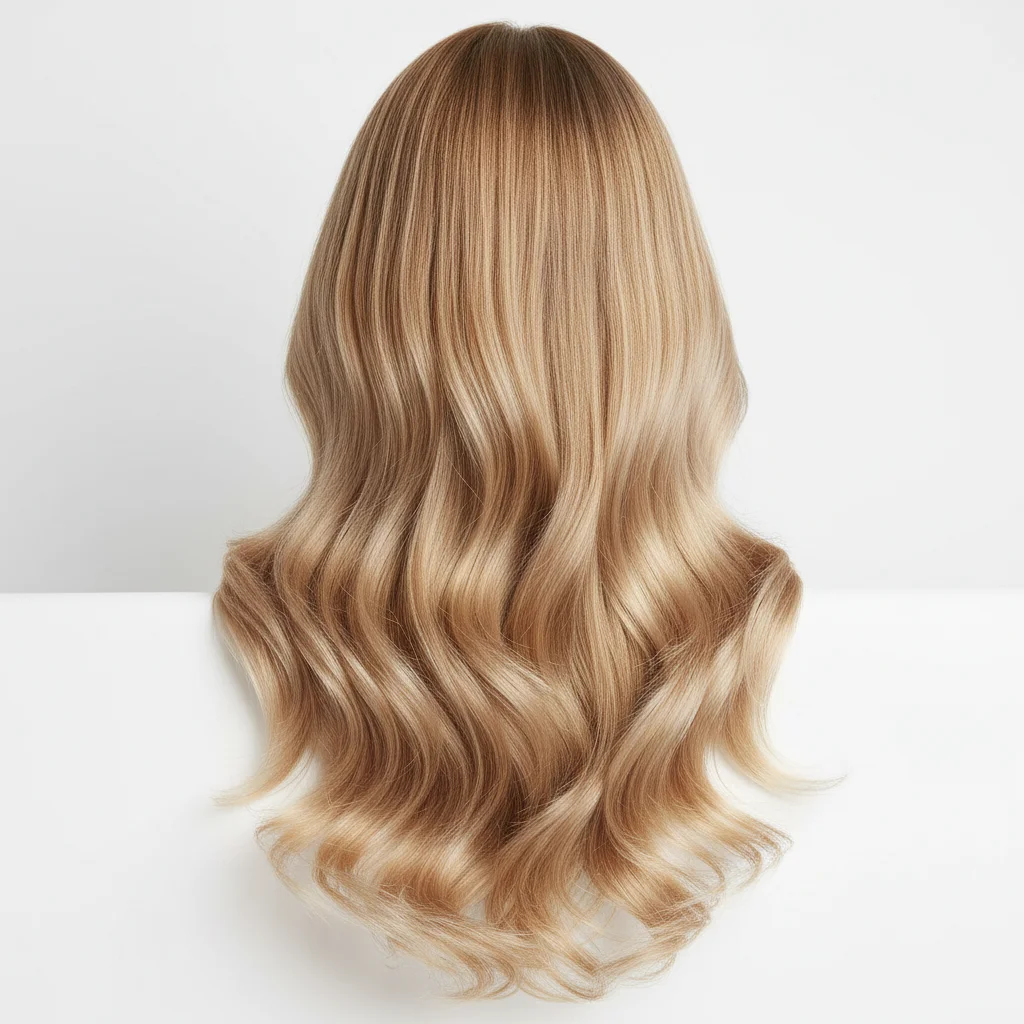
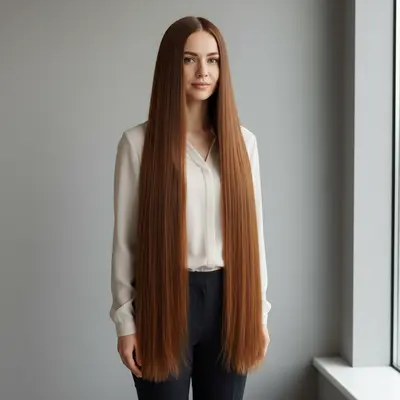
Reference photo showing target waist-length extension style
03Result
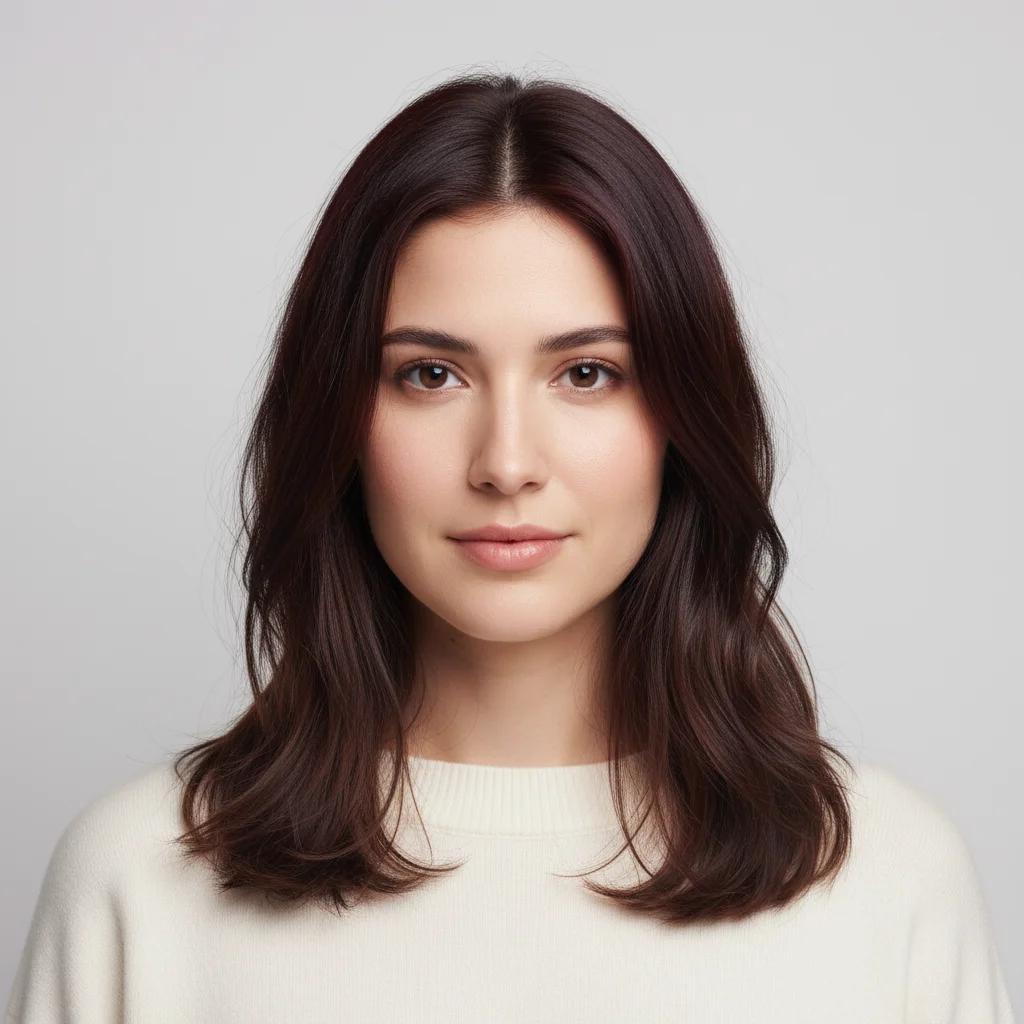
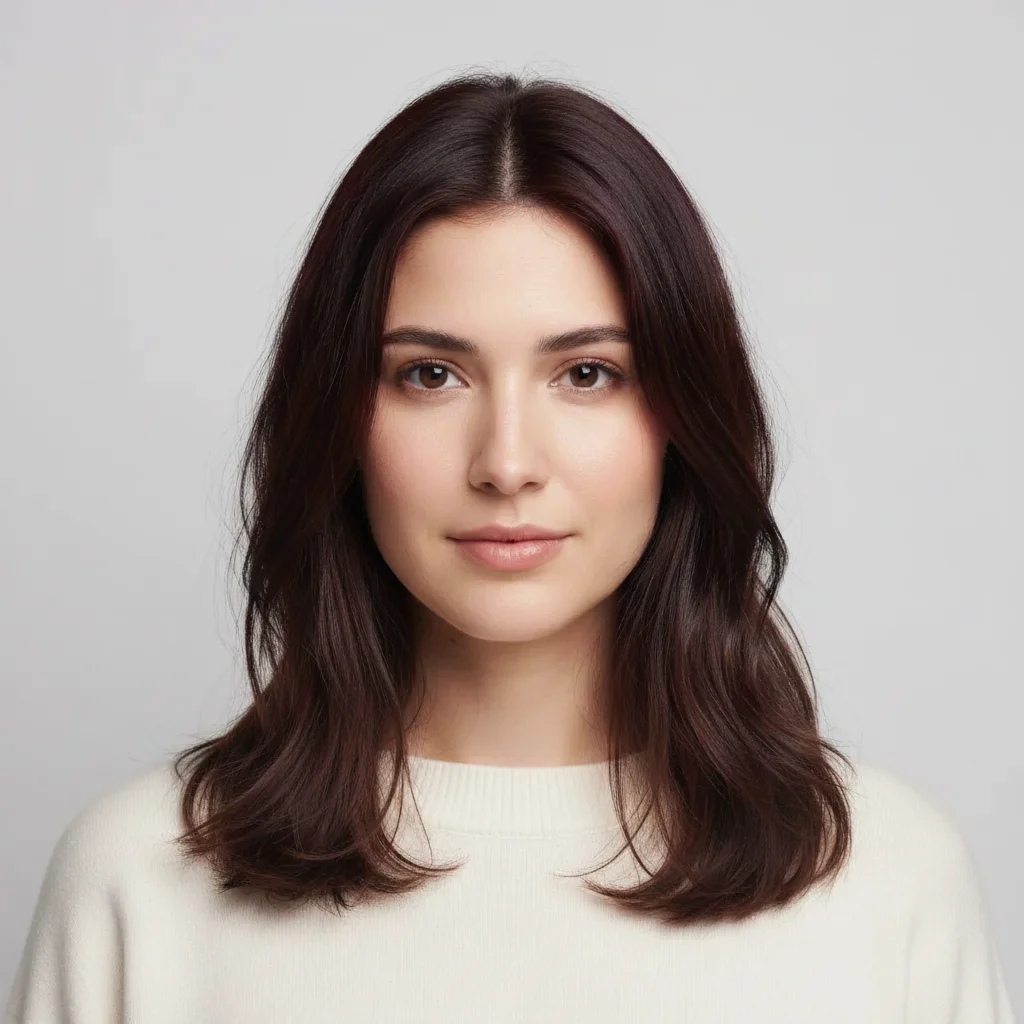
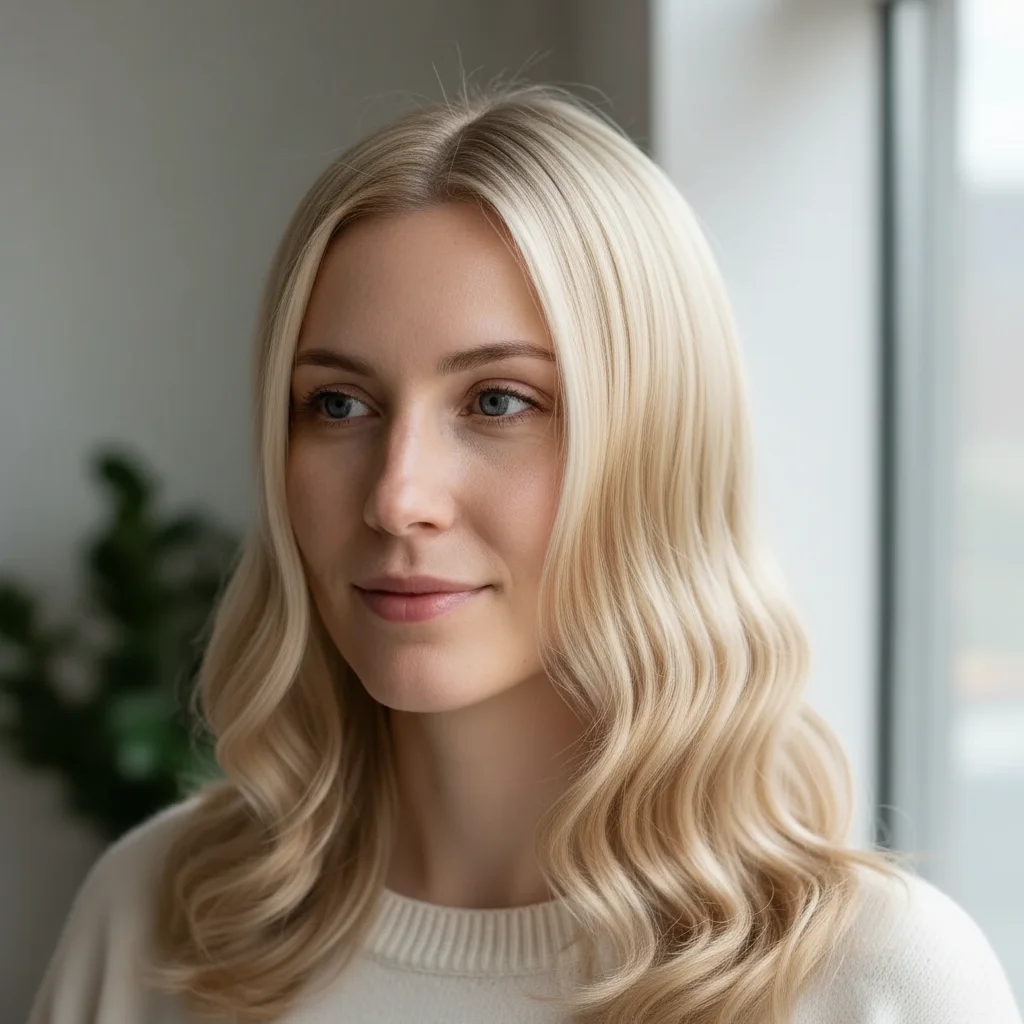
Same woman with waist-length extensions naturally blended in

Upload photo to add hair extensions

"add clip-in volume extensions matching the reference photo, blending with my natural hair color to add significant thickness, no visible seam line"

Release to upload

1 free edit·then from $4.99

Popular use cases:
  • hair extension preview before buying
  • try hair extensions on photo
  • add length to hair photo
  • hair extension salon consultation
  • virtual hair extension try-on
  • waist length hair preview
  • clip-in extension visualization

1Your photo
+
2Reference
=
Result
Portrait with current hair length Your photo
Reference photo showing target extension length and style Reference
Portrait with natural-looking extensions blended in Result

"Add hair extensions from the reference — match my hair color and blend seamlessly"

Cost
Free No signup required
Time
Instant results in 15-30 seconds
Works on
Any device - browser, phone, tablet, desktop
Powered by
AI-powered photo editing

How it works

  1. Upload your two photos

    Drop your portrait photo into EditThisPic, then click '+ Add reference photo' to upload an image showing the hair extension length and style you want to preview. Good reference photos show the full hair length — ideally from the front or side so the extension blending point is visible. JPG, PNG, WebP up to 7MB each.

    Expect: Adding length with color matching: 25–35 seconds. Adding volume plus length: 30–45 seconds.
  2. Describe the extensions you want

    Tell the AI what to apply: 'add the hair extensions from the reference photo, matching my natural dark brown hair color, blending at the shoulder level with natural-looking layering' or 'add waist-length clip-in extension volume from the reference, same texture as my natural hair.' Include the target length, blend point, and texture.

    Tip: Specifying the blend point (where your natural hair ends and extensions begin) gives the most natural result. Say 'blending at the shoulder' or 'seamless from mid-back' to direct the AI.

    Copy one of these to get started:

    Add waist-length extensions from reference add hair extensions from the reference photo to reach waist length, blending seamlessly with my natural dark brown hair color, with layered ends matching the reference texture
    Add volume extensions for thicker look add clip-in volume extensions matching the reference photo, blending with my natural hair color to add significant thickness, no visible seam line
    Add mid-back extensions with natural blend add the hair extensions from the reference photo to reach mid-back length, matching my blonde hair color, with seamless blending at shoulder level and natural layering
    Salon consultation length preview give me a realistic preview of the hair length and volume from the reference photo on my portrait — same texture, same density, blended naturally with my existing hair color
    2 more prompts
    Add wavy extensions for beach look add the wavy extensions from the reference photo to reach my mid-back, matching my natural brown hair color, with loose beach waves matching the reference texture
    Try coloured extensions accent add subtle highlights-style extensions from the reference photo — same placement pattern, same color contrast, blending with my dark hair at the face framing layers
  3. Check the blend line and color match

    Look for the transition zone where your natural hair meets the added length. A natural result should show no harsh line — the texture, color, and weight should transition smoothly. Compare against the reference photo to confirm the target length is right.

  4. Refine blend area with markers if needed

    If there's a visible seam where the extensions join, tap a marker on that area and add 'smooth the transition between natural hair and extensions here for a seamless blend.' One targeted regeneration usually fixes it.

    Tip: The extension blend line is the hardest area to get perfect. If it looks obvious, place the marker exactly on the blend zone and use the fix prompt above.

See it in action

Woman with shoulder-length dark brown hair
Main Photo
Reference photo showing target waist-length extension style
Reference
Same woman with waist-length extensions naturally blended in
Result

Shoulder to waist-length extension preview

Shoulder-length brunette portrait — reference showed waist-length layered extensions. AI extended the length, matched the brown color, and created natural layering with no visible blend line.

Prompt: add hair extensions from the reference photo to reach waist length, blending seamlessly with my natural brown hair, with layered ends matching the reference texture

Woman with thin light brown mid-length hair
Main Photo
Reference image for AI Hair Extensions Preview
Reference
Same woman with voluminous extensions added throughout
Result

Volume boost with subtle length

Thin mid-length hair — reference showed thick voluminous mid-back extensions. AI added significant density while maintaining the natural hair color and creating a natural thickness throughout.

Prompt: add the volume extensions from the reference photo. match the light brown color and density, and blend them naturally into my hair so there's no harsh seam line.
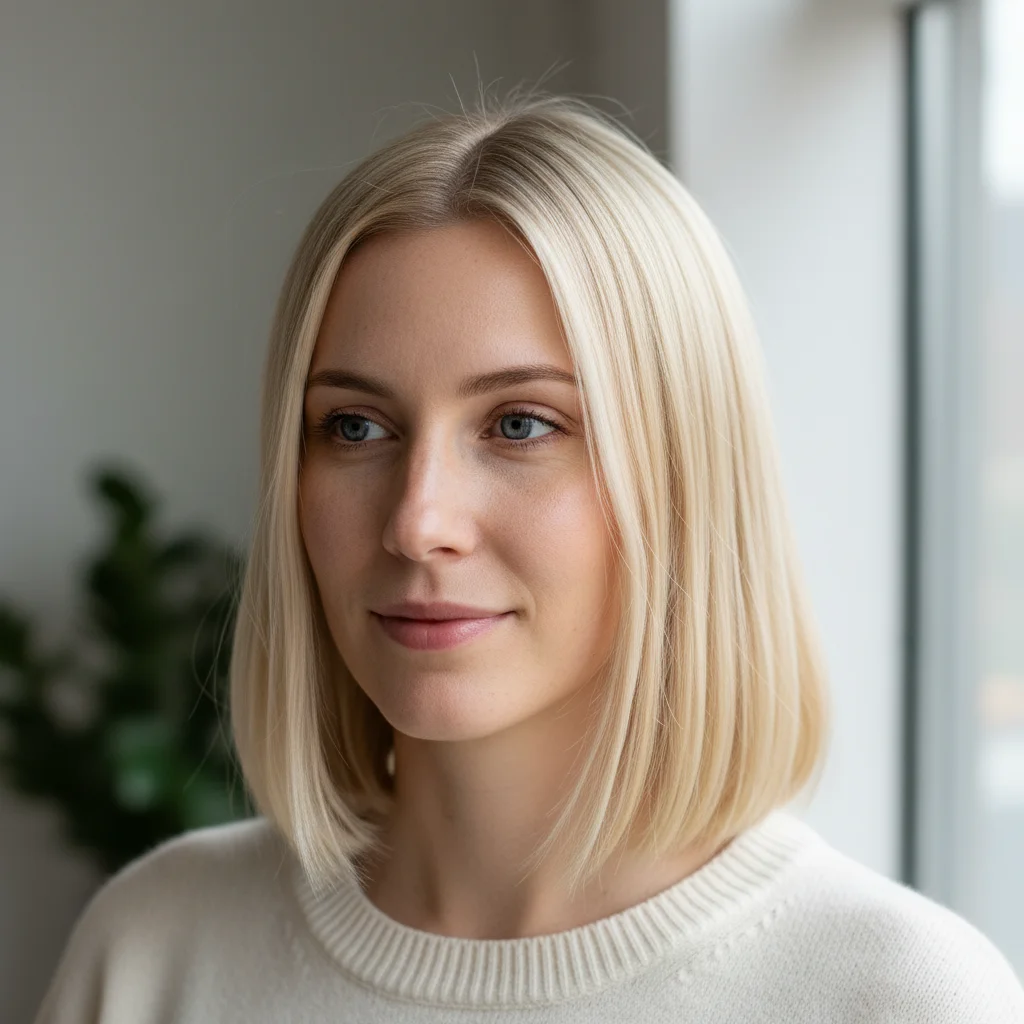
Woman with straight chin-length blonde hair
Main Photo
Reference image for AI Hair Extensions Preview
Reference
Same woman with flowing wavy mid-back extensions added
Result

Wavy extensions for an event look

Straight blonde hair — reference showed cascading beach-wave extensions. AI added the wave texture and length matching the reference, with face-framing pieces preserved from the original.

Prompt: add the beach wave extensions from the reference photo to reach my mid-back, matching my natural blonde hair color. keep the loose waves throughout and preserve my face-framing pieces.

If something looks off

Extension color doesn't match my natural hair

Why: The AI pulled color from the reference instead of your portrait.

Try: add extensions matching the exact hair color from my portrait, not the reference photo color — only use the reference for length and texture

Tip: Be explicit: 'use my natural hair color from my portrait, only match the style from the reference'

Visible harsh line where extensions start

Why: The blend transition between your natural hair and the added length isn't graduated.

Try: smooth the transition between my natural hair and the extensions — no harsh seam line, graduated blending with natural layering

Tip: Tap a marker right on the blend line and use the fix prompt for targeted refinement

Extensions look too thick or unrealistically voluminous

Why: The AI overestimated the density from the reference photo.

Try: reduce the extension density to look more natural and proportional to my existing hair thickness

Tip: Add 'proportional to my existing hair thickness' to anchor the density to your natural hair

Hair length is shorter or longer than the reference

Why: Without a clear length anchor, the AI may interpret the reference length differently.

Try: extend the hair length to [waist / mid-back / hip] matching the length visible in the reference photo exactly

Tip: Describe the target length in terms of body landmarks: 'waist-length', 'mid-back', 'hip-length' — these are more reliable than inches

AI changed wrong area — edited face or background instead of hair

Why: Without a marker, the AI may not isolate just the hair region.

Try: Tap a marker on your hair in the portrait and regenerate with the same prompt to focus the edit on the hair only

Tip: Markers are especially helpful when the background and hair have similar tones — they confirm 'edit only HERE'

Extensions look stringy or lack natural movement

Why: The texture description may not have matched the reference style.

Try: add the extensions with [soft waves / natural movement / slight texture] matching the volume and flow of the reference image

Tip: Describe the desired 'movement' — 'flowing and natural' vs 'sleek and straight' gives the AI the right texture direction

Quick answers

Do I need TWO photos — my portrait AND a reference photo of the extensions?

Yes. This tool works best with two photos: your portrait and a reference photo showing the extension length, texture, and volume you want to try. Upload your portrait, then click '+ Add reference photo' to add the extension reference. The AI reads the target length and style from the reference and applies it to your photo with your natural hair color.

Can I preview how extensions will look before I buy or book a salon appointment?

Yes — this is the primary use case. Find photos of the extension length and style you're considering (from a supplier website, Pinterest, or your stylist's portfolio), upload as the reference, and get a preview on your own portrait. This helps you confirm the length looks right for your face shape and existing hair before spending money on extensions.

Can the AI match my exact hair color for the extensions?

Yes, when you direct it to. In your prompt, include 'matching my natural hair color from my portrait' or 'blend with my [specific color] hair.' The AI reads your actual hair color from the main photo rather than copying the reference photo's color.

How long does hair need to be to add extensions realistically?

The AI can add extensions to any hair length, including very short hair. However, very short-to-very-long transformations (like pixie cut to waist length) may look less natural because the blend point would be near the scalp. The most realistic results are when adding length that's 1–2 steps beyond your current length, or when adding significant volume to thin hair.

Can I use this to decide between clip-in extensions and tape-in extensions?

The tool focuses on the visual look — length, volume, and texture — rather than the extension attachment method. Both clip-in and tape-in extensions create similar visual results. Use references of each style to compare how the final look would appear, then decide on the method with your stylist.

How much does EditThisPic cost?

You get 1 free edit per week — no account needed. After that, credit packs start at $1.99 for 3 edits. Monthly plans start at $4.99/mo for 15 edits with unused credits rolling over. All edits are full resolution with no watermark.

Preview your extension look now

Upload your portrait and a reference photo. Free, no account required.

1 free edit included·Credit packs from $4.99